How to Create Stunning Food Photography for Menus and Blogs with AI?
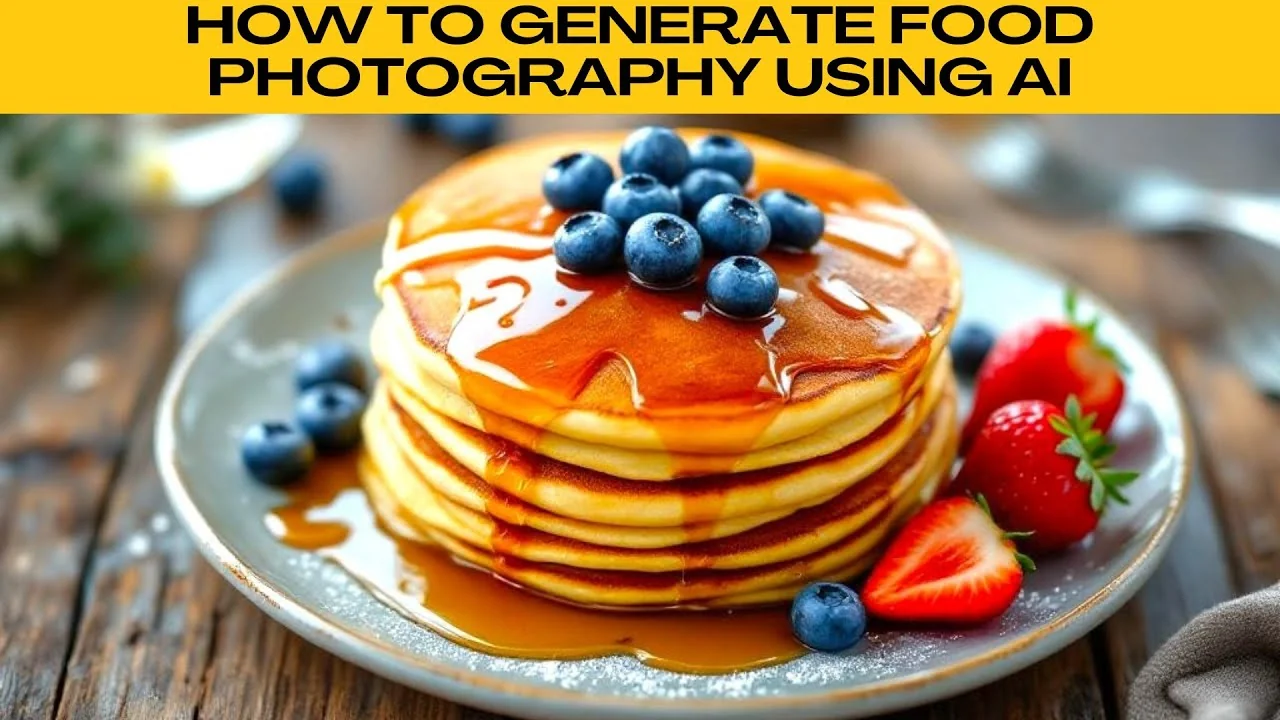
I will teach you how to generate food photography using AI. Food photography is a powerful way to tell stories, market recipes, promote products, or enhance your content visually.
With Photo Room's AI photography tool, you can generate realistic, styled, and visually stunning food images just by describing what you want. A free account is enough to try out most features.
Get started
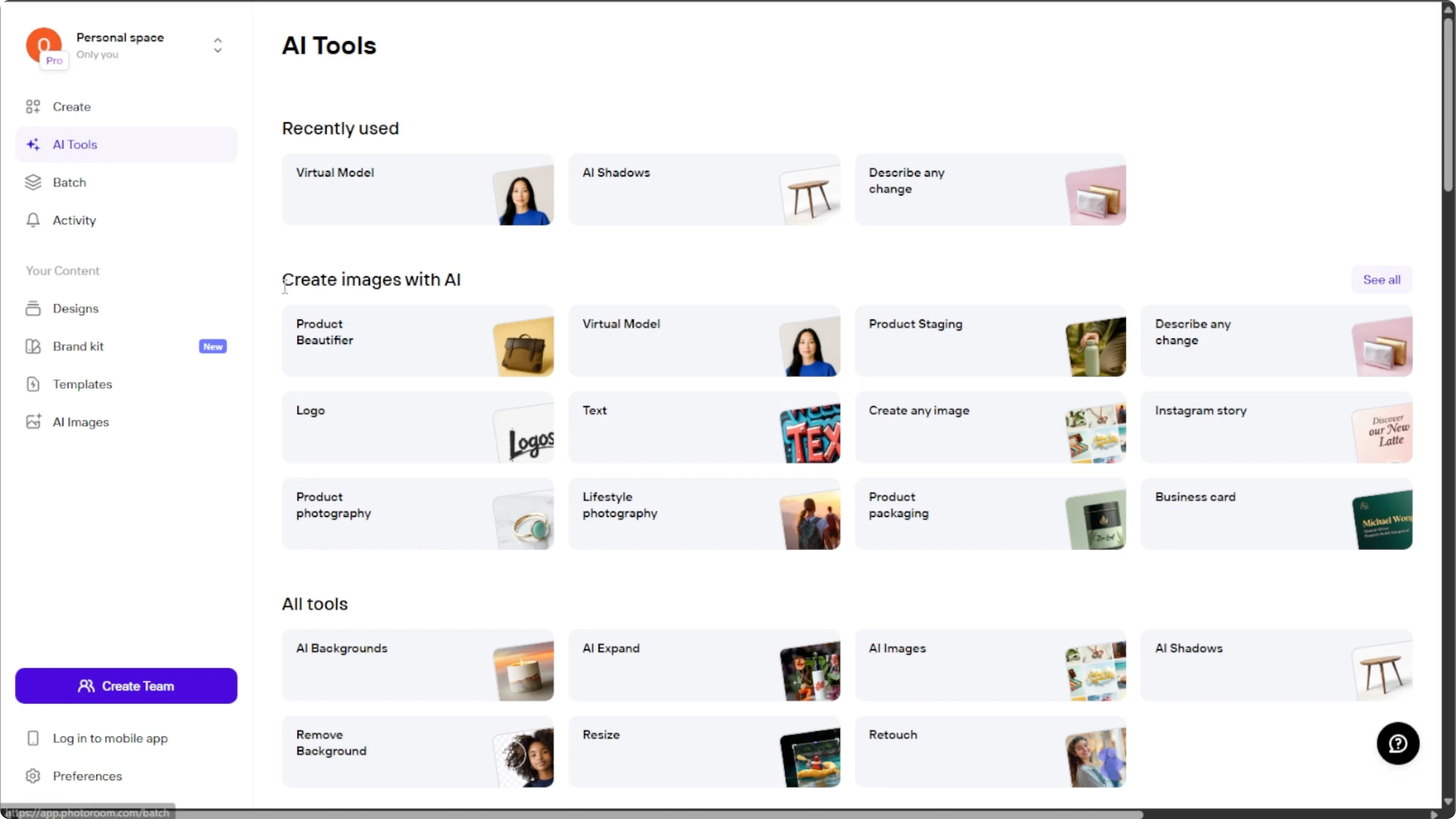
Go to your browser and open Photo Room, and create an account or log in if you already have one. On the homepage, look at the left hand menu panel and click on AI tools to open Photo Room's full suite of smart features.
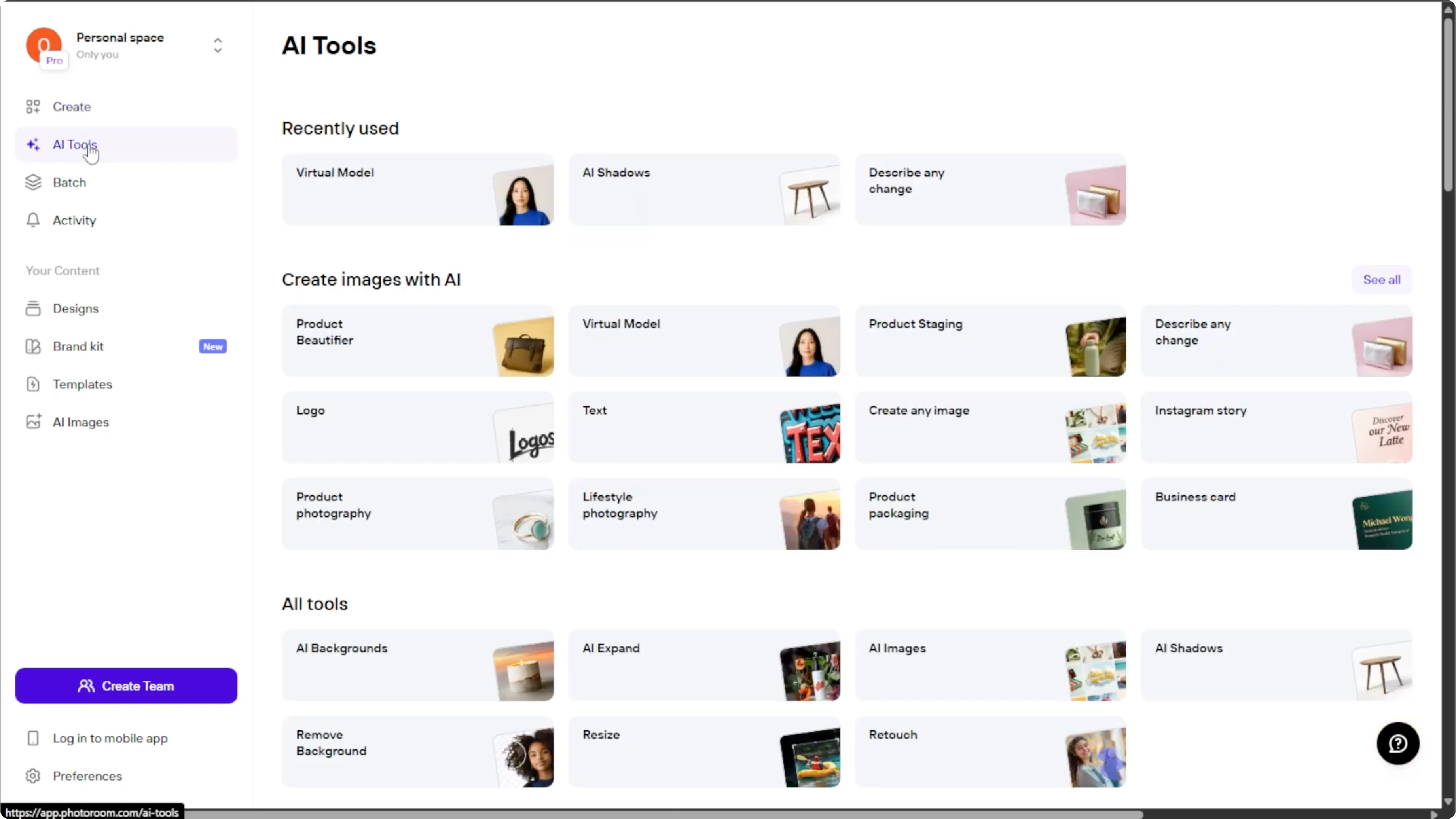
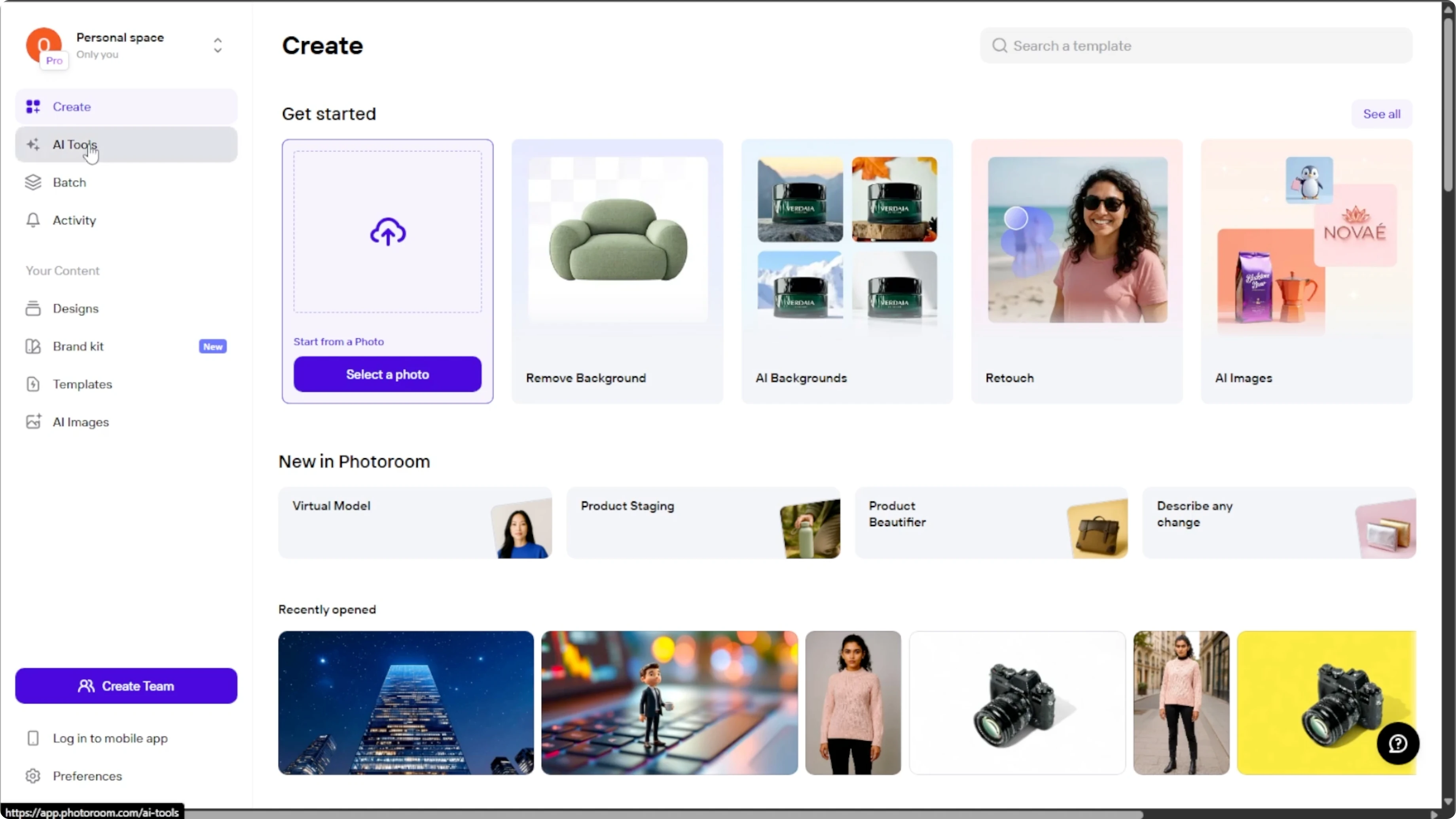
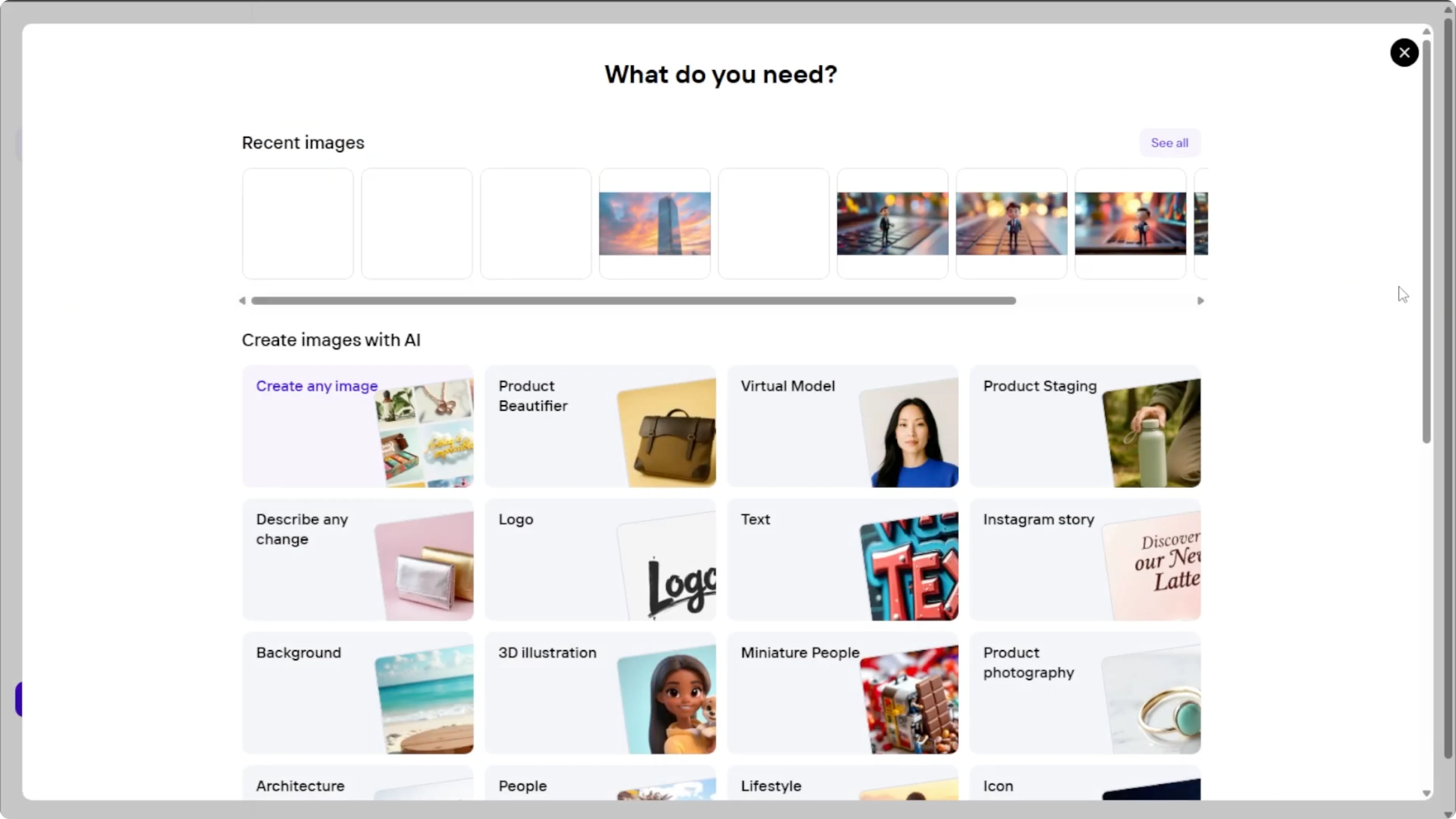
On the AI tools page, scroll down to the section called create images with AI and click see all to browse all creative tools. Find and click on food photography. This is where the magic happens.
Write a strong prompt
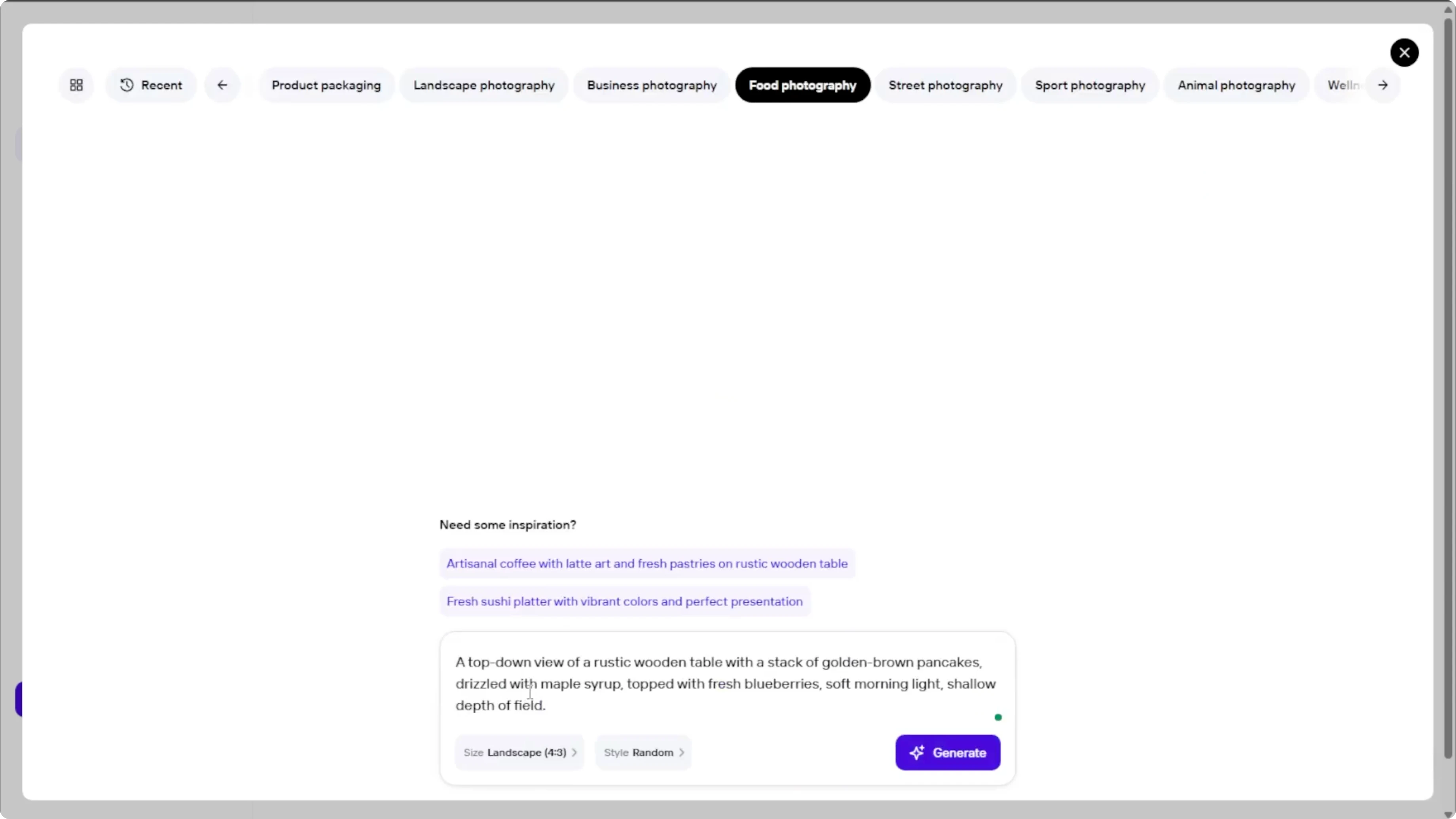
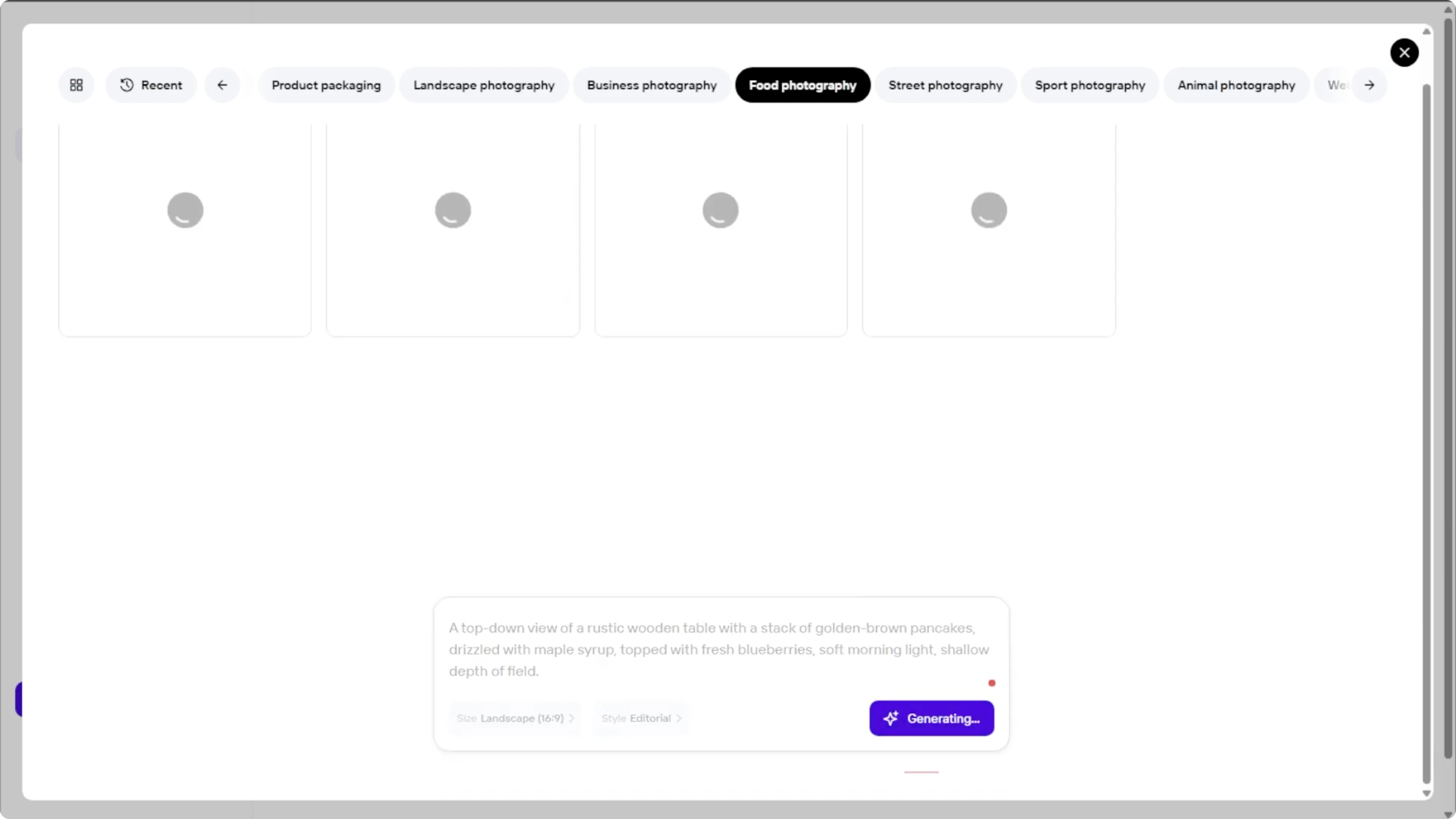
In the text prompt box, type a detailed and vivid description of the food photo that you want to generate. The more specific you are, the better the AI can visualize your idea. If you are not sure what to write, click on the inspiration examples provided by the site to get ideas.
Read More: Add Cartoon Effect Photo Canva Ai
Choose image size
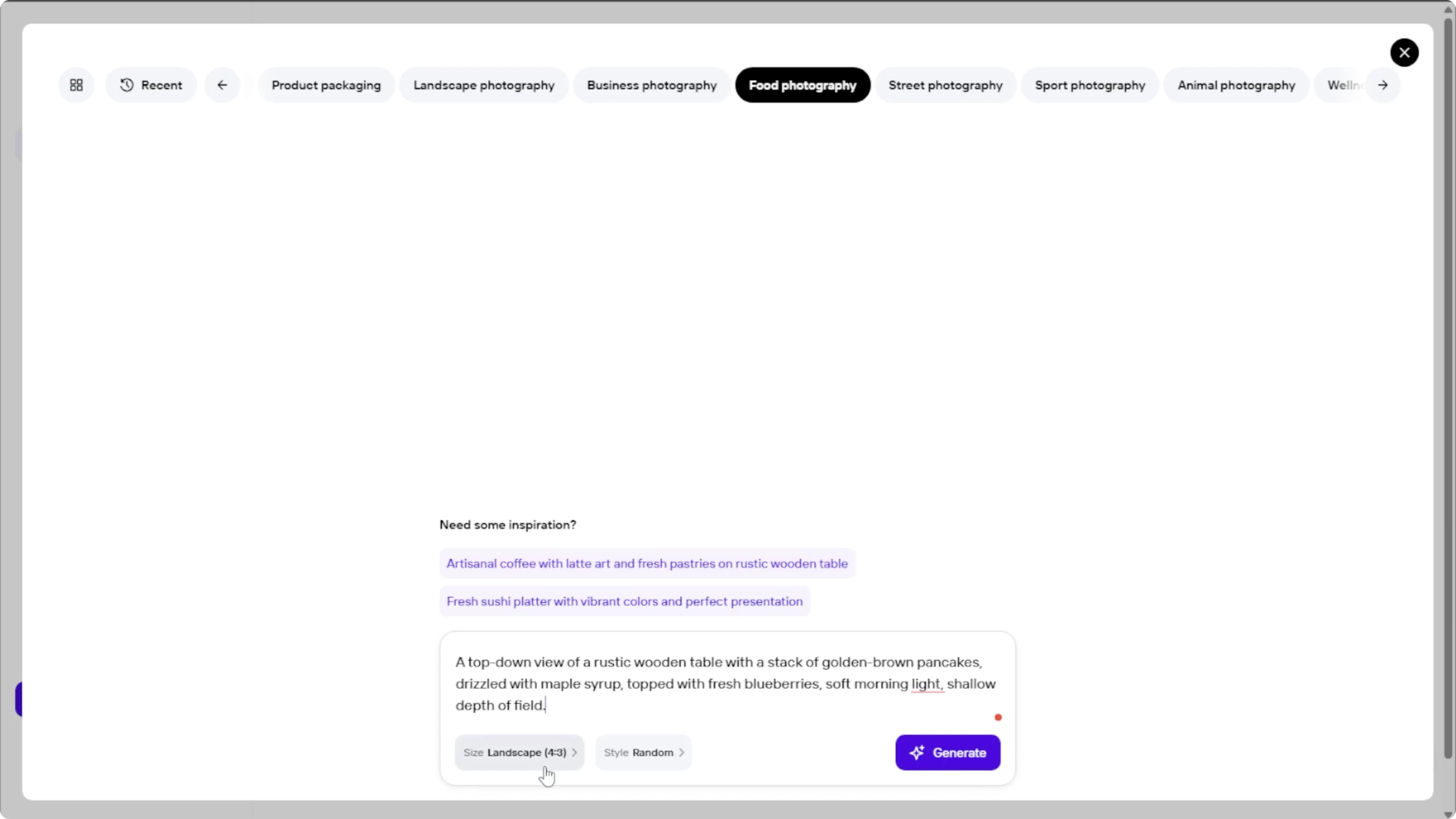
Click on the size settings and select the format that best fits your project. You have 1x1 square which is ideal for Instagram posts. 3x4 or 9x16 portrait is great for stories, reels, or Pinterest, and 4x3 or 16x9 horizontal is perfect for blog headers, YouTube thumbnails, or websites.
Pick a style
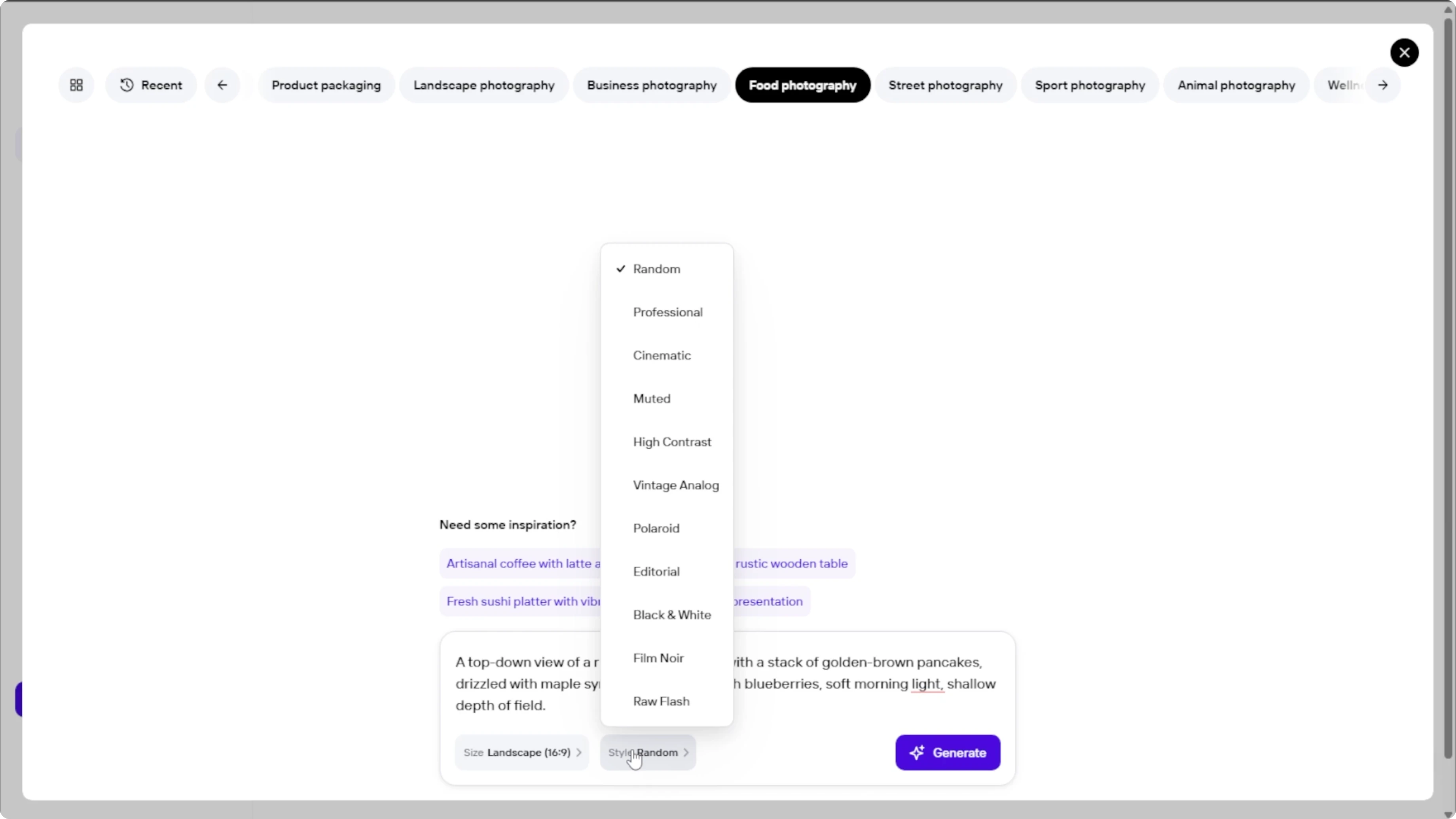
Click on the style settings to choose how your food image should look. Available options include professional, cinematic, muted, high contrast, vintage analog, Polaroid, editorial, black and white, film noir, raw flash, and random. You can change the style later if you are not satisfied with the result.
Generate images
Once your prompt, size, and style are set, click the Generate button. Photo Room will create four image variations based on your inputs. You can click on each one to preview it in detail.
Enhance and refine
When previewing the generated image, you have several enhancement options. Remove background to make the food stand out or place it on a new scene. Generate four more based on the selected image to get more variations.
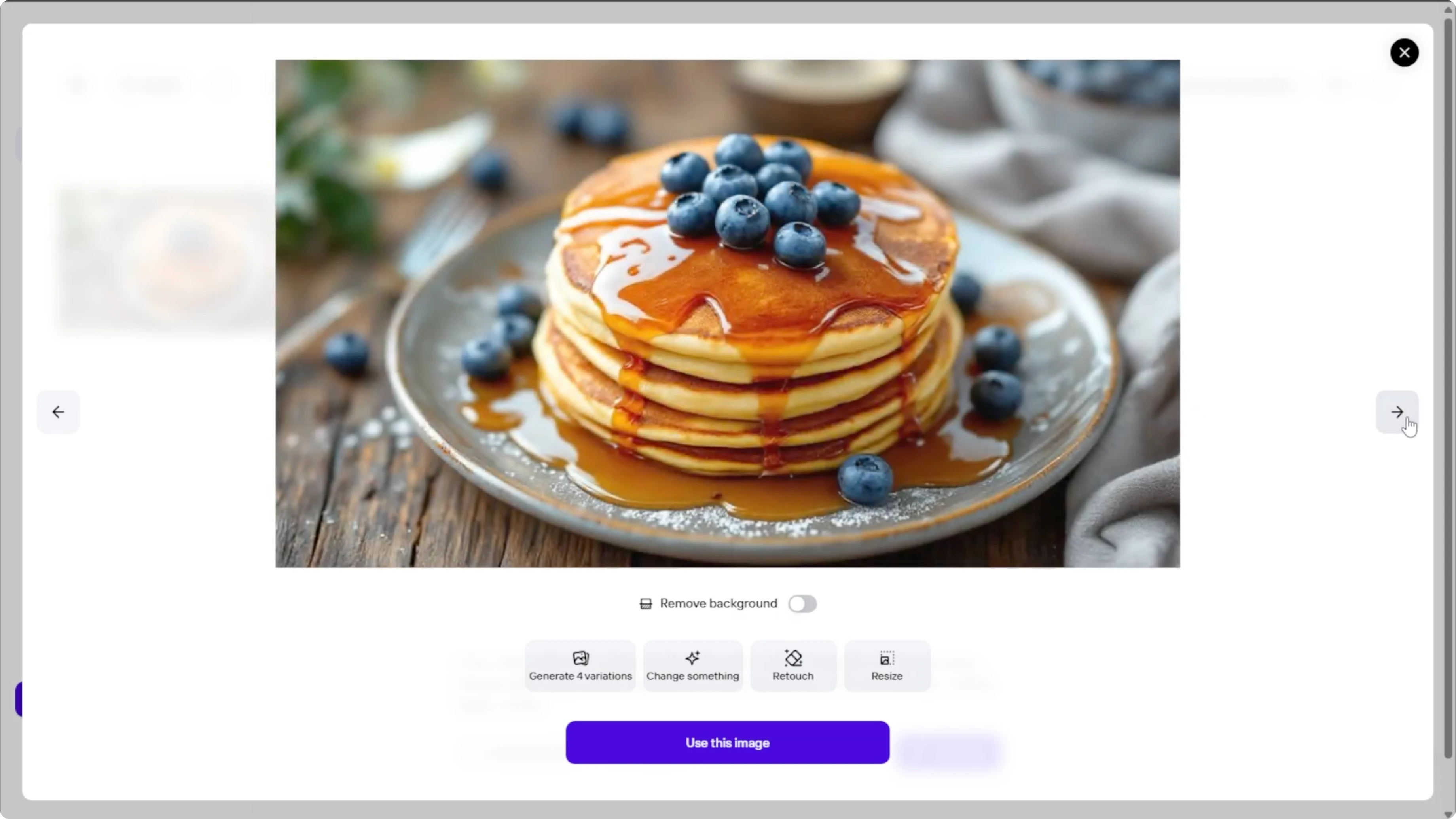
Click Change something if you want to edit specific parts. You will be prompted to describe the change in plain language. Photo Room's AI will update the image without starting from scratch.
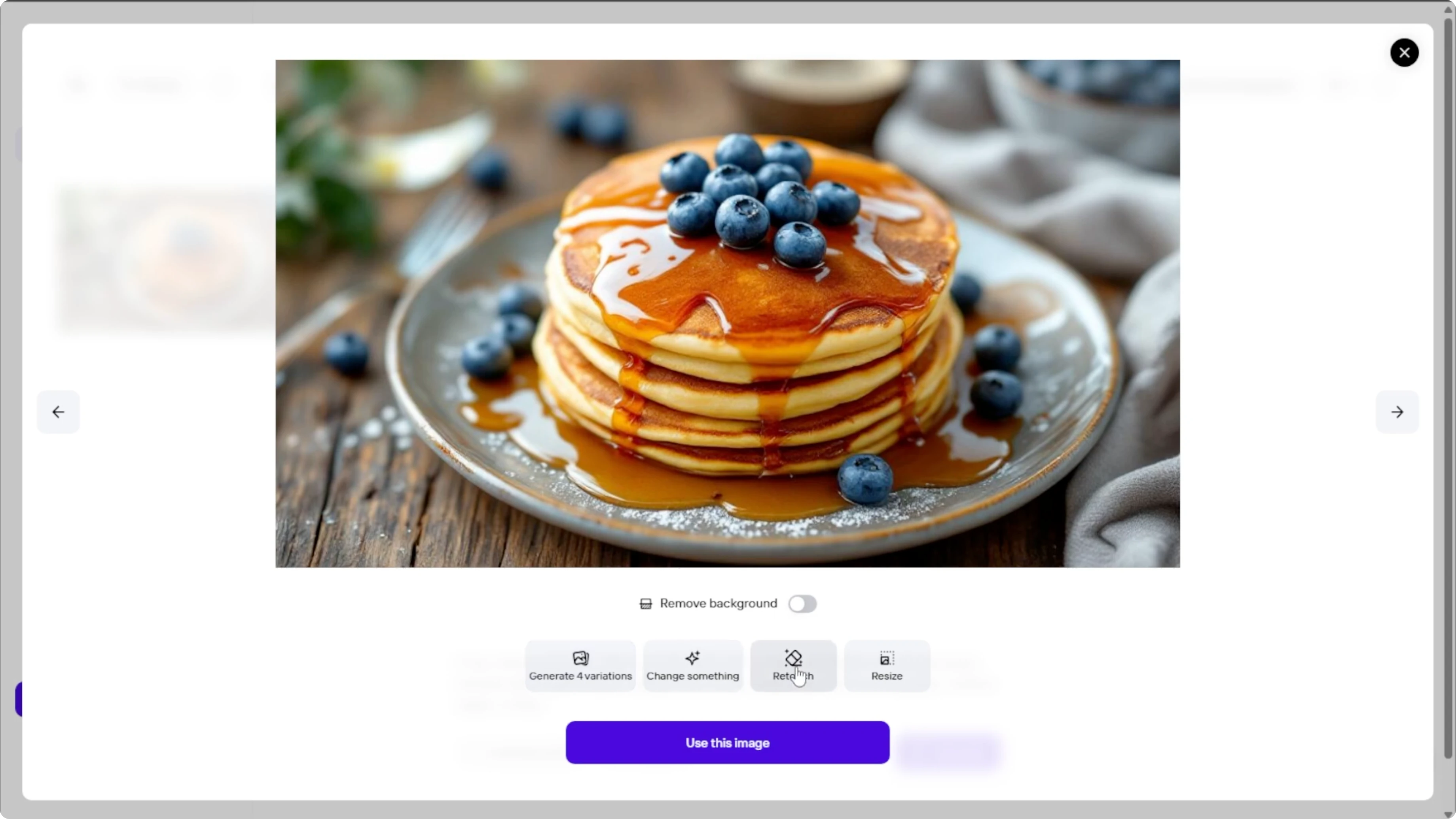
Use Retouch to improve lighting, shadows, or textures. Use Resize to modify image dimensions for various platforms.
For a broader editing workflow, check out our AI editing guide to plan post processing after generation.
Edit and export
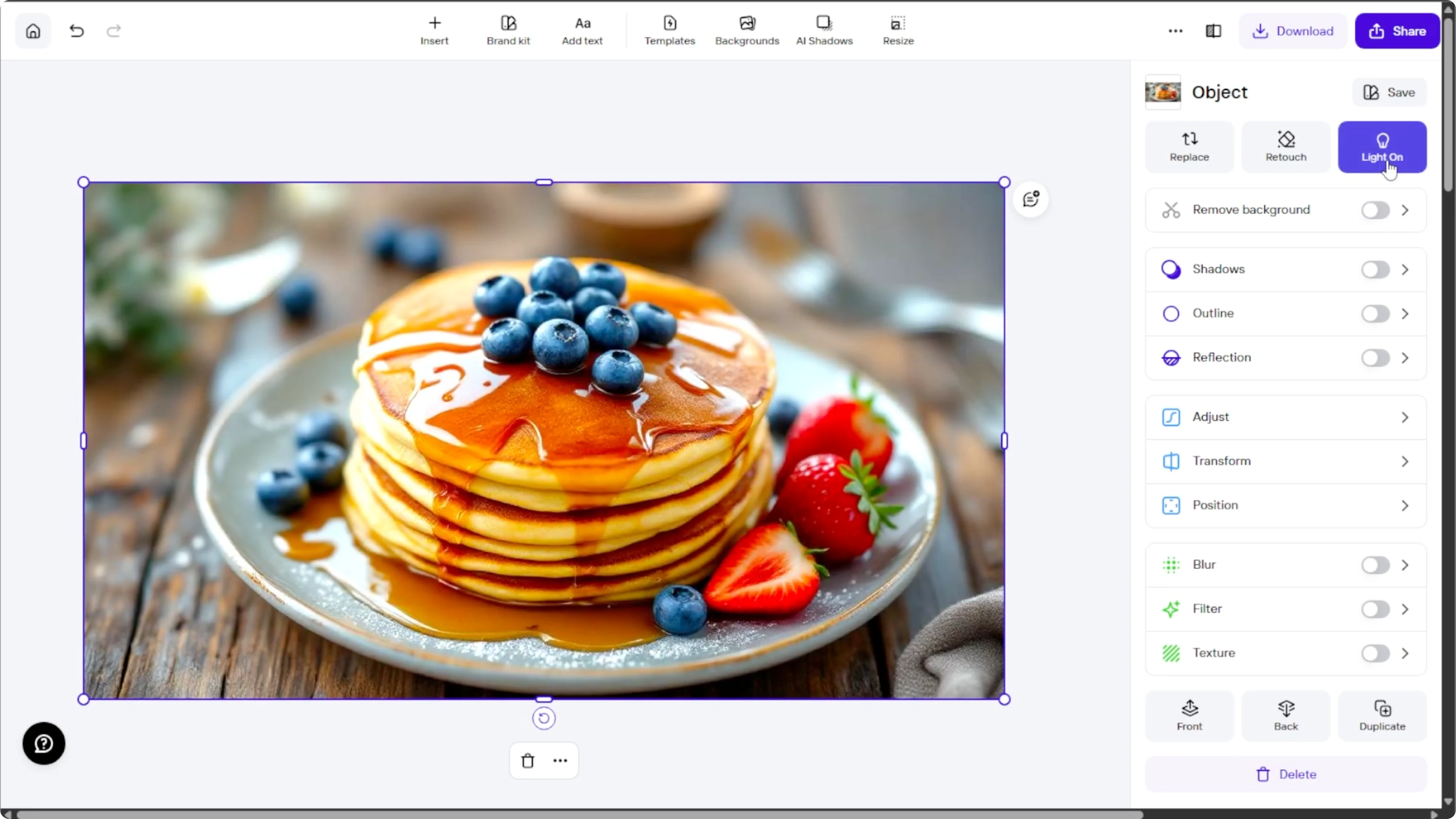
Once you are happy with the image, click Use this image. You will be taken to Photo Room's image editor where you can add studio lights or color effects, place text overlays, combine elements into a collage, or retouch details manually.
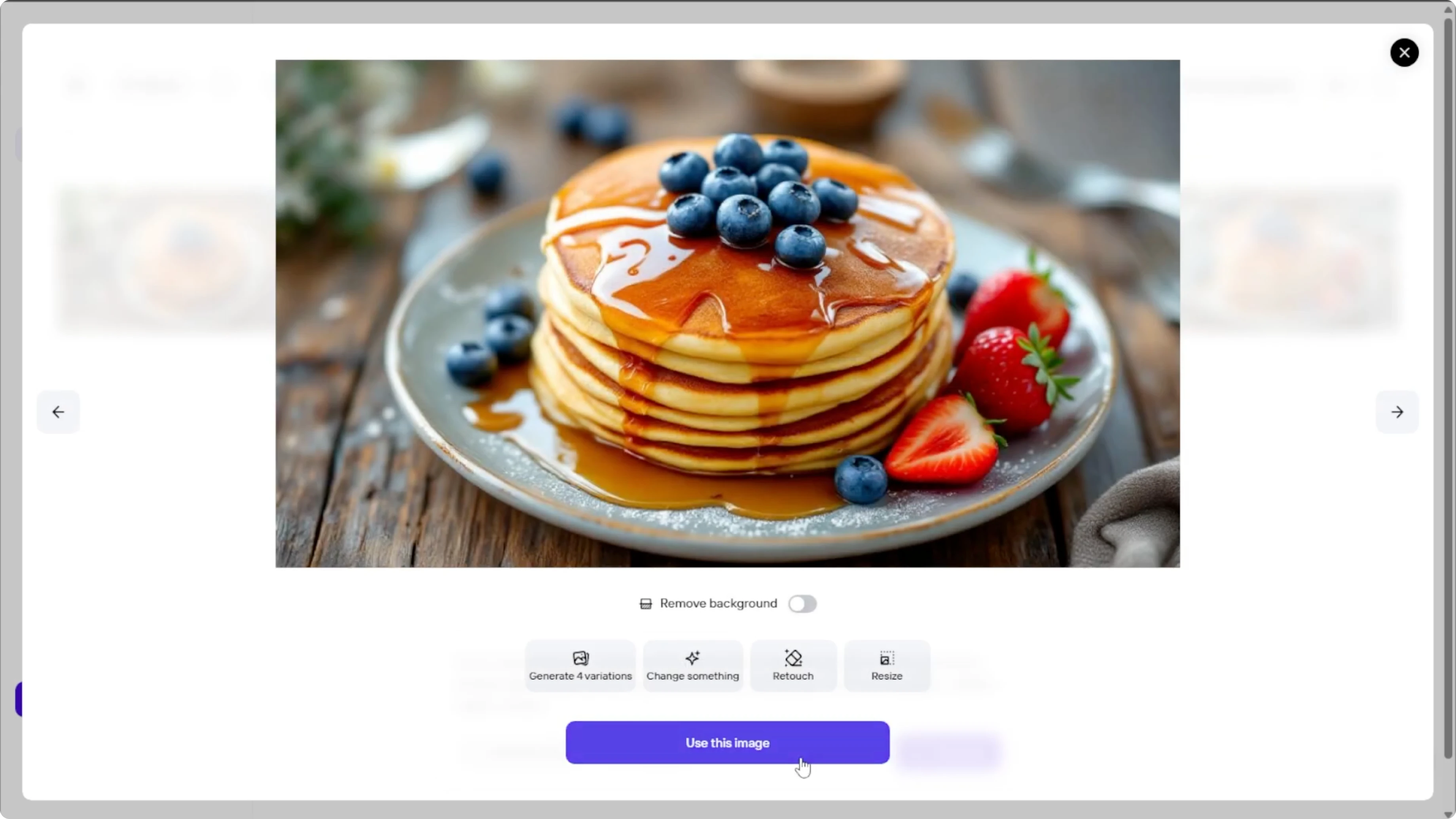
When finished, click the Download button to save your image to your computer.
Read More: Add Realistic Tattoos Photo Ai
Trial option
You can use a 7-day free trial to unlock unlimited access to tools and image downloads during your testing period.
Final thoughts
Photo Room makes it simple to describe a concept, pick the right size and style, and generate polished food photos. Refine with background removal, targeted edits, and retouching, then export for any platform. Start with a specific prompt, preview the variations, and fine tune until the image matches your vision.
Recent Posts

How to Visualize Yourself as a Pixelized Character with AI?
How to Visualize Yourself as a Pixelized Character with AI?

How to Revive Faded Memories and Enhance Image Clarity with AI?
How to Revive Faded Memories and Enhance Image Clarity with AI?

How to Visualize Yourself as an Animal Crossing Character with AI?
How to Visualize Yourself as an Animal Crossing Character with AI?