How to Seamlessly Swap and Blend Faces in Photos with AI?
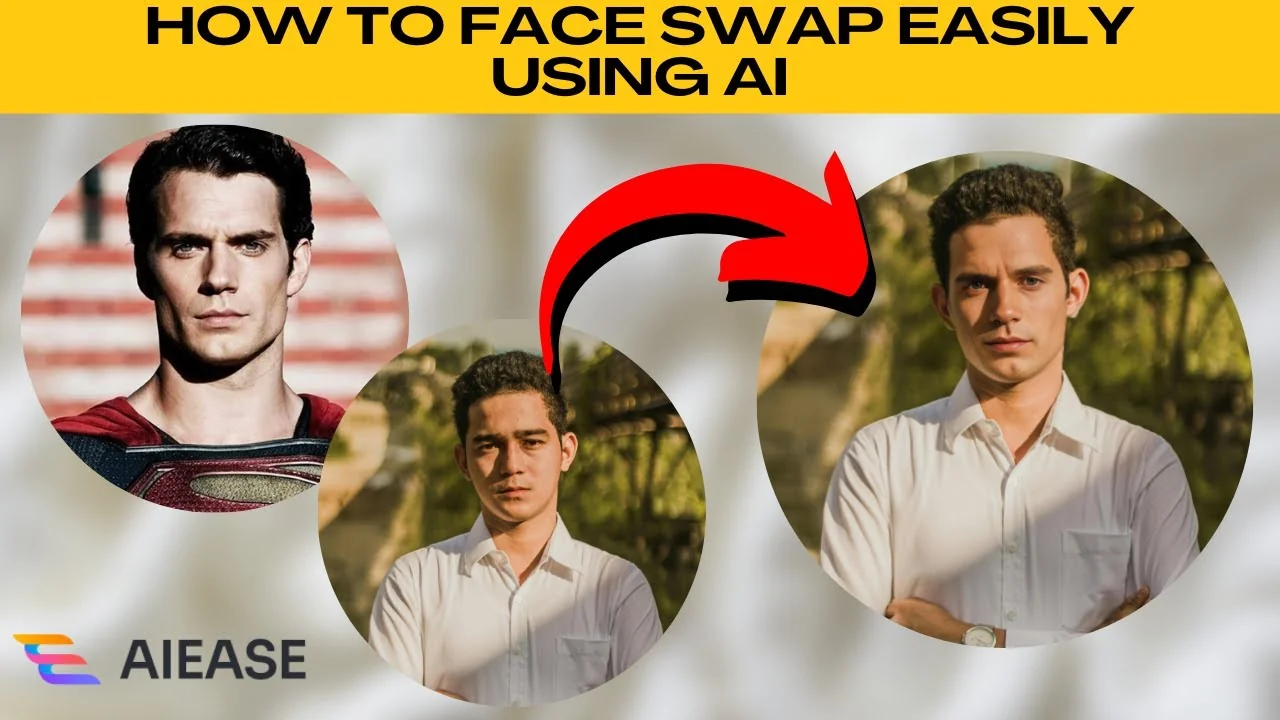
I will teach you how to face swap easily using AI. With AIE, you can pull off a realistic face swap in seconds.
If you want to combine two photos creatively for edits, see this tutorial on blending two images in Canva.
Single face swap
Head over to AIE's face swap tool. When the page loads, you will see two options at the top, Swap Face for placing one face in a photo and Multiple Faces for swapping several faces in a group photo.
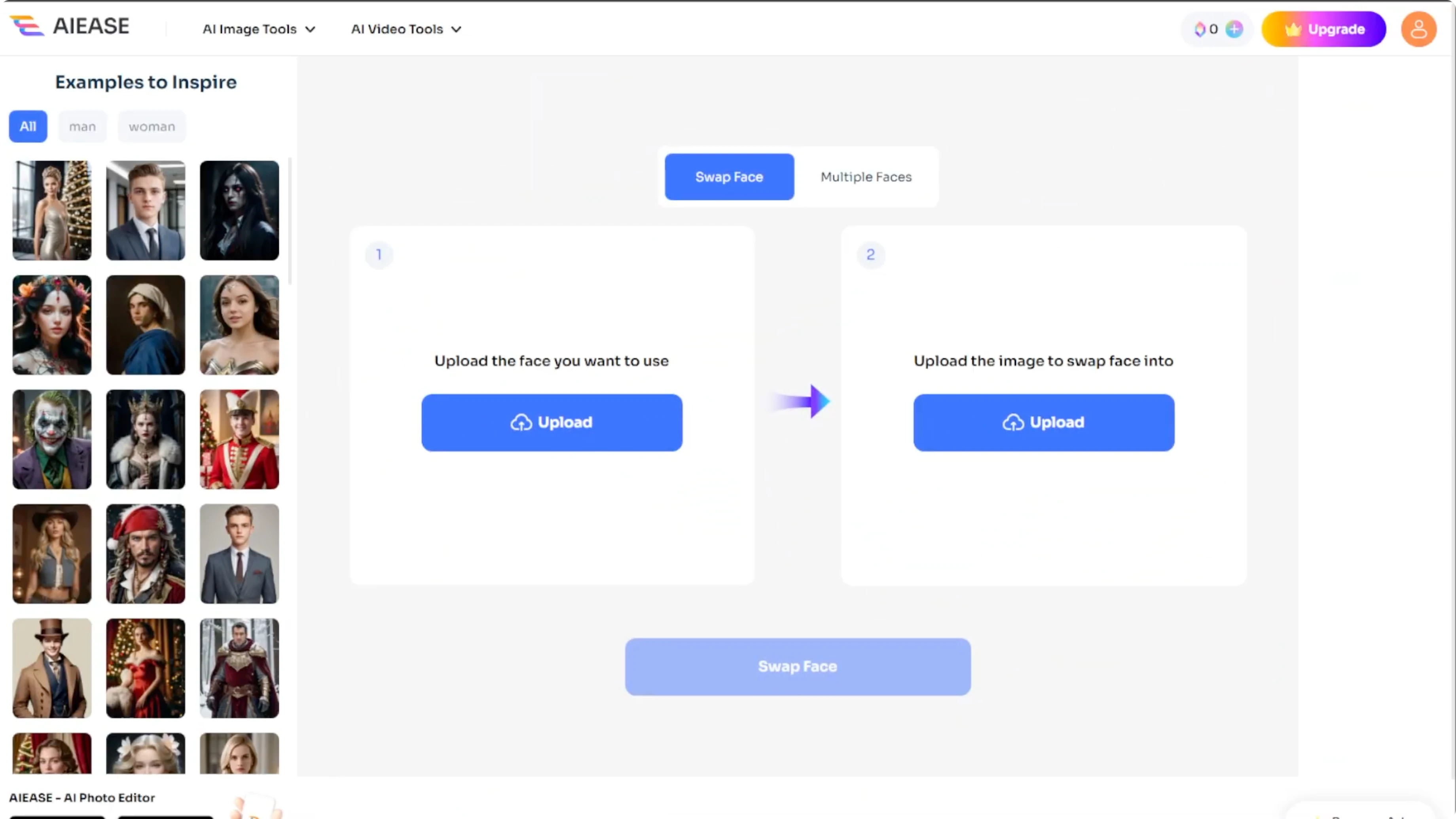
In the Swap Face panel, you will find two upload boxes. Upload the target face, which is the face you want to insert. Upload the main image, which is the image where you want that face to appear.
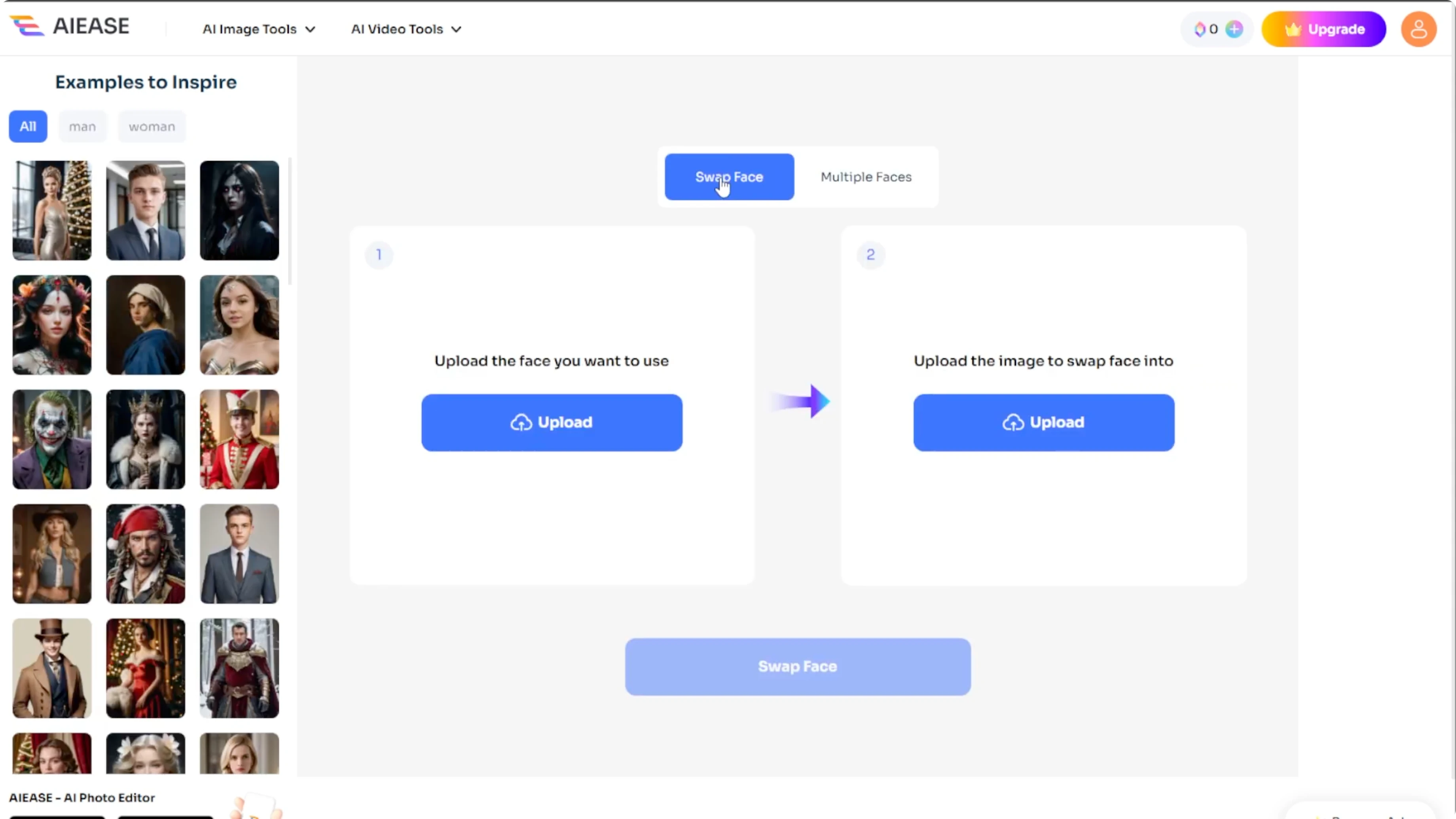
AIE offers sample images, perfect if you just want to try it out first. Click Swap Face after both images are uploaded. Processing takes around 10 seconds.
When your image is generated, download the result, reupload new images to try again, or share directly to your social platforms.
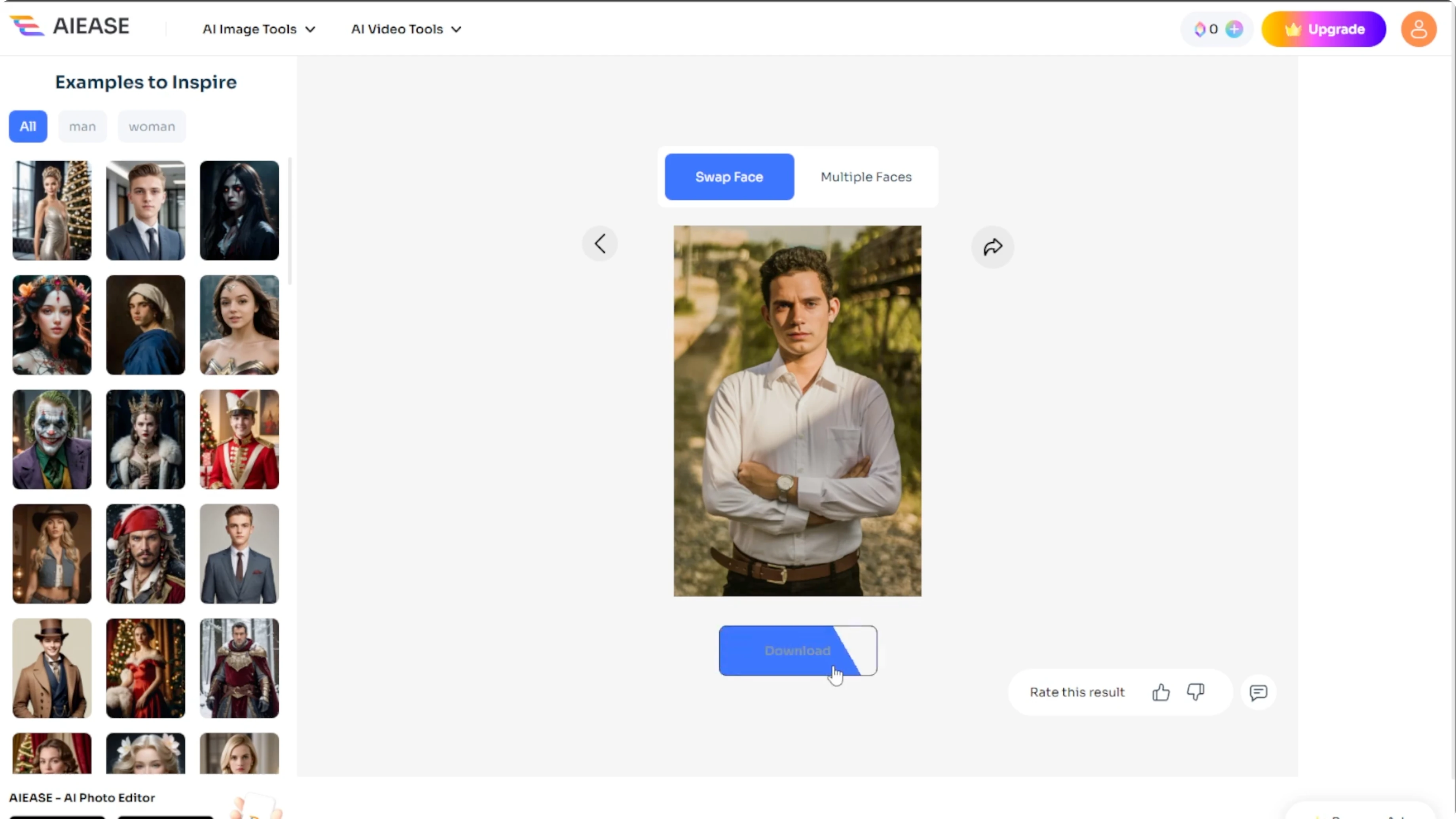
If you are experimenting with looks, you might also want to change your hairstyle in photos using AI.
Multiple faces
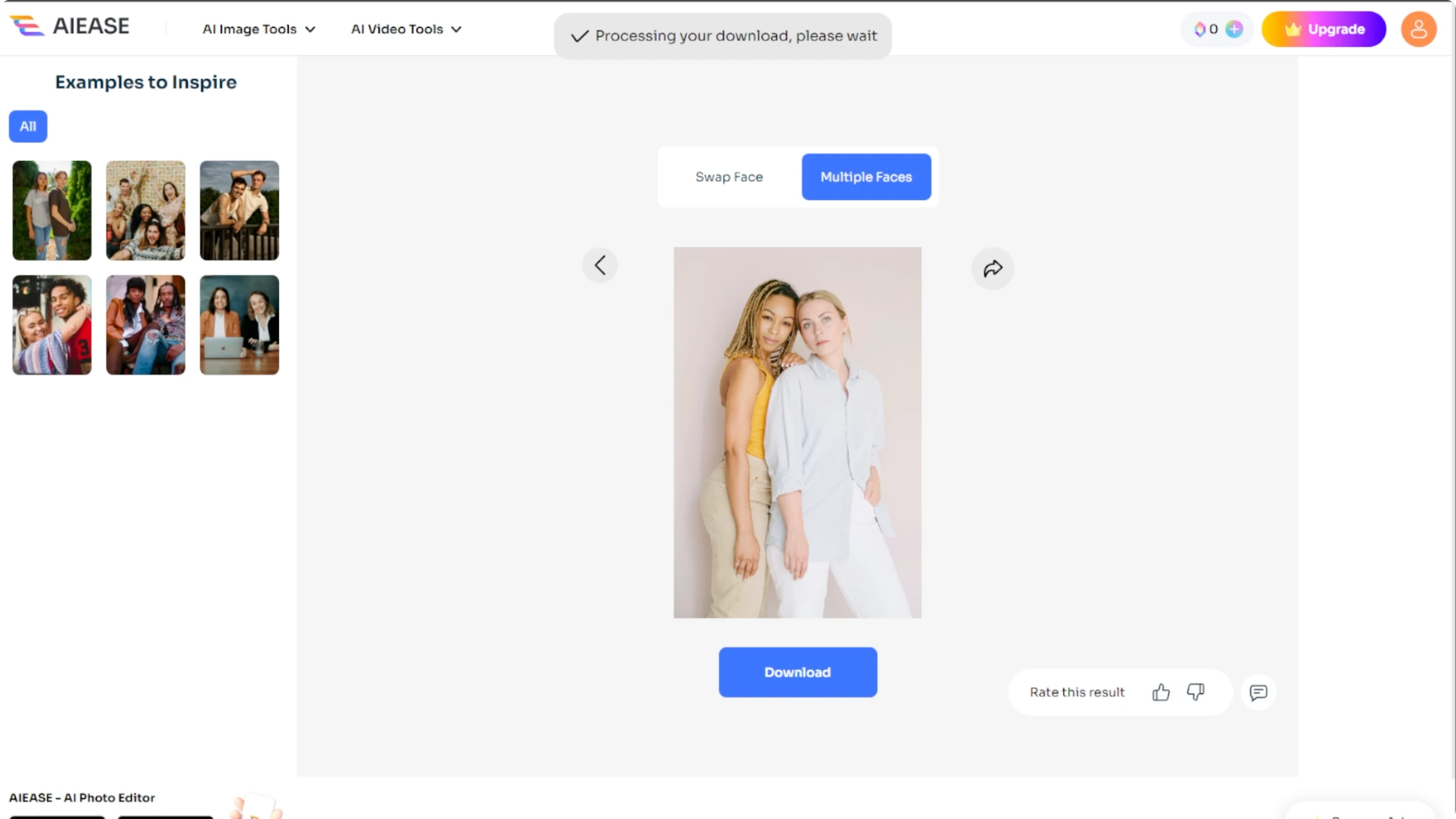
Click the Multiple Faces tab. Upload the image that you would like to edit. The AI will automatically detect all faces in the photo.
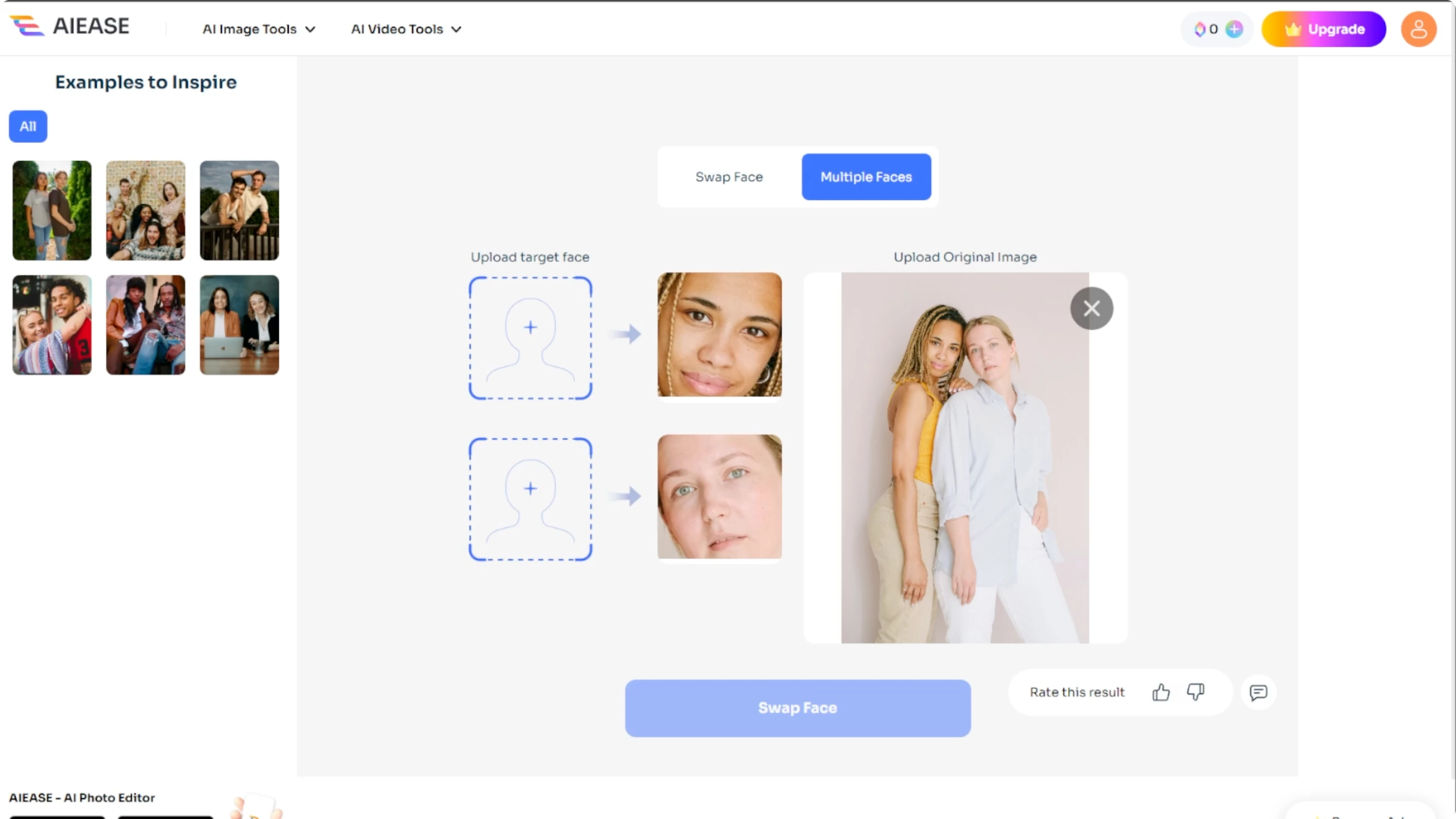
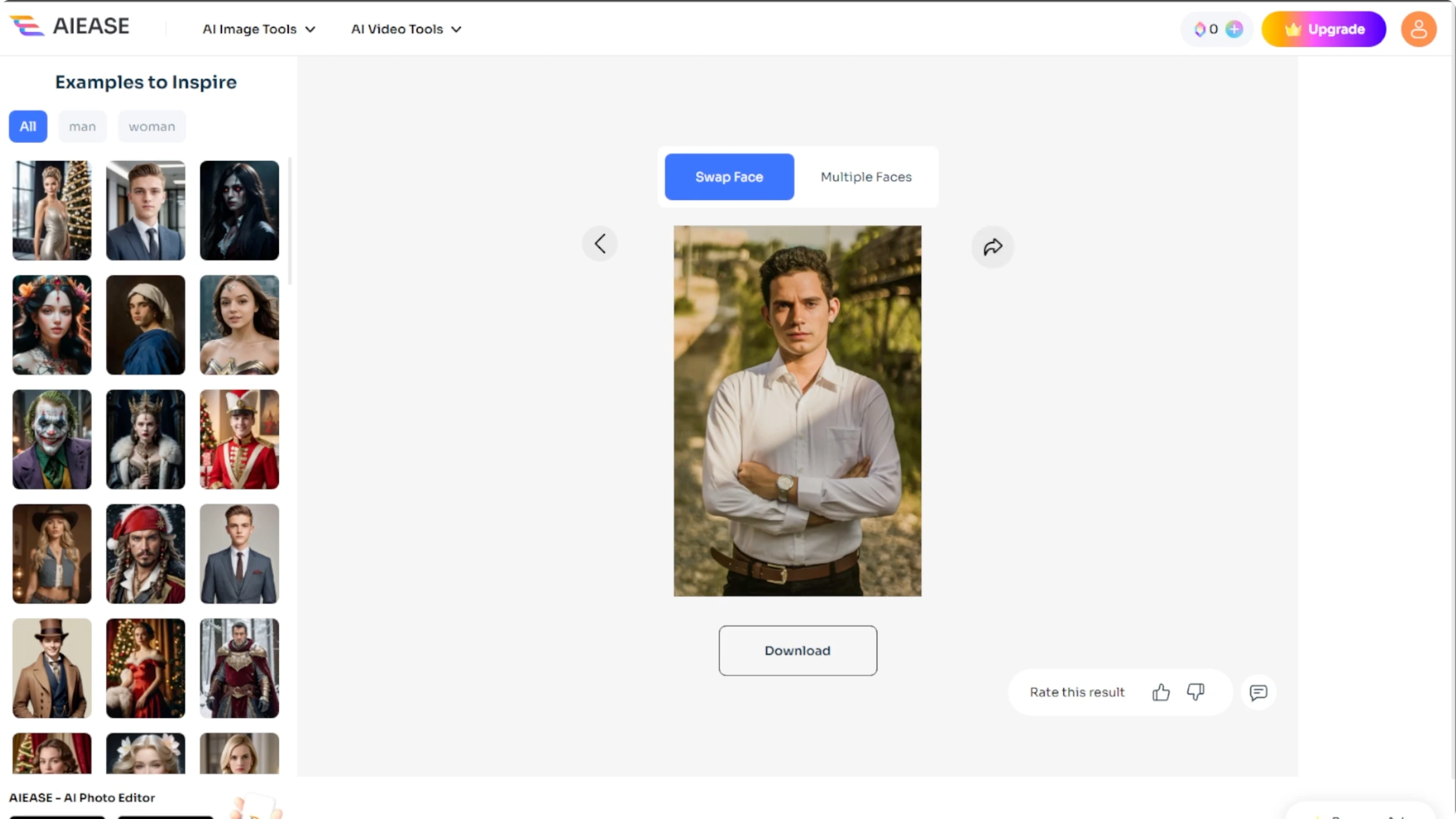
Click on the faces that you want to replace. Upload the source face you would like to use for each one. Hit Swap Face and you will get results in a few seconds.
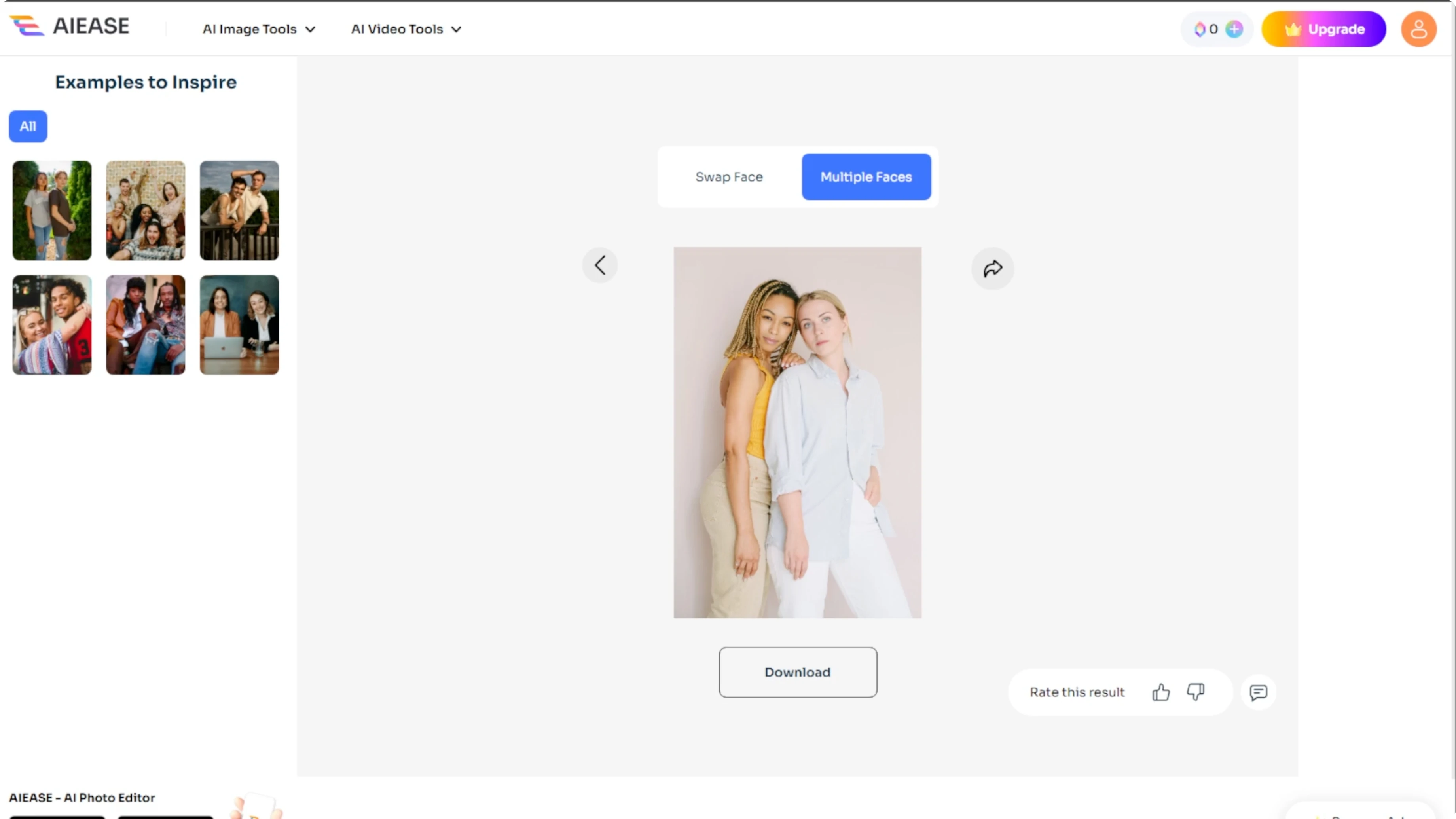
After the multi face swap is done, download the result to your computer, share it online, or reupload a new image to start over.
For creative lighting edits that pair well with swapped portraits, try this guide on turning daytime photos into night scenes with AI.
Results
You can create a hilarious meme or test how you look as a movie star. AIE's face swap tool makes it fast and freakishly realistic. With both single and multiple face swap features, there are many creative options.
Final thoughts
Face swapping with AIE is quick, simple, and produces realistic results. Upload your images, pick single or multiple swaps, and generate the edit in seconds. Download, reupload, or share until you get the look you want.
Recent Posts

How to Visualize Yourself as a Pixelized Character with AI?
How to Visualize Yourself as a Pixelized Character with AI?

How to Revive Faded Memories and Enhance Image Clarity with AI?
How to Revive Faded Memories and Enhance Image Clarity with AI?

How to Visualize Yourself as an Animal Crossing Character with AI?
How to Visualize Yourself as an Animal Crossing Character with AI?