How to Automatically Crop and Frame Your Photos Professionally with AI?
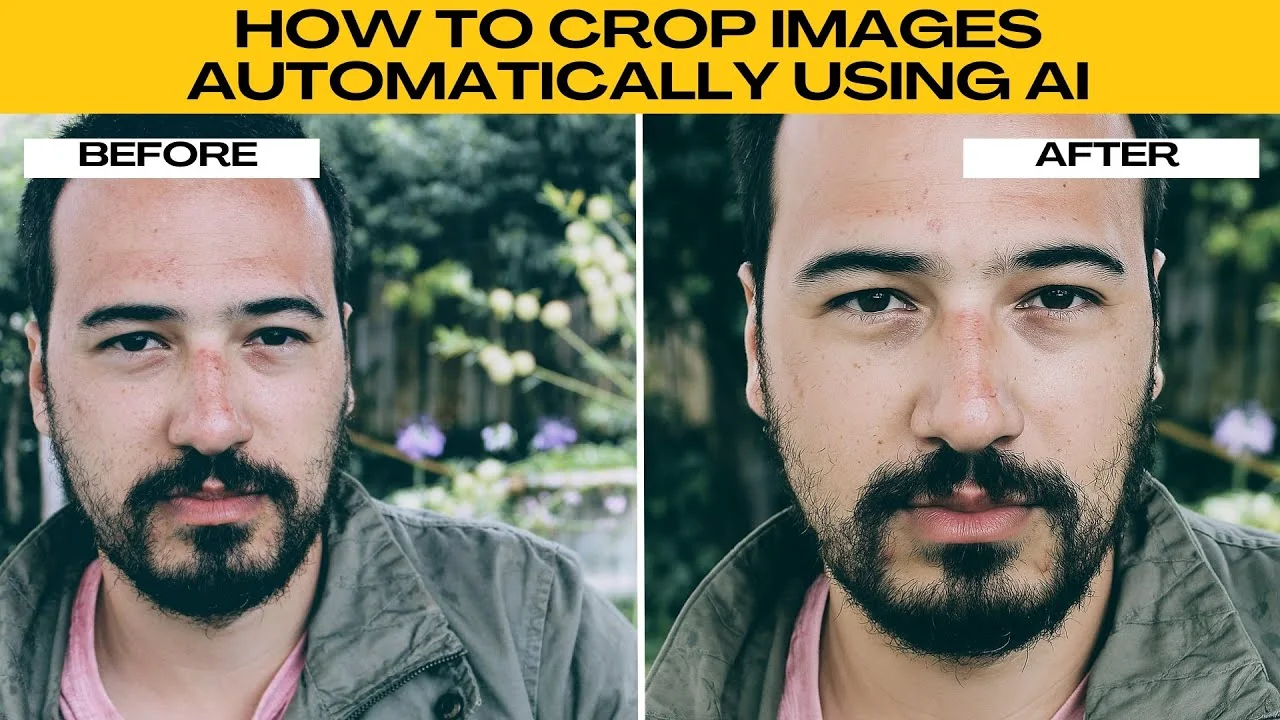
Cropping is one of the simplest but most powerful ways to improve an image. It removes distractions, highlights the subject, and creates stronger compositions.
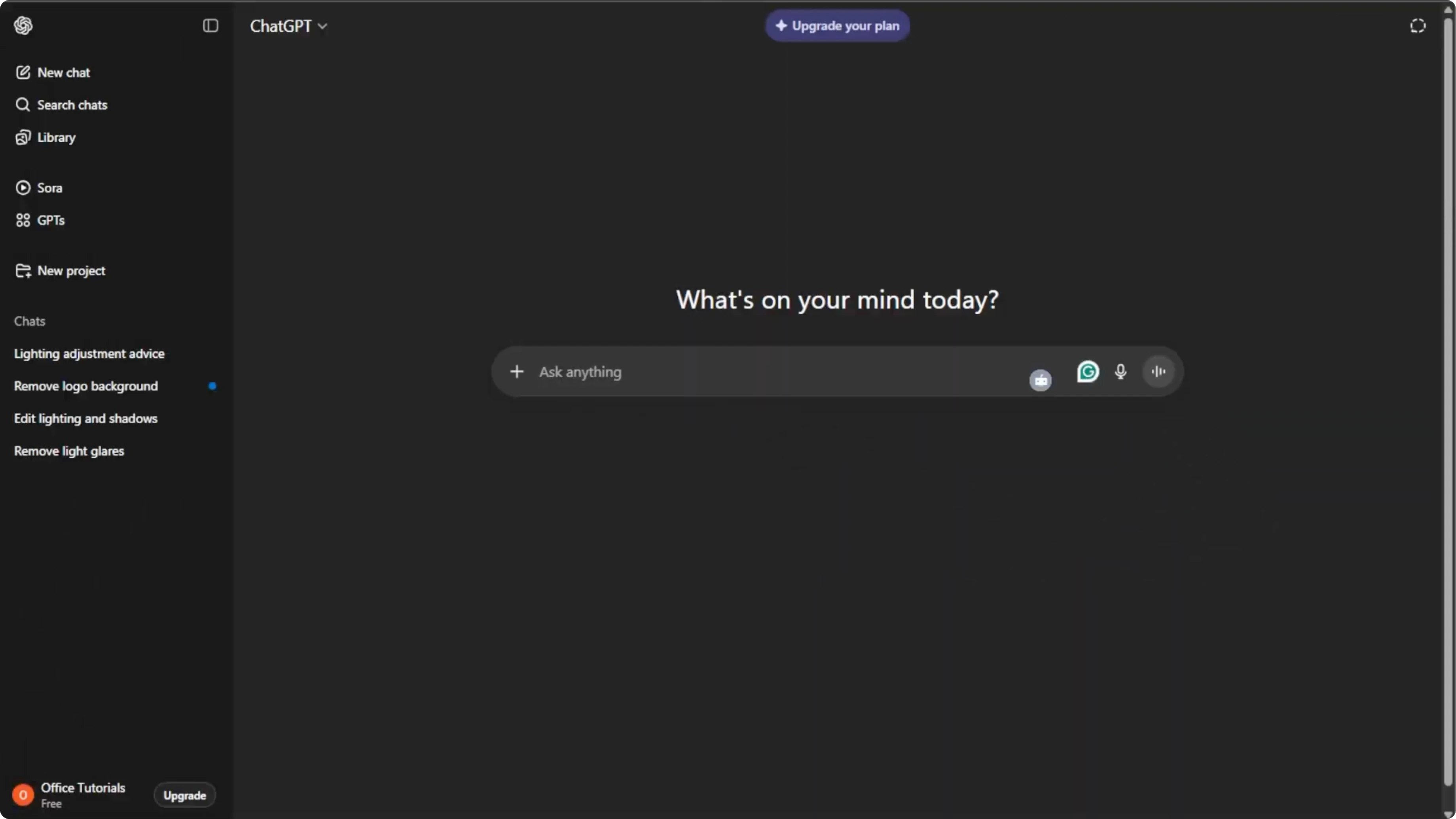
Manual cropping takes time in an editor, adjusting sliders and dragging corners. With AI tools in ChatGPT, you can crop images automatically by typing what you want.
Get set up
Open your browser and go to ChatGPT. Sign in or create a free account.
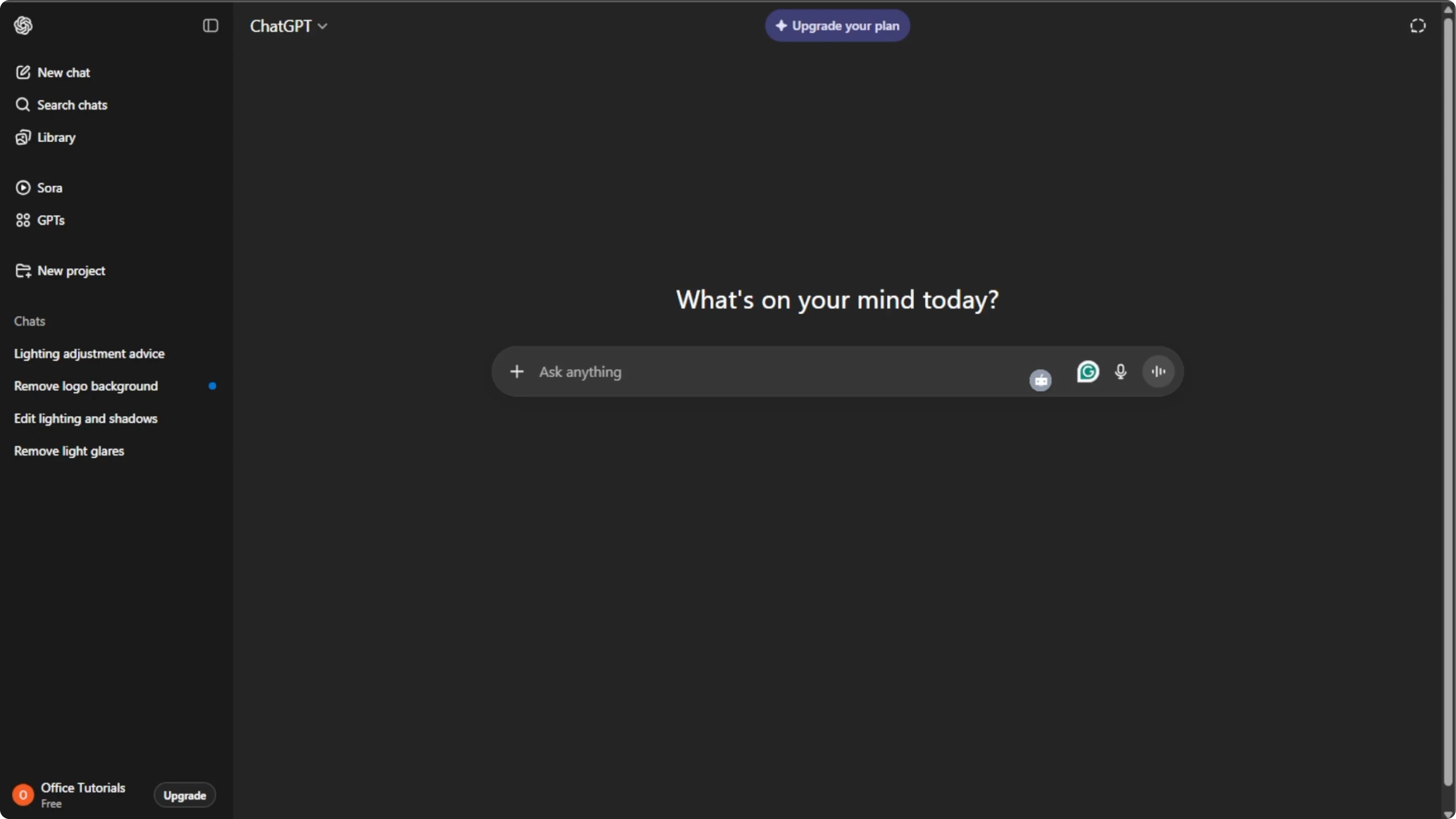
In the chat box, click the plus icon. Select Create image to enable image editing mode.
If you want to expand your edits beyond cropping, see how to transform scenes in our AI night conversion guide.
Upload your photo
Click the plus icon again and choose Add photos or files. You can also press Ctrl+U on Windows or Command+U on Mac.
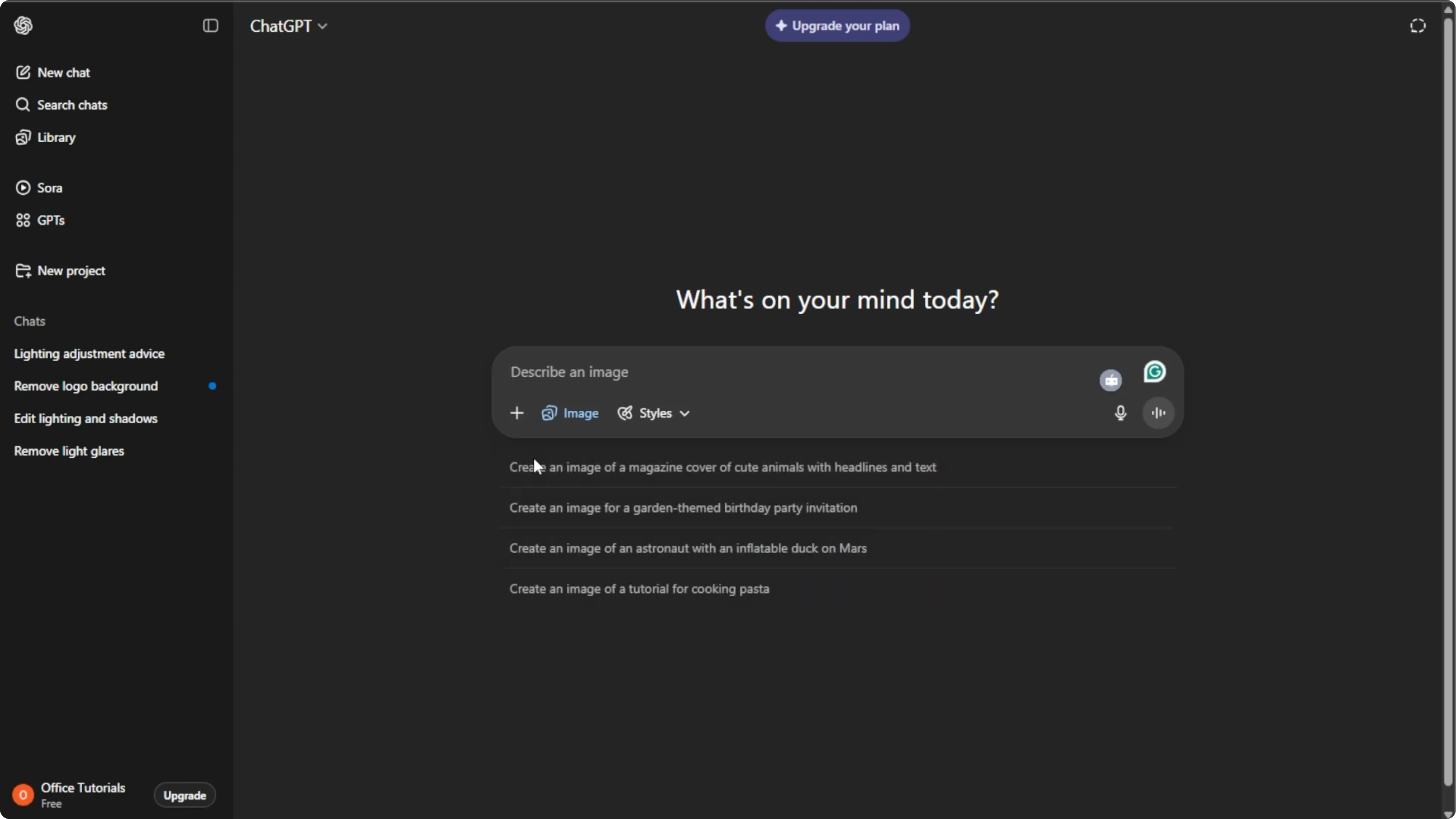
Select the photo you want to crop from your computer. Wait for the upload to finish.
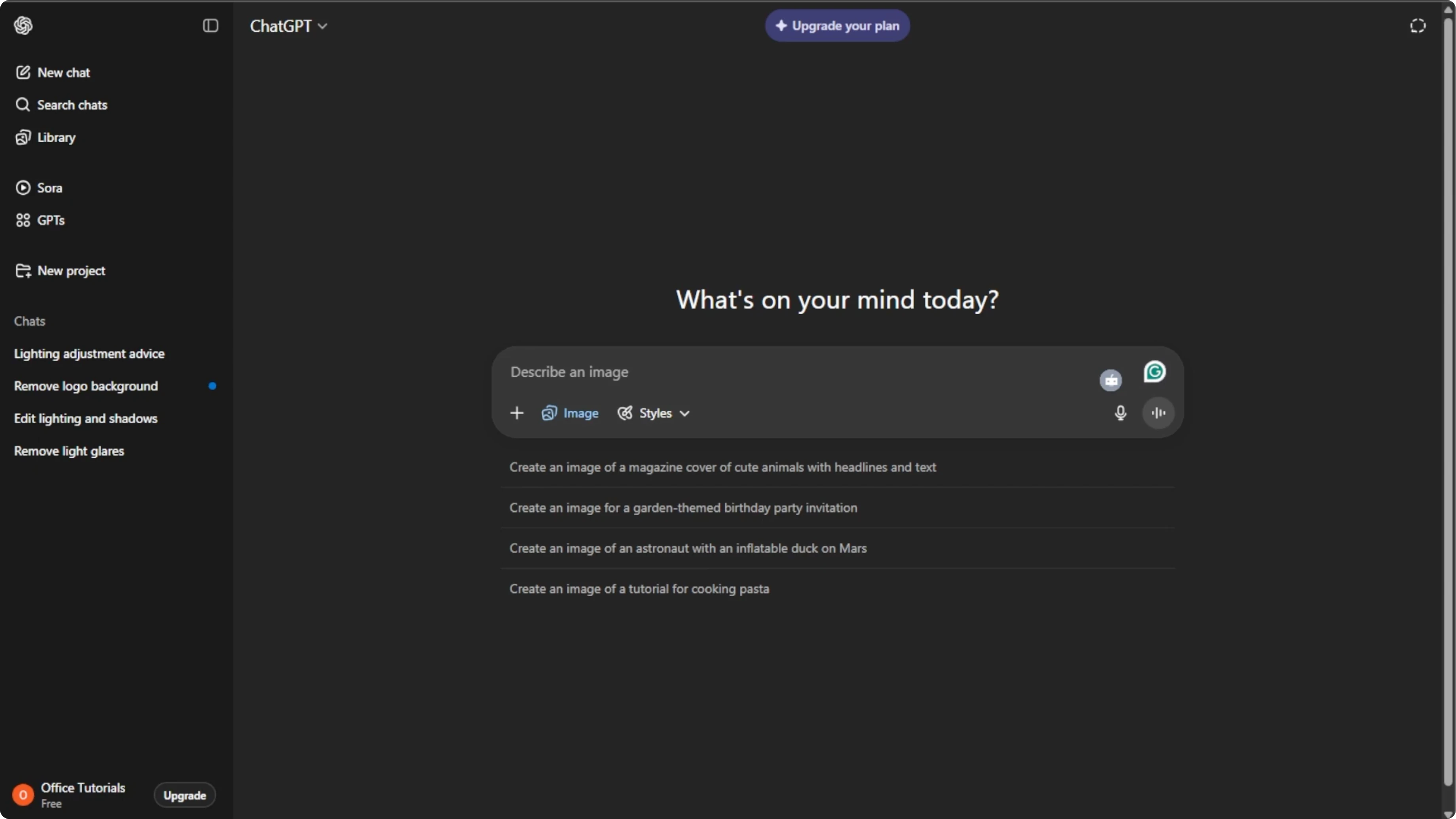
Set clear crop instructions
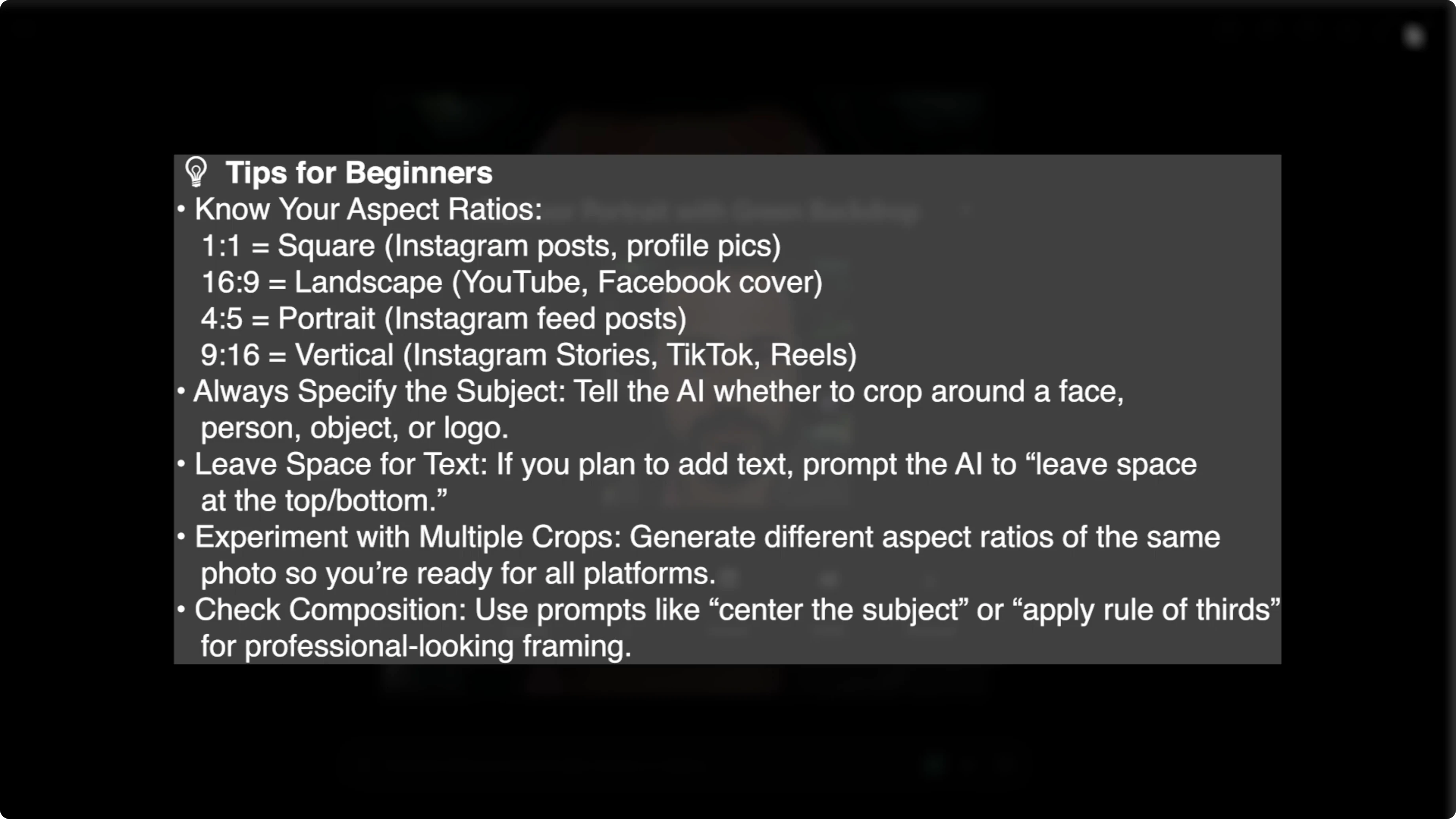
Tell the AI how you want the image cropped, and be specific about the aspect ratio and subject placement. You can ask for 1:1, 16:9, or 4:3 and describe how the subject should appear in frame.
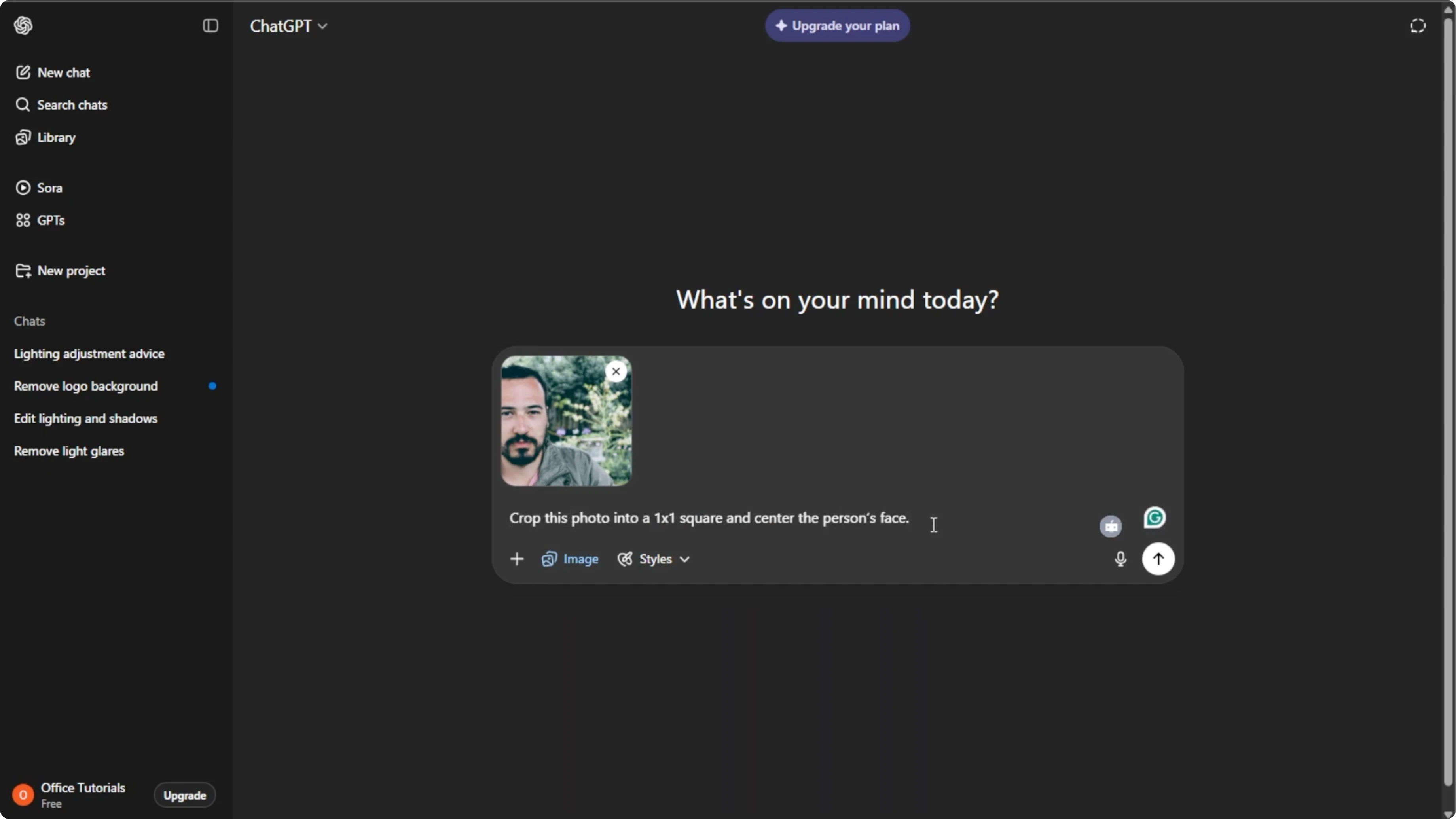
Mention placement like center the face, keep the whole object, or crop out most of the background. Include the purpose, like social media, a profile picture, or a product photo.
Prompt examples
Use a concise prompt like this.
Crop this photo to 1:1.
Center the face.
Keep the entire head and shoulders in frame.
Reduce the background.
Use for Instagram profile photo.
Here is another example for products.
Crop to 4:3.
Keep the entire object visible with equal margins.
Minimize background clutter.
Use for an online shop thumbnail.
For portrait work, you might also want to try style changes. Learn how to update looks in our guide on AI hairstyle edits.
Generate and refine
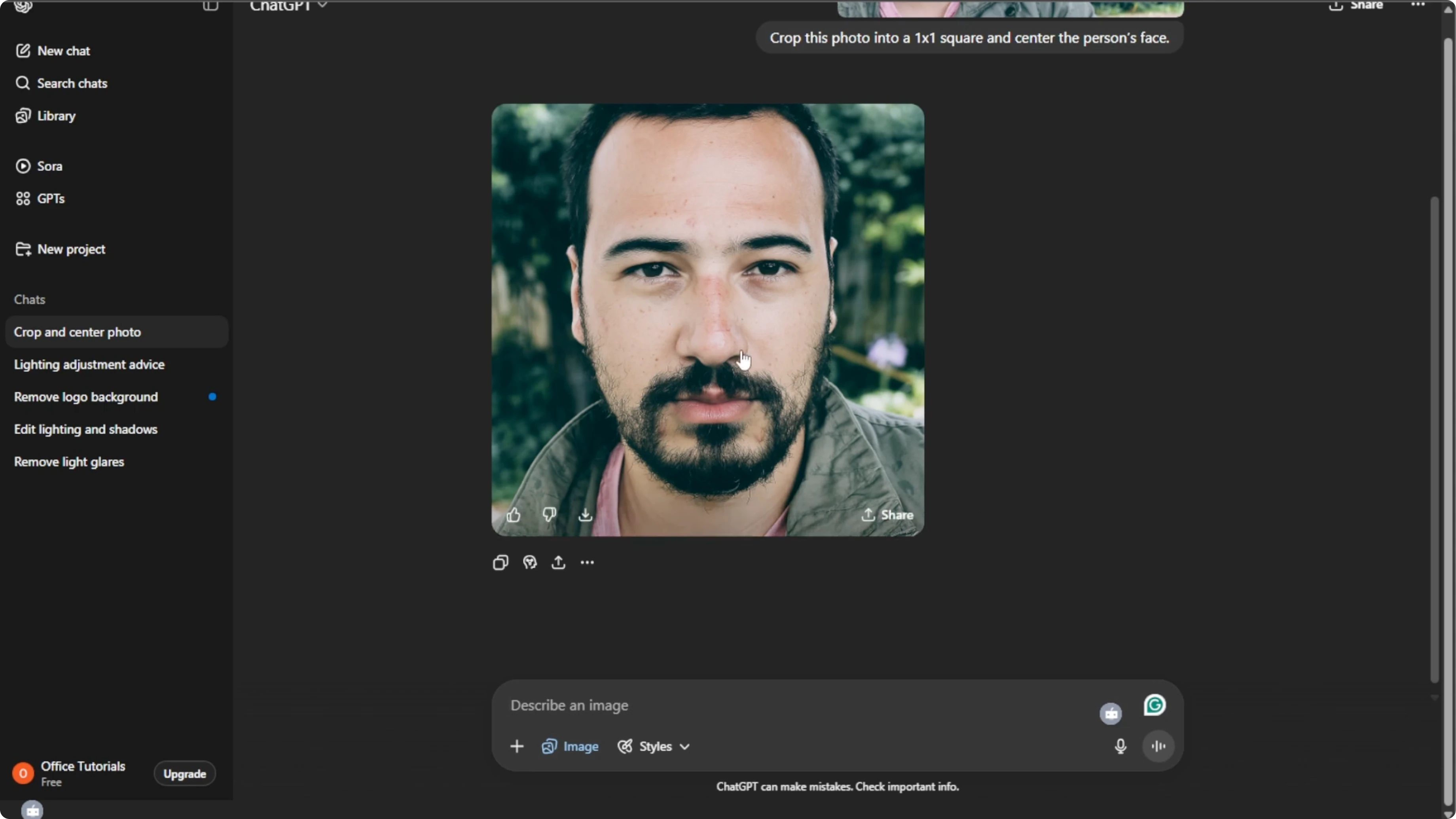
Press Enter to generate the cropped image. Wait a few seconds for the result.
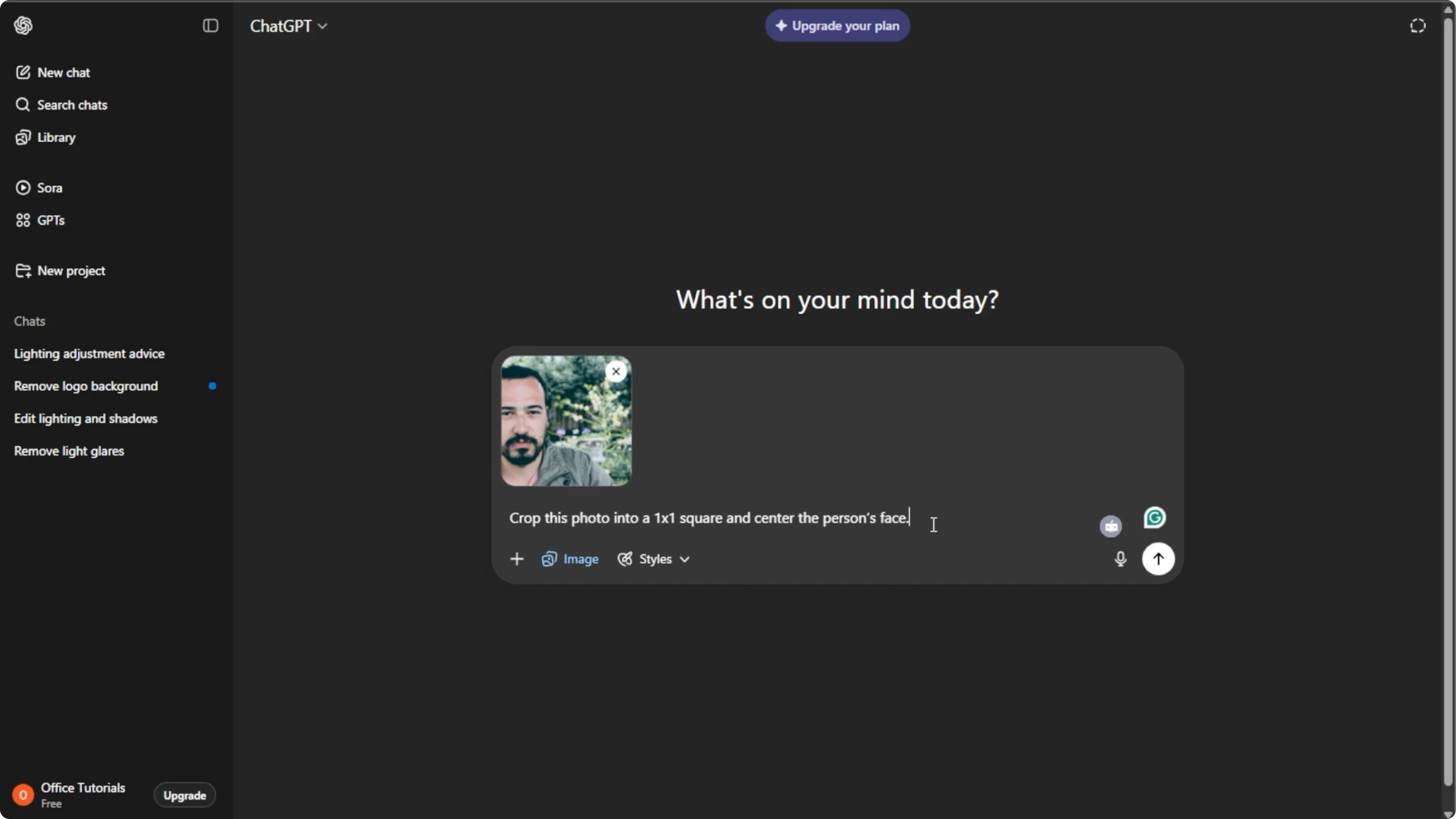
If the first crop is not right, click the generated image and type an adjustment. Submit the updated prompt to refine the framing.
For creative outputs beyond cropping, you can also turn a photo into a South Park style portrait with AI.
Save your result
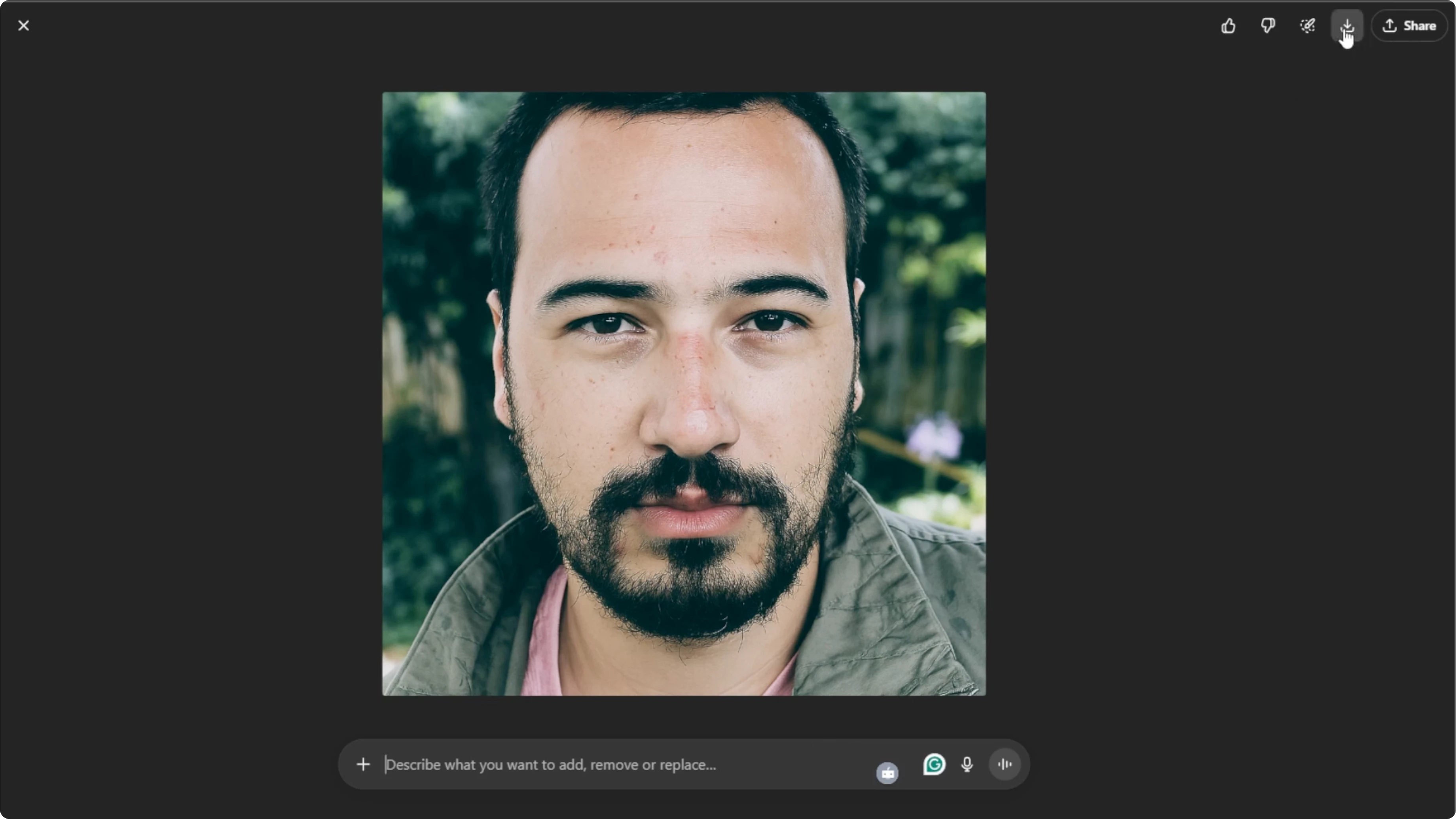
Hover over your final cropped image and click Download to save it to your computer. You can also click Share to post directly to your social media.
Tips
With a few clicks and the right prompt, you can automatically crop any image using AI. This saves time and helps your photos look polished and well framed for your purpose.
Final thoughts
Clear instructions, correct aspect ratios, and quick refinements are the keys to strong AI crops. Be direct with your prompt and iterate once or twice for the best framing.
Recent Posts

How to Visualize Yourself as a Pixelized Character with AI?
How to Visualize Yourself as a Pixelized Character with AI?

How to Revive Faded Memories and Enhance Image Clarity with AI?
How to Revive Faded Memories and Enhance Image Clarity with AI?

How to Visualize Yourself as an Animal Crossing Character with AI?
How to Visualize Yourself as an Animal Crossing Character with AI?