How to Recreate Classic School Photos and Vintage Yearbook Portraits with AI?
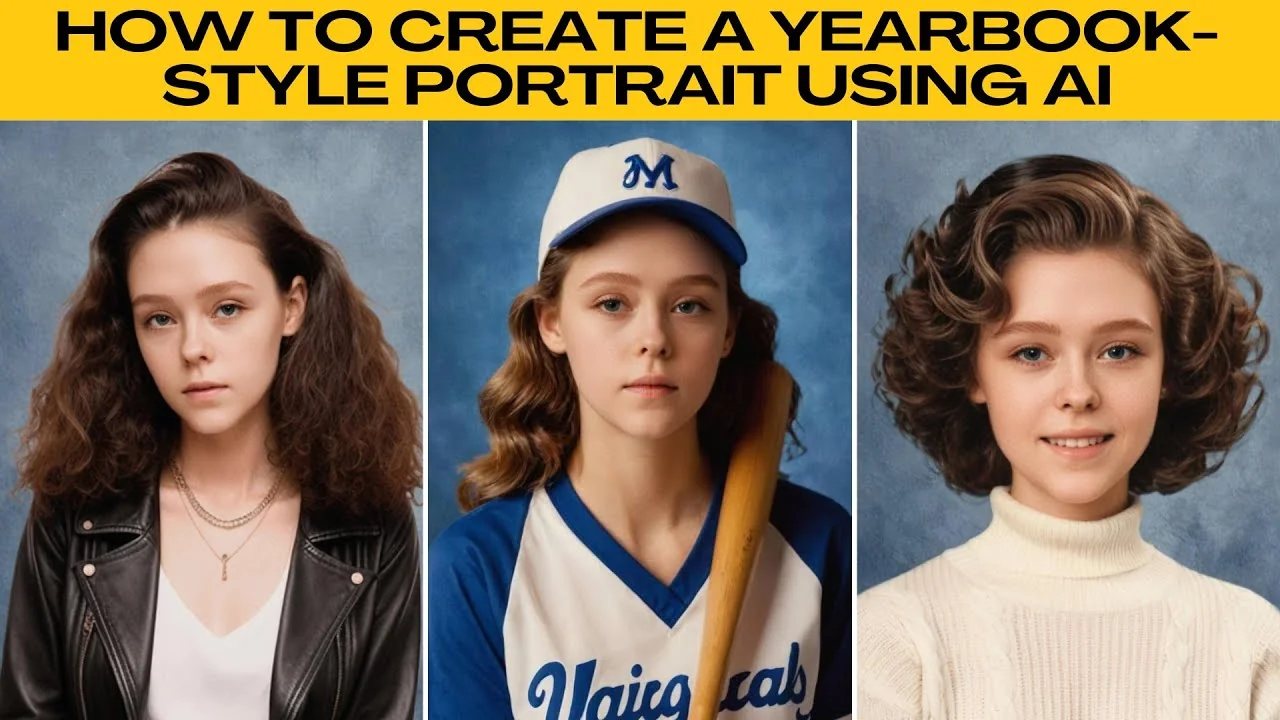
I will show you how to create a yearbook style portrait using AI. Yearbook photos are classic formal portraits that freeze a moment in time. If you missed out or want to see yourself in a different style, Photo face swap can place your face into high school photo templates using AI.
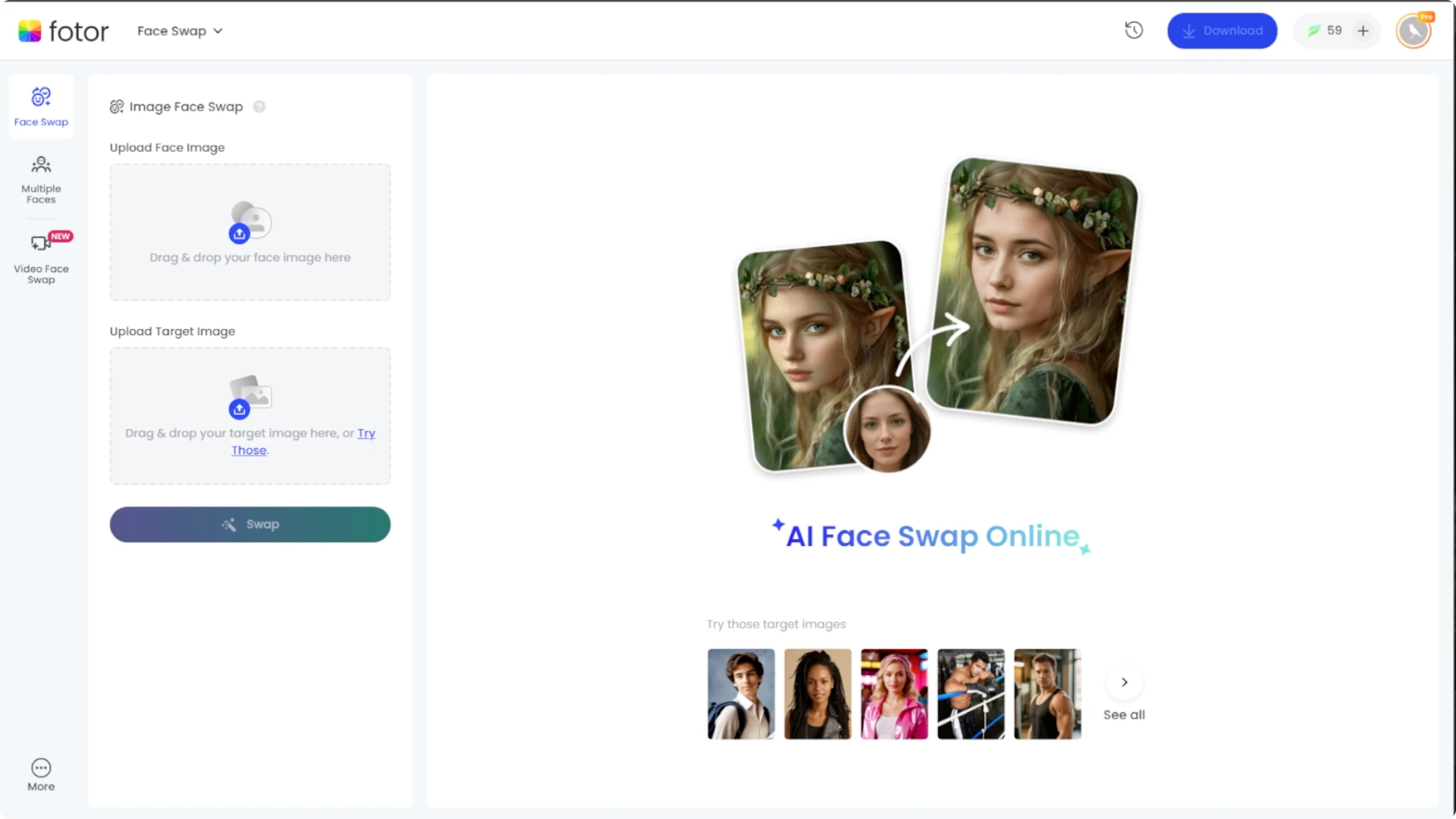
If you are exploring other creative looks, you can also try turning your photos into fun styles like South Park style portraits. This guide keeps things simple and focused on a single portrait. You can follow along step by step.
Start here
Visit the Photo face swap page. You will see two options. Swap one face is best for portraits like yearbook photos, and swap multiple faces is for group photos.
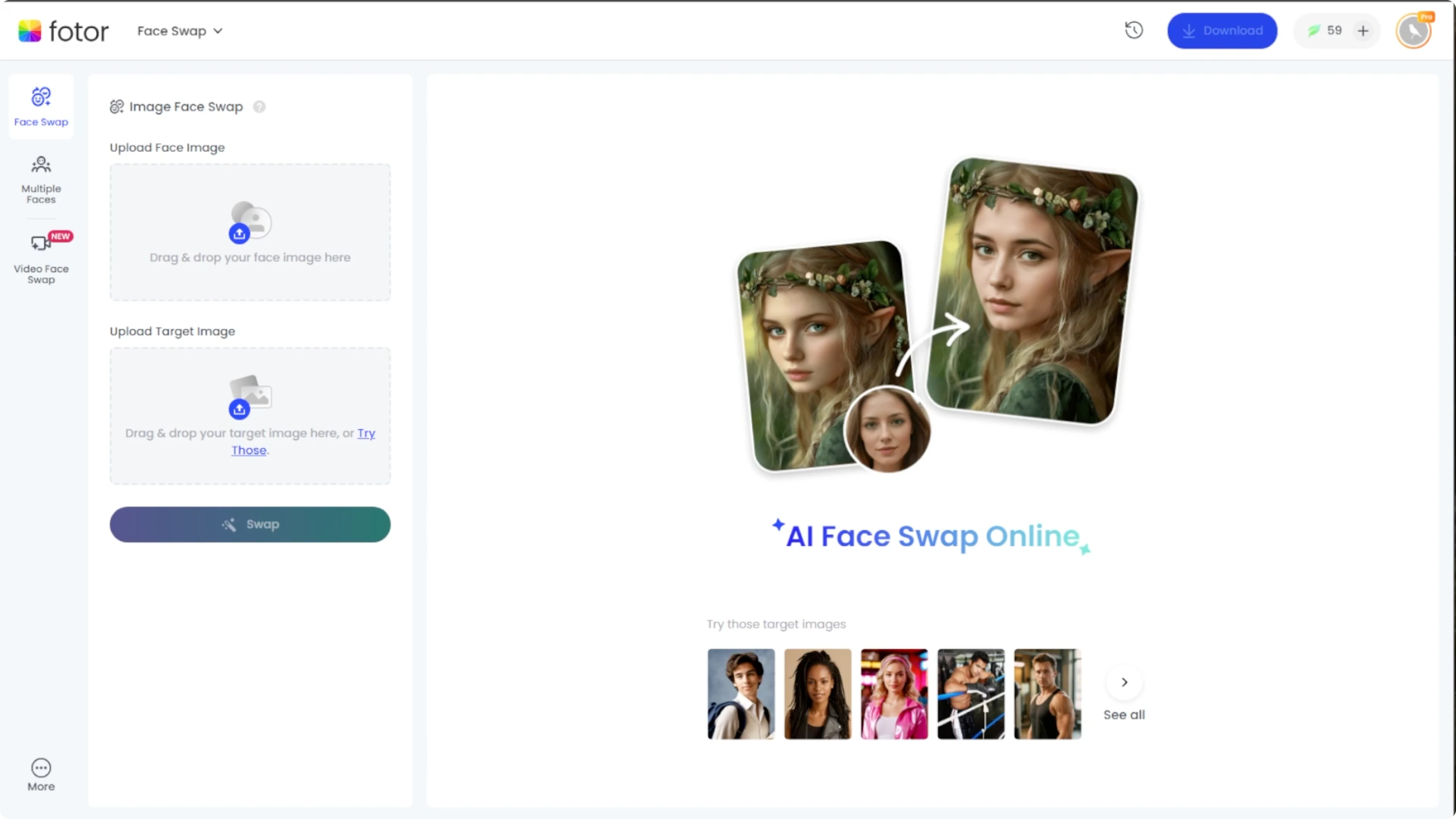
For this tutorial, choose the one face swap, which is the default mode. This keeps the process quick and focused on a single subject. You can switch modes later if you need a group image.
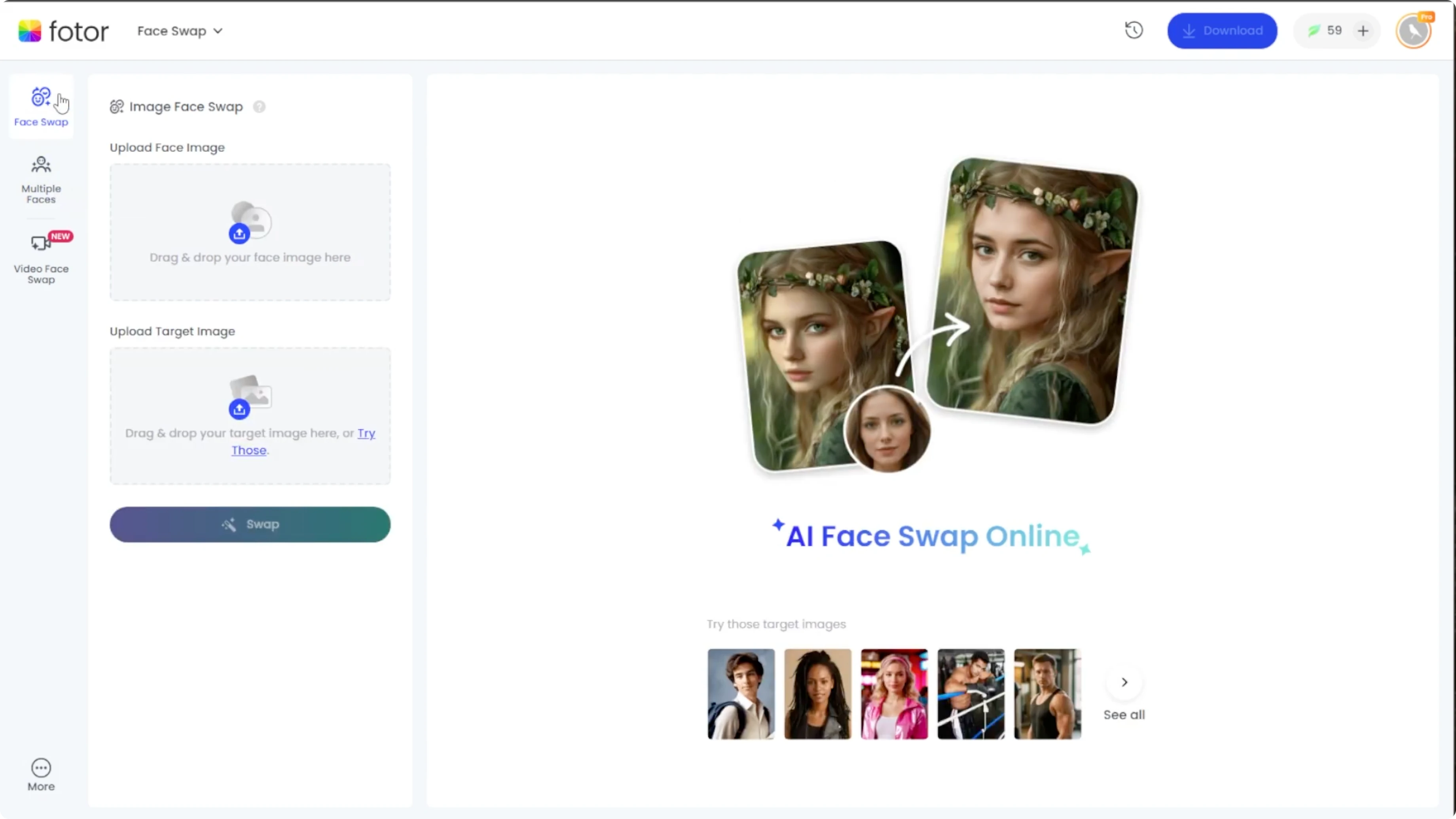
Upload your face
Under the upload face image section, upload the photo of the person whose face you want to appear in the yearbook portrait. Use a clear front facing photo with good lighting and no obstructions like glasses or hair covering the face. If hair is in the way, you can first change your hairstyle in photos using AI to expose the face clearly.
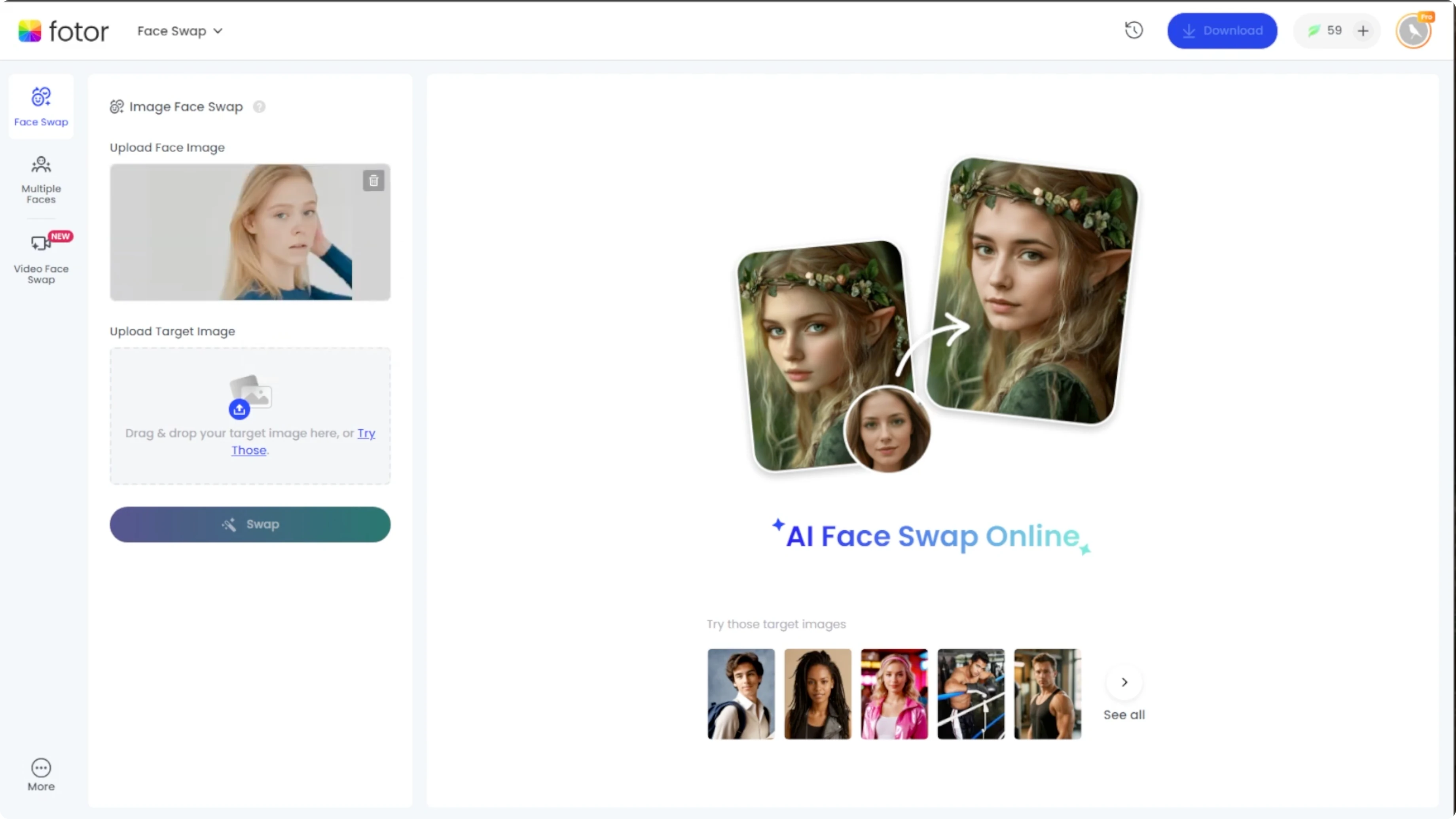
Make sure the image is sharp and not blurry. Avoid heavy shadows across the face. Neutral expressions work best for classic school portraits.
Choose the target portrait
You have two options for the target yearbook image. You can upload your own yearbook style target image by going to upload target image and adding the portrait where you want your face to be placed. This is great if you already have a specific frame or background.
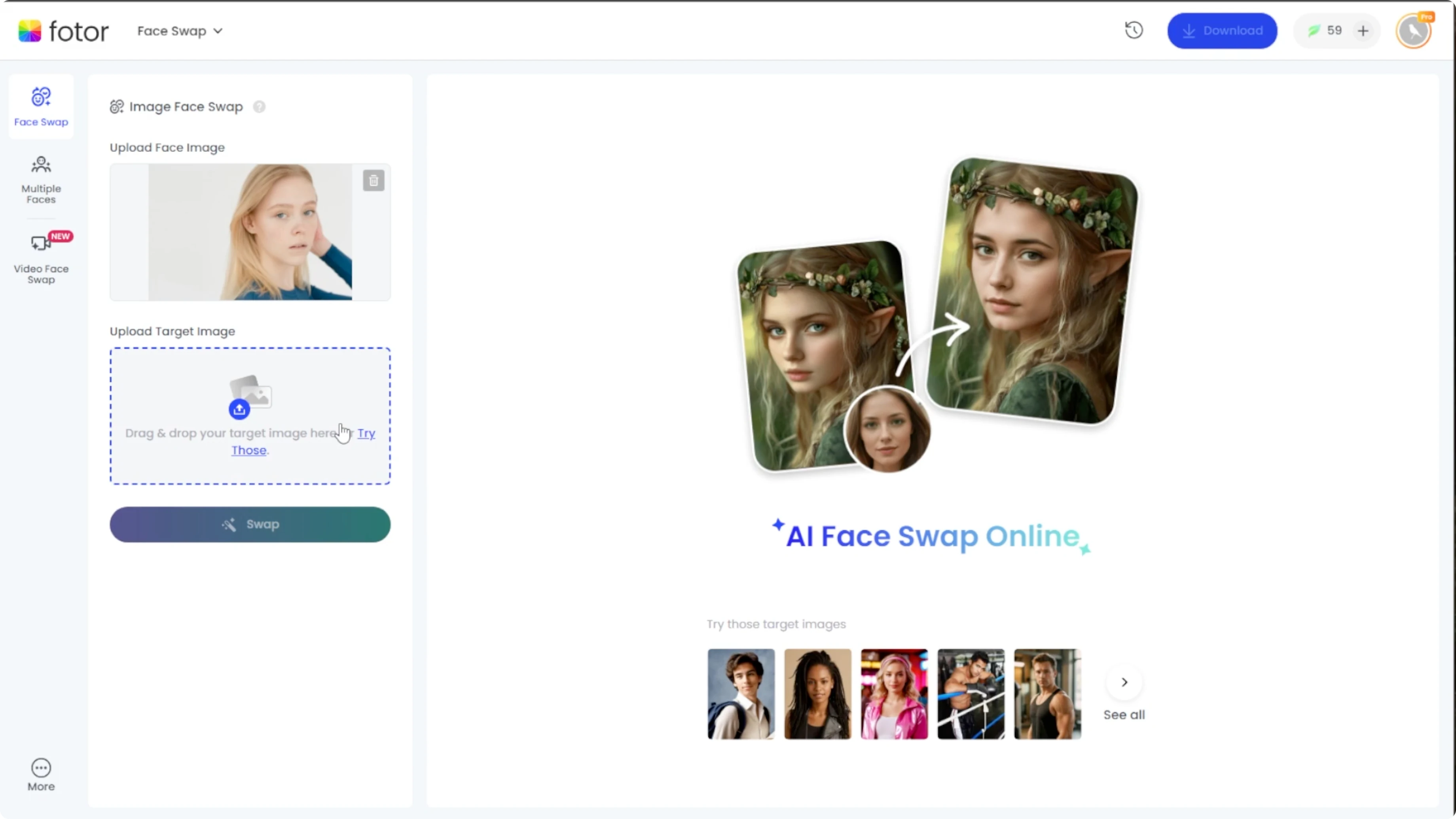
The second option is using a Photo yearbook template. Scroll to the bottom of the editor and click see all to open the target image gallery. At the top, select the yearbook category.
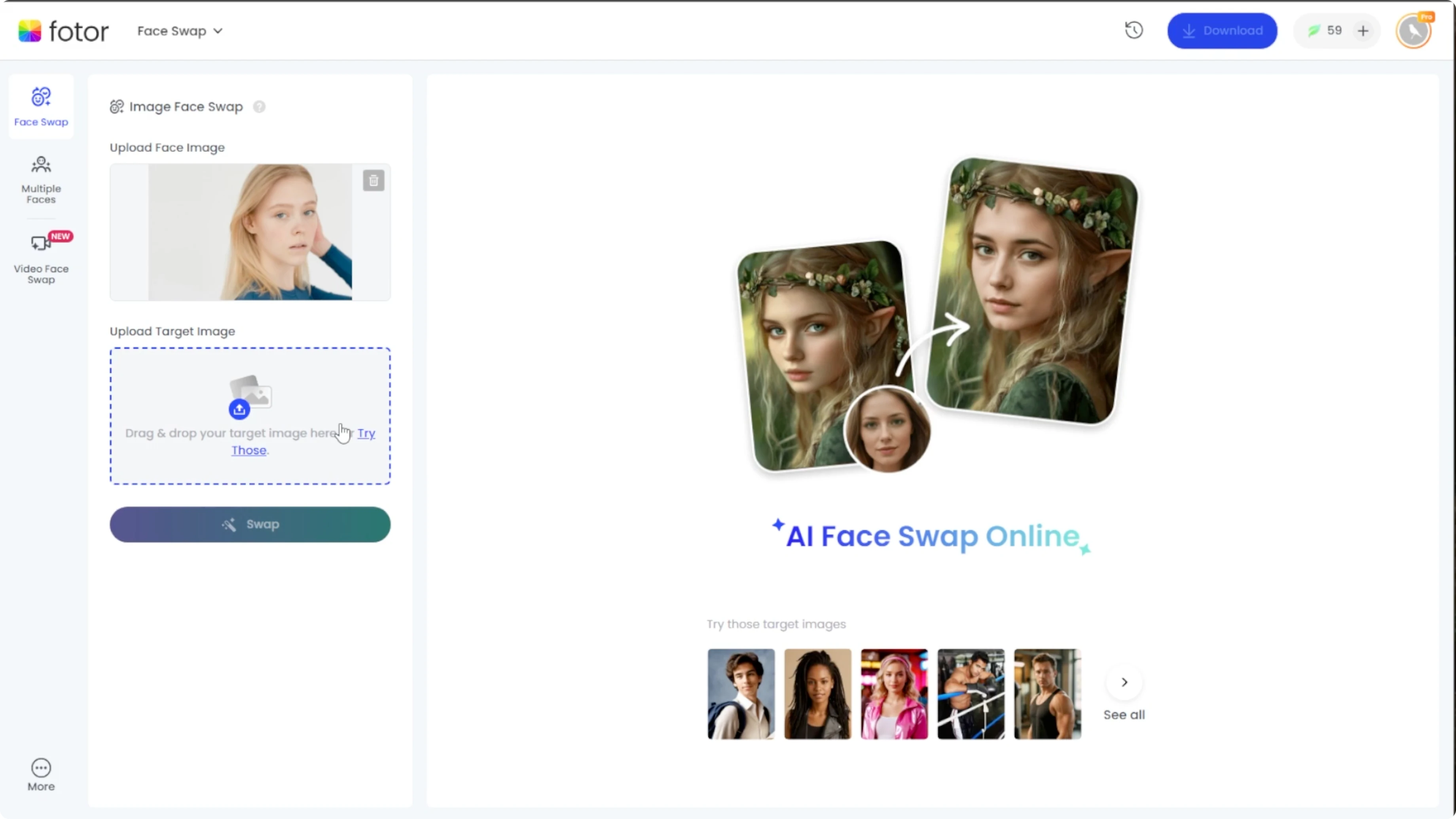
Scroll through the options and choose a portrait that fits your style. Pick a background and outfit that match the look you want. Formal poses with simple backdrops usually give the most classic result.
If you want to experiment with playful aesthetics after you complete your yearbook look, try creating South Park style portraits from your photos. It is a fun way to compare different styles side by side. Save both for your collection.
Create the swap
Once both your face and the target yearbook image are uploaded, click the Swap button. Each face swap uses two credits, and nonsubscribers get 10 free credits per day. If you run out, wait for the daily refresh or consider a plan that fits your usage.
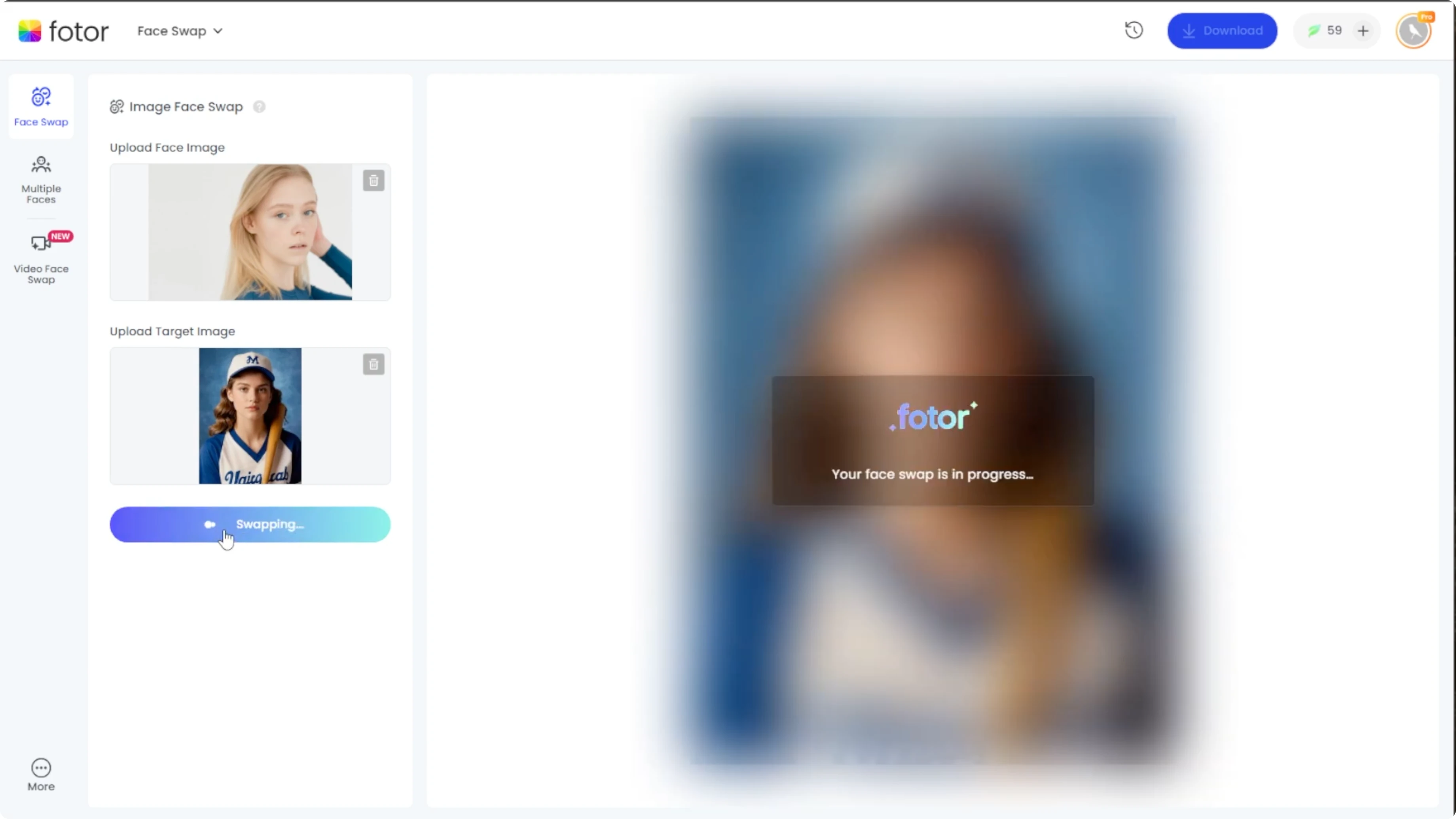
Review and refine
Click the compare button at the bottom right to see the before and after versions. You should see your face blended into the yearbook portrait. Check the alignment and lighting to make sure it looks natural.
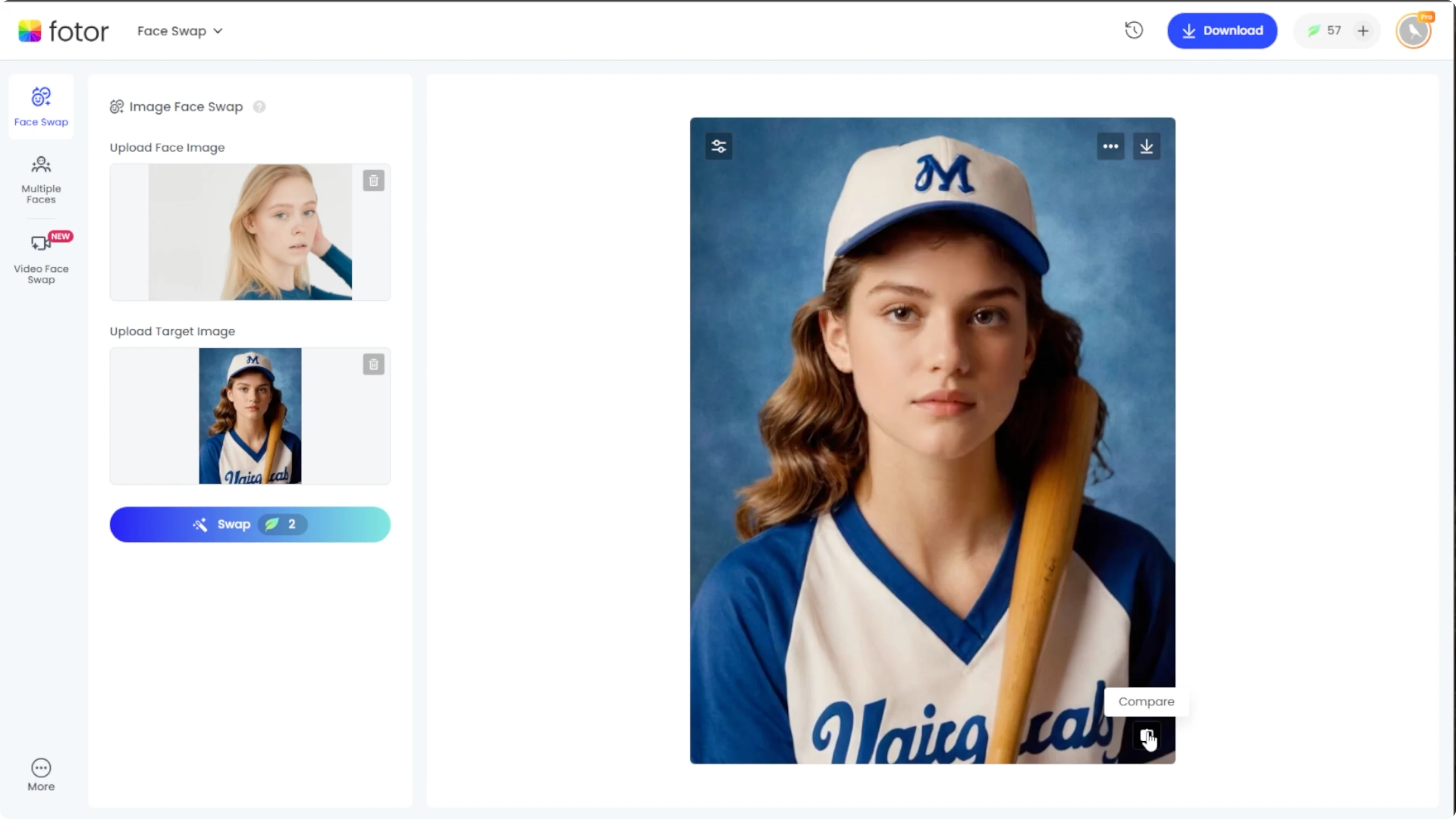
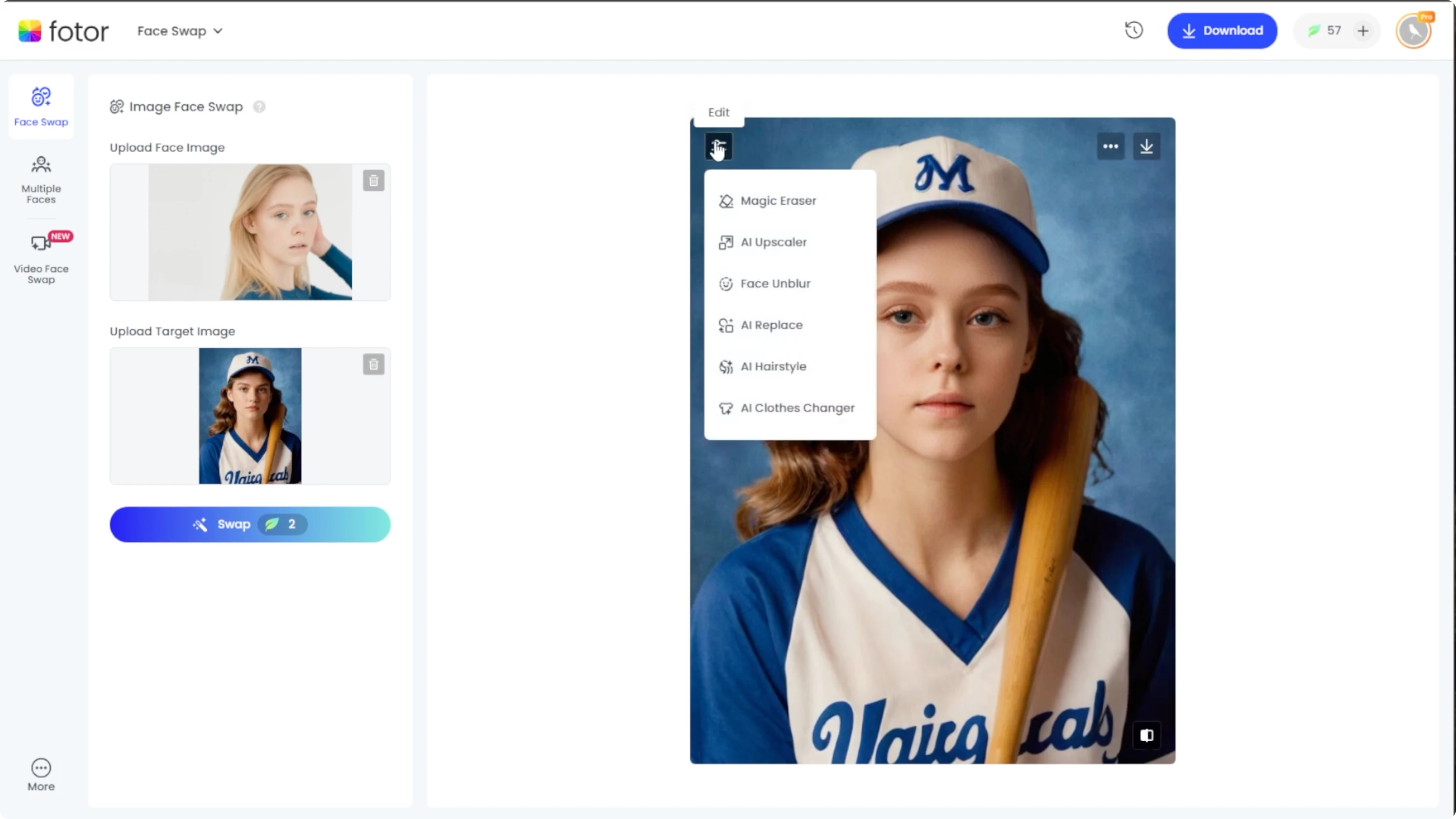
Hover your cursor over the generated image. Click the edit icon at the top left if you want to fine tune the result using photos photo editor. Adjust brightness, contrast, and color to match the target background.
Save your portrait
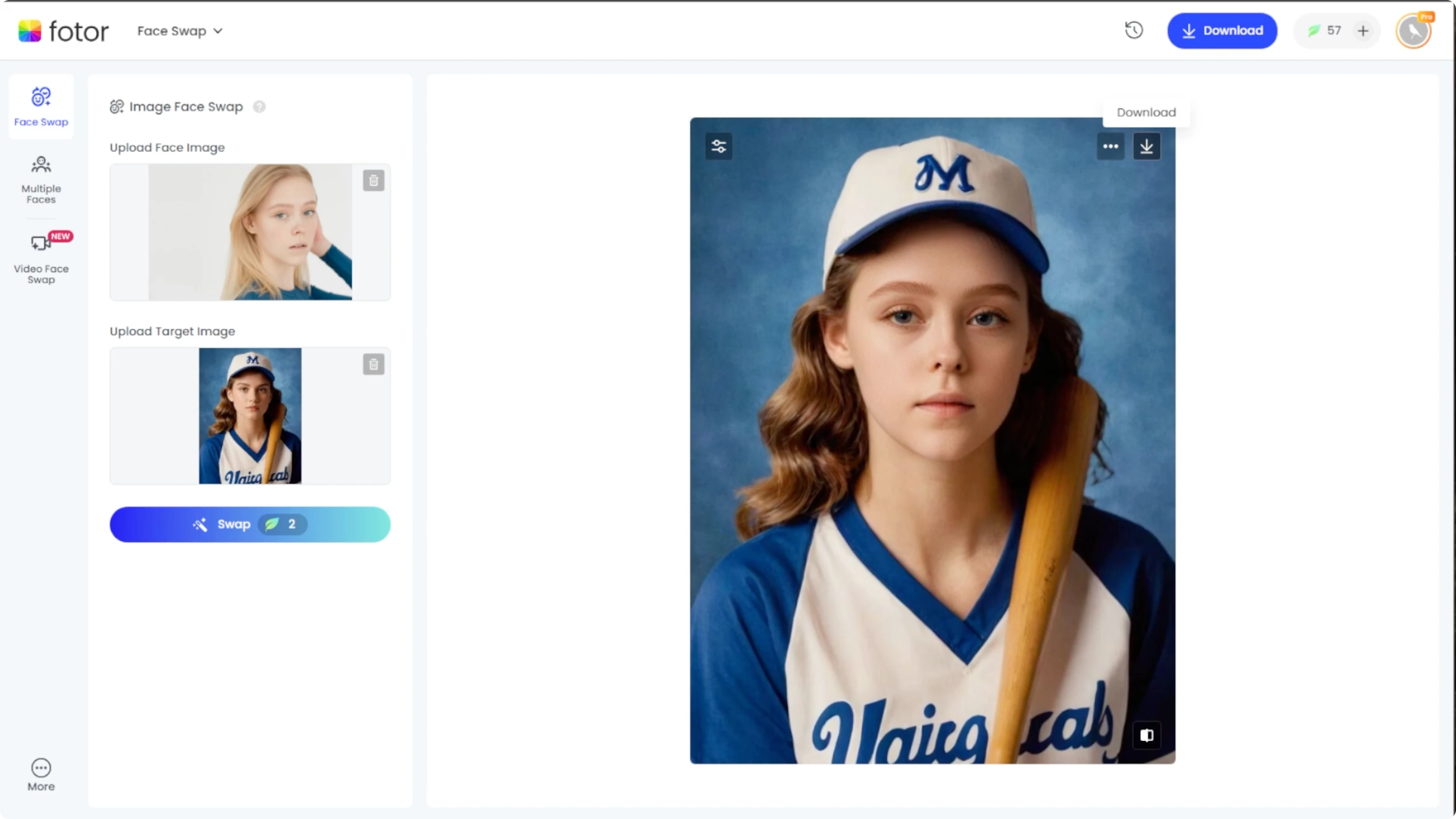
Once you are satisfied, click download to save your new yearbook style portrait. Choose a high resolution format for printing or sharing. Keep a copy of both the original and the final image for future edits.
Final thoughts
Creating a yearbook style portrait with AI is quick and produces a classic look that feels authentic. Pick a clear face photo, choose a fitting template, and use the editor for small adjustments to match lighting and color. For vintage memories, you can also colorize black and white photos to restore older images and keep everything in the same collection.
Recent Posts

How to Visualize Yourself as a Pixelized Character with AI?
How to Visualize Yourself as a Pixelized Character with AI?

How to Revive Faded Memories and Enhance Image Clarity with AI?
How to Revive Faded Memories and Enhance Image Clarity with AI?

How to Visualize Yourself as an Animal Crossing Character with AI?
How to Visualize Yourself as an Animal Crossing Character with AI?