How to Generate Lifelike and Photorealistic Animal Images with AI?
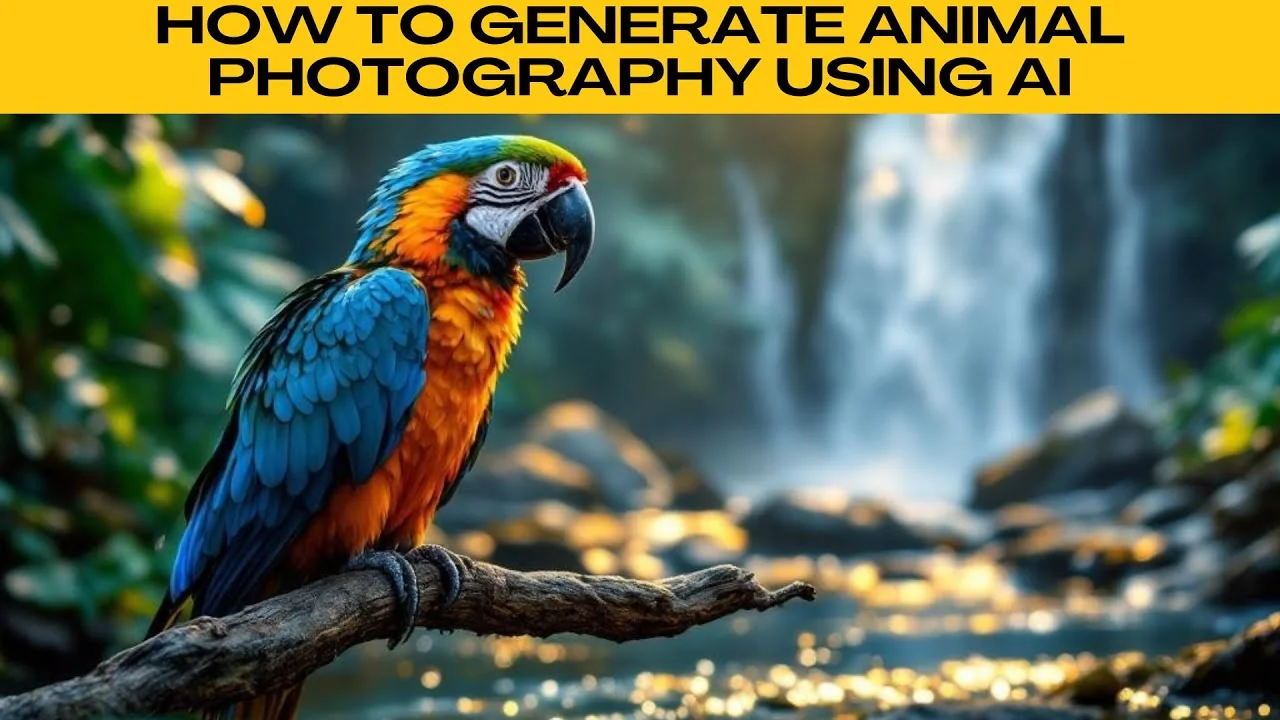
I will teach you how to generate animal photography using AI. Follow these steps to create detailed images with Photo Room. Be specific and imaginative to get accurate and engaging results.
Open Photo Room
Launch your preferred web browser and visit Photo Room. On the homepage, open the left menu and click AI tools to view the suite of smart creative features.
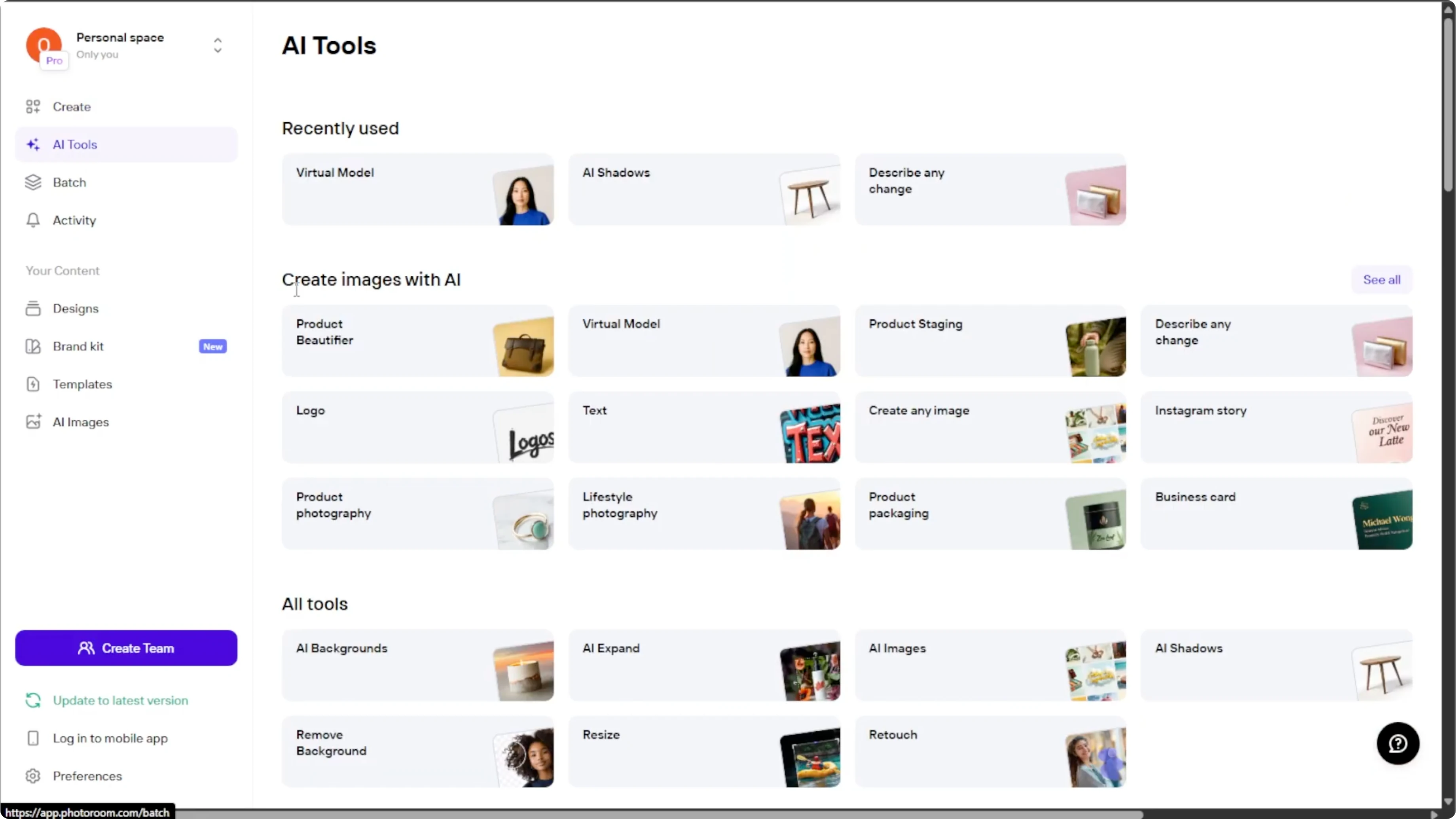
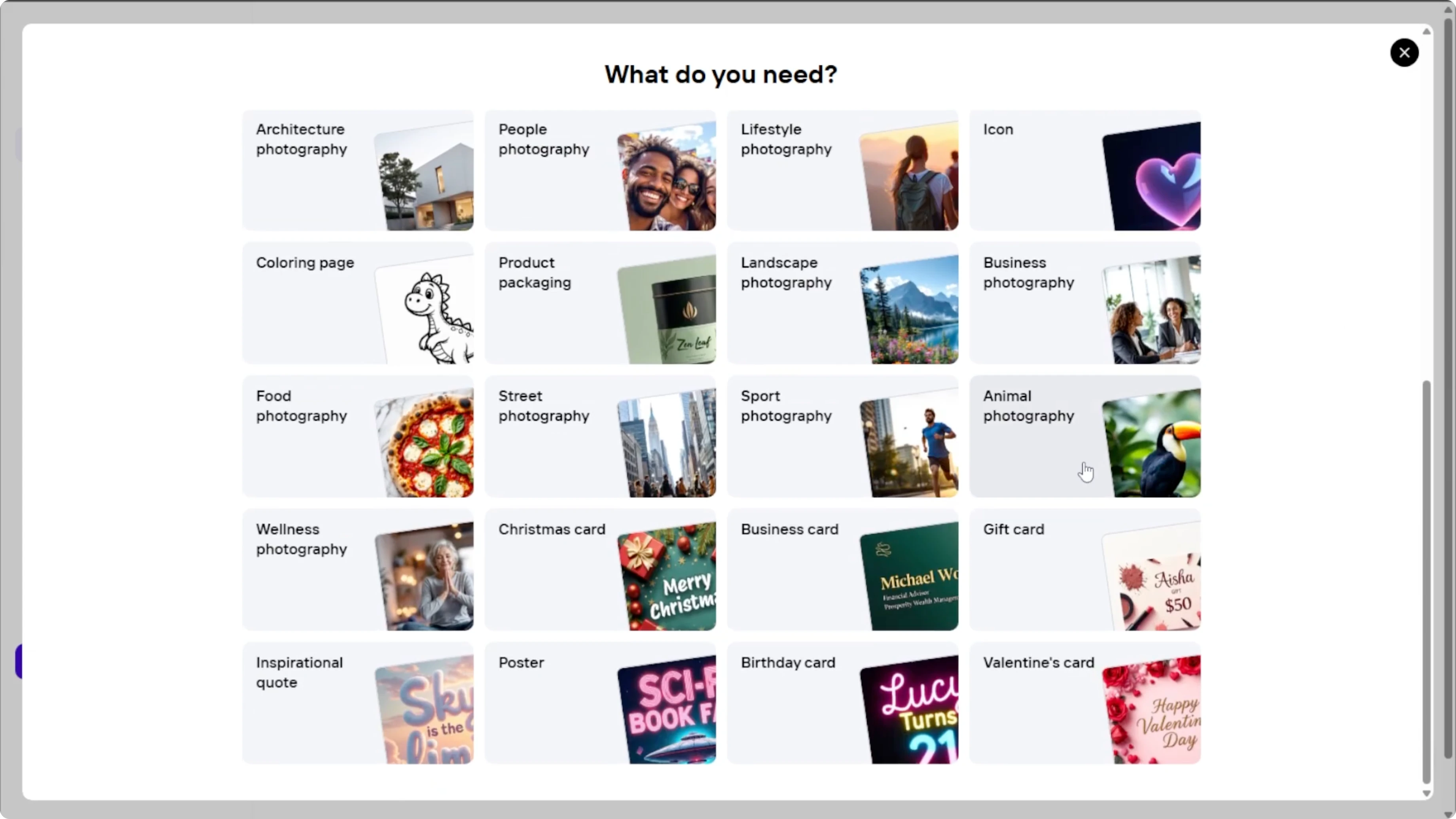
Scroll to the create images with AI section. Click see all to expand the list of available AI tools. Select animal photography.
Write your prompt
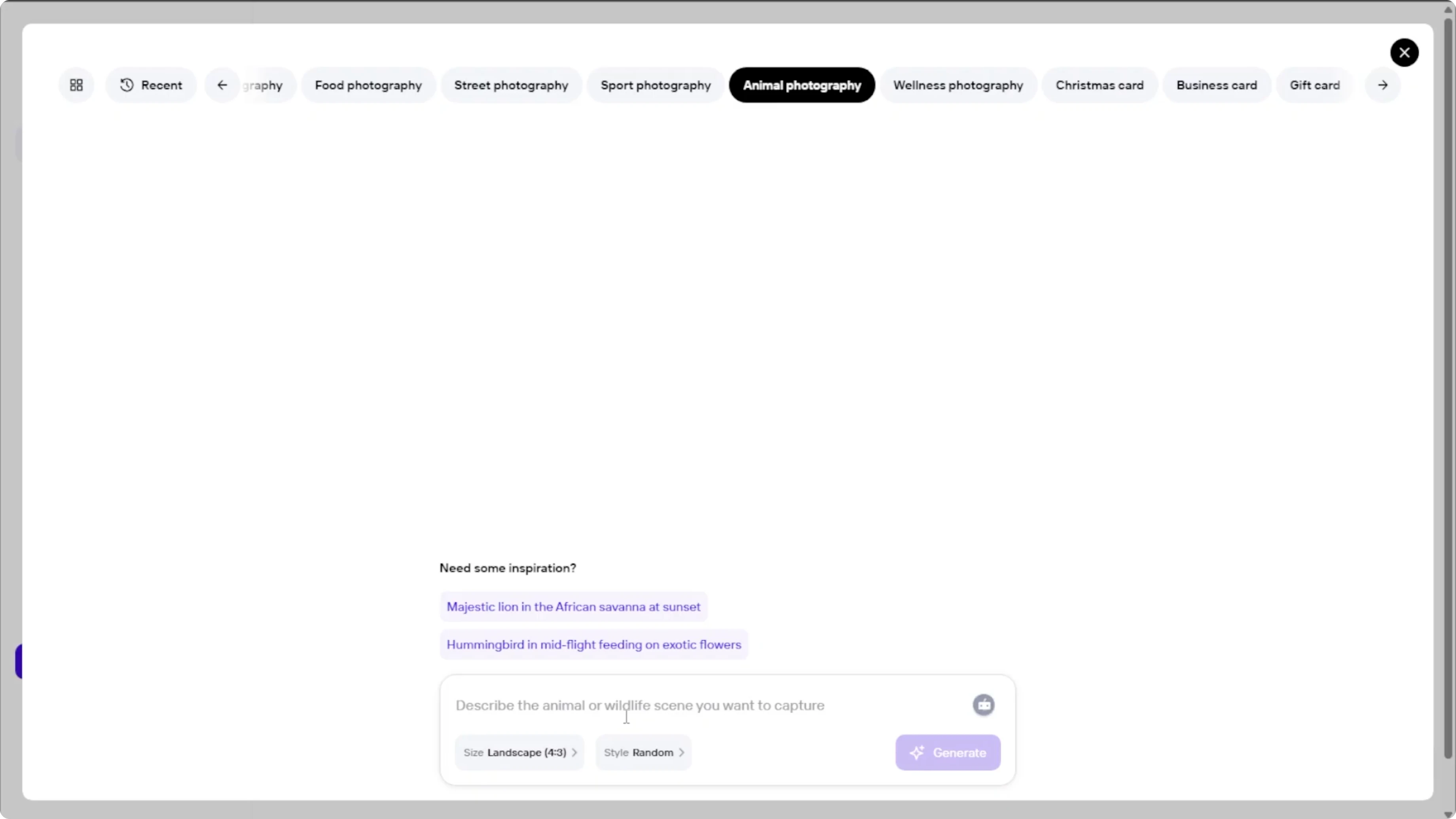
Type your photo idea in the prompt box. Describe the subject, setting, lighting, lens, mood, and any action or pose. Explore the preset prompt examples for inspiration if you need ideas.
If you also design in Canva, see how to generate AI images in Canva for a similar workflow.
Set image size
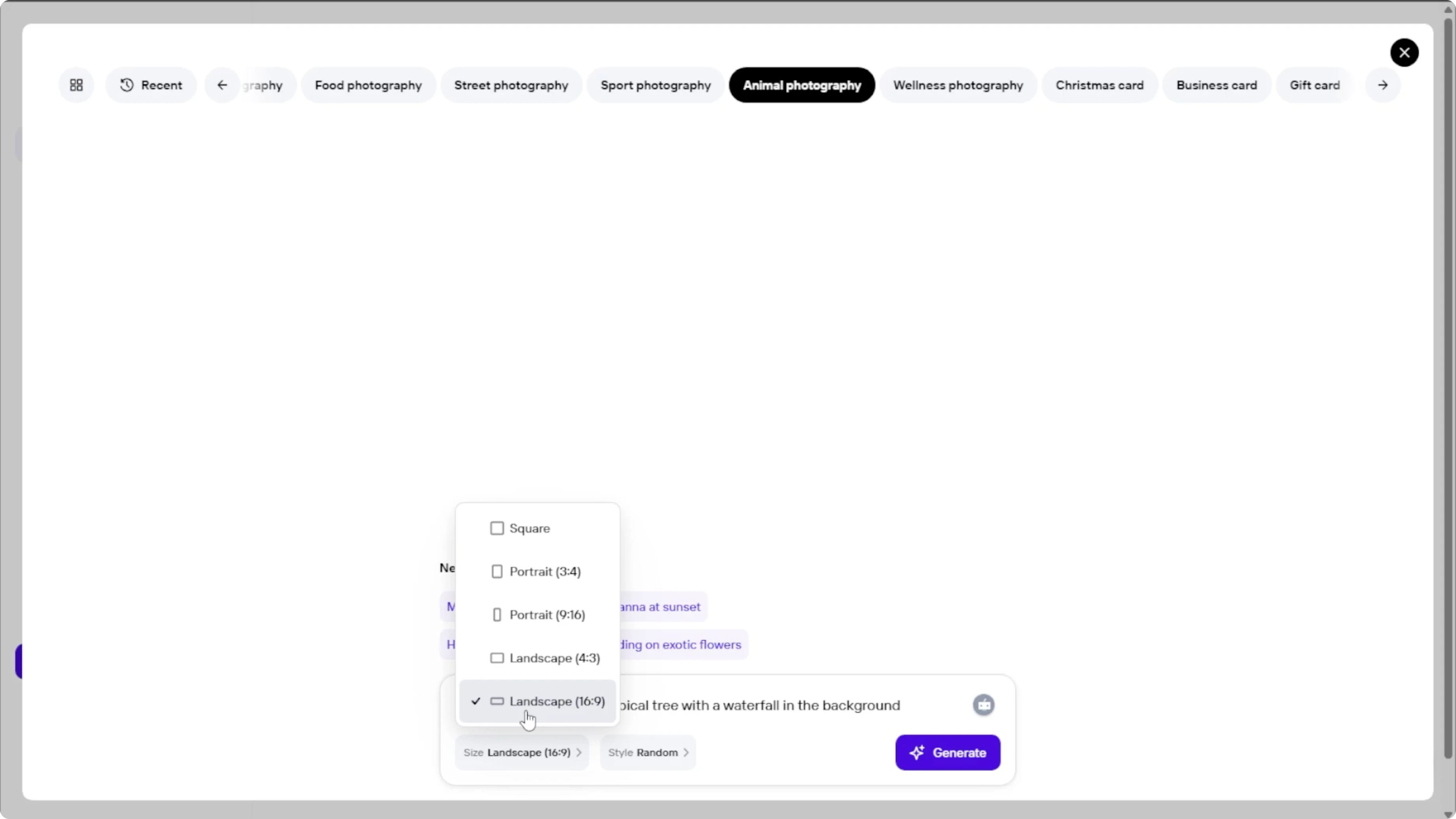
Click the size setting button. Pick a layout based on your content needs.
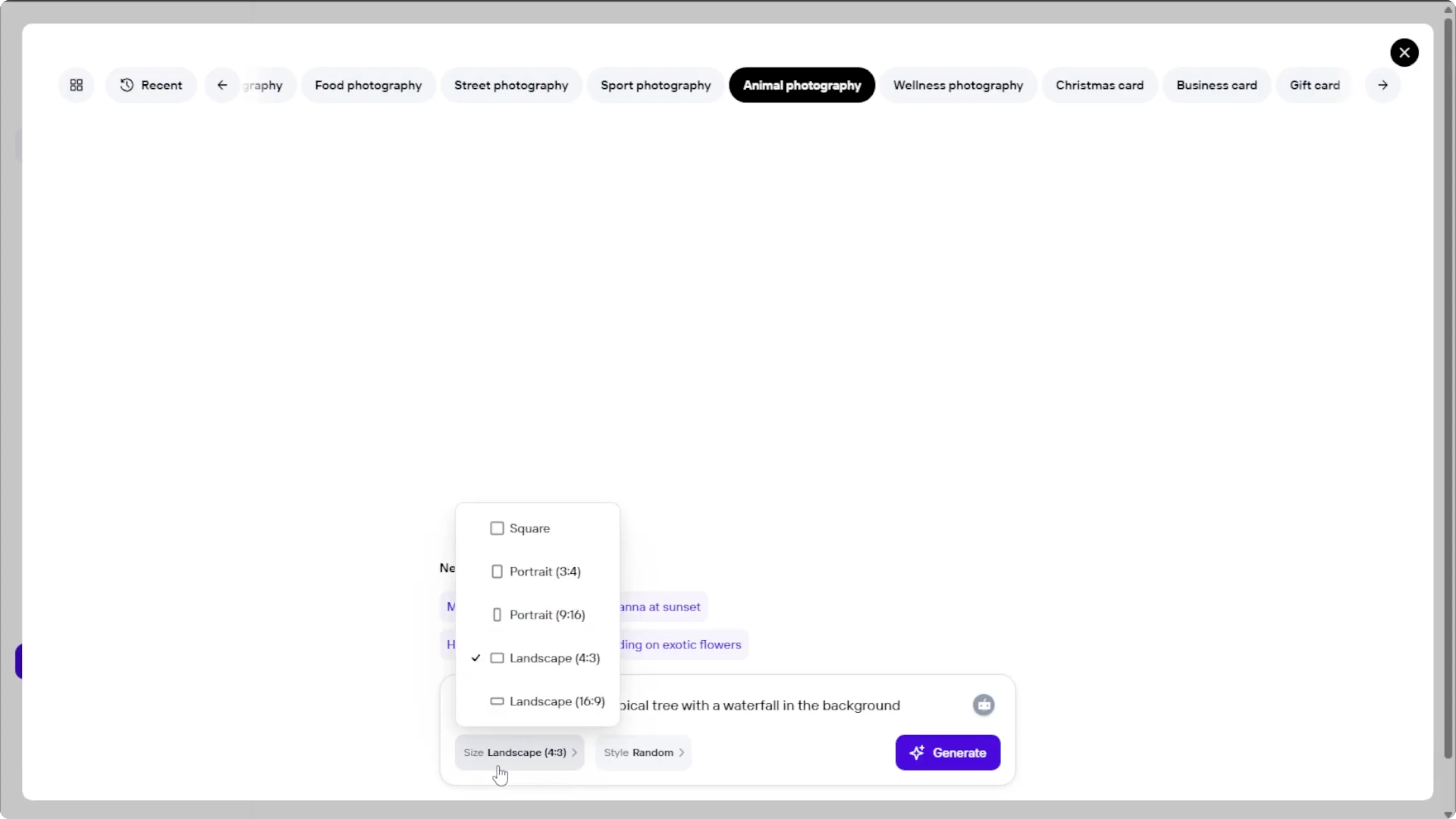
Choose square one by one for profile photos or Instagram posts. Choose 3x4 or 9x6 portrait for social media stories, reels or posters. Choose 4x3 or 16x9 wide format for website banners, slideshows or videos.
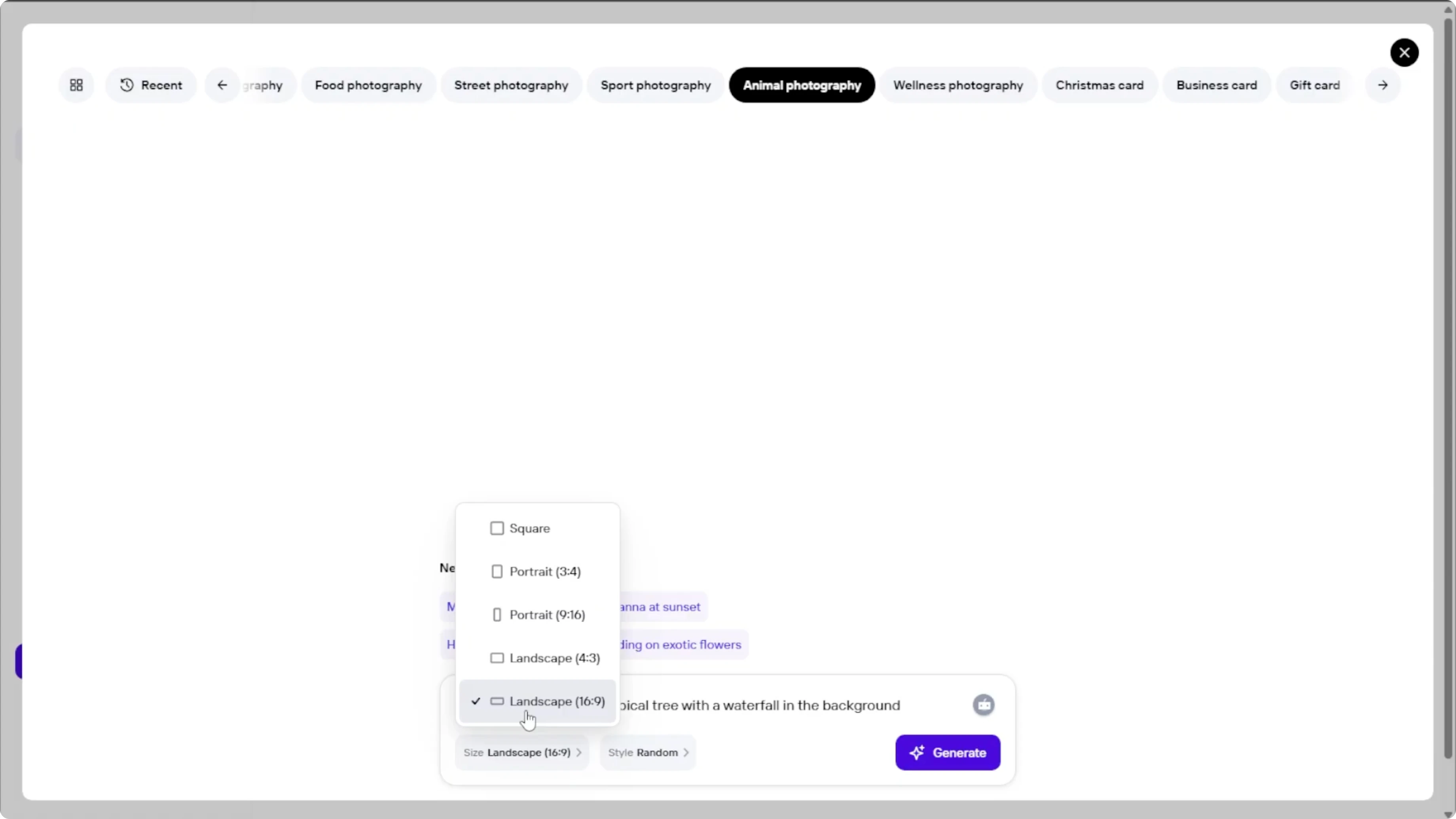
Pick a photography style
Click style settings to select from photography styles like professional, cinematic, muted, high contrast, vintage, analog, black and white, Polaroid, editorial, film noir, raw flash, or random. You can change the photography style later if you are not happy with the result.
For a bold creative direction, you can also learn how to create pop art images with AI.
Generate results
Once your prompt, size, and style are set, click Generate. Photo Room AI will create four different versions of your image based on your description.
Click each result to zoom in and review details up close. From the image preview screen, you can remove the background, generate more variations, change something, retouch, or resize.
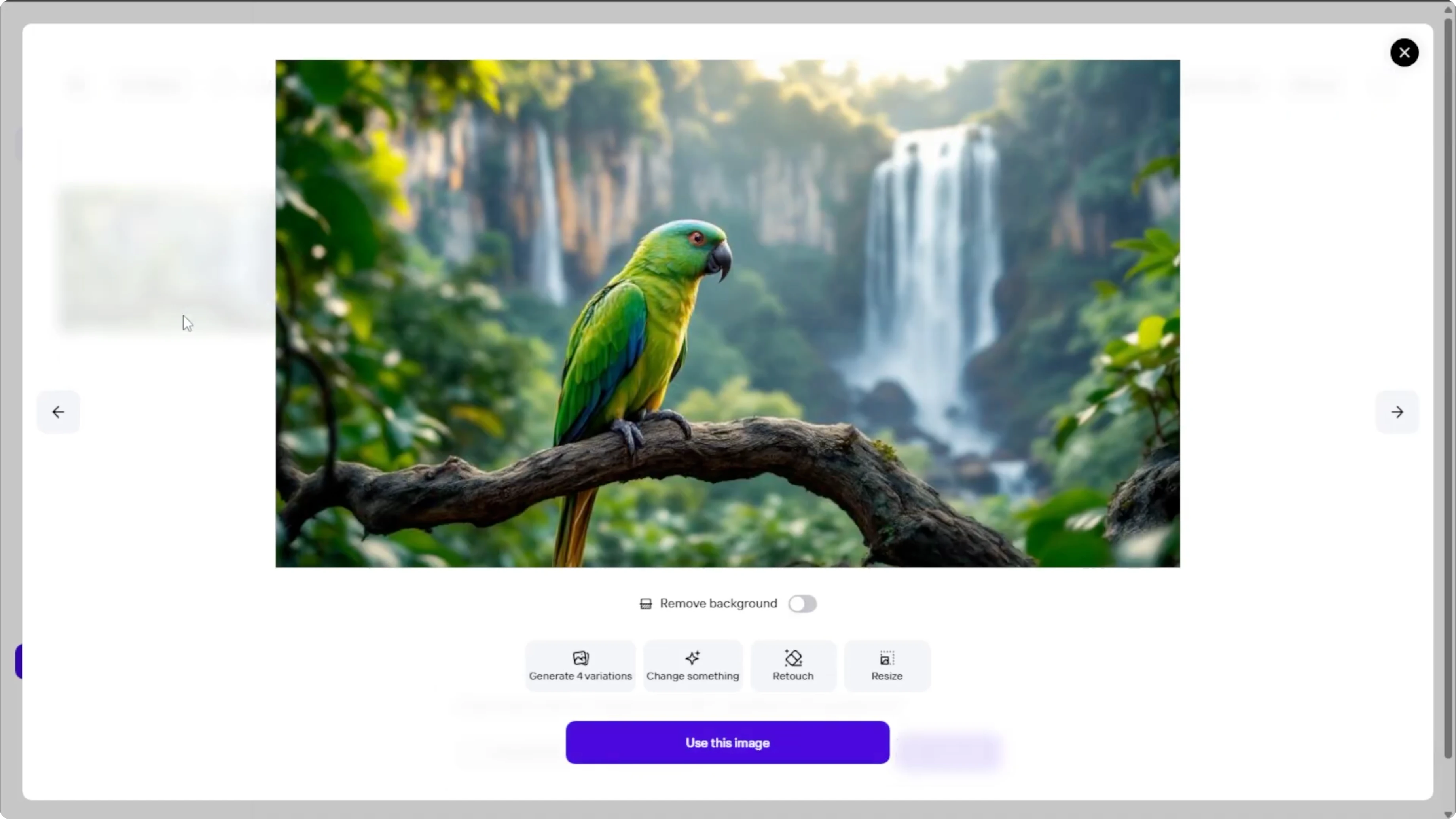
Tweak with Change something
Click change something if you want to tweak the current image. Describe what you would like to change as clearly as possible. Apply the edit and review the updated result.
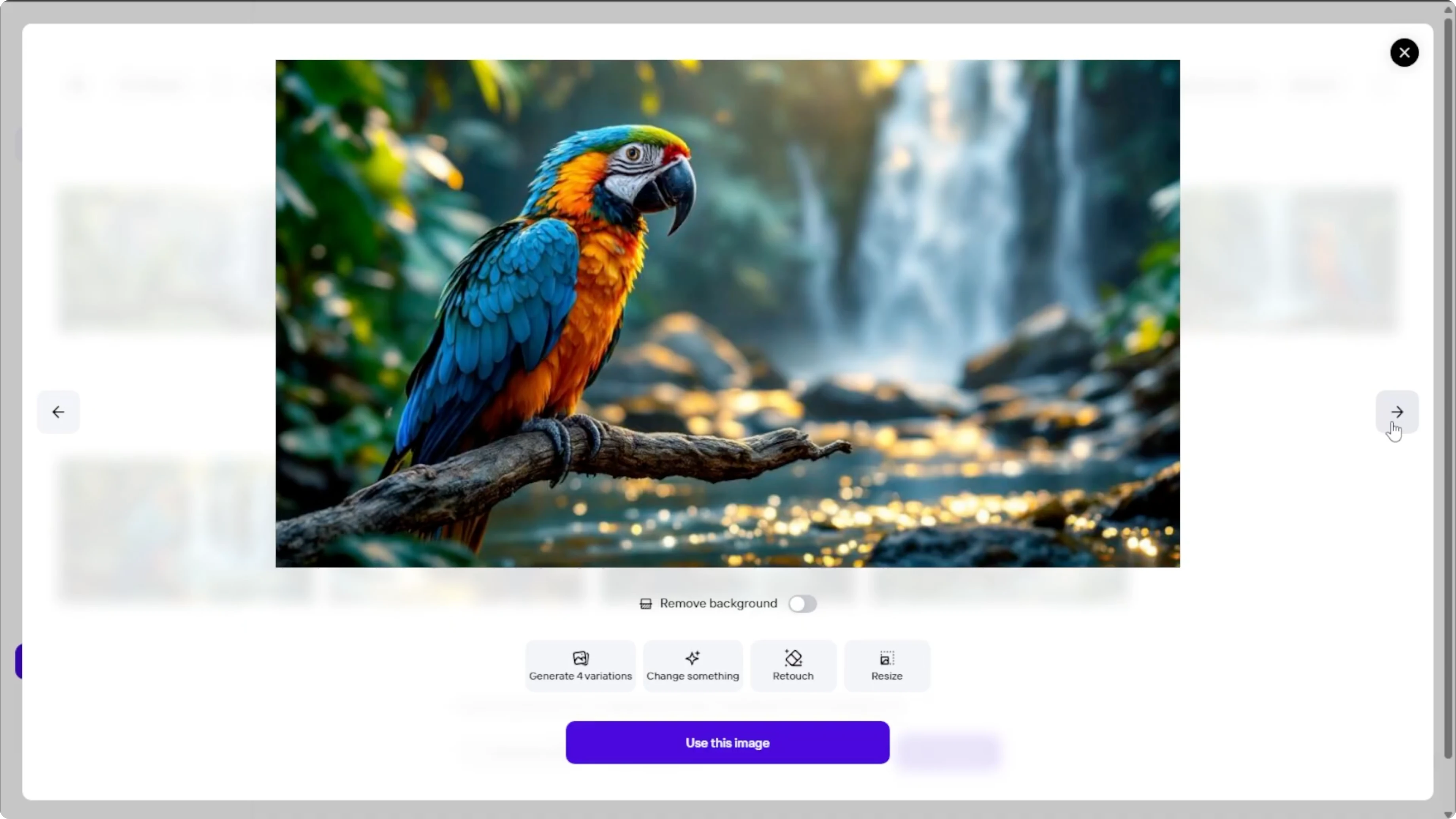
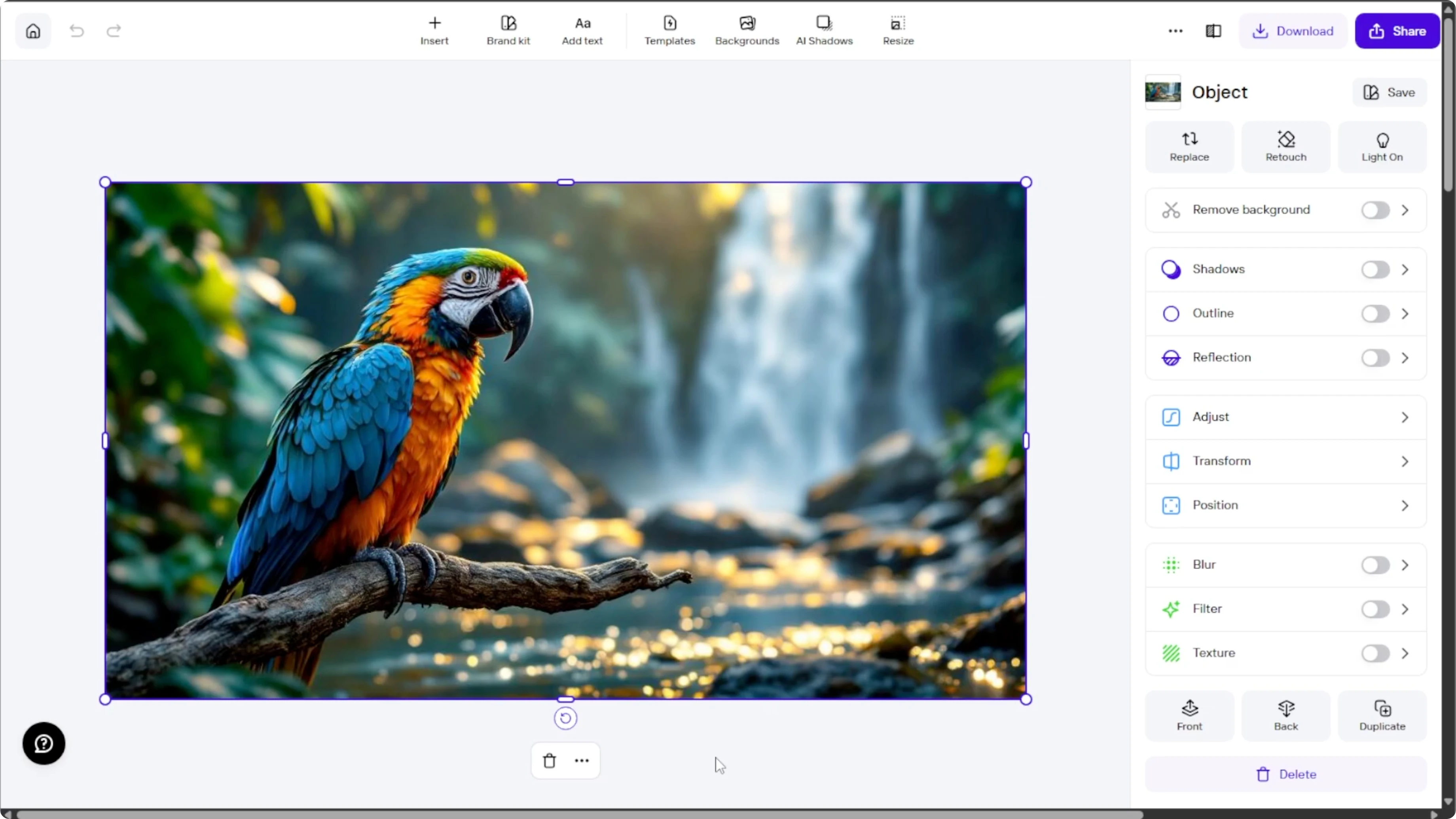
Finish in the editor
When you are happy with a result, click Use this image. You will enter Photo Room editor where you can add effects or text, adjust colors and lighting, crop the image, and insert overlays like studio lights or logos.
If you want to merge separate elements later in your design process, see how to blend two images with Canva AI.
Save your image
When you are satisfied with the final image, click Download to save it to your device.
Free trial
You can try Photo Room premium features with a 7 day free trial. This includes unlimited generations, high resolution downloads, and more editing controls.
Final thoughts
Photo Room makes it easy to turn a clear prompt into polished animal photography. Set the right size, pick a fitting style, generate, review, and refine. Finish with targeted edits, then download your image in a few clicks.
Recent Posts

How to Visualize Yourself as a Pixelized Character with AI?
How to Visualize Yourself as a Pixelized Character with AI?

How to Revive Faded Memories and Enhance Image Clarity with AI?
How to Revive Faded Memories and Enhance Image Clarity with AI?

How to Visualize Yourself as an Animal Crossing Character with AI?
How to Visualize Yourself as an Animal Crossing Character with AI?