How to Adjust Facial Expressions and Emotions in Photos with AI?
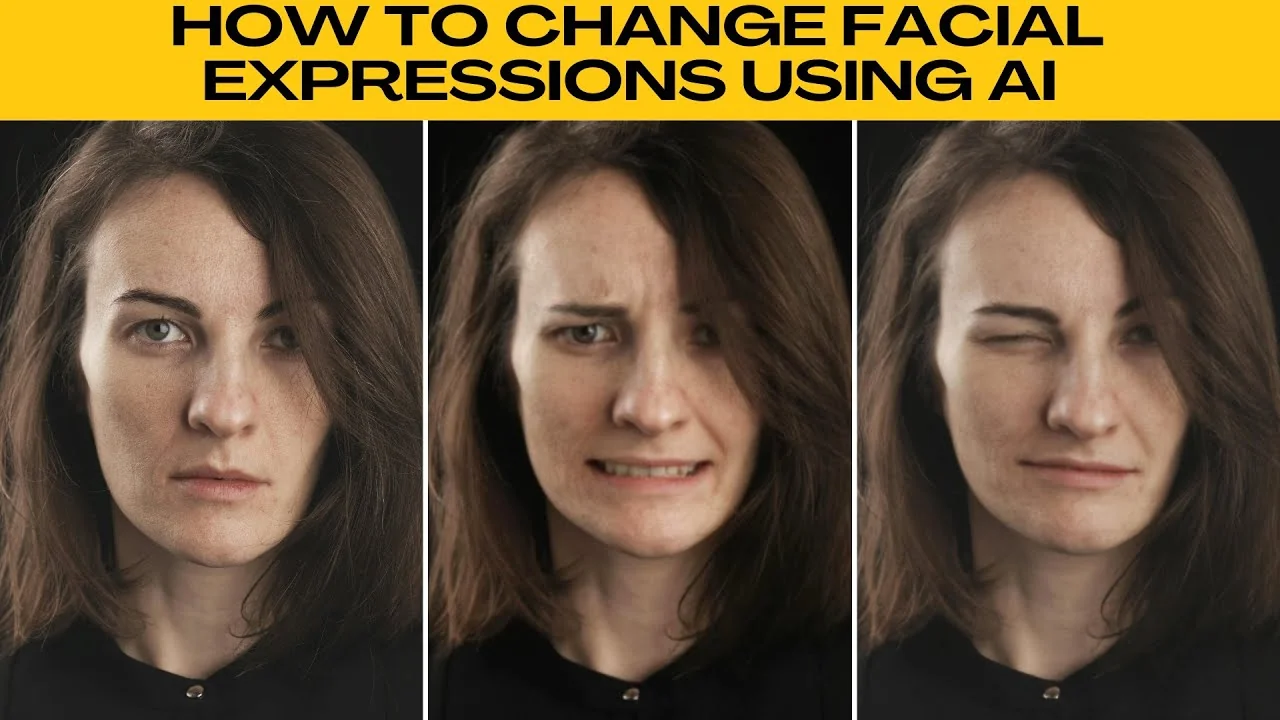
I will teach you how to change facial expressions using PhotoR. These steps will help you edit portraits for a natural or expressive look.
Open the editor
Open Photos AI photo editor.
Go to the left panel, then click Beauty.
Under the Smart AI tools, select AI Expression.
This is a pro feature, but PhotoR offers a 7 day free trial. Remember to cancel it if you do not want to be charged after the trial ends.
Choose an expression
Go to the AI Expression panel, which you can drag around the canvas if it blocks your subject.
You can choose from six preset expressions. Smile has a standard, medium, or maximum option, and sad has mild or strong. Finally, you have the wink expression.
Click each one to preview the change in real time. Once you are happy with the result, click Apply.
For creative scene edits, see how to turn daytime photos into night.
Compare and save
Click the Compare button in the bottom right corner to see a before and after view of your image. Once you are satisfied with the new expression, click the Download button to save your edited photo.
For a full makeover, you can also change your hairstyle in photos using AI.
Ideas for portraits
This is ideal for social media profile photos or adding fun to portraits. Try subtle smiles for a natural look, or go big for more impact.
You can use this in combination with PhotoR other AI tools for full retouching. To refine portraits further, try facial hair updates with an AI facial hair try on.
Final thoughts
Editing expressions in PhotoR is quick and effective with AI Expression, real time previews, and simple saving. Use subtle adjustments for natural results or stronger settings for more impact.
Recent Posts

How to Visualize Yourself as a Pixelized Character with AI?
How to Visualize Yourself as a Pixelized Character with AI?

How to Revive Faded Memories and Enhance Image Clarity with AI?
How to Revive Faded Memories and Enhance Image Clarity with AI?

How to Visualize Yourself as an Animal Crossing Character with AI?
How to Visualize Yourself as an Animal Crossing Character with AI?