How to Change and Enhance Eye Color in Photos Safely with AI?
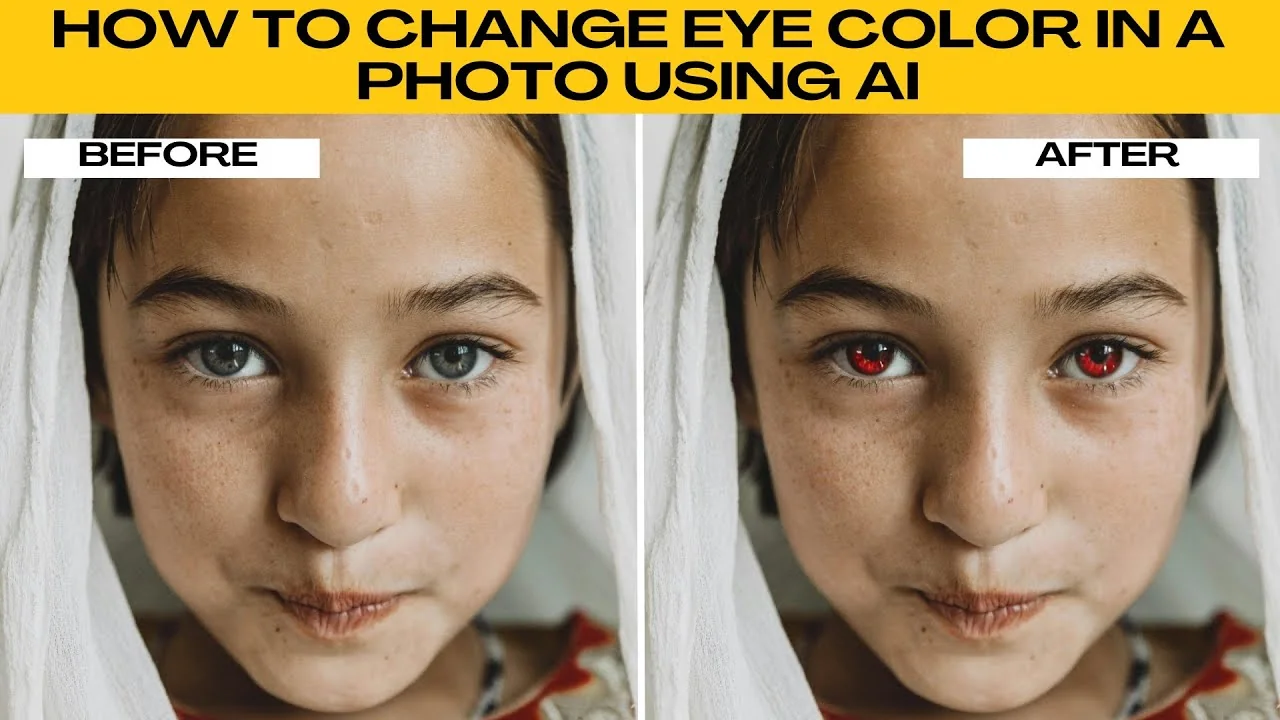
I will teach you how to change eye color in a photo using AI. If you want to give your portrait a subtle enhancement or a bold transformation, you can use an AI powered eye color changer with automatic and manual tools.
For broader edits beyond eyes, see changing color of objects in photos for extra techniques.
Get started
Open the AI eye color changer.
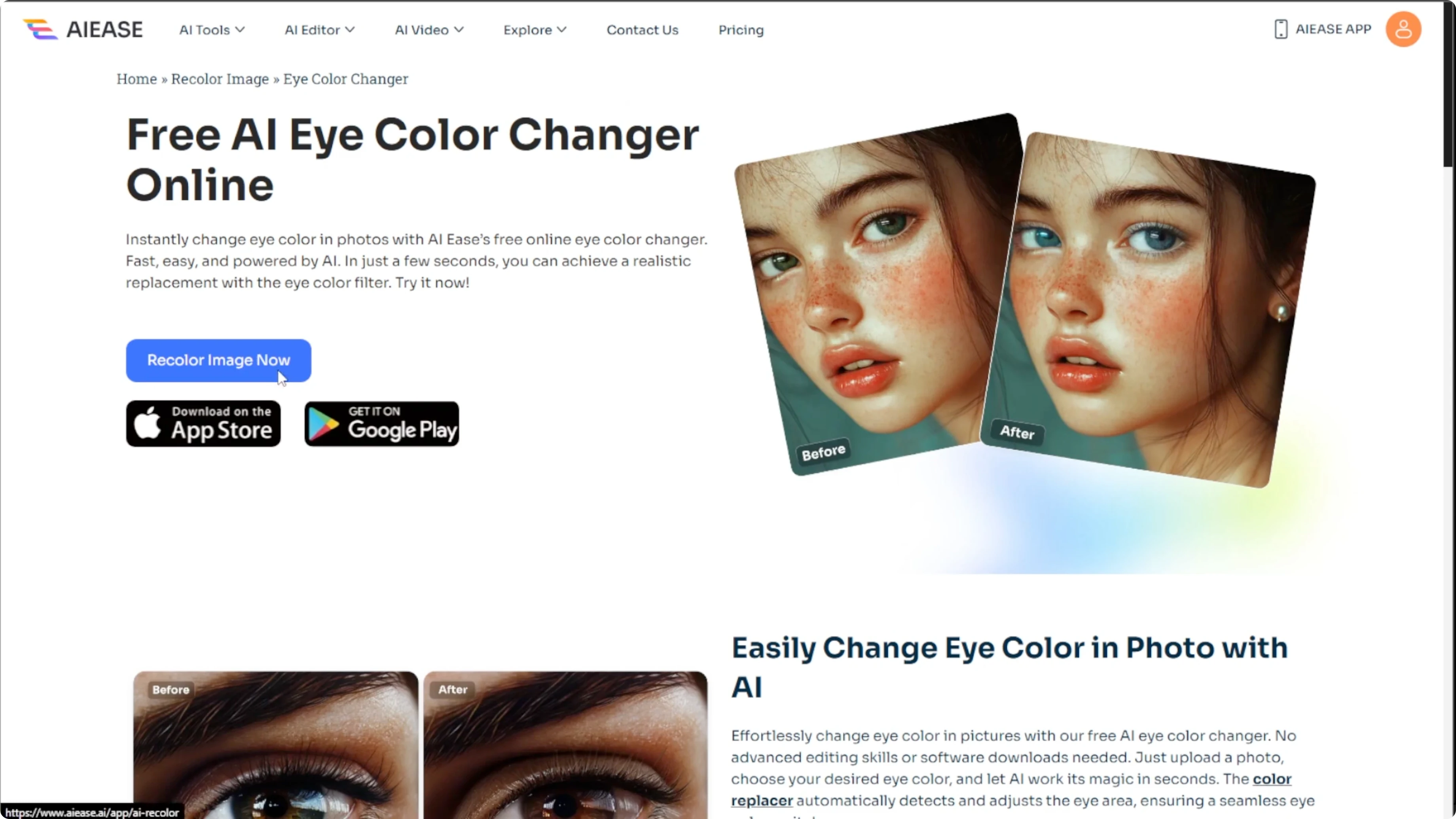
Click Recolor Image Now to launch the editor.
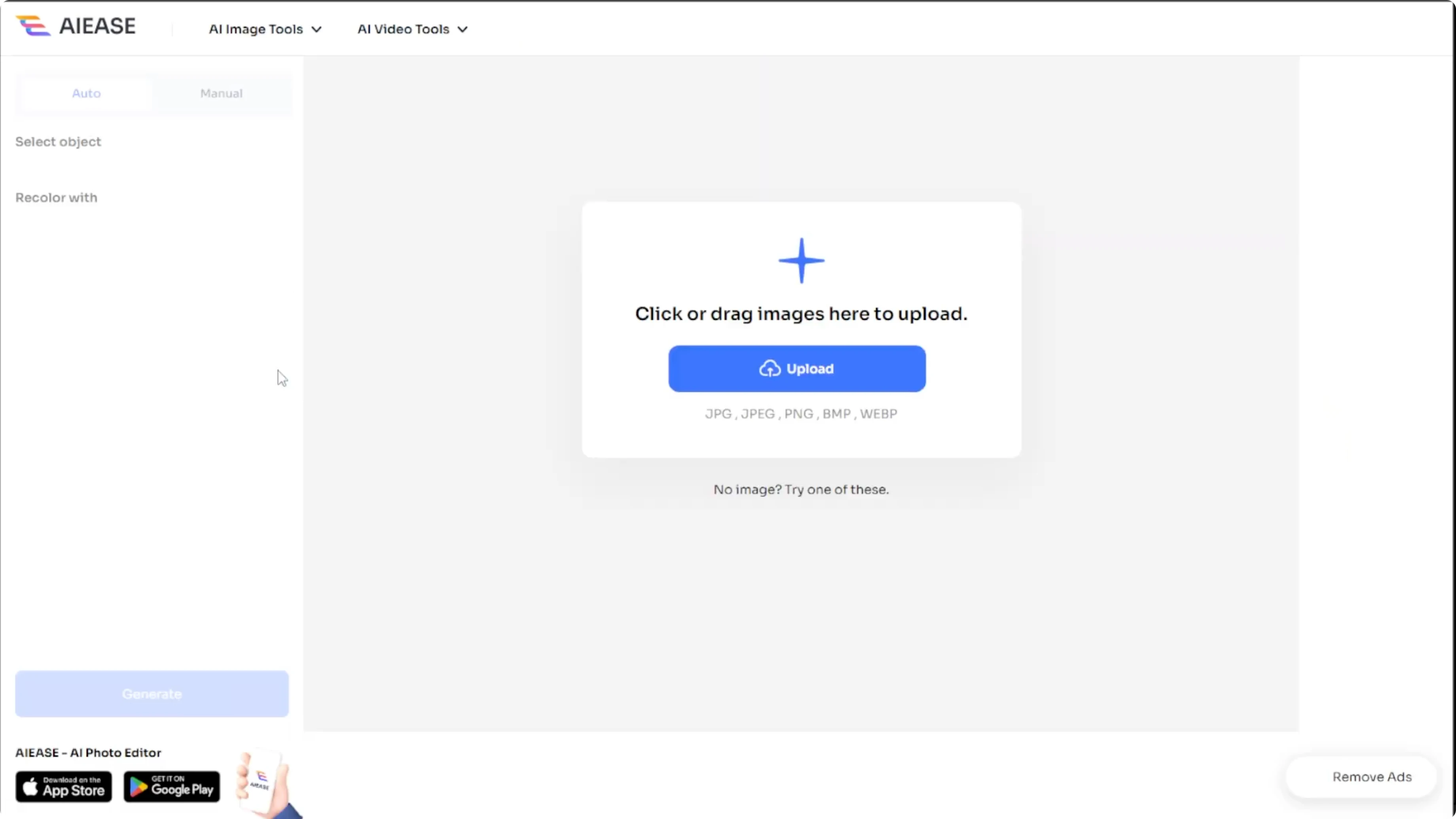
Upload your image or drag and drop it into the editor.
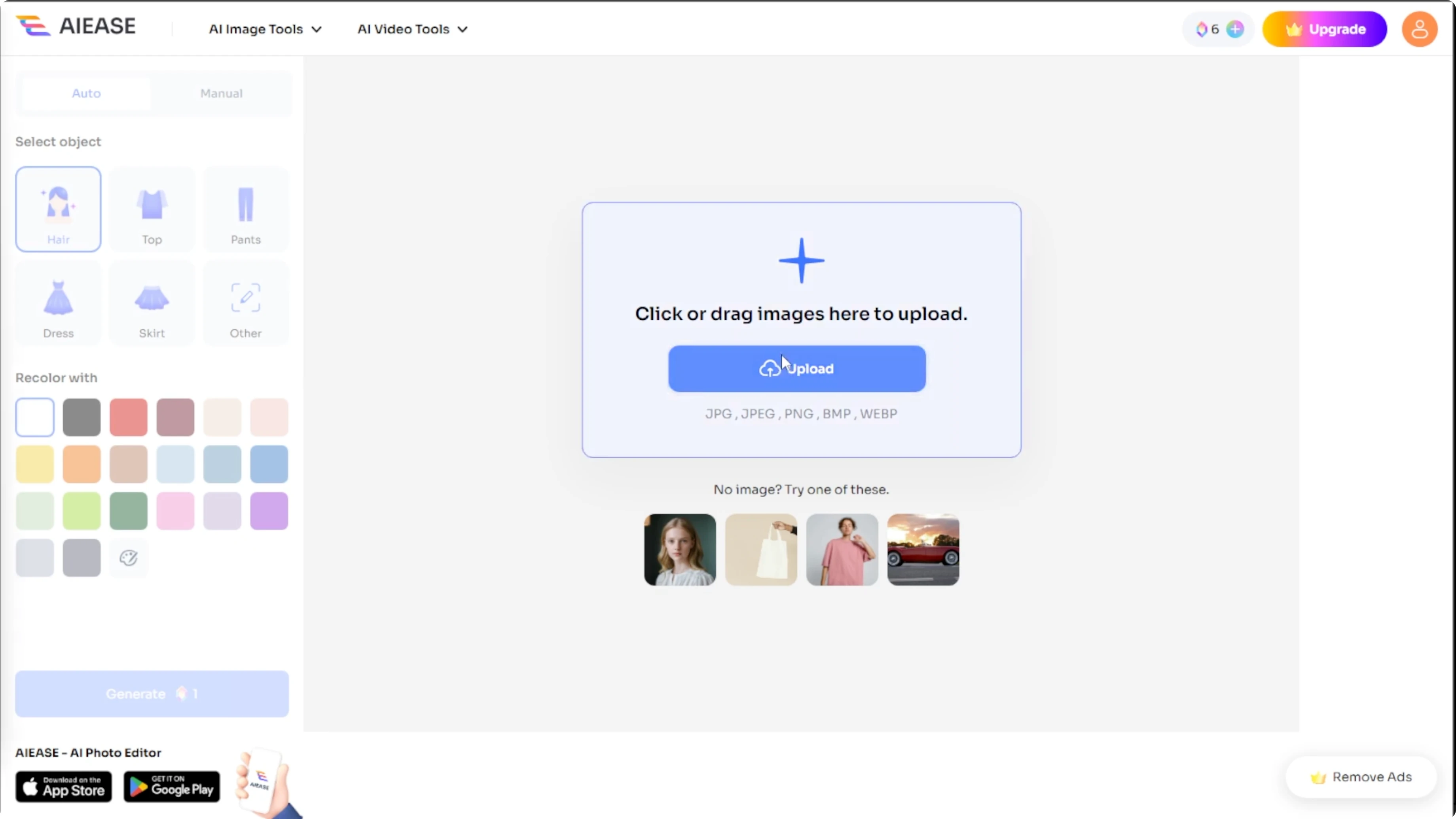
The supported formats include JPG, JPEG, PNG, BMP, and WEBP.
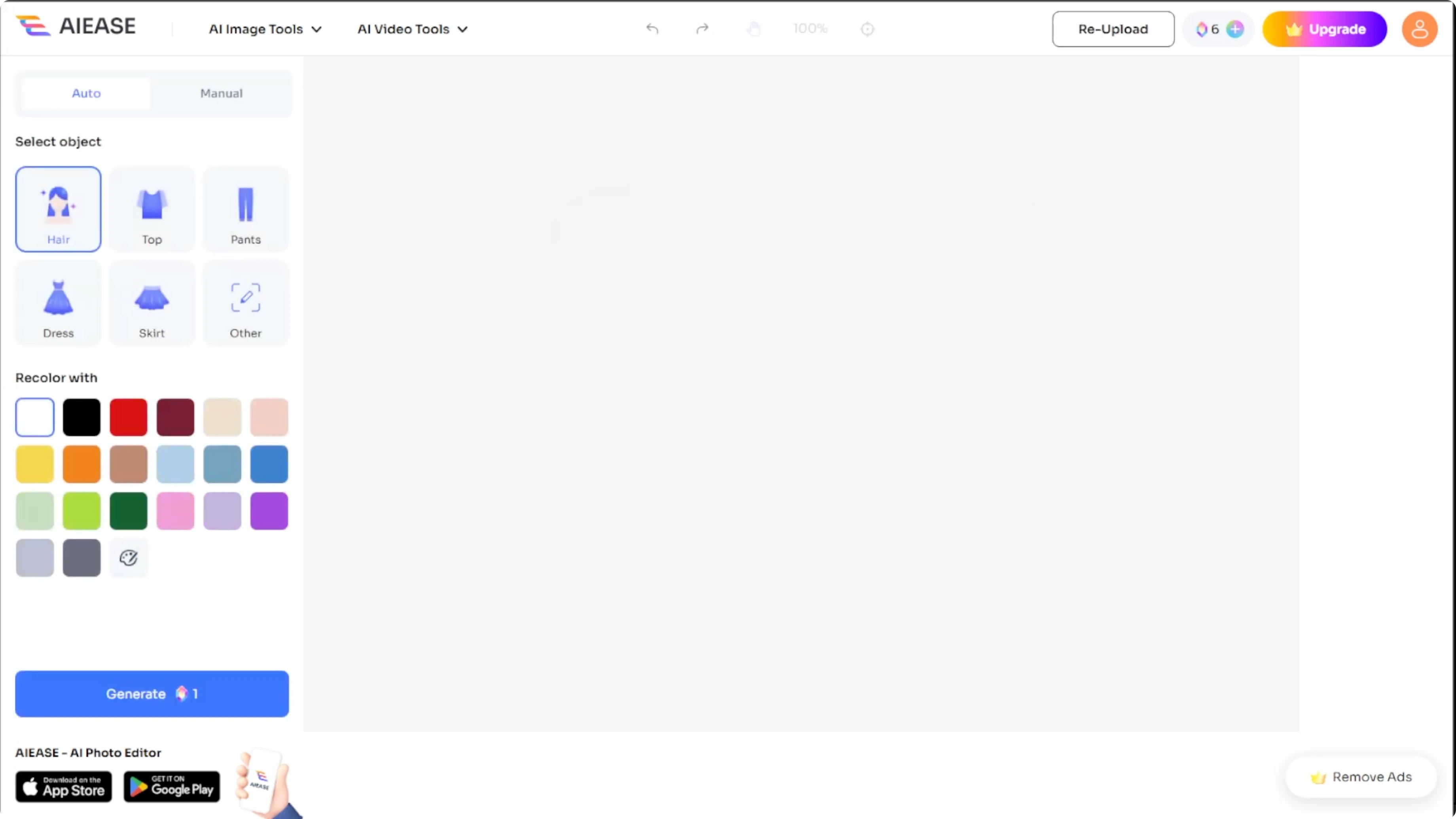
You can also try the tool using one of the sample images.
Choose your editing mode
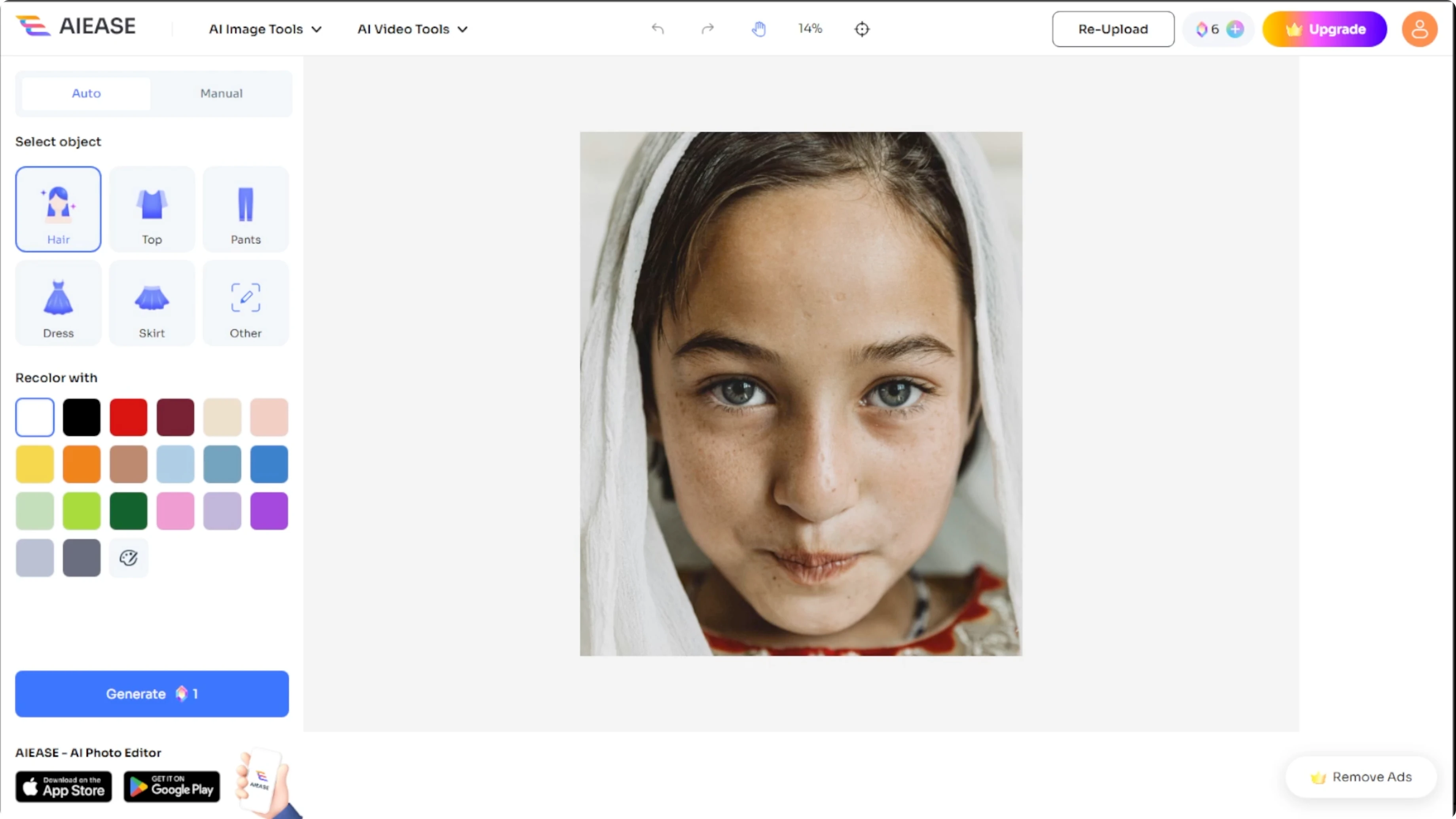
You will have two options: auto mode and manual mode.
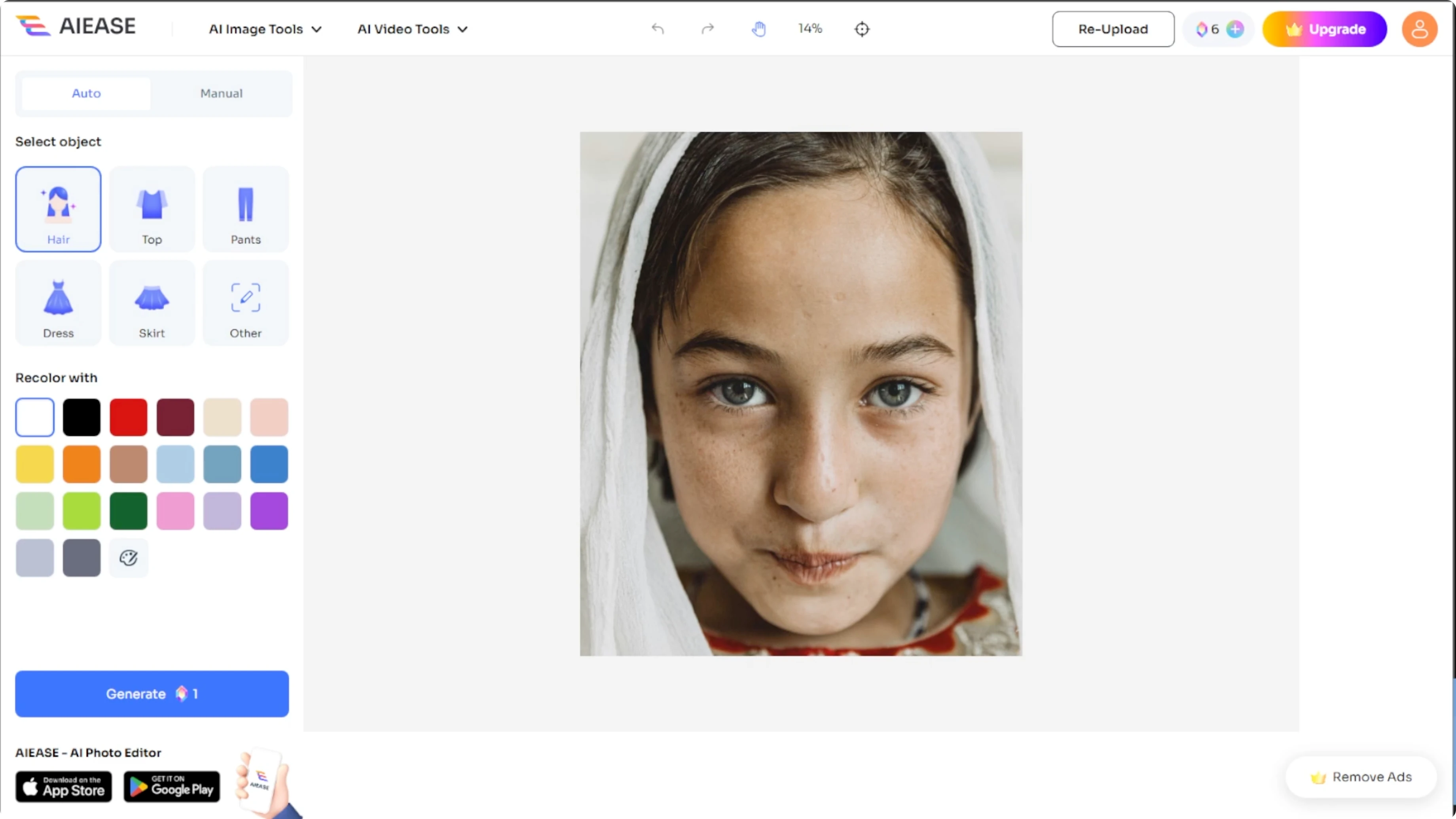
Auto mode
In auto mode, select Other from the list of objects and a prompt box will appear where you have to describe the area clearly.
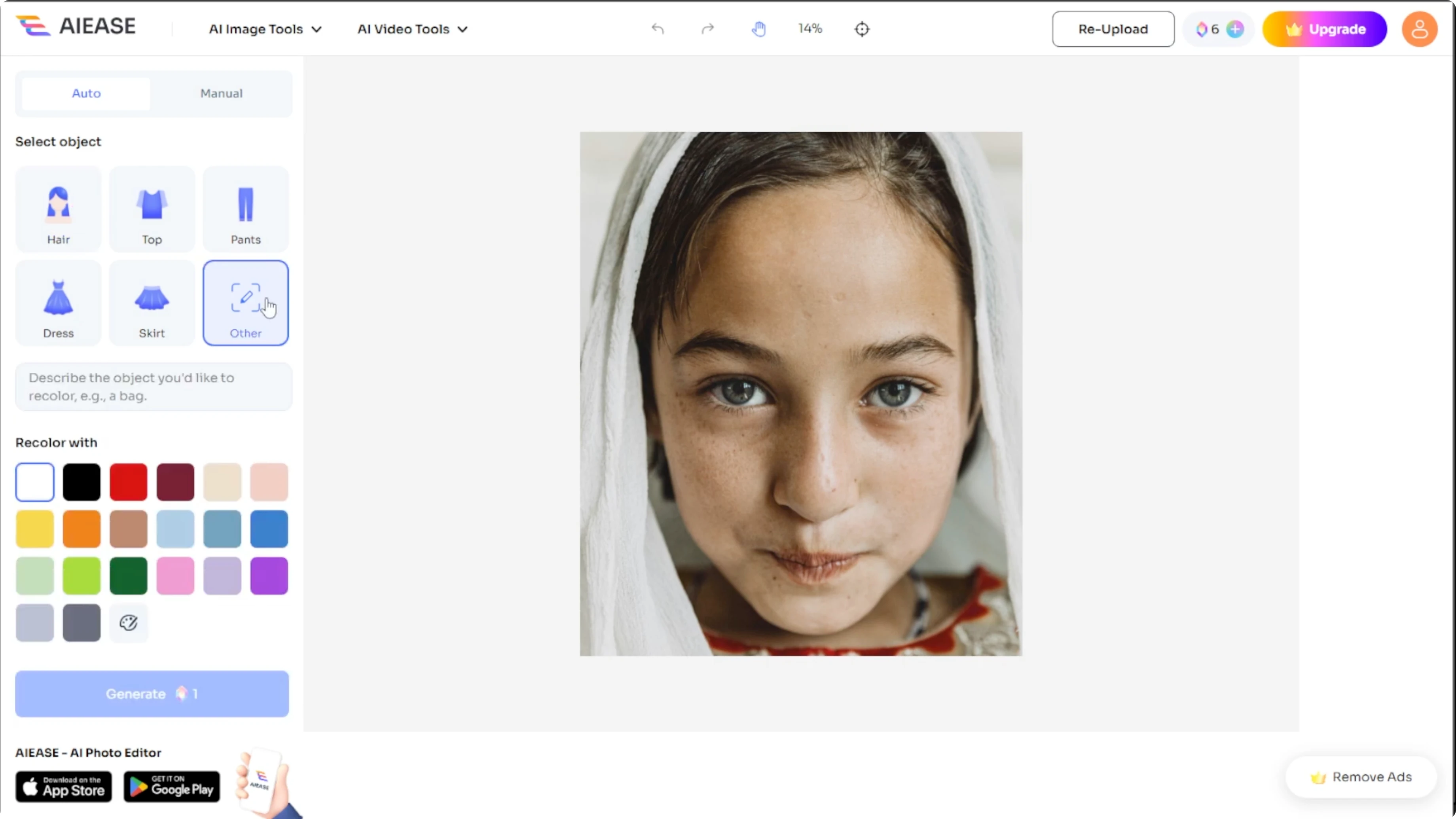
Select the color using the preset panel or click the palette icon to enter a custom hex code.
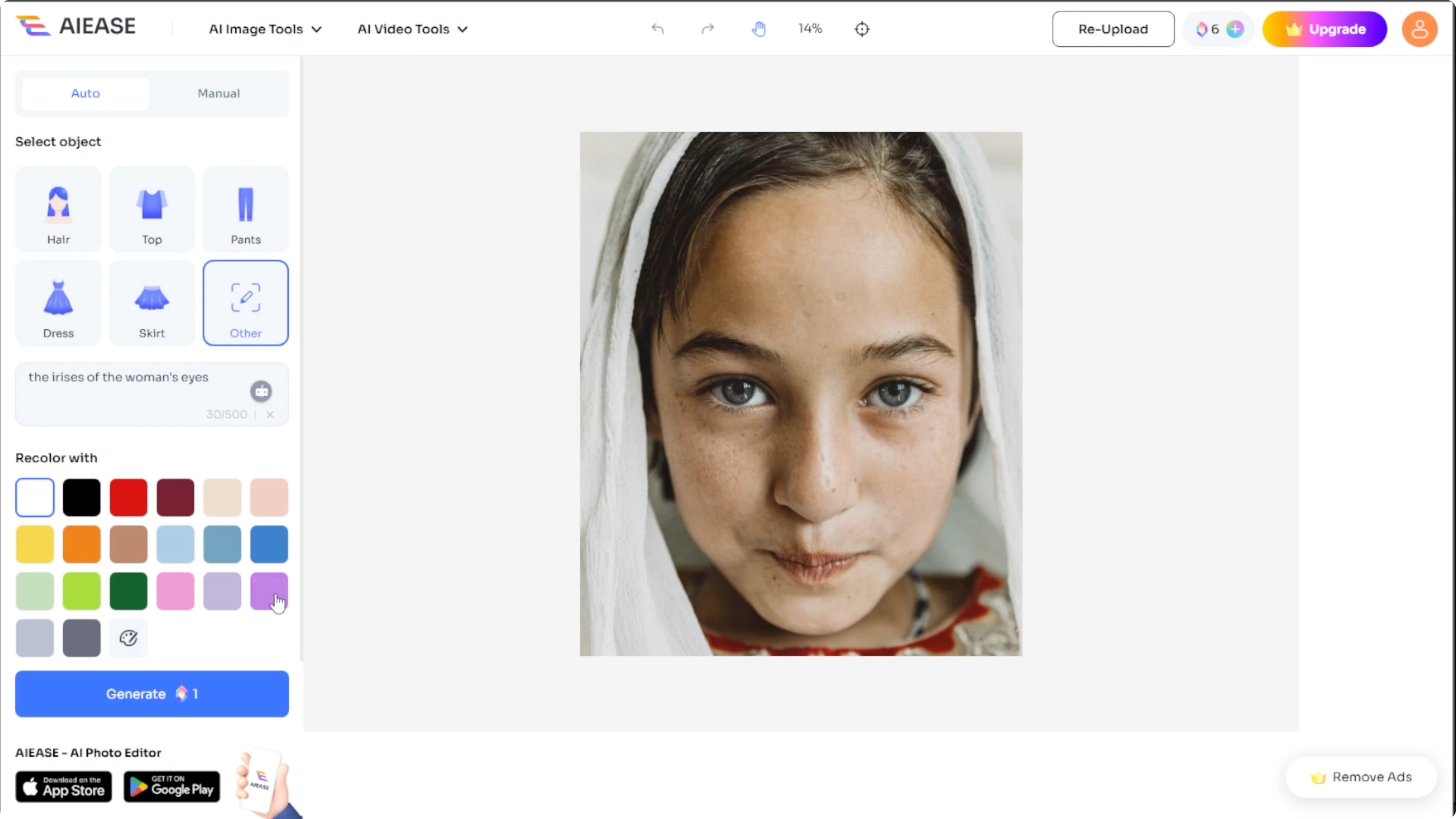
Click Generate to apply the new color.
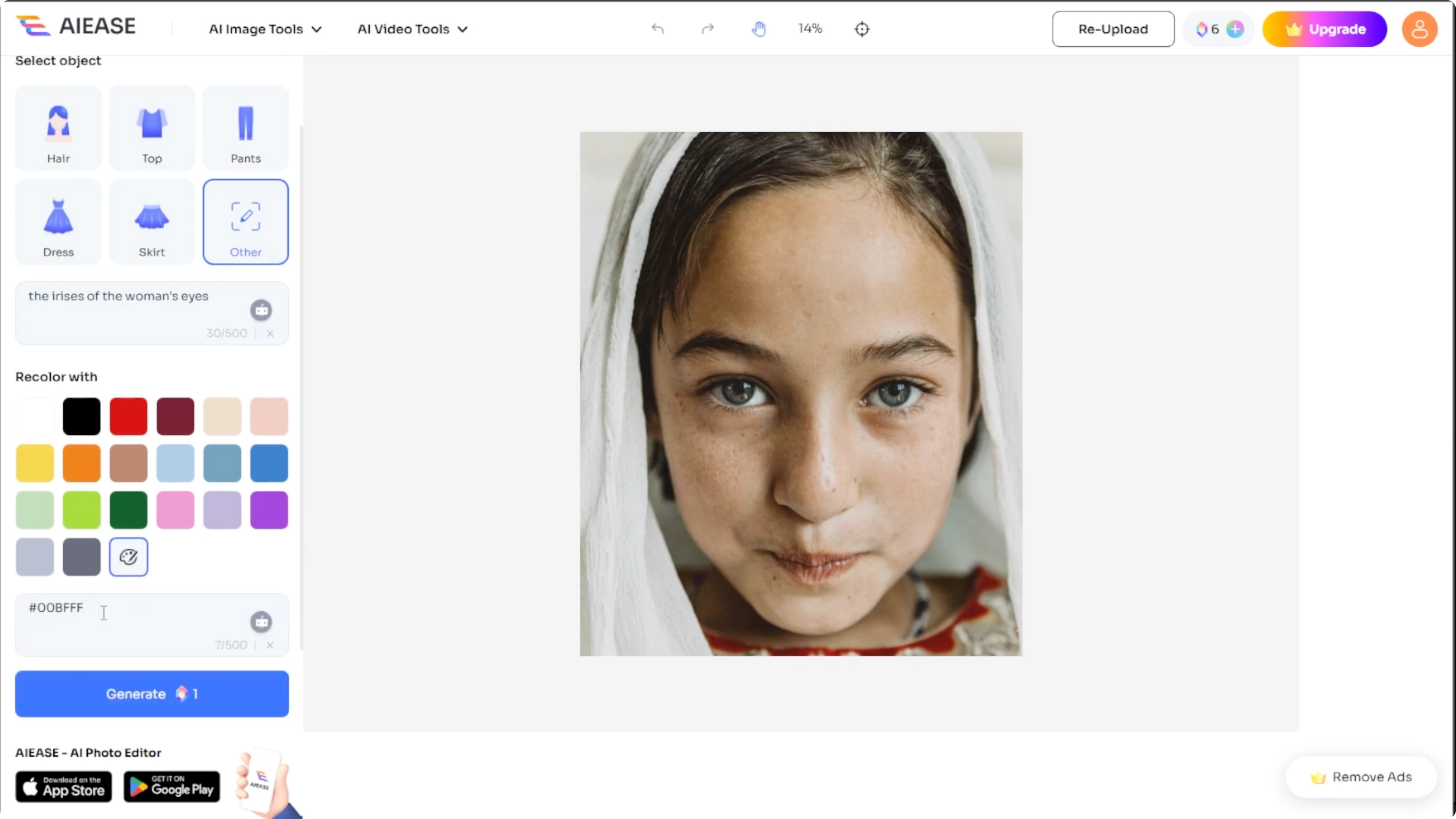
This process should cost one credit for nonsubscribers.
For a full makeover beyond eyes, you can also change your hairstyle in photos with AI.
Manual mode
If you are not satisfied with the result of the auto mode, switch to manual mode.
Use the Brush tool to paint directly over the eyes and adjust the brush size for accuracy.
Use the Eraser tool to clean up the edges.
Choose your desired color or enter a hex code.
Click Generate once you finish your selection.
When you are happy with the result, click Download to save the image to your device.
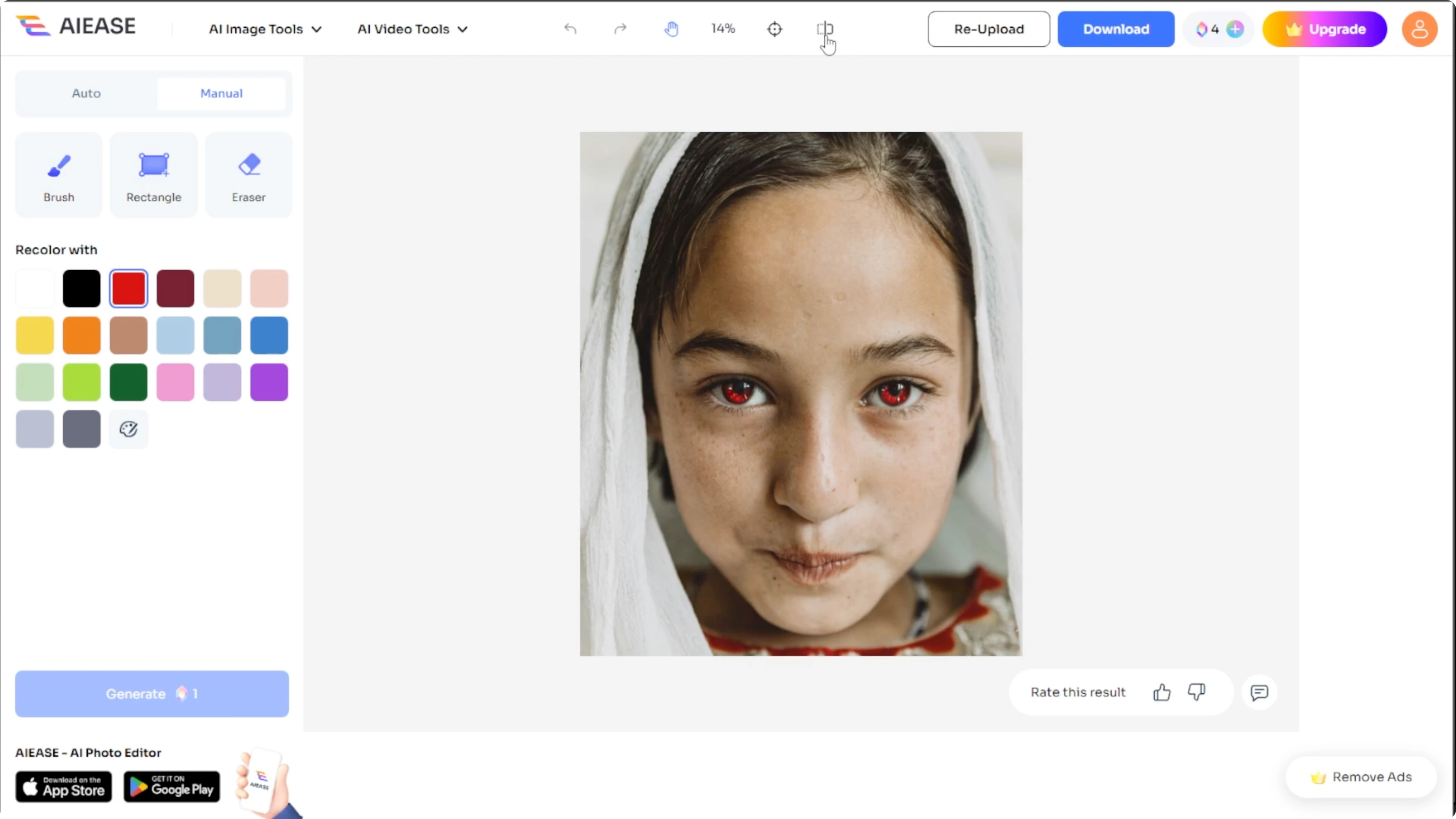
Tips for better results
Zoom in for precise manual brush work.
Use a custom hex code for exact shades, which is great for matching real life eye colors.
Try both modes and compare the results for best accuracy.
If you also need to edit backgrounds for portraits, see change background color in Canva.
Final thoughts
An AI eye color changer makes subtle corrections or bold changes quick and precise. Use auto mode for fast results, and switch to manual mode when you want full control and perfect edges. Combine zoom and exact hex codes to match real eye shades and finish with a clean download.
Recent Posts

How to Visualize Yourself as a Pixelized Character with AI?
How to Visualize Yourself as a Pixelized Character with AI?

How to Revive Faded Memories and Enhance Image Clarity with AI?
How to Revive Faded Memories and Enhance Image Clarity with AI?

How to Visualize Yourself as an Animal Crossing Character with AI?
How to Visualize Yourself as an Animal Crossing Character with AI?