How To Change Background Color In Canva
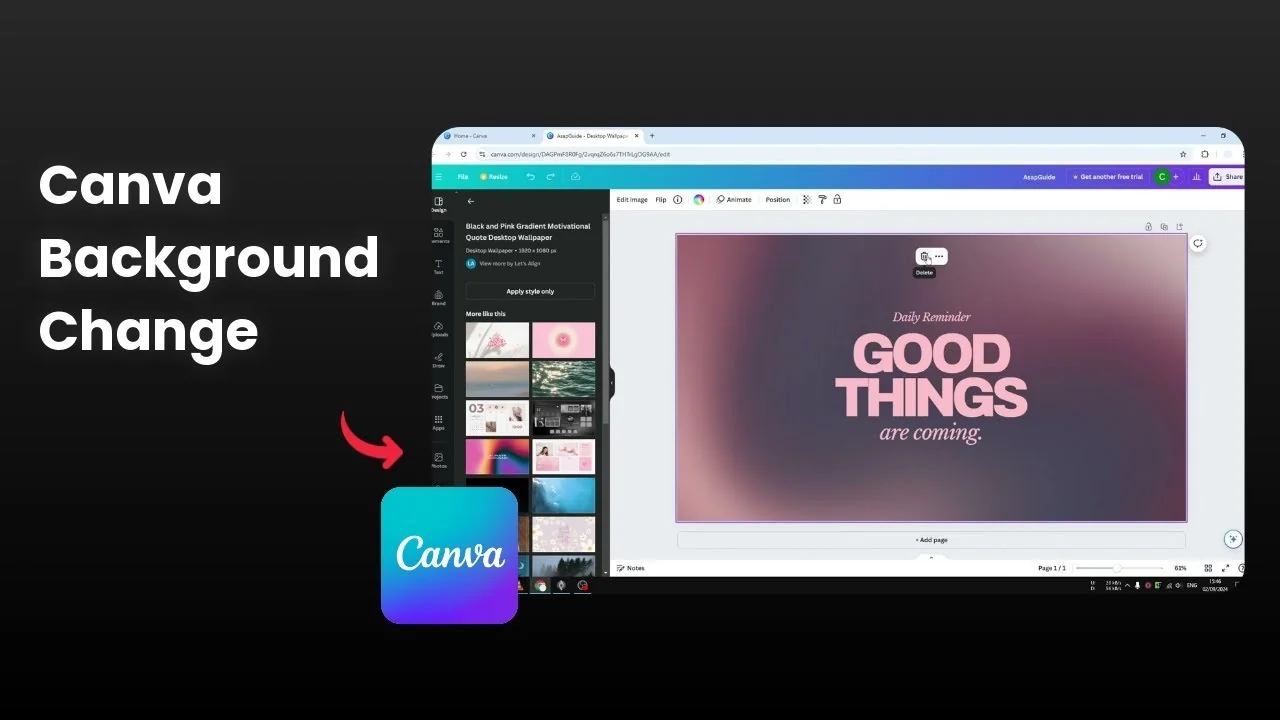
I’m going to show you how to change the background color of your Canva template. I have a document that uses an image as the background. If you use an image, you cannot just change the color because it will still be affected by the image.
If you prefer a broader walkthrough of options and quick fixes, see this practical background color guide for Canva. It covers helpful variations you might want to try.
Change Background Color In Canva
Remove the background image
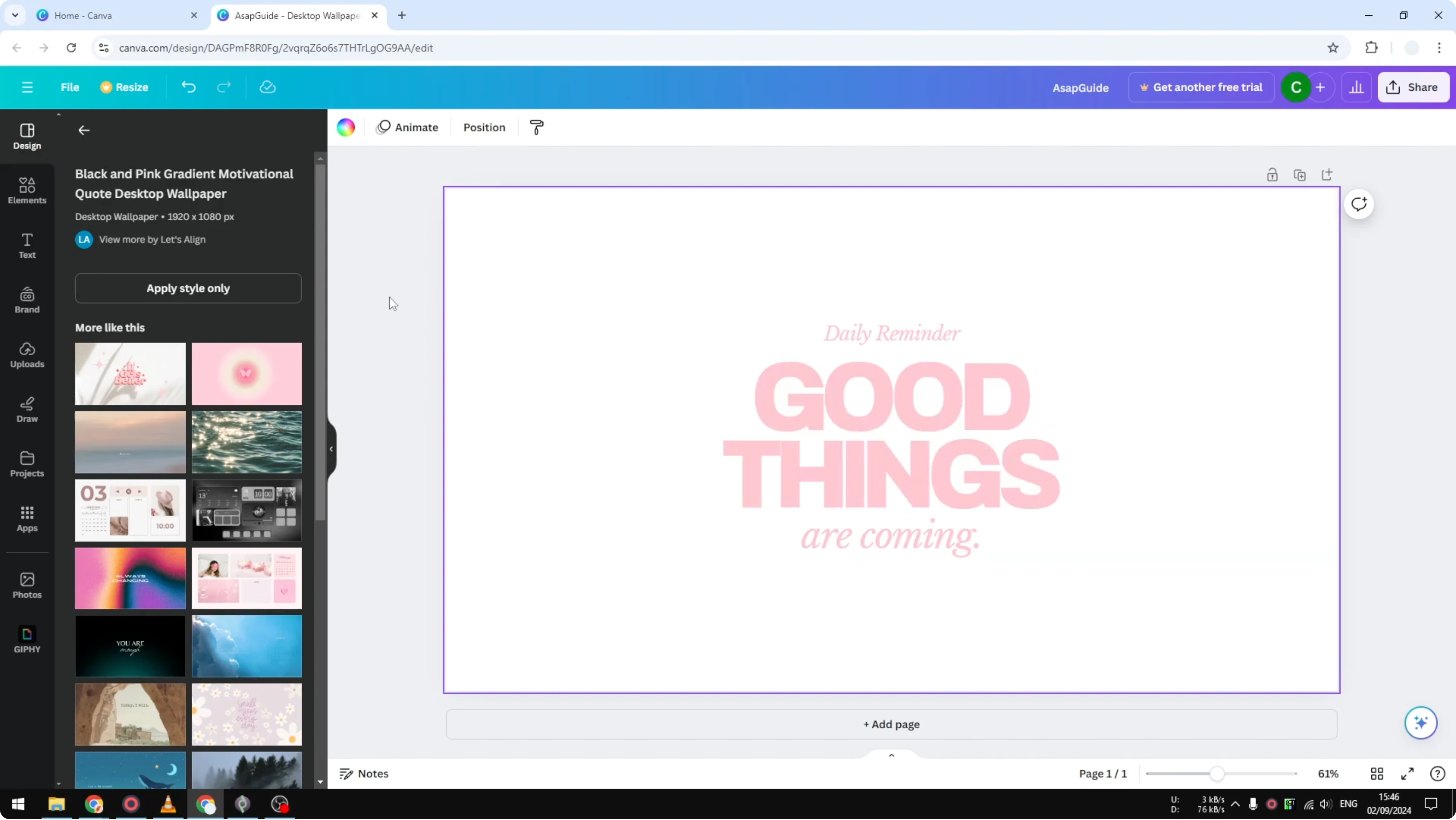
If your template uses an image as the background, remove the background image first. Click on the image and click delete.
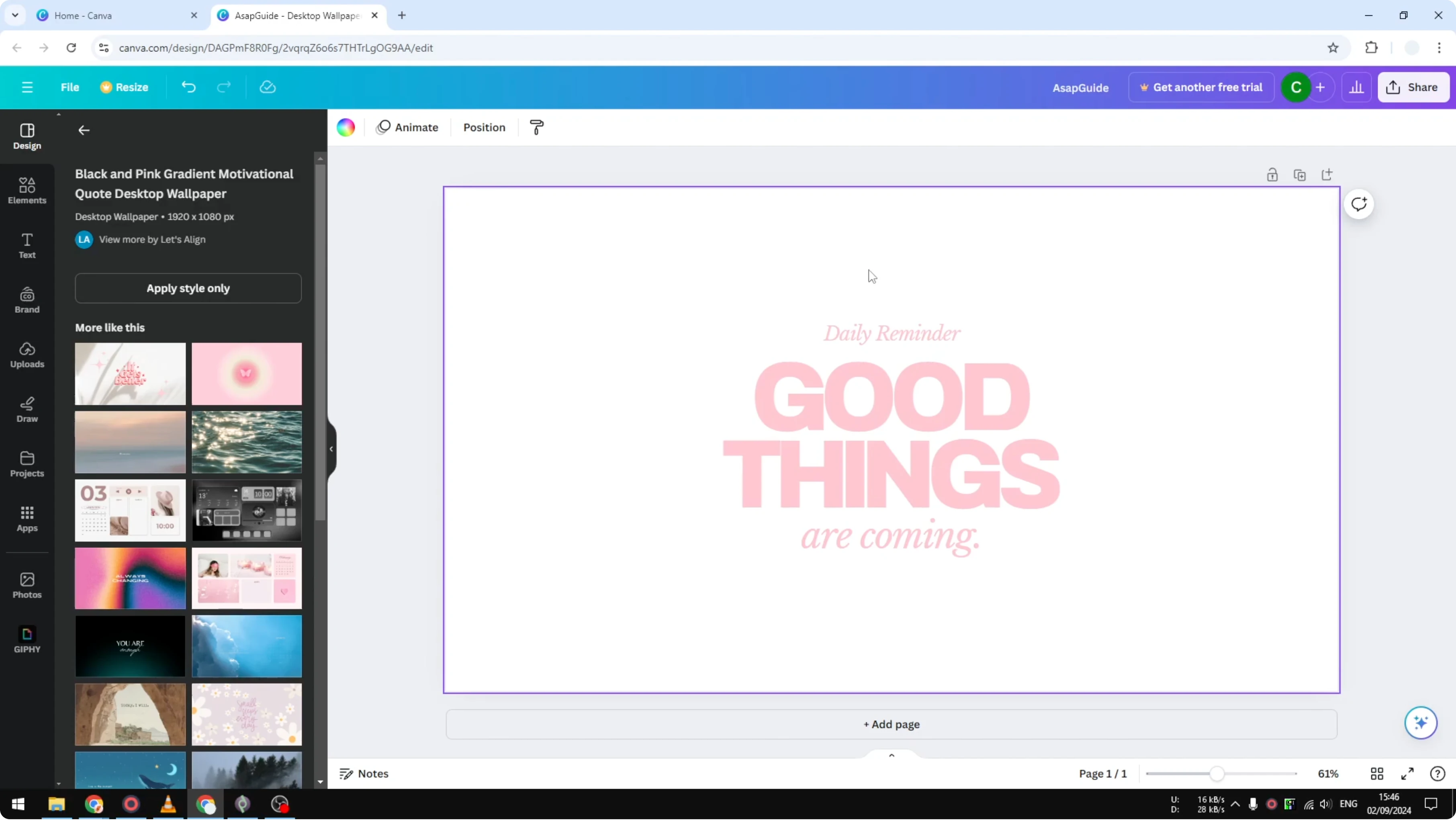
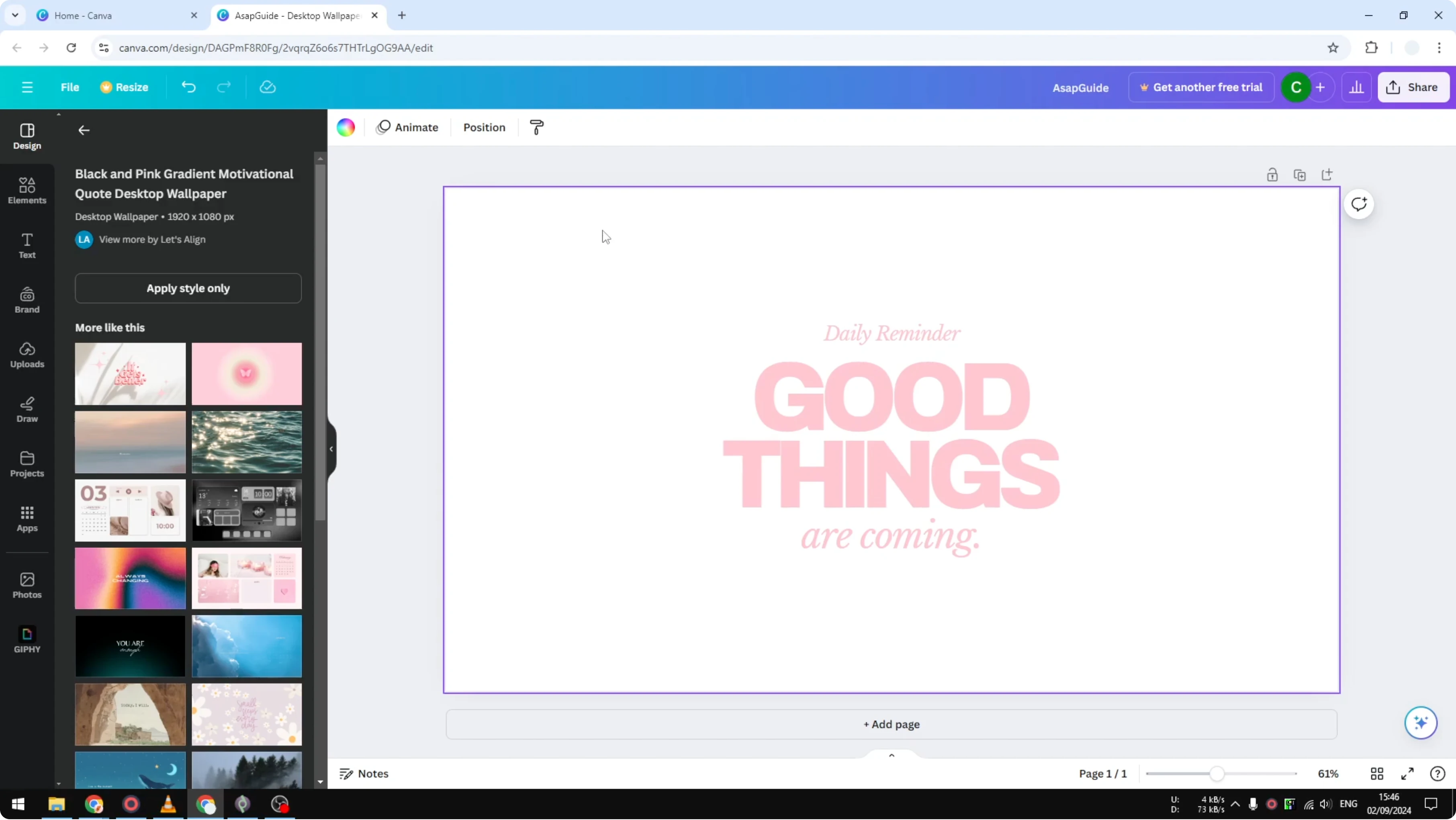
After that, you will see that the background is now empty. Now you can start adding a background color without the image affecting it.
If you actually want to recolor the background image instead of deleting it, check how to change the color of an image in Canva. This is useful when you want to keep the design but shift its tones.
Apply a solid color
Click on the background. Click Background color.
You will see some preselected colors from Canva. Click any of them and it will be immediately applied to your document.

Use a gradient
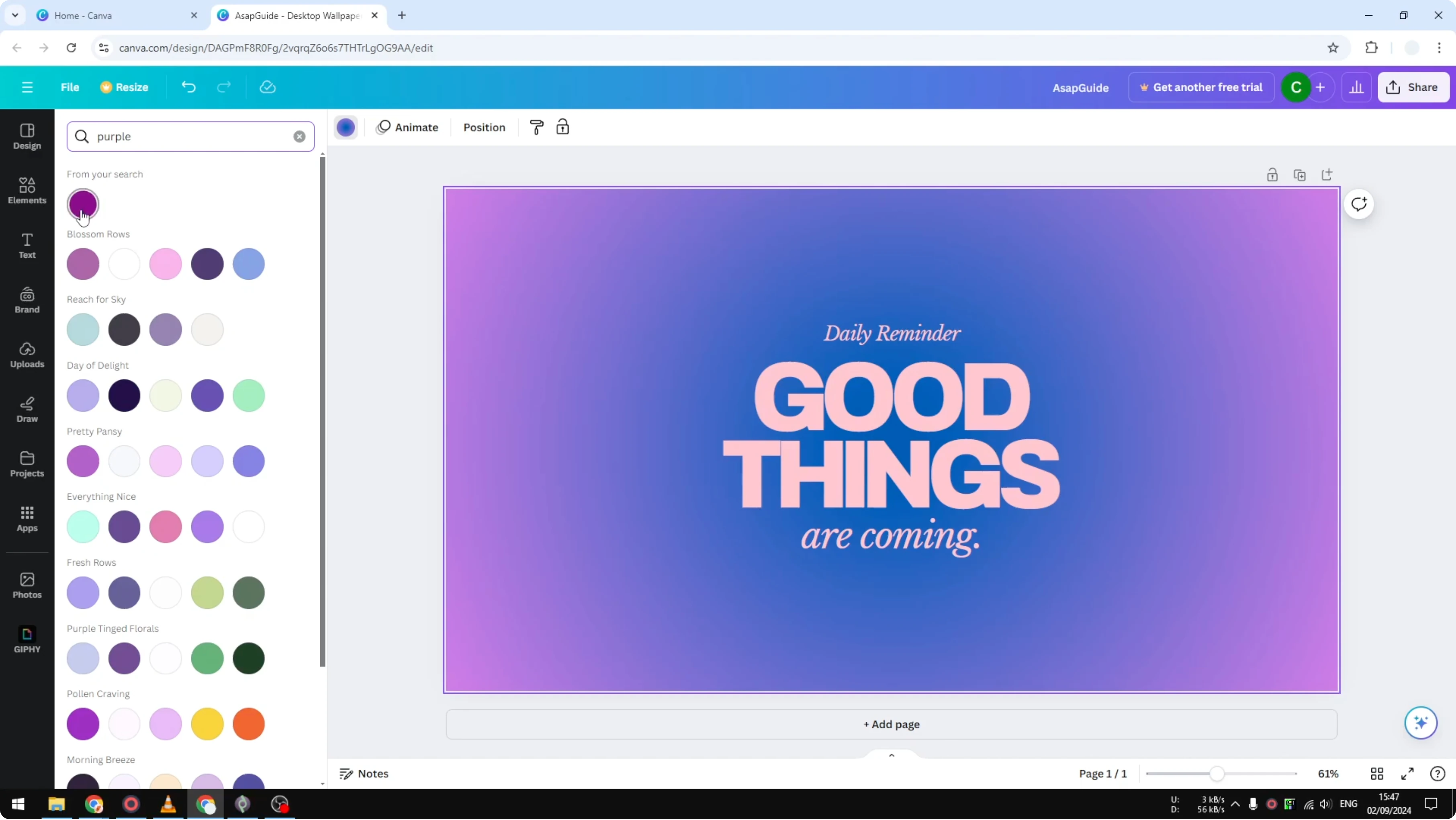
There is also gradient color. You can adjust the position of the gradient.
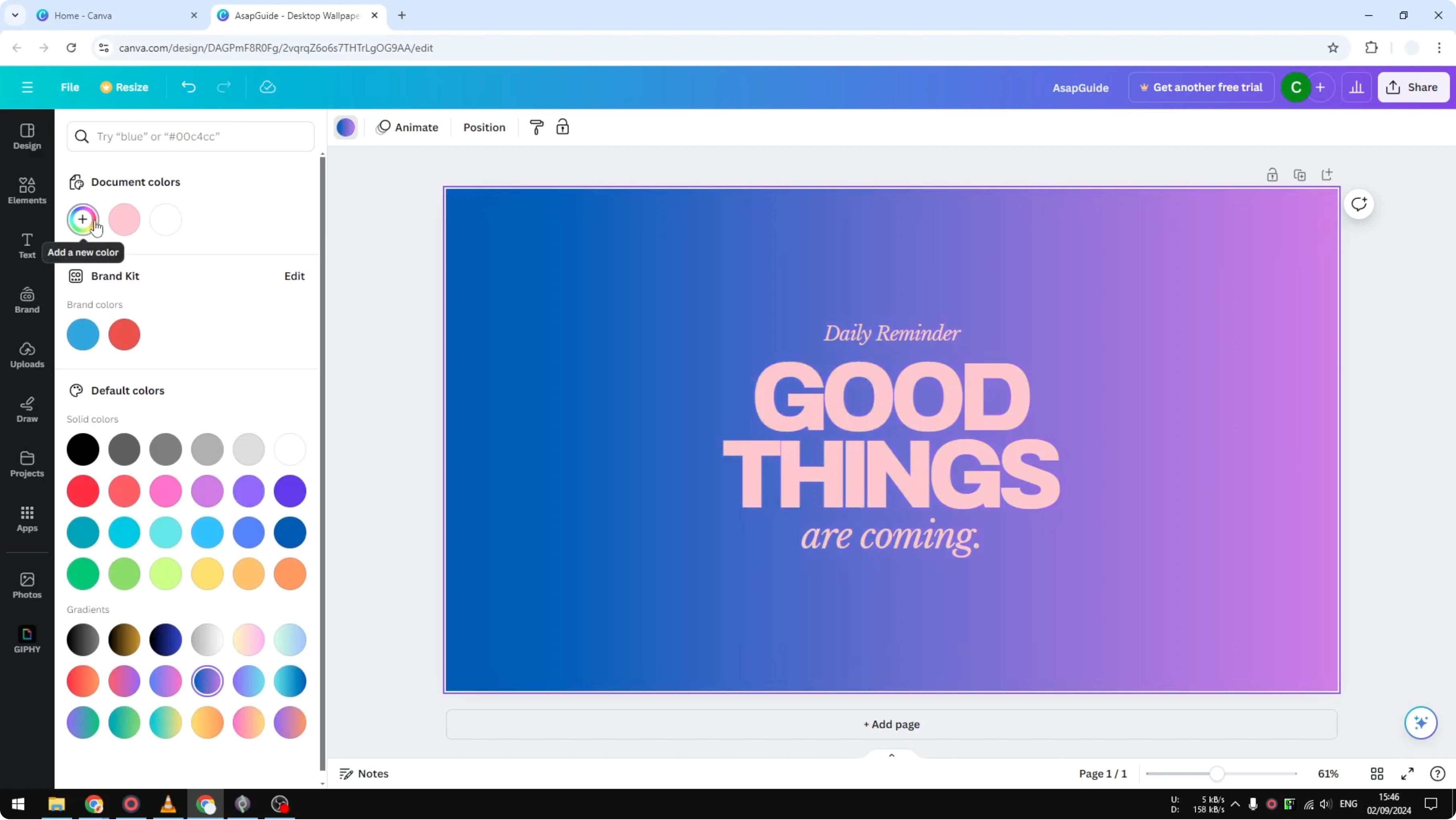
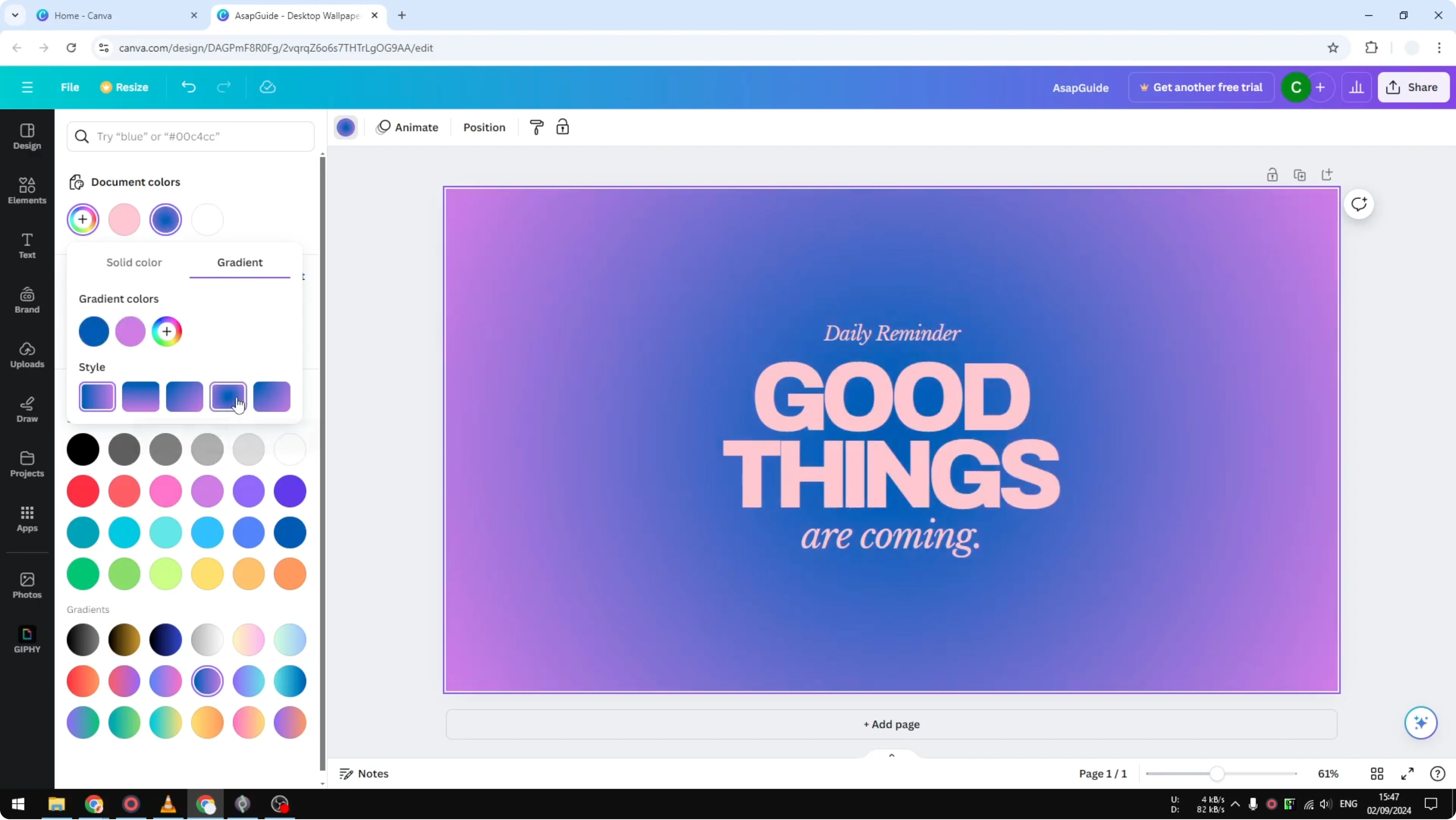
There is an option to change the type of the gradient too. Pick the style that looks best with your content.
Pick curated colors
If you want to select your own color, I recommend picking a color that has been selected by Canva designers. You can find them right here.
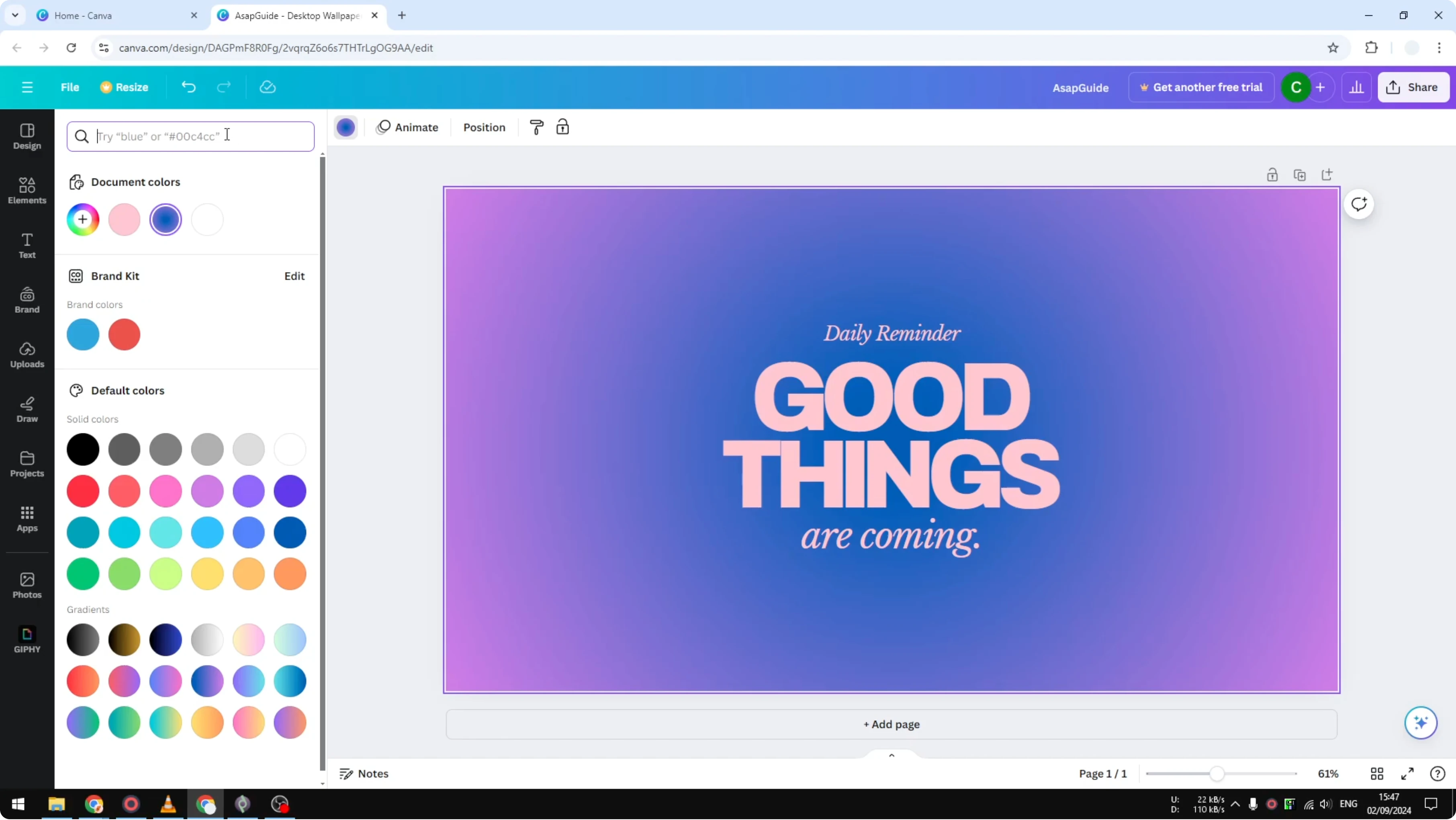
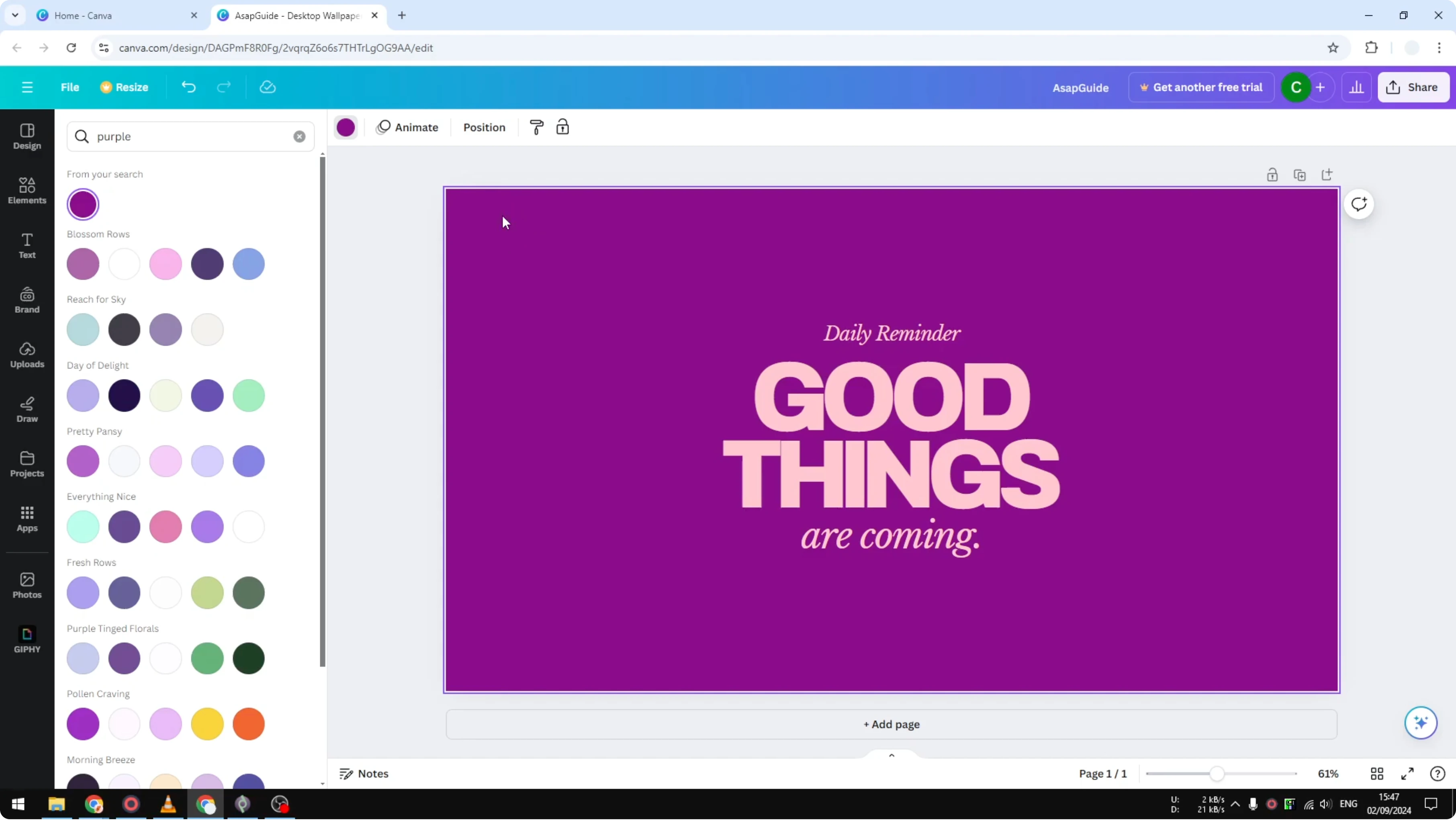
Let’s say I want to use the color purple. I’m going to search that and you will see these colors have been carefully selected to look good on any design.
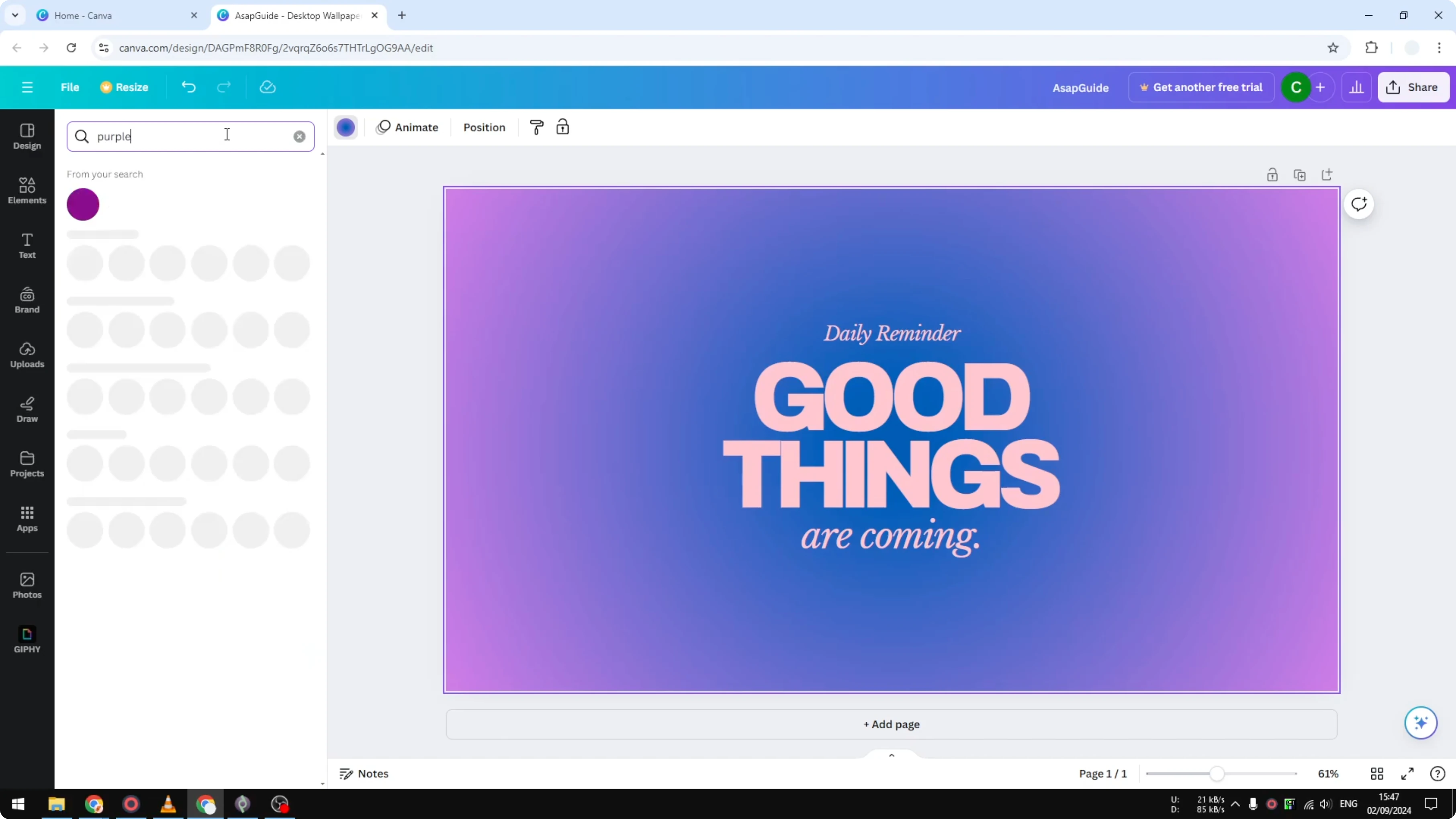
I’m going to select this one. There we go. The background color is perfectly fitting with the content, so I’m going to keep it.
If you need to refresh your brand tones first, you can also update your color palette in Canva. That makes it easier to keep designs consistent.
Final thoughts
Delete the background image if your template uses one, then set your background color. Try Canva’s presets, gradients, and curated color sets to get a result that fits your design. That is essentially how you can change the background color of your Canva template.
Recent Posts

How to Visualize Yourself as a Pixelized Character with AI?
How to Visualize Yourself as a Pixelized Character with AI?

How to Revive Faded Memories and Enhance Image Clarity with AI?
How to Revive Faded Memories and Enhance Image Clarity with AI?

How to Visualize Yourself as an Animal Crossing Character with AI?
How to Visualize Yourself as an Animal Crossing Character with AI?