How to Add Atmospheric Weather Effects to Photos with AI?
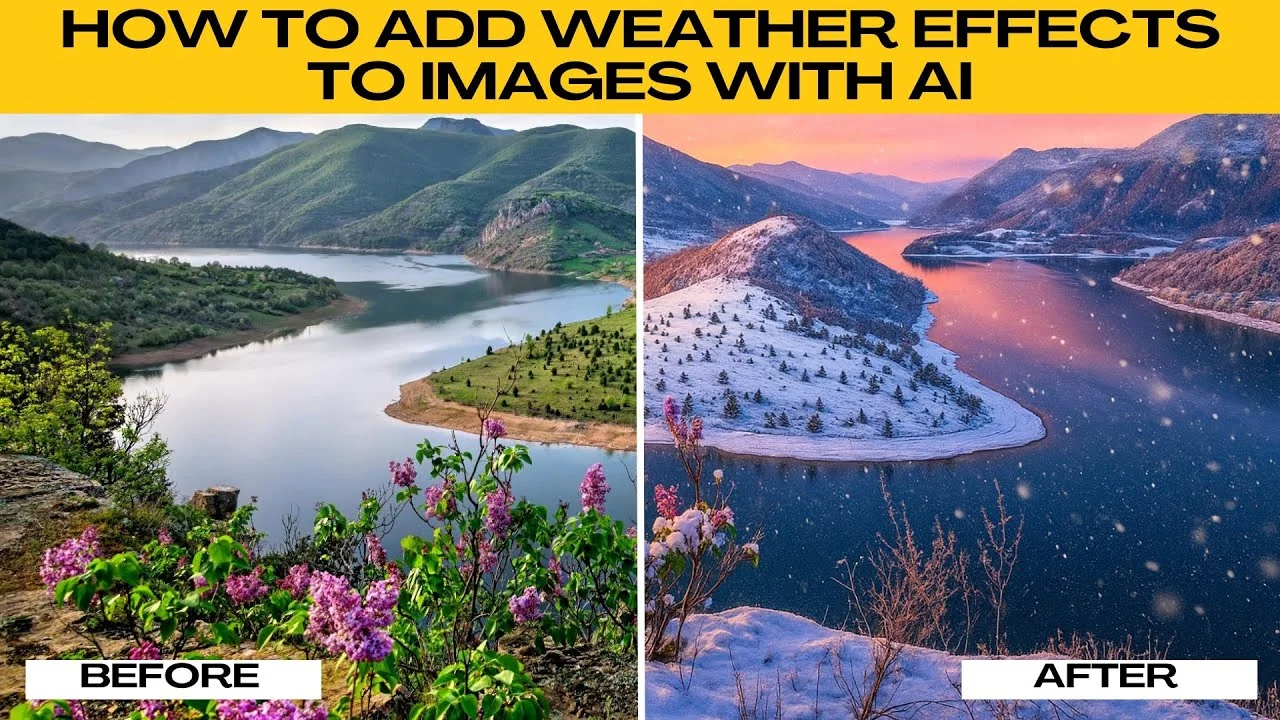
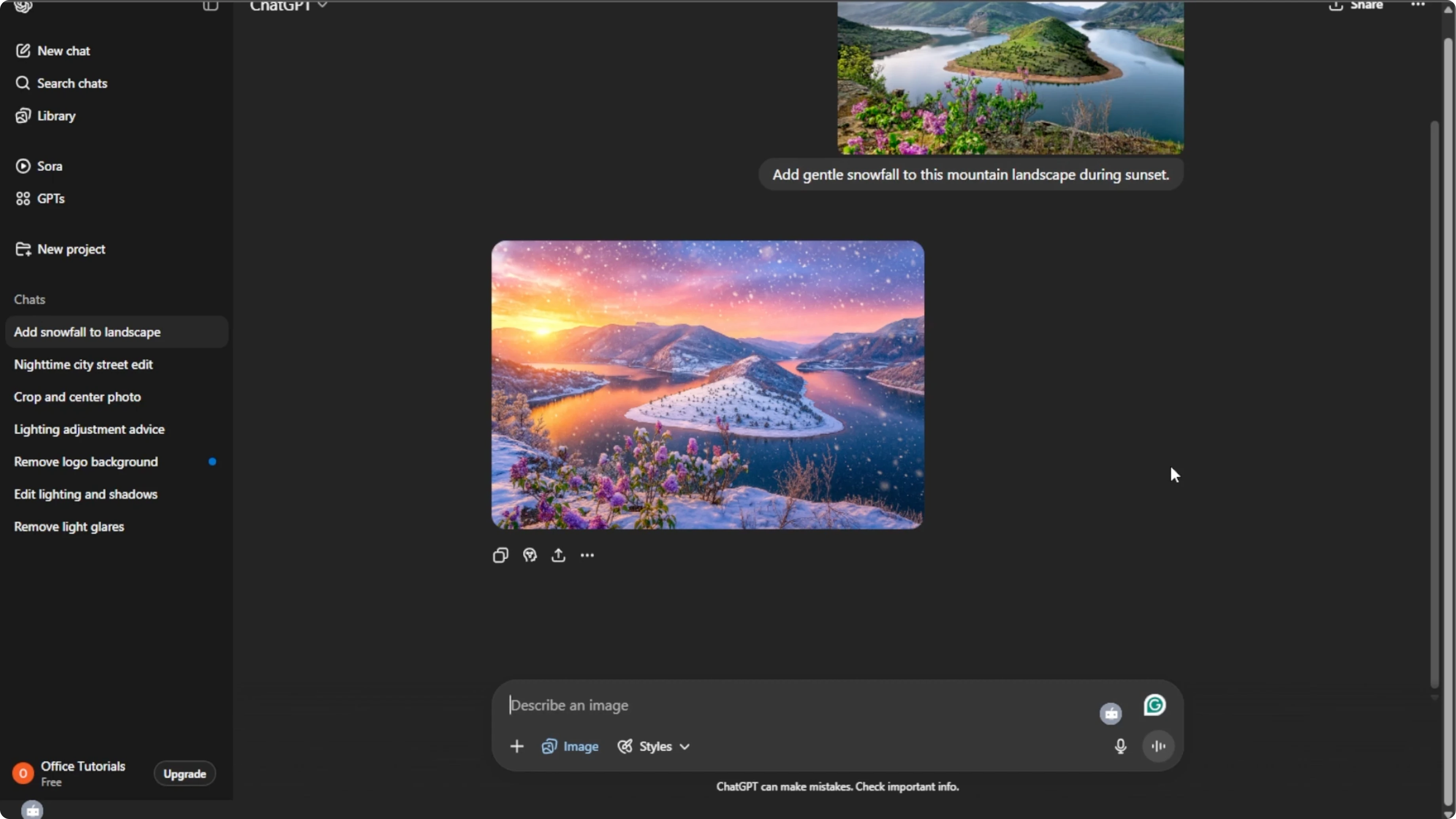
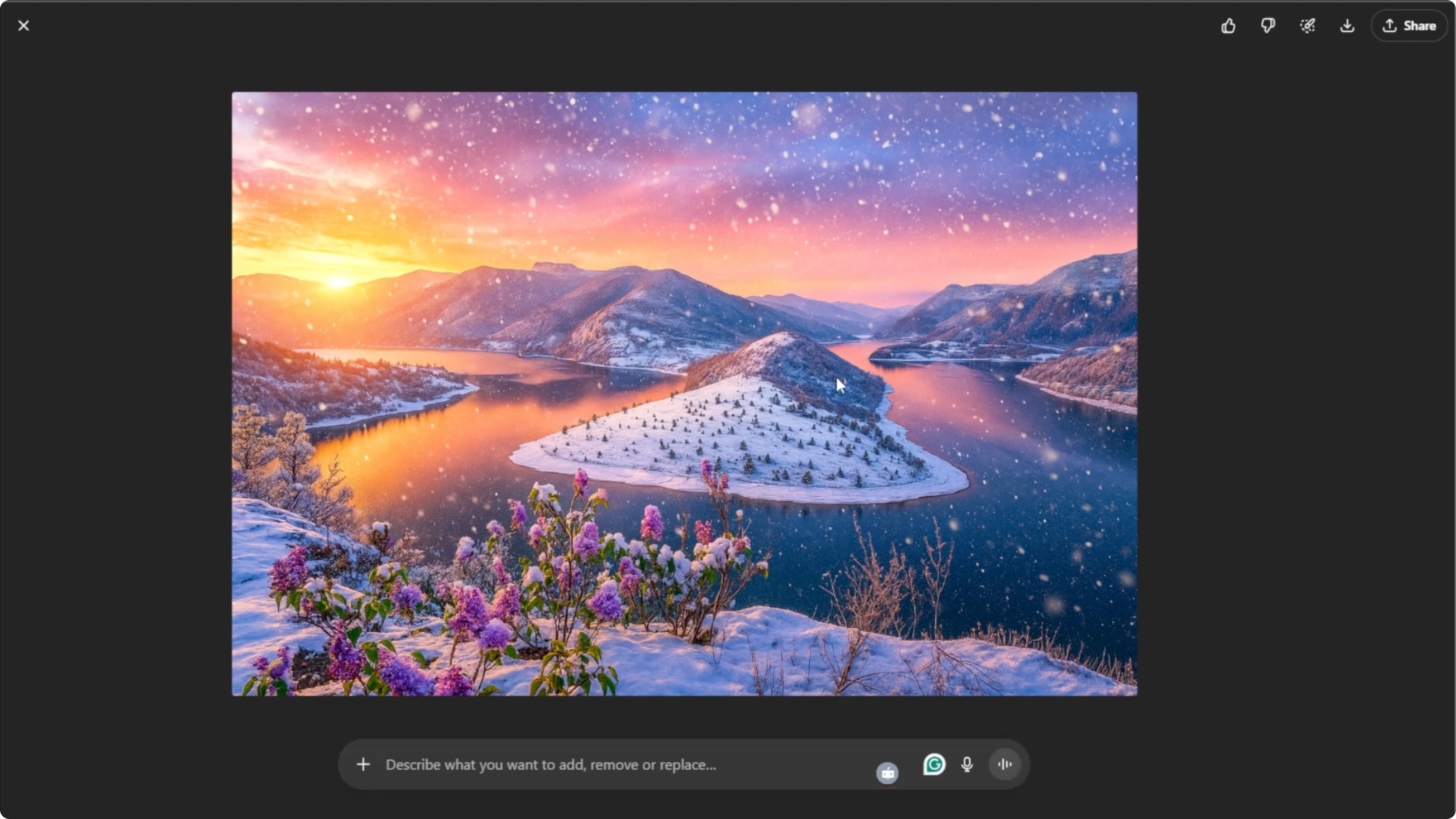
I will teach you how to add weather effects to images with AI. Weather effects can completely transform the mood of your photos. You can make a sunny day look rainy, create a magical snowy scene, or add mysterious fog, and AI can do it quickly and realistically.
Get set up
Open your browser and go to ChatGPT. Log into your account or sign up for free if you don't have one.
Enter image mode
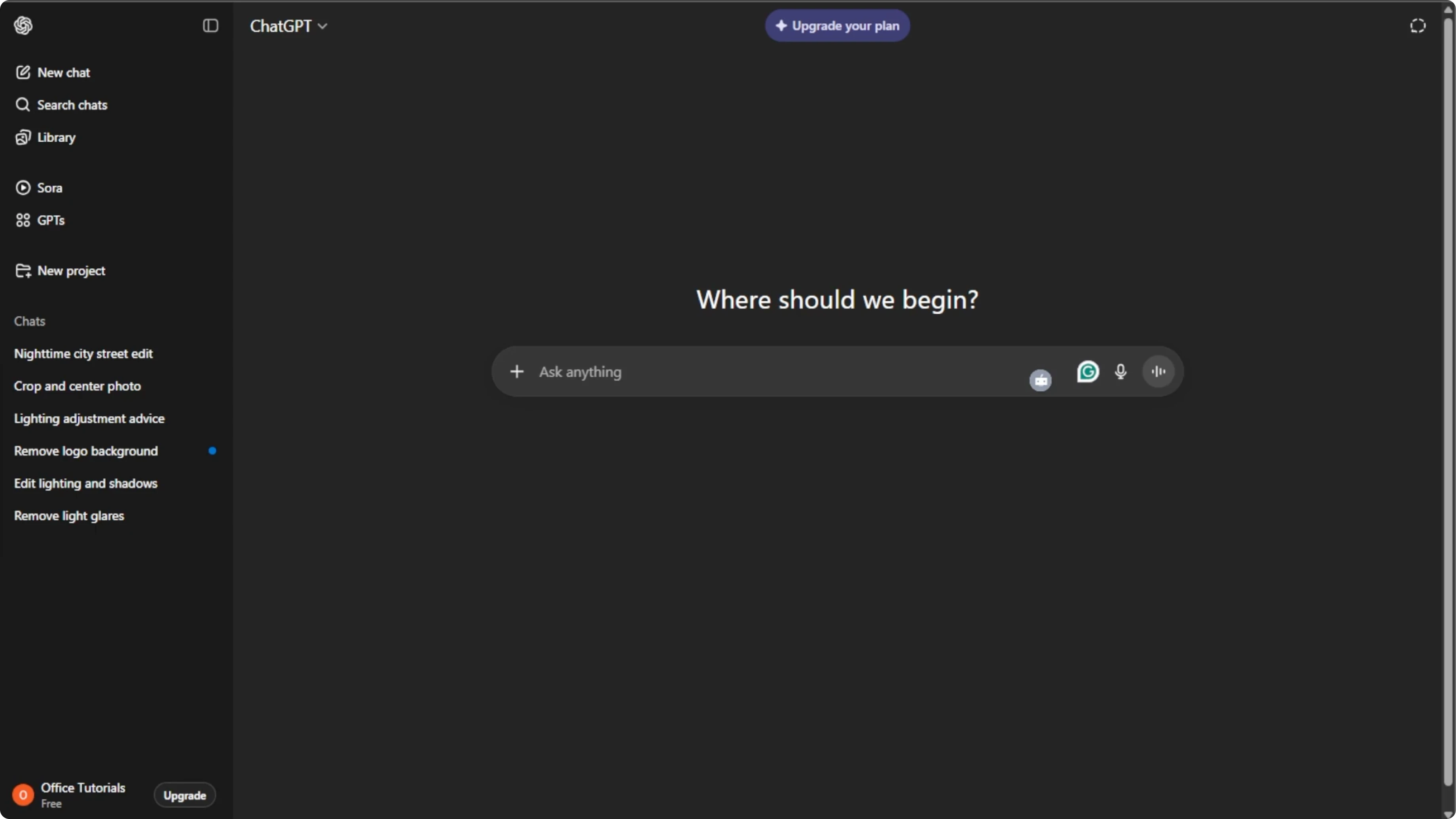
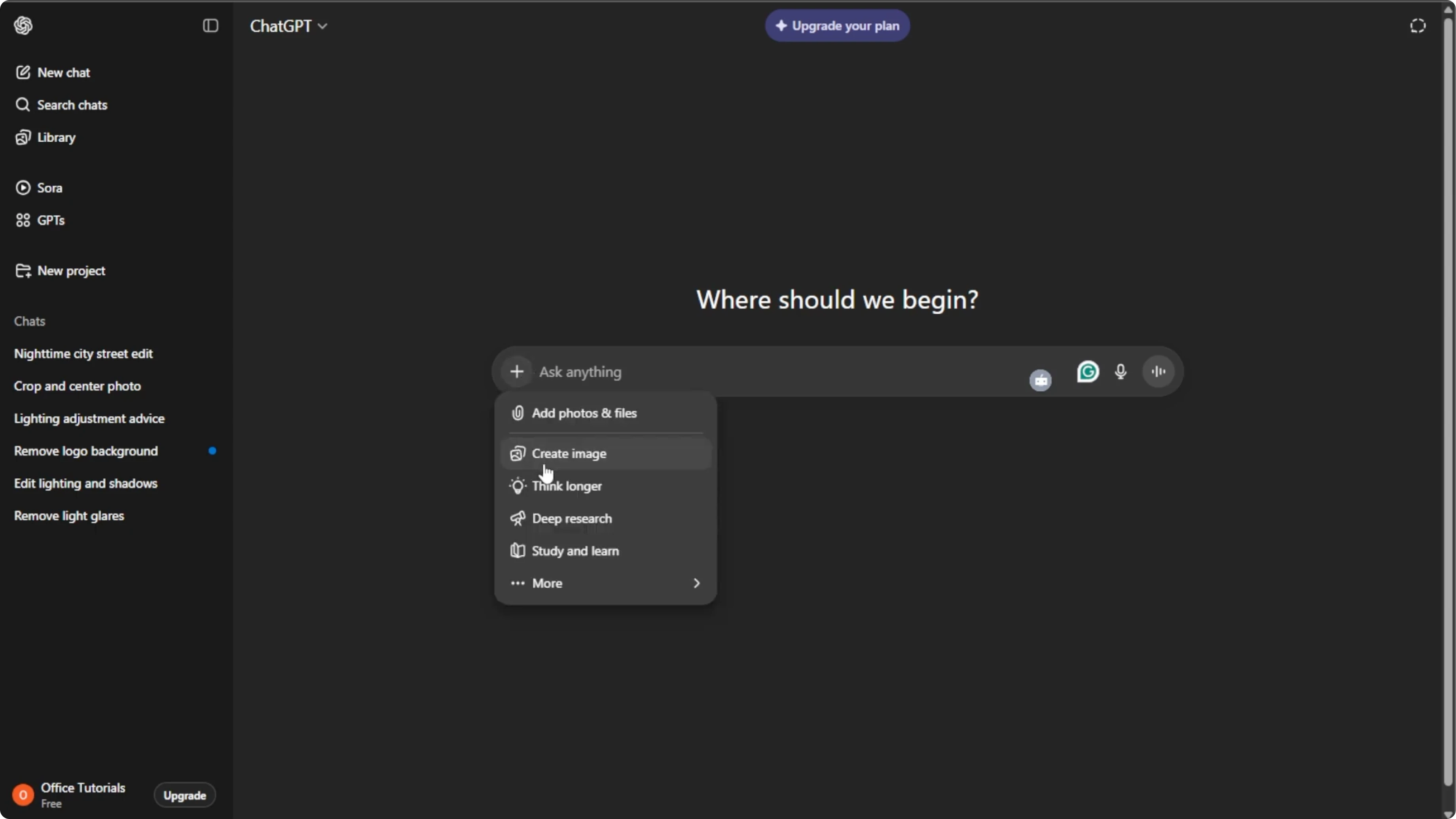
In the ChatGPT interface, click the plus icon in the prompt box. Select Create image to enter image generation mode.
Upload your image
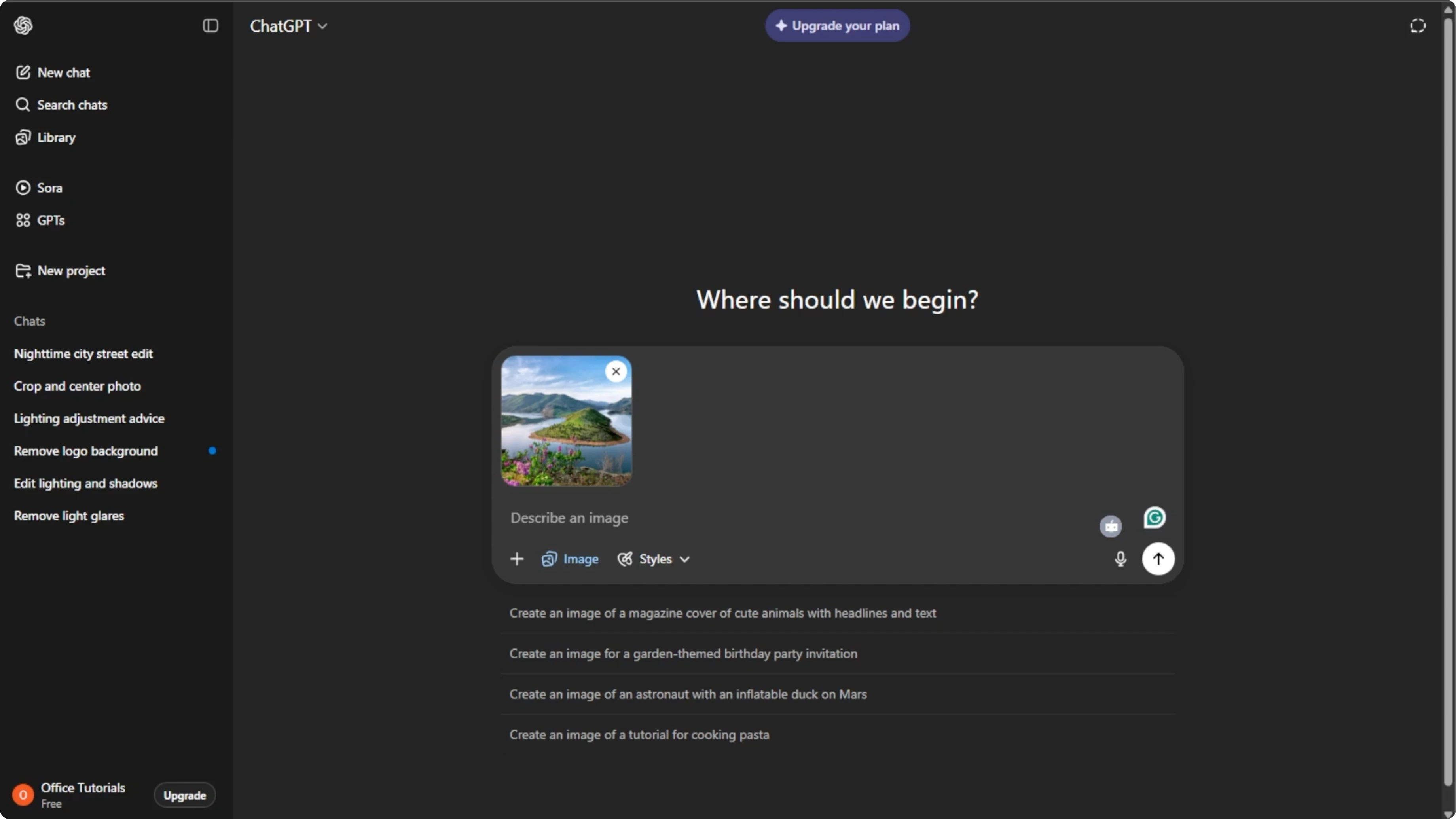
Click the plus icon again and select Add photos or files, or press Ctrl+U. Choose the image where you want to add weather effects from your computer. Choose high quality images for best results.
Clear scenes, city scenes, or portraits work well depending on the desired effect.
Read More: HDR effect with AI
Write the prompt
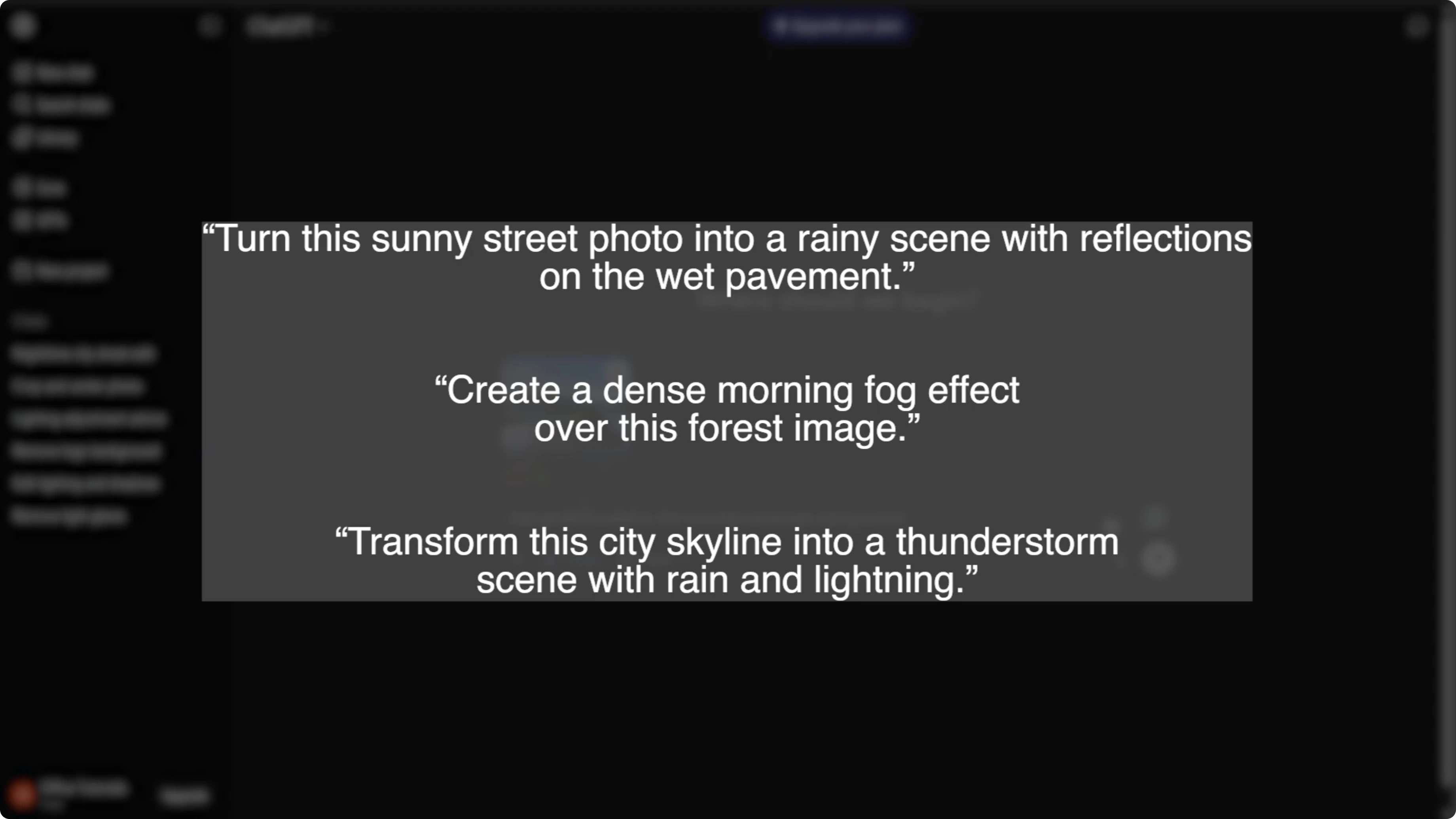
Write a clear instruction telling the AI exactly what weather effect you want in the prompt box. Be specific about the style, intensity, and mood.
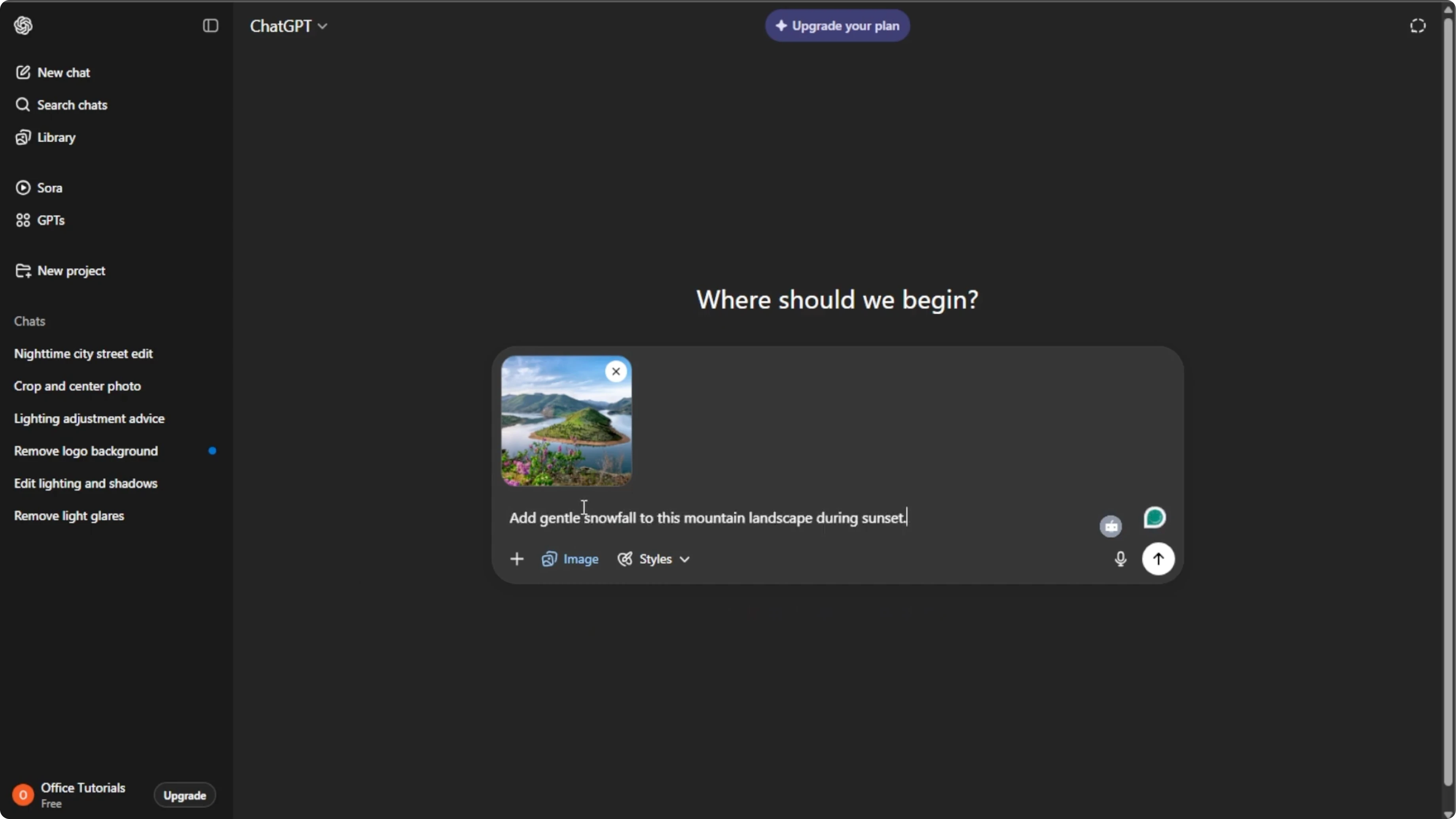
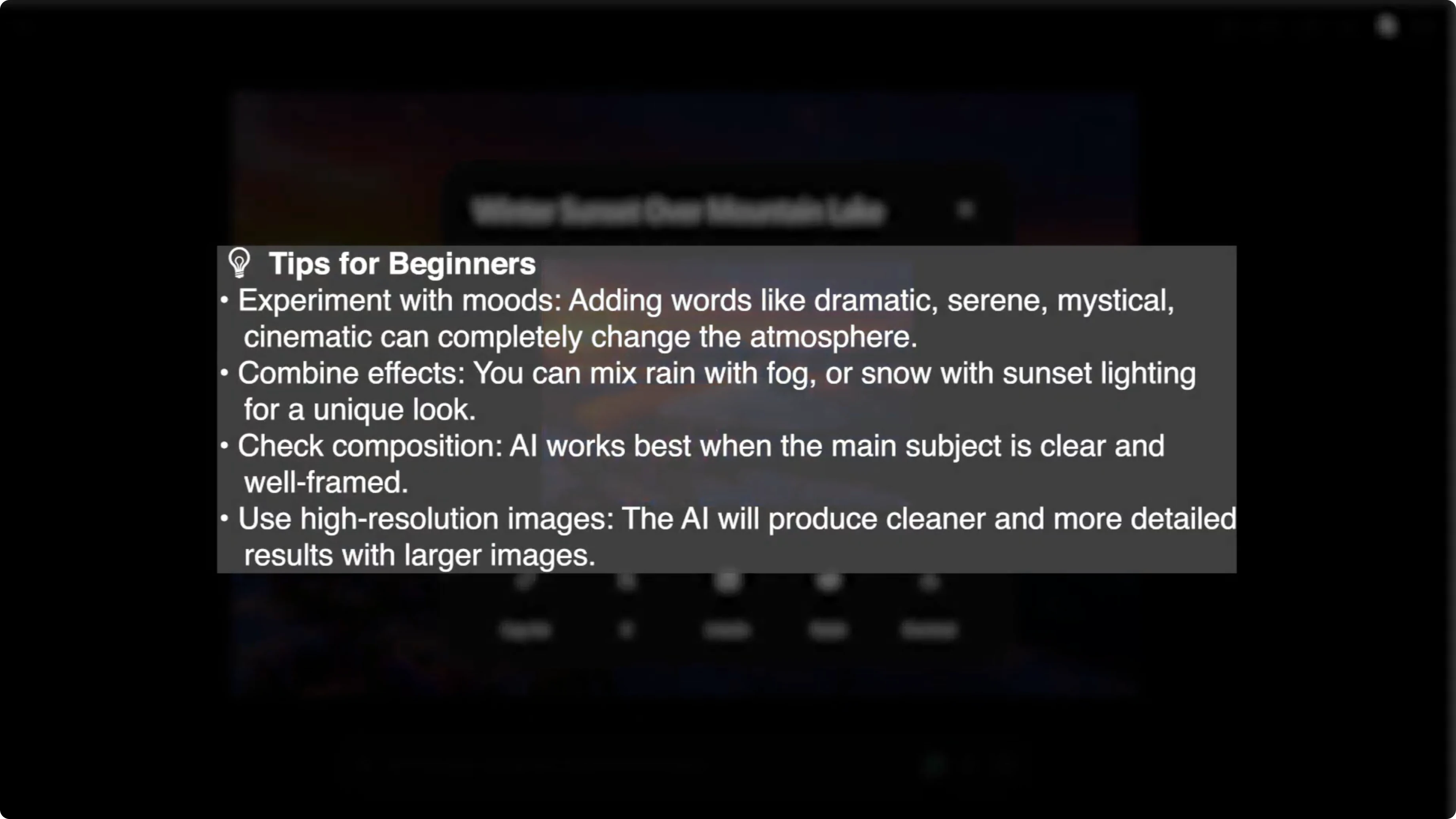
Here are some good prompt examples. The more detailed your prompt, the better the AI will understand your vision. Include adjectives like soft, heavy, light, dramatic, mystical, or cinematic.
Read More: Cartoon effect in Canva AI
Generate and refine
Press Enter to let the AI process your image.
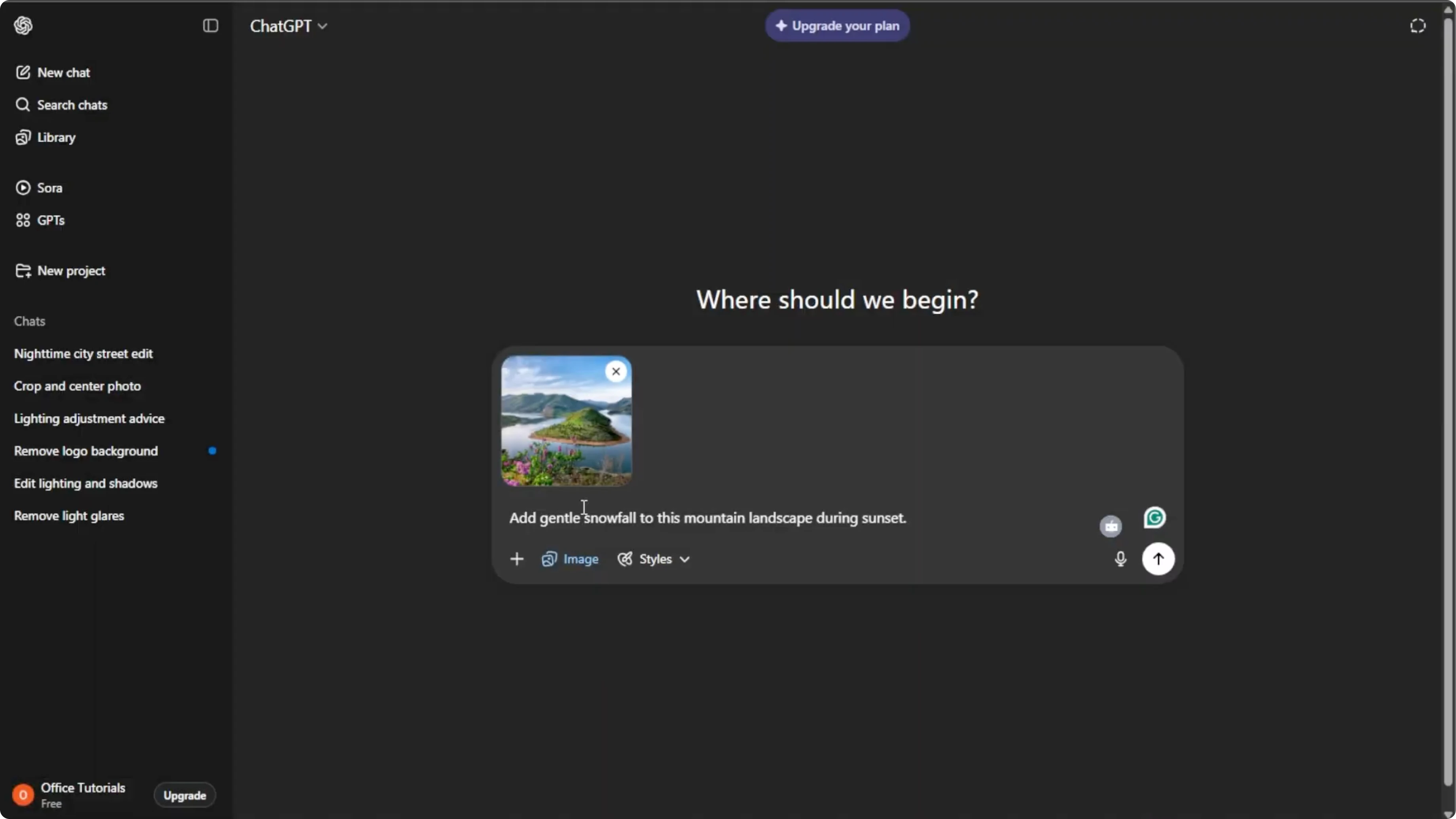
An optional step is making adjustments. Click on the image, then write the instructions that you want the AI to use. Iterating helps you get closer to your ideal result, and you can regenerate multiple times if needed.
Read More: Add a fantasy castle background
Save or share
Once you're satisfied, hover over the image and click the download button to save it to your computer. You can also click share to post it directly to your social media.
Extra tips
Using this method, you can turn any ordinary photo into a stunning scene with realistic rain, snow, or fog, all with just a few clicks.
Final thoughts
AI weather effects can quickly change the mood of your photos and bring your vision to life. Start in ChatGPT, upload a quality image, write a specific prompt, and iterate until you get what you want.
Recent Posts

How to Visualize Yourself as a Pixelized Character with AI?
How to Visualize Yourself as a Pixelized Character with AI?

How to Revive Faded Memories and Enhance Image Clarity with AI?
How to Revive Faded Memories and Enhance Image Clarity with AI?

How to Visualize Yourself as an Animal Crossing Character with AI?
How to Visualize Yourself as an Animal Crossing Character with AI?