How to Visualize Majestic Castlecore and Fairytale Landscapes with AI?
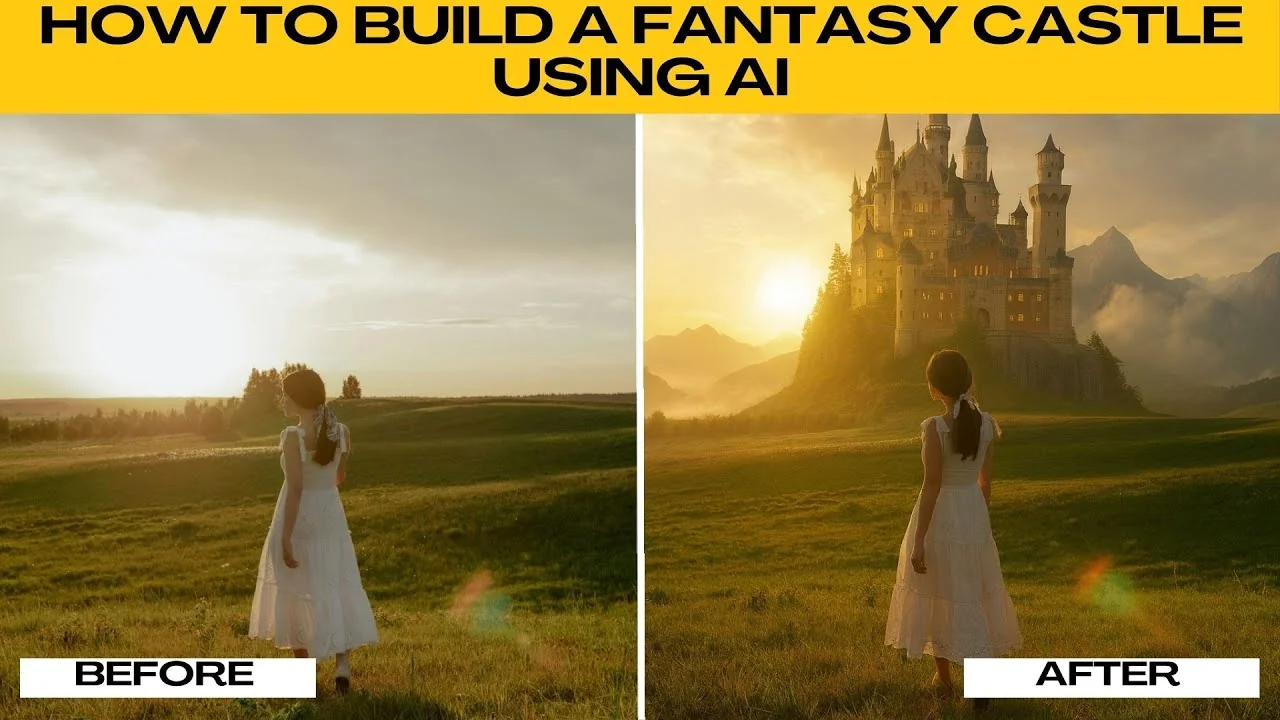
Creating fantasy scenes is easy with AI. If you want to make your photo look like it is set in a magical kingdom or an epic fairy tale, adding a fantasy castle in the background can completely transform the image. You can do this with ChatGPT.
Get ready
Open ChatGPT in your browser, then log in to your free account.
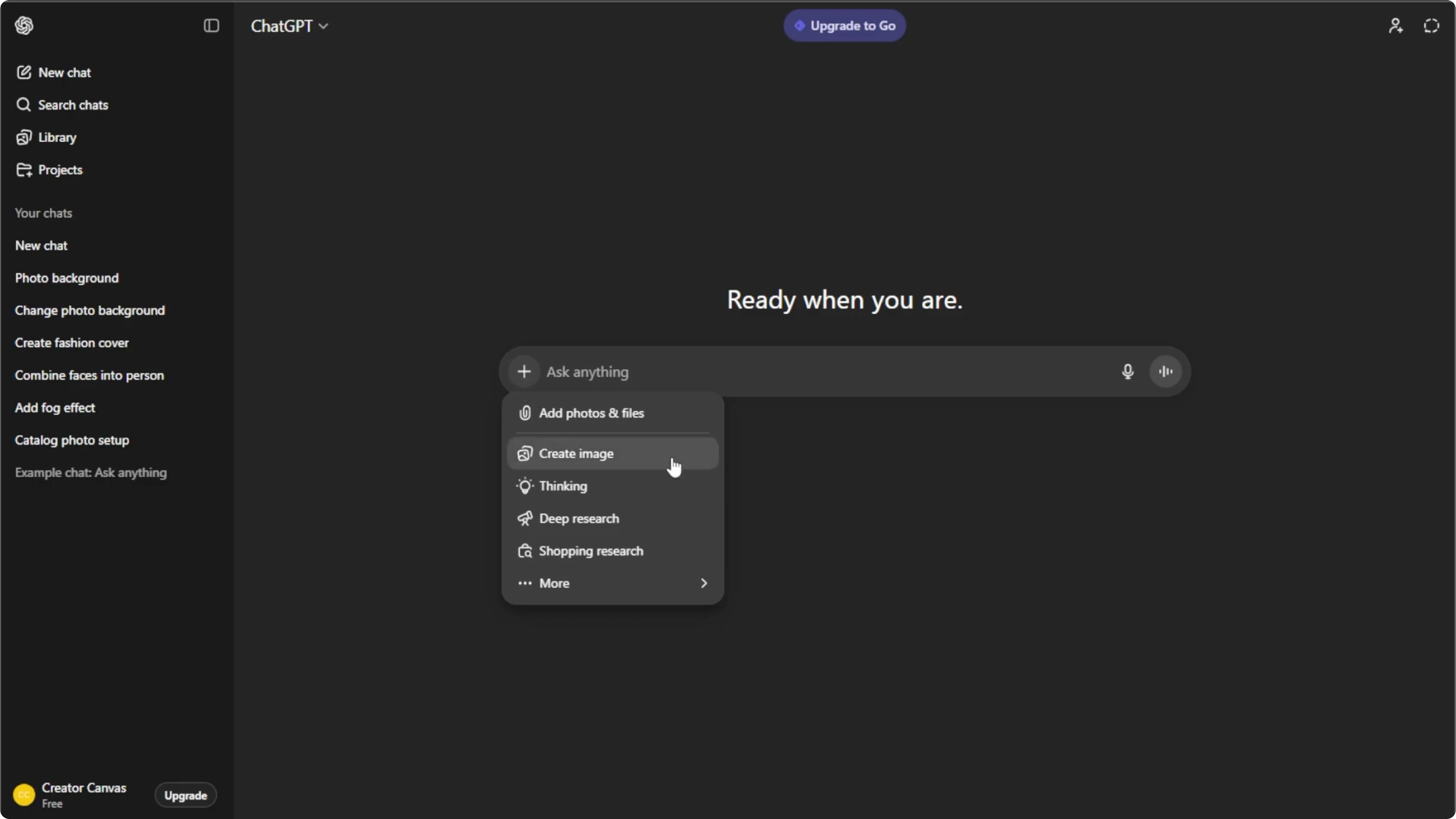
Click the plus icon in the prompt box.
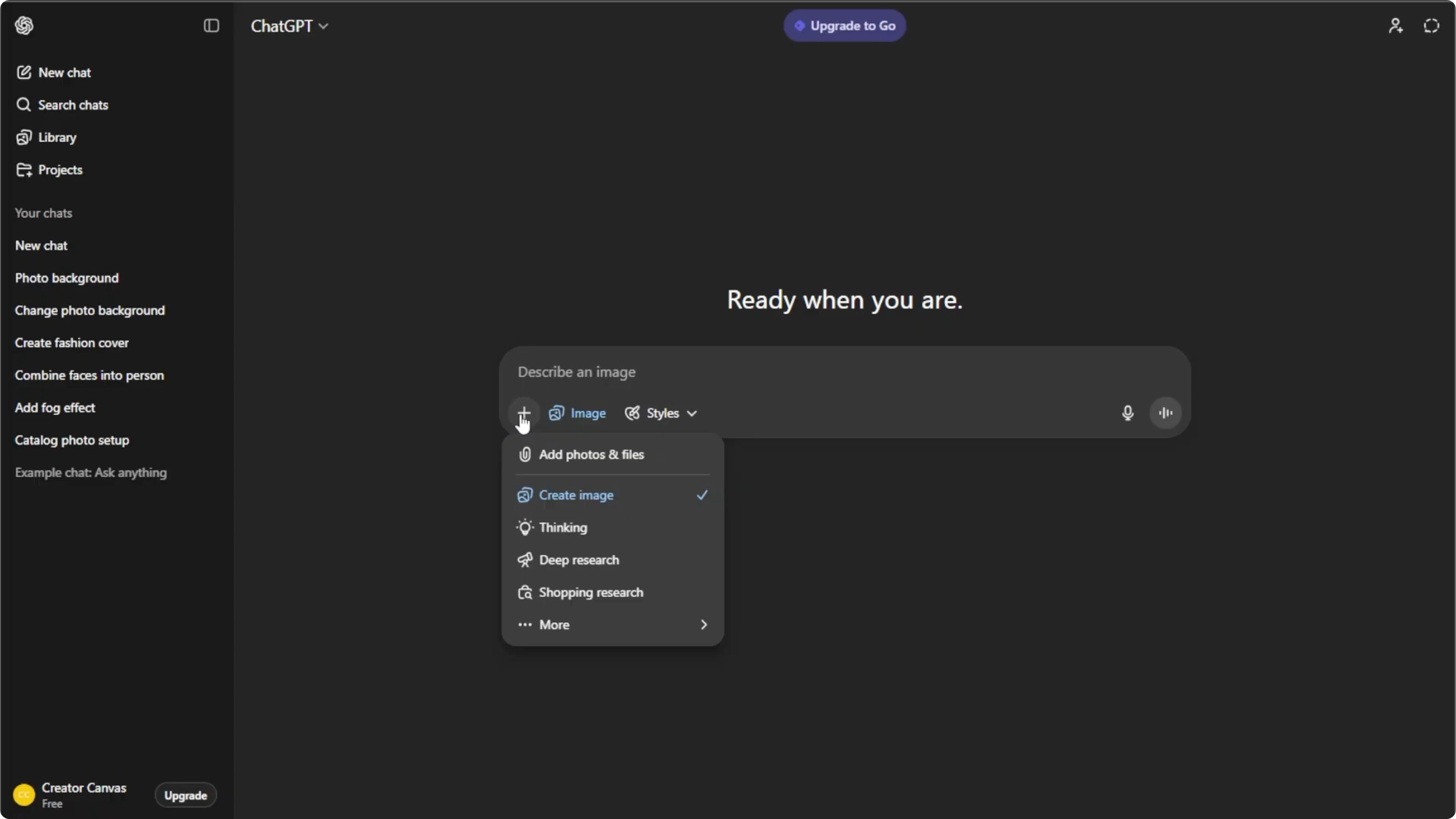
Select create image to enter image mode.
Upload your image
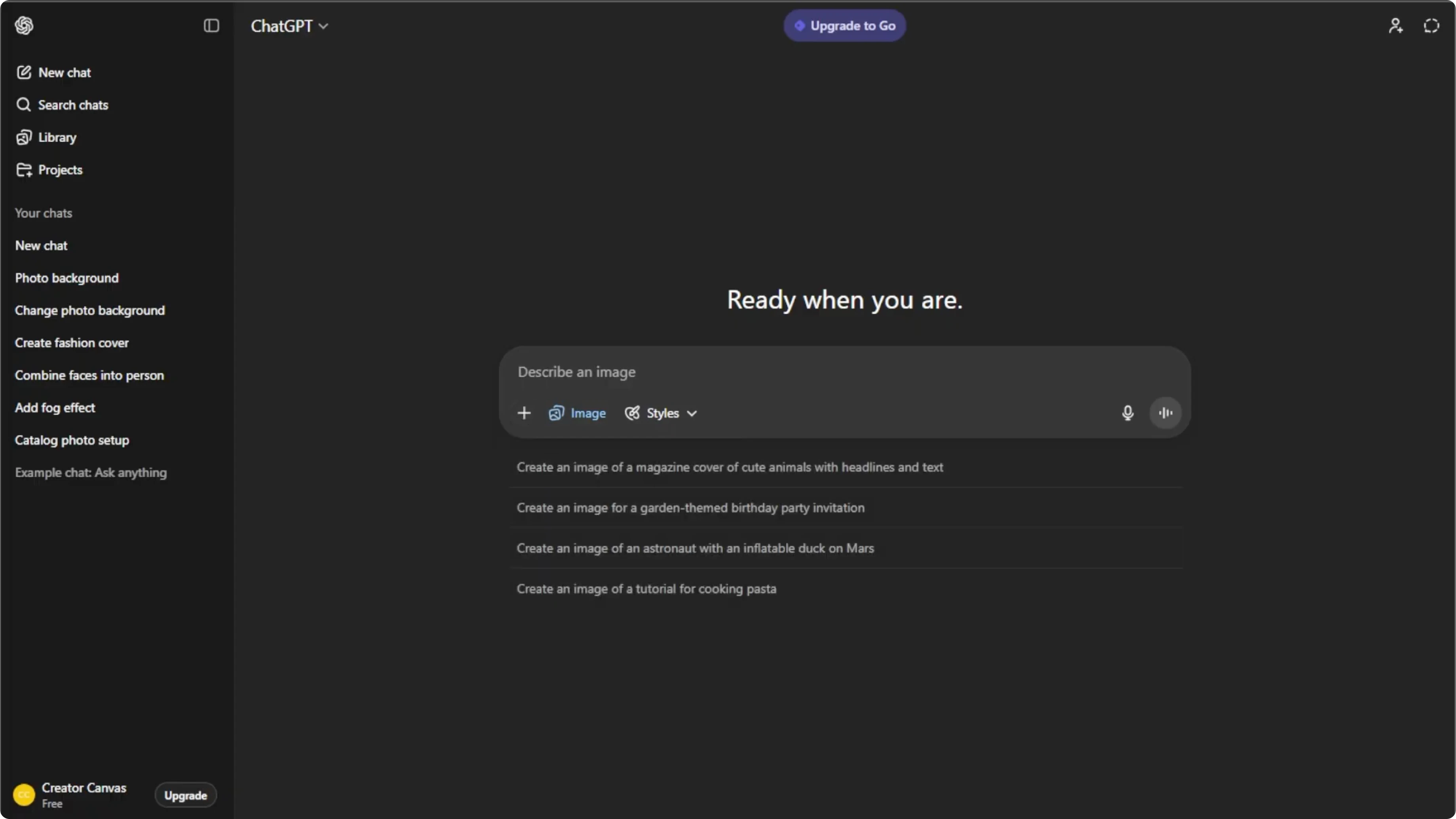
Click the plus icon again.
Choose Add photos or files, or press Control U on your keyboard.
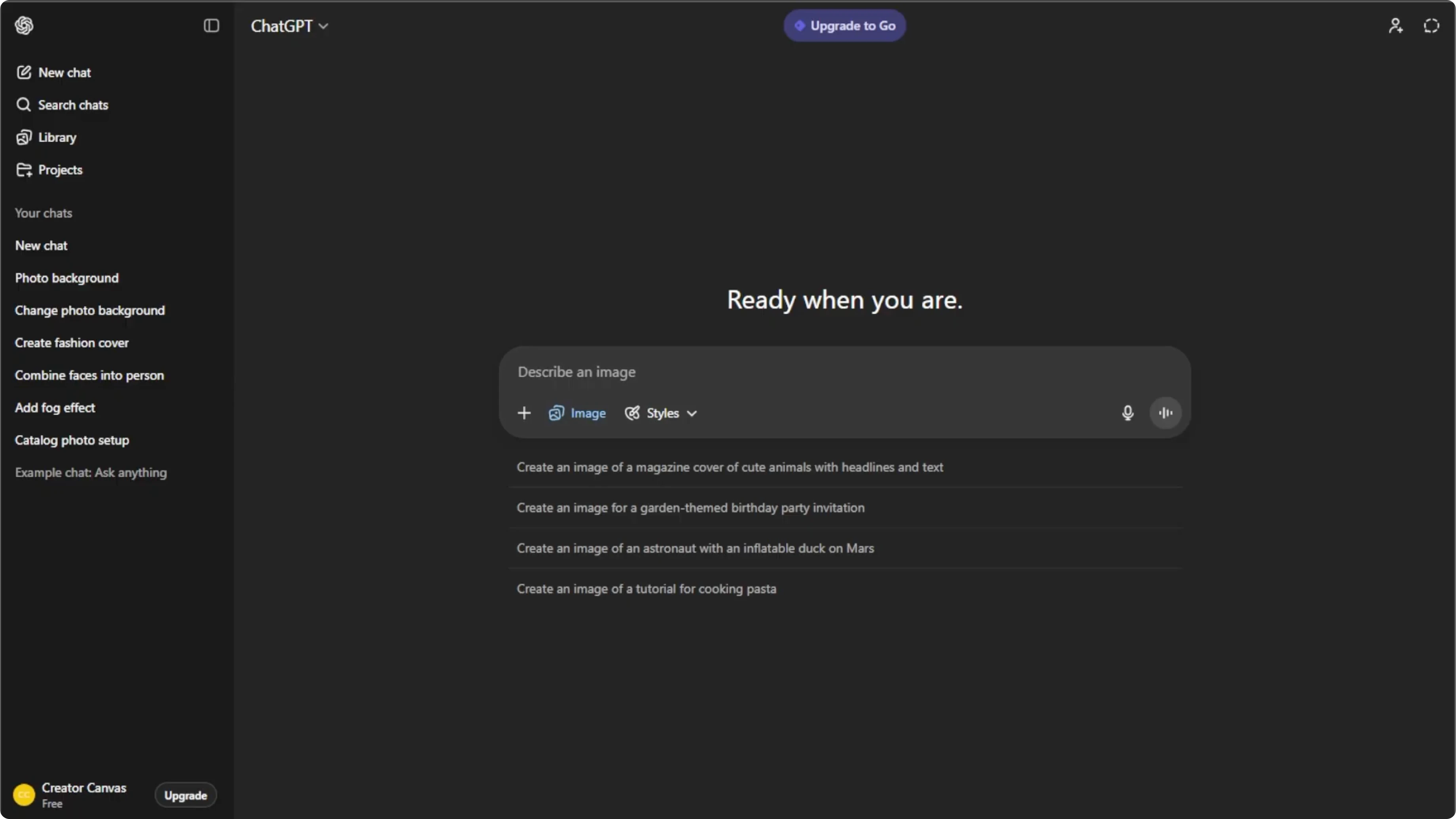
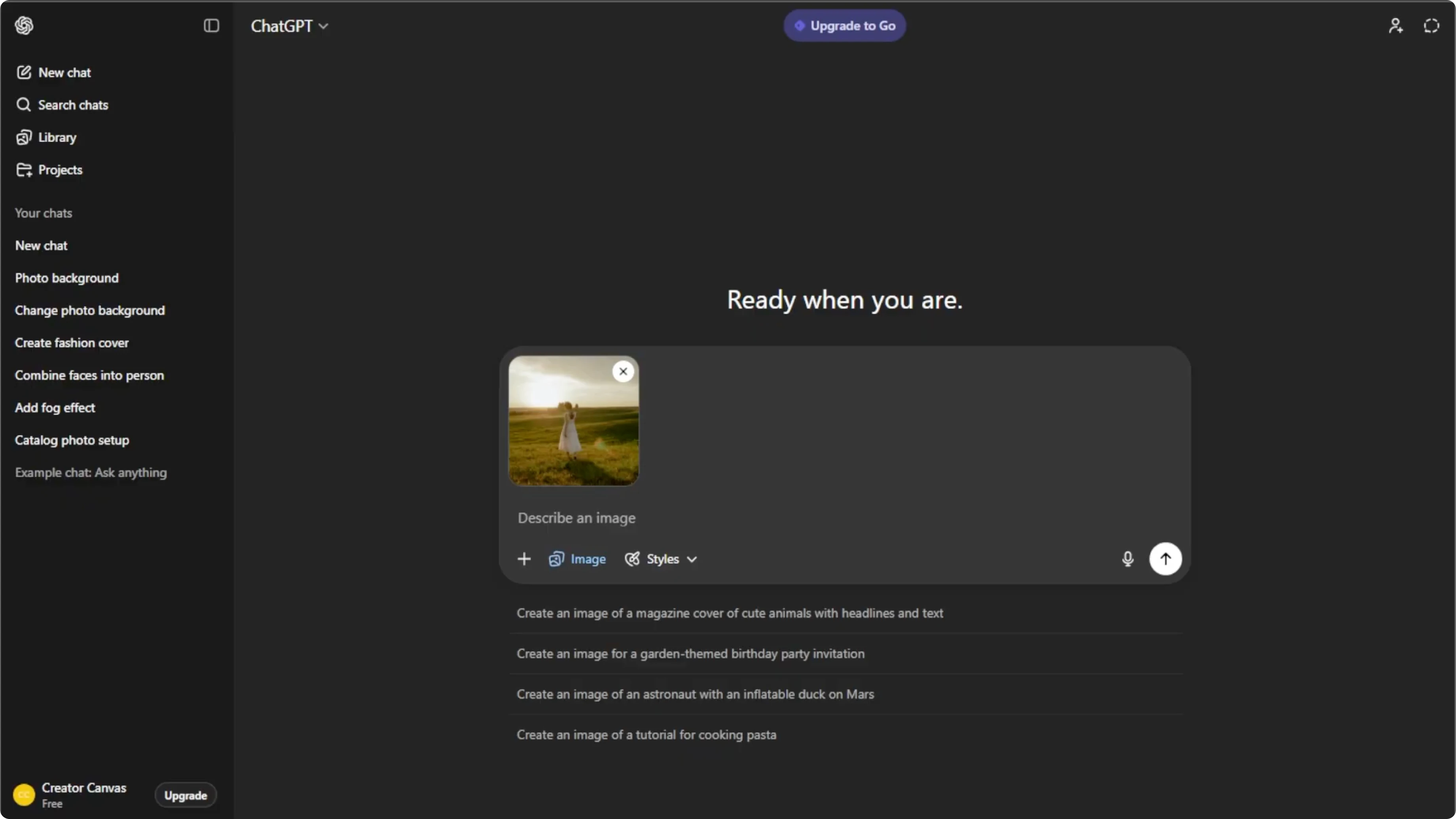
Select the photo you want to edit.
Make sure to choose a photo with clear depth and a visible background space where the castle will fit naturally.
For a broader walkthrough of AI photo edits, see our AI photo editing guide.
Write the prompt
Be very specific about the castle and its setting. Include details such as style, size and placement, lighting, atmosphere, and extra effects.
Here are example prompts you can paste into ChatGPT while your photo is loaded.
Add a medieval stone castle on a hill in the far background.
Match perspective and depth of field of the original photo and keep the subject unchanged.
Use warm golden hour light, light mist near the base, and blend colors and contrast with the scene.
Place a gothic black castle behind the distant mountains.
Make it appear large but far away, with cool blue night tones and a bright moon.
Add gentle fog, a few warm window lights, and keep shadows consistent with the existing light direction.
Create a steampunk brass castle floating among soft clouds in the sky.
Use clean afternoon light, match shadows from the right, and preserve natural skin tones of the subject.
Balance the composition so the castle complements the background without blocking the subject.
If you want a stylized edit for portraits, try a Canva based approach in this tutorial on adding a cartoon look with AI at this guide.
Generate and refine
Press Enter to generate your new image.
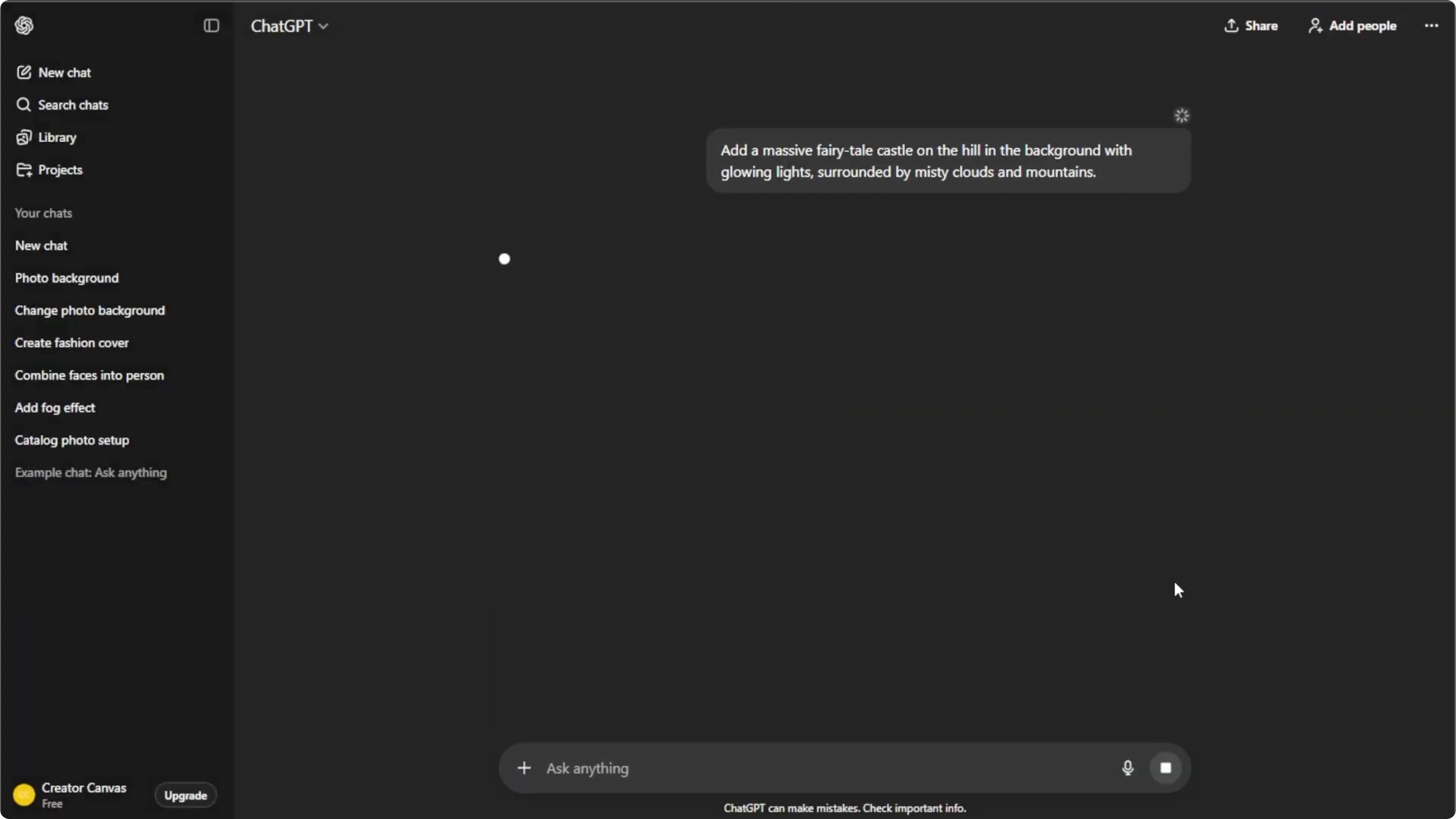
Wait a few seconds to a minute depending on the complexity.
Click the generated image to make adjustments.
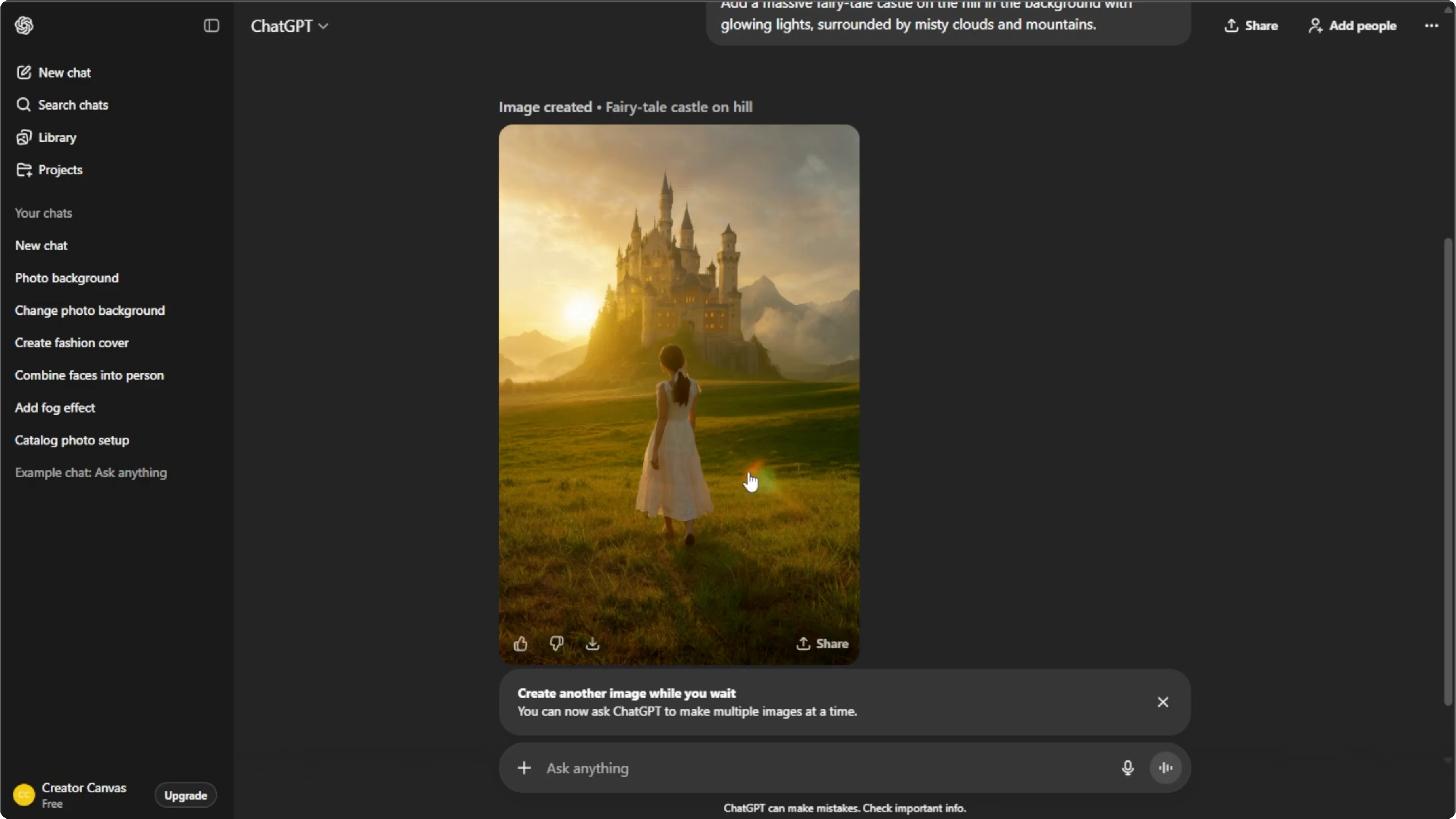
Small refinements help blend the castle naturally with the existing photo.
The free ChatGPT plan allows up to five image generations per day.
Upgrade your plan to generate more images if needed.
Save and share
Hover over the final image, then click Download to save it to your computer.
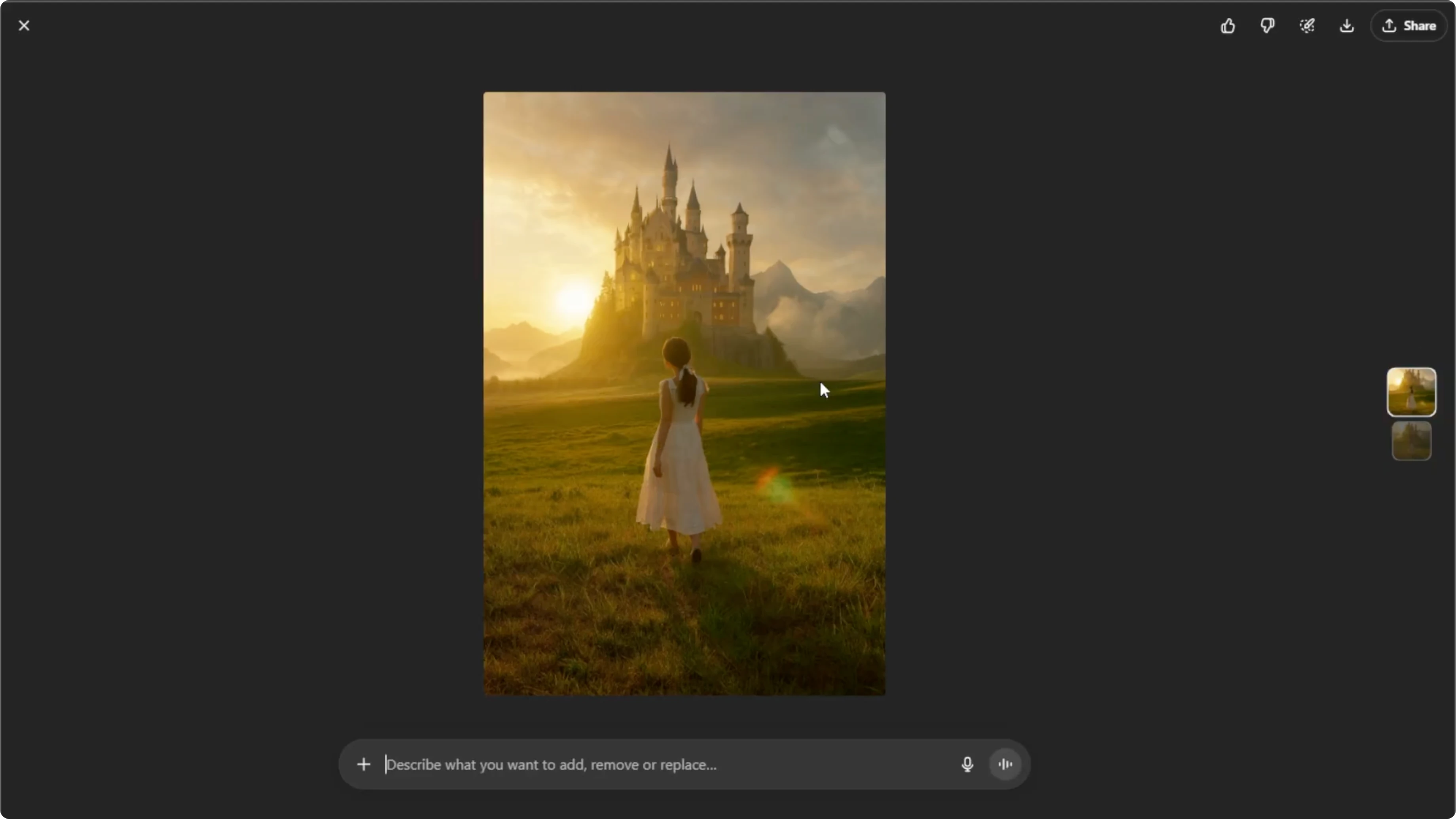
Share the image on social platforms or send it to friends.
If you want to try another creative edit, learn how to place body art convincingly in our guide on adding tattoos with AI at this tutorial.
Final thoughts
Adding a fantasy castle to the background of a photo is a fast way to create a magical scene with AI. Specific prompts, a photo with clear depth, and a few careful refinements will help the castle blend naturally. Focus on style, placement, lighting, and atmosphere to achieve a convincing result.
Recent Posts

How to Visualize Yourself as a Pixelized Character with AI?
How to Visualize Yourself as a Pixelized Character with AI?

How to Revive Faded Memories and Enhance Image Clarity with AI?
How to Revive Faded Memories and Enhance Image Clarity with AI?

How to Visualize Yourself as an Animal Crossing Character with AI?
How to Visualize Yourself as an Animal Crossing Character with AI?