How to Create Realistic Shadows and Add Visual Depth with AI?
Realistic shadows can make your images look more grounded, professional, and studio ready. If you work on product photos, portraits, or digital mockups, AI generated shadows can dramatically enhance visual appeal with no Photoshop required. Here is how to do it in PhotoRoom.
For another creative effect that pairs well with shadow work, see how to start adding realistic tattoos to photos.
Get started
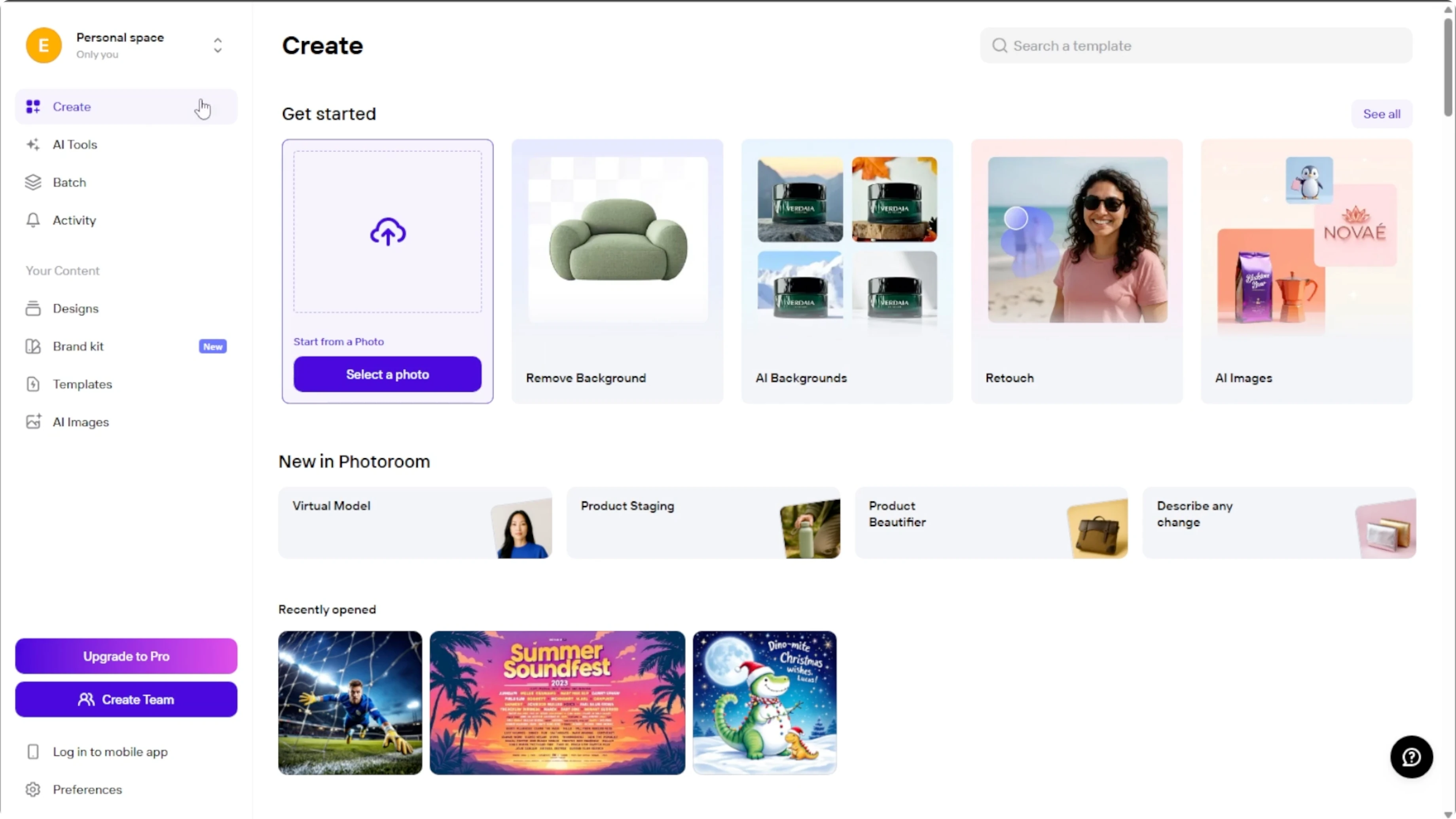
Go to the PhotoRoom website. On the homepage, look for the left hand panel with creative tools. Click AI tools to open a page of AI powered image enhancements.
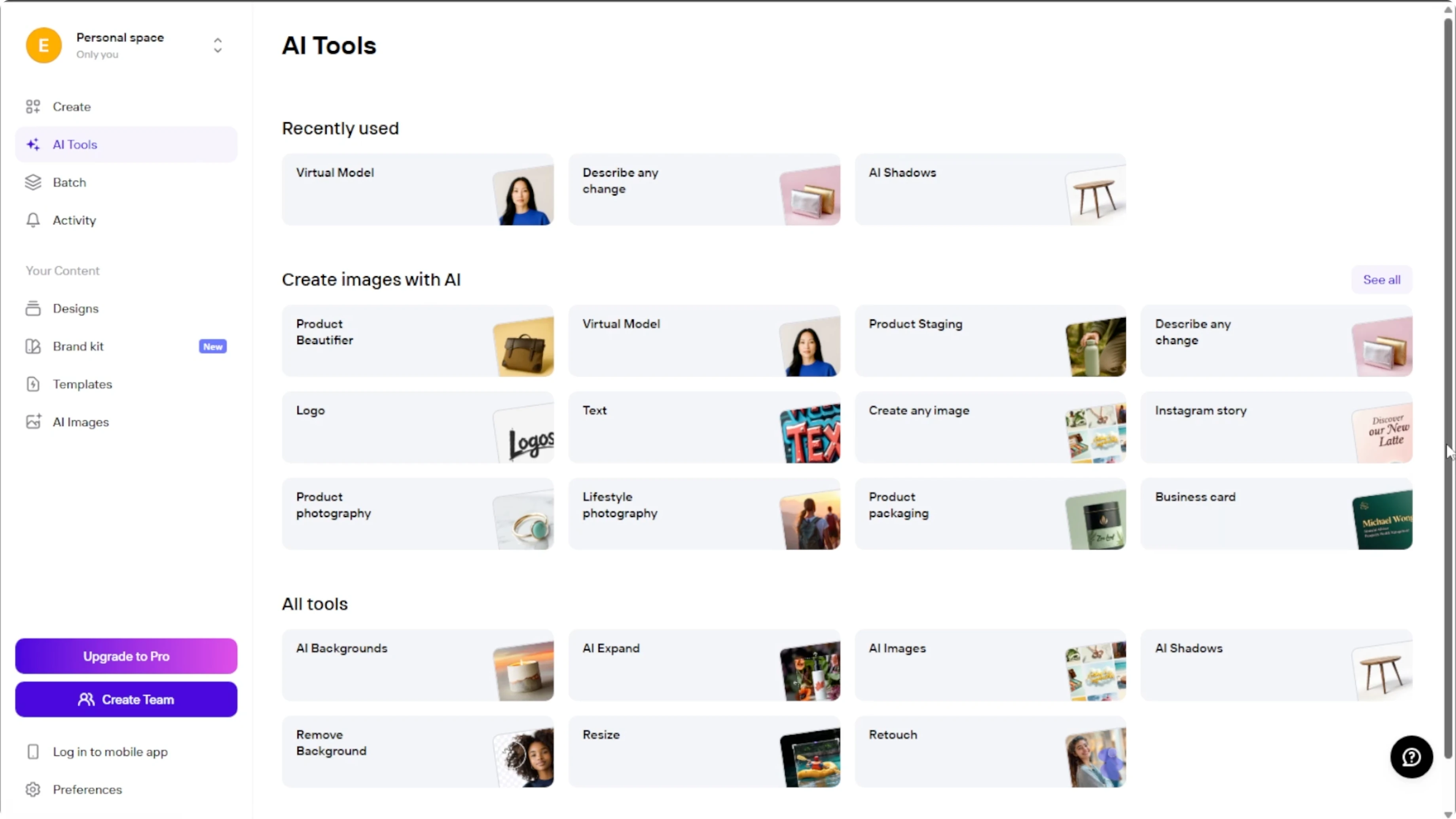
Scroll to AI shadows and upload the image you want to edit. Click the upload prompt and choose an image from your device. For best results, use an image with a clear subject like a person, object, or product, and neutral lighting for better shadow detection.
The AI shadows tool is a pro feature, but you can use it for free with the PhotoRoom 7 day free trial. Be sure to cancel before it ends if you do not want to be charged. PhotoRoom removes the background to isolate the subject and prepare for shadow generation.
Shadow types
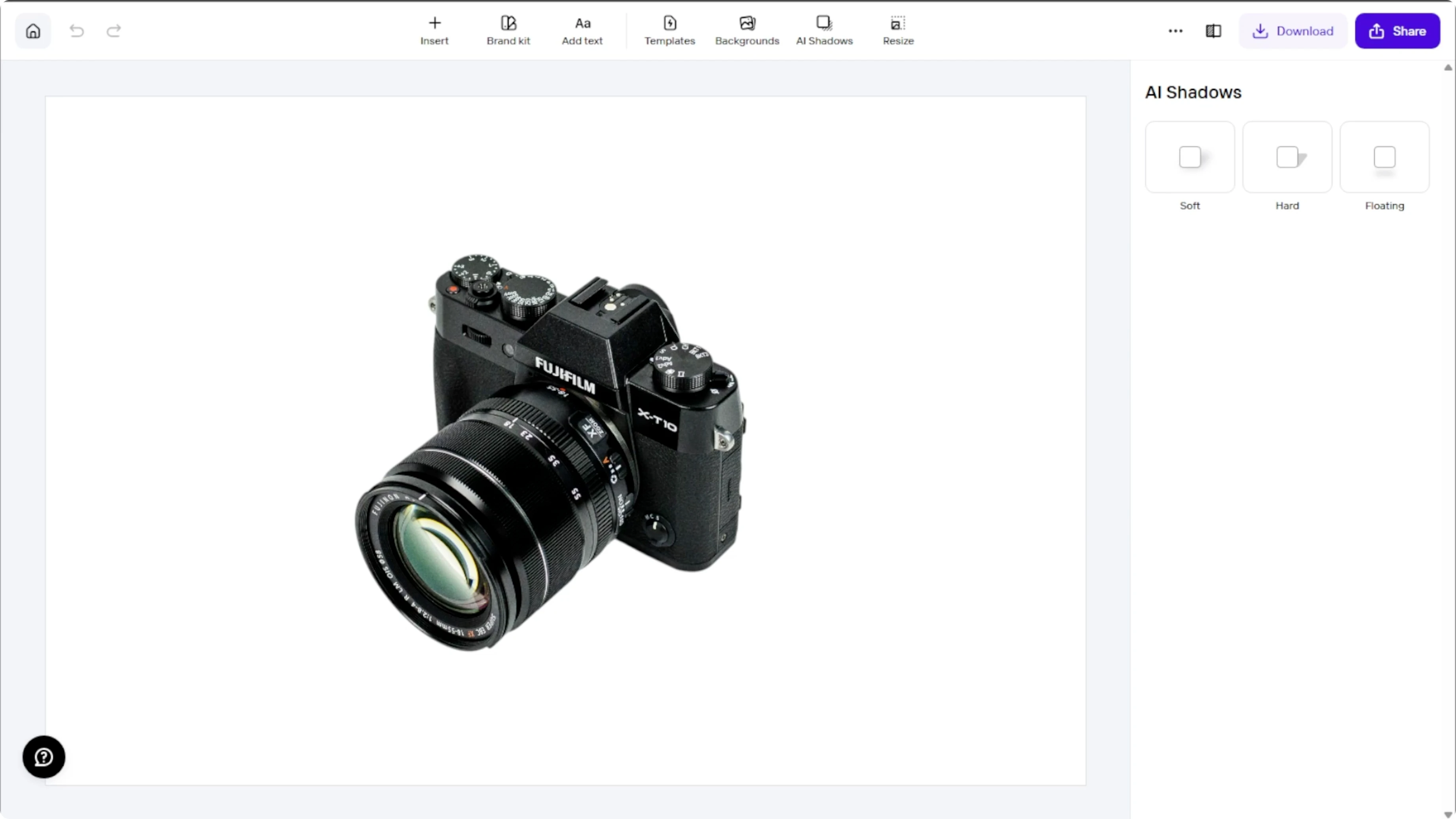
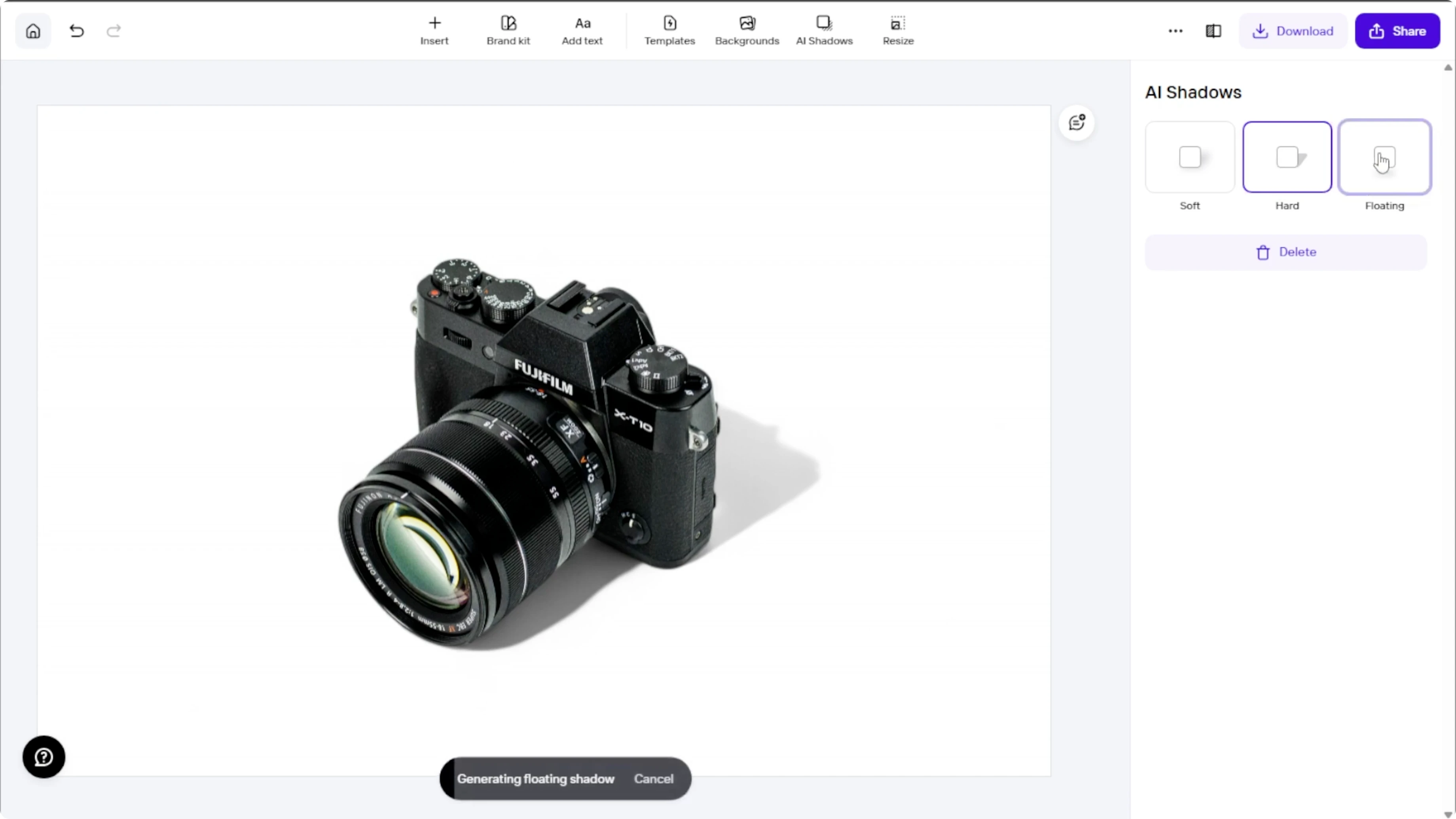
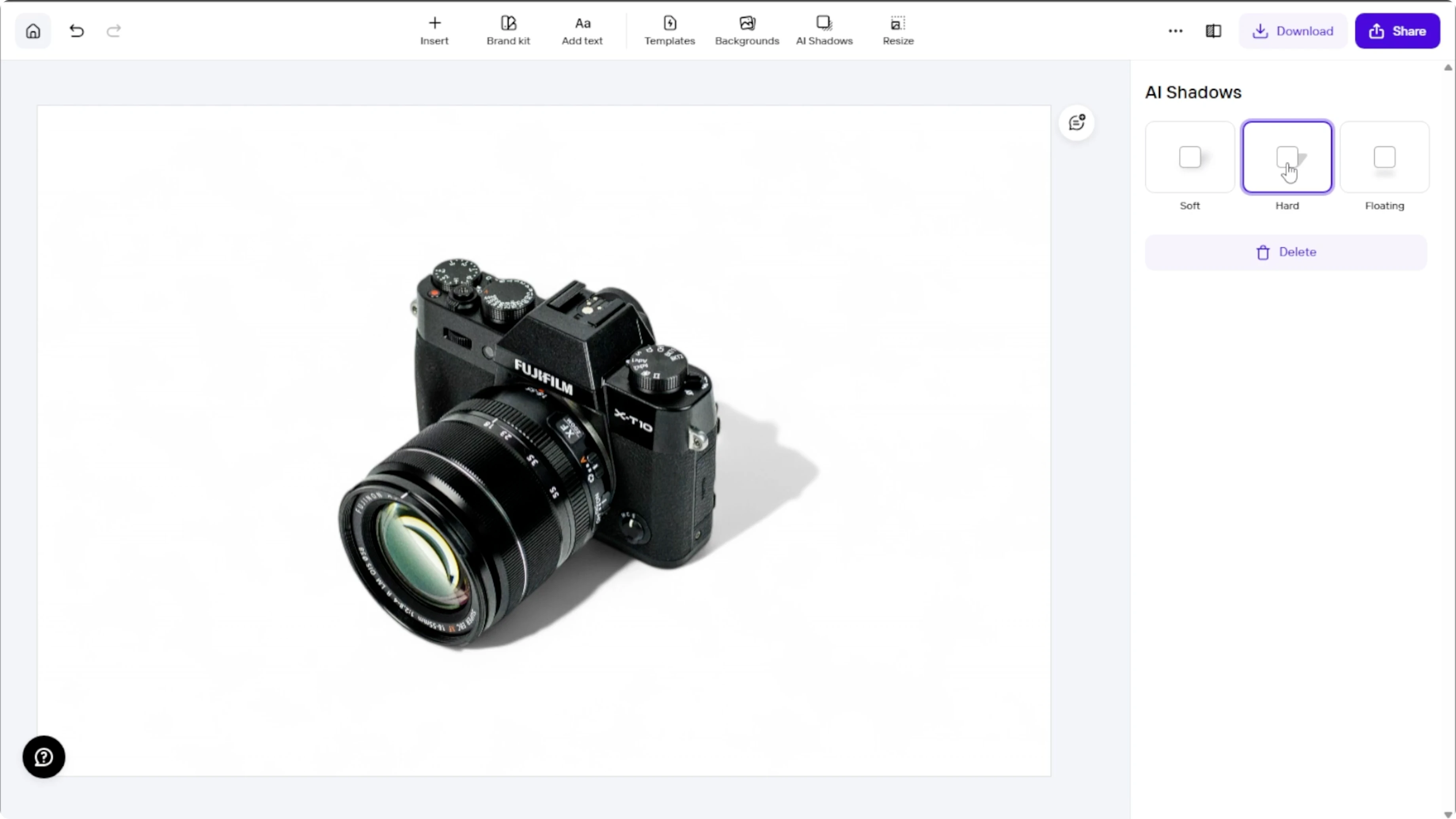
After upload, you will see three shadow options on the right hand panel. Soft shadow is subtle and diffused and is ideal for natural lighting. Hard shadow is crisp and defined and mimics strong directional light.
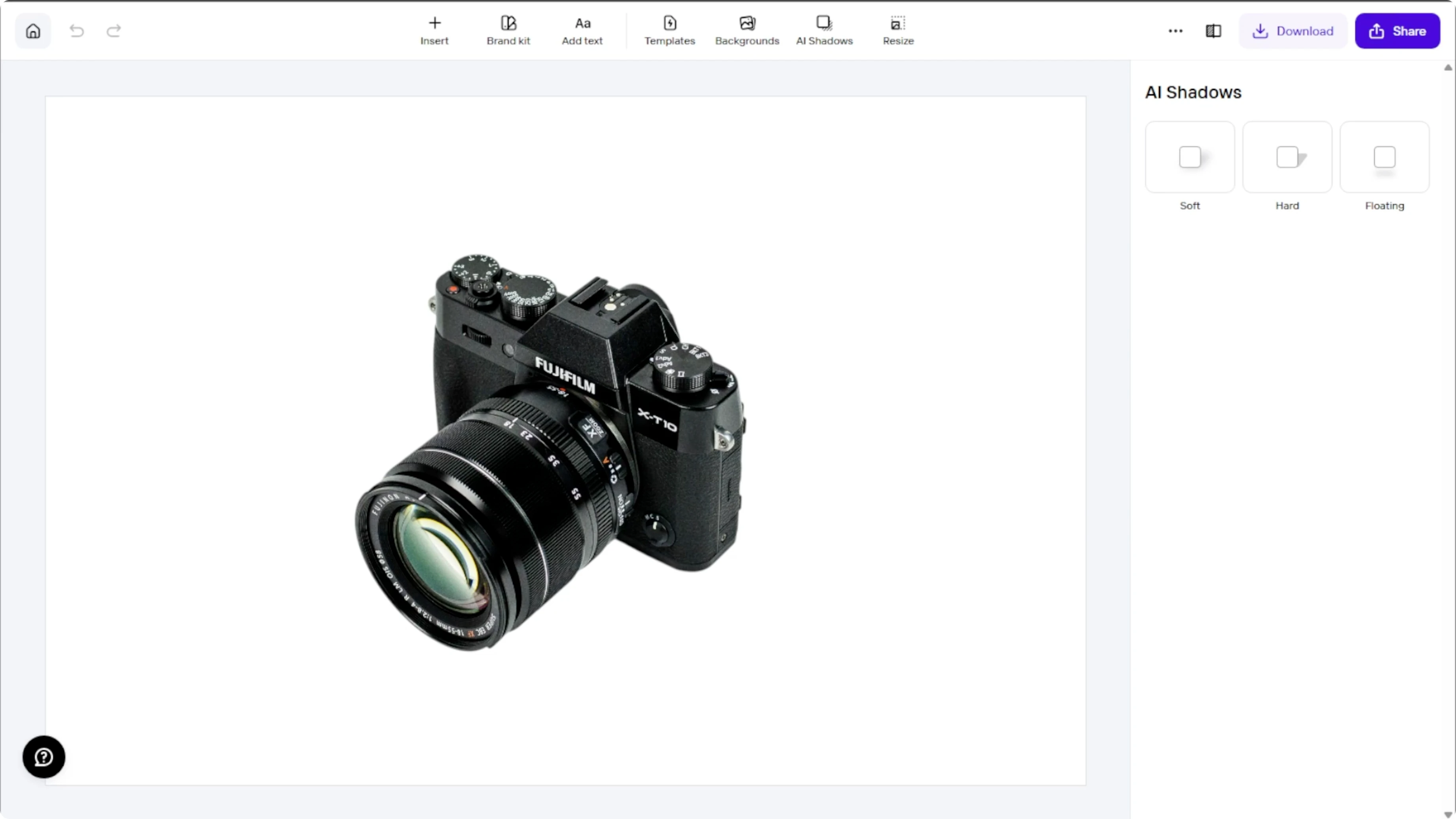
Floating shadow adds dimension as if the object is floating slightly above the surface. Click each type to compare how it supports your scene and subject. Choose the option that best matches your intended light.
To create convincing subjects for composite work, learn how to create realistic looking animals with AI.
Preview and reset
Click each shadow option to preview the effect. The AI detects the lighting direction from your image and adjusts the shadow accordingly. Each effect takes a few seconds to generate.
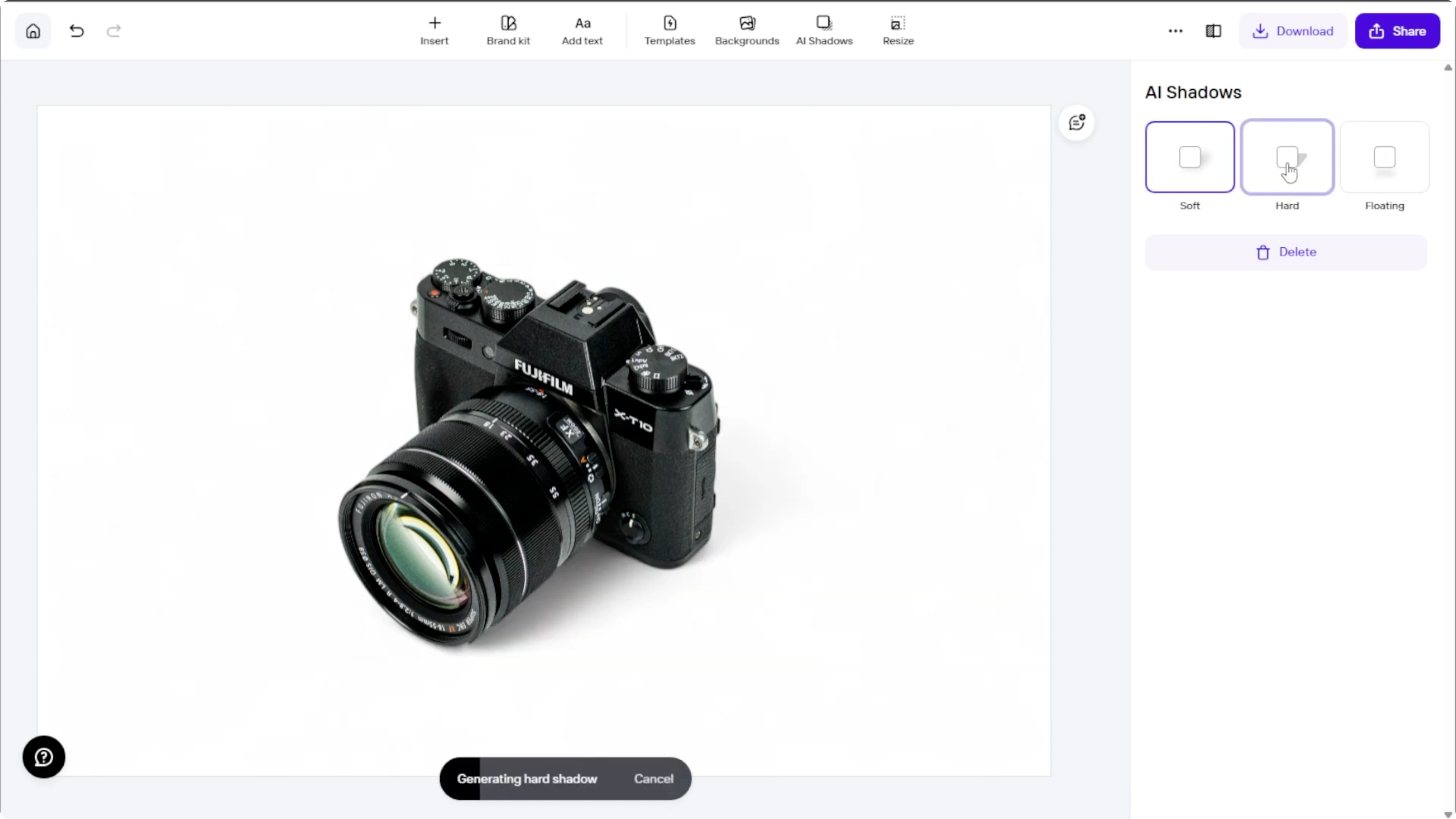
To remove all shadows, click Delete to clear the applied shadow and start fresh. Apply a different style and repeat the preview as needed. Keep an eye on edge softness to match the apparent distance from the light.
Lighting controls
Click the image to open more adjustments on the right hand panel. For lighting options, toggle the Light on switch to simulate studio lighting. This regenerates the shadow to reflect a new light source.
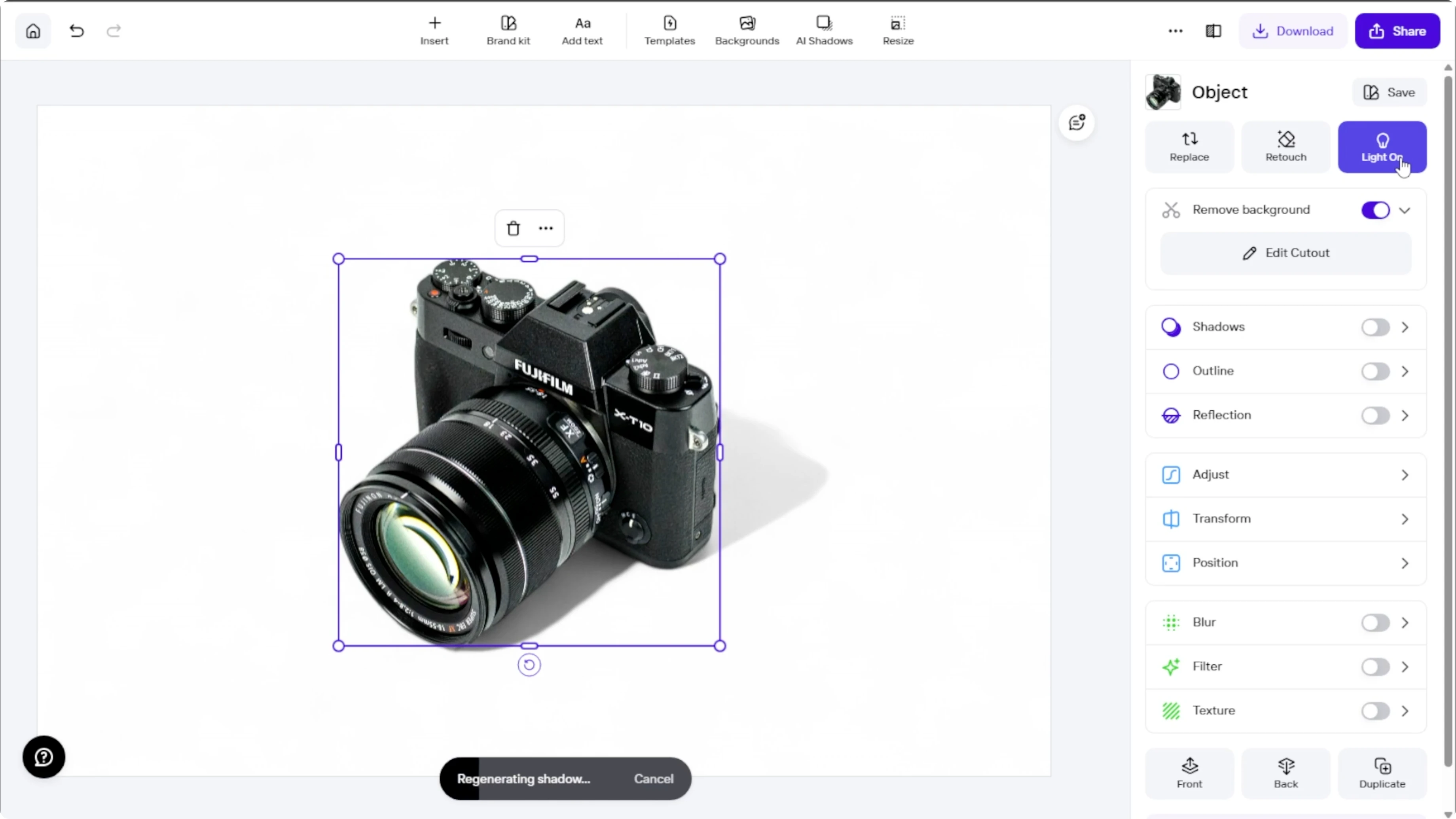
Small lighting changes can produce large shifts in mood. Test a stronger light to accent a product or a gentler light for portraits. Confirm that the direction and falloff match any background you plan to add.
Layers and background
Open the layer panel to see the object, shadow, and background layers. Change or delete the background layer to fit your design. Fine tune the object position relative to its shadow for a natural contact point.
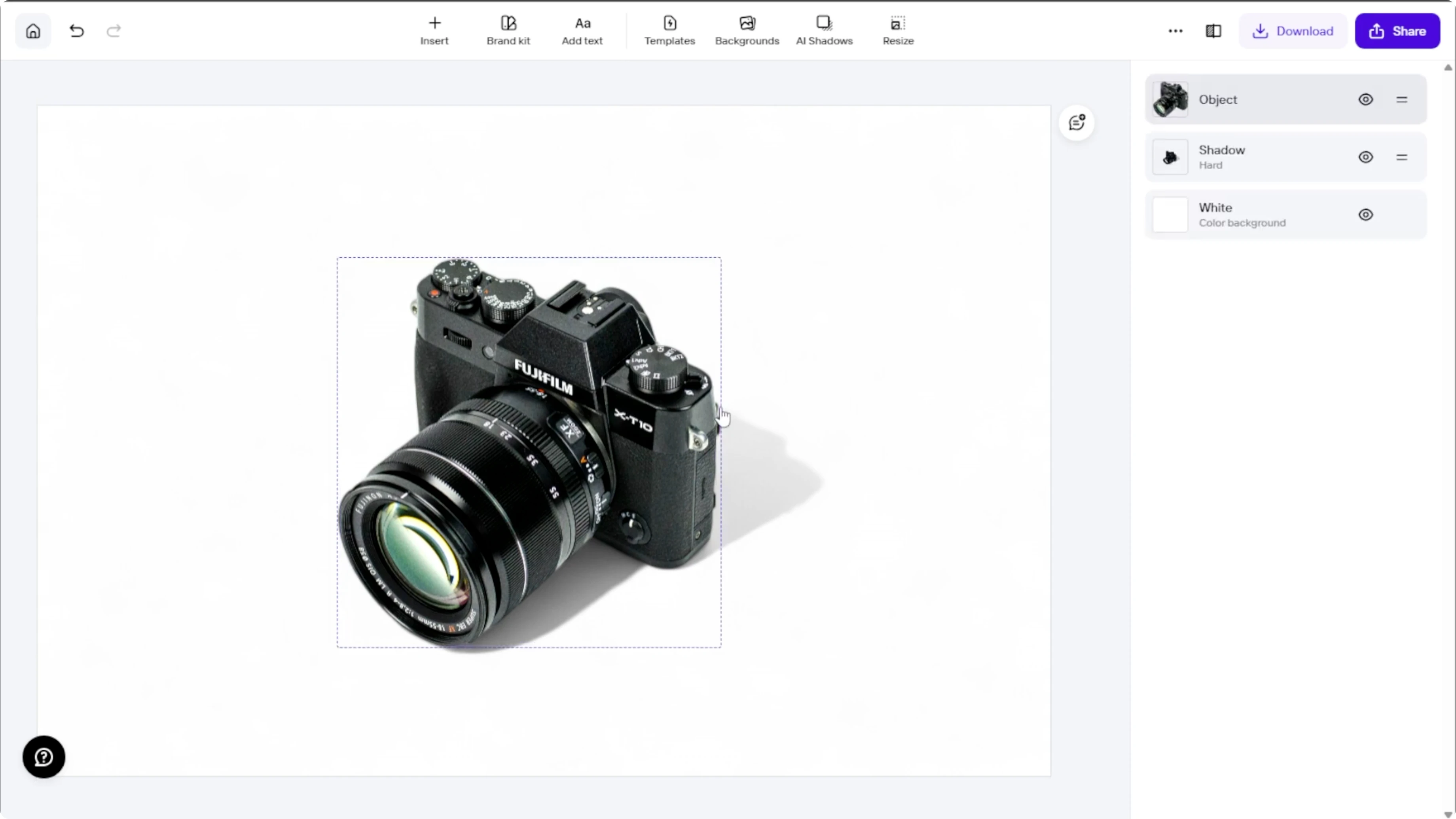
This is perfect for thumbnails, mockups, or product images with consistent branding. If you are building promos or social videos, you can also add a realistic AI voice in Canva to round out your content. Keep a reusable canvas size and color so your catalog looks consistent.
Export
When you are happy with the result, click Download in the top right. Choose your desired format and quality. Save your image and reuse the setup to keep a consistent look across your projects.
Final thoughts
AI generated shadows add polish and depth that make subjects feel grounded. Pick the shadow type that fits your light, adjust with the lighting switch, and refine layers for clean, brand ready images. Export at high quality and repeat the same settings for a cohesive style across your work.
Recent Posts

How to Visualize Yourself as a Pixelized Character with AI?
How to Visualize Yourself as a Pixelized Character with AI?

How to Revive Faded Memories and Enhance Image Clarity with AI?
How to Revive Faded Memories and Enhance Image Clarity with AI?

How to Visualize Yourself as an Animal Crossing Character with AI?
How to Visualize Yourself as an Animal Crossing Character with AI?