How to Enhance Visuals with Realistic Fire and Smoke Effects with AI?
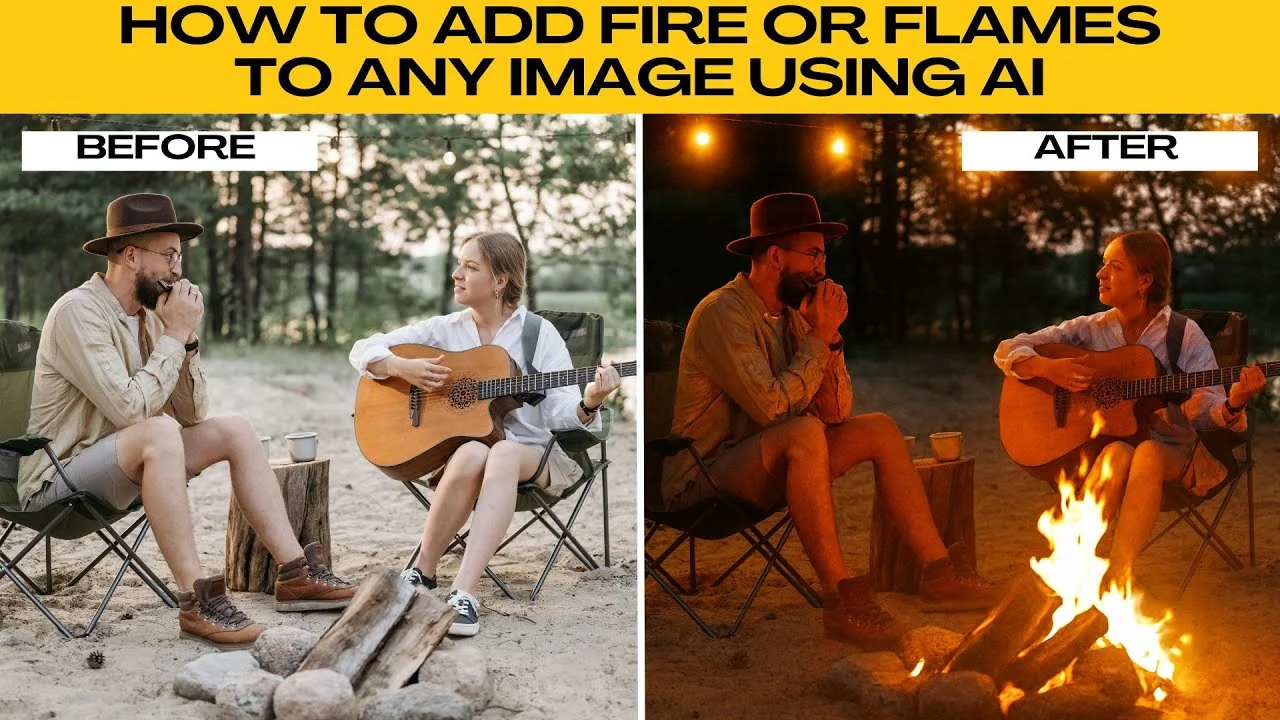
I will teach you how to add fire or flames realistically to any image using AI. Adding fire or flames to an image can instantly create a dramatic cinematic effect. You can create a small campfire, a burning torch, or intense flames around objects.
AI can help you achieve realistic results without needing complex photo editing skills. For people edits that look natural on skin, see our guide to adding realistic tattoos. It pairs well with fiery scenes.
Set up
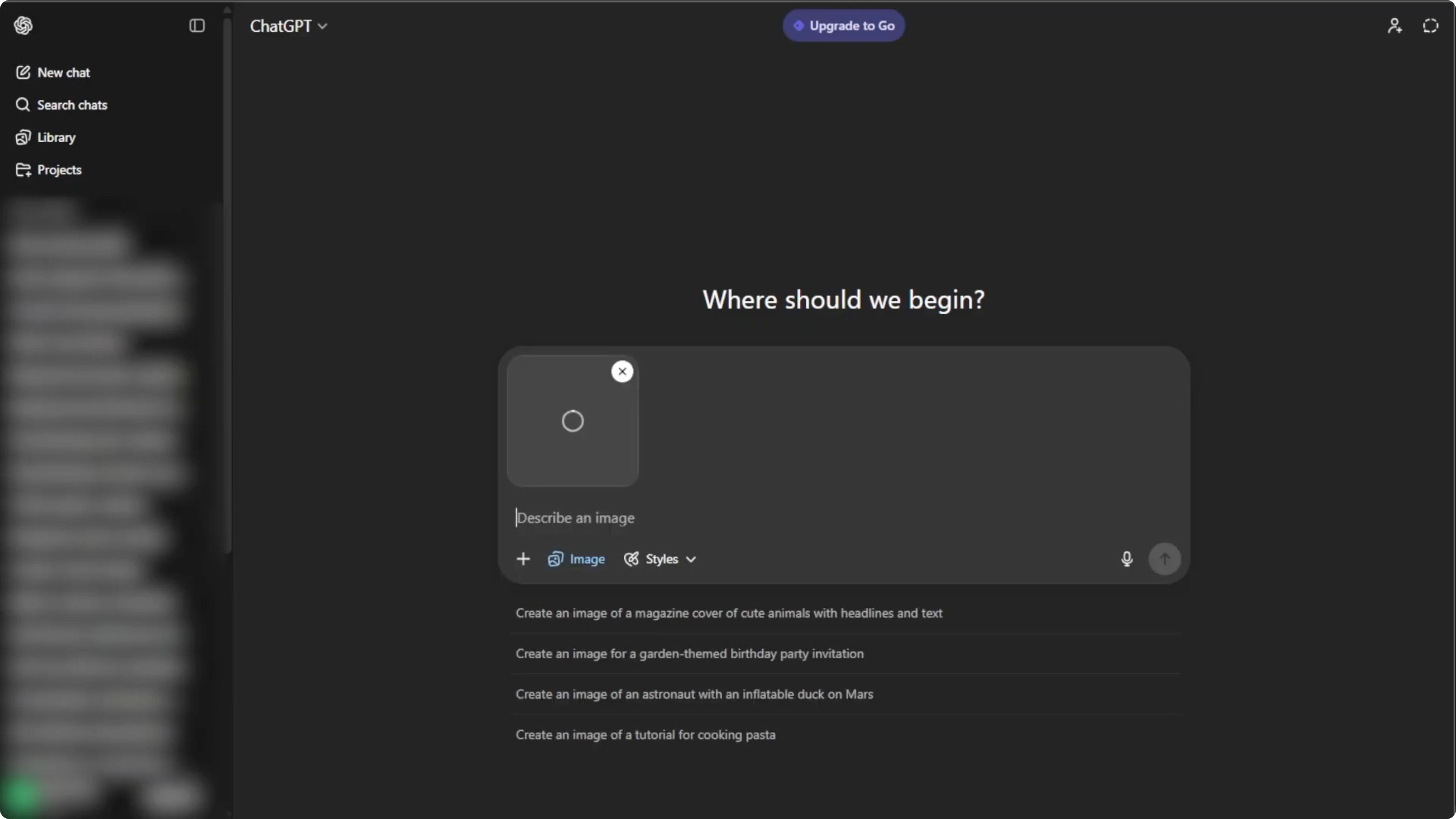
Open ChachiPT in your browser. Log in to your free account. Click the plus icon in the prompt box.
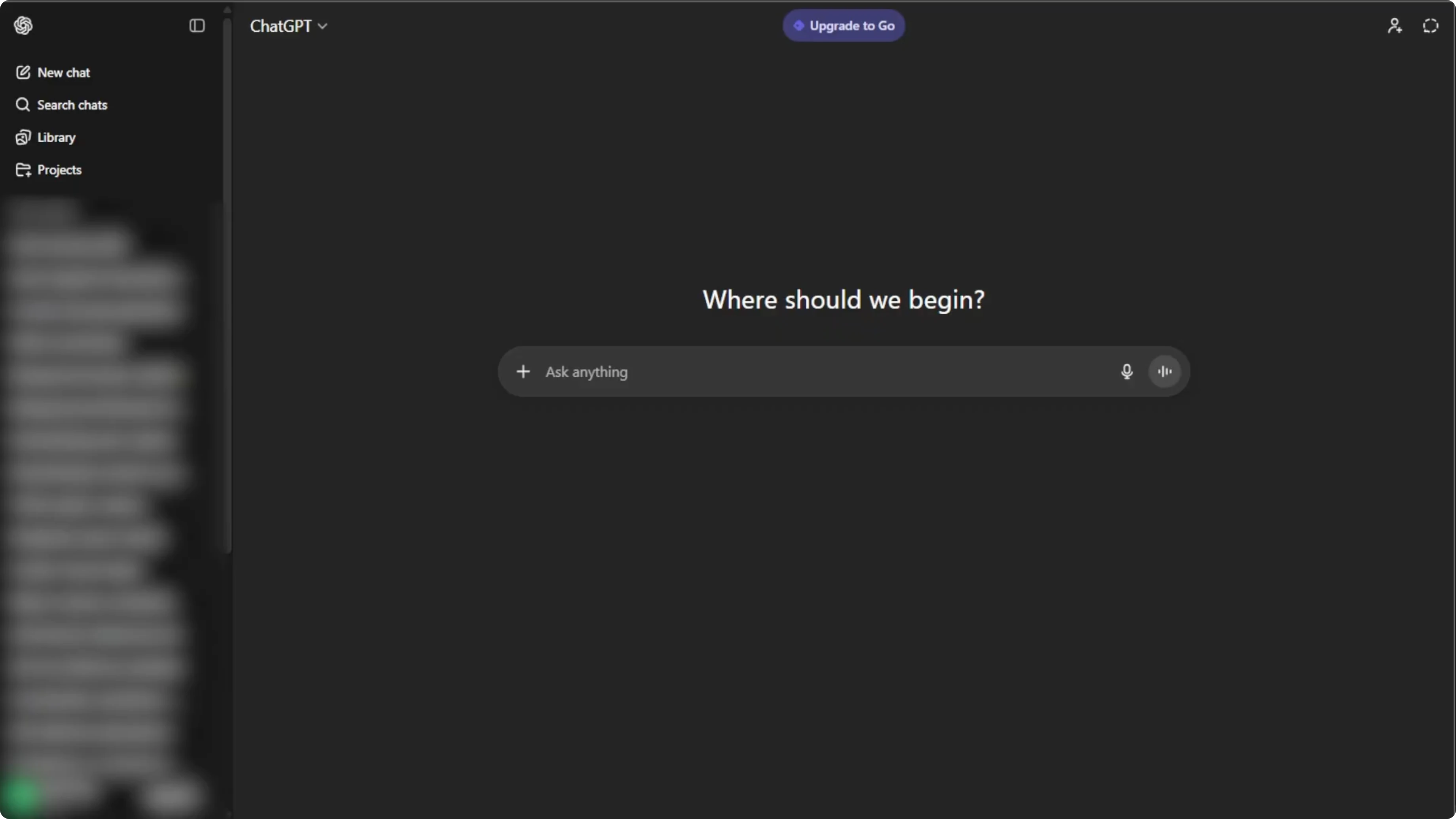
Select create image to enter image mode ready to edit your photo. Click the plus icon again to upload your image. Choose Add photos or files or press Control U.
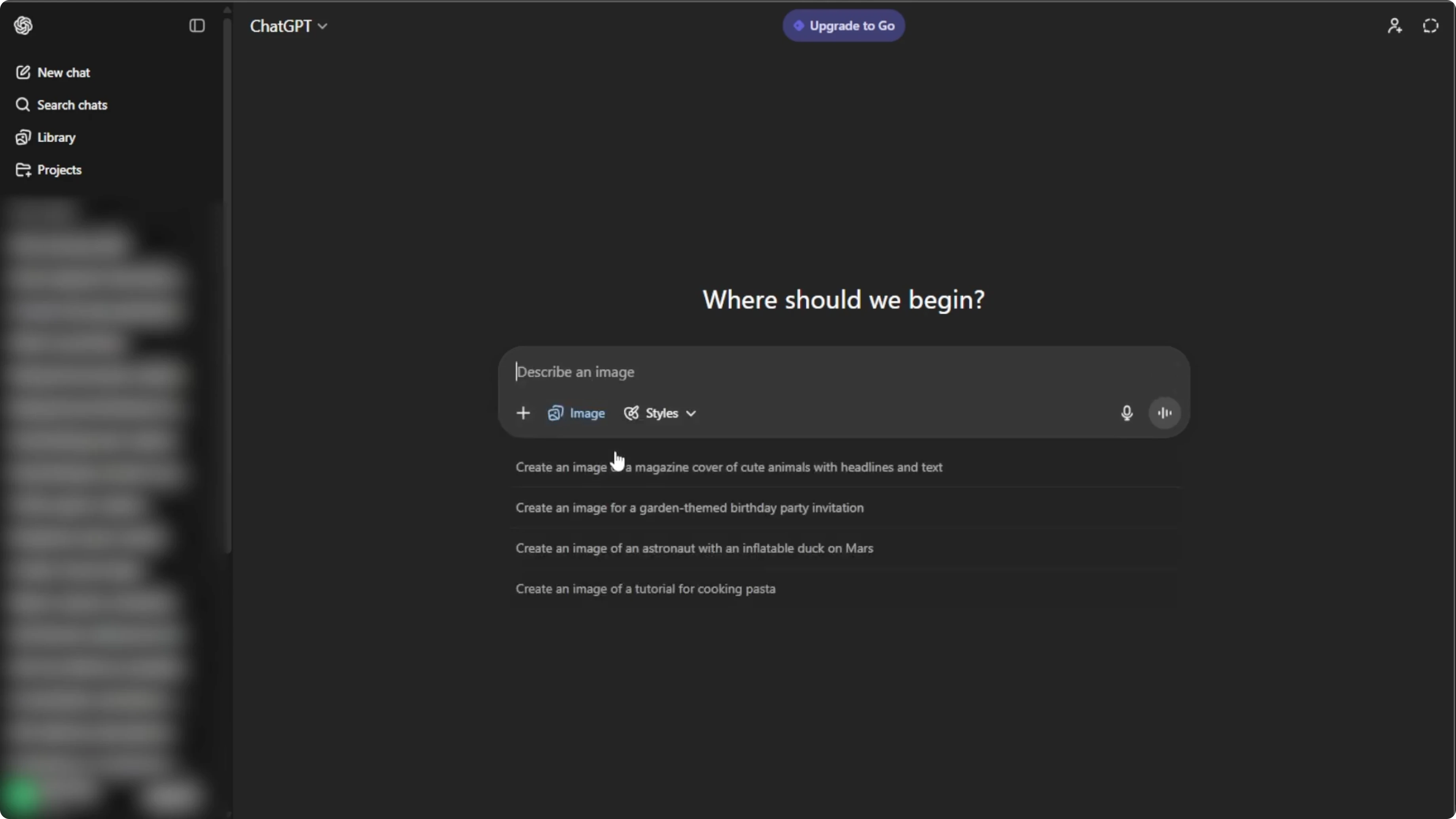
Select the image that you want to add fire or flames to. Choose high quality images with clear subjects to help the flames blend naturally. Be specific about where and how you want the flames to appear.
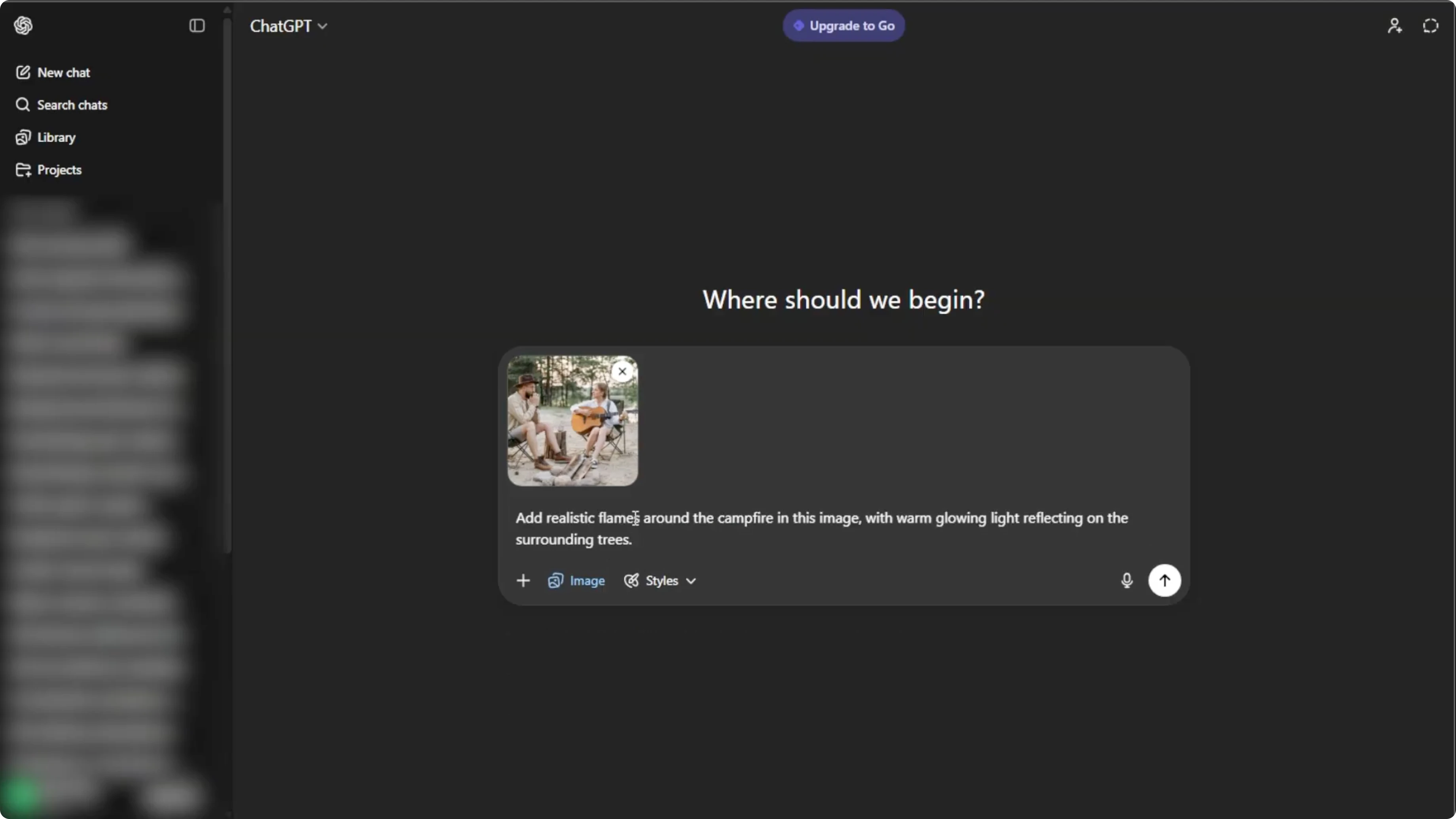
Write the prompt
Include details such as placement of fire on the object, background, or subject. Mention intensity like small flames, roaring fire, or sparks flying. Add lighting effects like glow on surrounding objects or shadows, and include style like realistic, cinematic, or painterly.
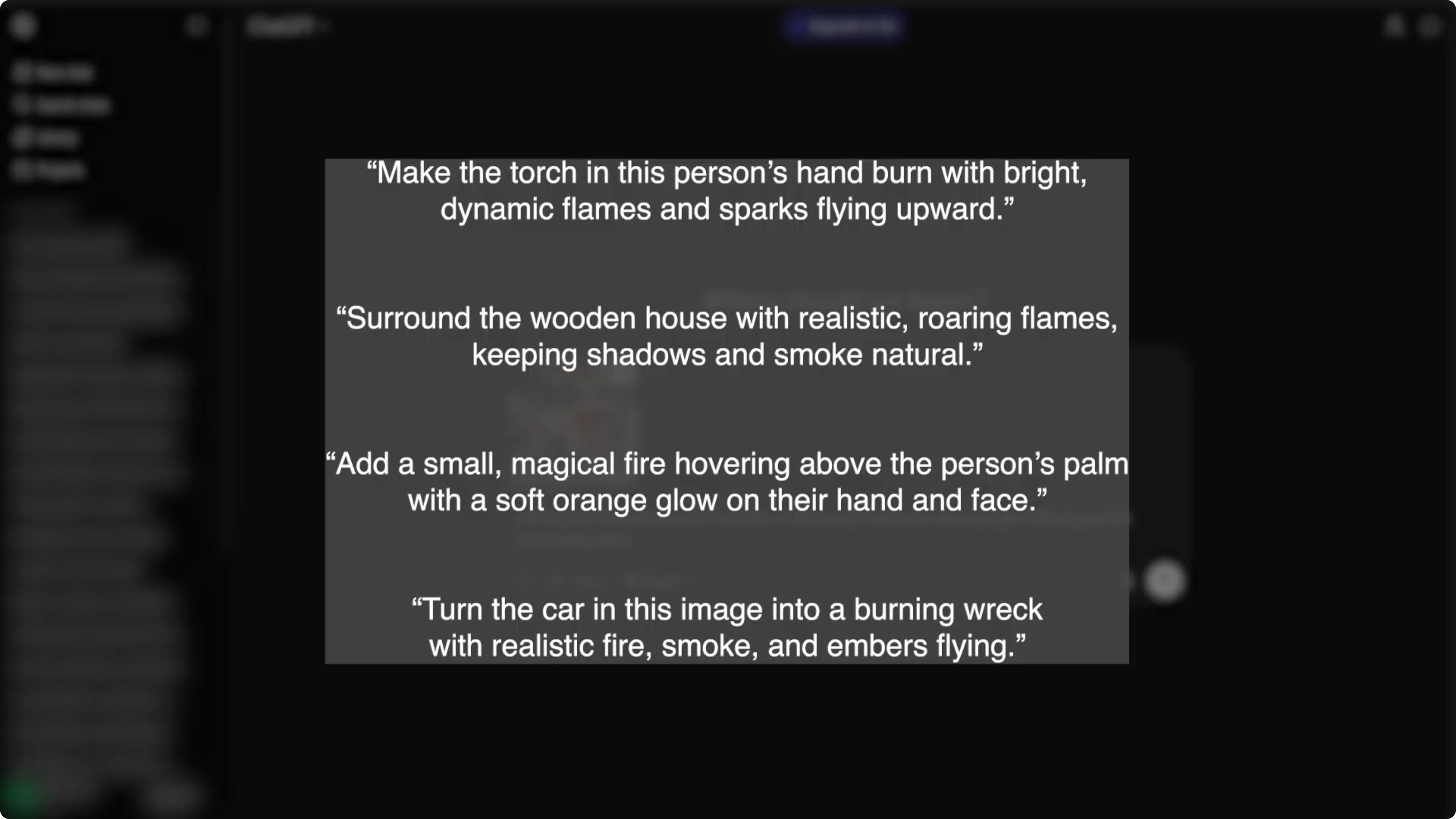
If your image features wildlife or pets, you may also want to learn techniques for realistic fur and features in our realistic animals tutorial. These skills translate directly to more believable fire reflections. Keep the prompt concise and targeted.
Prompt: Add realistic flames to the metal sword held by the subject.
Placement: along the blade edges and tip.
Intensity: small flames with occasional sparks.
Lighting: warm orange glow on the subject's hand and face, soft shadows cast on the wall.
Style: realistic cinematic, high detail, natural color grading.
Generate and refine
Press Enter to let the AI generate your new image with fire. Wait a few seconds to a minute depending on the complexity. Click the generated image to make adjustments.
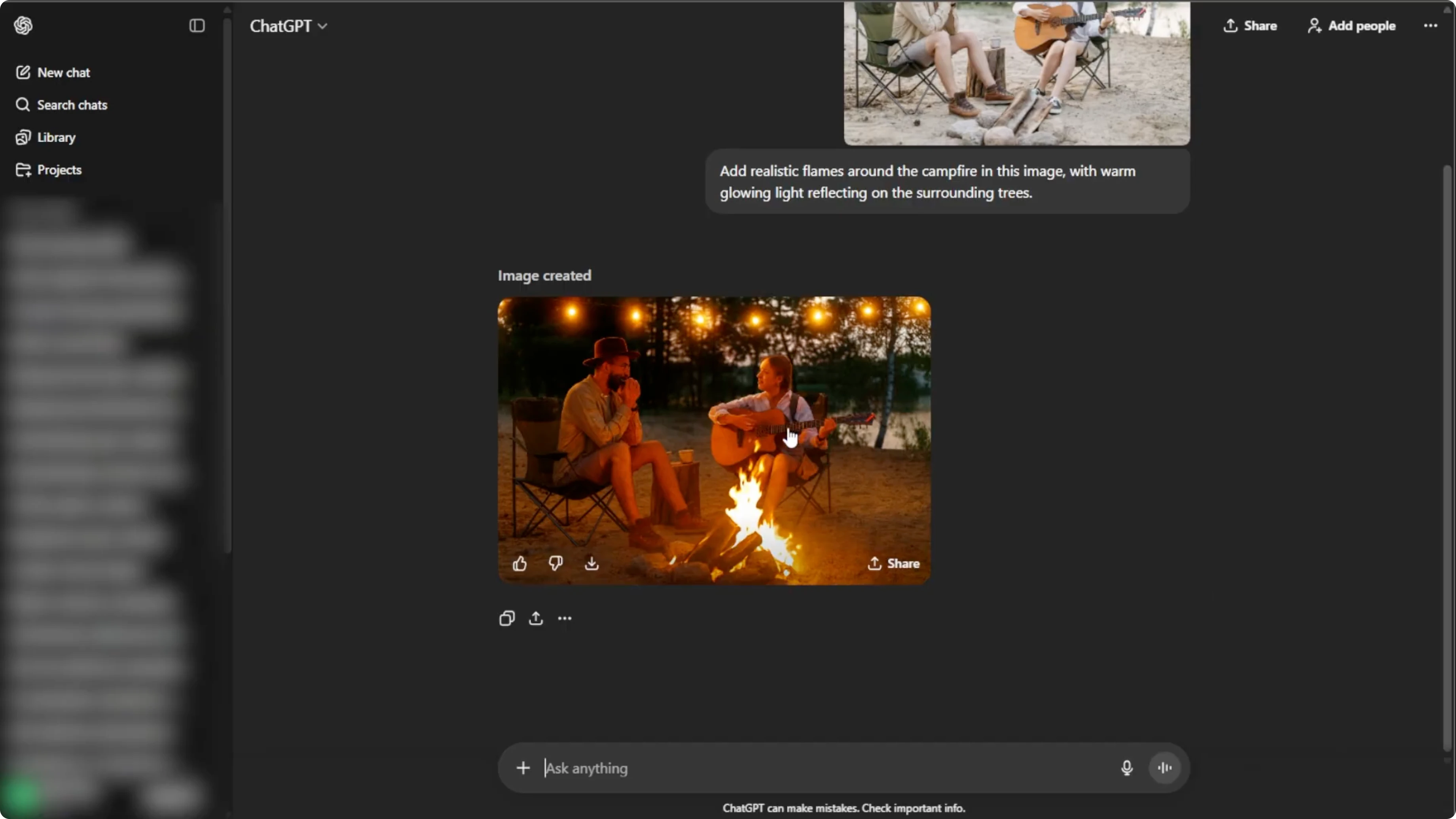
Type specific changes to refine placement, intensity, and lighting. Minor refinements often improve realism significantly. Preview each change before moving forward.
If you plan to move this image into a video project, you can later add narration with an AI voice using Canva. See our guide on adding a realistic AI voice in Canva. It rounds out a polished edit.
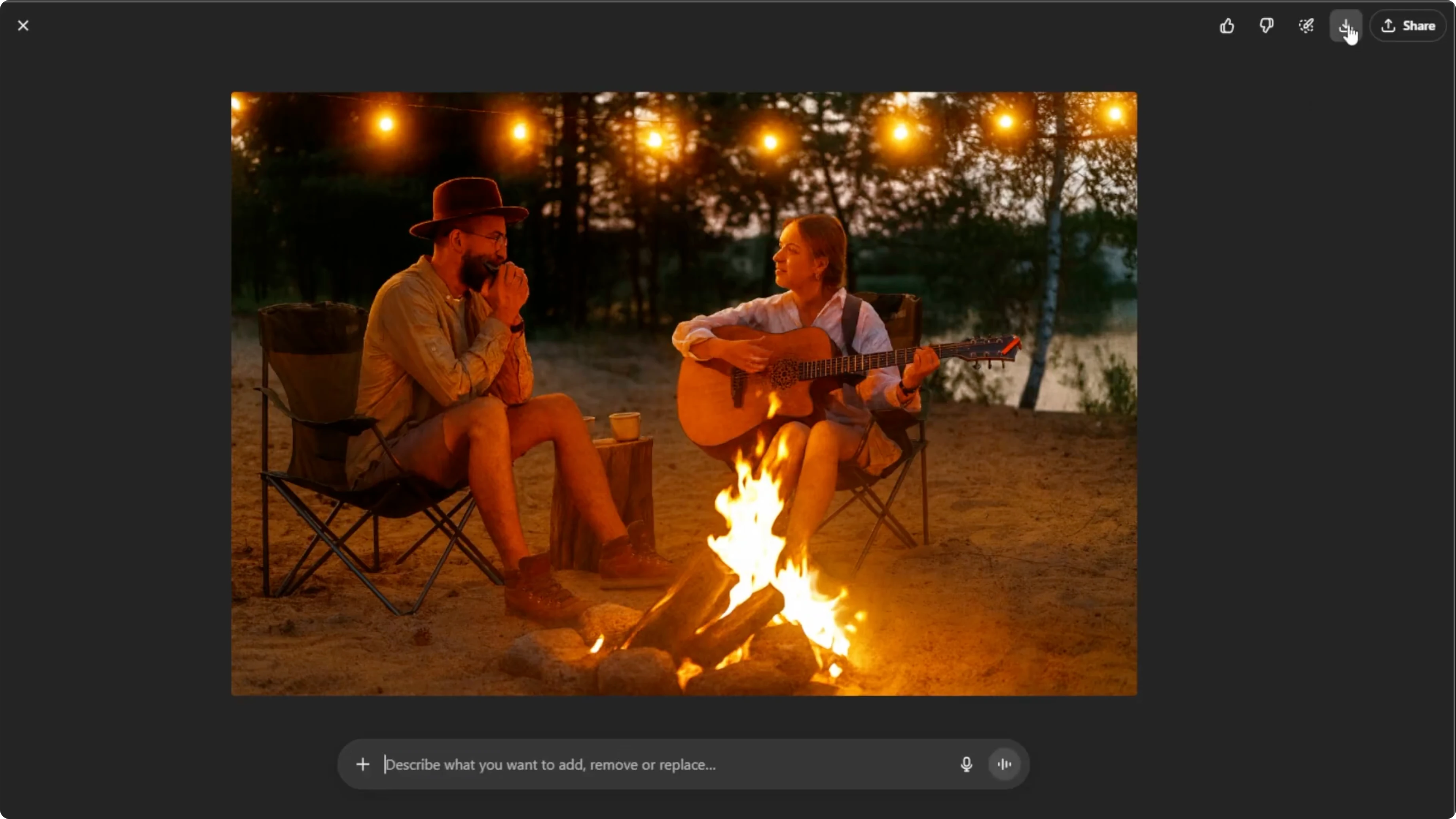
Export
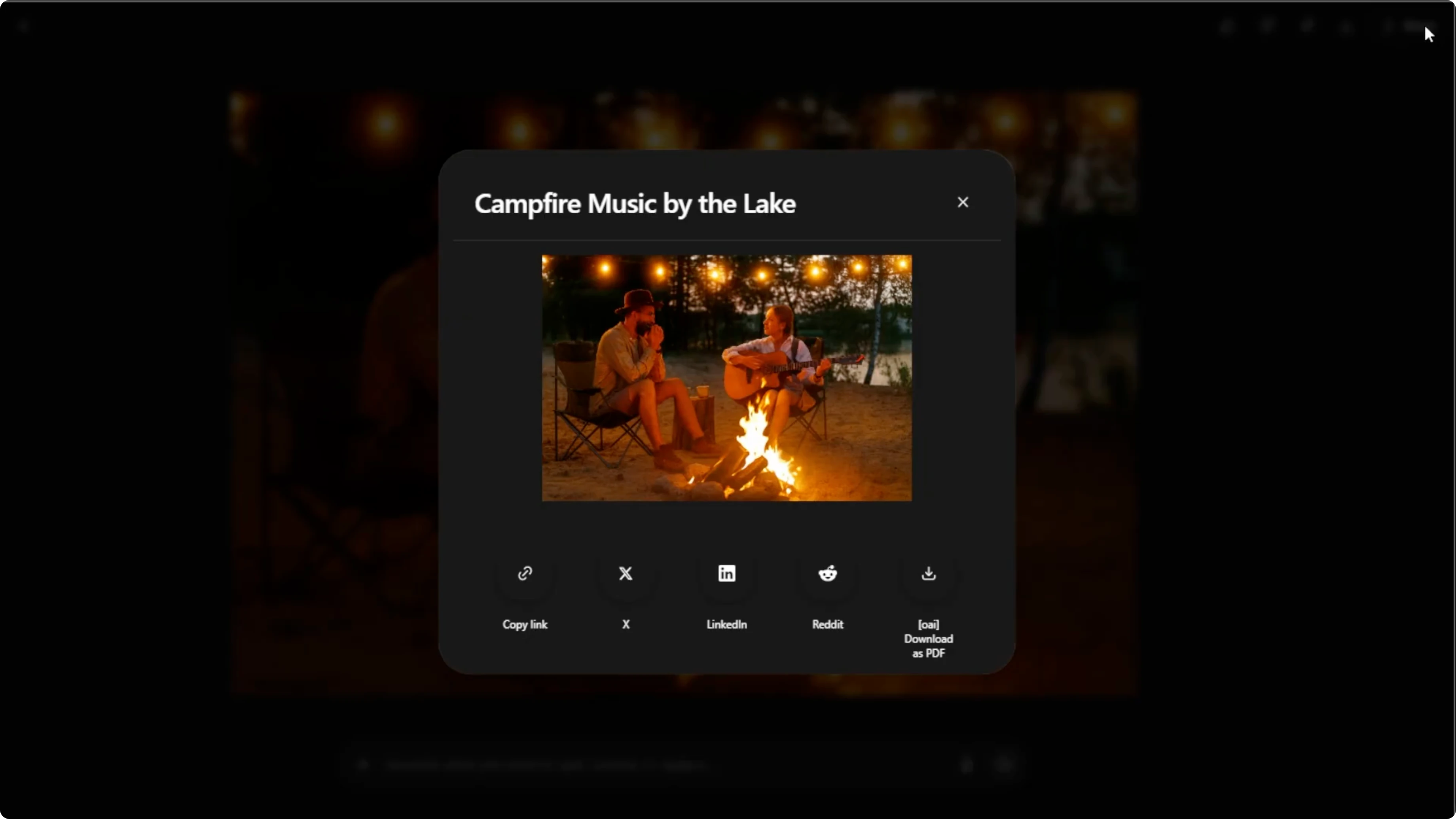
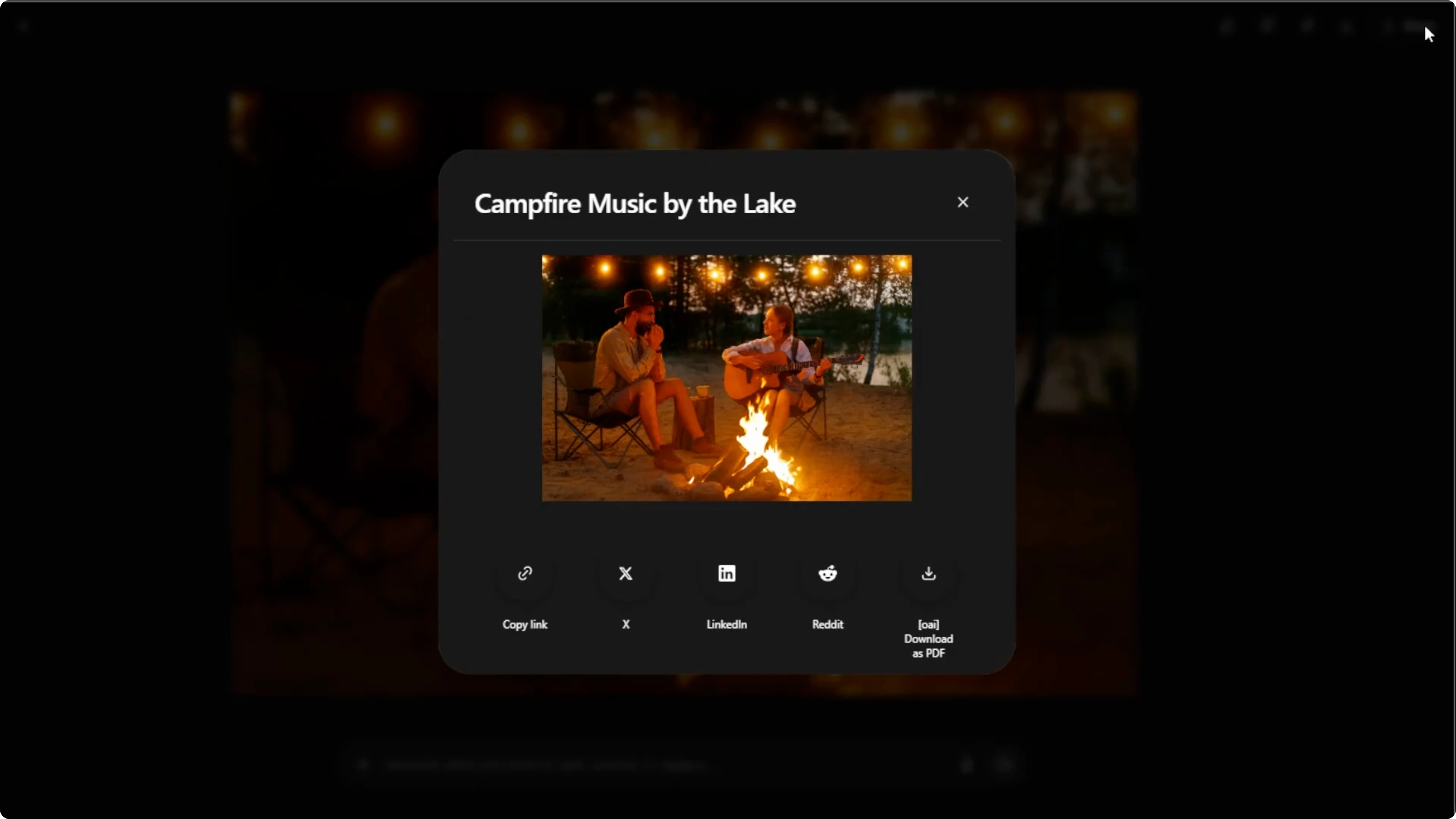
Hover over the final image. Click Download to save it to your computer. You can also click Share to post it directly on social media or to friends.
Limits
The free ChachiPT plan allows up to five image generations per day. Upgrade your plan to generate more images if needed. Plan your edits to make the most of your daily quota.
Final thoughts
Adding fire or flames with AI produces a bold cinematic feel with minimal effort. Be precise in your prompt about placement, intensity, lighting, and style. Small targeted tweaks make the flames look truly realistic.
Recent Posts

How to Visualize Yourself as a Pixelized Character with AI?
How to Visualize Yourself as a Pixelized Character with AI?

How to Revive Faded Memories and Enhance Image Clarity with AI?
How to Revive Faded Memories and Enhance Image Clarity with AI?

How to Visualize Yourself as an Animal Crossing Character with AI?
How to Visualize Yourself as an Animal Crossing Character with AI?