How to Highlight Text in Canva
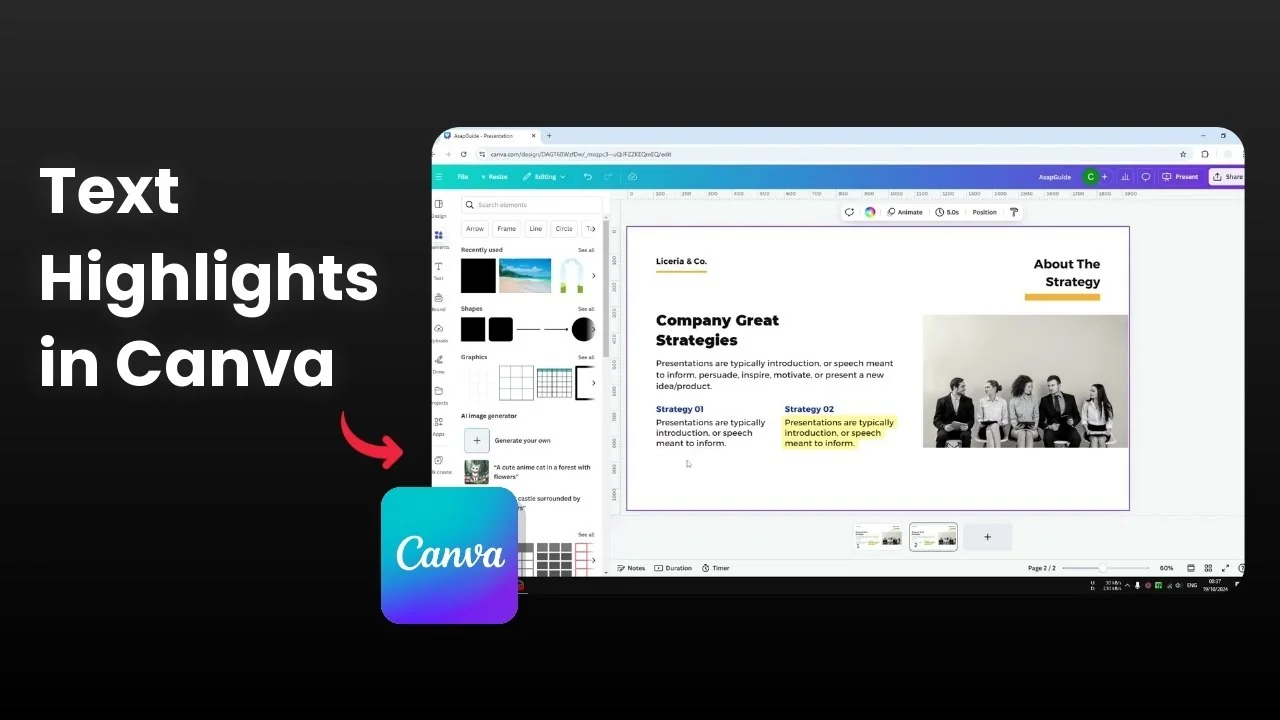
This is a presentation slide in Canva, and you can see some text being highlighted in the slide. How do you get this highlight feature in Canva and apply it to your own design. I am going to show you three different methods to highlight a piece of text in your design in Canva.
For extra options, see more ways to highlight text.
Highlight Text in Canva: Background effect
This first method is the easiest one, and it highlights the entire text box.
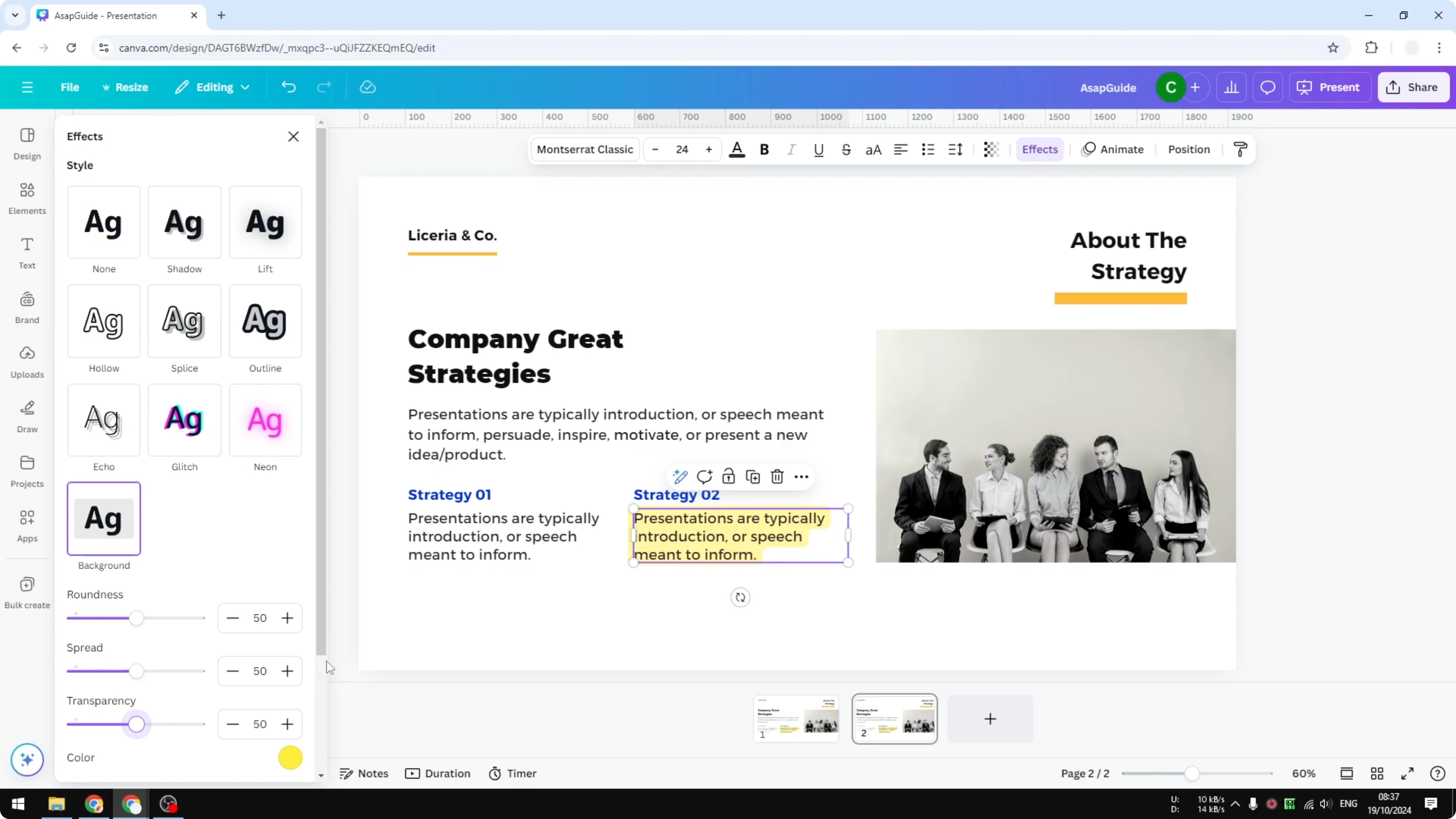
Click the text box.
Open Effects.
Under Background, turn it on.
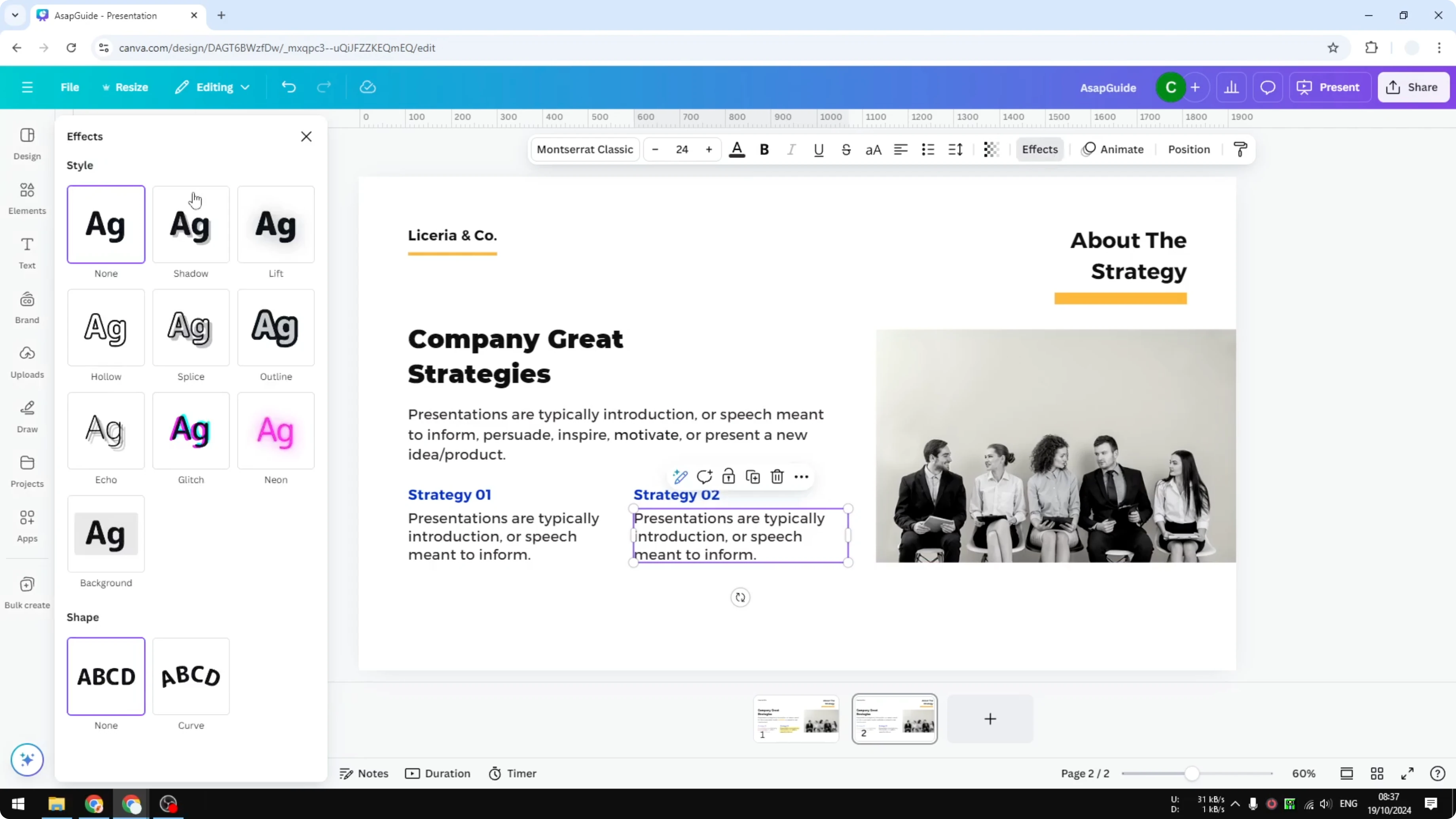
Adjust roundness, spread, transparency, and the color of the highlight.
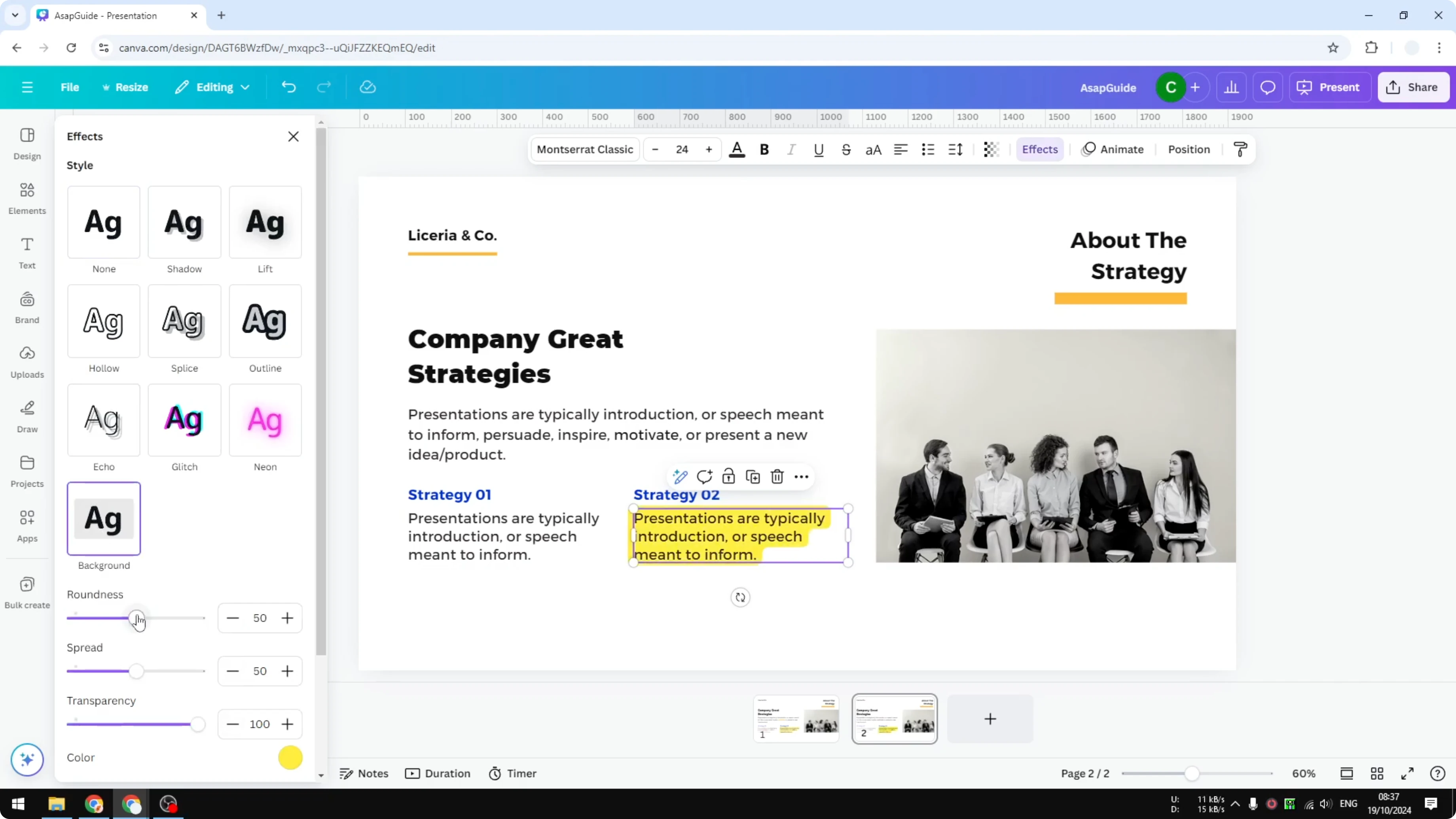
Use a slightly transparent color so the text remains visible.
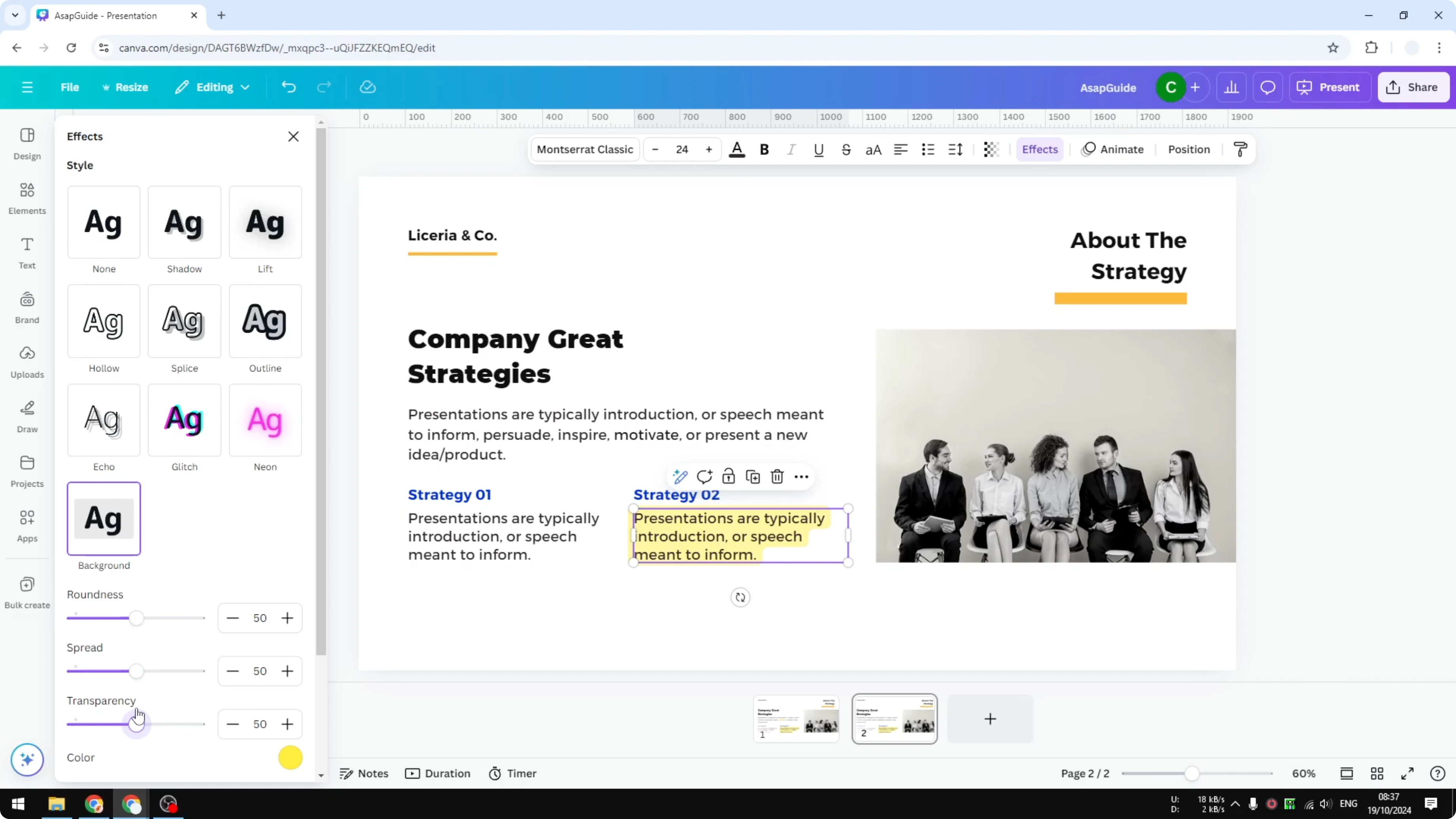
The only downside is you can only apply this to the entire text box. You cannot apply it to individual letters, sentences, or words inside that box.
If you want a large decorative text style behind your content, you can also add background text.
Highlight Text in Canva: Shape behind words
This method lets you highlight specific words within a text box.
Open Elements.
In Shapes, insert a square.
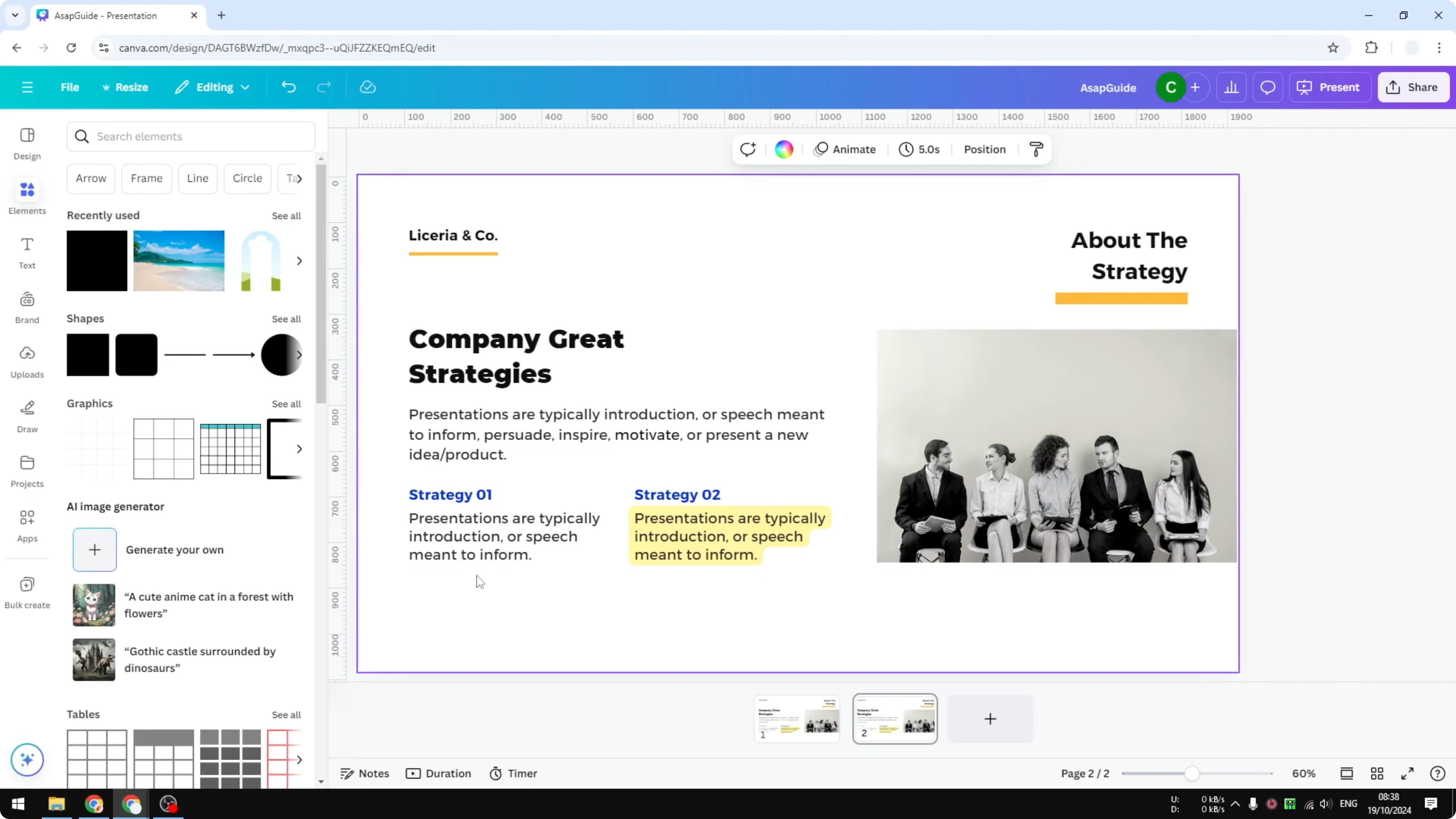
Change its color.
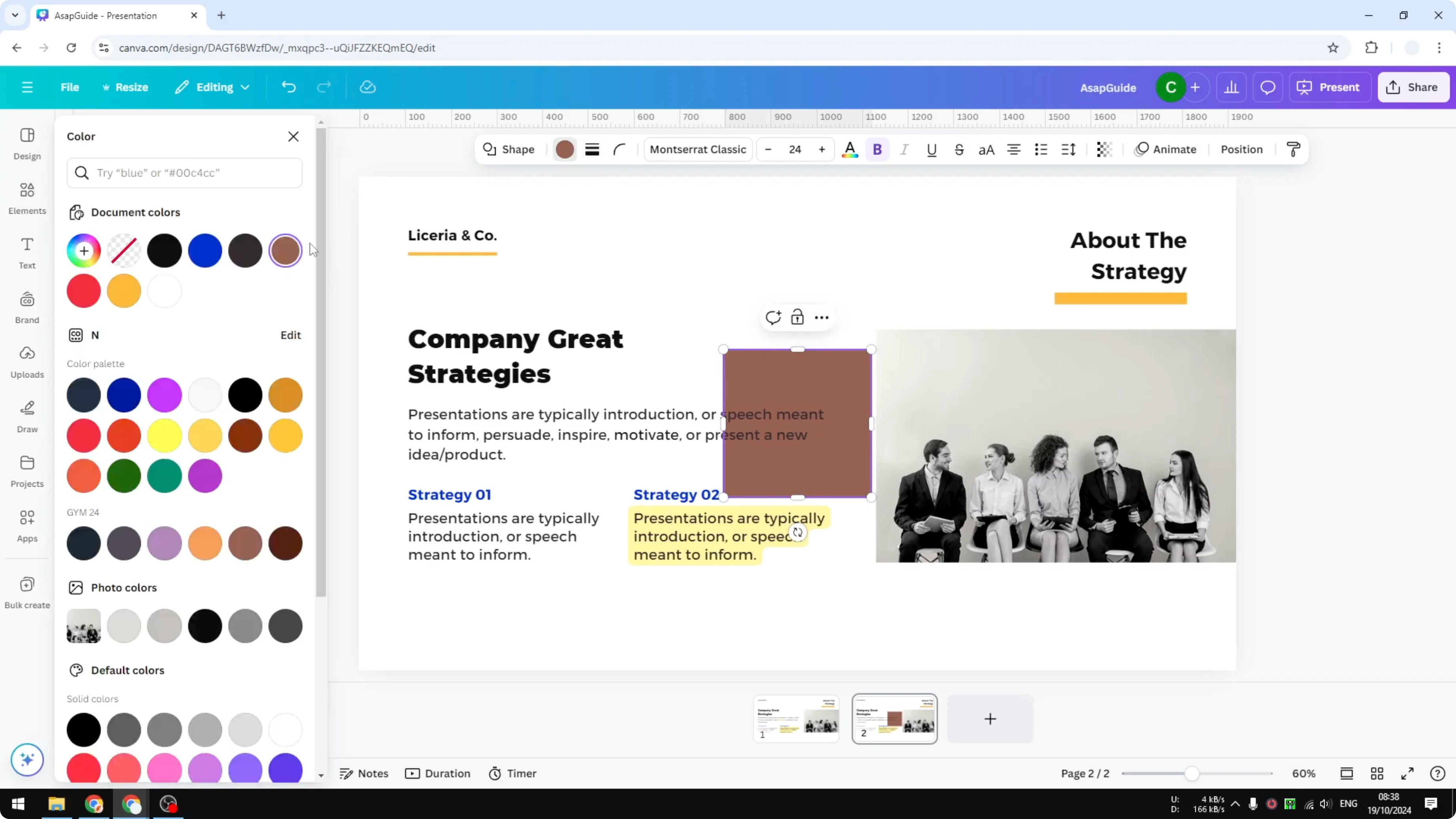
Resize it and place it behind the target word.
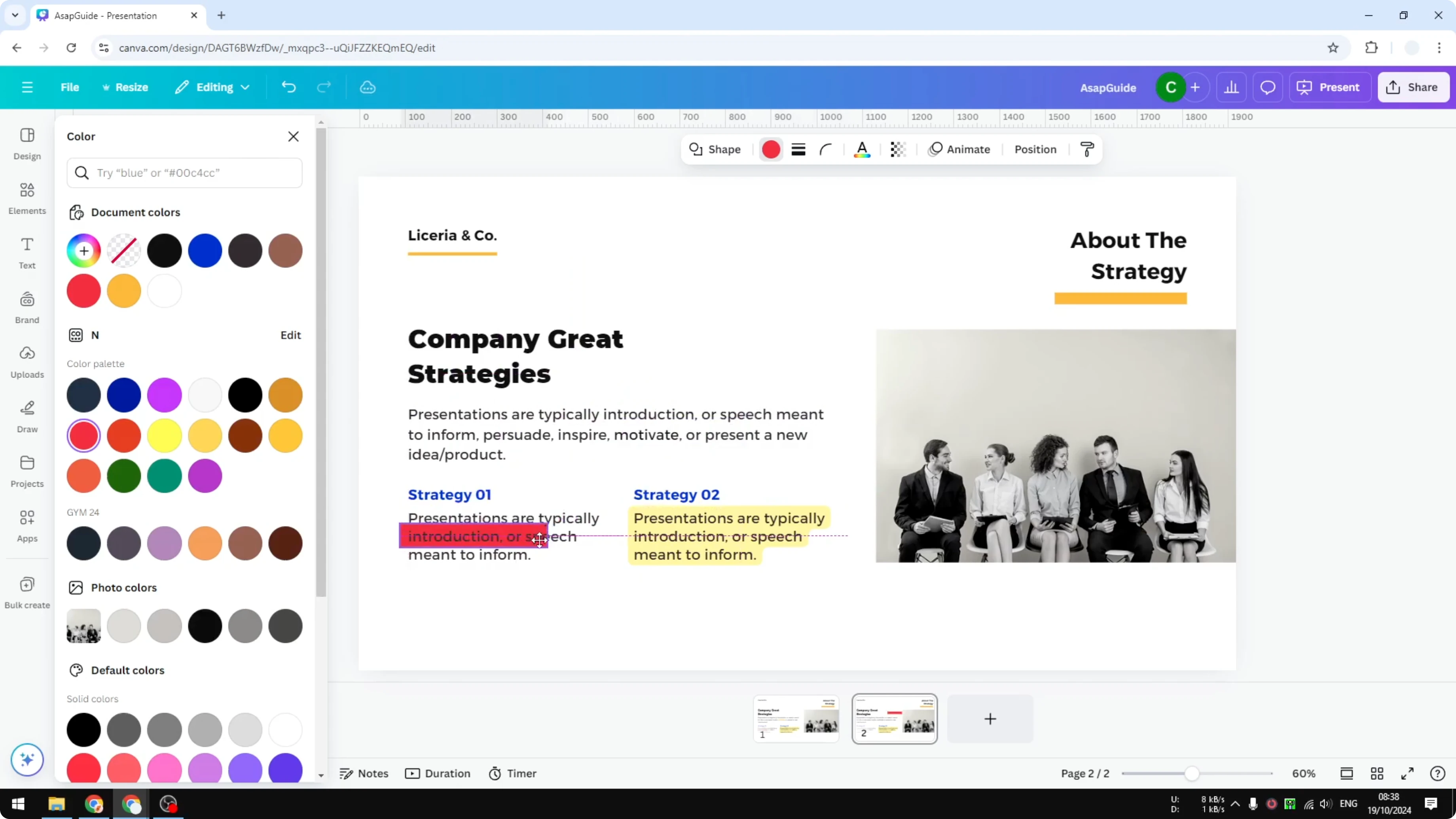
Reduce the transparency so the text is still clear.
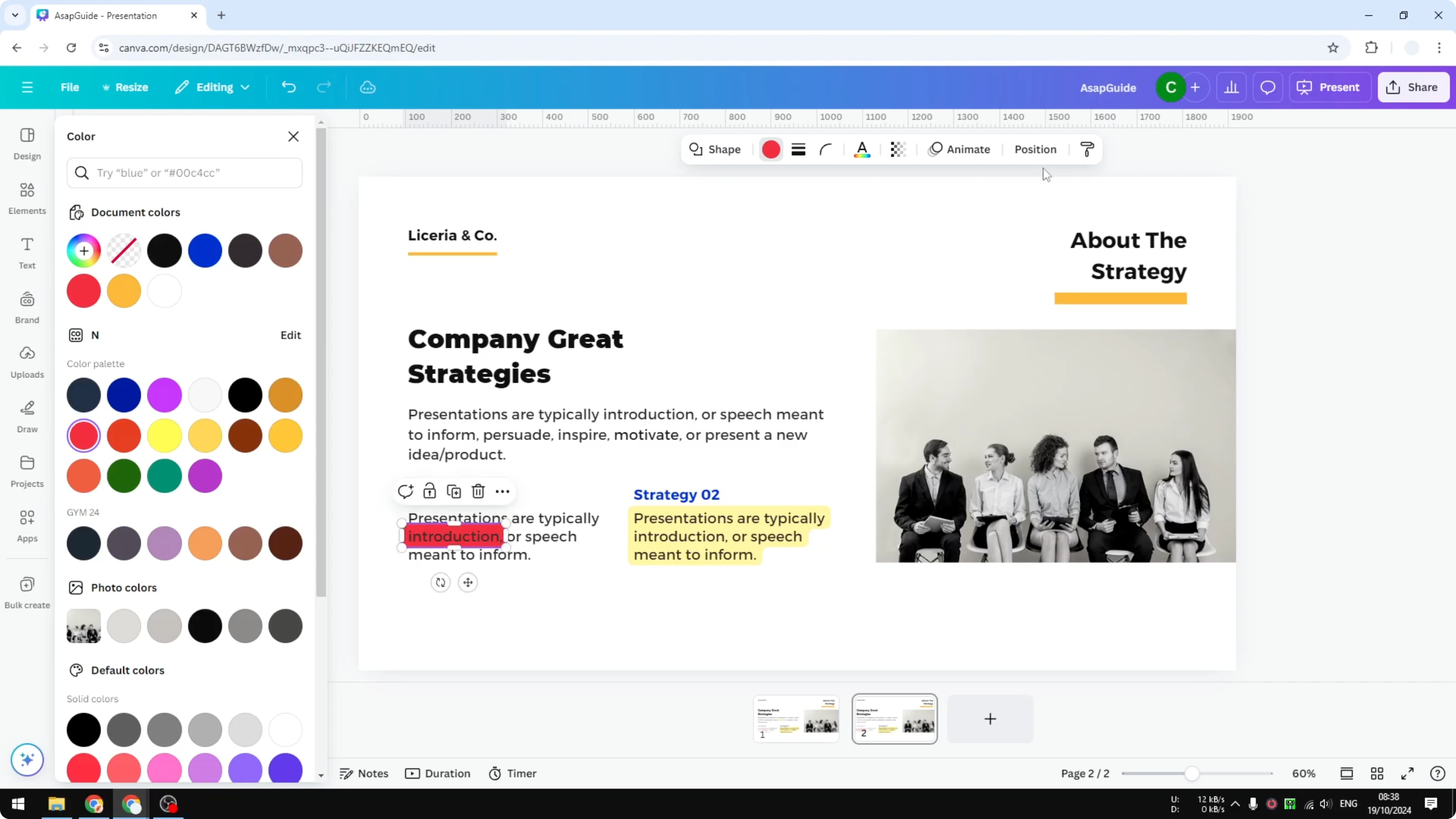
If the shape blocks the text, right click, choose Layer, and send backward.
Highlight Text in Canva: Bold and color emphasis
This method is not exactly highlighting, but it draws attention to a word or phrase in a similar way.
Select the target words.
Make the text bold, and change it to a different color.
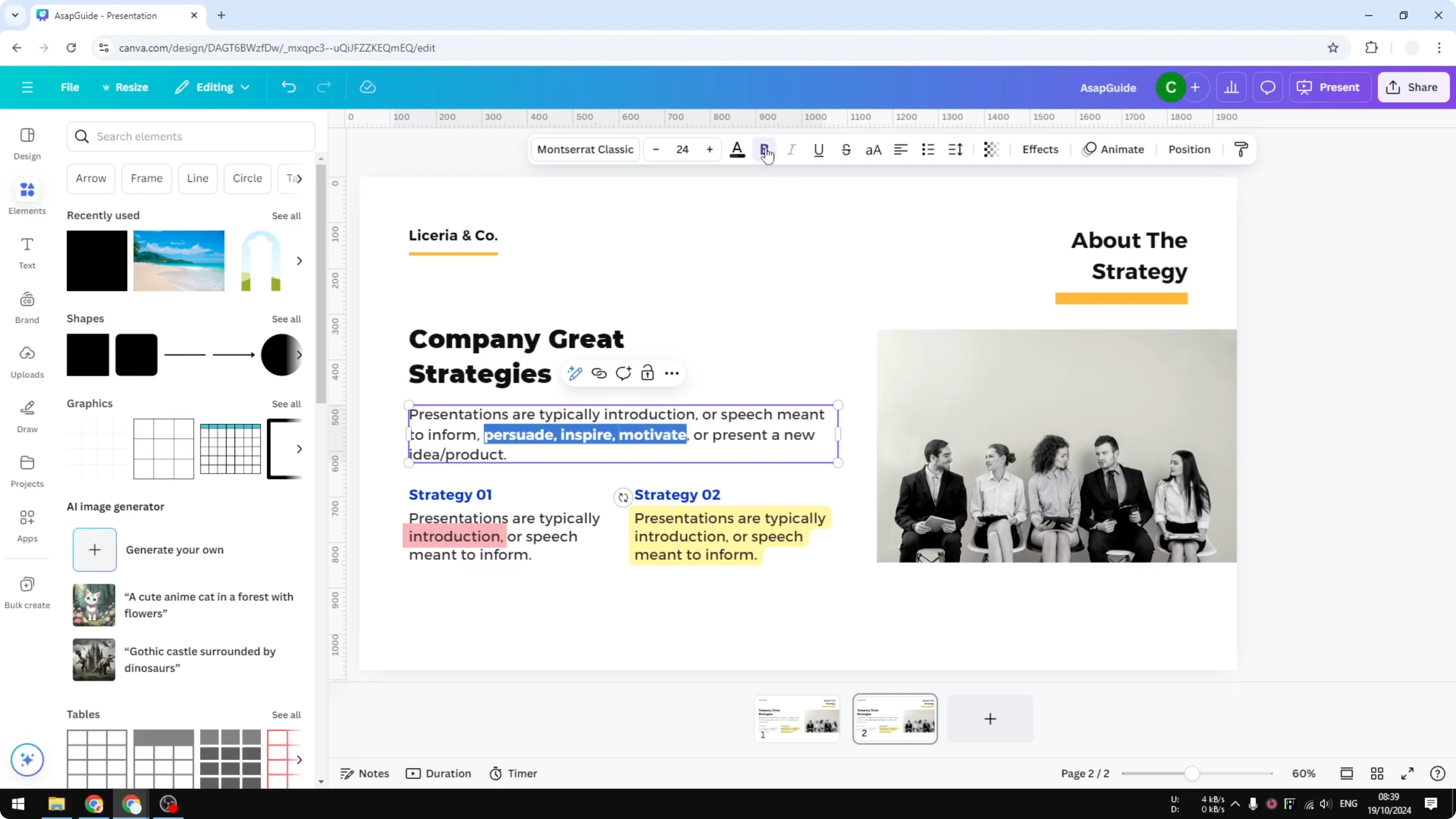
The words will stand out from the rest of the paragraph.
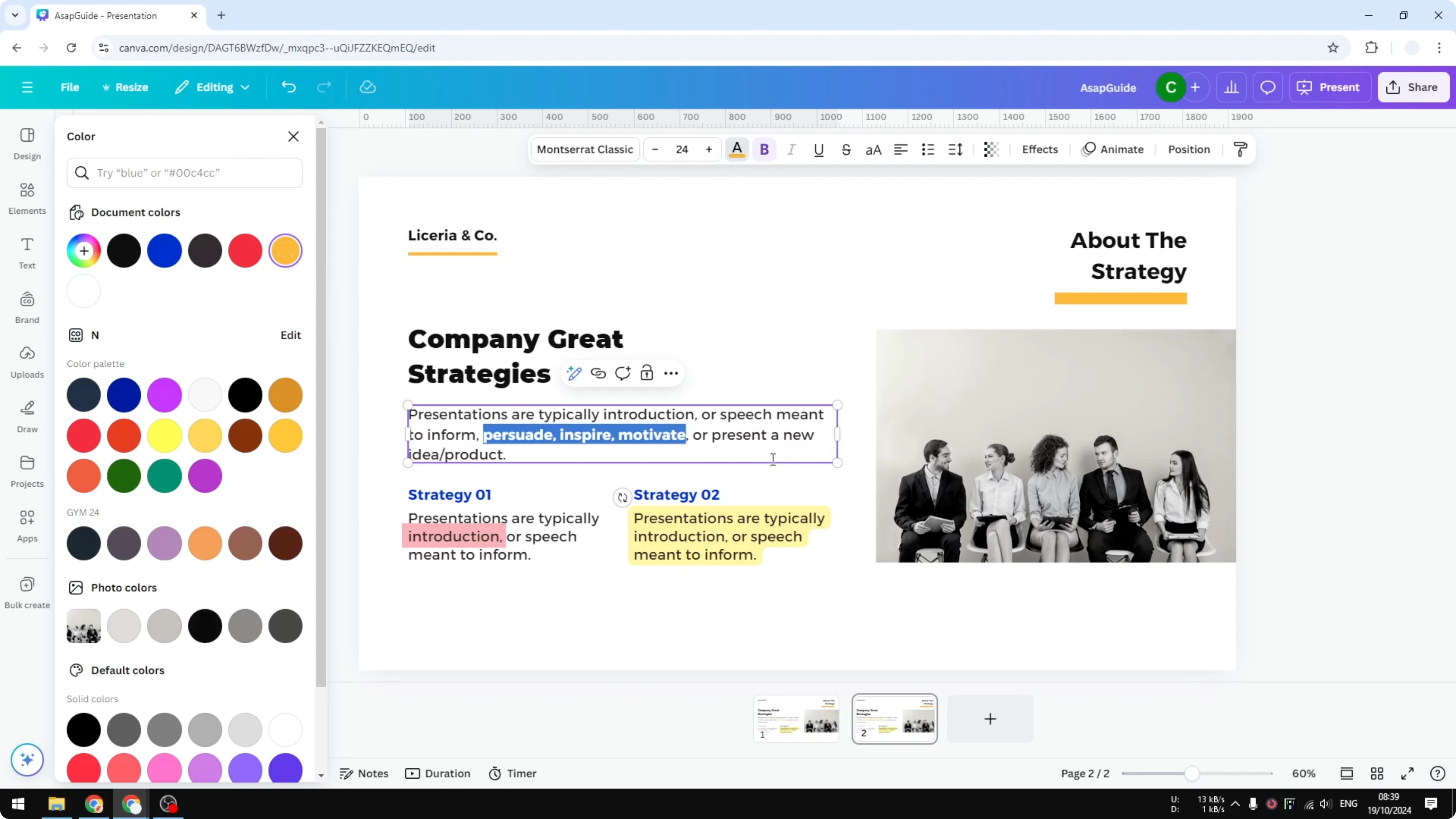
Final thoughts on Highlight Text in Canva
Use the Background effect for quick full-box highlights, a Shape for selective words, or bold plus color to call attention without a block behind the text. Pick the method that matches your layout and how much emphasis you want.
If you are preparing graphics for the web, remember to add alt text to pictures in Canva.
Recent Posts

How to Visualize Yourself as a Pixelized Character with AI?
How to Visualize Yourself as a Pixelized Character with AI?

How to Revive Faded Memories and Enhance Image Clarity with AI?
How to Revive Faded Memories and Enhance Image Clarity with AI?

How to Visualize Yourself as an Animal Crossing Character with AI?
How to Visualize Yourself as an Animal Crossing Character with AI?