How to Group Elements in Canva
I will show you how you can group multiple elements in Canva. Grouping keeps your design organized and helps you perform edits more efficiently. Instead of editing each item one by one, you make the change once and every object in the same group follows.
You can move one group and everything inside moves with it. You can resize the group and the other elements follow. You can also change color or position once for the group instead of doing it for every single item.
Why Group Elements in Canva
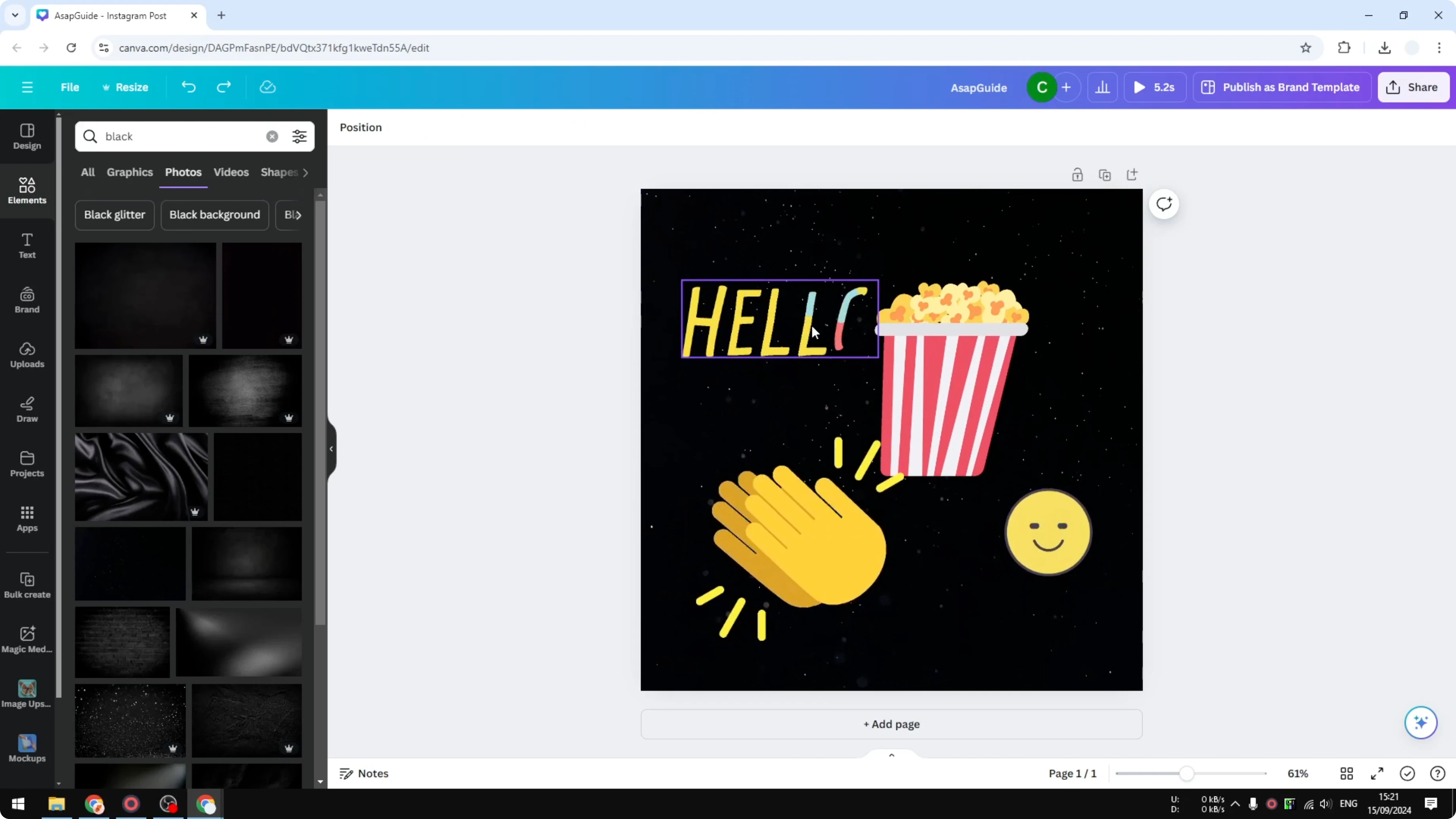
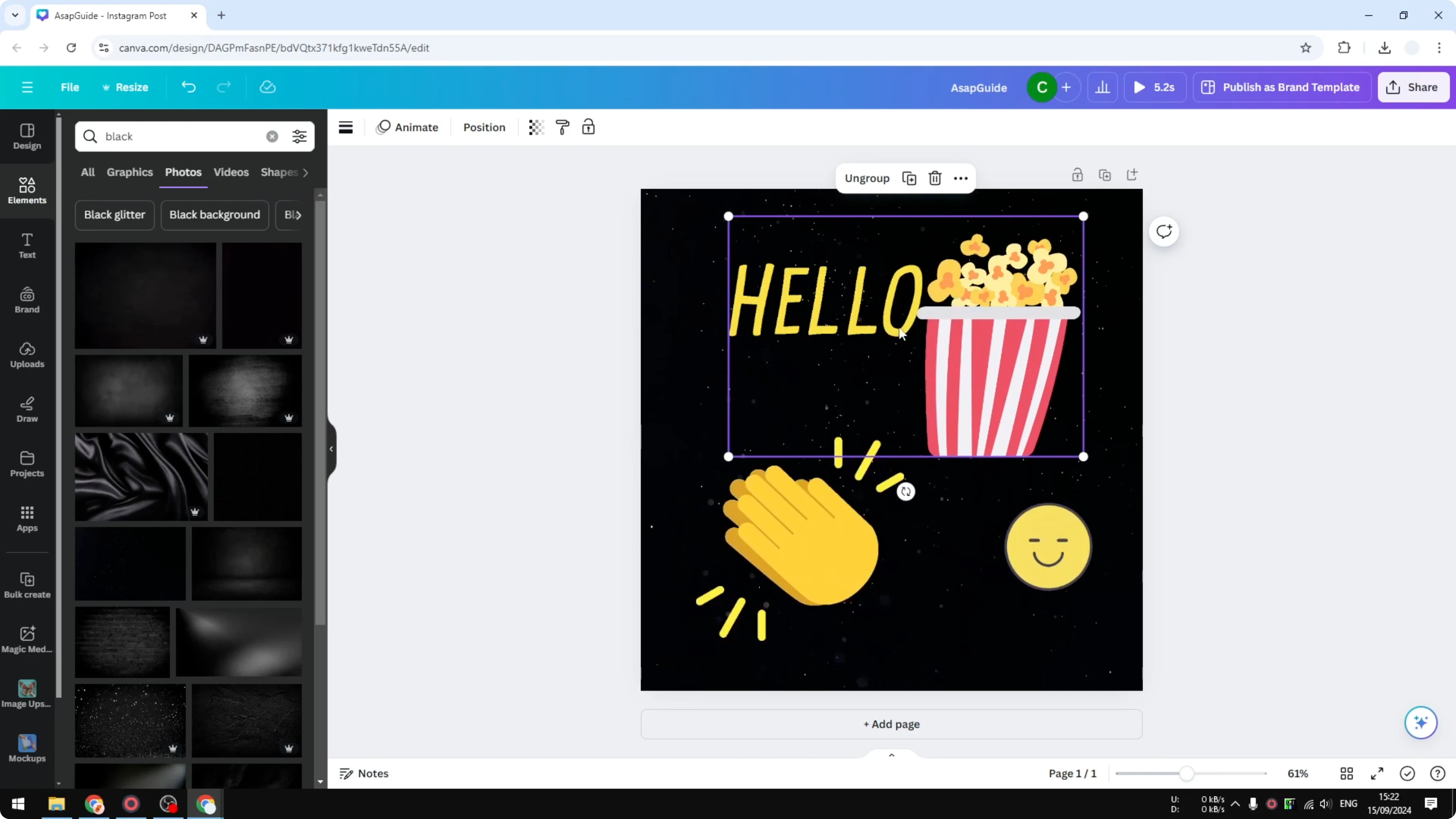
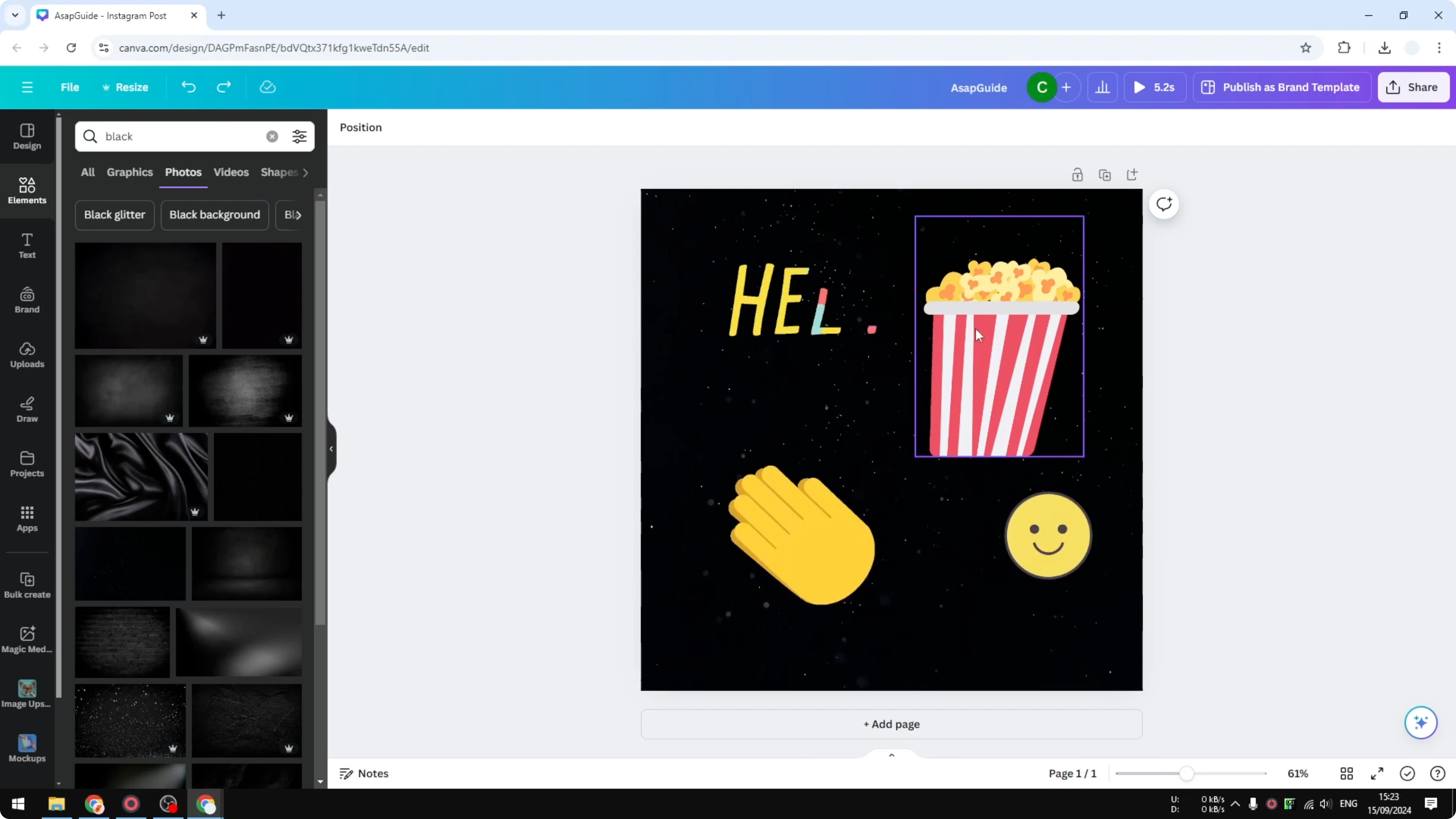
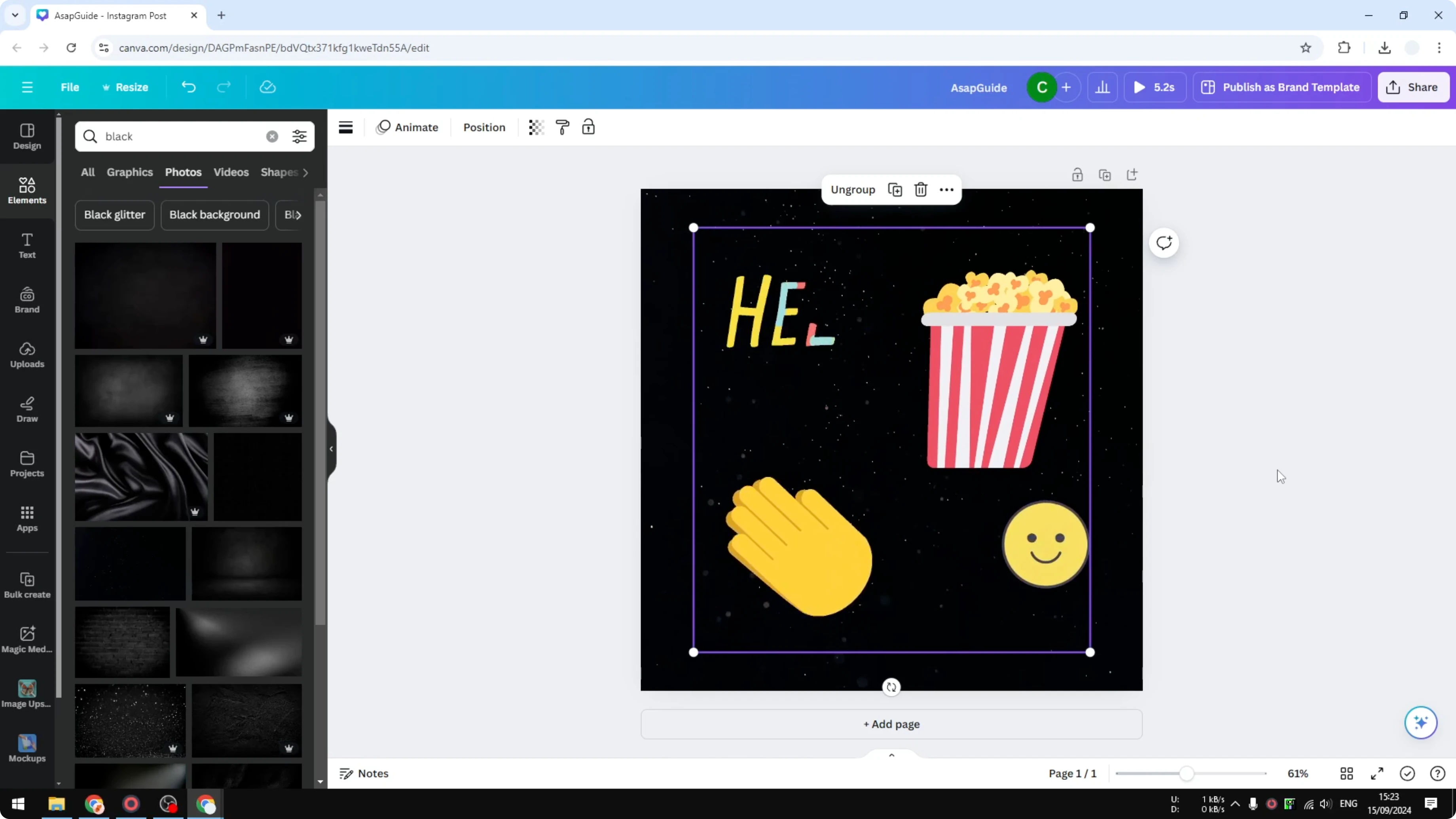
In this design I have multiple objects, including a background. I want to select two of them, the hello text and a popcorn animation. If you have been using a Windows PC you might press the Control key to select multiple elements, but that does not work in Canva.
The keyboard shortcut you should use is the Shift key. Press and hold Shift on your keyboard, then click each element you want to select. When both are selected, click Group to group them together.
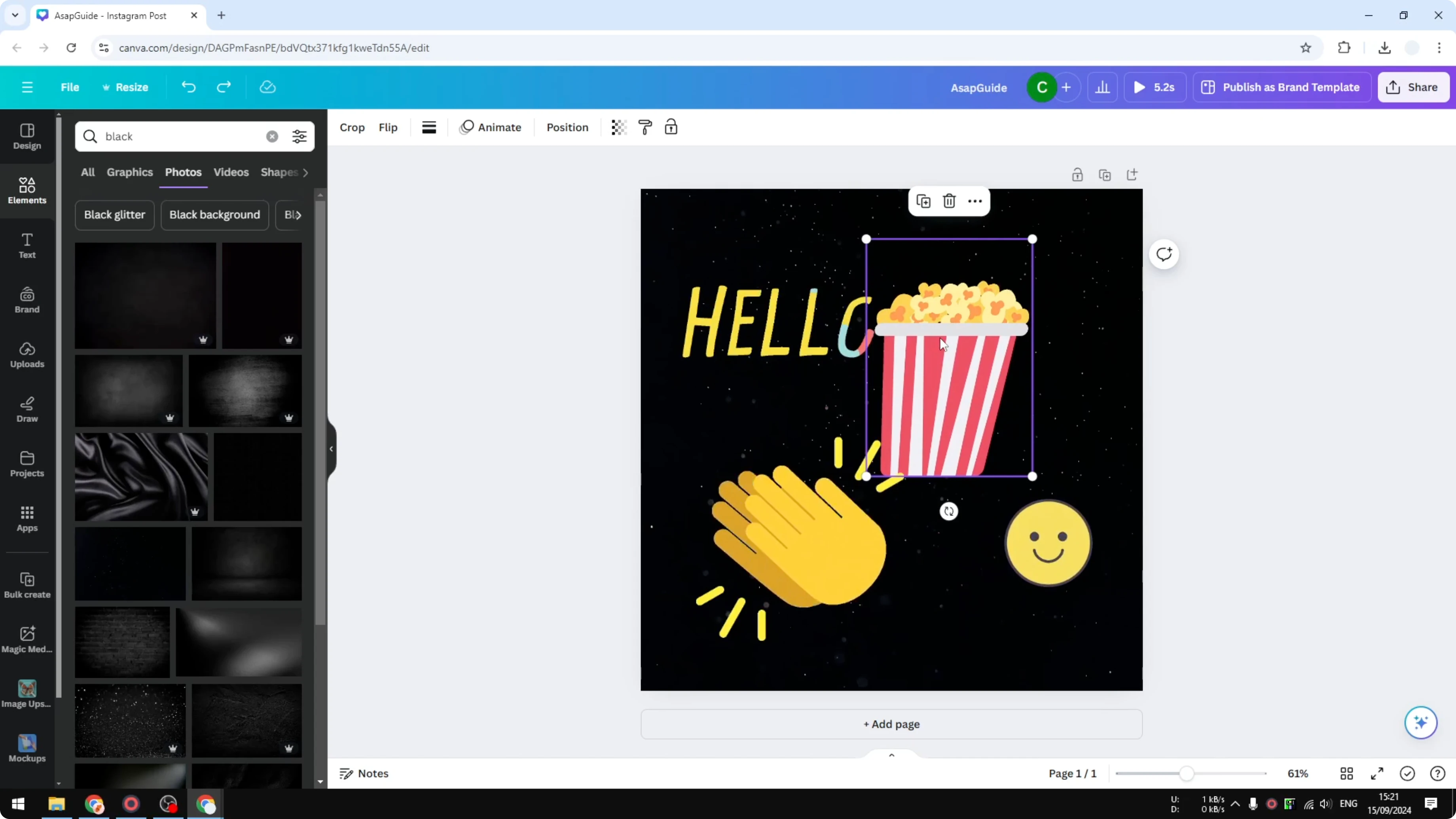
Hold Shift and click each element to select multiple items in Canva.
If I want to move these two, I just click one of them and they move together. If I resize, the other element follows as well. That is the beauty of grouping elements.
If you work with shapes and lines, grouping pairs well with connected lines. See how to connect lines and elements to keep your layout tidy.
Select with Shift for Group Elements in Canva
Press and hold Shift, then click the first element. Click the second element while still holding Shift.
Click Group on the toolbar to group them together.
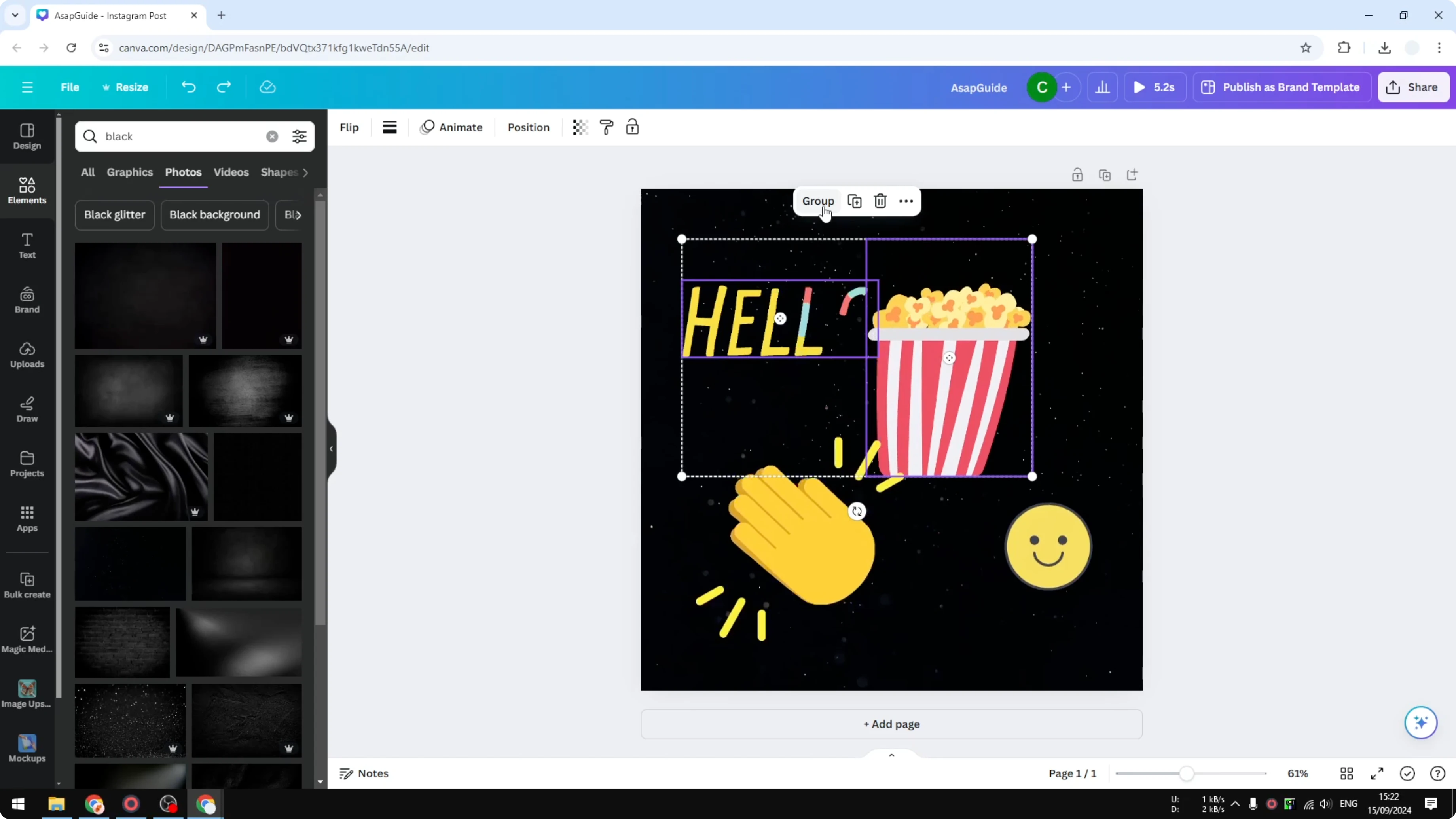
To ungroup, click the group, then click Ungroup. Now they are separated again. You can select as many elements as you like, including the background, and group them together.
Use a selection box to Group Elements in Canva
Another method to group multiple objects is by using your cursor. If you have many elements and do not want to click them one by one, use a selection box.
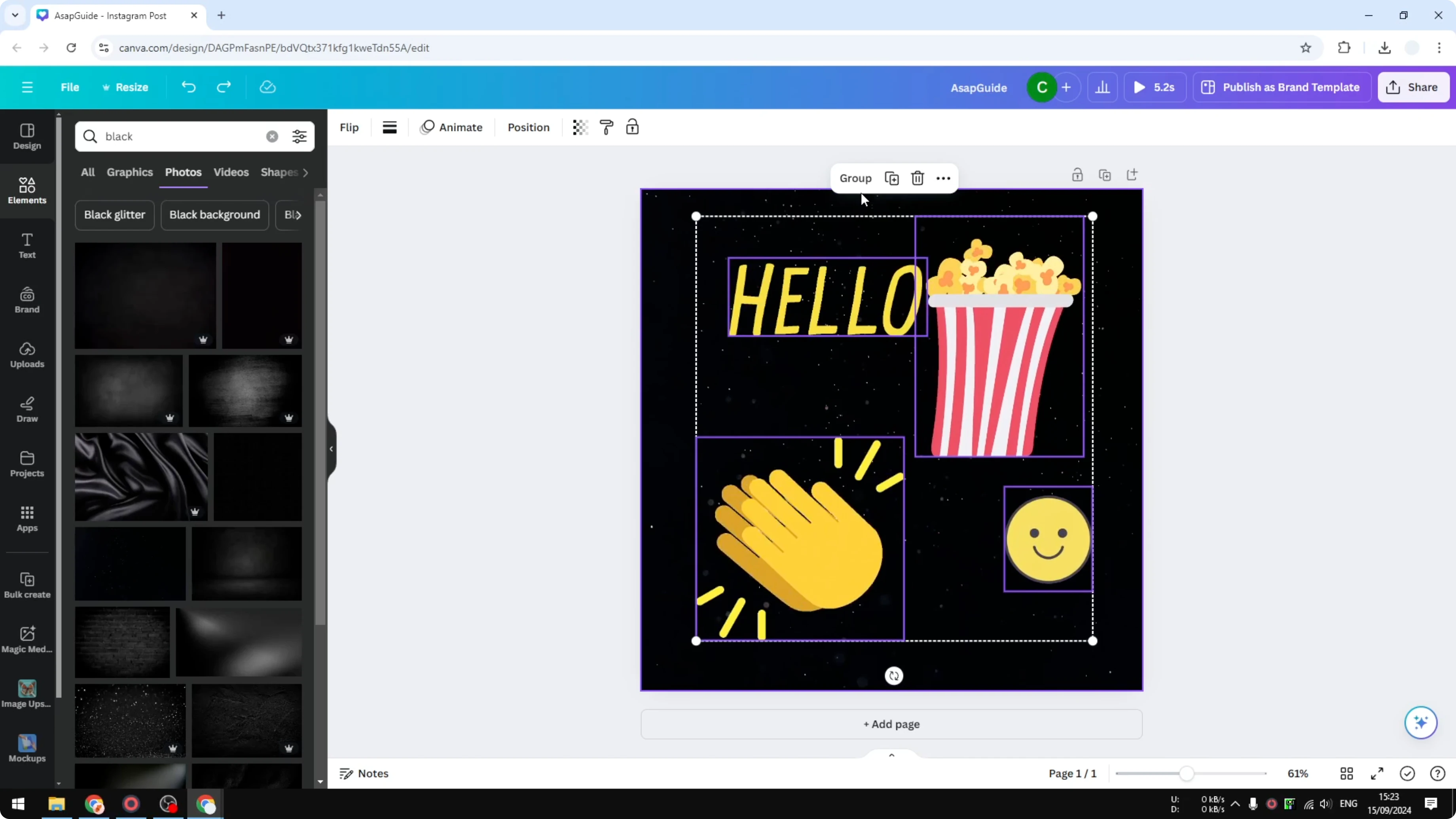
Click on an empty area outside the canvas to start the selection. Drag to create a box that covers all the elements you want to include. Release the mouse, then click Group.
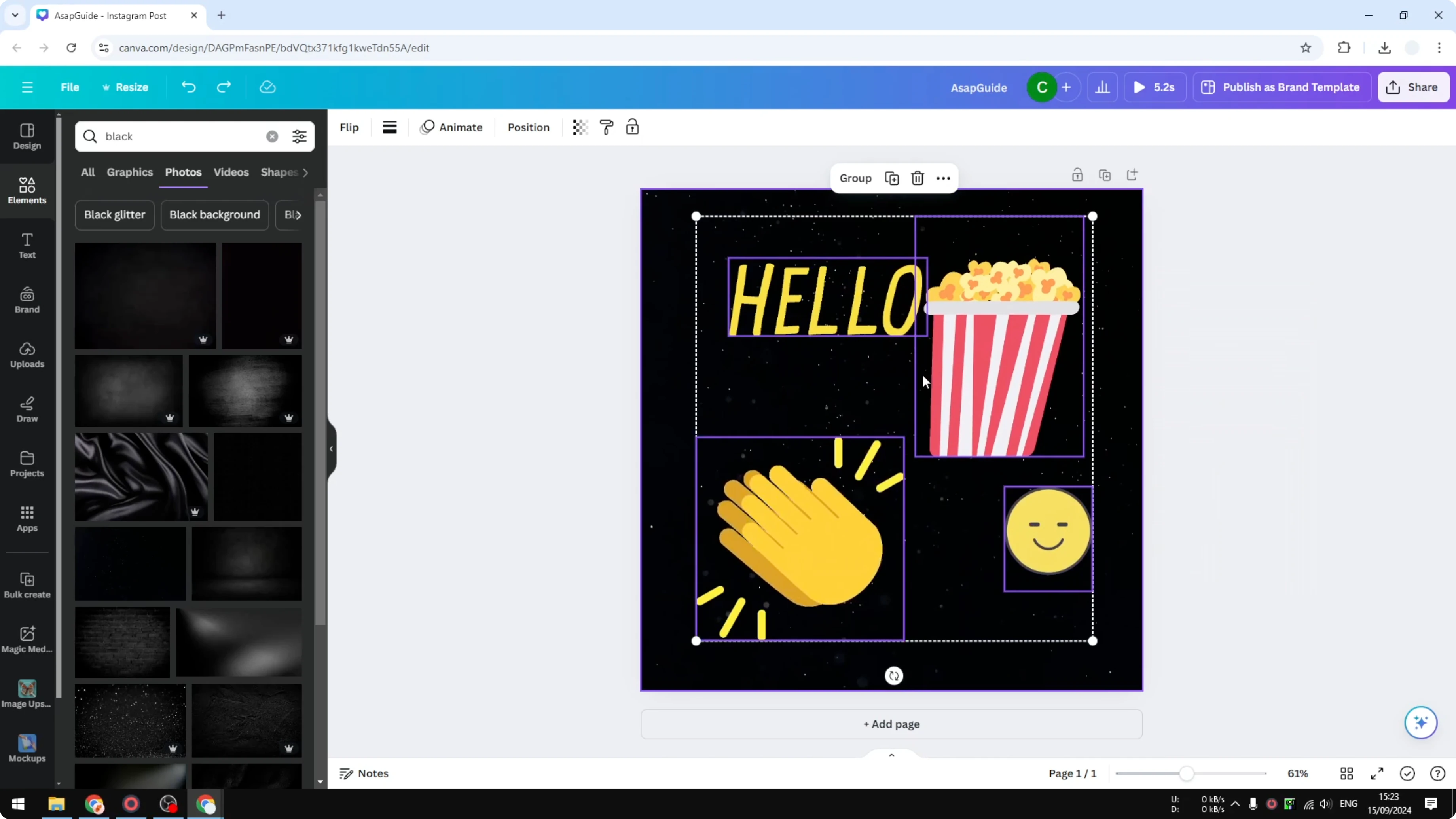
Now you can move them around and they stay together. It is easy to organize them when they are grouped. Grouping makes large designs easier to manage.
If you want to reuse common elements later without hunting for them, you can save favorite elements for quick access.
Ungroup elements
Click the grouped selection. Click Ungroup.
The elements are now separated and can be edited individually again.
If you grouped items for layout but need one asset on its own for export, you can still download an individual element without exporting the entire group.
Final thoughts
Grouping elements in Canva lets you move, resize, recolor, and reposition multiple items in one action. Press and hold Shift to select, then click Group to keep related objects together. Use a selection box for fast multi select, and ungroup anytime when you need to edit items separately.
Recent Posts

How to Visualize Yourself as a Pixelized Character with AI?
How to Visualize Yourself as a Pixelized Character with AI?

How to Revive Faded Memories and Enhance Image Clarity with AI?
How to Revive Faded Memories and Enhance Image Clarity with AI?

How to Visualize Yourself as an Animal Crossing Character with AI?
How to Visualize Yourself as an Animal Crossing Character with AI?