How to Grab Text in Canva
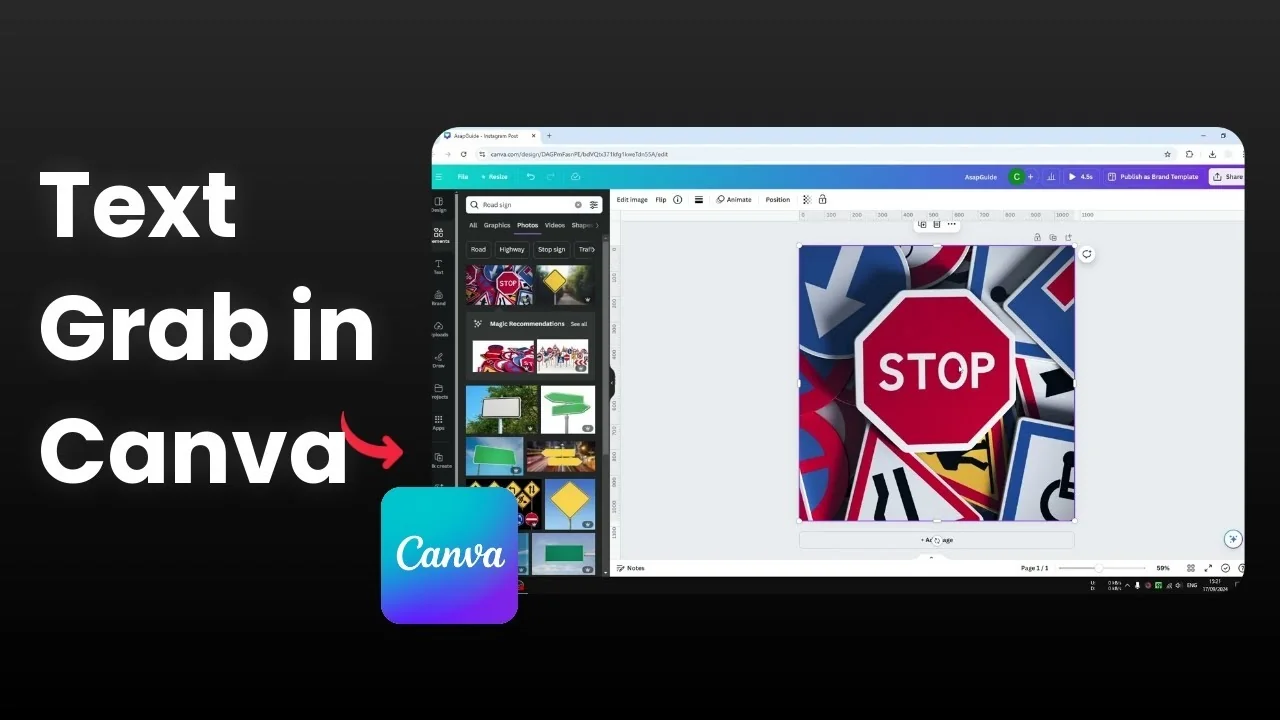
I will show you how to use the feature in Canva called Grab Text. You can grab a piece of text from a picture and change the text or remove it. It is very useful if you want to change the text content within an image.
Read More: background text in Canva
Grab Text in Canva basics
I have a picture of a stop sign. I cannot change the text because it is part of the image. In the past we had to mask the text and replace it with a new one.
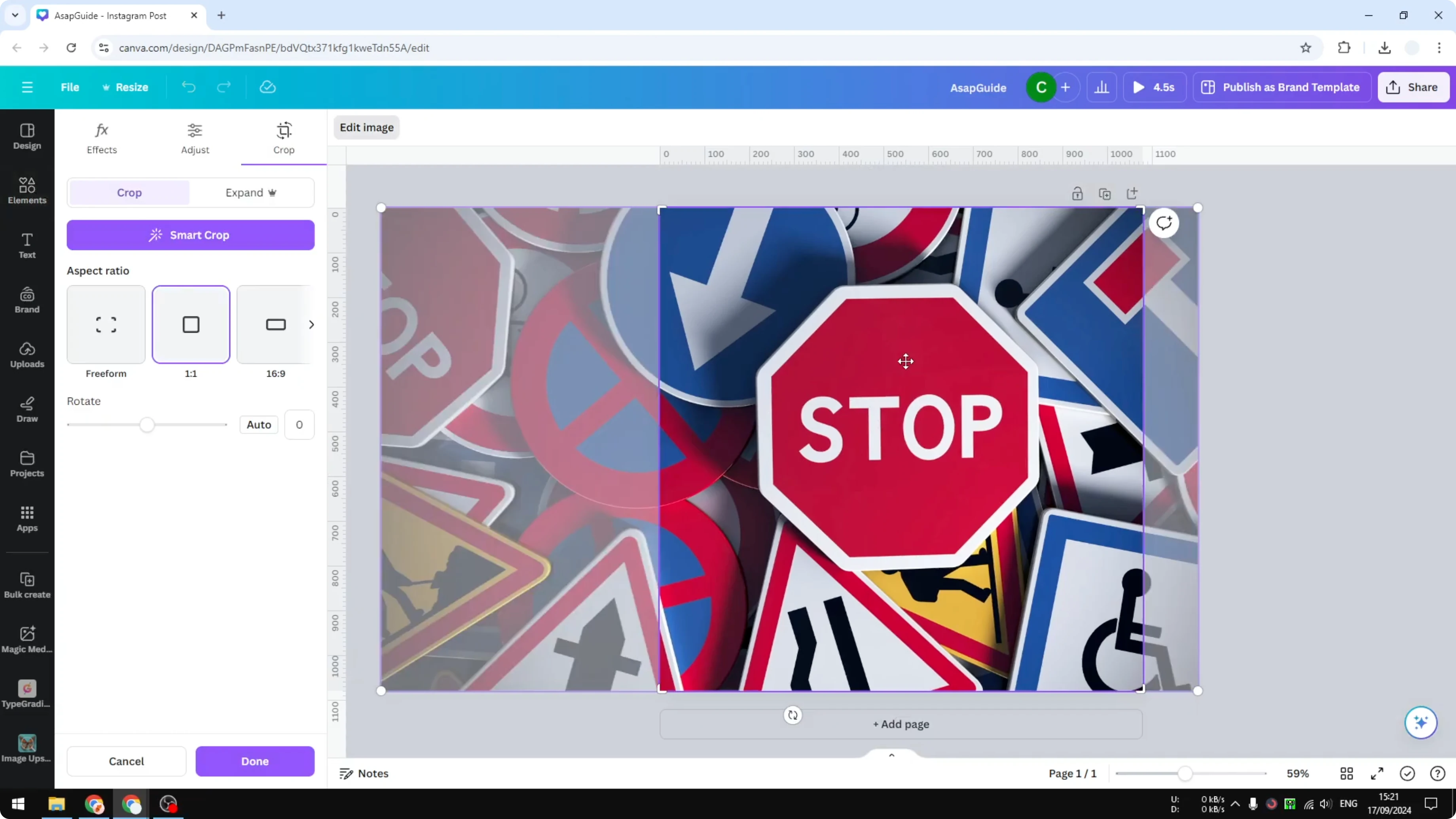
Thanks to AI, you can grab this text and modify it quickly.
Grab Text in Canva steps
Open your image in Canva. Click Edit image. Click Grab Text.
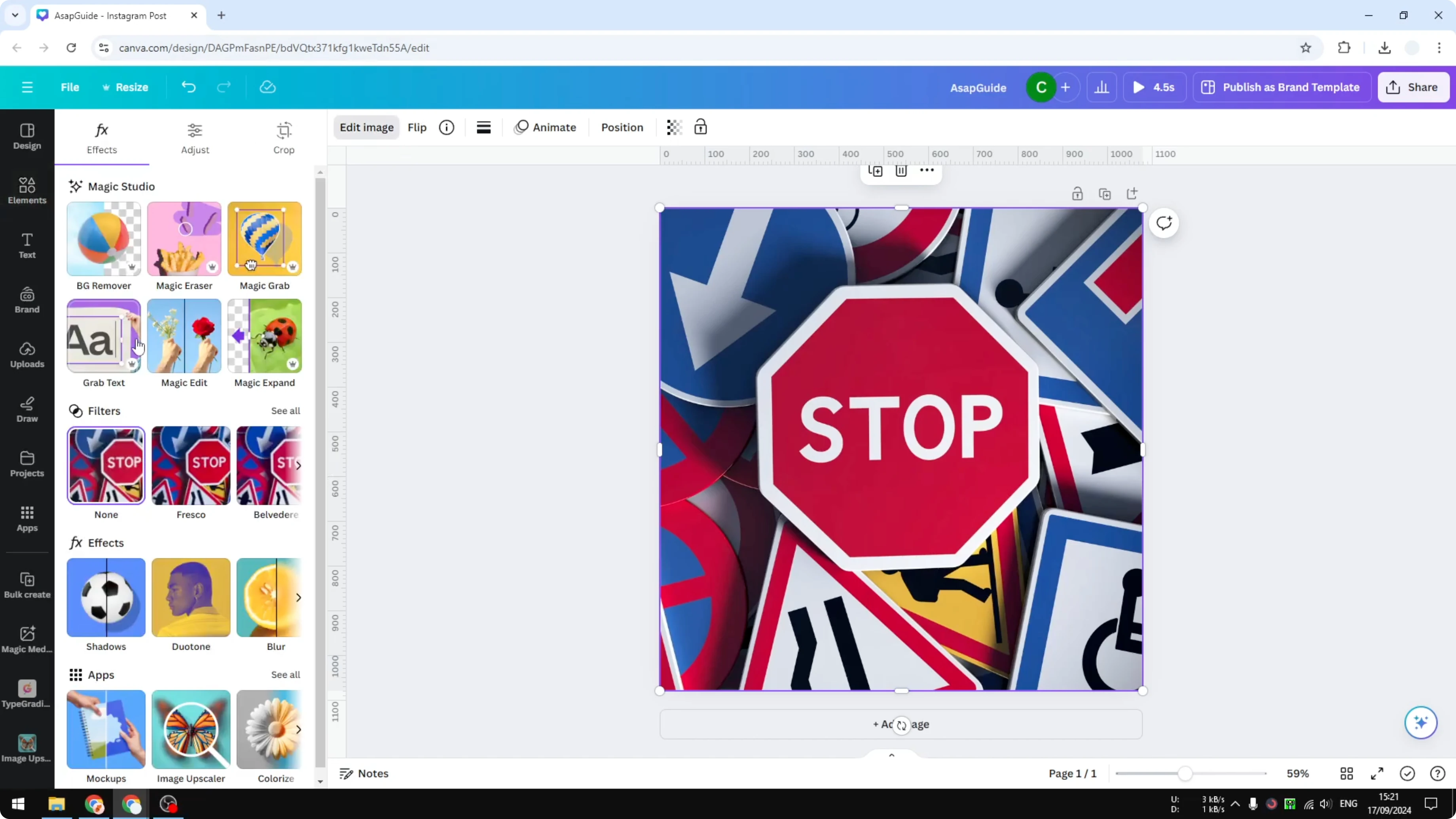
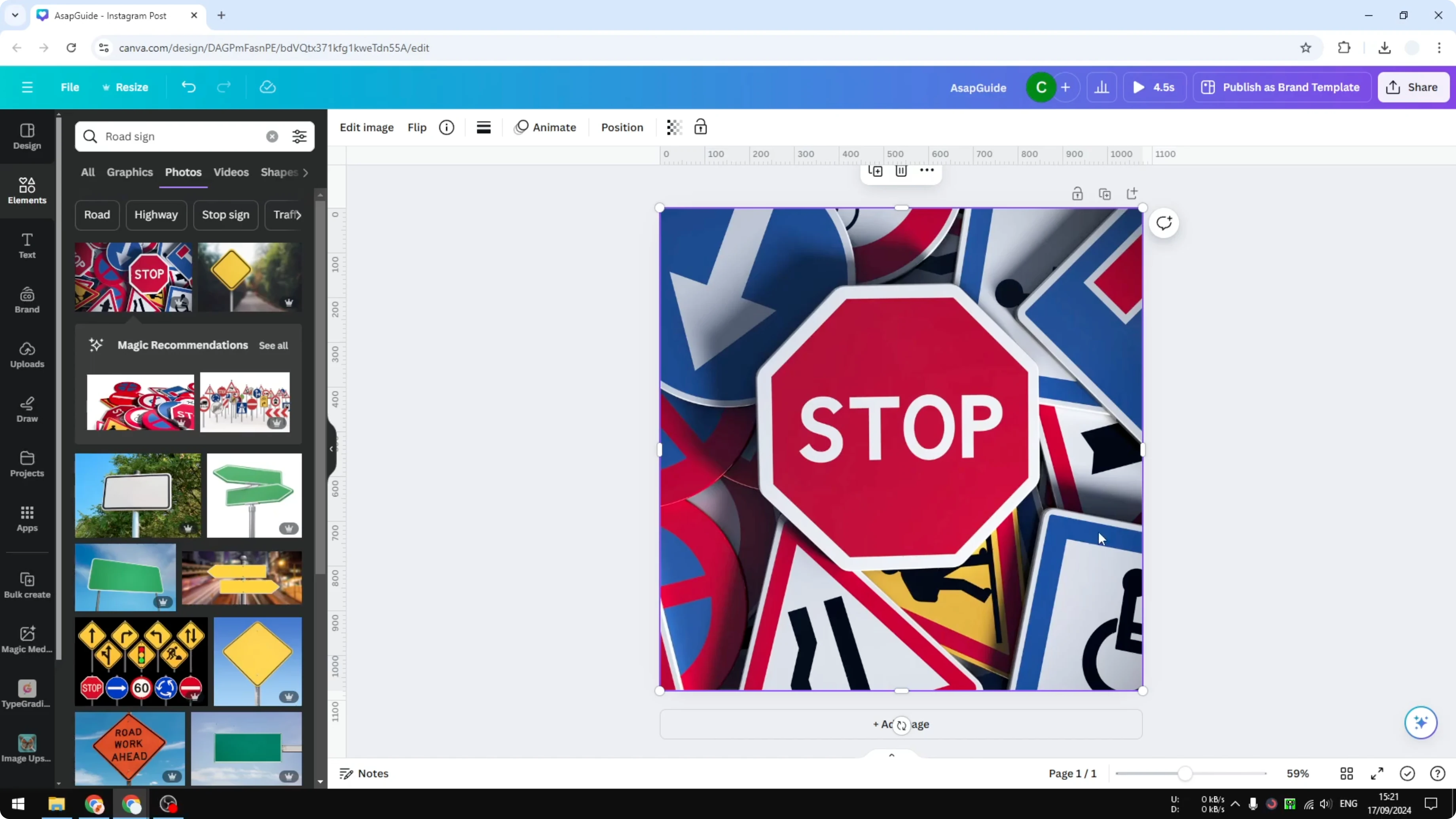
Canva will find text in the image. You may see multiple pieces of text. Pick the one you want to remove or change.
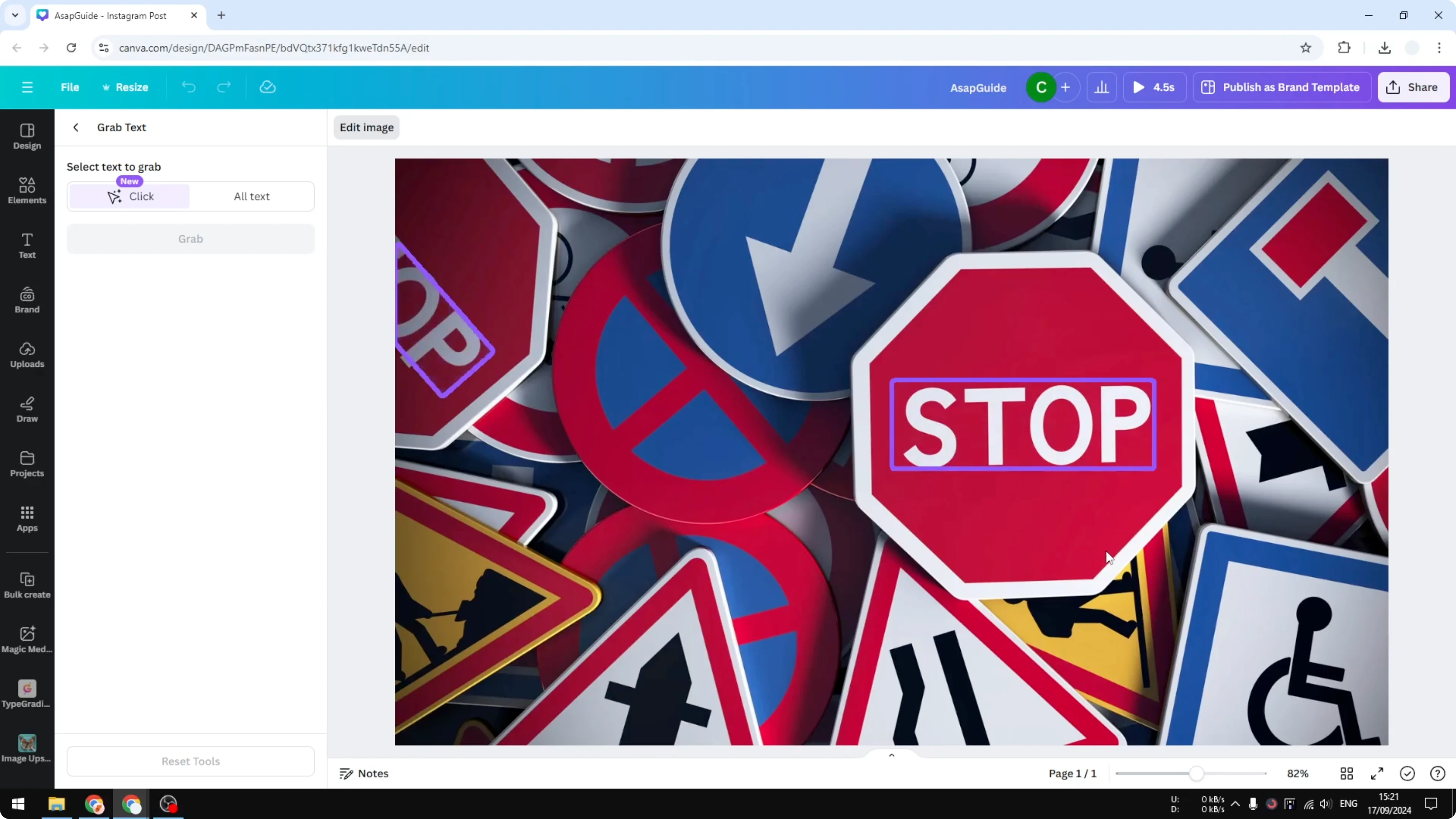
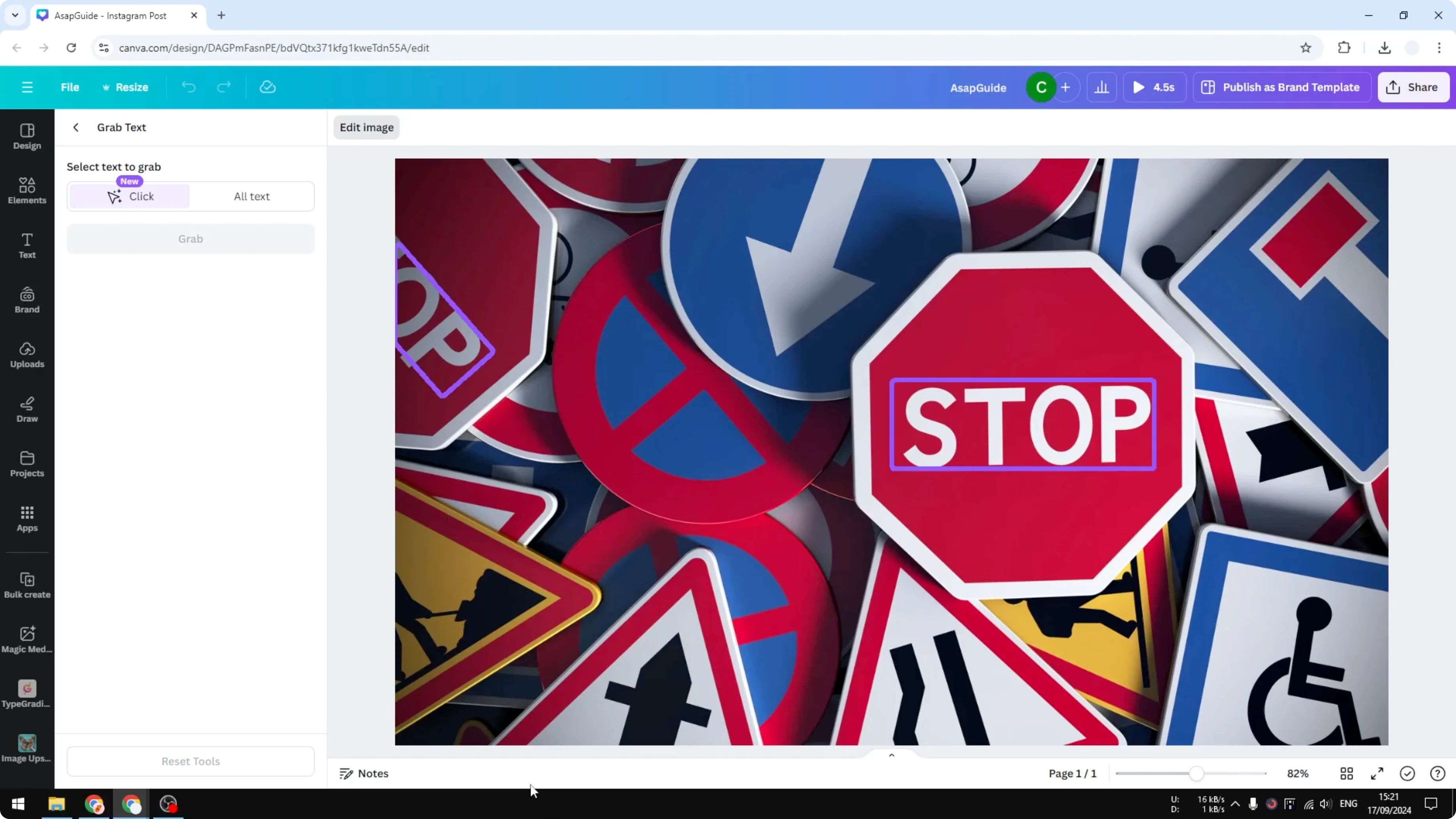
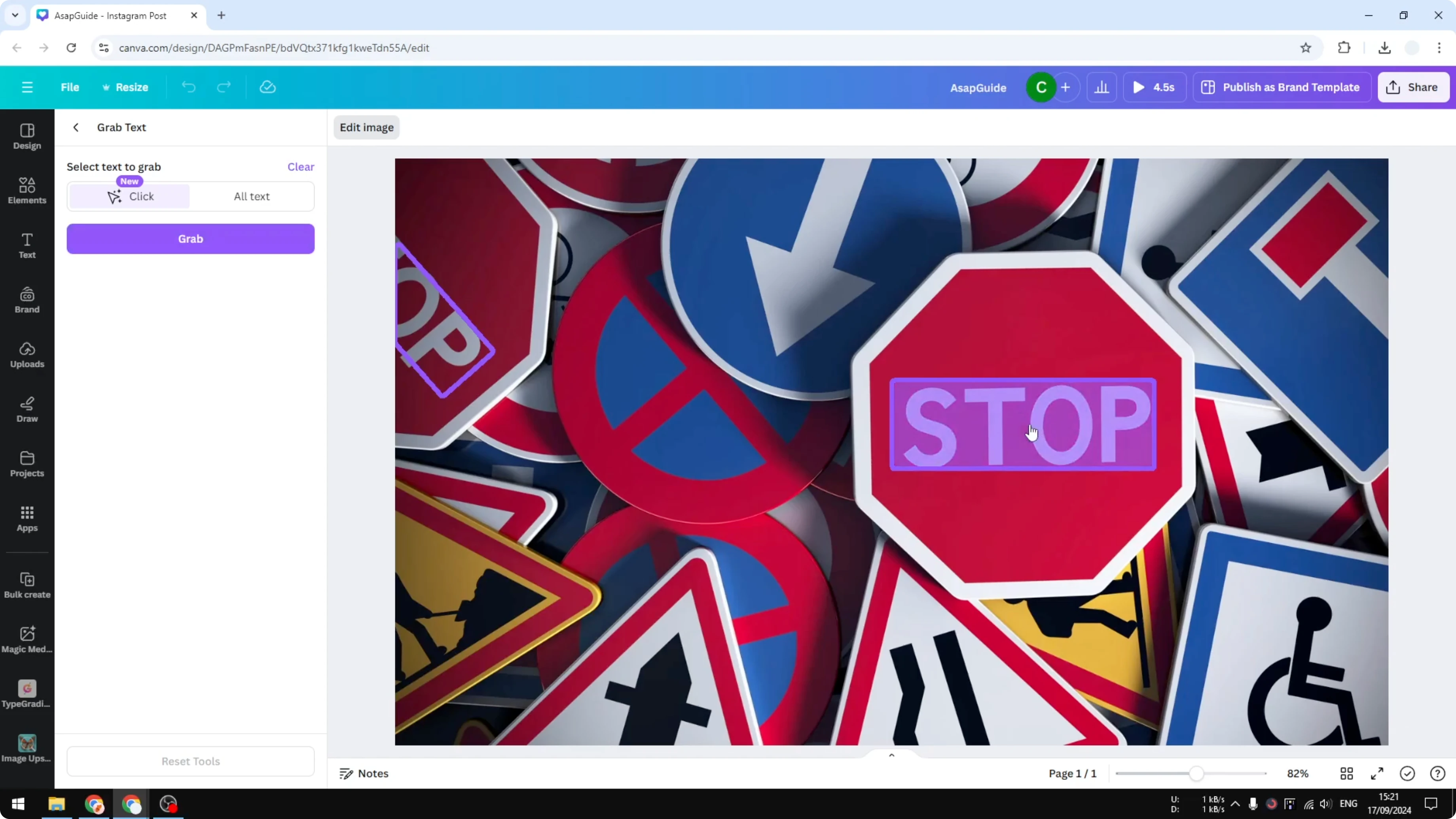
Click the region and click Grab. Canva removes the text and automatically masks the content. You also get the text itself as an editable object.
Double click the new text. Modify it as you like. It is very quick.
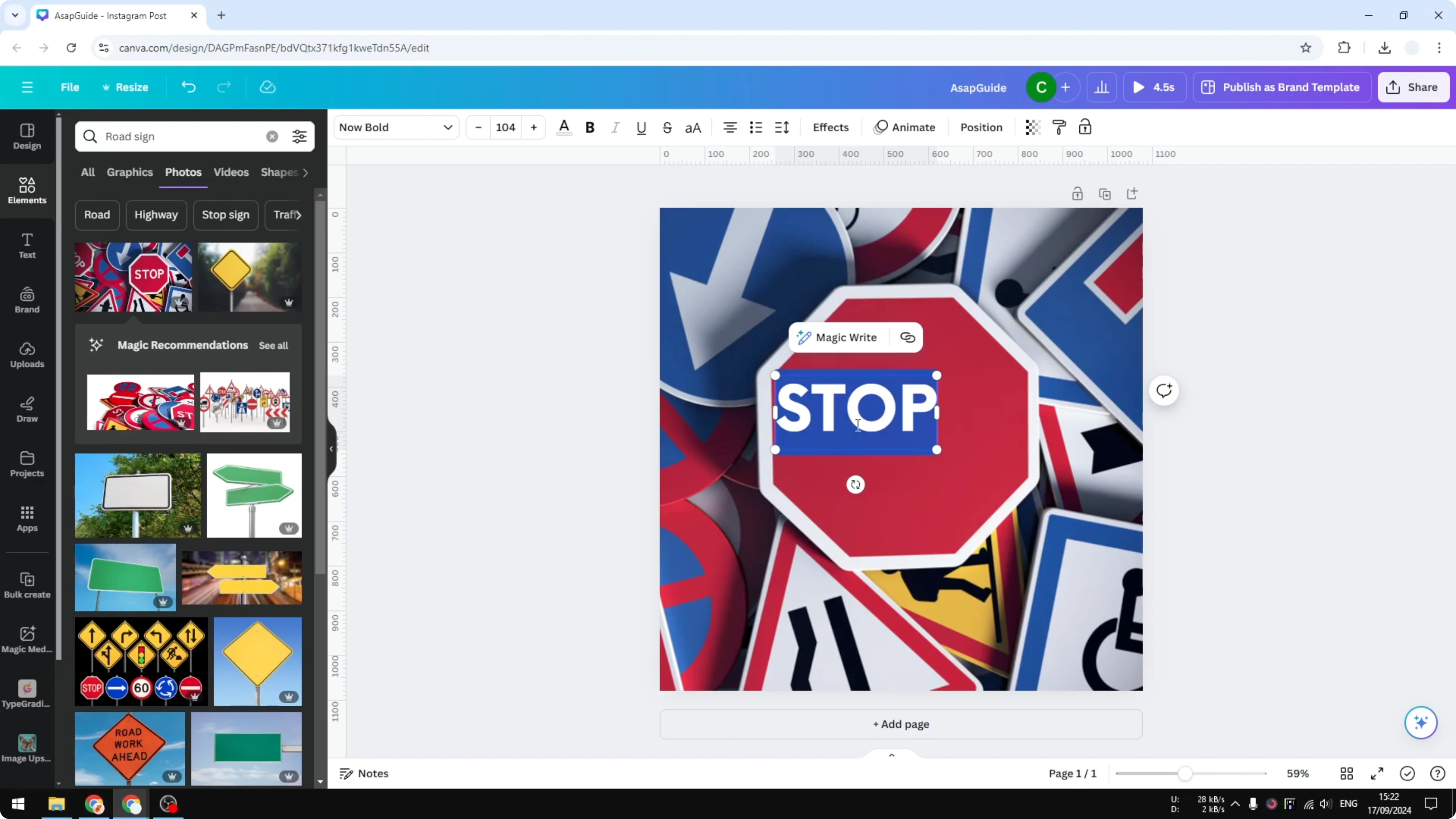
Stop sign with Grab Text in Canva
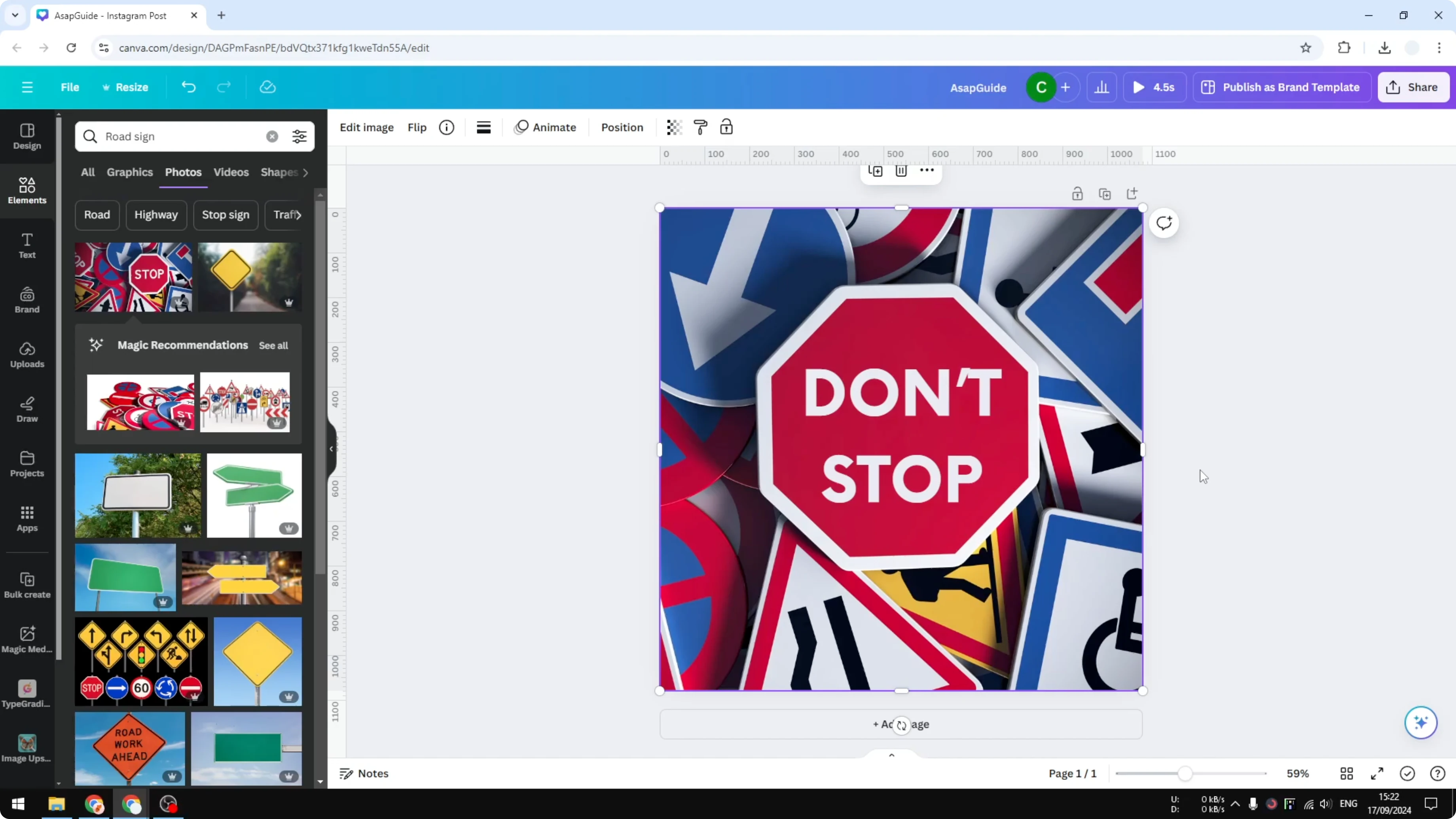
I pick the stop sign text. I change it to Don't so it looks like the original but is different.
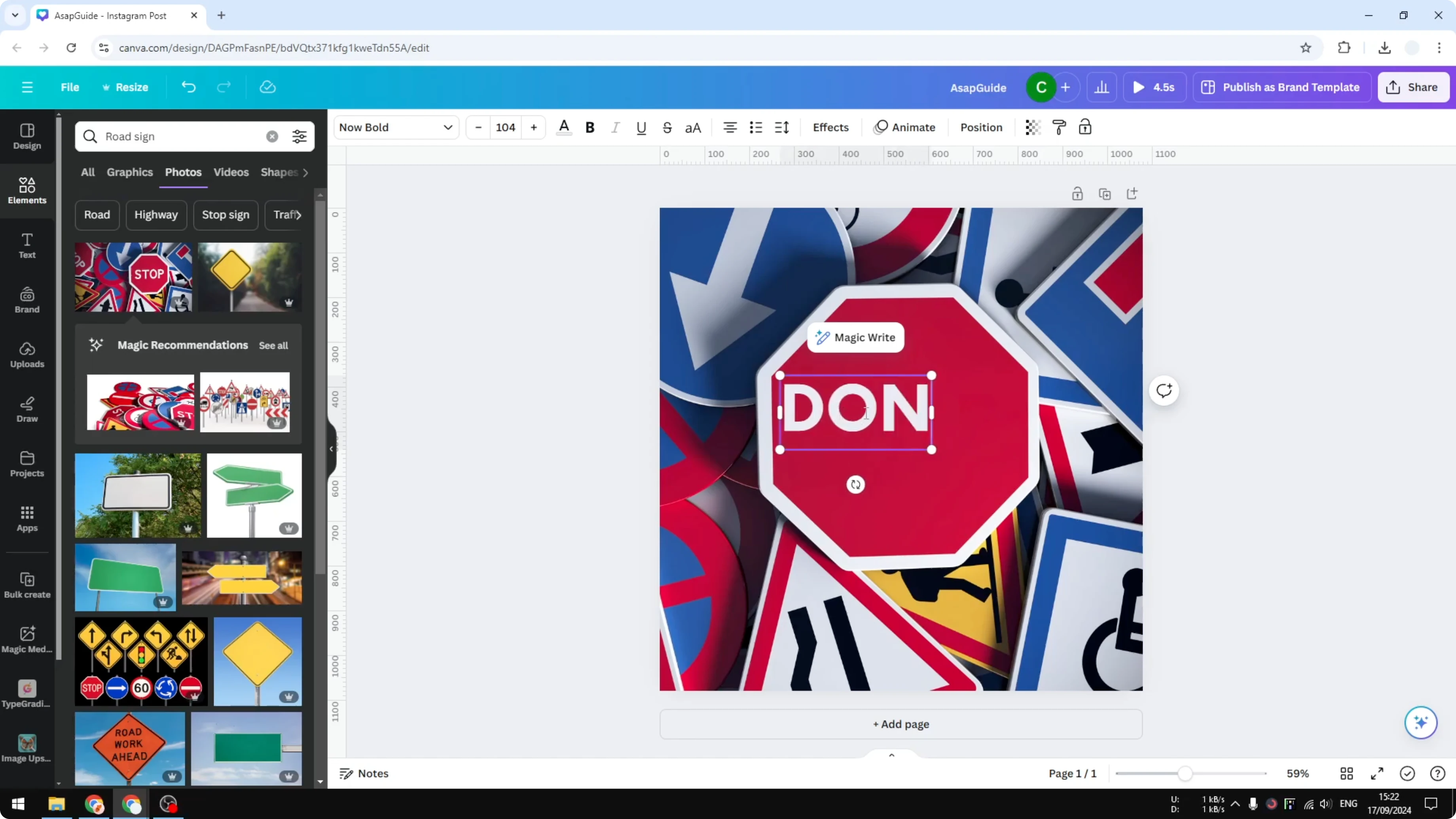
It becomes a piece of text. You can edit it like normal.
Read More: add a border to a text box
Final thoughts on Grab Text in Canva
That is how you can grab or modify text from a picture using Canva. It lets you remove text inside an image and replace it with editable text.
Read More: add alt text to pictures
Recent Posts
How to Visualize Yourself as a Pixelized Character with AI?
How to Visualize Yourself as a Pixelized Character with AI?
How to Revive Faded Memories and Enhance Image Clarity with AI?
How to Revive Faded Memories and Enhance Image Clarity with AI?
How to Visualize Yourself as an Animal Crossing Character with AI?
How to Visualize Yourself as an Animal Crossing Character with AI?