How to Generate Blobs in Canva
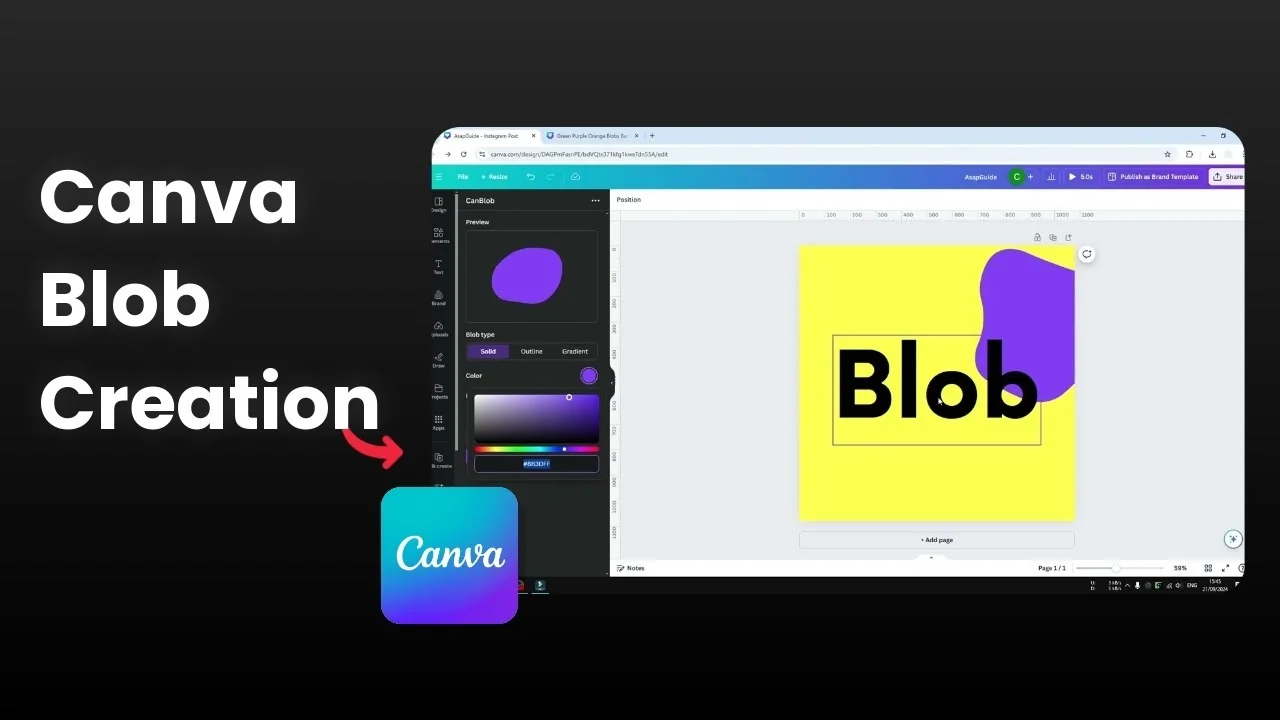
I will show you how to create a blob in Canva. A blob is an element with a random, asymmetrical shape. It looks like floating water or liquid.
This is one application of blob design. You can place random shape objects that look beautiful when they complement the whole design.
Generate Blobs in Canva basics
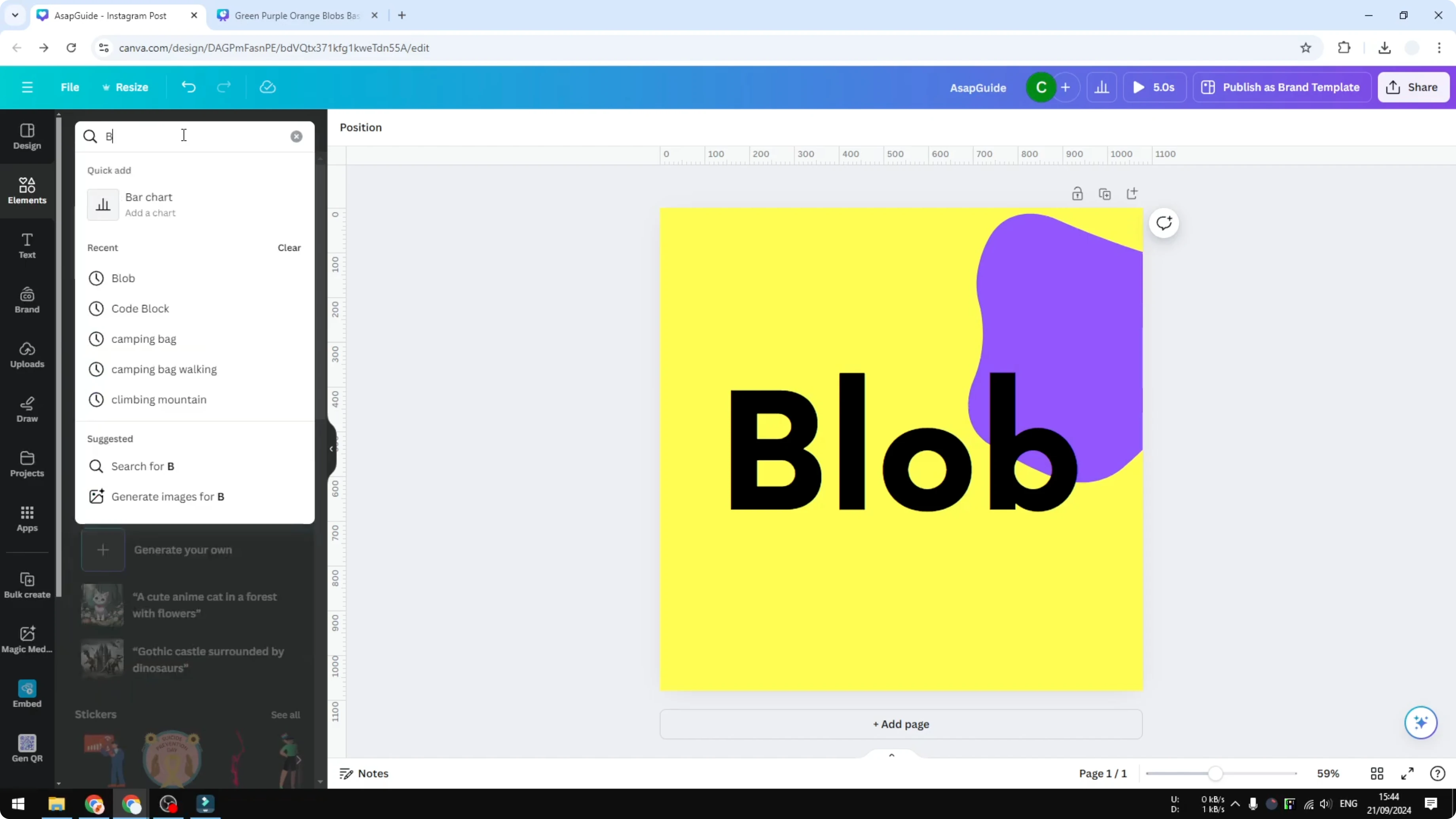
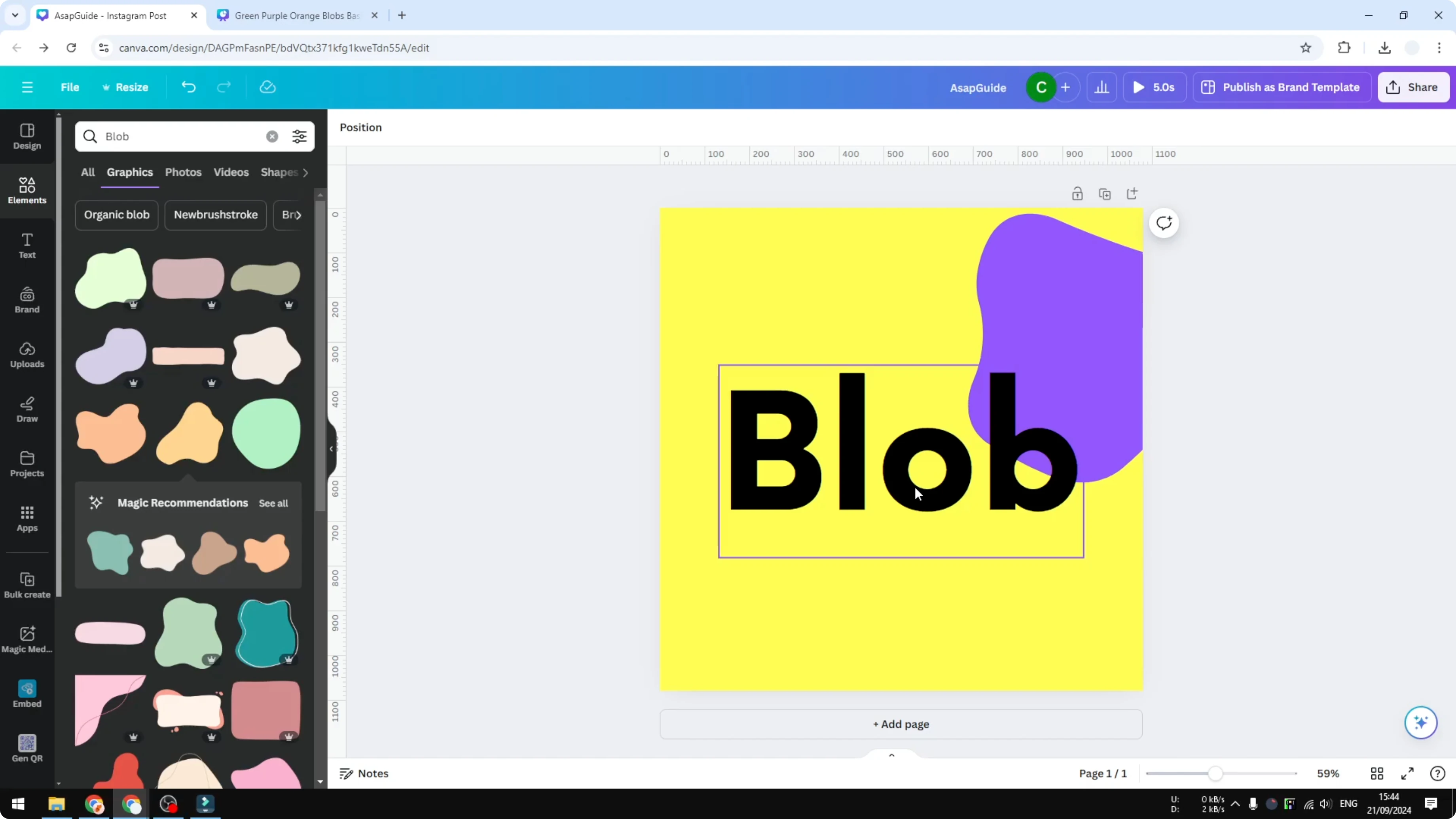
On Canva, you can go to the Elements section and search for blob. You will usually get preset options. You can insert them, but you can only change the color.
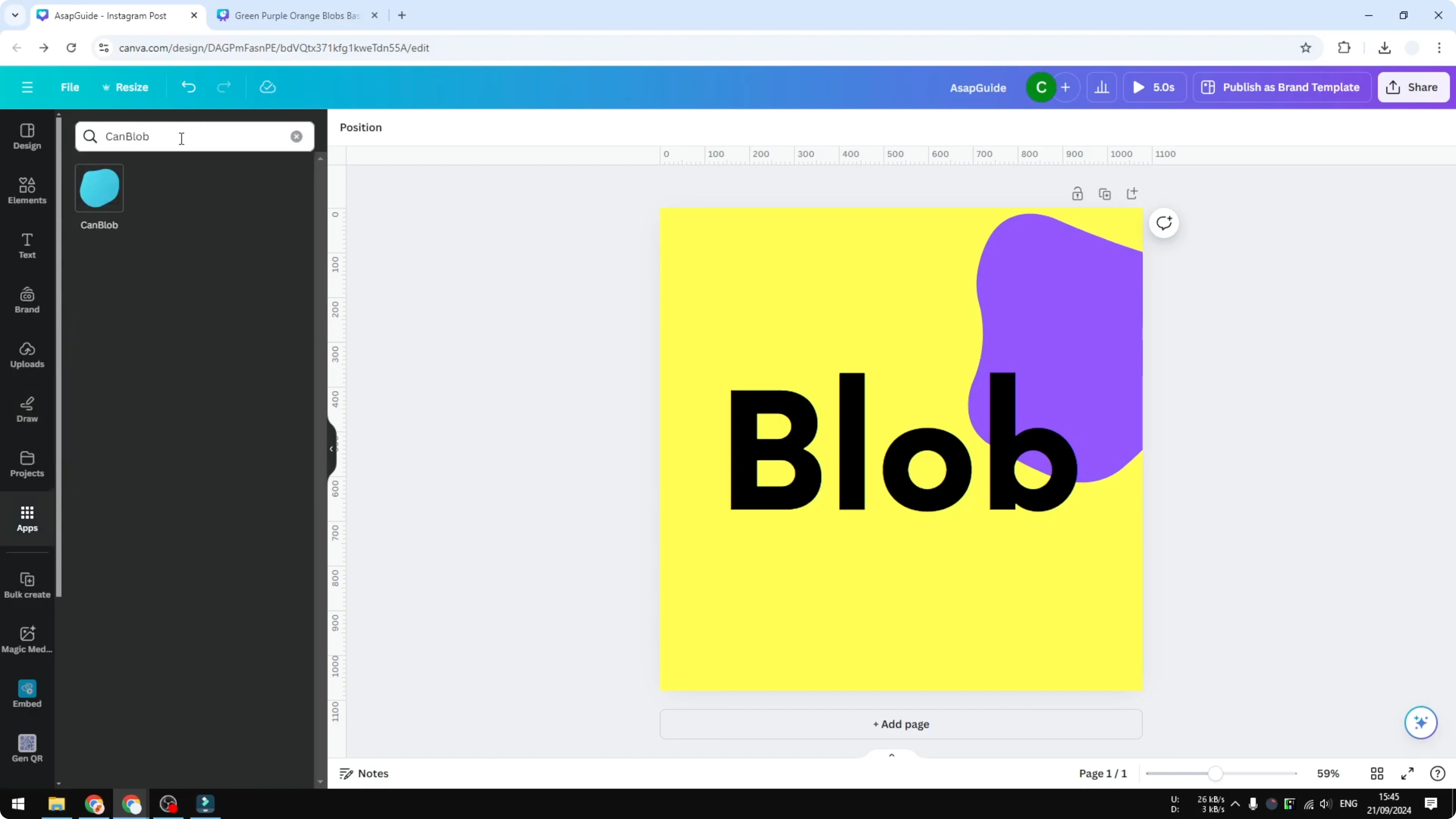
If you want your own shape, you can randomly generate it using a third party app that works well inside Canva. I use an app called Can Blob. It is a simple app that allows us to create blobs.
Read More: Generate Ai Images Canva
Generate Blobs in Canva with the app
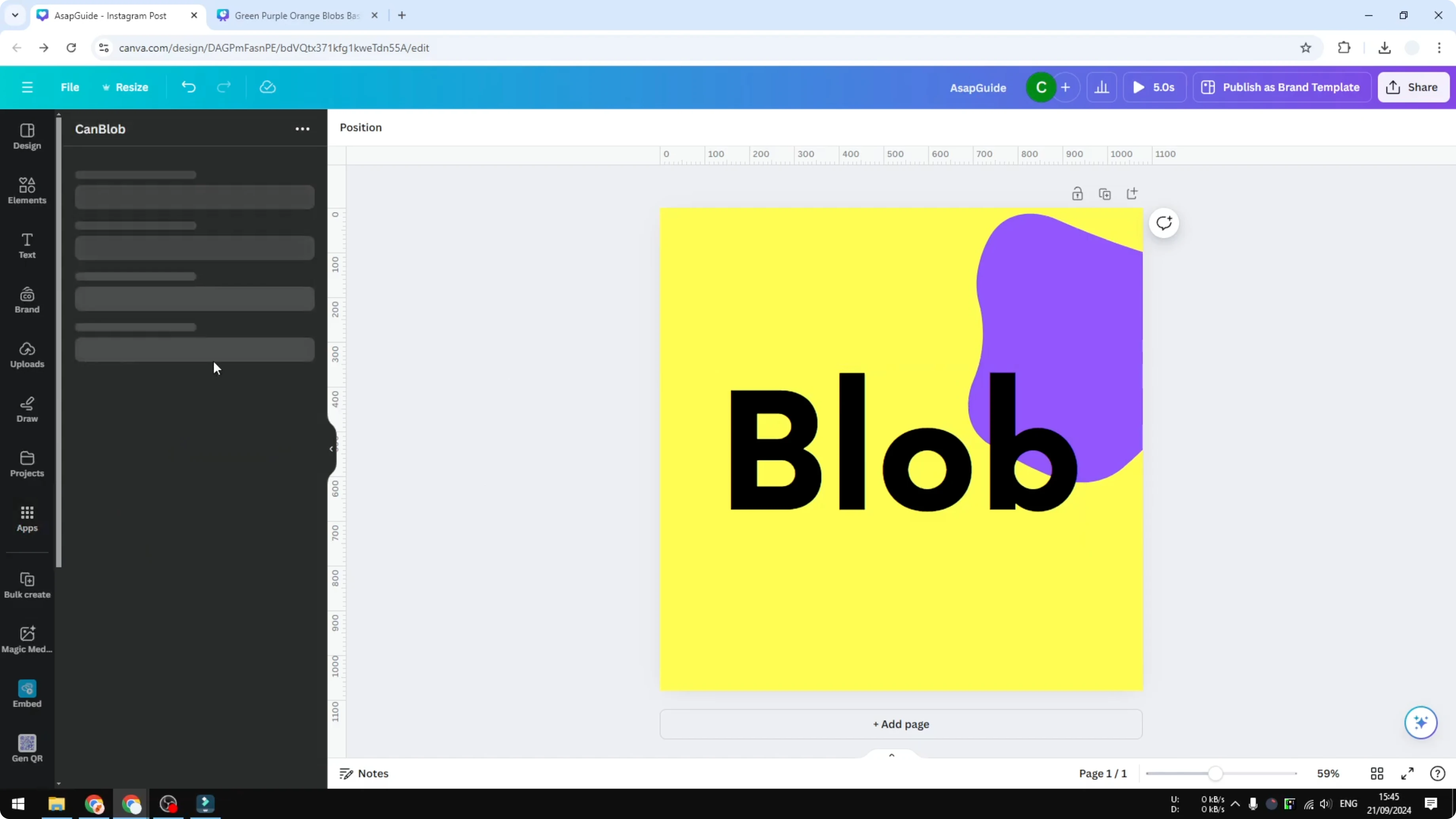
Open the Apps menu in Canva and search for Can Blob. Click Open to launch it. You will see options to control the blob.
Choose style and color for Generate Blobs in Canva
You can choose the style or type of the blob. It can be solid, outline, or gradient. I stick with solid because it is simple and clean.
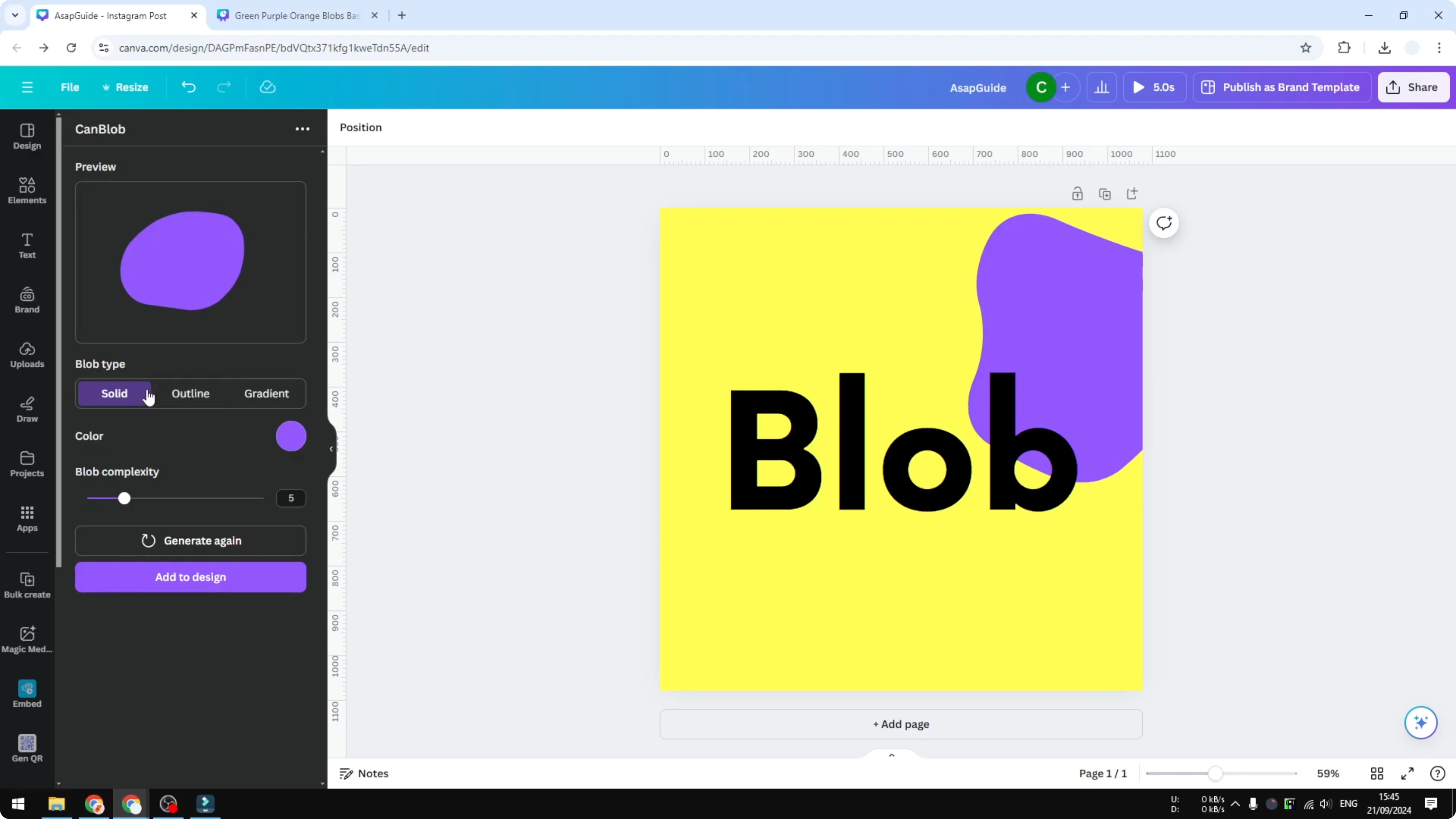
You do not have to worry about color at this stage. You can change the color later after the blob is inserted into your design. If you want a preview, pick something like a very bright green.
Set complexity for Generate Blobs in Canva
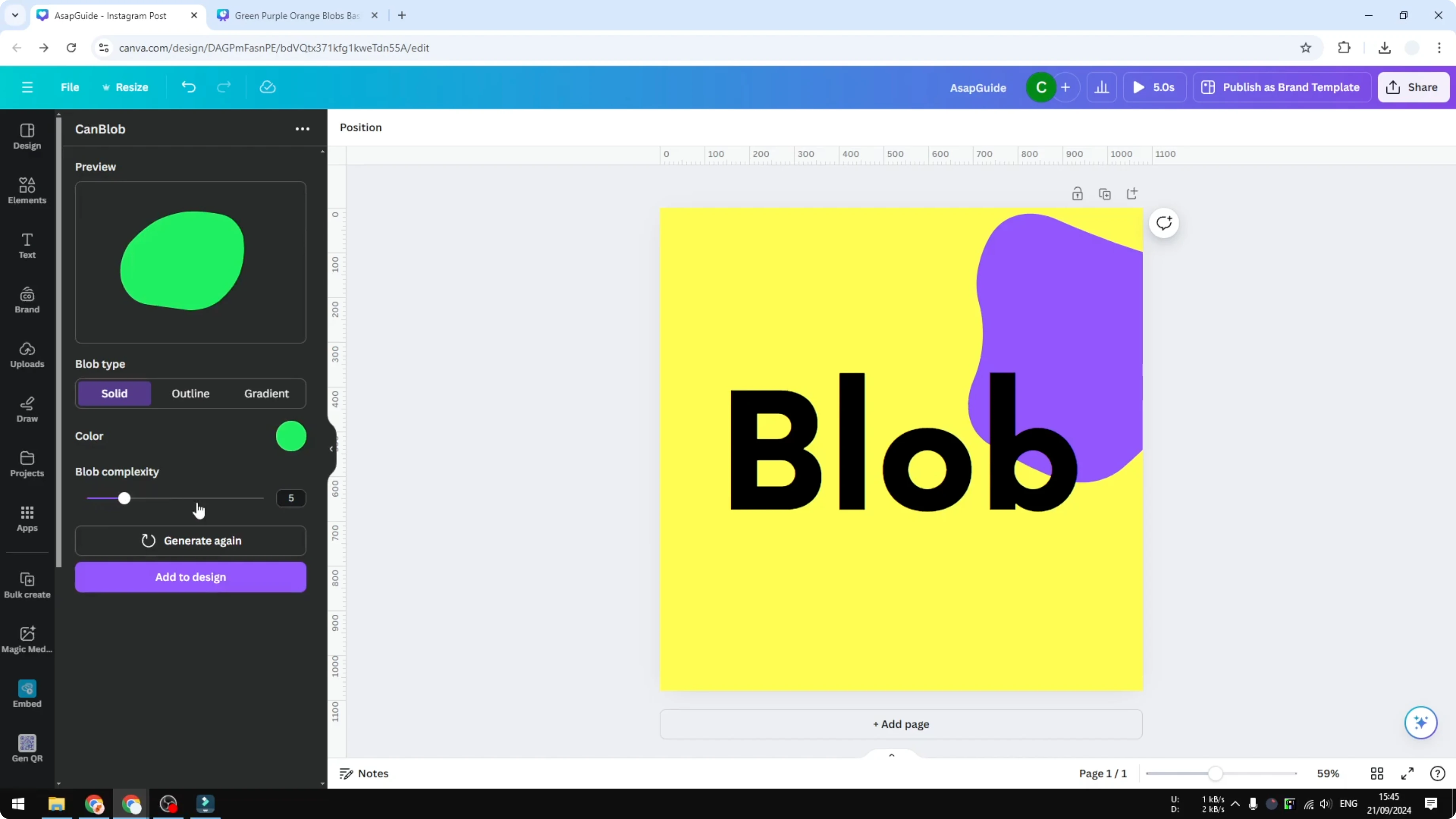
The fun part is The Blob complexity. The complexity controls how many waves or features the blob has. Increase the number to get more waves.
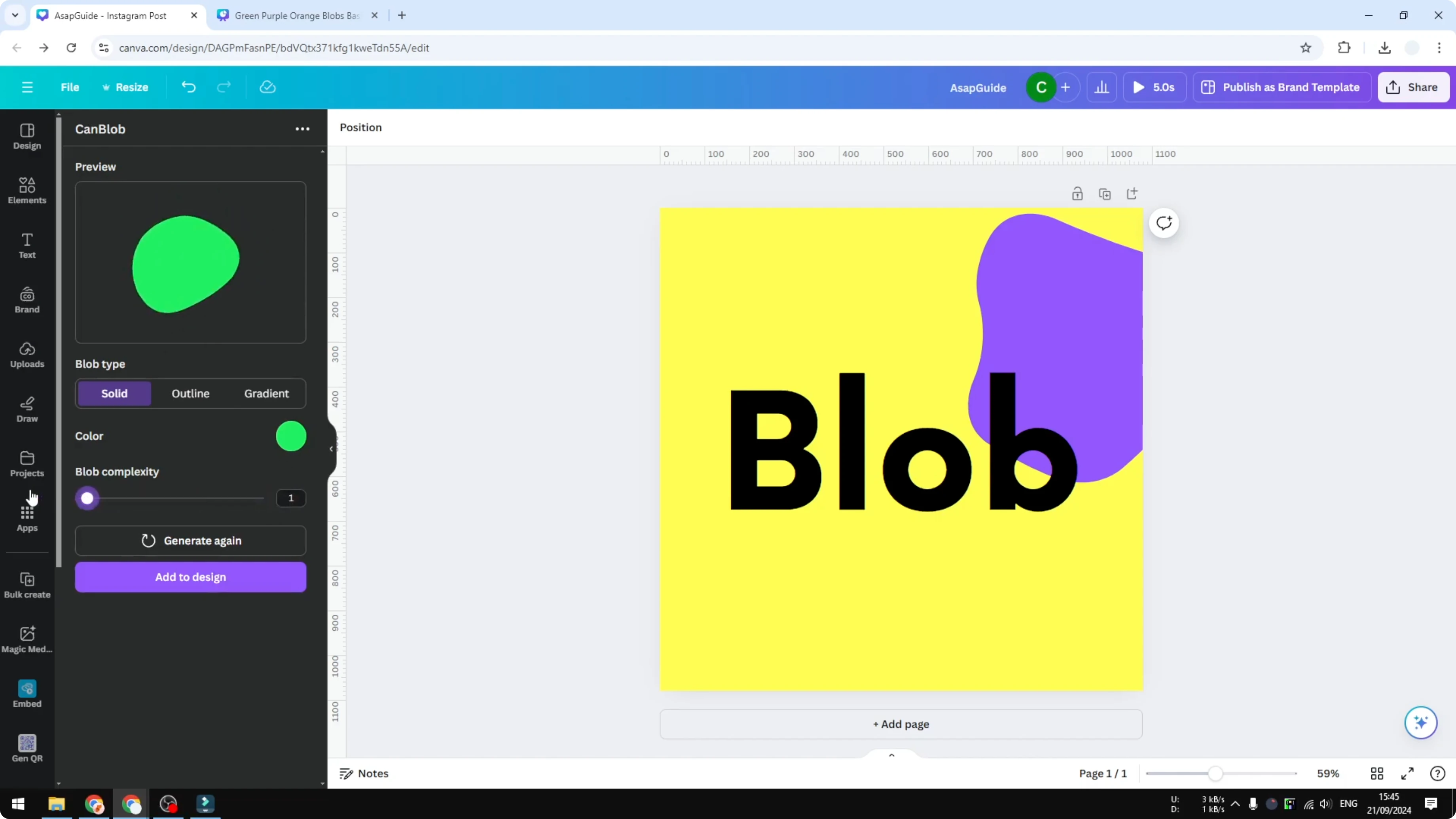
The maximum is 20 and the minimum is 1. One is very simple and 20 is very complex. Each change generates a new randomized shape.
The blobs are not designed the same each time. You can generate again, and it will be unique every single time. Keep clicking until you get the kind of design you want.
Read More: 3D Book Cover Canva
Insert and edit in Generate Blobs in Canva
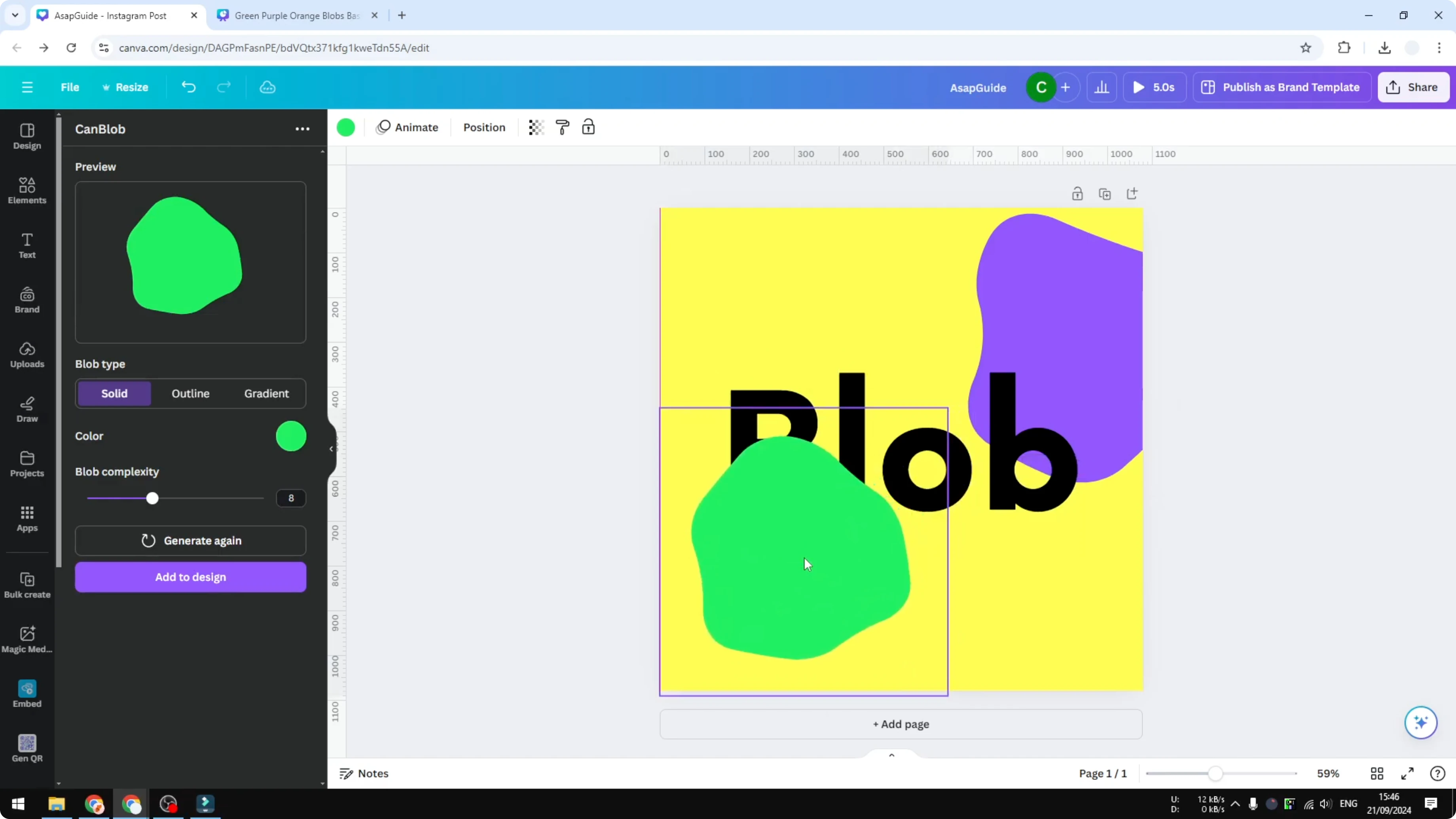
When you are happy with the blob, click Add to design. The blob is inserted into your canvas. You can resize it and put it anywhere.
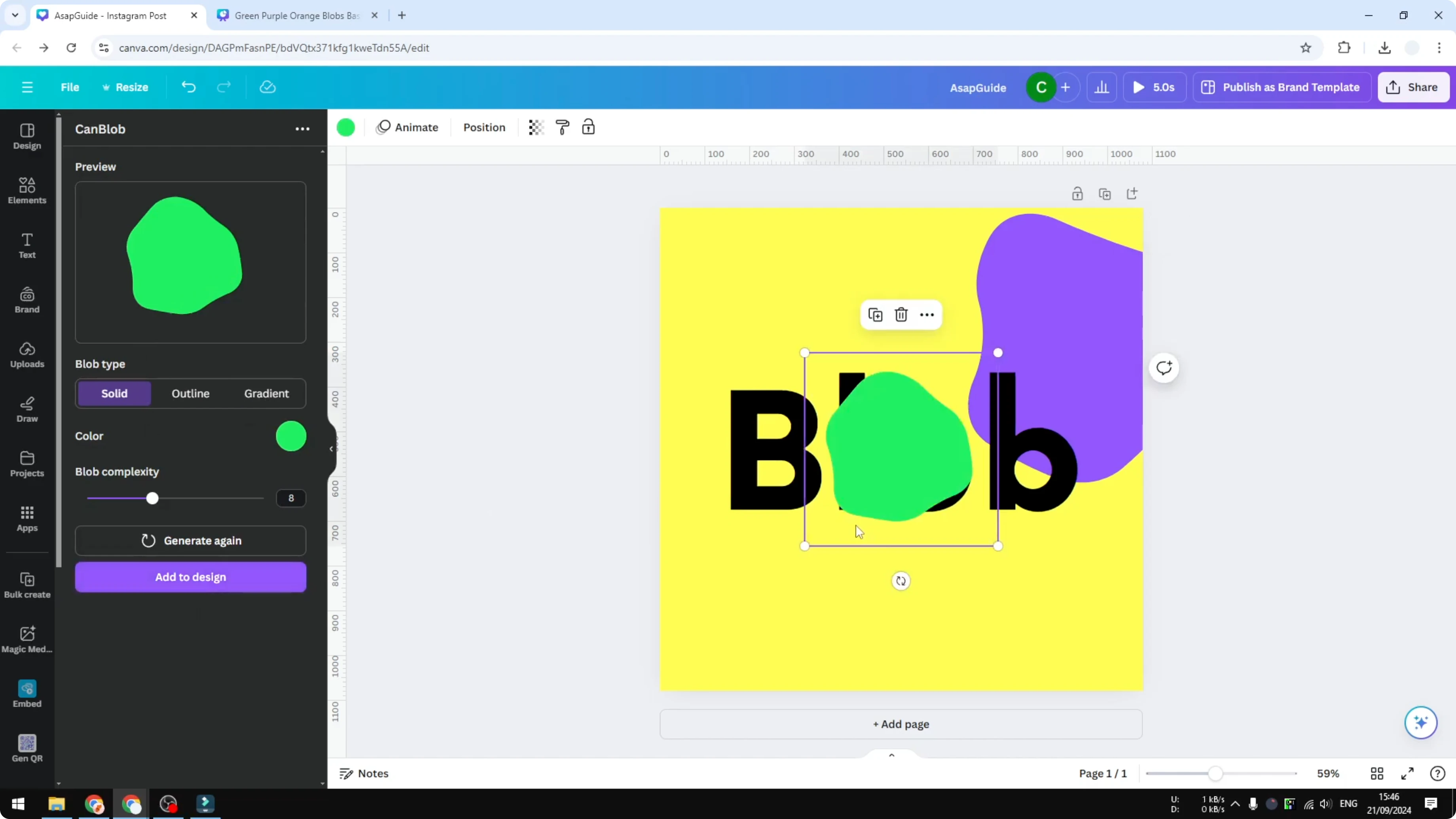
You can change the color after it is placed. Do not worry if the color is not perfect at first. You can always make modifications later.
Quick steps to Generate Blobs in Canva
Go to Apps in Canva.
Search for Can Blob and open it.
Choose solid, outline, or gradient.
Pick a temporary color if you want a preview.
Set complexity from 1 to 20.
Regenerate until you like the shape.
Click Add to design.
Resize and position the blob.
Change the color to fit your layout.
Read More: Add Accent Marks Canva
Final thoughts on Generate Blobs in Canva
Blobs add organic movement to layouts and look great when they support the overall composition. With Can Blob inside Canva, you can generate shapes quickly and tune complexity for the exact feel you want. Insert the blob, resize it, and adjust the color to finish the look.
Recent Posts

How to Visualize Yourself as a Pixelized Character with AI?
How to Visualize Yourself as a Pixelized Character with AI?

How to Revive Faded Memories and Enhance Image Clarity with AI?
How to Revive Faded Memories and Enhance Image Clarity with AI?

How to Visualize Yourself as an Animal Crossing Character with AI?
How to Visualize Yourself as an Animal Crossing Character with AI?