How to Put a Frame Around a Picture in Canva
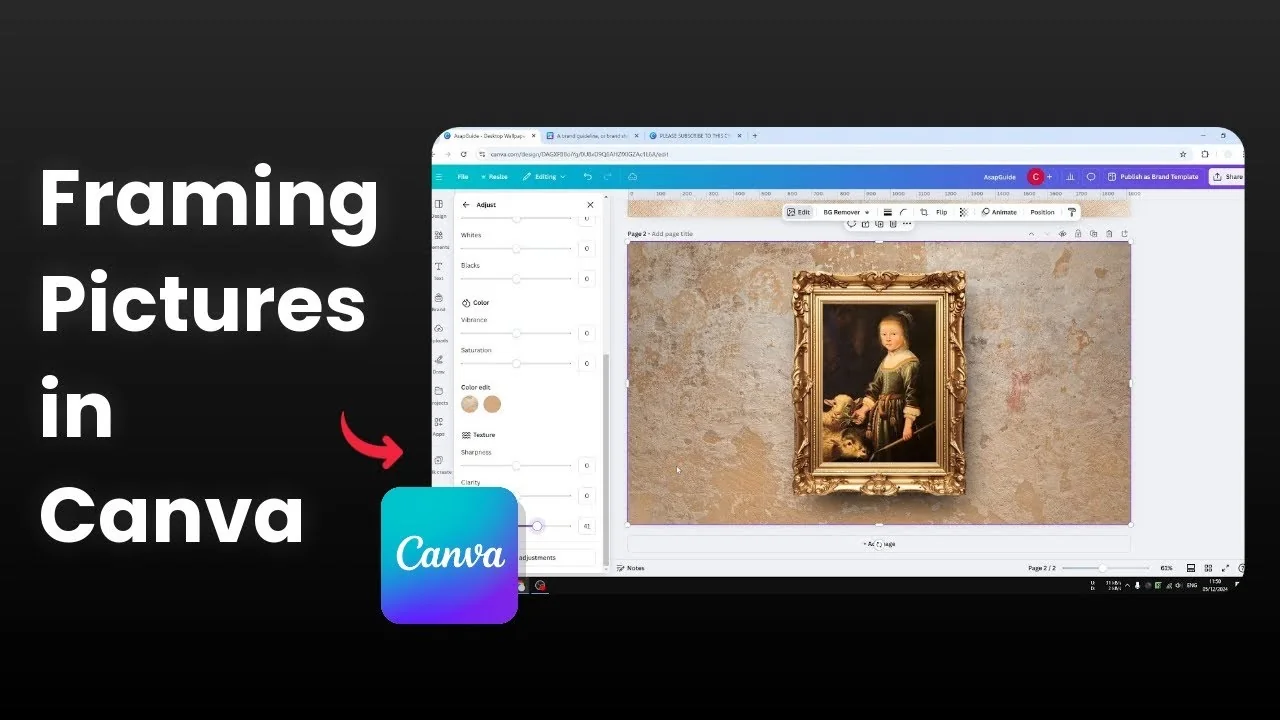
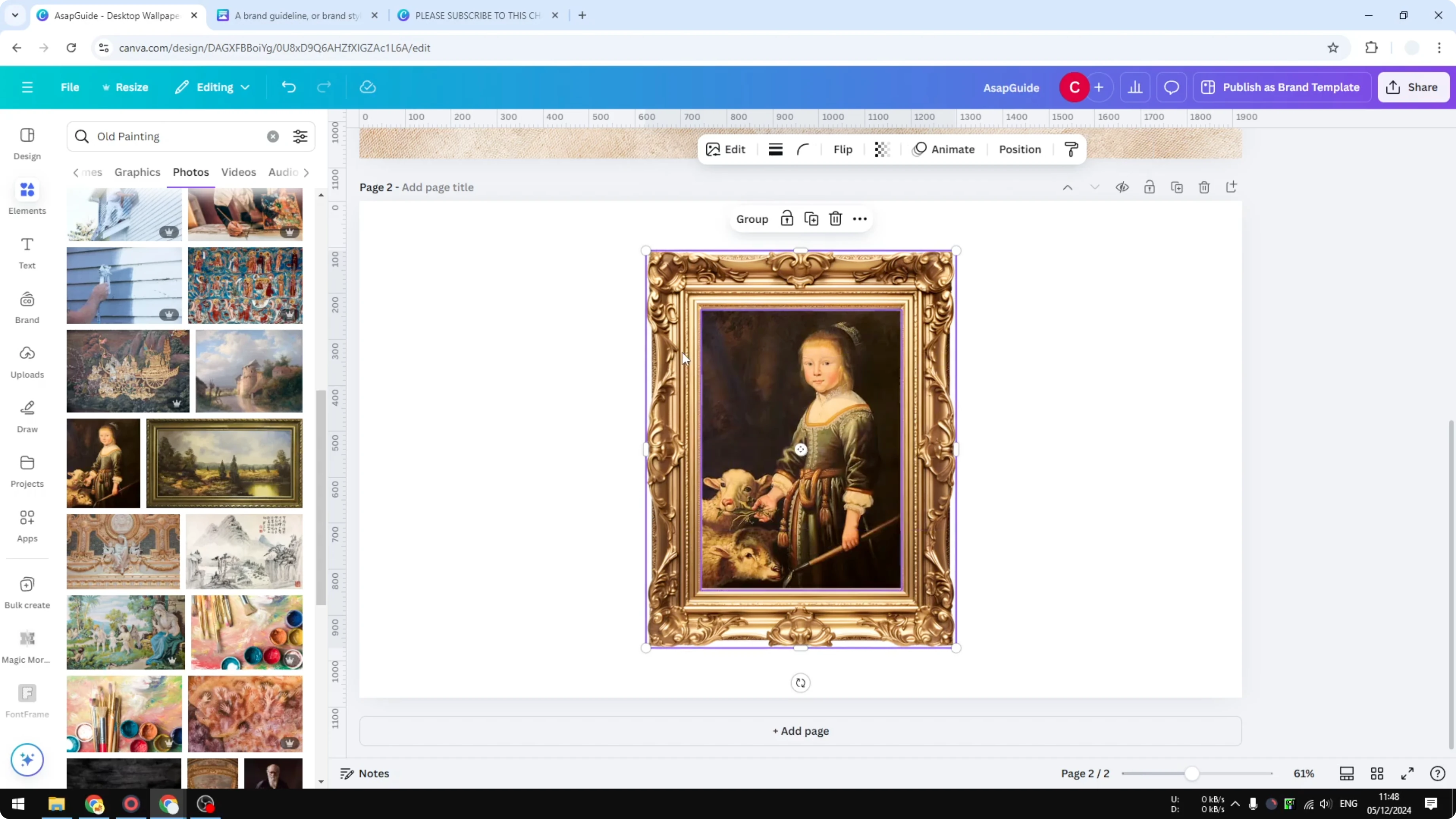
I’m going to show you how you can put a frame around a picture in Canva, or put a picture inside a frame. The example looks like a simple painting hanging on the wall, but it’s actually a stack of different elements. If you open Position and click Layers, you’ll see how multiple elements create a realistic picture.
Put a Frame Around a Picture in Canva
Start with the frame
Add a new page.
Go to Elements and search for frame.
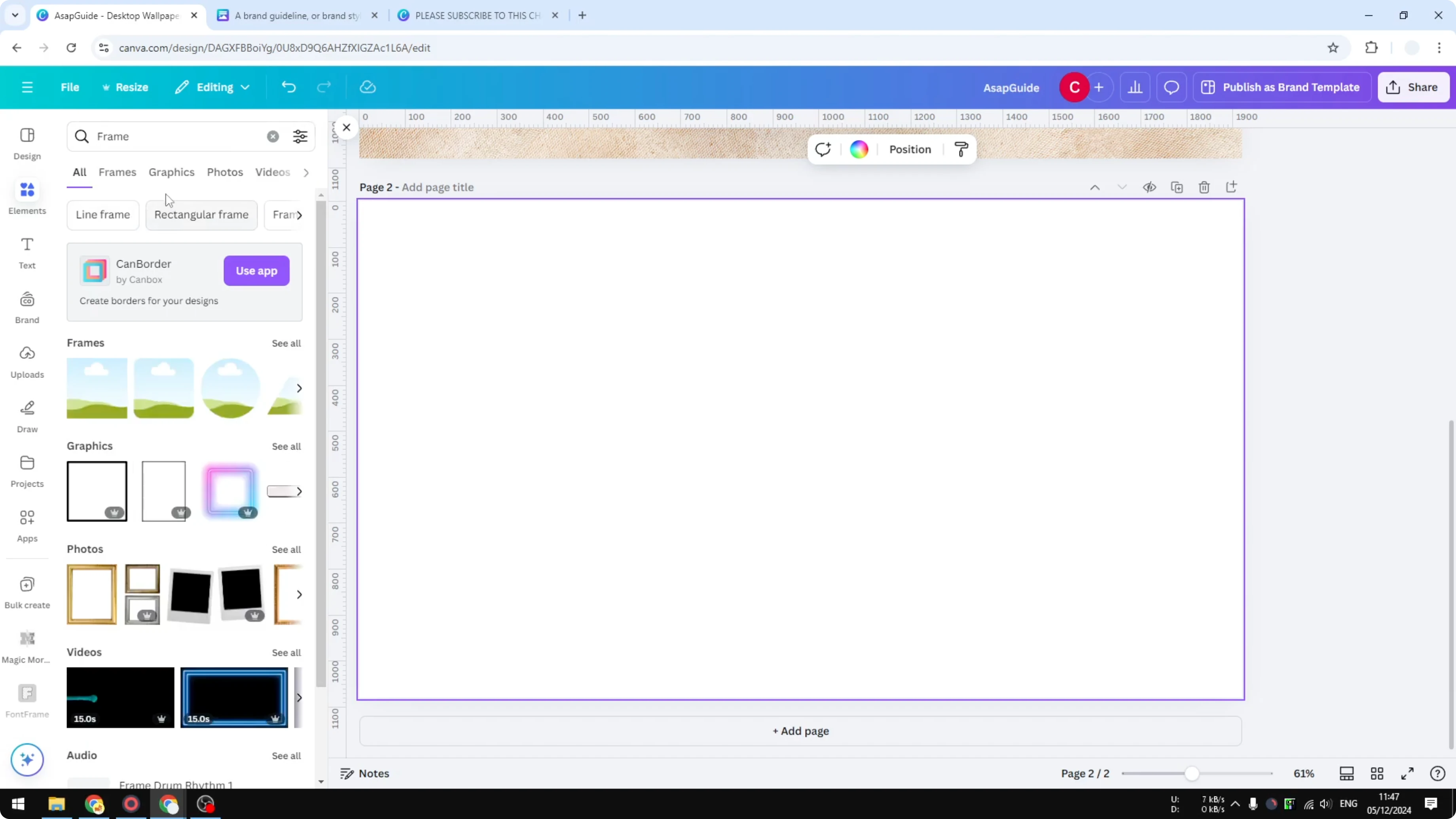
Open Graphics or Photos to browse frame options and pick the one you want, then click to add it to the canvas.
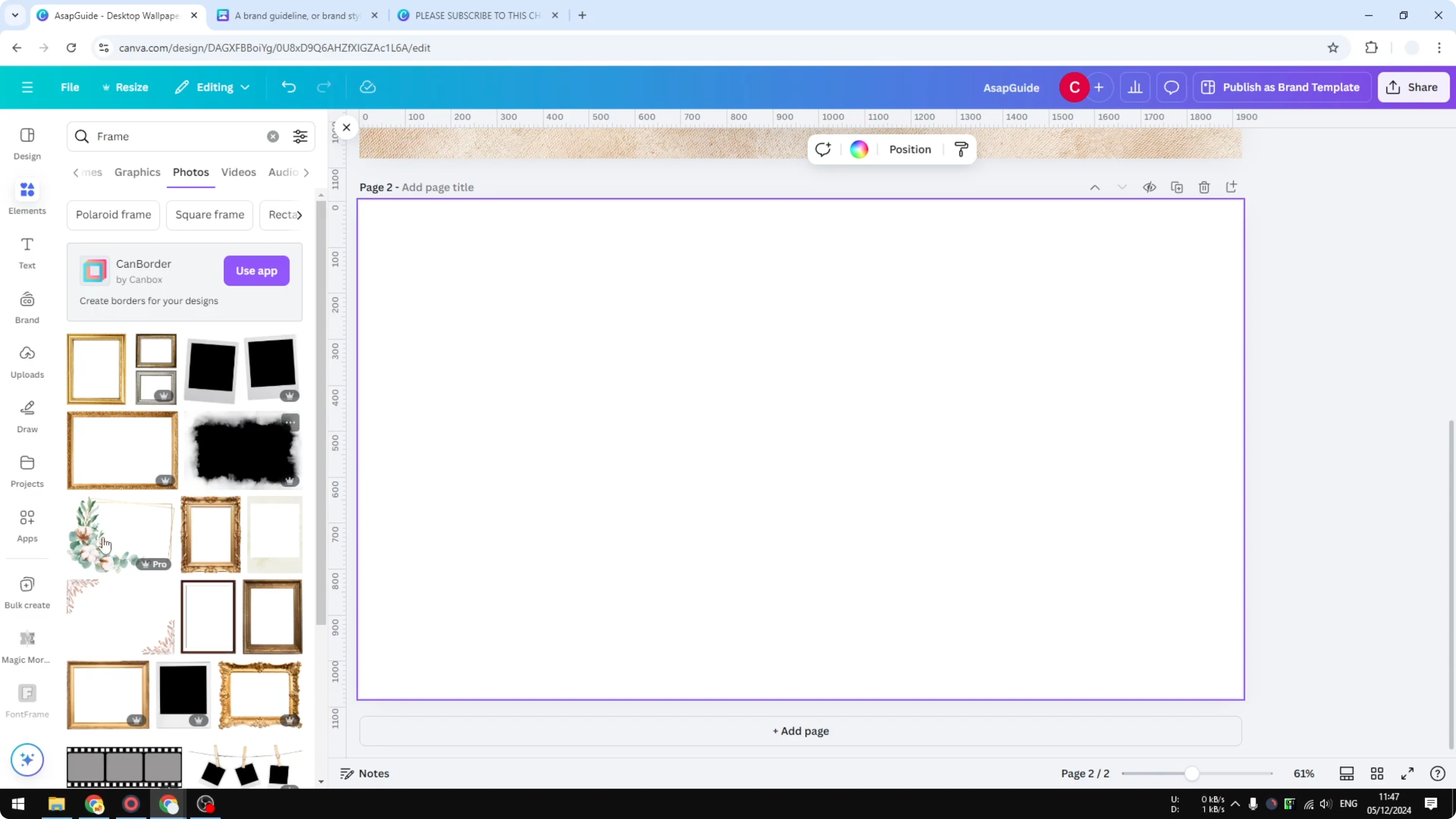
Insert the picture
Go to Elements again and search for the picture you want to insert, or upload your own from your computer.
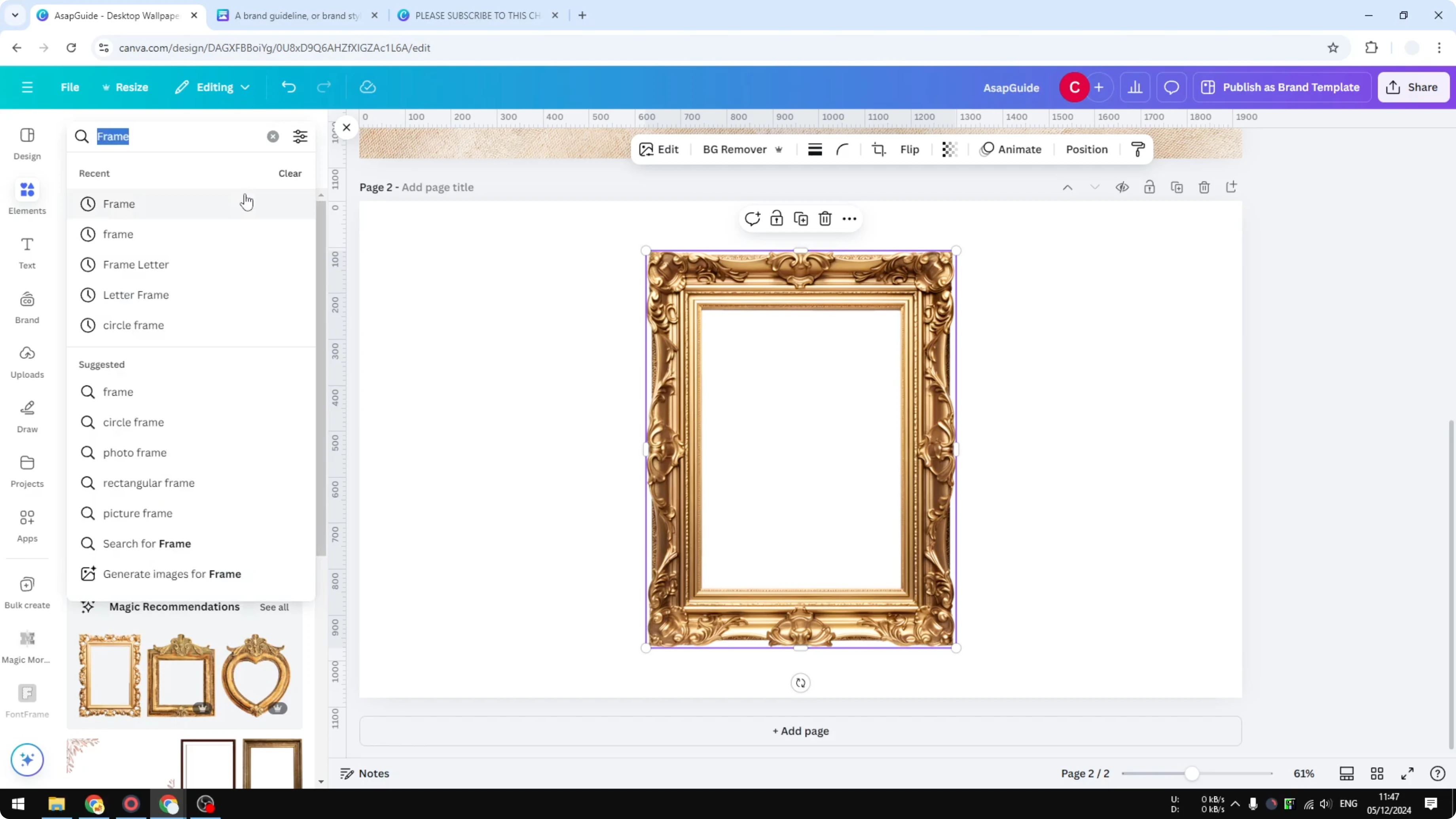
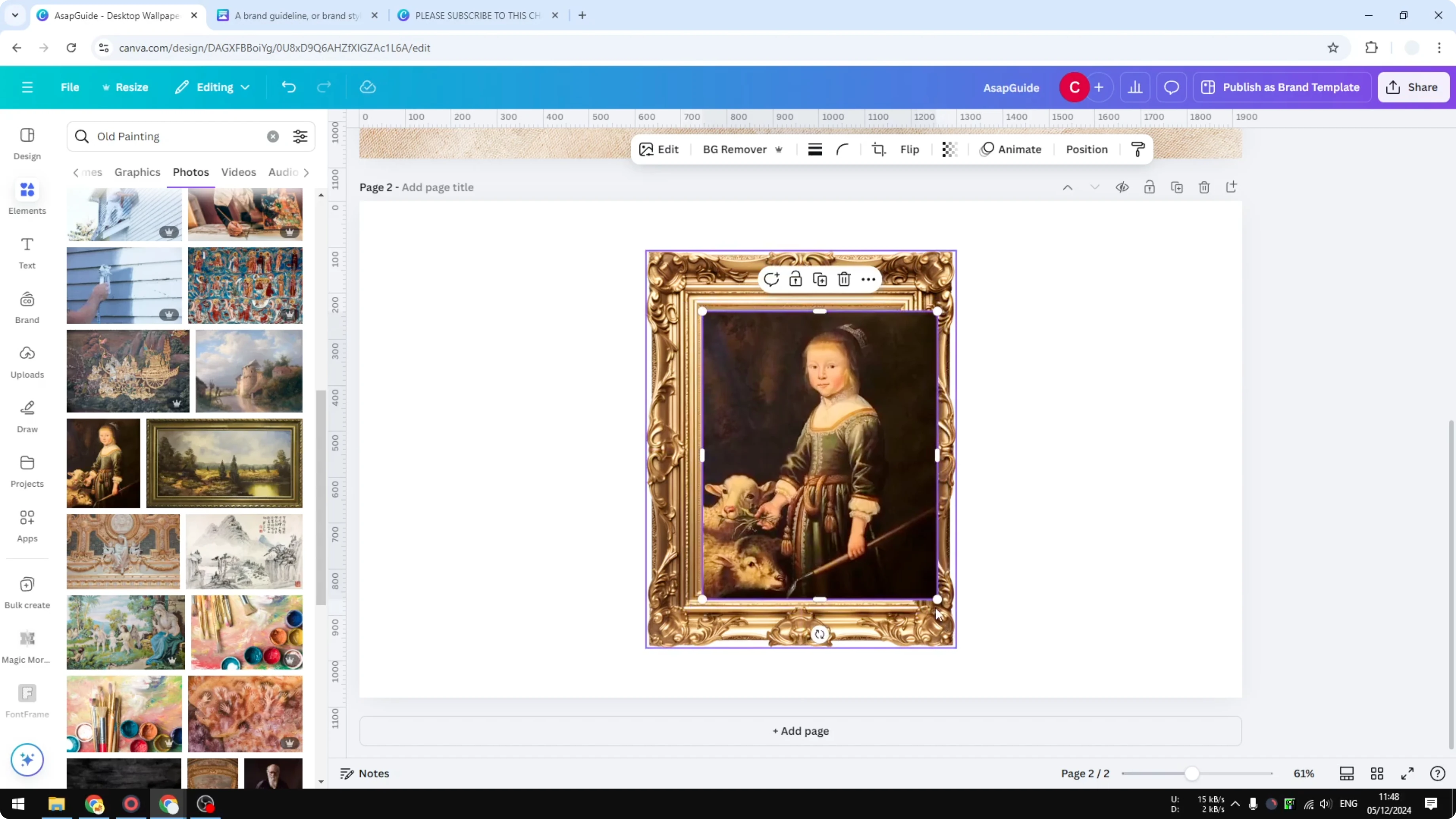
I’m using a photo of an old painting, and I’m adding it to the canvas.
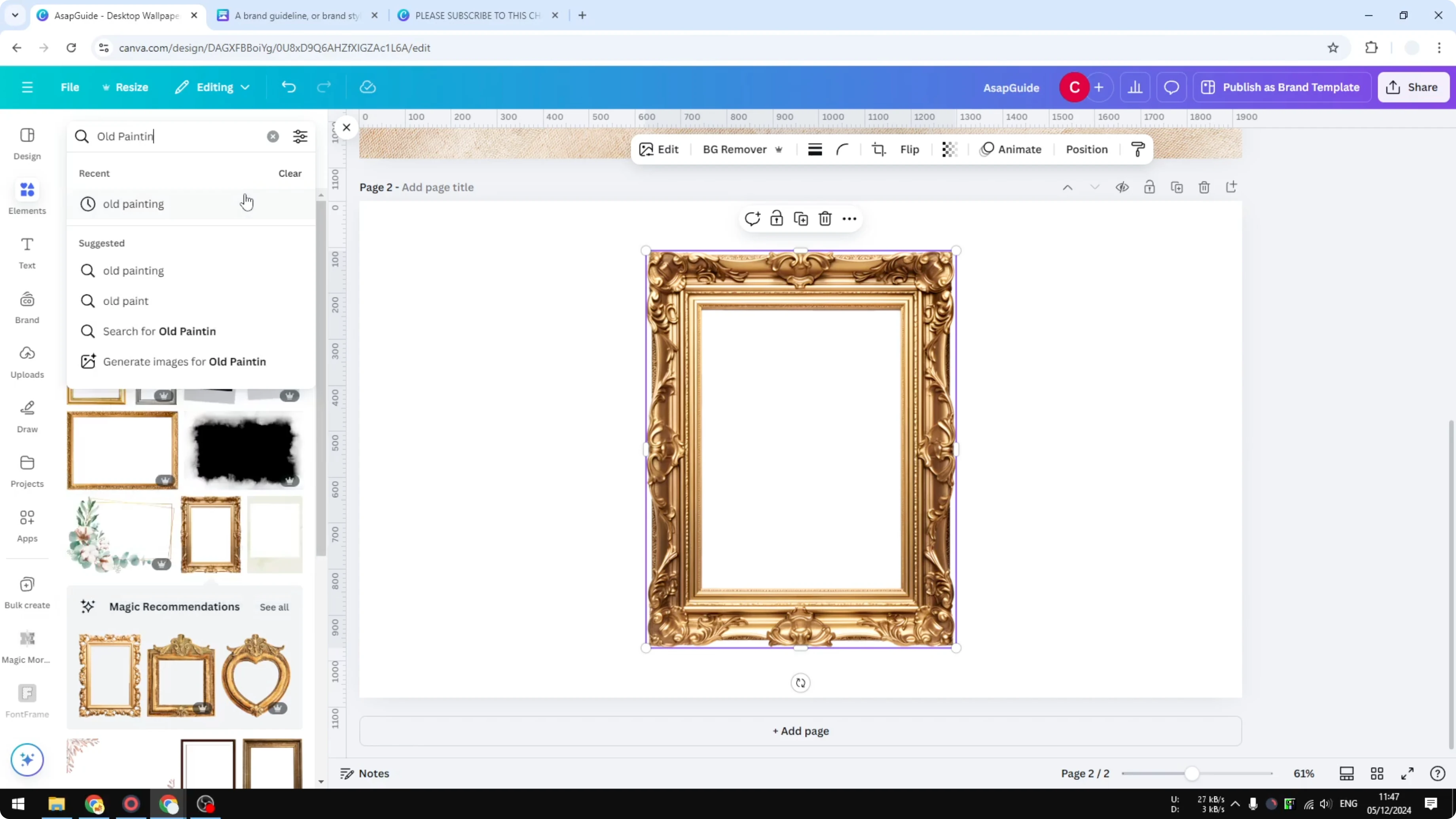
The picture might have a different dimension than the frame, and that’s fine because we’ll crop it later.
If the image needs minor fixes before you place it, you can adjust color.
Arrange and crop
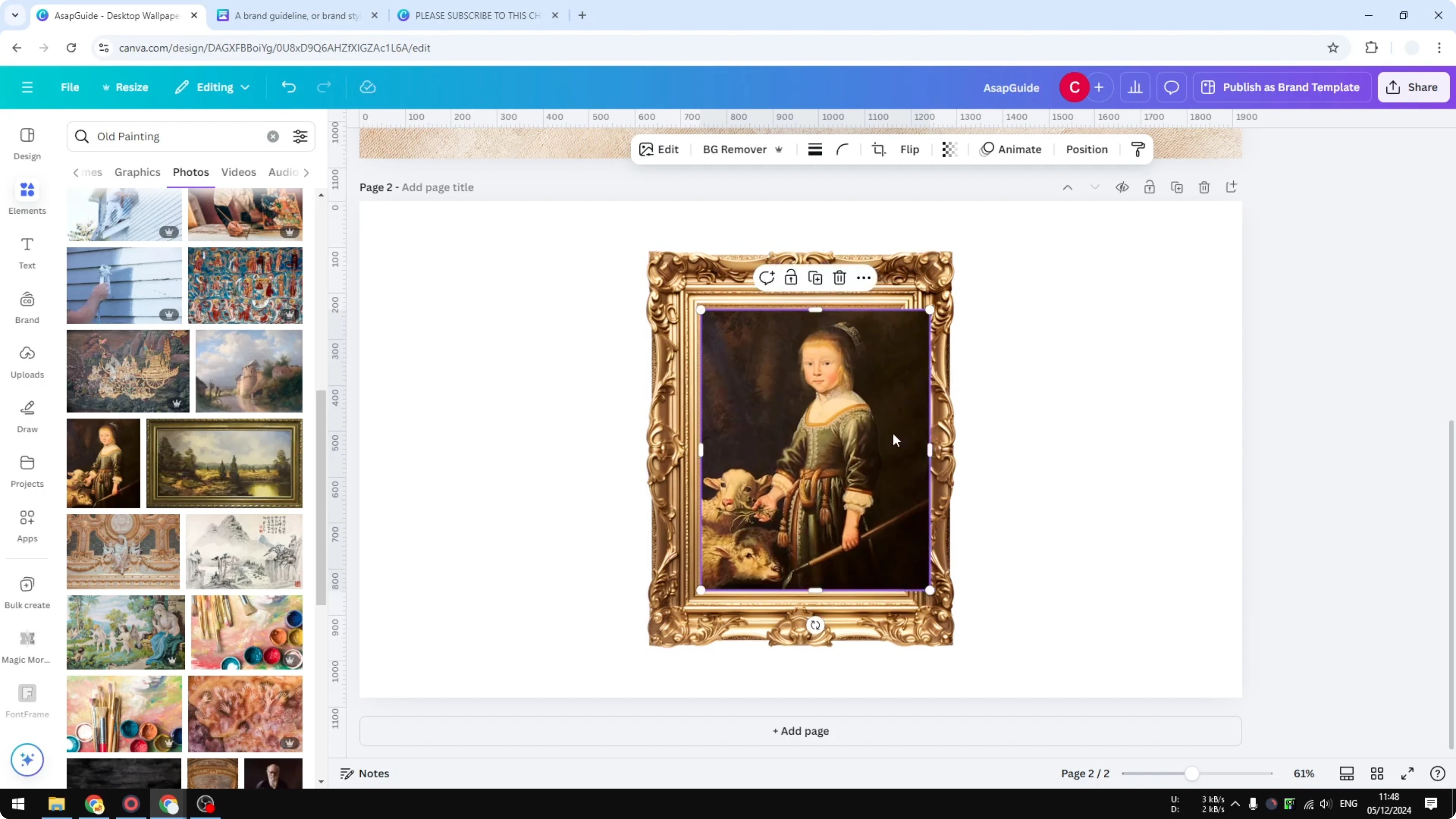
Make sure the picture covers the full area behind the frame.
Crop the sides as needed until it fills the frame area. It doesn’t have to be perfect.
It’s a good practice to put the frame on top of the picture. Right click the frame and choose Bring forward to clean the edges and make the photo look more realistic.
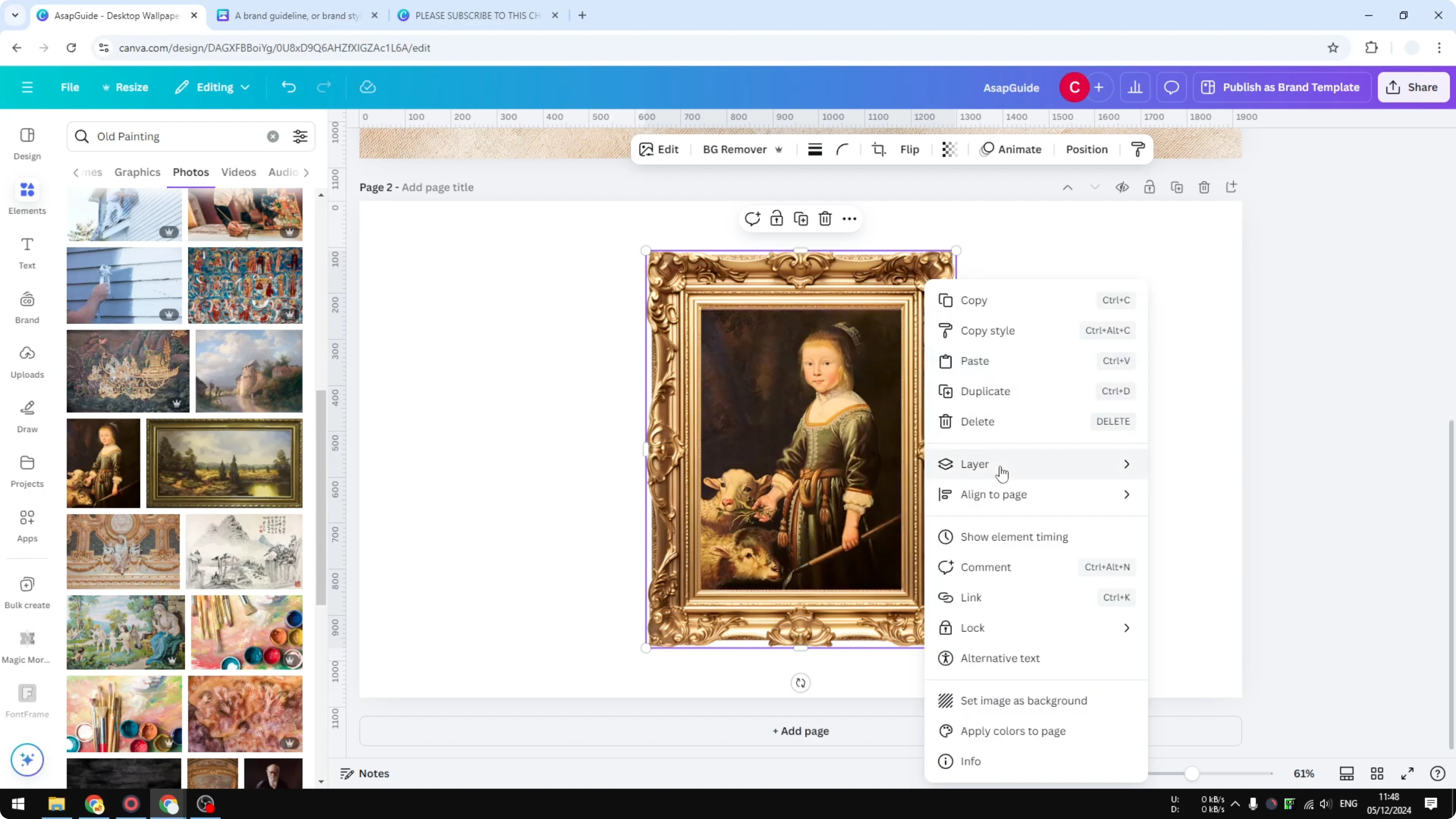
Select both the frame and the picture, then group them. When you move one, they move together, which is very handy.
Add wall texture
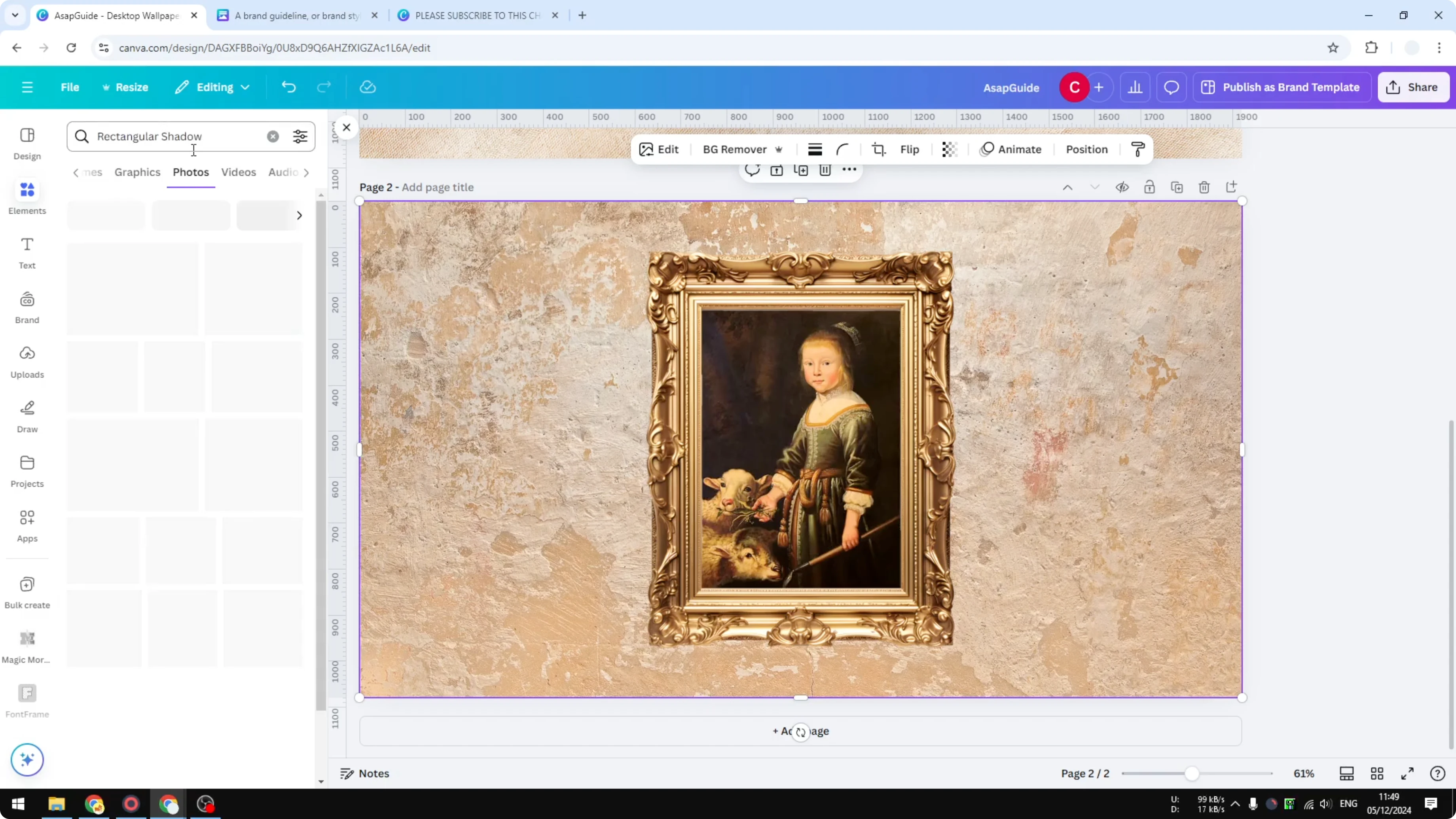
Add a wall texture for the background.
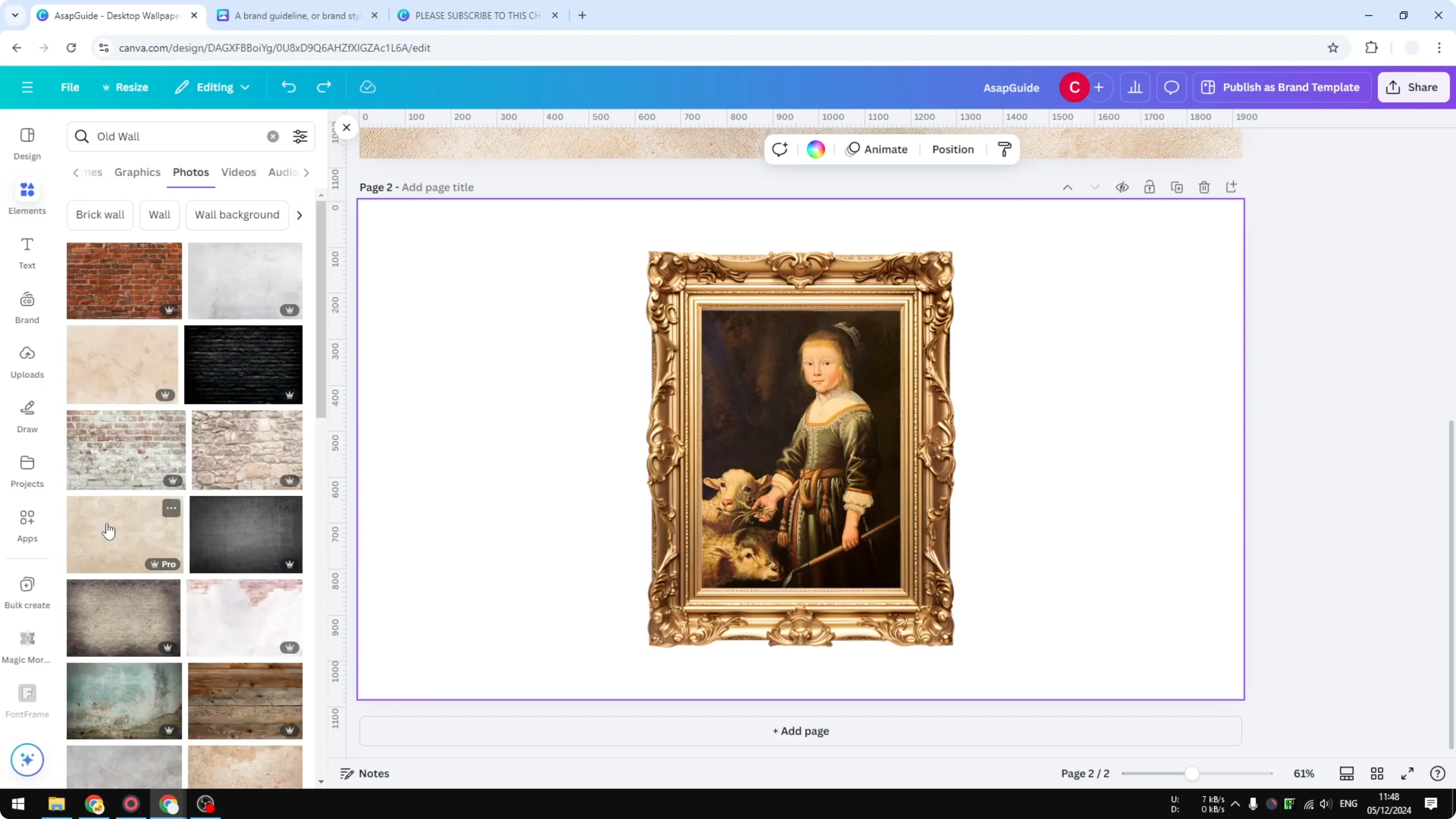
Choose a different wall image if you want a new look. Right click, open Layer, and Send to back.
Read More: 3D Book Cover Canva
Add shadow
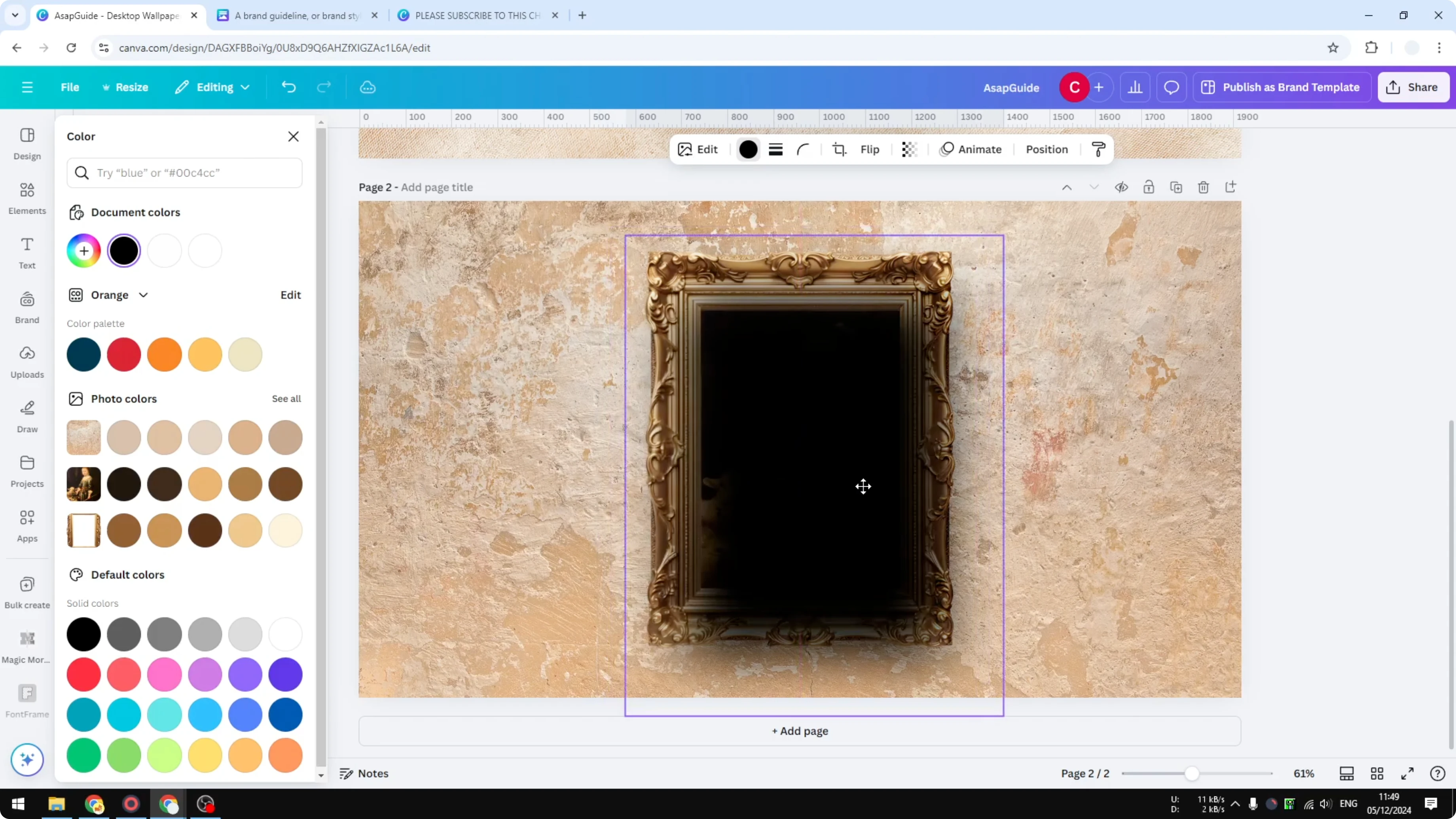
Go to Elements and search for rectangular shadow, then open Graphics.
Pick a shadow effect. Rotate it 90 degrees and change the color to black.
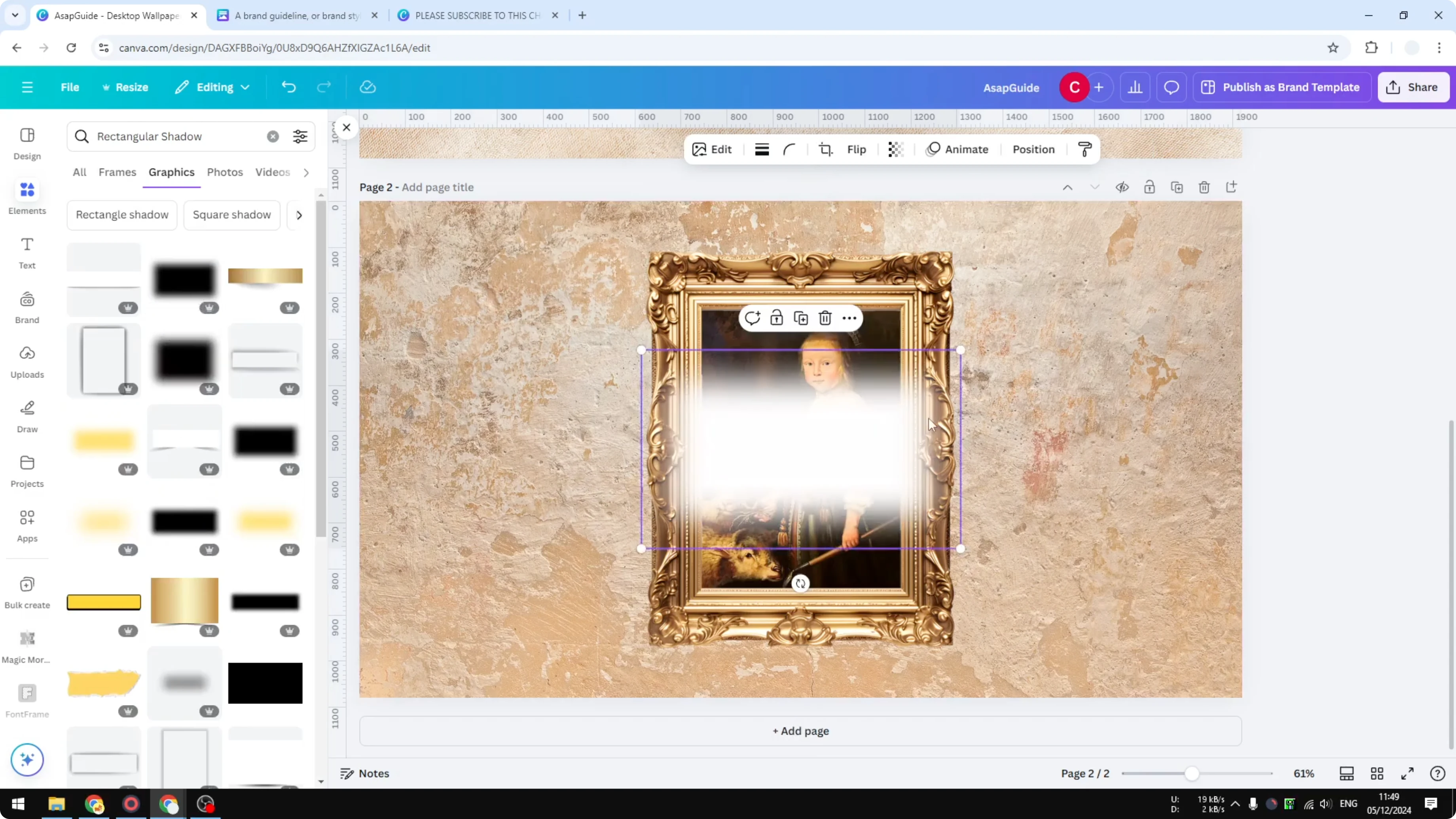
If the shape doesn’t match your composition, pick another shadow, set the color again, and rotate it 90 degrees. Place it slightly to the right and open Layer, then Send backward until it sits behind the frame and picture.
Final Thoughts
That’s how you can put a frame around a picture in Canva and build a realistic wall art scene from simple elements. Frame on top, grouped elements, a textured wall, and a soft shadow go a long way.
If you need to add credits or notes below the artwork, you can add footnotes.
Recent Posts

How to Visualize Yourself as a Pixelized Character with AI?
How to Visualize Yourself as a Pixelized Character with AI?

How to Revive Faded Memories and Enhance Image Clarity with AI?
How to Revive Faded Memories and Enhance Image Clarity with AI?

How to Visualize Yourself as an Animal Crossing Character with AI?
How to Visualize Yourself as an Animal Crossing Character with AI?