How to Flip Text In Canva
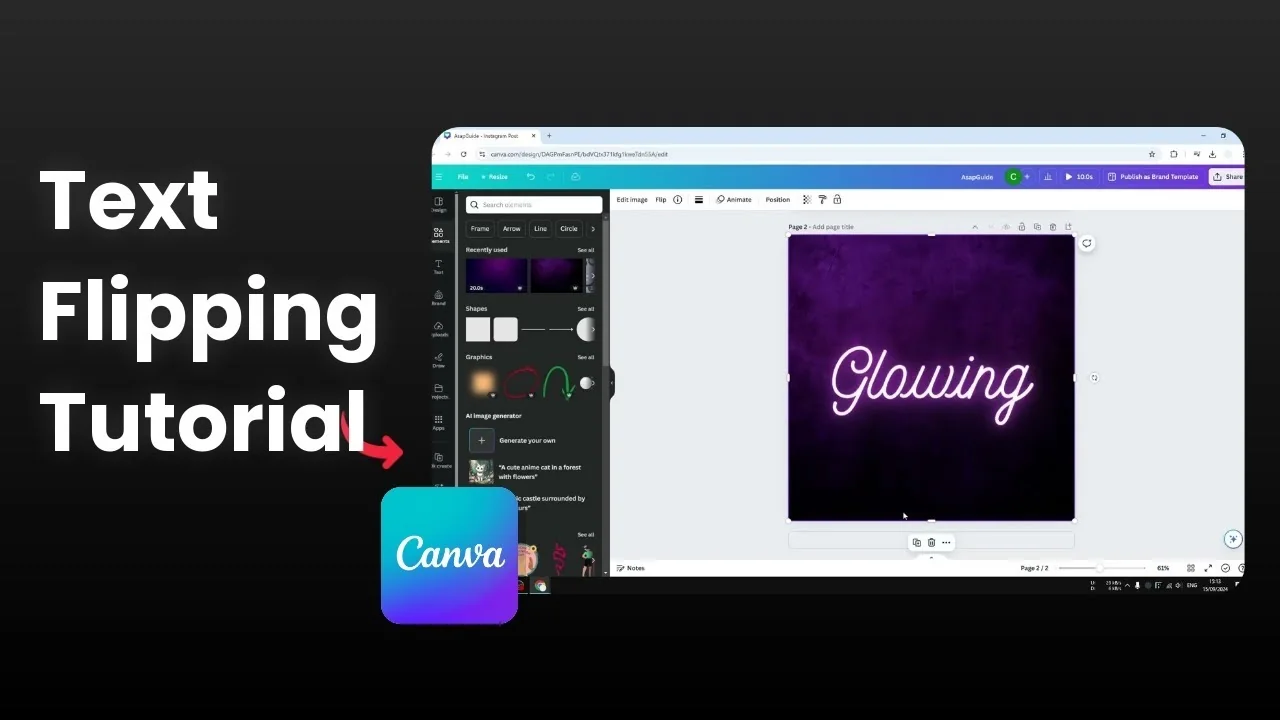
I will show you how you can flip or mirror text in Canva. Mirroring text in Canva is a bit tricky because there is no direct feature that allows you to do that. You can flip an image or even a video horizontally or vertically, but text cannot be flipped natively.
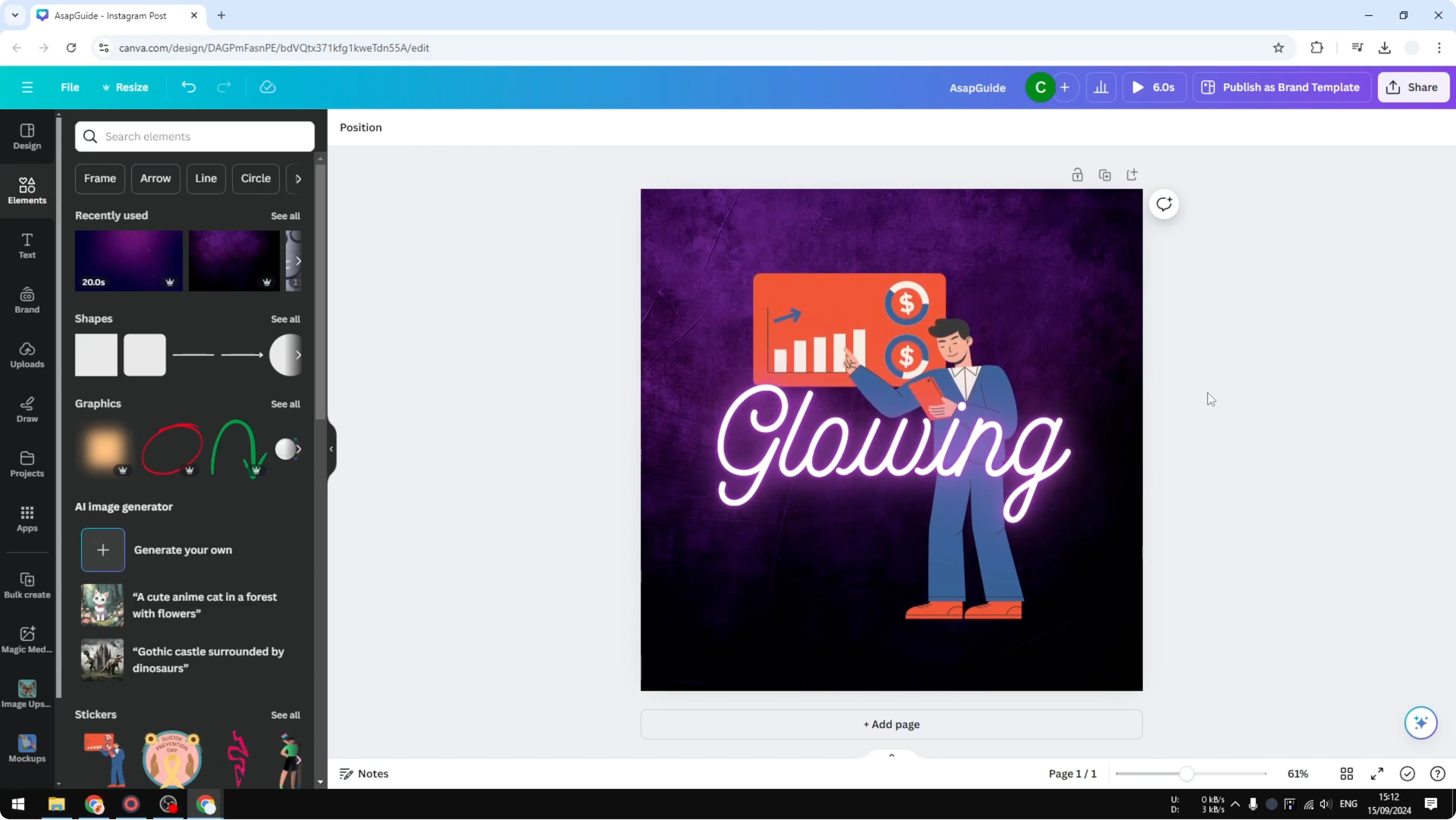
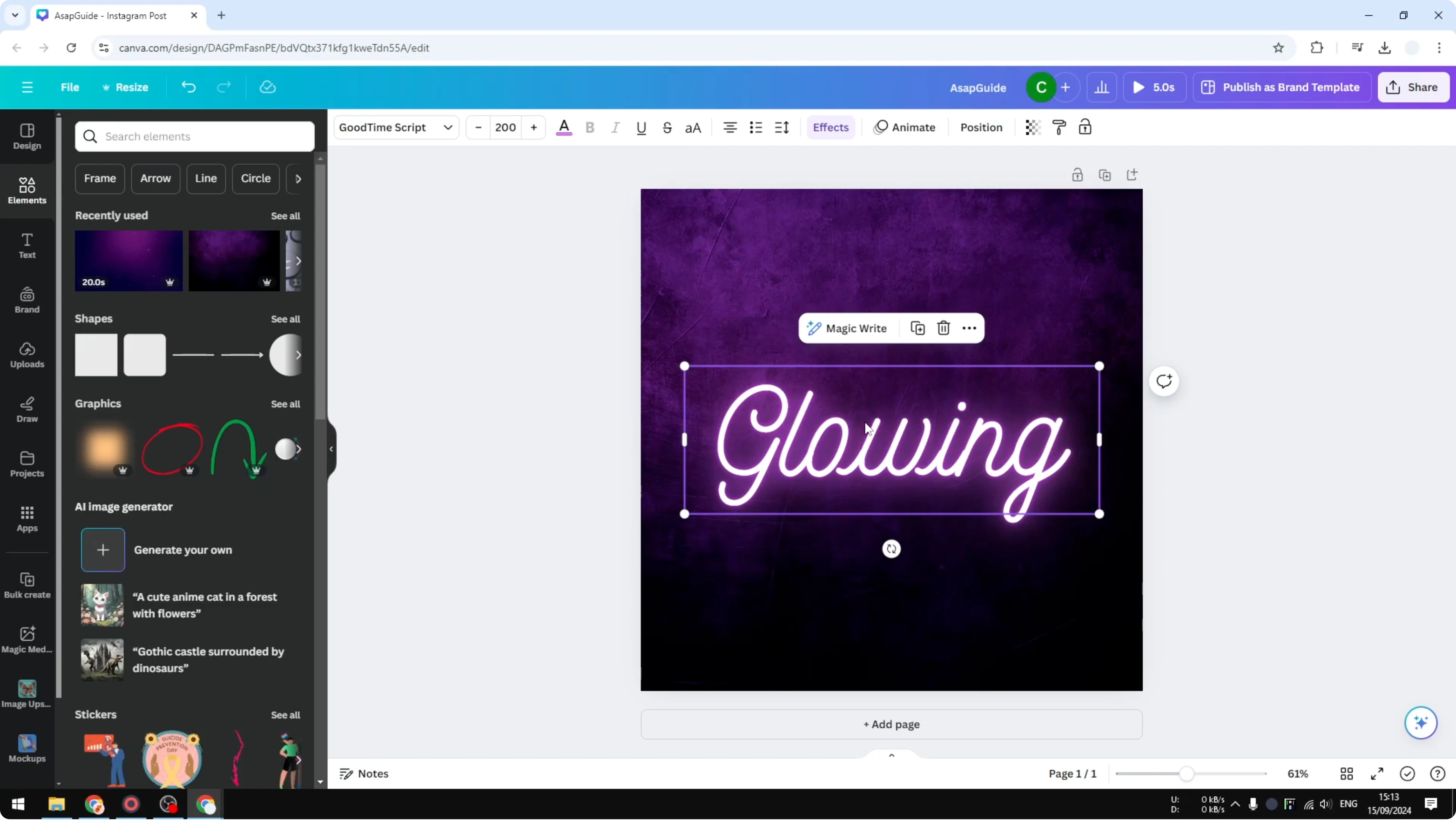
If you select any piece of text or a text box in Canva, there is no option to flip the content. You can rotate it with the rotation handle or the rotate menu, but that is not the same as flipping or mirroring text. The workaround is to turn the text into an image first.
Why Flip Text In Canva is tricky
There is no flip control for text elements. You only get rotation for text, and flipping is only available for image and video elements. That is why the text must be exported as an image before you flip it.
If you are designing with text boxes and want extra styling, you can also add a border to a text box. That pairs well with mirrored titles and labels. It keeps layout details consistent after you flip.
Workaround to Flip Text In Canva
Prepare the text
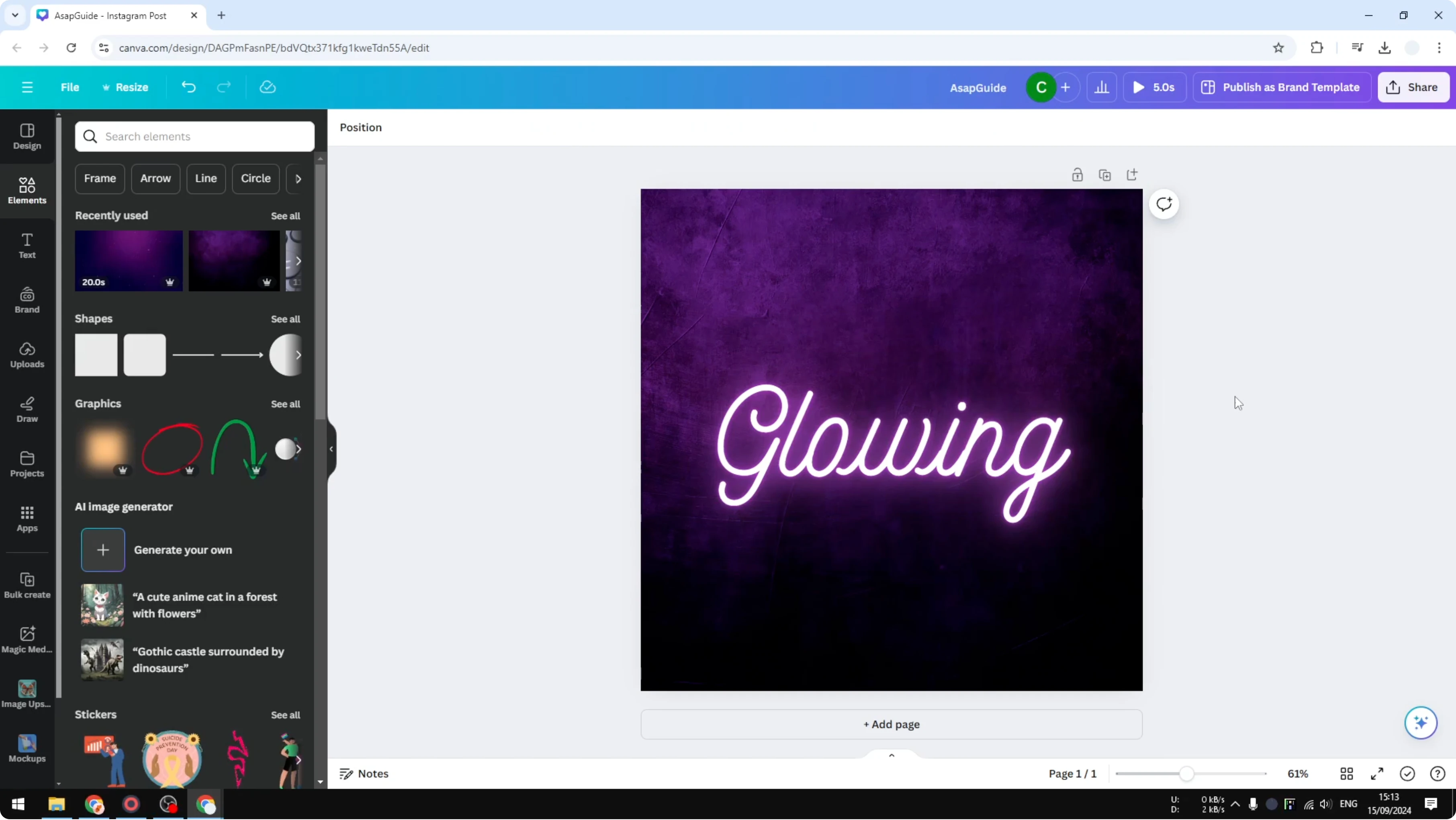
Duplicate your page that contains the text you want to mirror. Remove the background on that duplicate so only the text remains. Make sure the text looks exactly how you want it before export.
Download settings
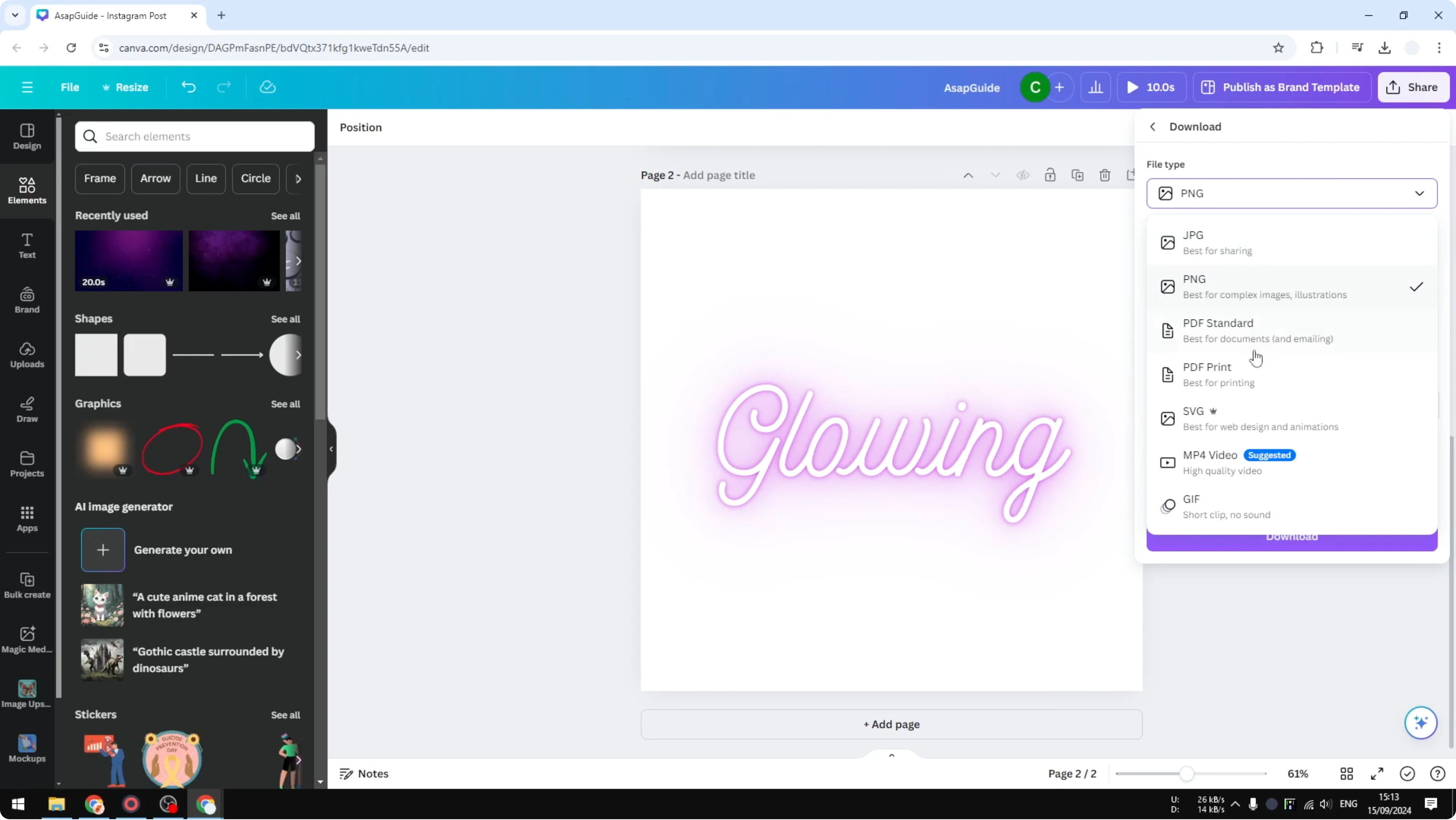
Click Share, then Download. Select PNG as the file type. Enable Transparent background so you get just the text and nothing else.
If your design has multiple pages, select only the page that holds the text you prepared. Click Download and wait for the export to finish. You now have your text as an image.
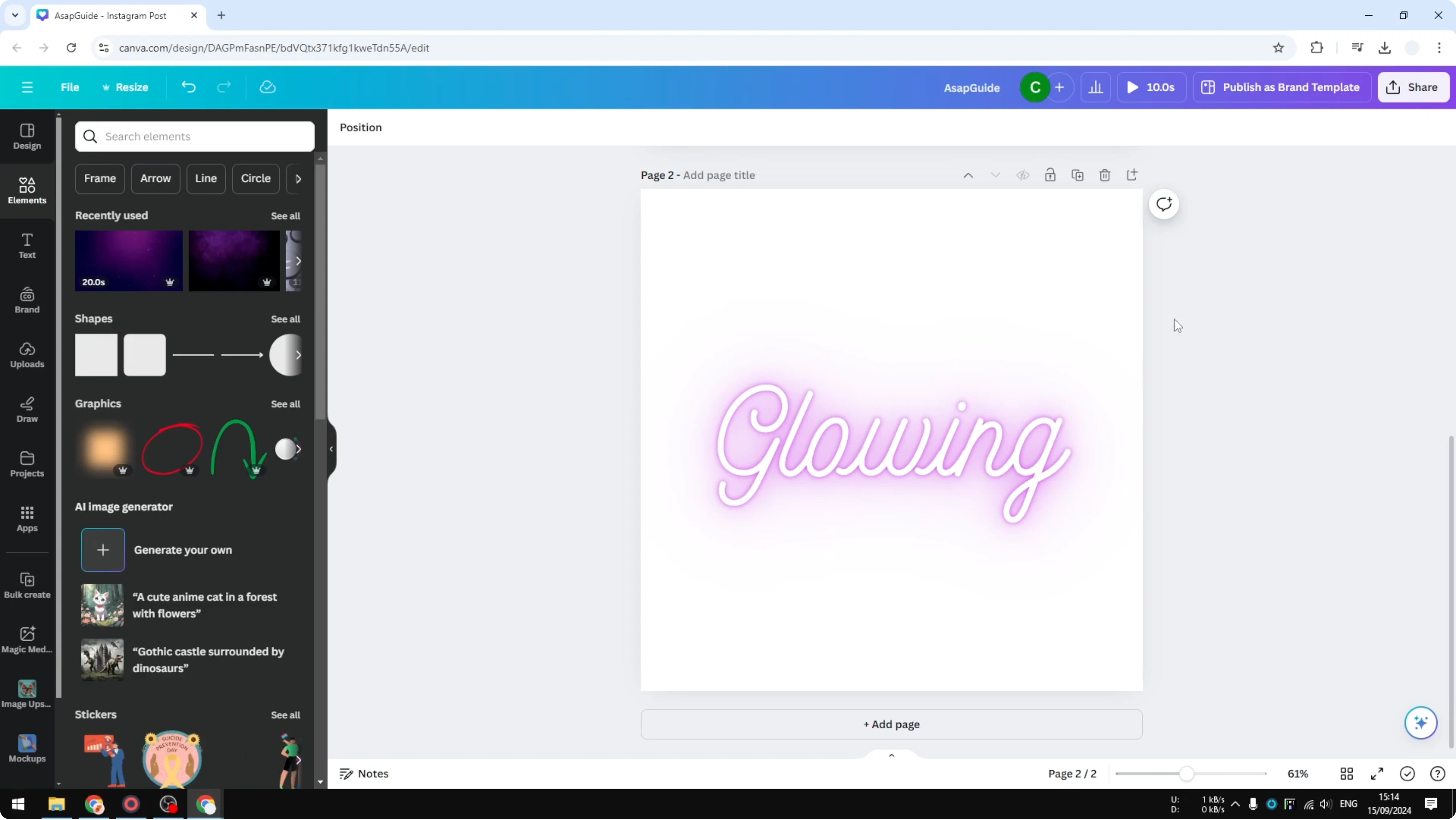
Once the text becomes an image, consider accessibility. You can add alt text to images in Canva so mirrored text is still understandable to assistive tech.
Upload and flip
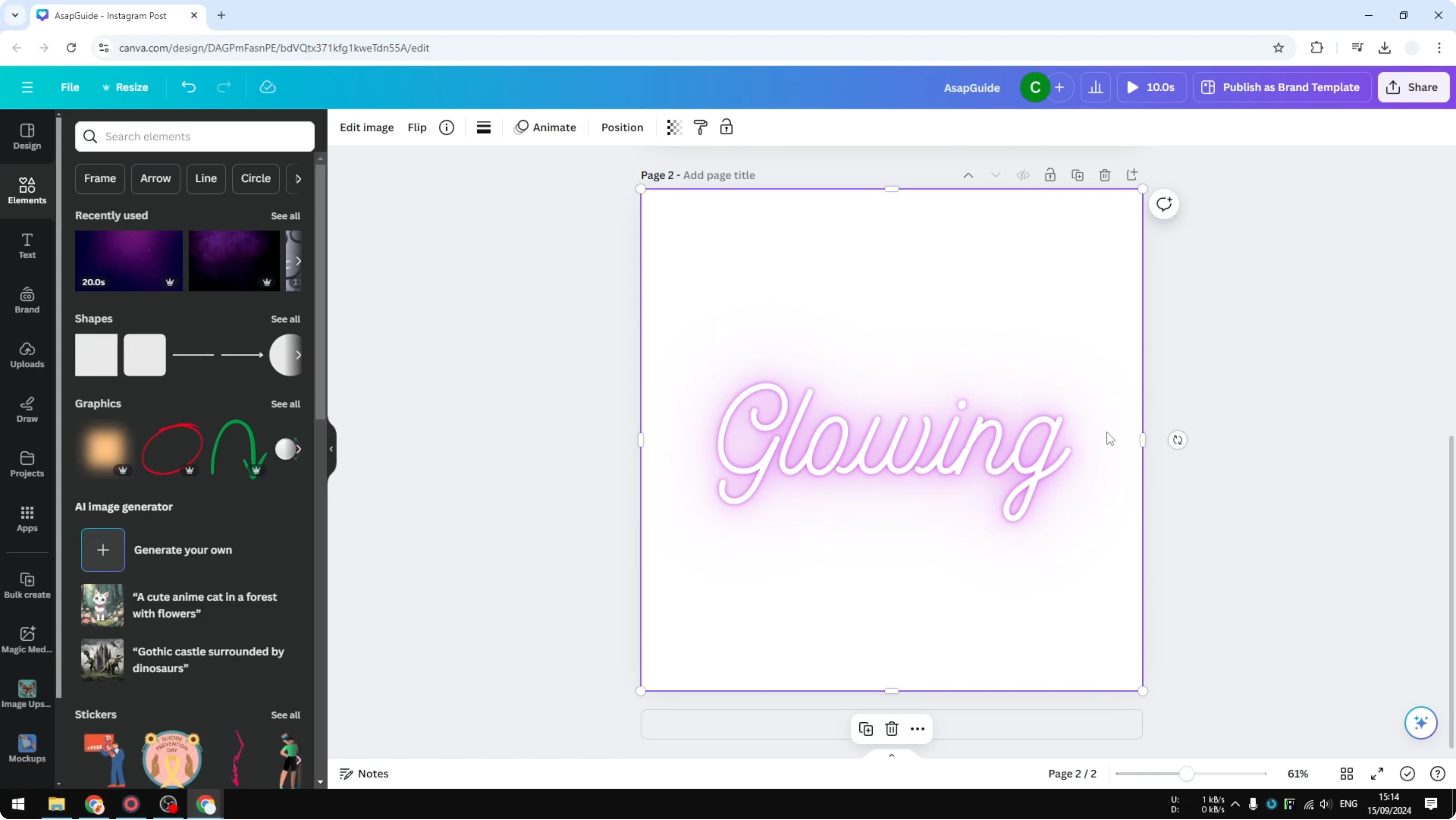
Upload the exported PNG back into your Canva account. Delete the original text element and place the uploaded image on the canvas. Select the image, open Flip, then choose Flip horizontal or Flip vertical.
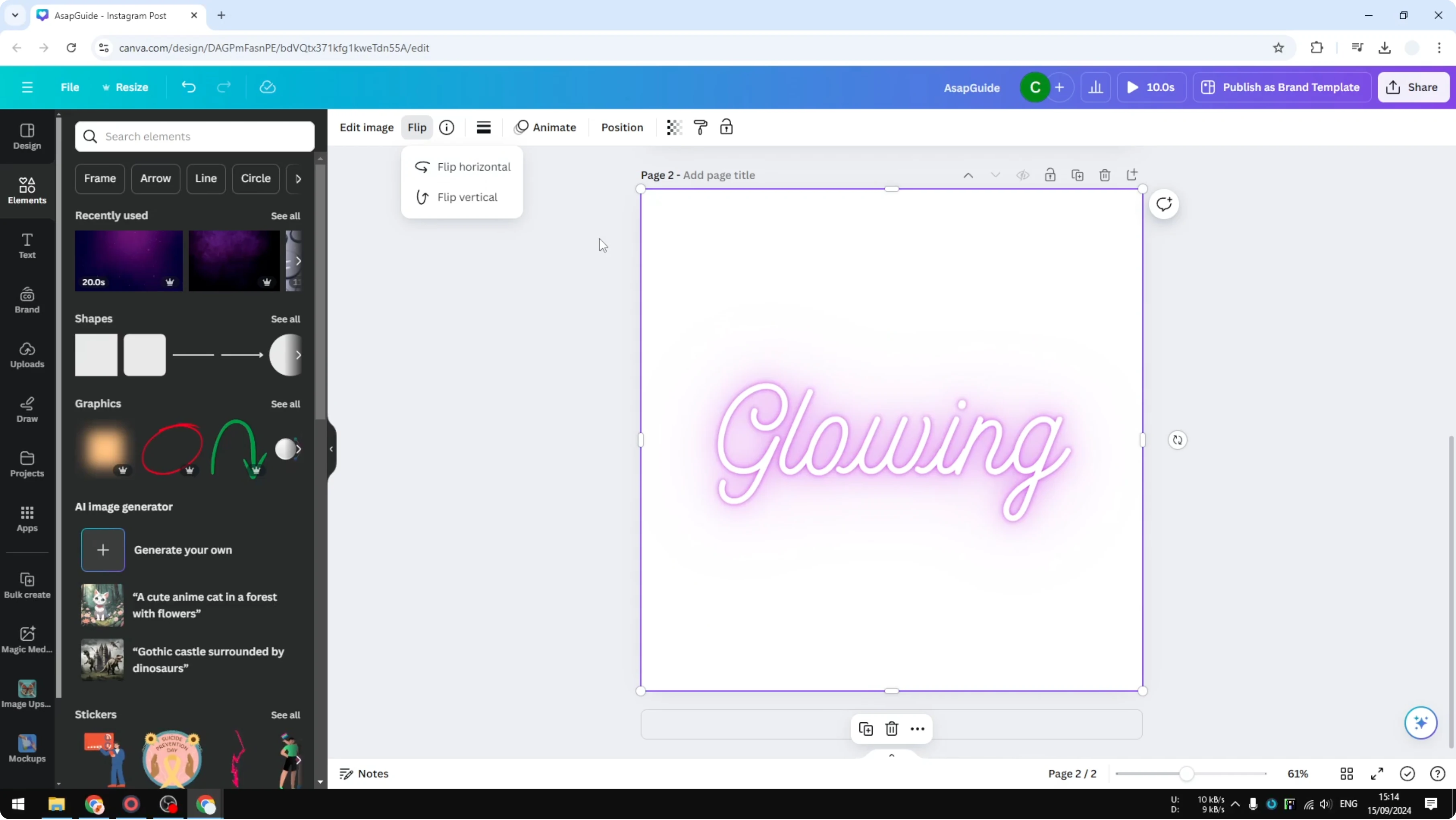
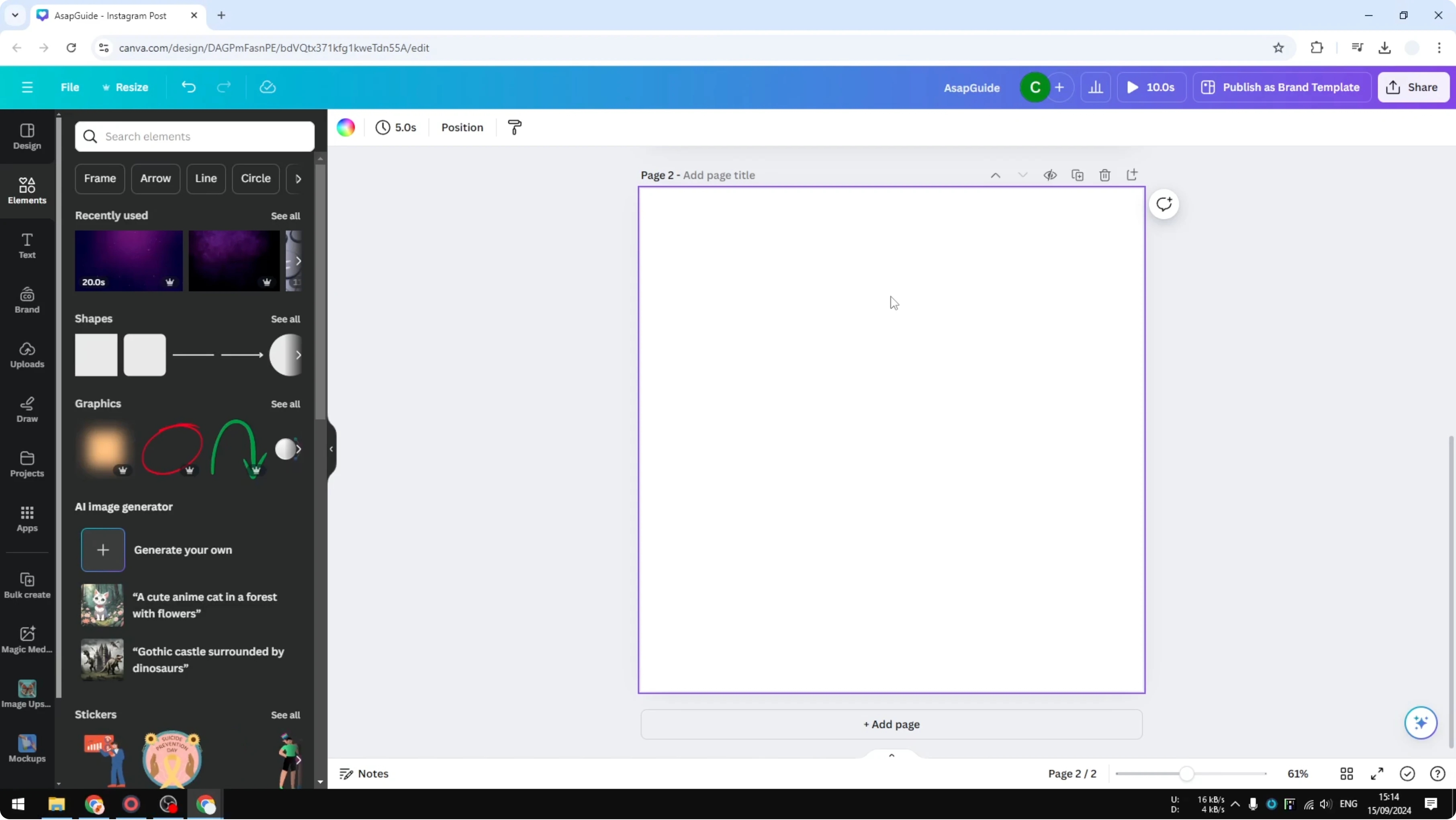
You will see the same text, but it is now an image that can be mirrored. This is essentially how to flip or mirror text in Canva today. It works well until a native text flip feature arrives.
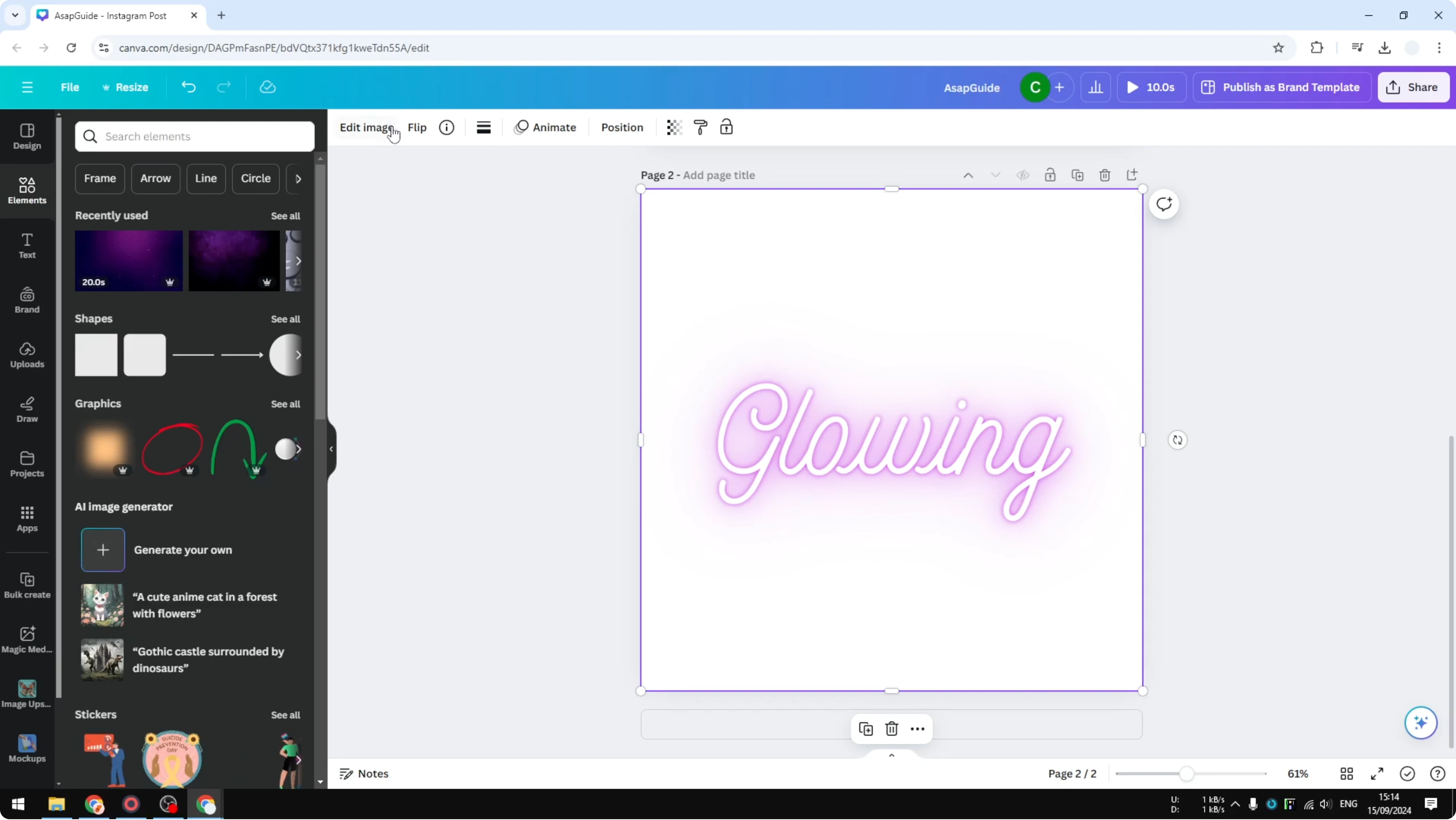
If you are exploring creative typography effects, you might also want to add background text in Canva. That effect can complement mirrored words for bold headings.
Final thoughts on Flip Text In Canva
There is no native toggle to mirror a text element in Canva. Export the text as a PNG with a transparent background, upload it, then flip the image. It is not perfect, but it gets the job done quickly and reliably.
Recent Posts
How to Visualize Yourself as a Pixelized Character with AI?
How to Visualize Yourself as a Pixelized Character with AI?
How to Revive Faded Memories and Enhance Image Clarity with AI?
How to Revive Faded Memories and Enhance Image Clarity with AI?
How to Visualize Yourself as an Animal Crossing Character with AI?
How to Visualize Yourself as an Animal Crossing Character with AI?