How to Fix Spelling in Canva Magic Write
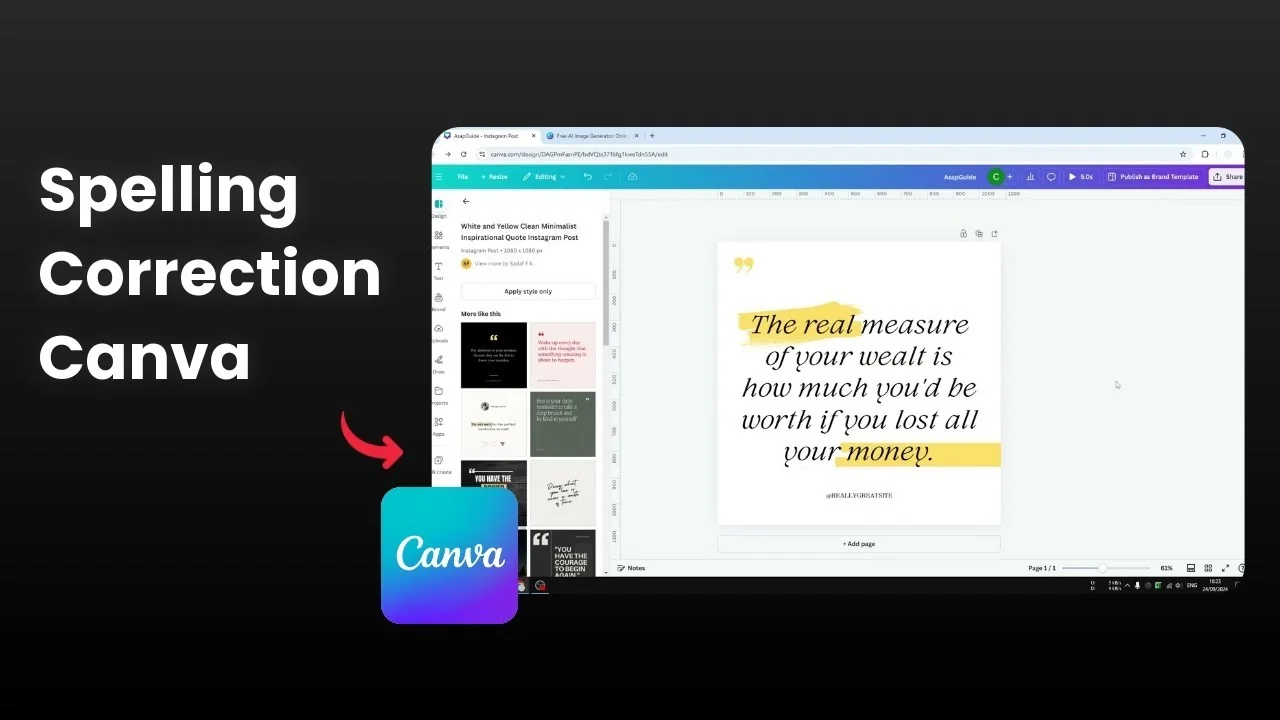
I will show you how you can fix your spelling or grammatical error in Canva. This is very important, especially if you have a design that contains a lot of text and you do not want to distract the viewer's attention with wrong spellings or grammatical error on your text. You want to make sure that it is as accurate as possible.
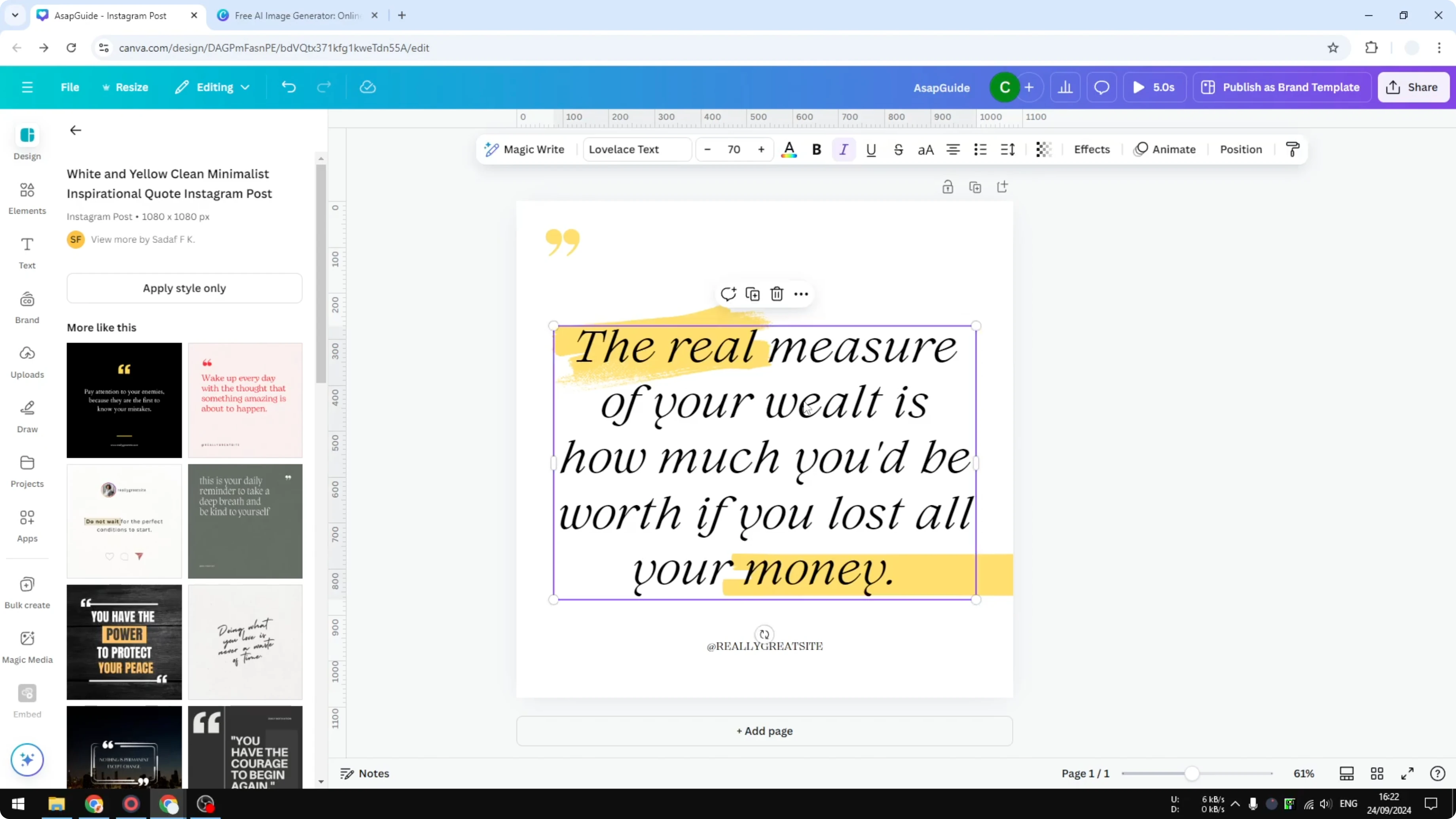
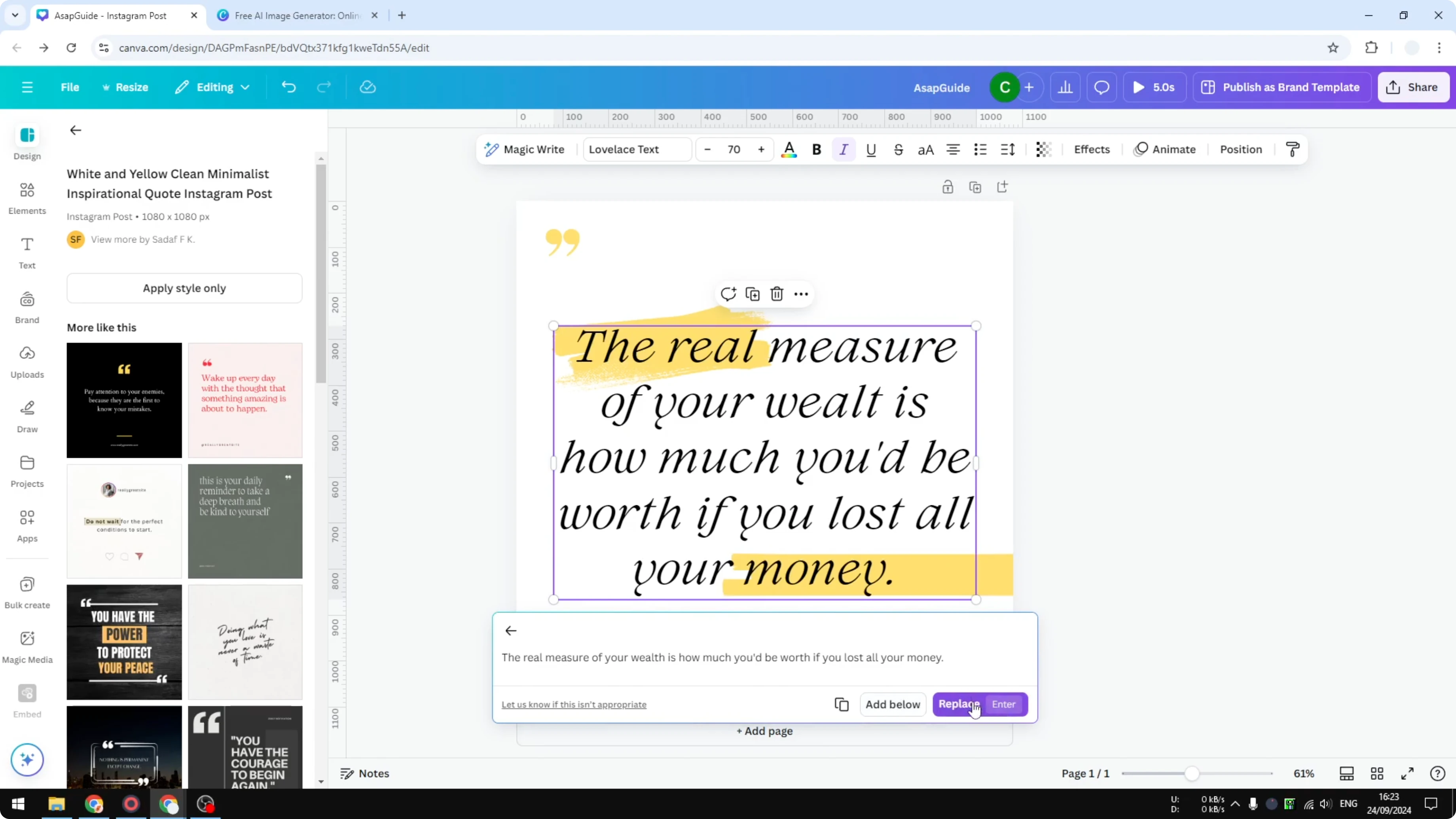
This can be done directly using Canva. In this example I have a text that is fine except for one word that is not correct. It is missing the h at the end, and we want to add that.
This is just one example. In reality you could have a very long text and maybe multiple spelling errors. You want to fix it very quickly.
If formatting gives you trouble during edits, see how to fix italic issues in Canva.
Fix Spelling in Canva Magic Write
Select the text
Select the text box that contains the mistake.
Open Magic Write
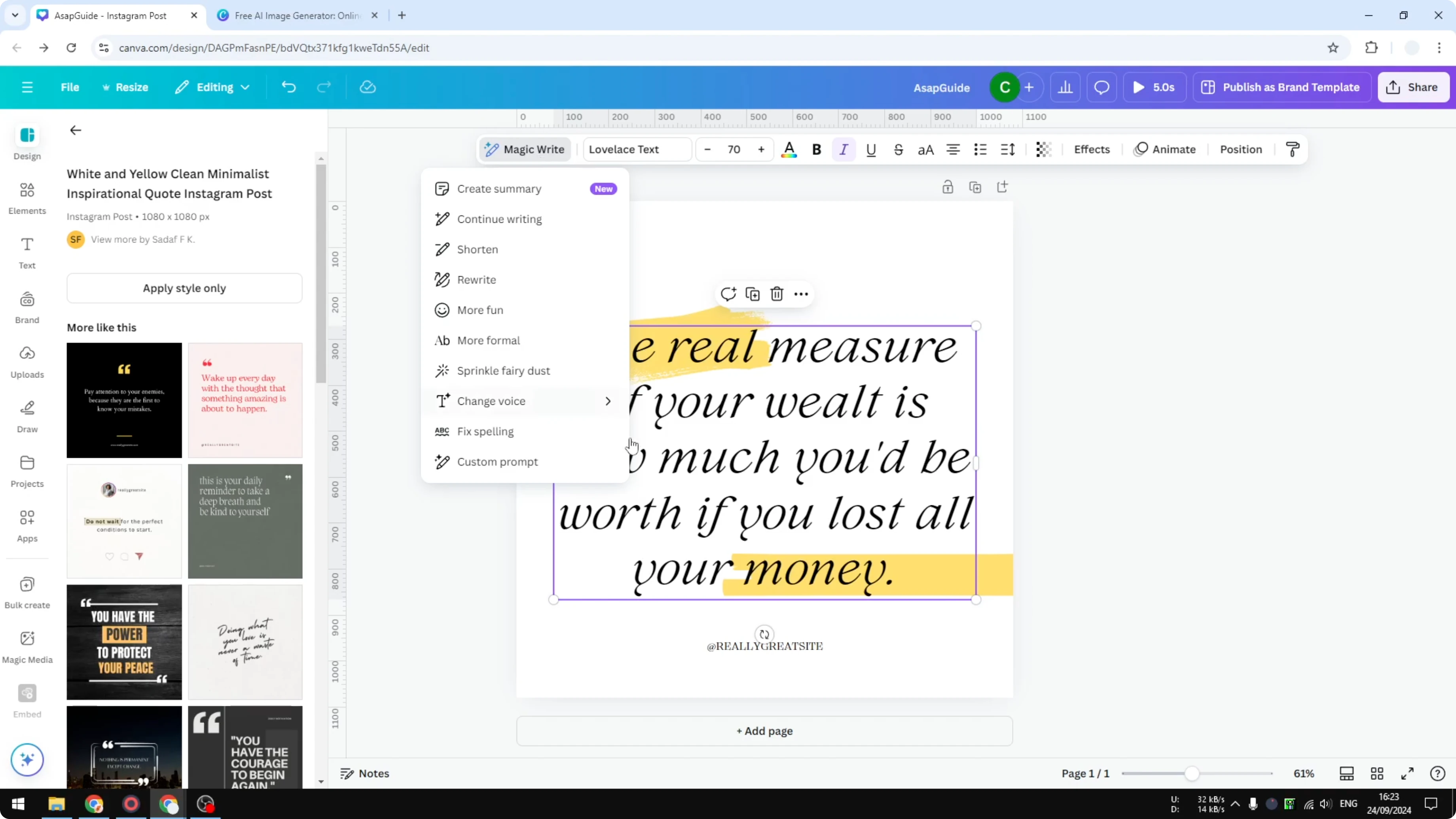
Click Magic Write.
Choose the tool
Choose Fix spelling.
Review the preview
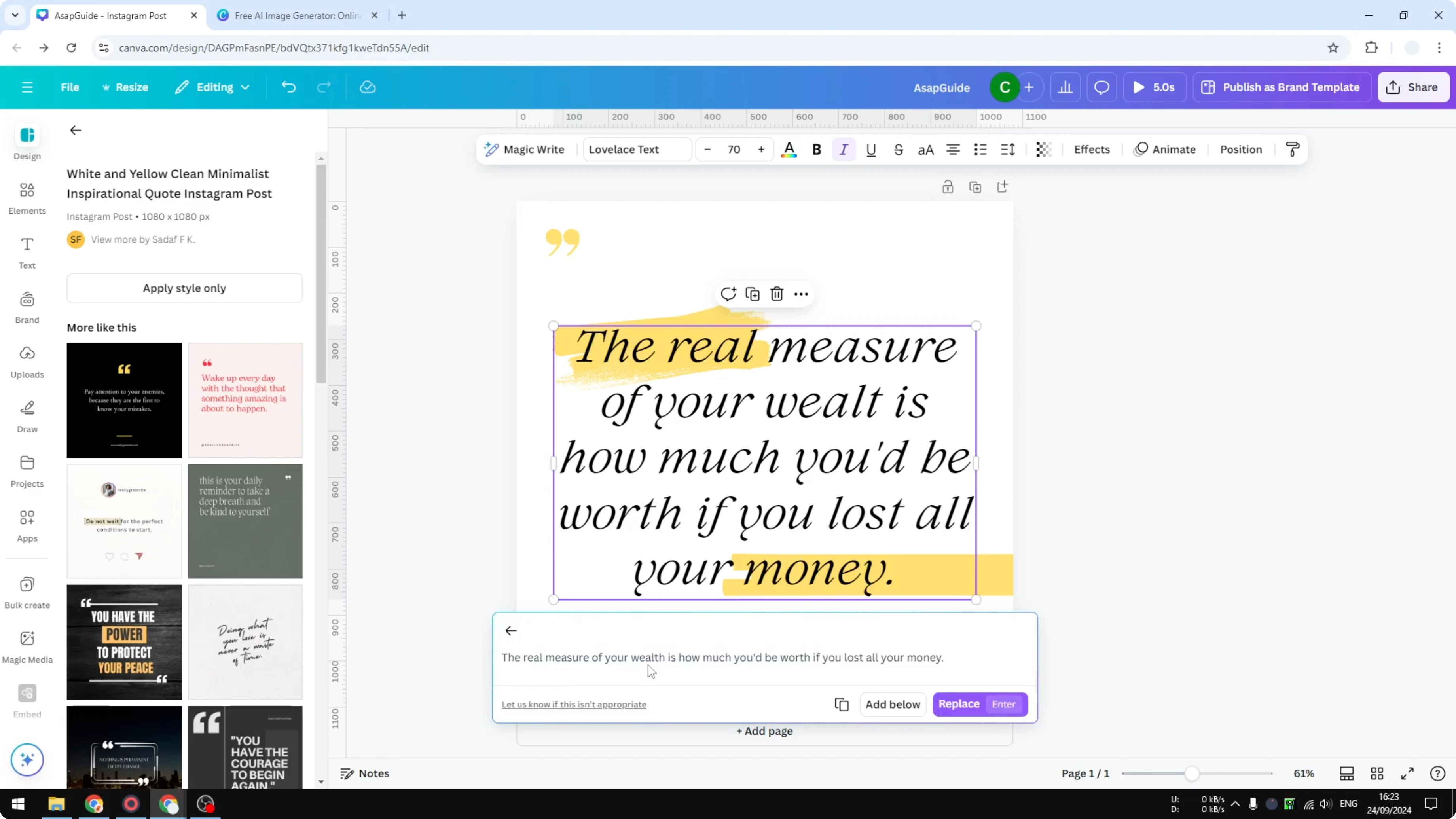
Wait until Canva generates the correct version of the text. You will see a preview. In my case the word is now correct, with an h added.
If your elements refuse to move while selecting or editing, here is how to fix movement problems in Canva.
Apply the change
You can Add below or Replace the original text box. I replace the original text box. That is how you can fix spelling and fix grammatical error in Canva.
If exports are part of your workflow and a premium image will not download, see how to resolve premium image download errors in Canva.
Final thoughts on Fix Spelling in Canva Magic Write
Magic Write quickly corrects spelling and grammar right inside your design. Select the text, trigger the tool, confirm the preview, and replace or add the fixed version. This keeps your text accurate and your design focused on the message.
Recent Posts

How to Visualize Yourself as a Pixelized Character with AI?
How to Visualize Yourself as a Pixelized Character with AI?

How to Revive Faded Memories and Enhance Image Clarity with AI?
How to Revive Faded Memories and Enhance Image Clarity with AI?

How to Visualize Yourself as an Animal Crossing Character with AI?
How to Visualize Yourself as an Animal Crossing Character with AI?