How to Fix Canva Can't Download One Premium Image
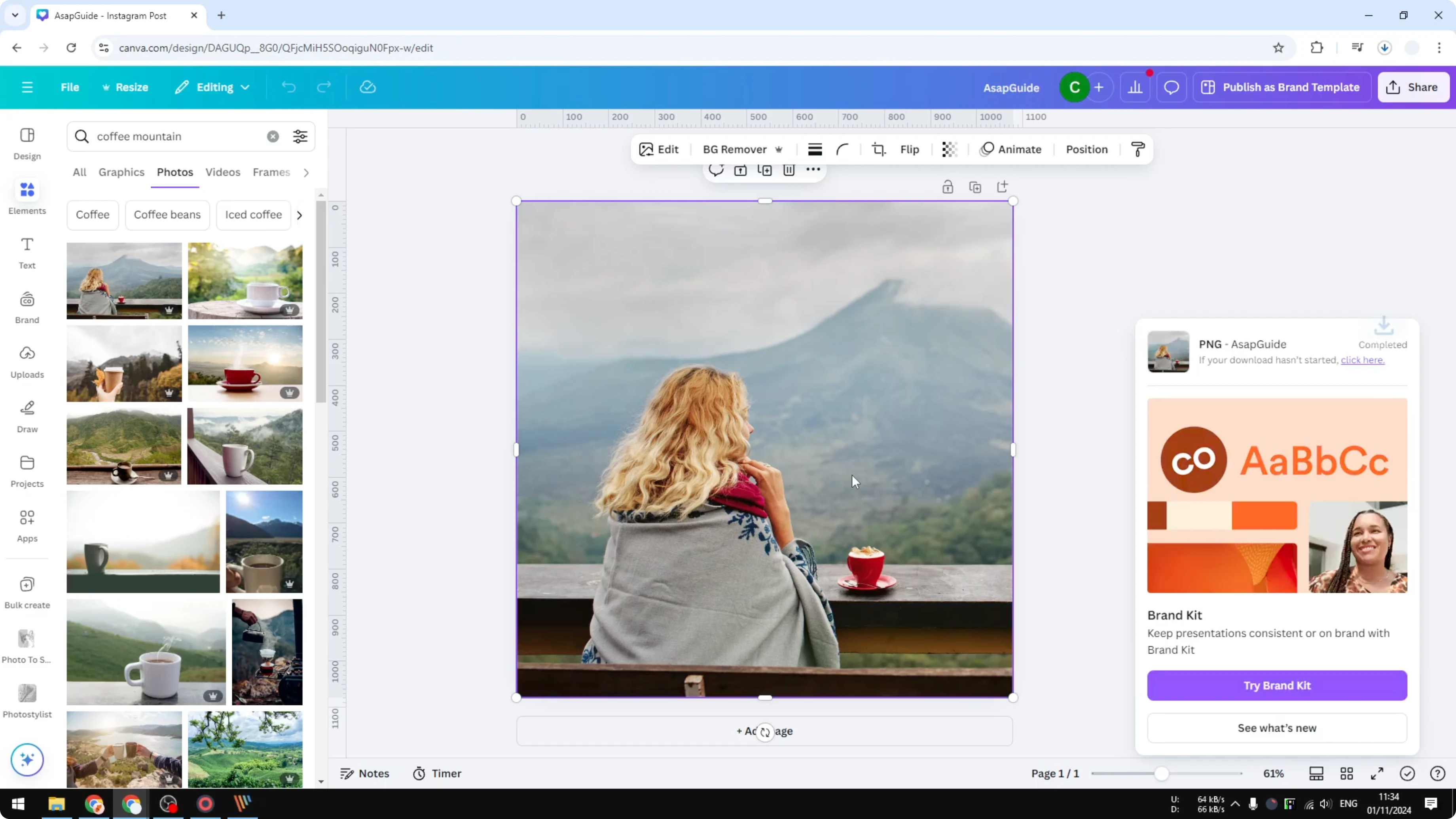
If you have been using Canva in the past year or so, you have probably noticed the new changes. We are no longer able to download a single object or single element design from the premium libraries like images, videos, or vector graphics. You cannot download that content directly to your computer as a single asset.
For example, a premium image shows a premium badge. When you click Share, then Download, you get an error that stops the export of just that single item. The message says: "There is only one image or graphic on your design. Premium images cannot be exported on their own. Please add more elements and then try again."
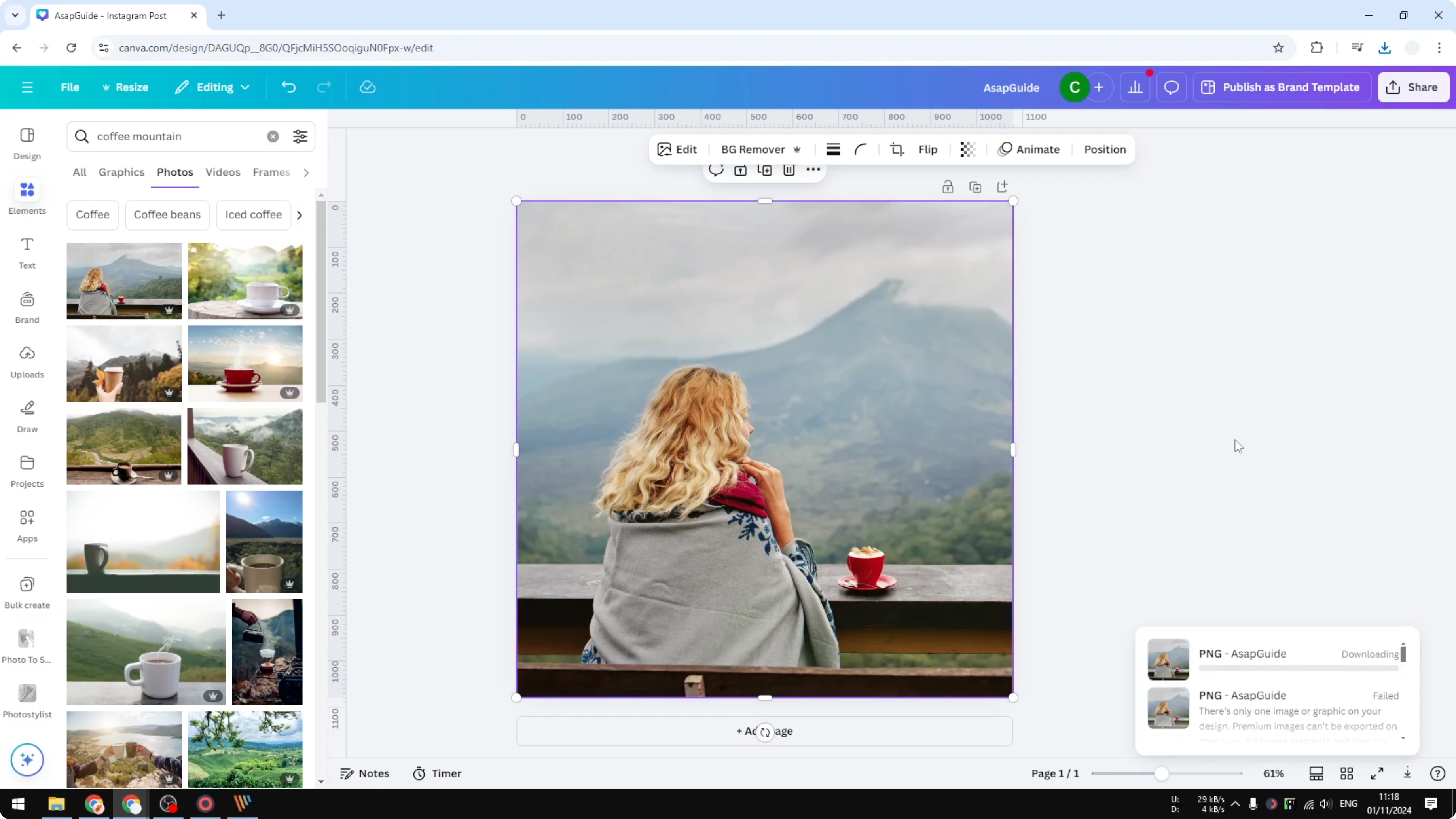
This prevents using Canva as a kind of stock library website, which I guess makes sense. Still, you might need that one premium image, video, or vector on your computer. Here is how to get around that message with two simple methods.
If you are working with video elements during this process and need cleanup, you can also remove text from a video in Canva.
Fix Canva Can't Download One Premium Image
You can get a single premium image by either duplicating the page or by adding a second, hidden element. Both approaches satisfy Canva’s rule that a design must contain more than one element. The export will then work normally.
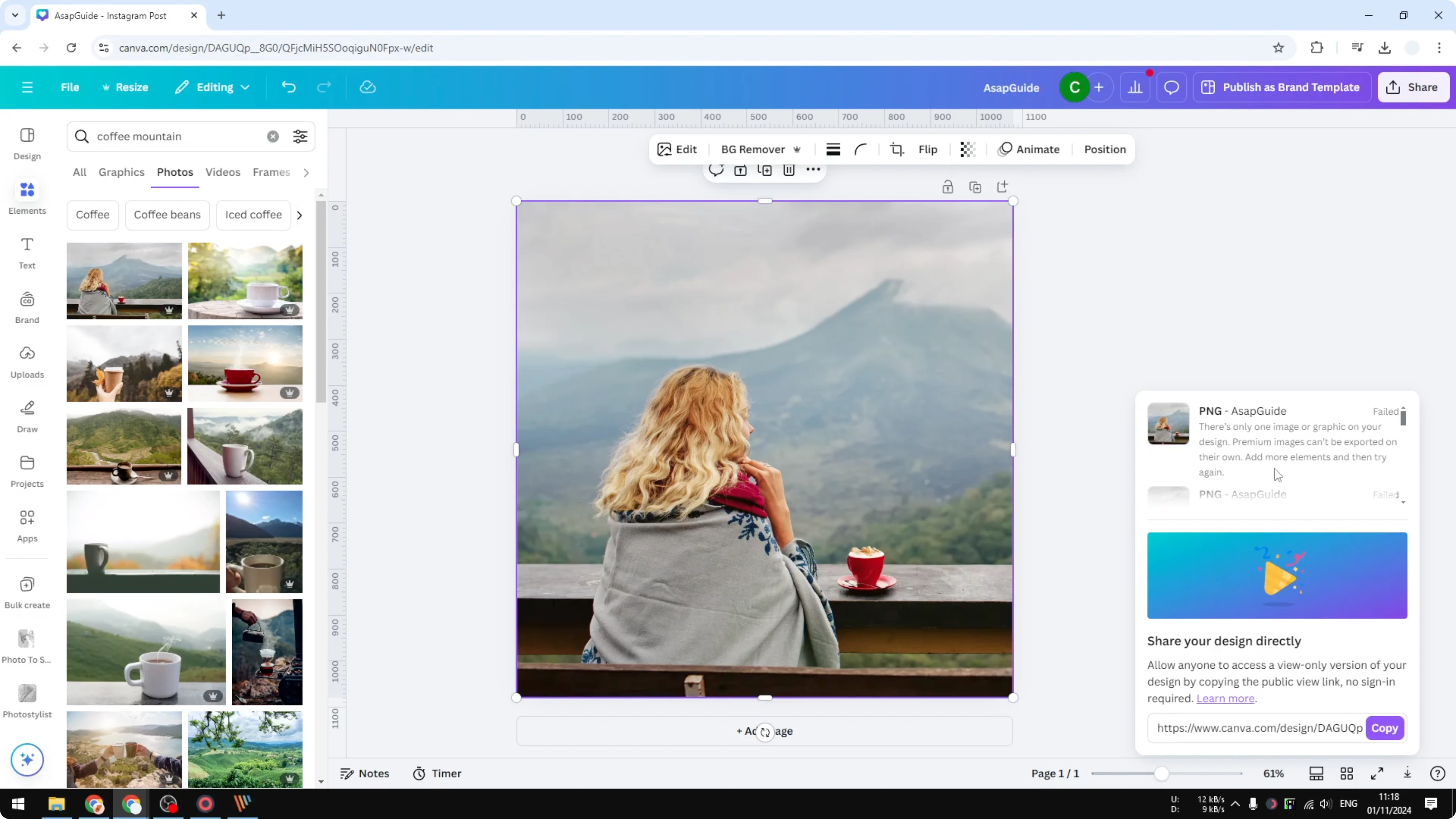
Duplicate the page
This first method is quick and reliable, because it keeps your design visually the same while adding another page.
Open the design that contains only one premium image, video, or vector.
Click Duplicate page to create a second page with the same content.
Click Share, then Download.
Choose only the duplicated page in the page selector.
Click Download to save the file.
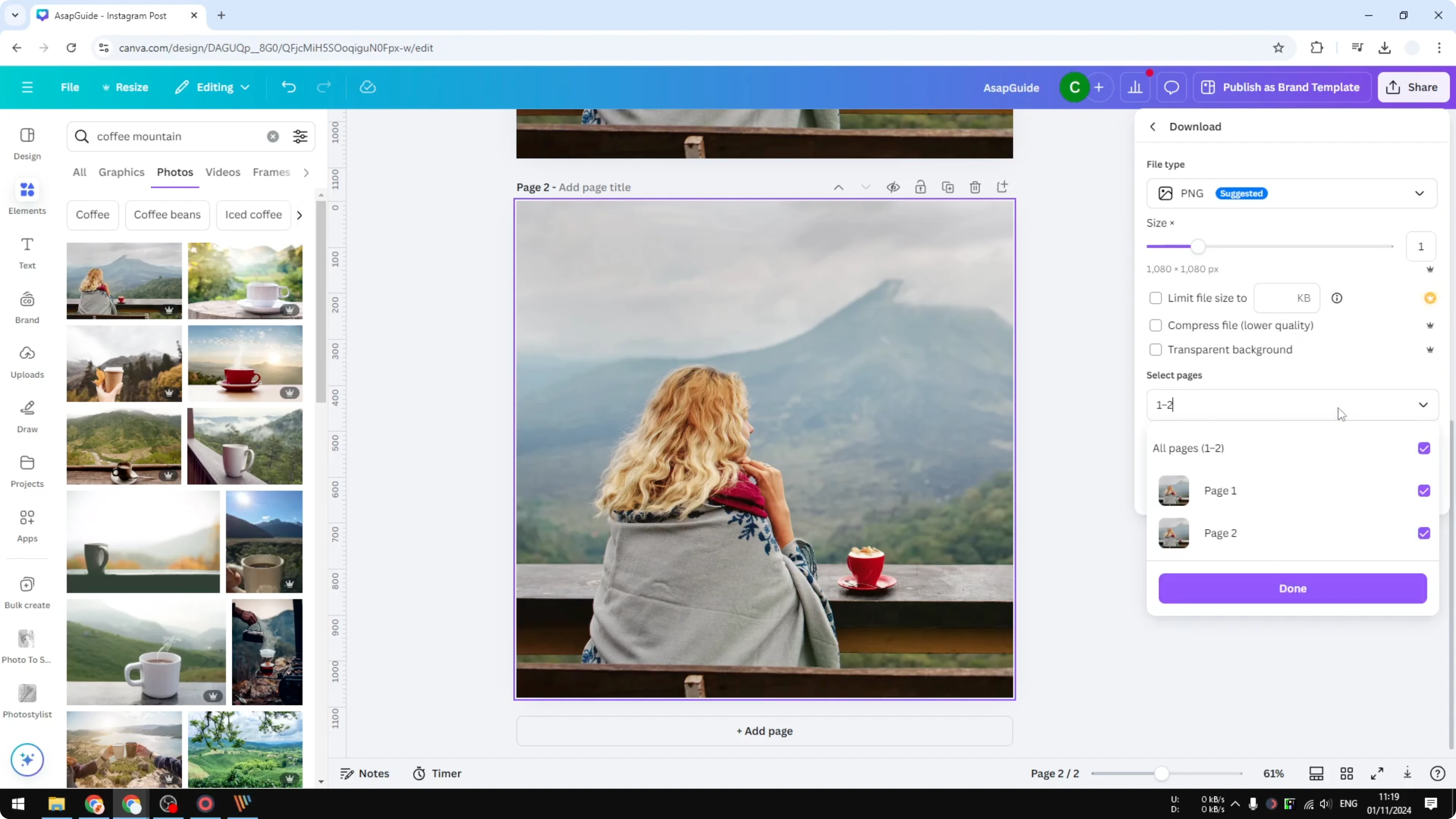
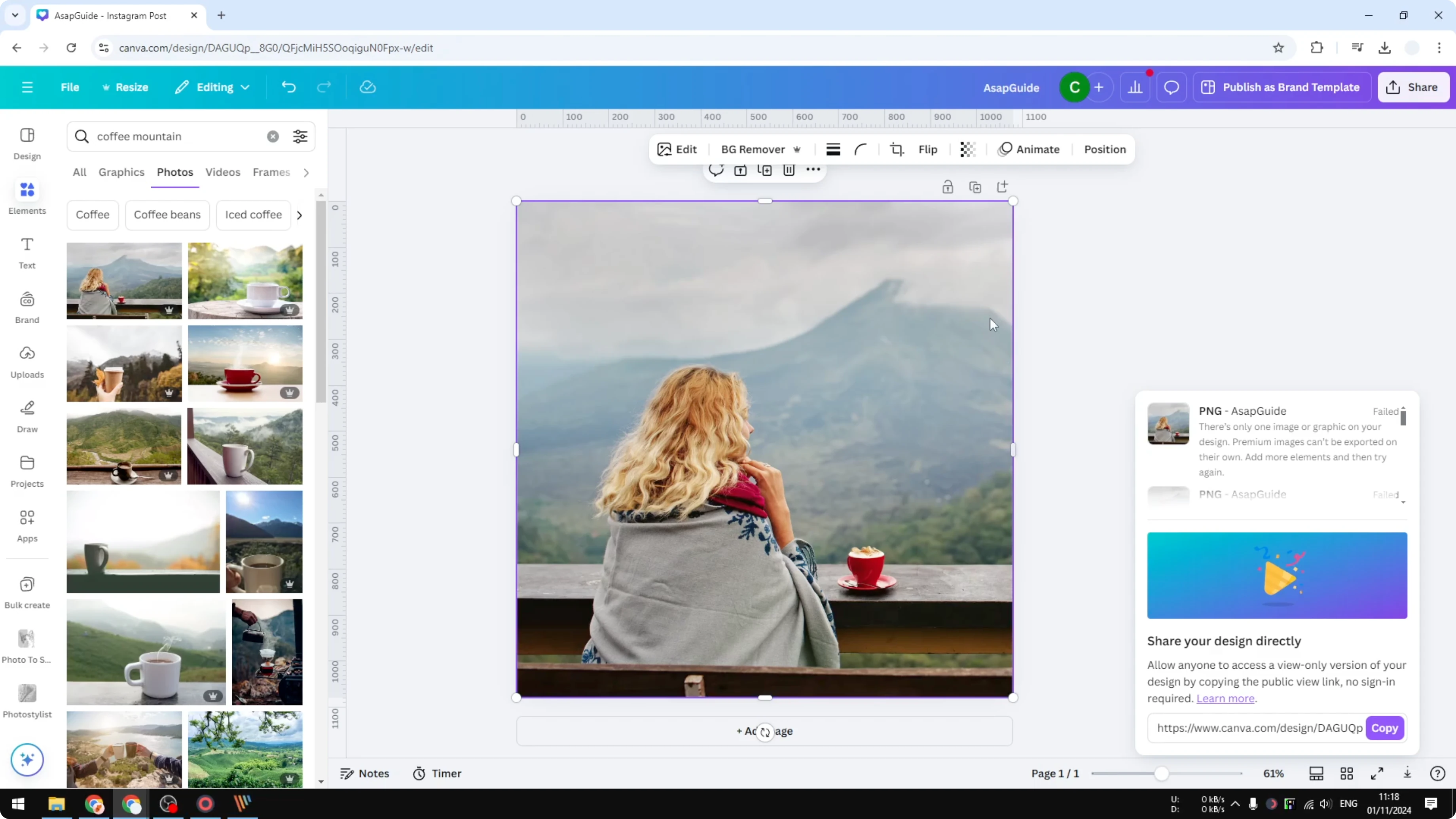
After doing this, you can actually download the picture. Duplicating the page makes the export possible without changing the look of your content. It is simple and effective.
Add a hidden element
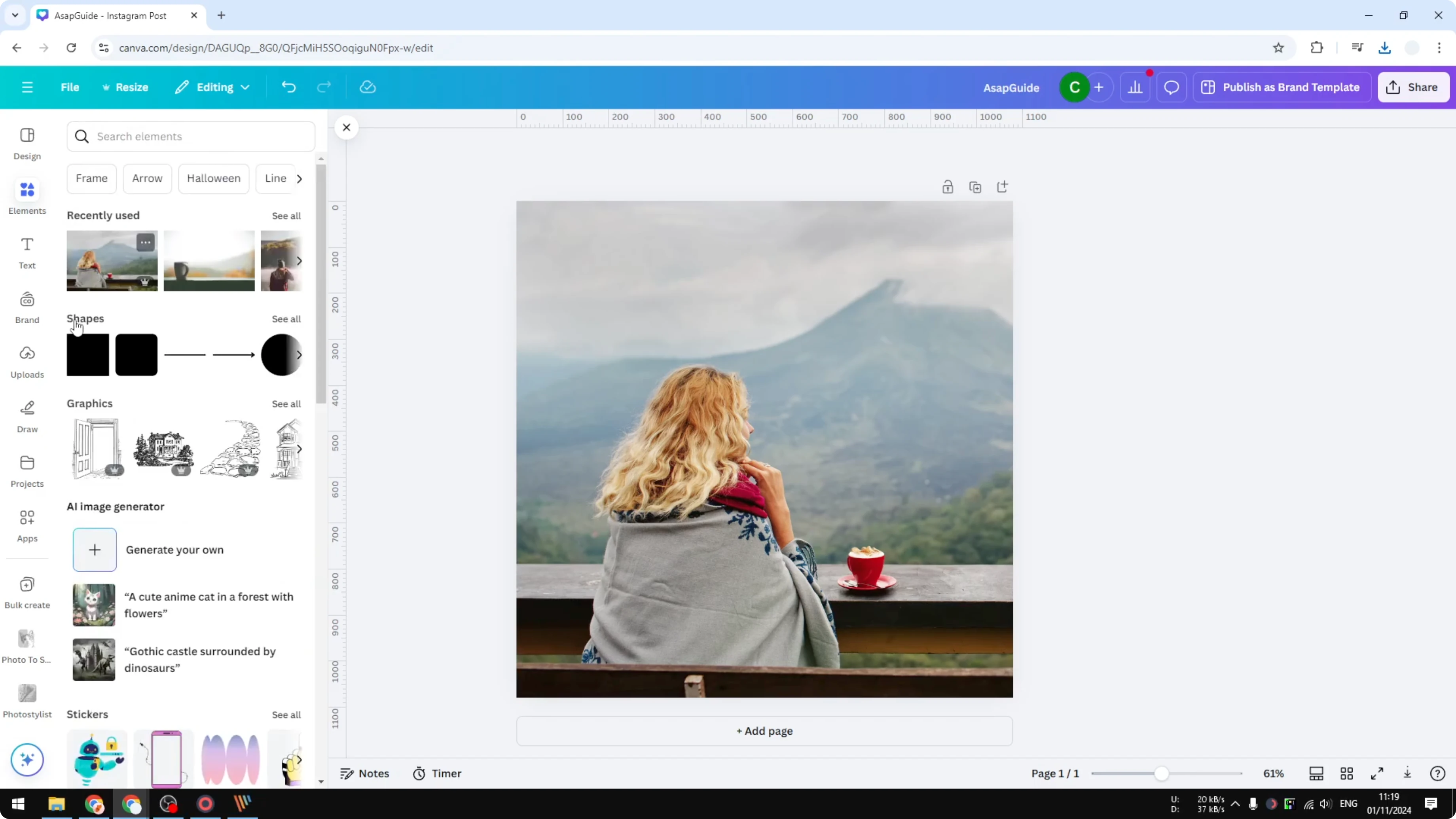
If you do not want an extra page in your file, add a second element on the same page and make it invisible.
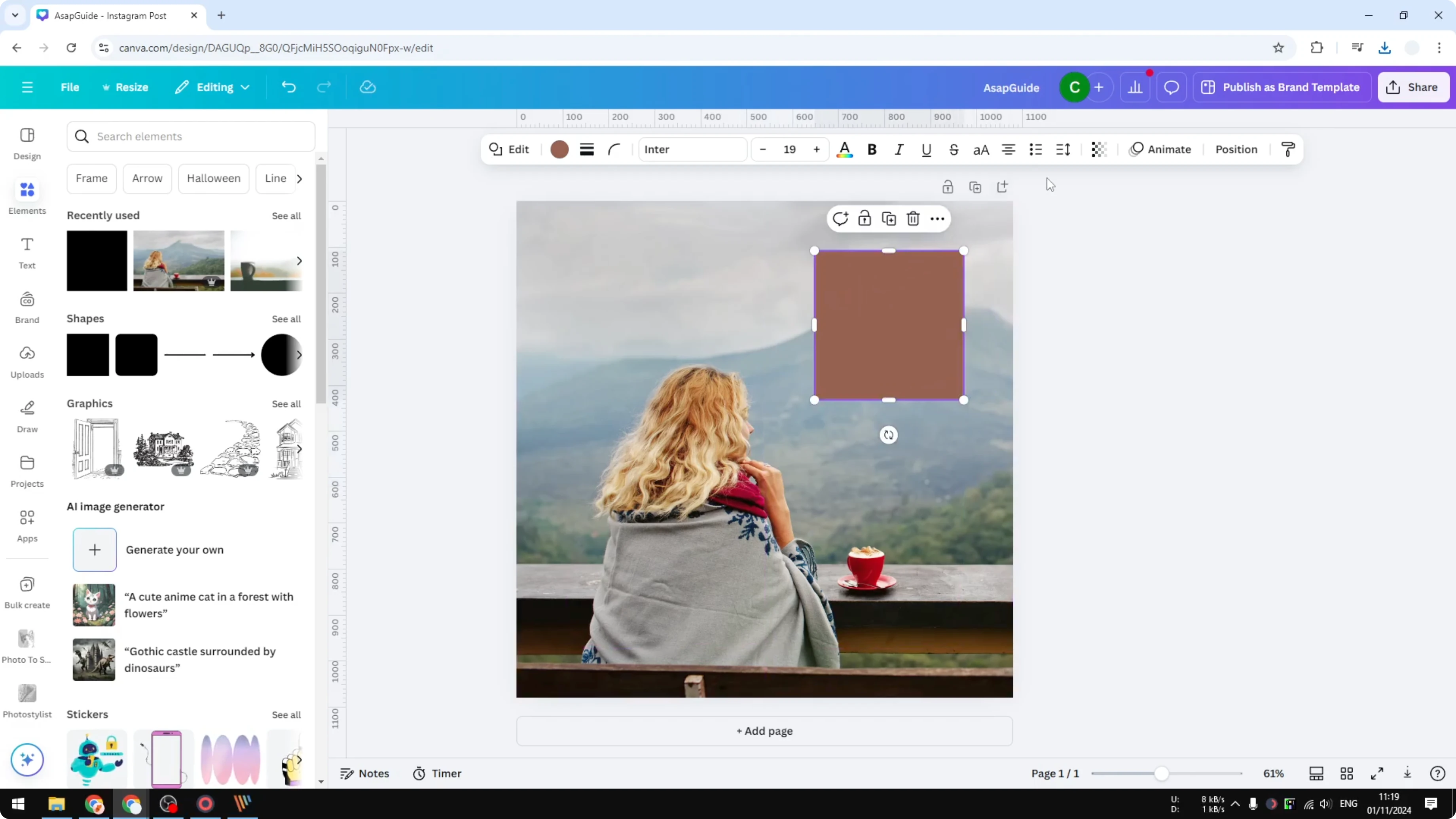
Insert any element, like a simple shape or even another image.
Select the new element and reduce its transparency to 0.
Leave it somewhere on the canvas so it still counts as part of the design.
Click Share, then Download, and export your file as usual.
The content is still there, but it is not visible. You are able to download the image normally because the design now has two elements. Even though it is essentially just one visible element, the other one is fully transparent and satisfies the export rule.
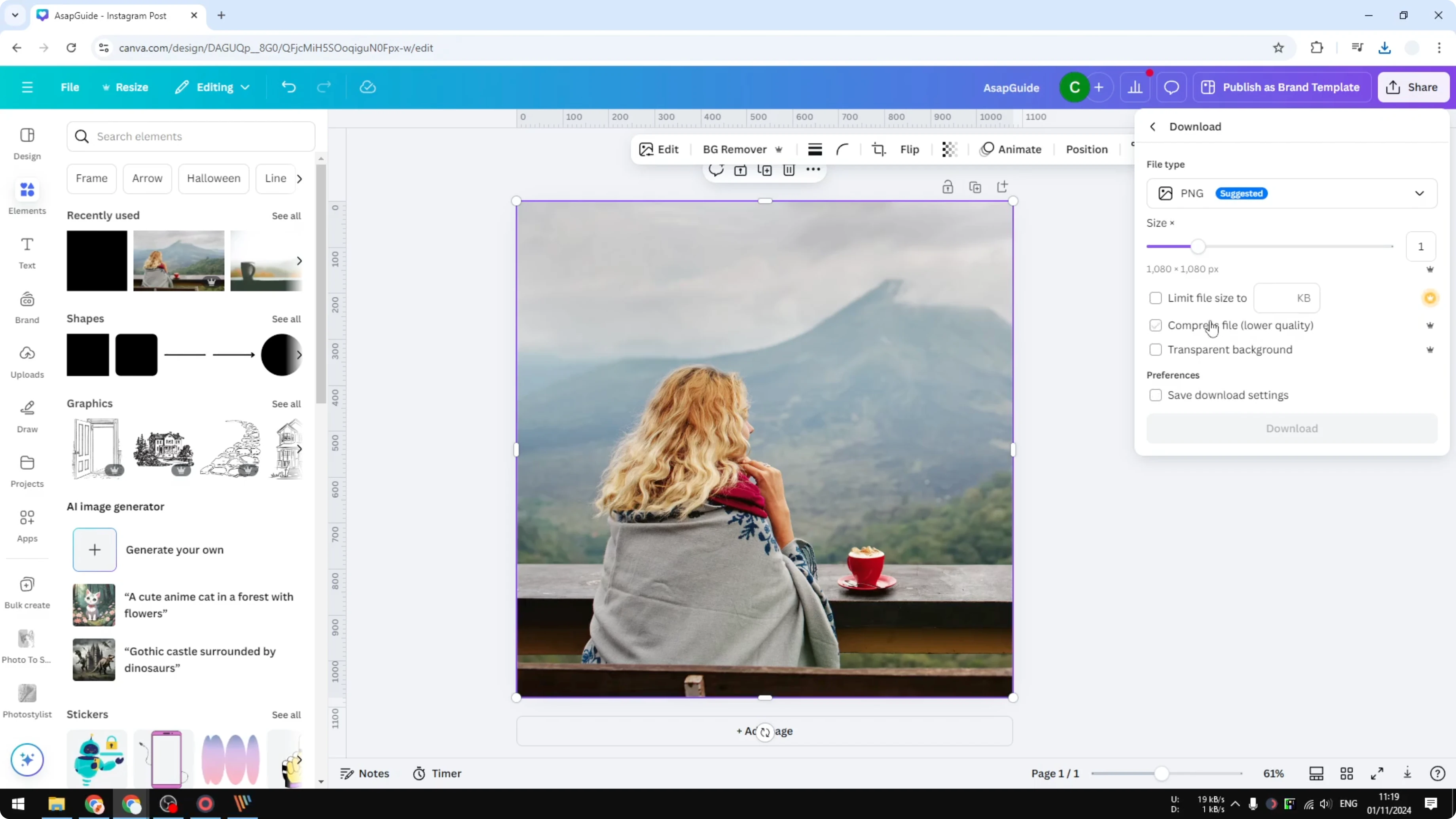
If you also need a transparent background on export, see how to download transparent images in Canva so your output matches exactly what you need.
Final Thoughts
Canva blocks exporting a single premium element on its own, but you can fix it easily by duplicating the page or by adding a hidden element with 0 transparency. Both methods keep your design intact while meeting the multi-element requirement. If your exported image looks a bit dark, you can quickly brighten an image in Canva before downloading.
Recent Posts

How to Visualize Yourself as a Pixelized Character with AI?
How to Visualize Yourself as a Pixelized Character with AI?

How to Revive Faded Memories and Enhance Image Clarity with AI?
How to Revive Faded Memories and Enhance Image Clarity with AI?

How to Visualize Yourself as an Animal Crossing Character with AI?
How to Visualize Yourself as an Animal Crossing Character with AI?