How to Fix Can't Move Anything in Canva

I’m going to show you how to fix the problem in Canva where you cannot move an element on your design. There are several possible reasons, and you can check them one by one. Try these fixes in order.
Locked elements - Fix Can't Move Anything in Canva
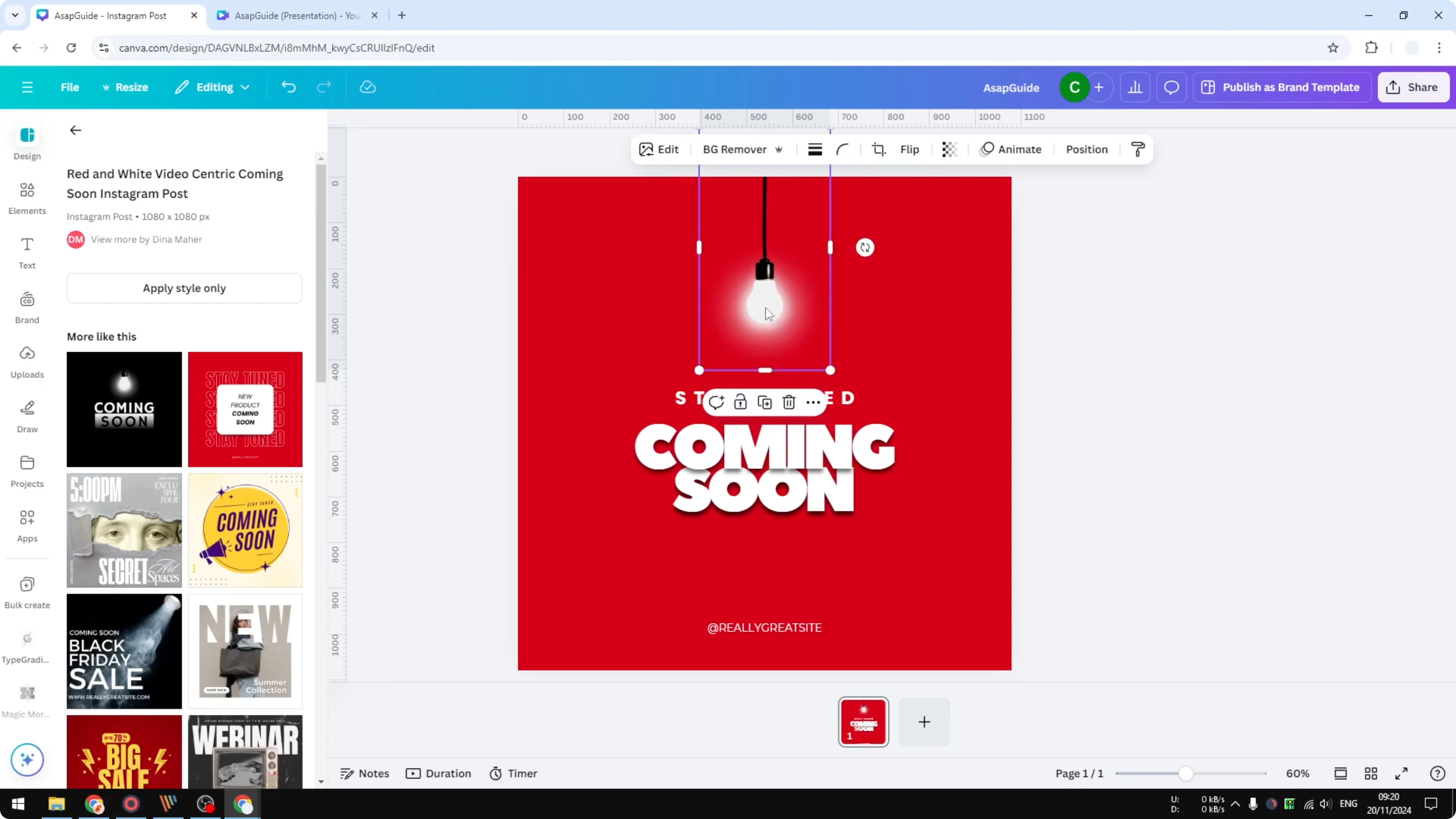
If an element is locked, you cannot move it or replace it with a different element. Look for the padlock icon on the toolbar or near the element, which indicates it is locked. Click the padlock to unlock the element, then you should be able to move it around.
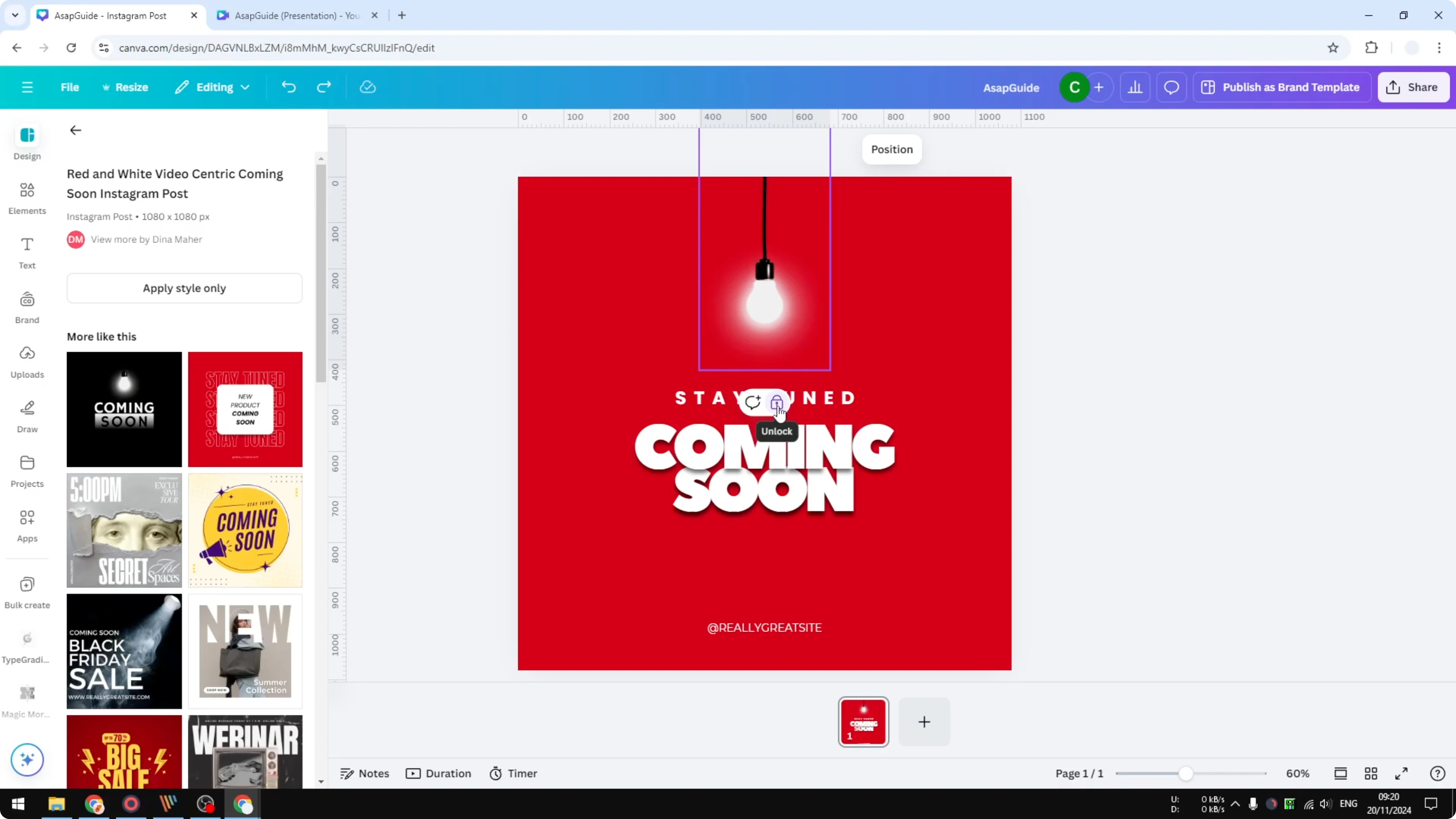
Select the element.
Click the padlock icon to unlock it.
Move the element to where you want it.
Grouped elements - Fix Can't Move Anything in Canva
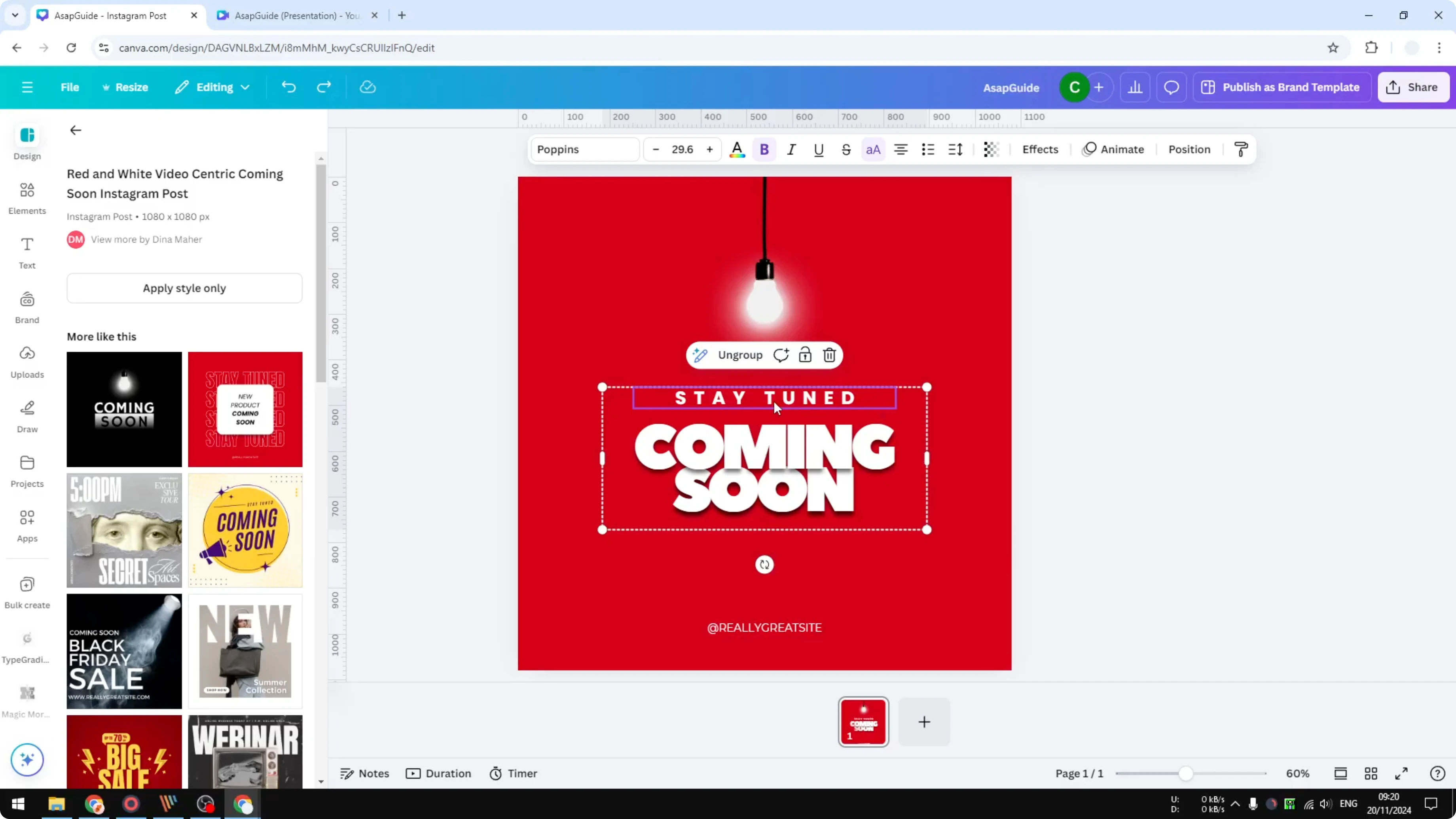
Your element might be grouped with other elements. If you try to move one item, like a text box that says “stay tuned,” it will move with the rest of the group. To separate it, click the element, click Ungroup, and then move the specific element on its own.
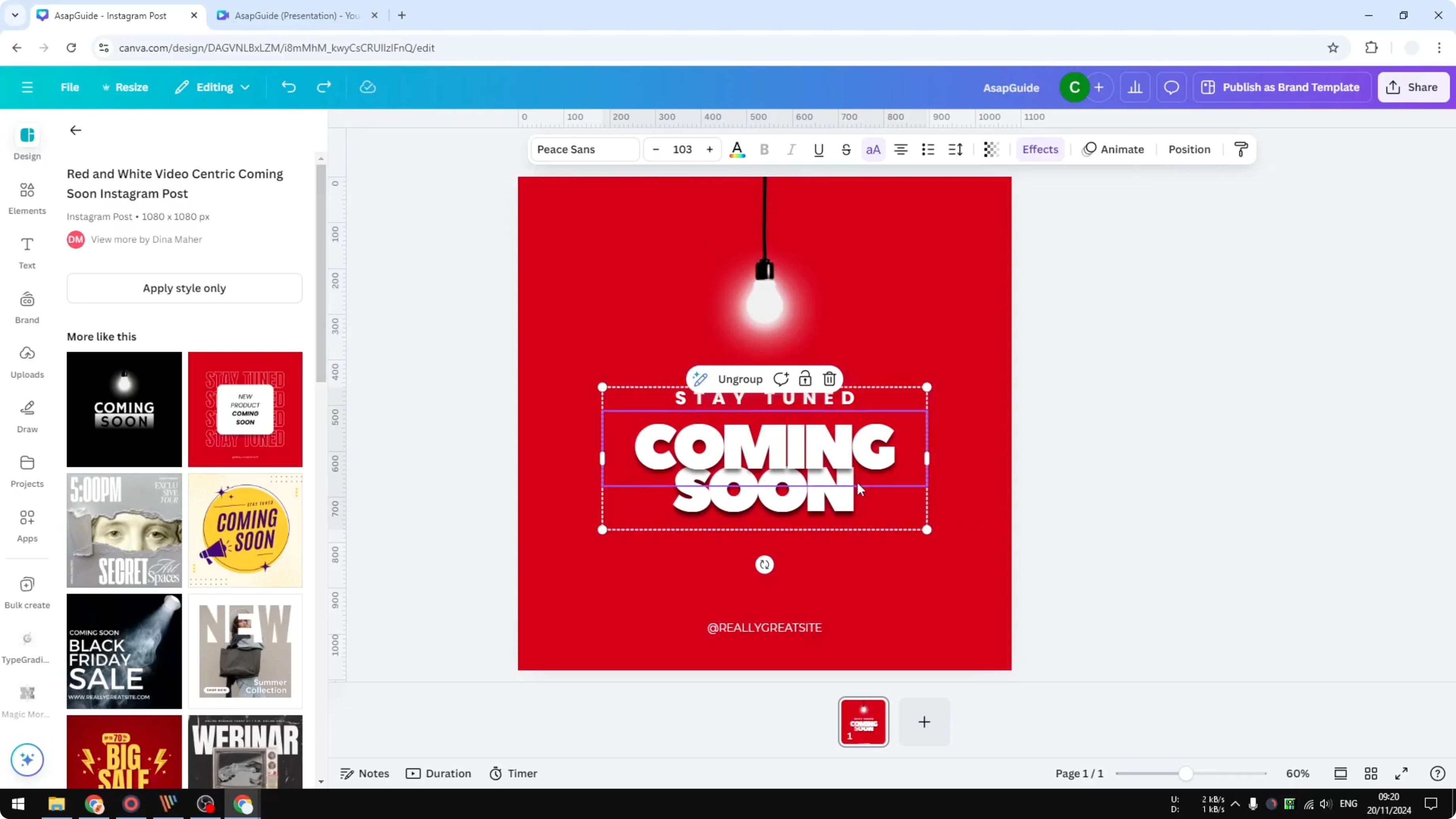
Click the grouped element.
Click Ungroup.
Move the element you need without affecting the others.
If you are editing videos in Canva and need to deal with text over your footage, see how to remove text from a video in Canva.
No edit permission - Fix Can't Move Anything in Canva
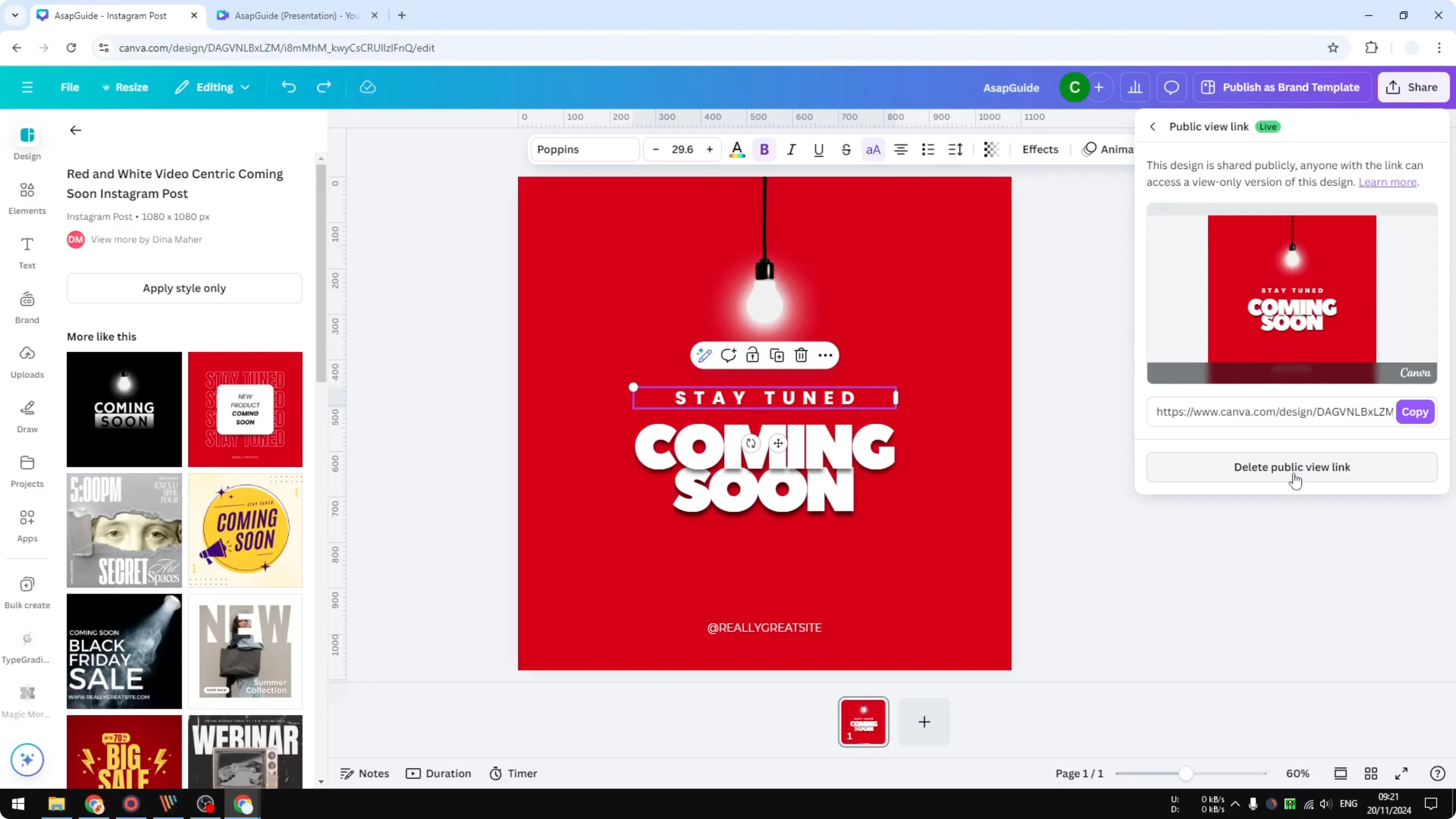
You might not have the access or permission to modify the design. This is very common if you opened the document from a shared link and the owner did not grant edit rights. Even if you are logged into your Canva account, you will not be able to do anything until the owner updates your access.
Ask the original owner to grant you edit access.
Open the link again after access is granted and continue editing.
To speed up your workflow once you regain access, learn how to use Canva’s AI to design for you.
Connection issue - Fix Can't Move Anything in Canva
An unstable internet connection can cause Canva to disconnect and restrict editing. You may see a small disconnected icon at the top of the editor. Even if Wi-Fi shows as connected, Canva can still block edits until the connection stabilizes.
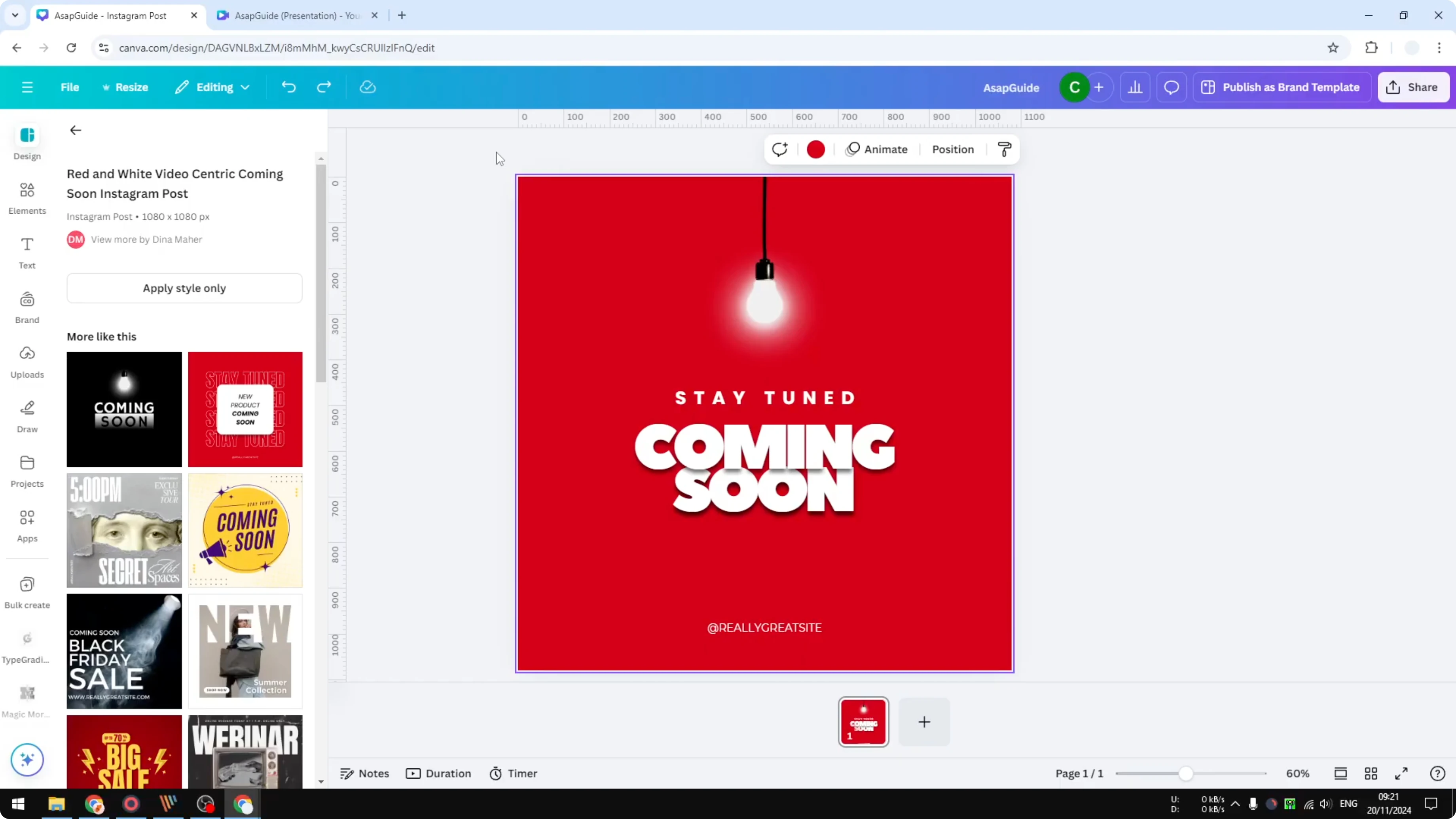
Check your internet connection and ensure it is stable.
Reconnect to a reliable network.
Wait for Canva to reconnect, then try moving the element again.
Browser glitch - Fix Can't Move Anything in Canva
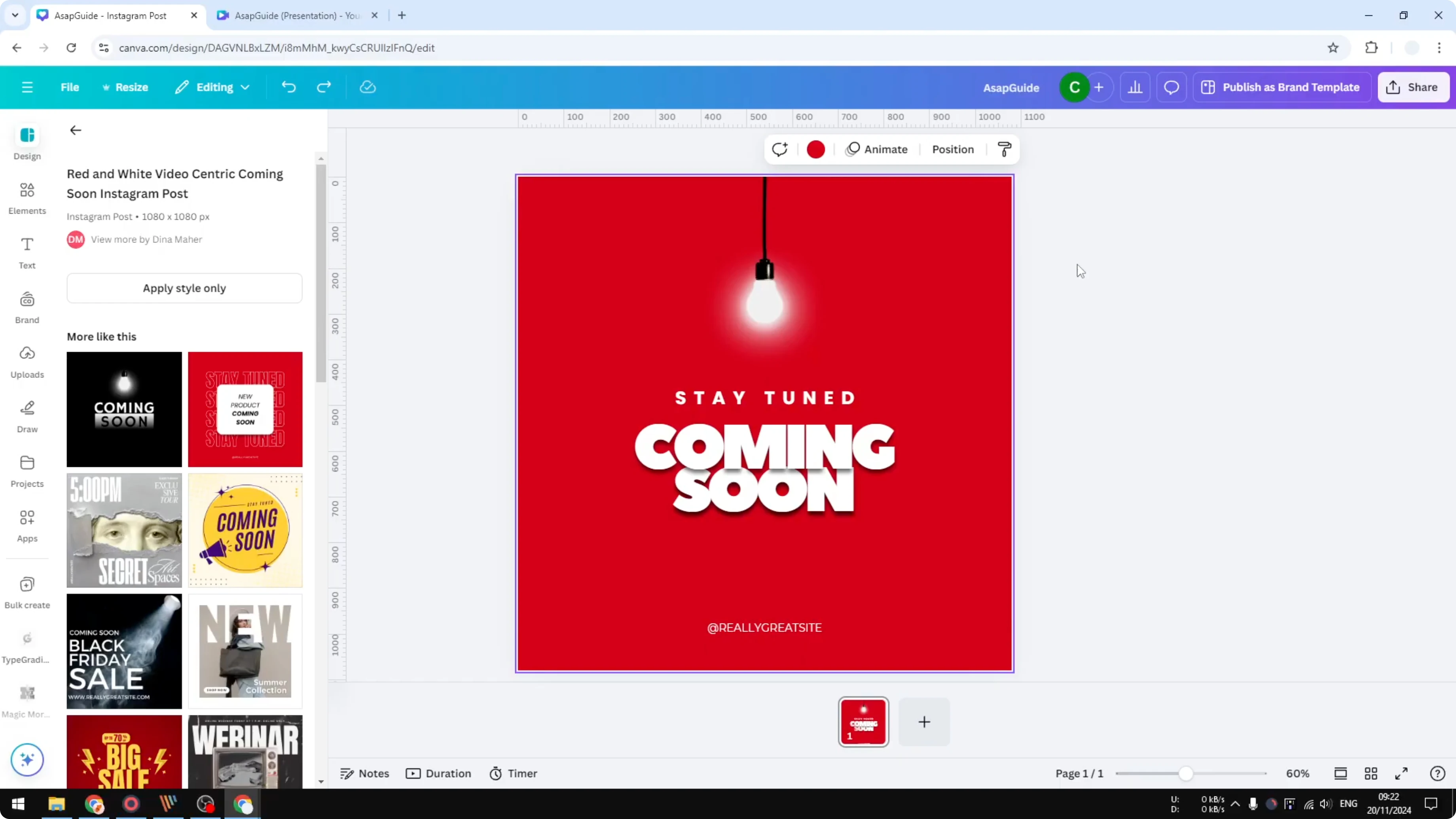
Sometimes the issue is a temporary glitch in the browser. This is rare, but it does happen. Refreshing the page or switching browsers usually fixes it.
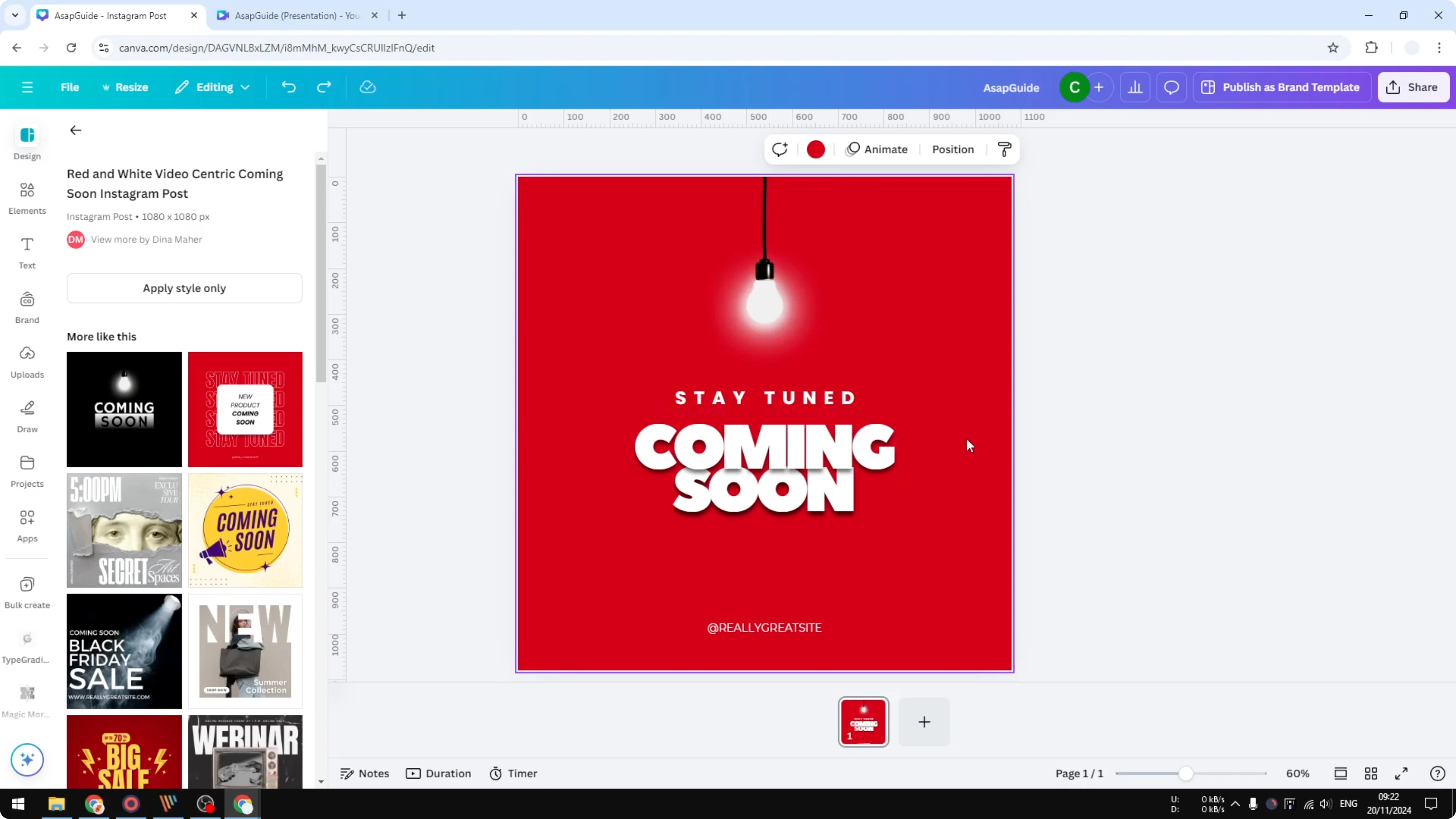
Refresh the page and test again.
Try a different browser.
Start a new session if the problem persists.
If you are building product visuals at the same time, you can also create a 3D book cover in Canva to elevate your presentation.
Final thoughts - Fix Can't Move Anything in Canva
Locked elements and grouped layers are the most common reasons you cannot move anything in Canva. If permissions, connection, or a quick browser refresh do not resolve it, switching browsers or sessions usually does. Follow these checks, and you should be able to work on your design again.
Recent Posts

How to Visualize Yourself as a Pixelized Character with AI?
How to Visualize Yourself as a Pixelized Character with AI?

How to Revive Faded Memories and Enhance Image Clarity with AI?
How to Revive Faded Memories and Enhance Image Clarity with AI?

How to Visualize Yourself as an Animal Crossing Character with AI?
How to Visualize Yourself as an Animal Crossing Character with AI?