How to Fix If Can't Italicize Text in Canva
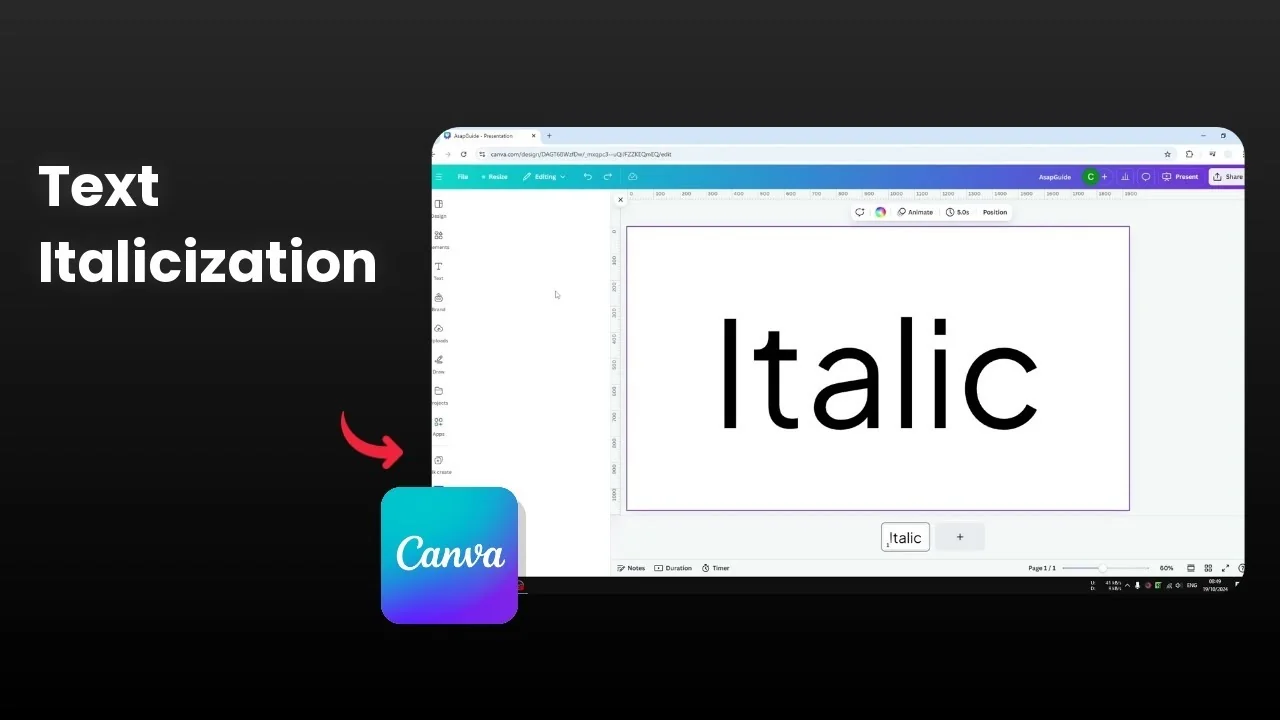
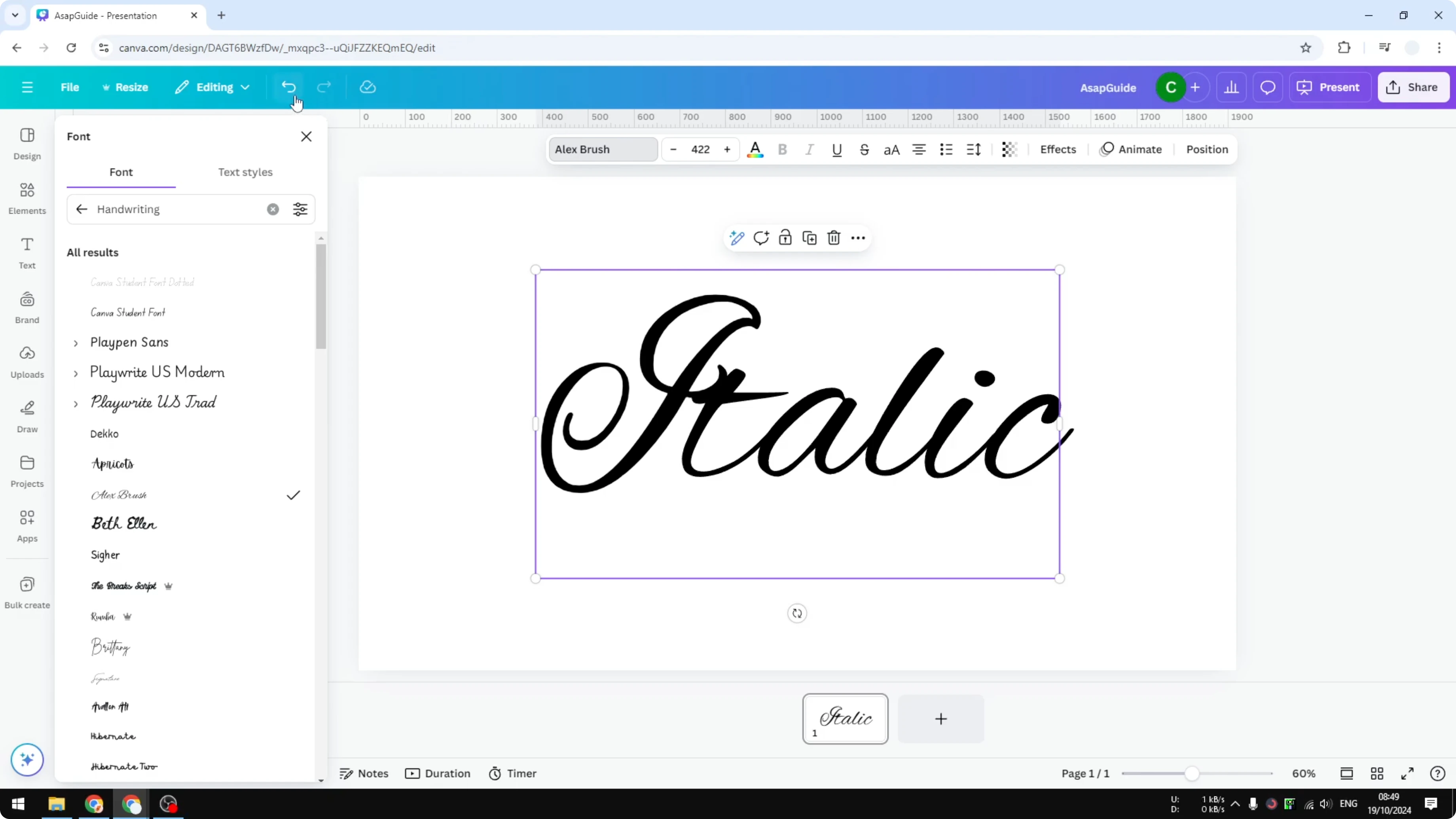
I will show you how to fix it if text in Canva cannot be italicized. I have text that shows Italic in the toolbar, but clicking it does nothing. The option is simply not available.
The reason is the font. Plus Jakarta Sans does not have an italic version. Some fonts even do not have bold.
Fix If Can't Italicize Text in Canva
That is beyond our control. You cannot make a font suddenly support italic. Canva will not generate a missing style for a font.
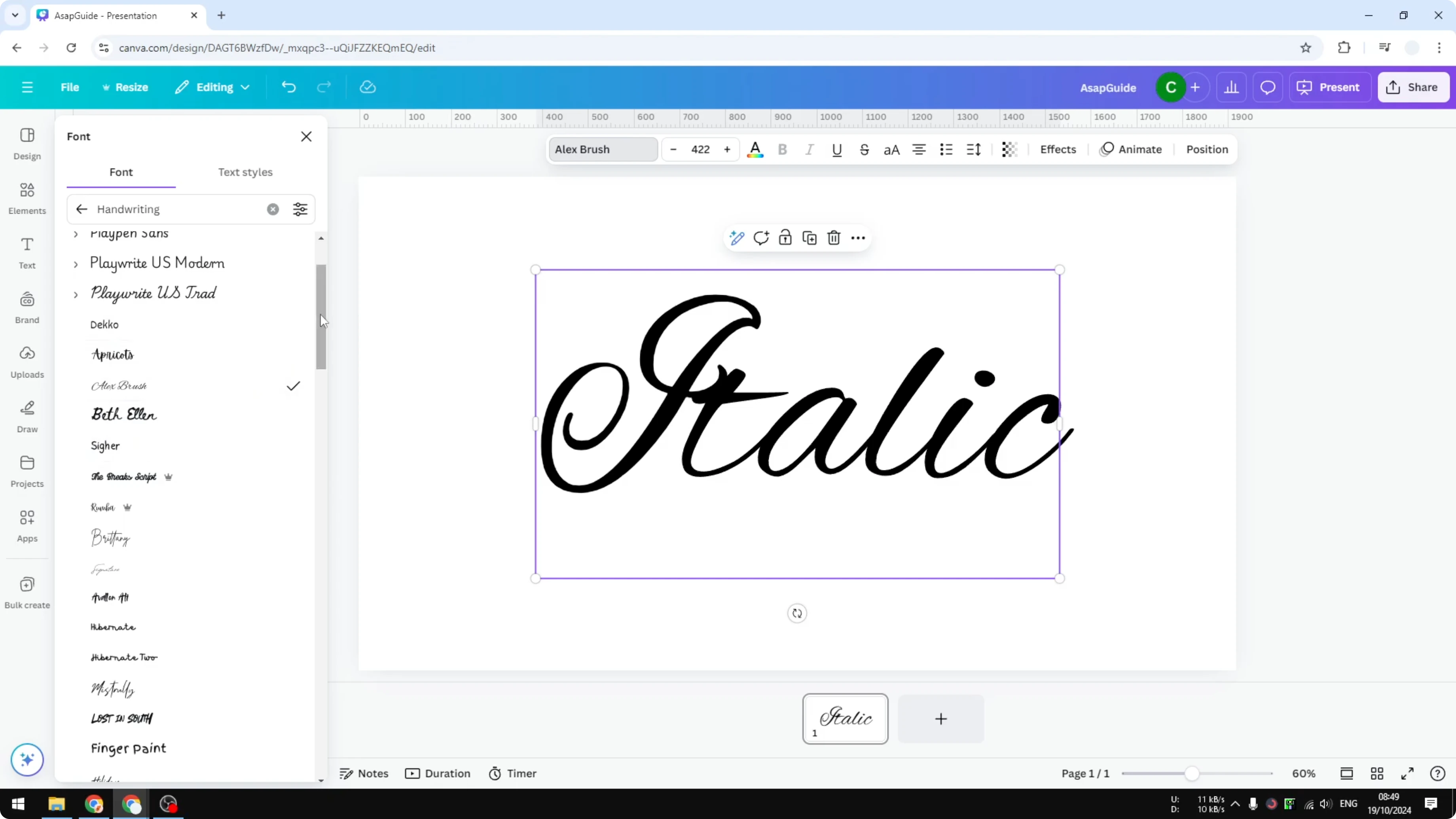
One way to fix the problem is to switch to a similar font that offers italic. Go to alternative fonts and search for something that looks similar and supports italic. That takes time because you have to manually search.
If you are working on motion graphics and need related editing tips, see how to remove text from a Canva video.
Quick workaround with Typecraft
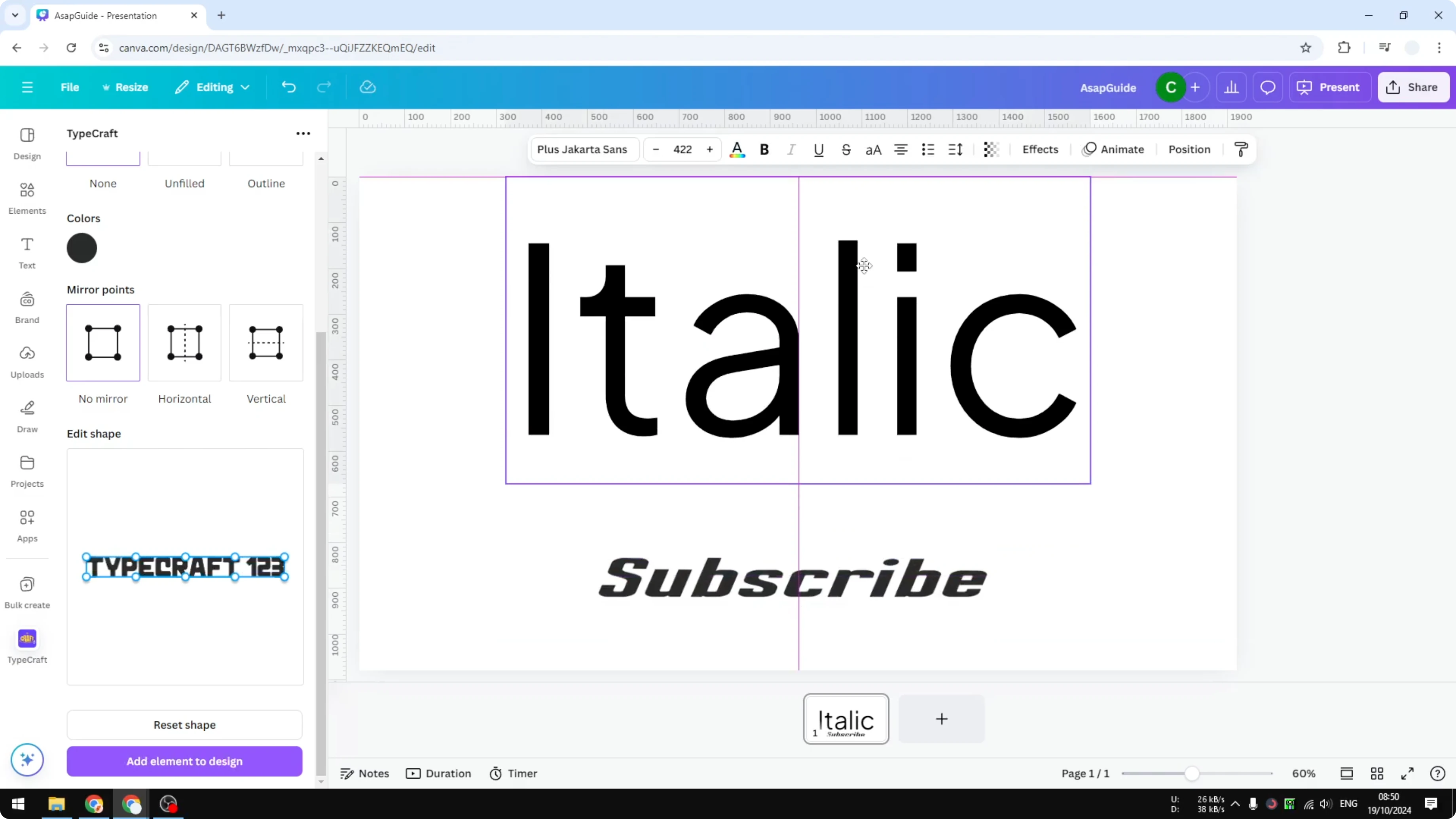
Personally that is not my favorite technique. Instead, I will turn any text into an italic look. I will use the Typecraft app inside Canva.
Steps
Go to Apps in Canva and search for Typecraft.
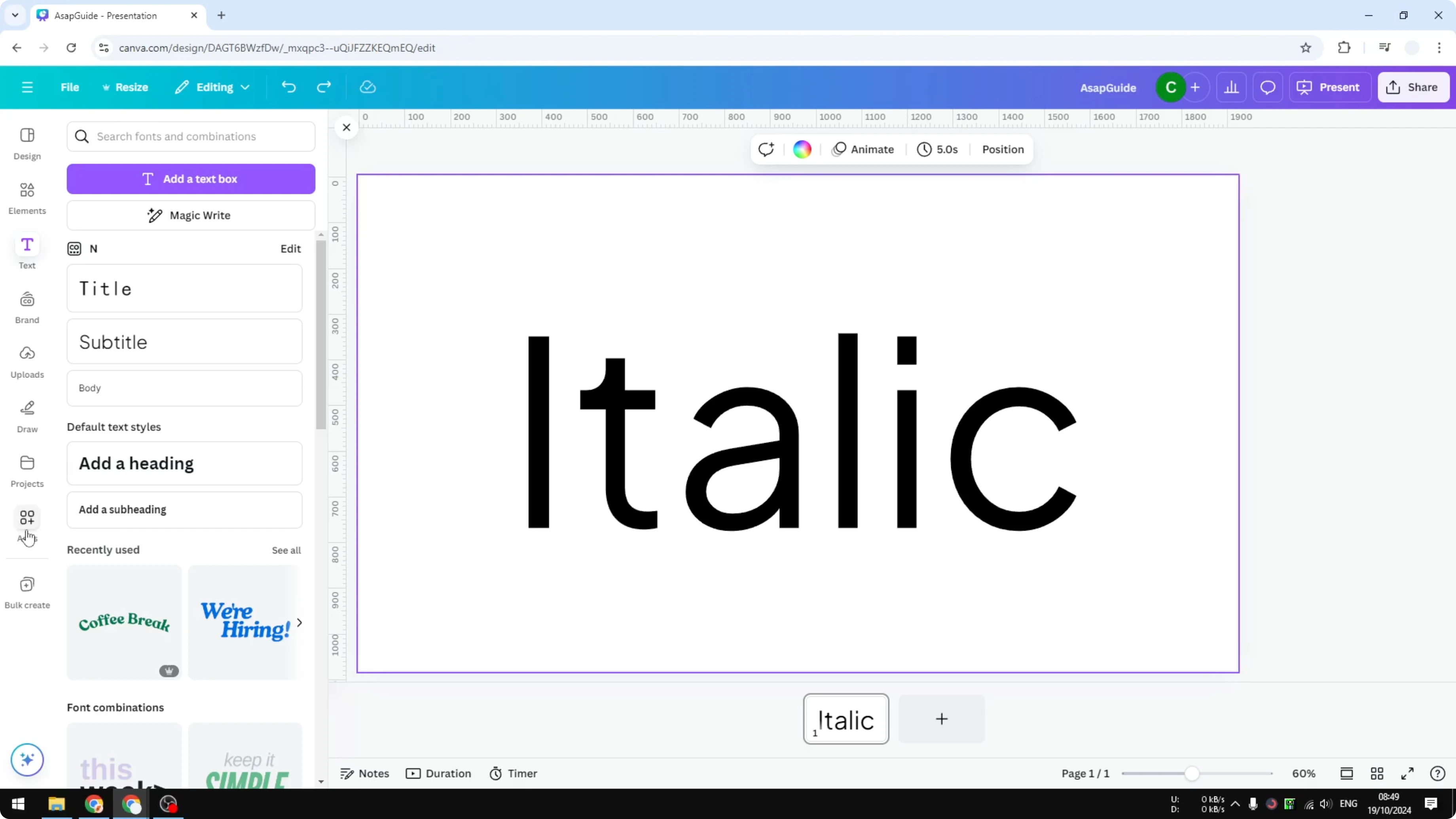
Open Typecraft.
Enter your text.
Pick your font.
Leave Style to default and set the color as needed.
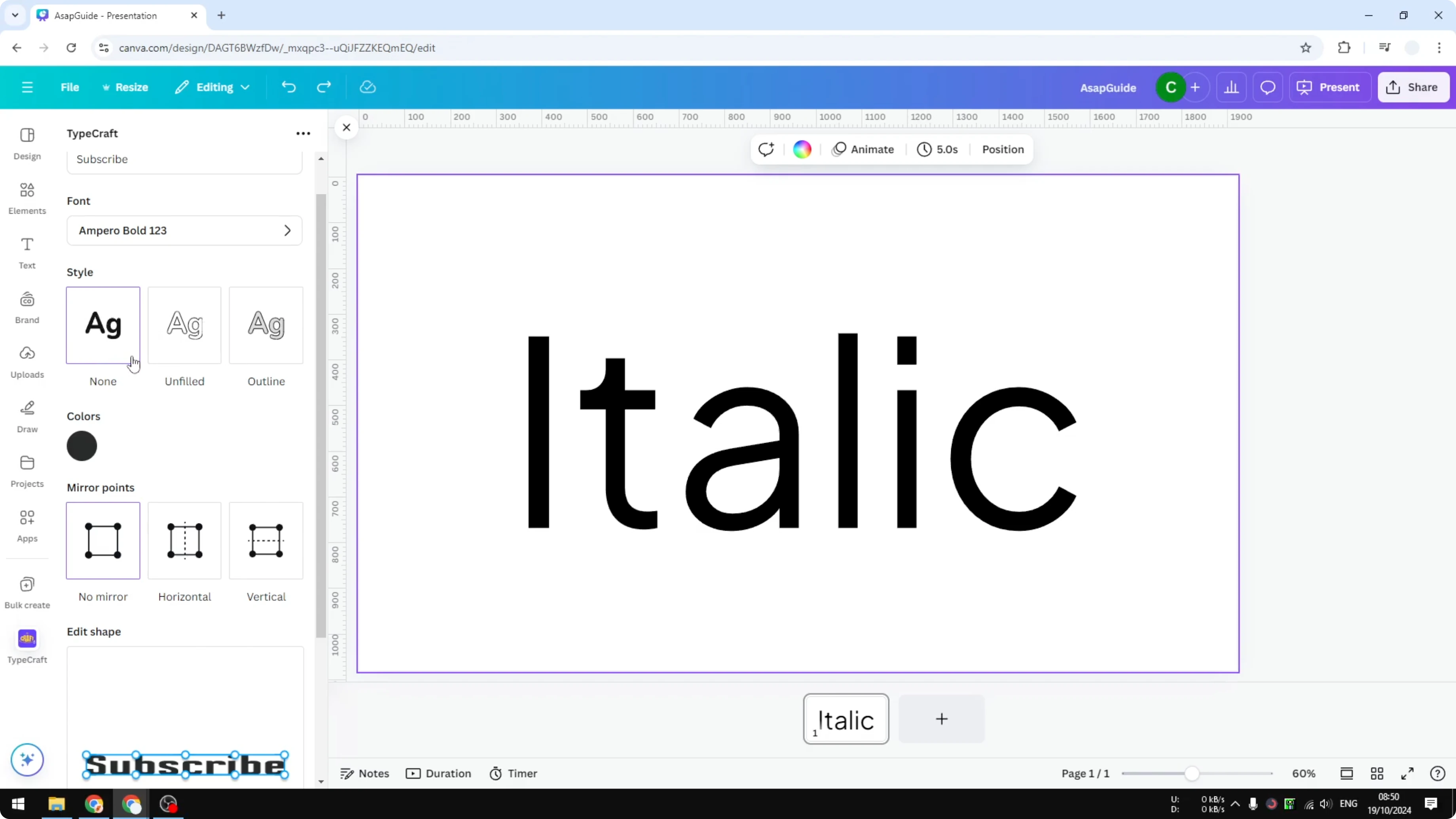
Turn Mirror off.
Click the control point on the right side and drag it to the right until the text leans.
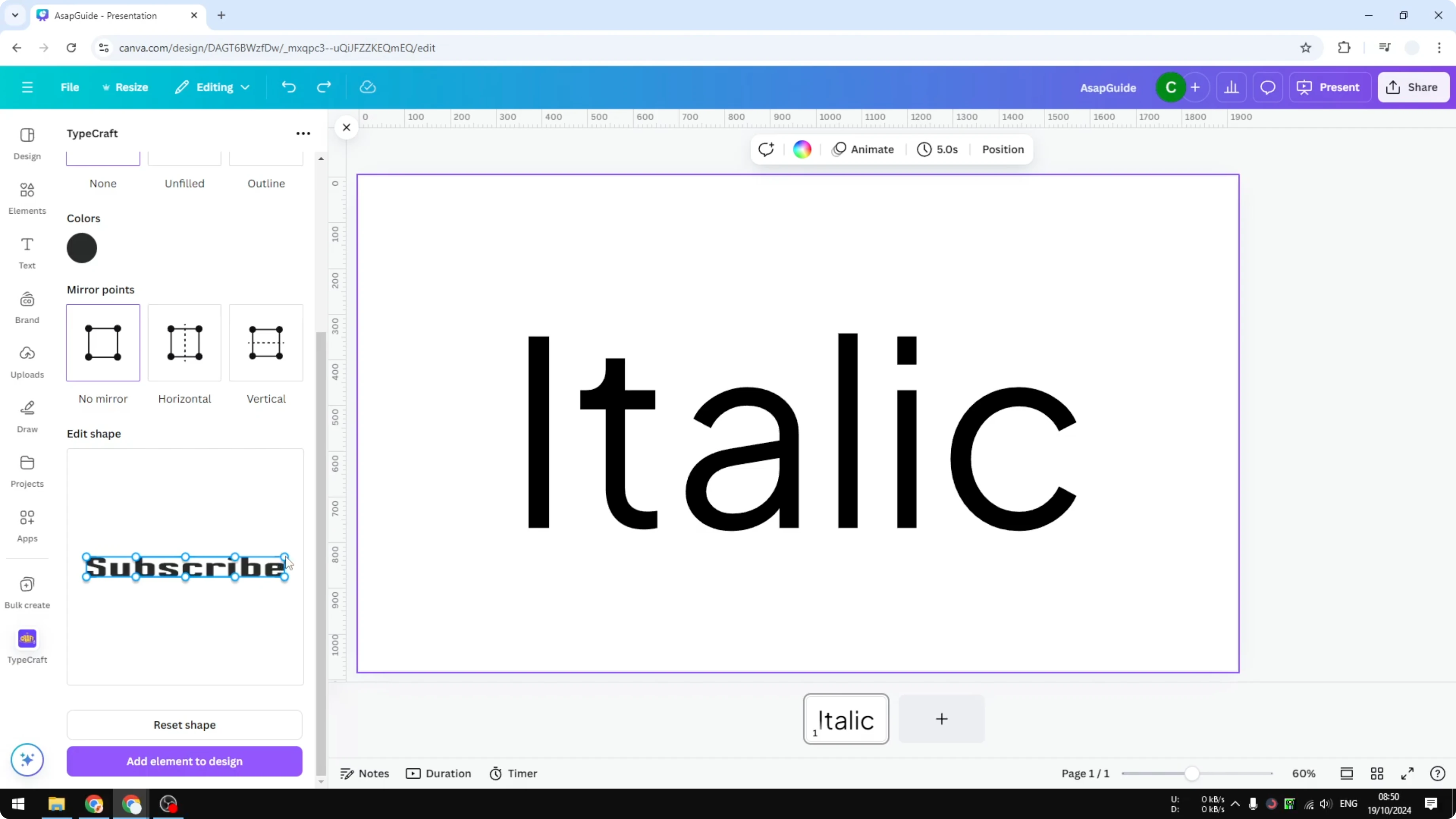
Keep the baseline straight while it leans.
Do the same on the left side so the angle matches.
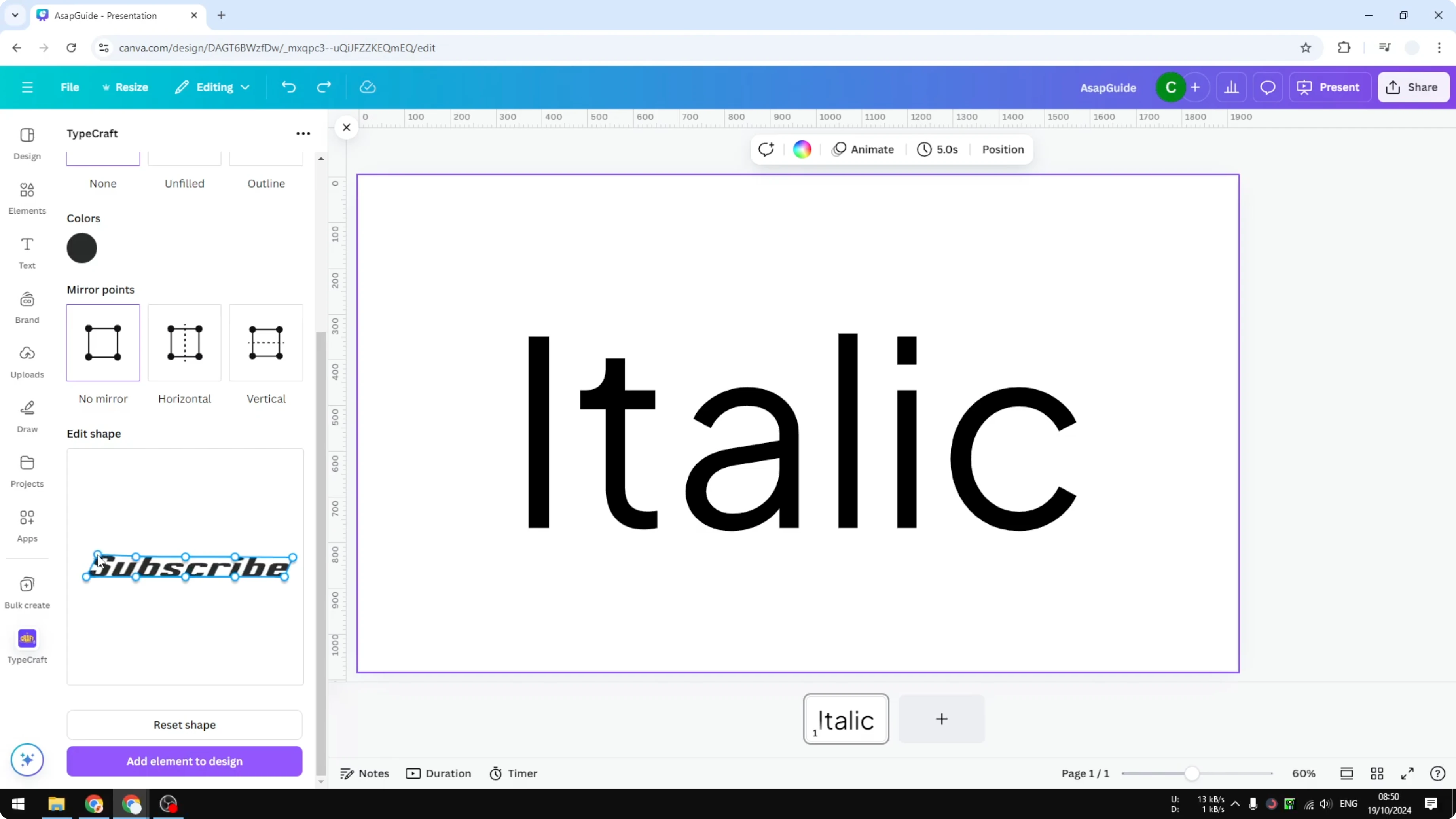
Click Add element to design.
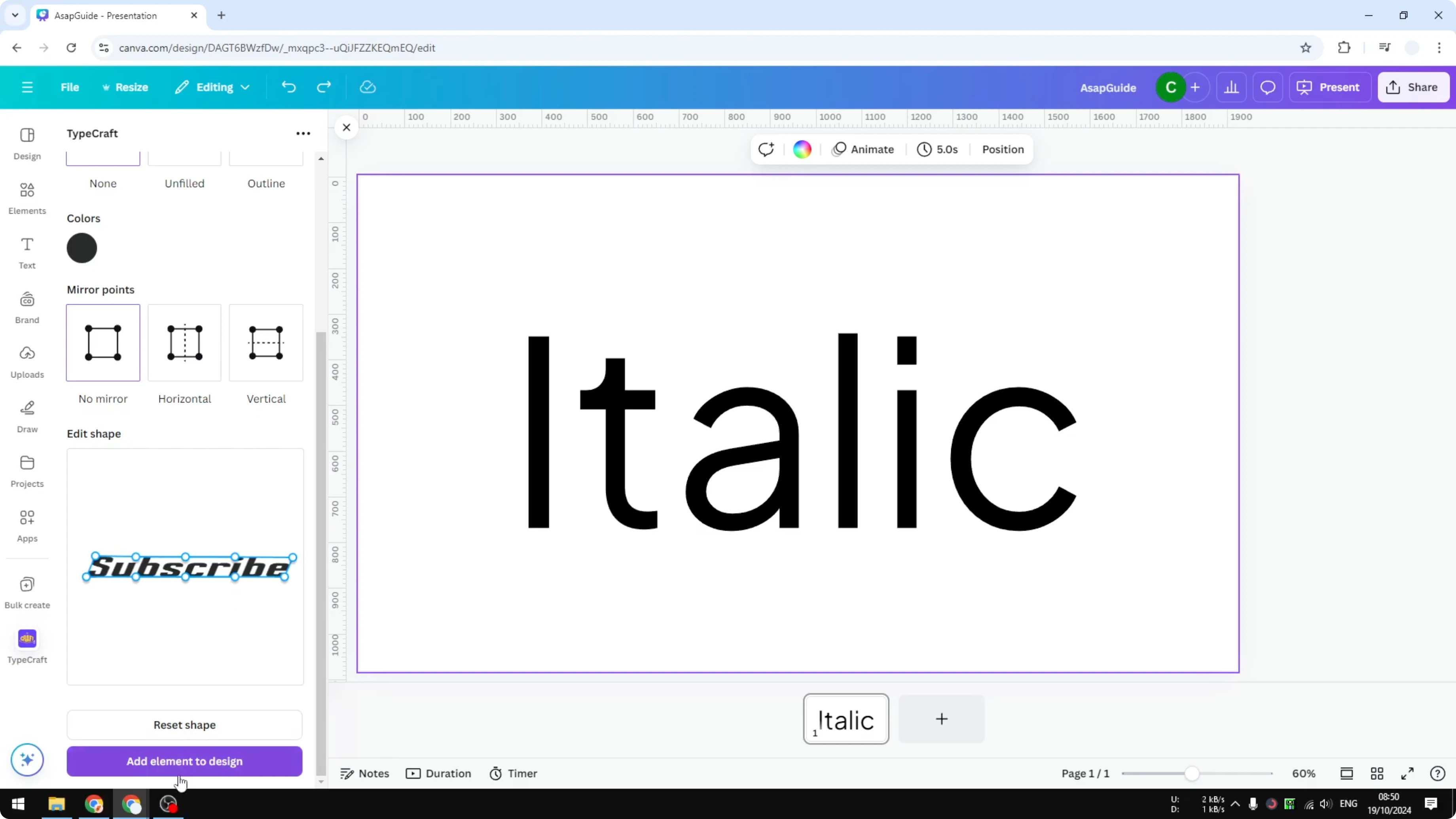
Result
You will see the text is now italic. We did not use any italic mode for the font. We only changed the skew for this text.
If you also want better accessibility on your designs, you can add alt text to pictures in Canva.
For more styling on headlines, you can add background text in Canva to create contrast.
Final thoughts
If Italic is unavailable, the font most likely lacks that style. You can switch to a similar font that supports italic or fake the slant with Typecraft by adjusting the skew. This gives you an italic look without changing your chosen font.
Recent Posts

How to Visualize Yourself as a Pixelized Character with AI?
How to Visualize Yourself as a Pixelized Character with AI?

How to Revive Faded Memories and Enhance Image Clarity with AI?
How to Revive Faded Memories and Enhance Image Clarity with AI?

How to Visualize Yourself as an Animal Crossing Character with AI?
How to Visualize Yourself as an Animal Crossing Character with AI?