How to Find Photos in Canva with Your Exact Brand Colors
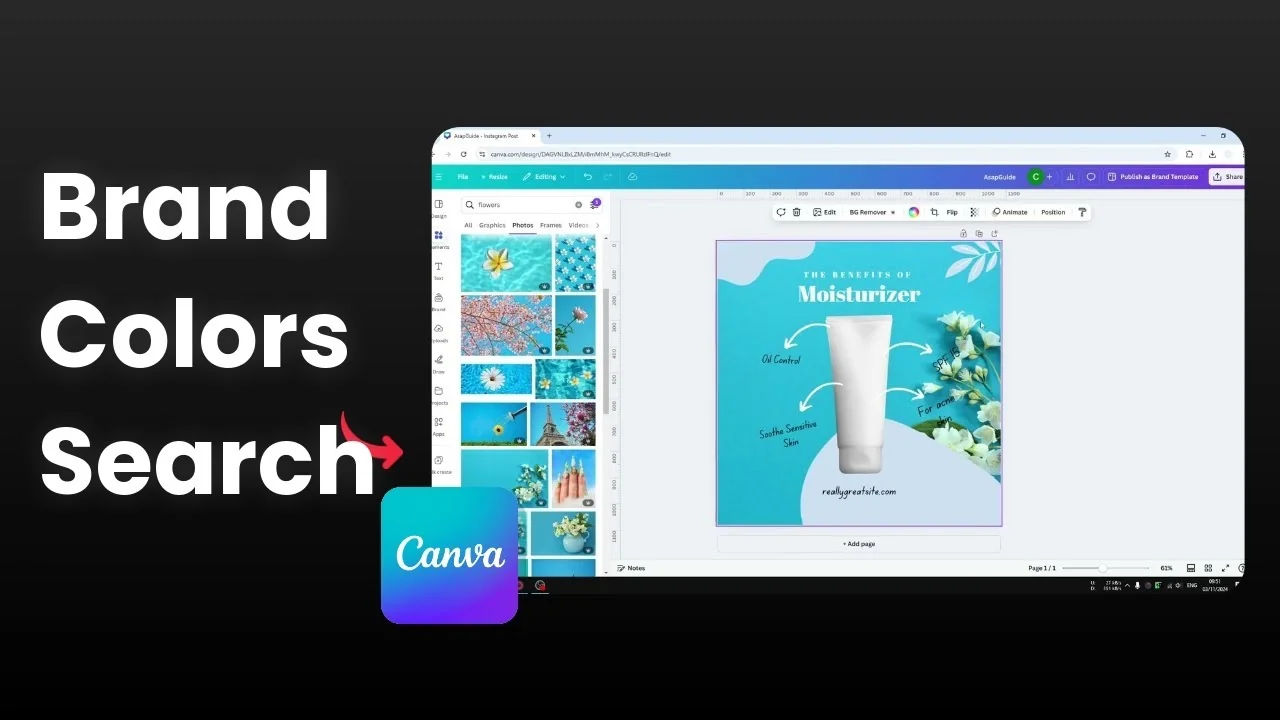
I’m going to show you how to find photos in Canva with your exact brand colors. Let’s say you need a background photo that contains your brand color. Canva makes it easy to find such photos.
Find Photos in Canva with Your Exact Brand Colors
Search setup
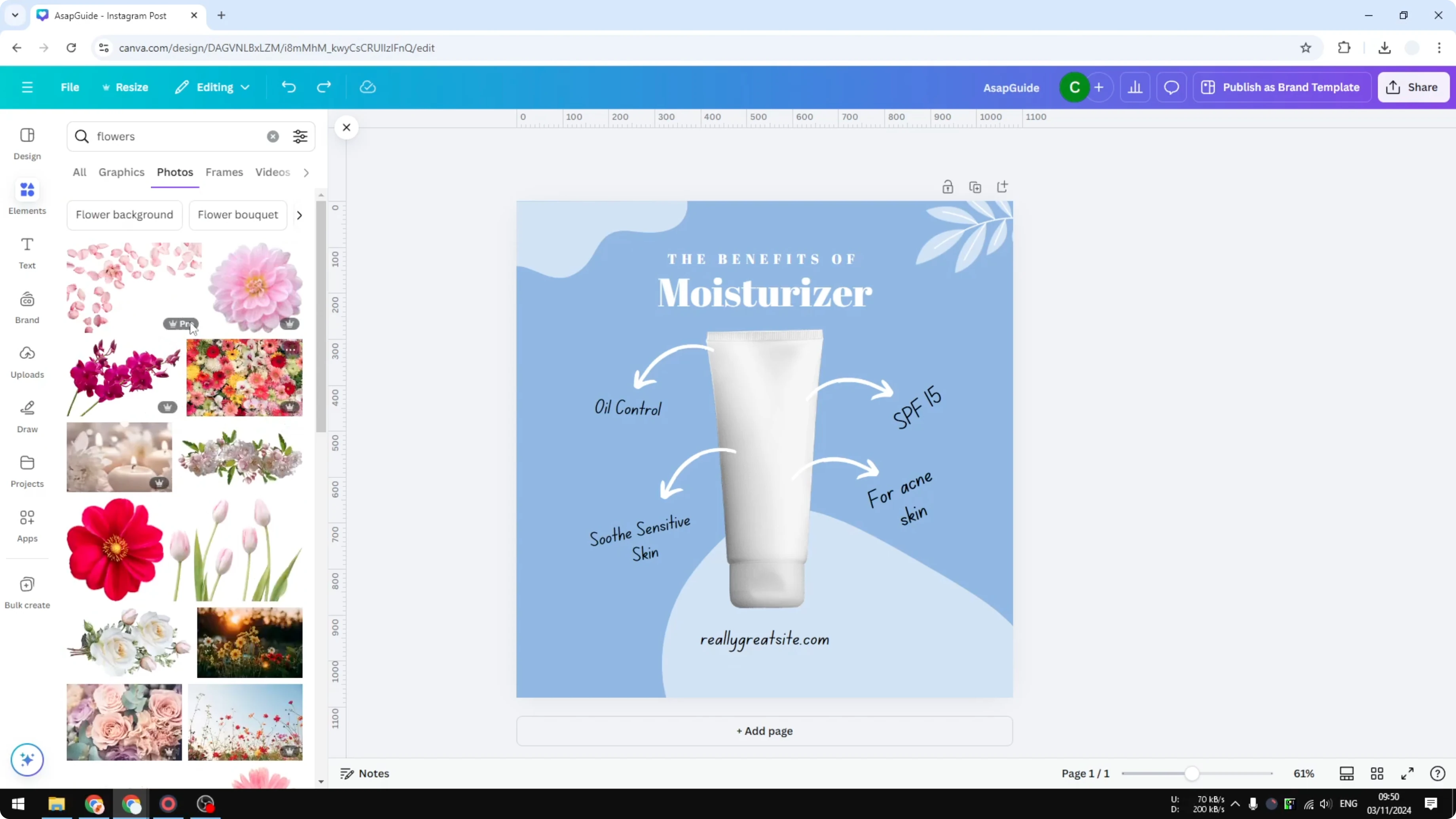
Go to Elements. Search for a picture of flowers. Switch to Photos so you only see photo results.
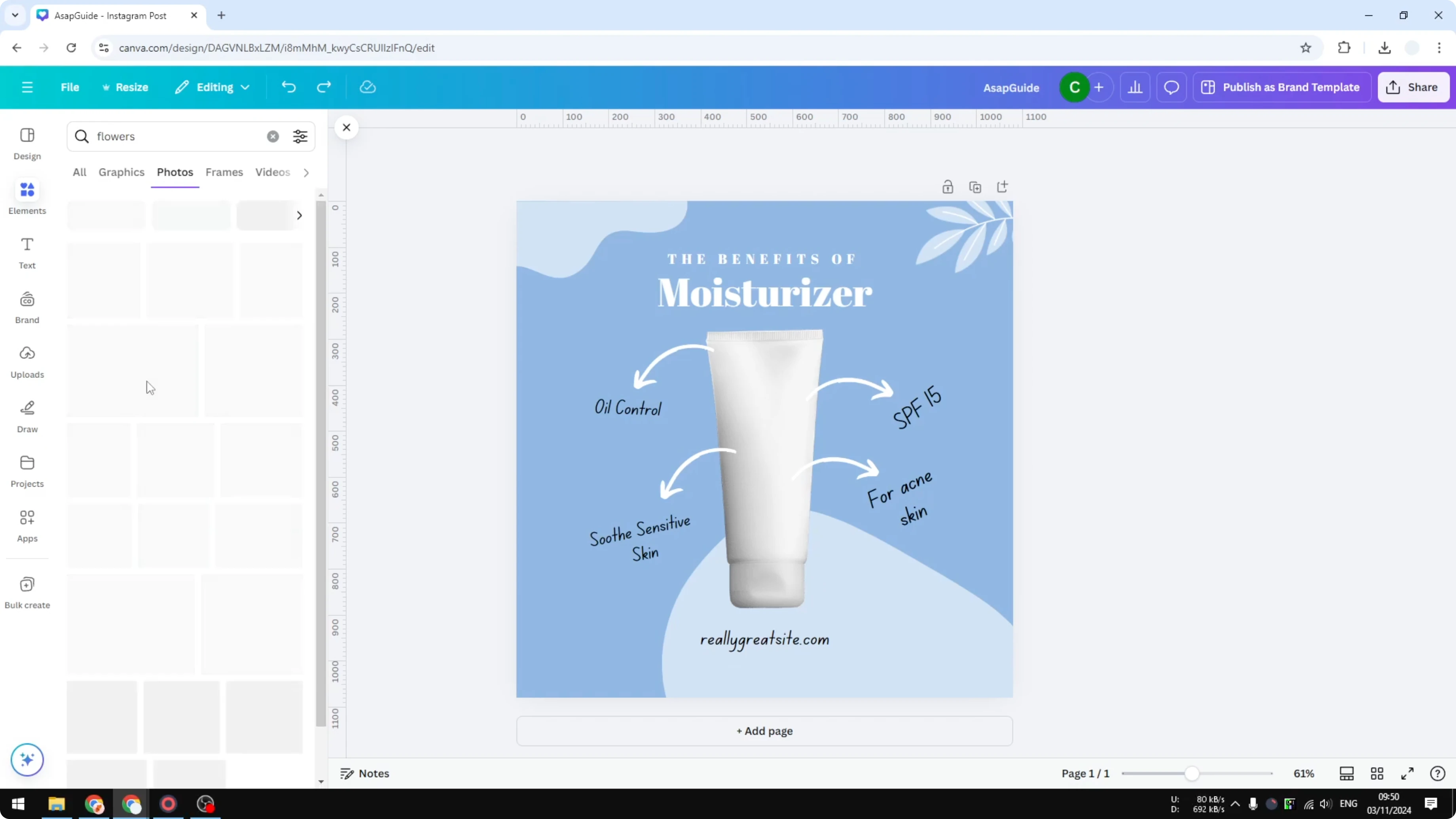
I just need the one that has the same blue color that I have right now. This works the same for any brand color you’ve set.
Copy the hex code
Open Brand. This is the brand color that I already set up.
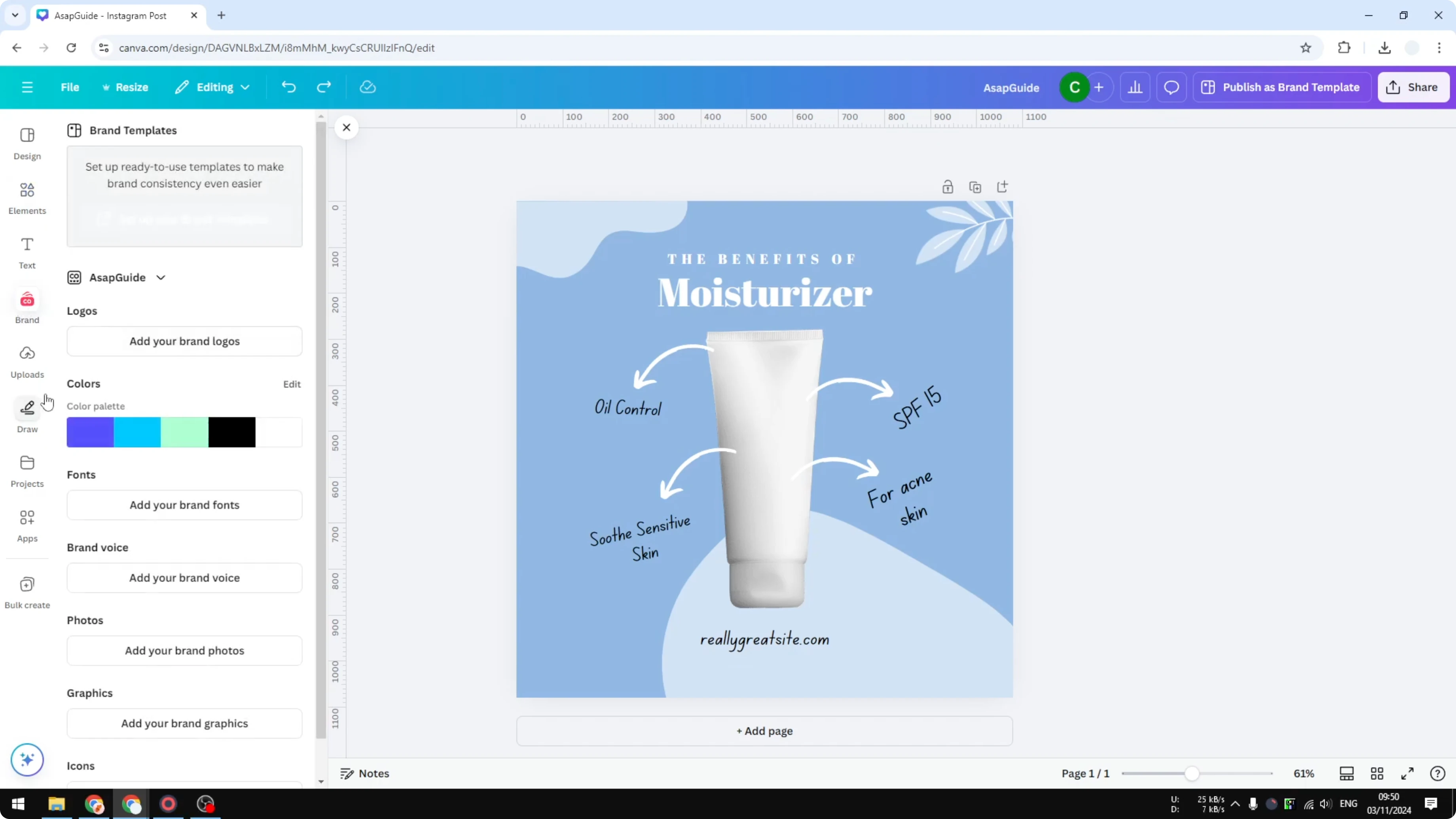
Click Edit and copy the hex code for that color. Right click on the code and click Copy. If you also want to apply these brand colors to pre-made templates, see how to apply your brand colors to Canva templates.
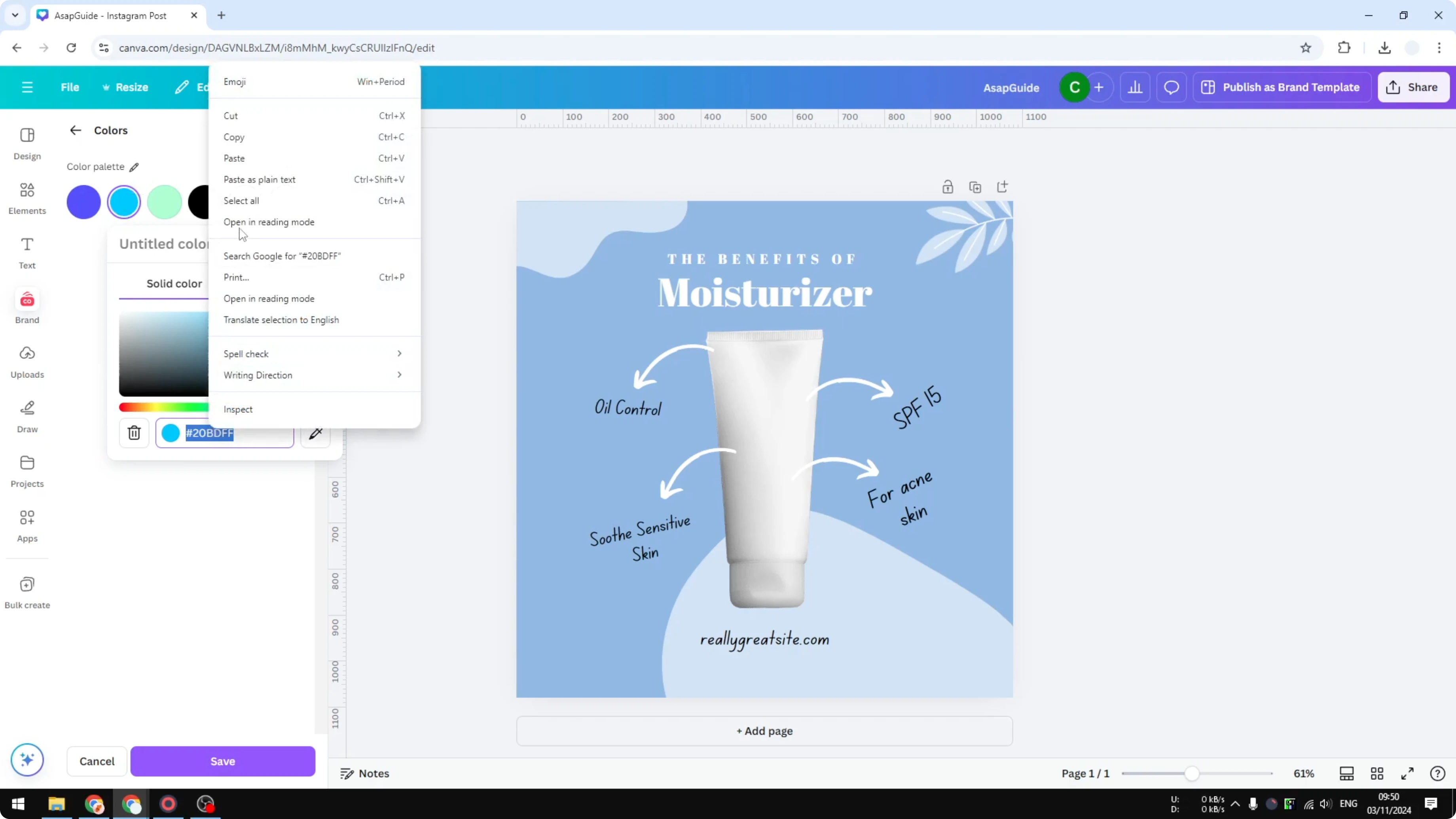
Filter photos by color
Go back to Elements. Open the color filter menu in the search panel.
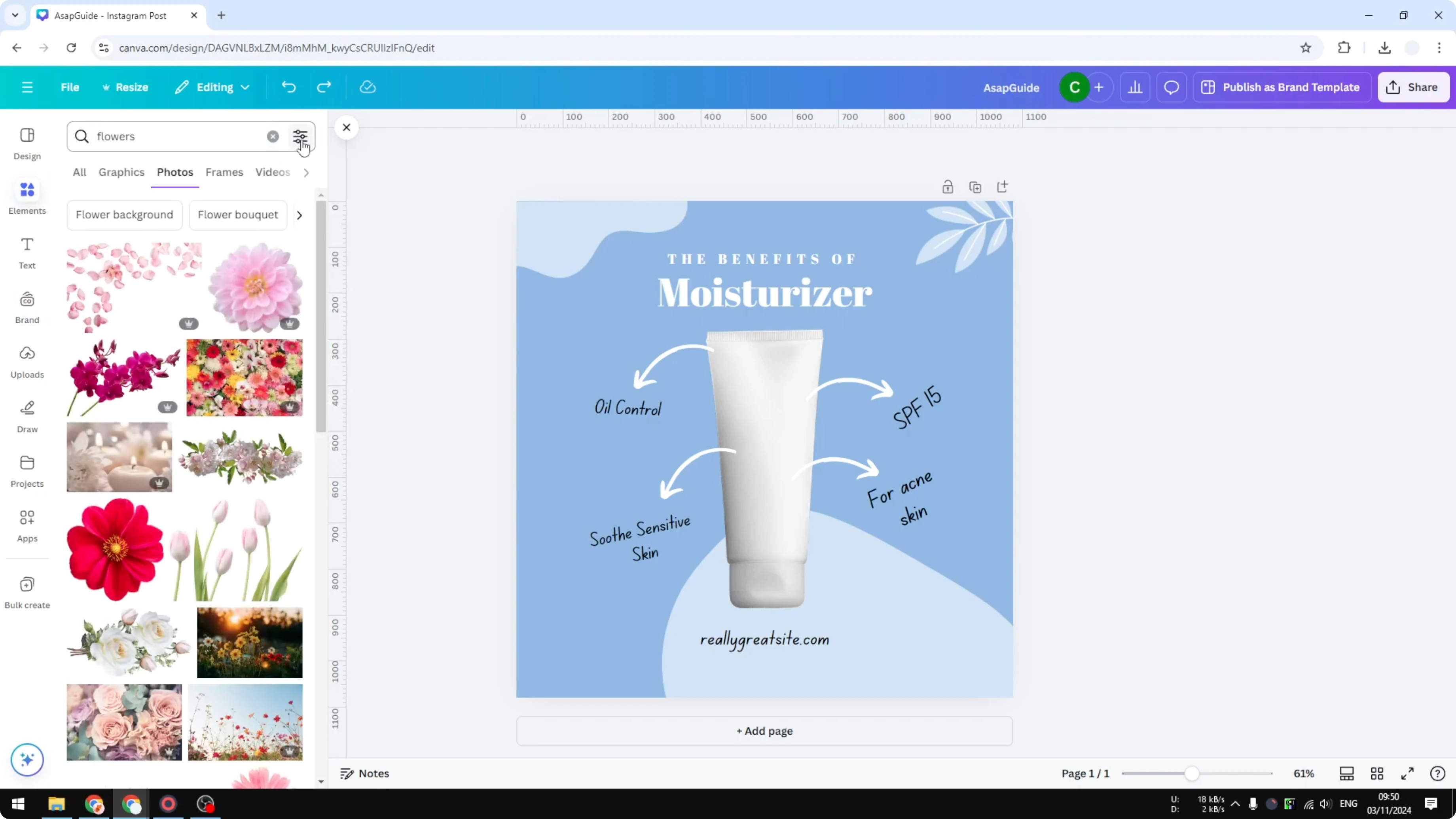
Add a new color. Replace it with the brand color you just copied, click Apply, and click anywhere to close the picker.
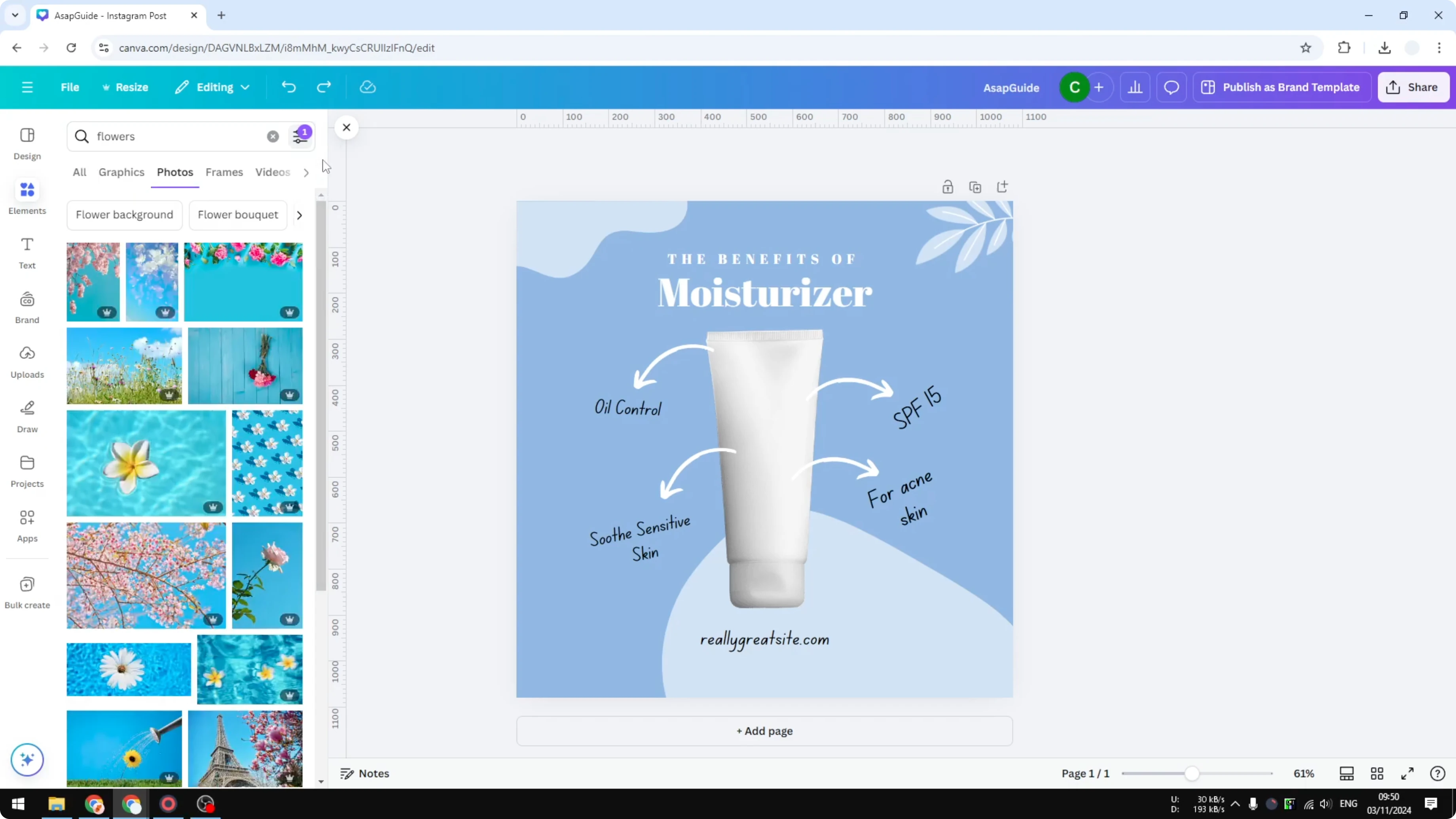
Now you’ll see a lot of photos that match your brand color. It’s not going to be exactly 100% the same, but many of them are very close.
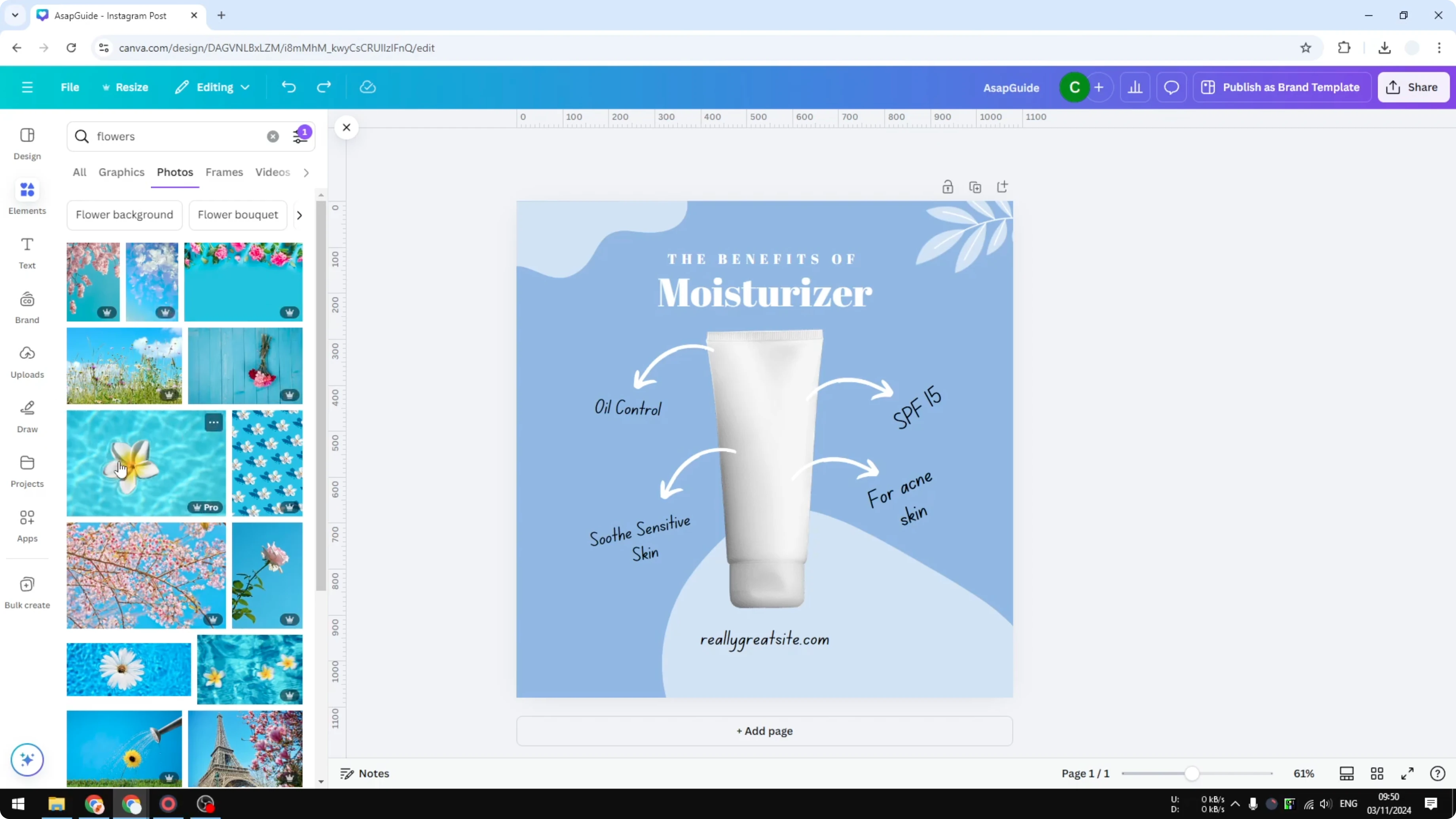
Place and adjust
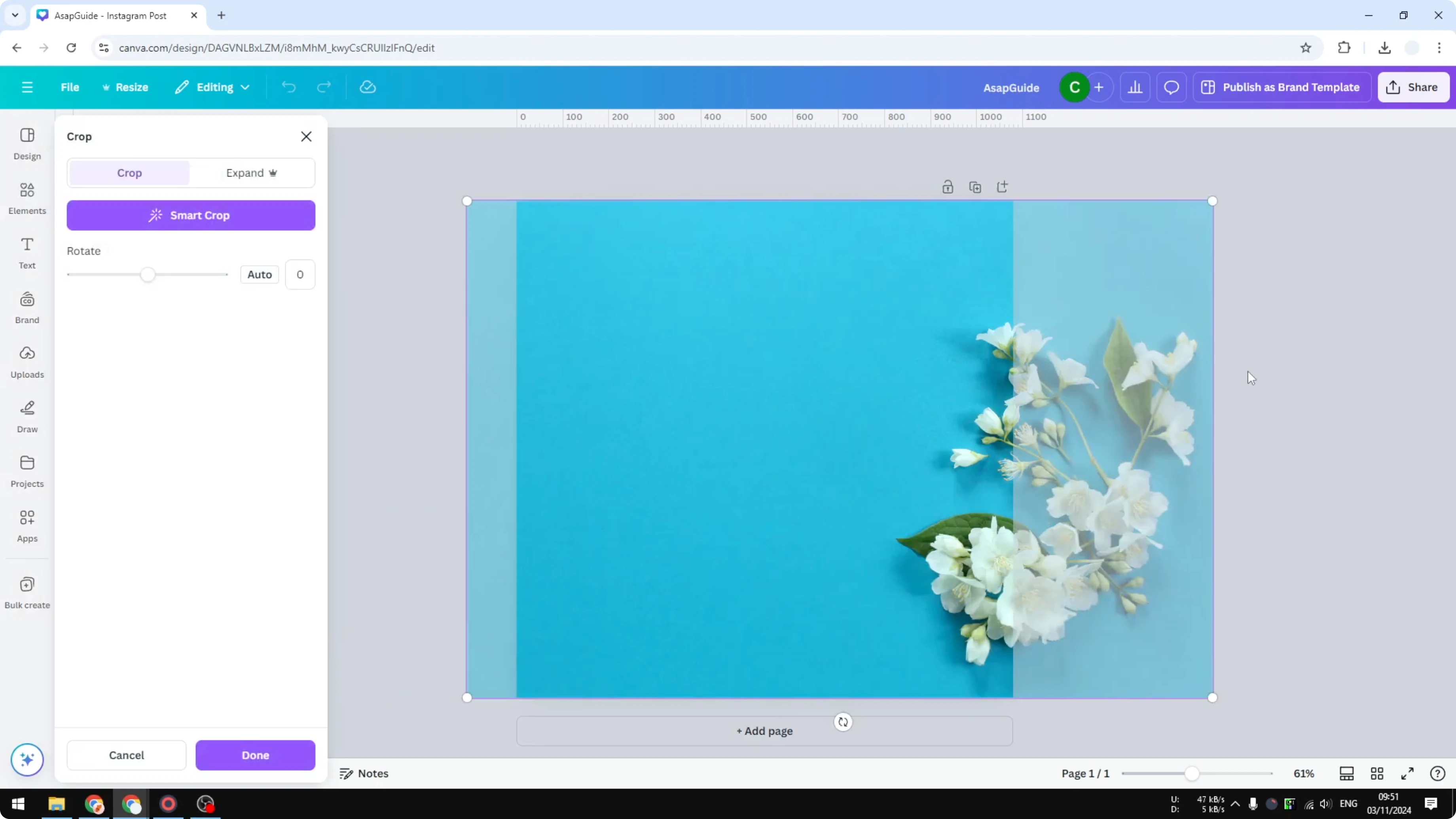
Drop a photo onto your design. Send it to the back to use it as a background.
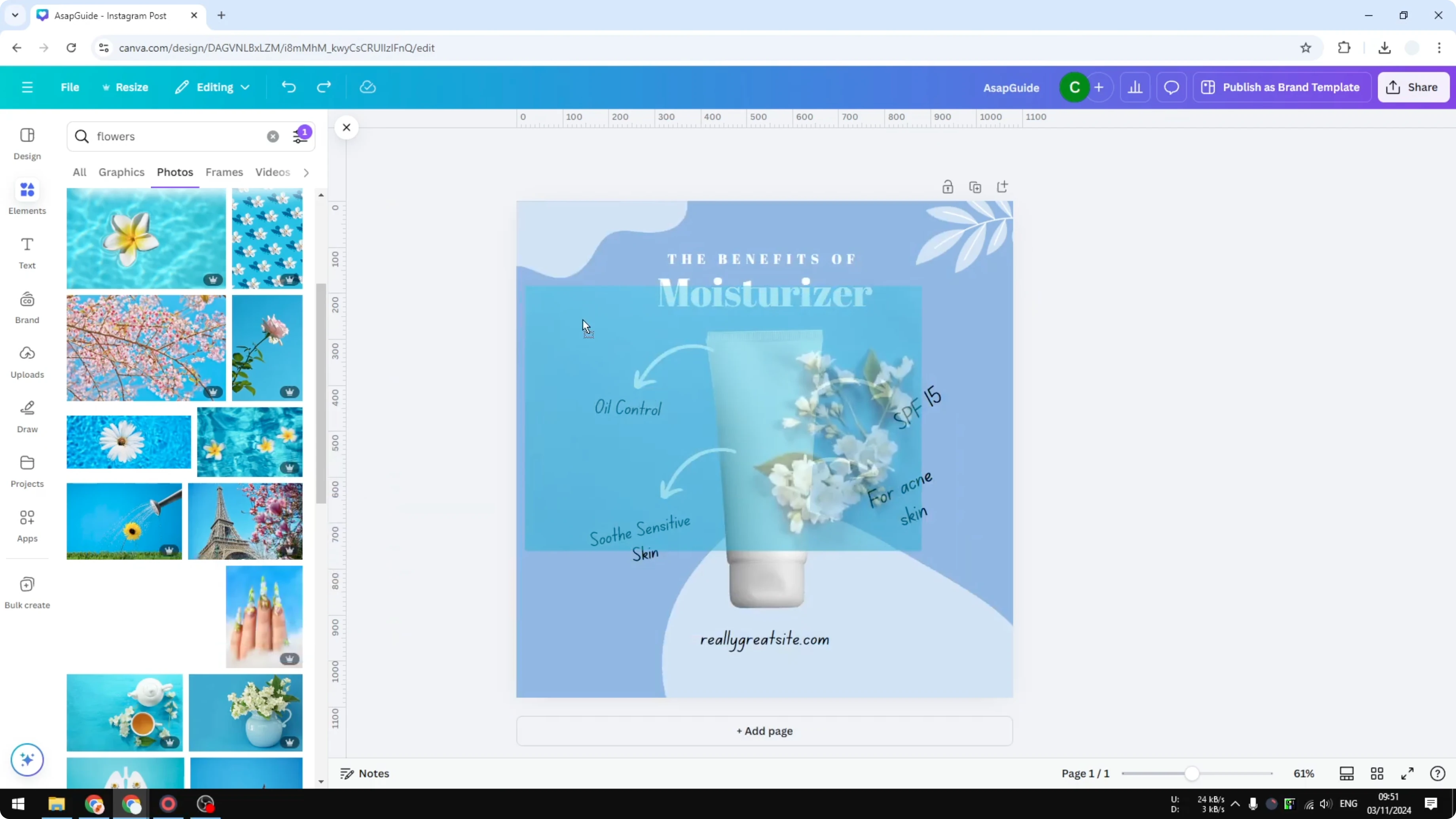
This is very useful if you want your design to follow your brand colors and style. You can take advantage of this feature to find photos based on the exact color you want. If you plan to turn these photos into a slideshow or promo, see how to make a video using photos in Canva.
Final thoughts
Finding photos that match your brand color in Canva is quick once you copy your hex code and use the color filter in Elements. Even if the match isn’t exact, the results are close enough to keep your design consistent.
To complete your brand kit, you can also upload your own font to Canva so your typography aligns with your visuals.
Recent Posts

How to Visualize Yourself as a Pixelized Character with AI?
How to Visualize Yourself as a Pixelized Character with AI?

How to Revive Faded Memories and Enhance Image Clarity with AI?
How to Revive Faded Memories and Enhance Image Clarity with AI?

How to Visualize Yourself as an Animal Crossing Character with AI?
How to Visualize Yourself as an Animal Crossing Character with AI?