How to Apply Brand Colors in One Click on Canva Templates
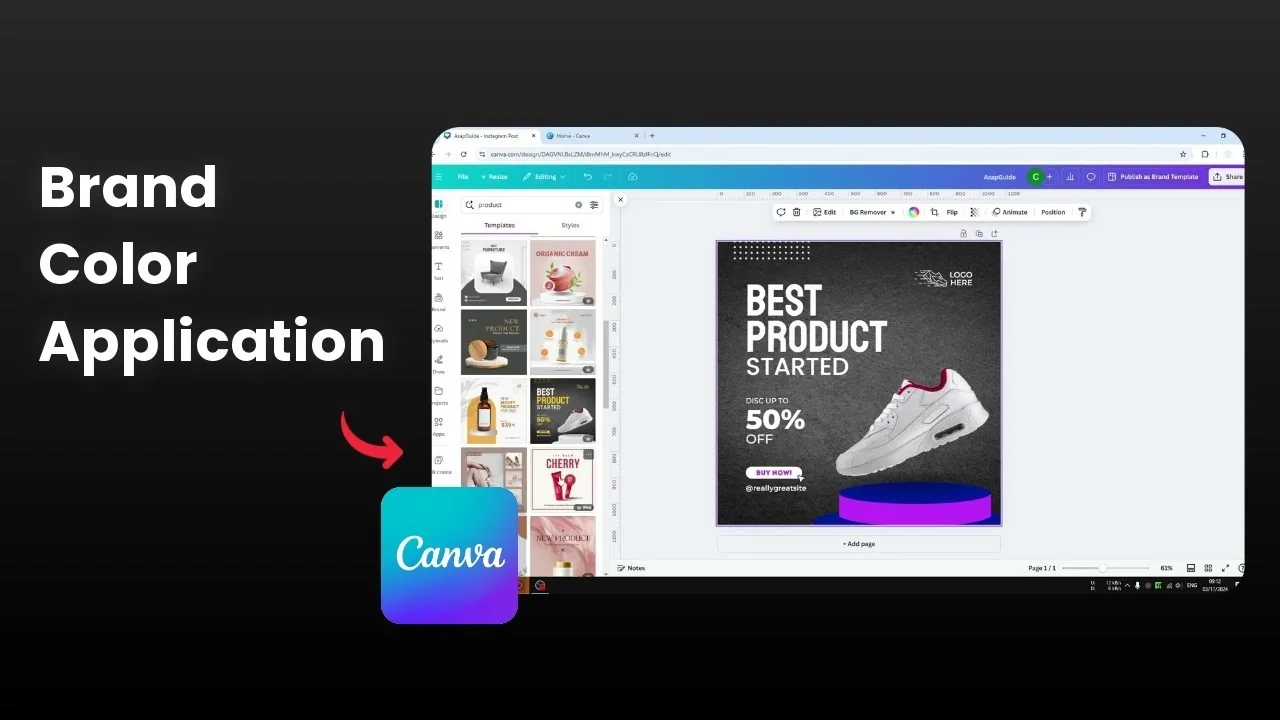
You can apply brand colors in one click on Canva templates. You might find a really good template for social media, but the colors and font style are different from your brand. I want the design to feel like it was made by someone from your business.
The question is how to apply your brand colors so the design looks like it came from your company. Canva offers a one click method to apply your brand colors to any template. For a deeper walkthrough, see this step by step guide to applying brand colors in Canva.
Create a brand template
Add your brand basics
Open Canva and go to Brand.
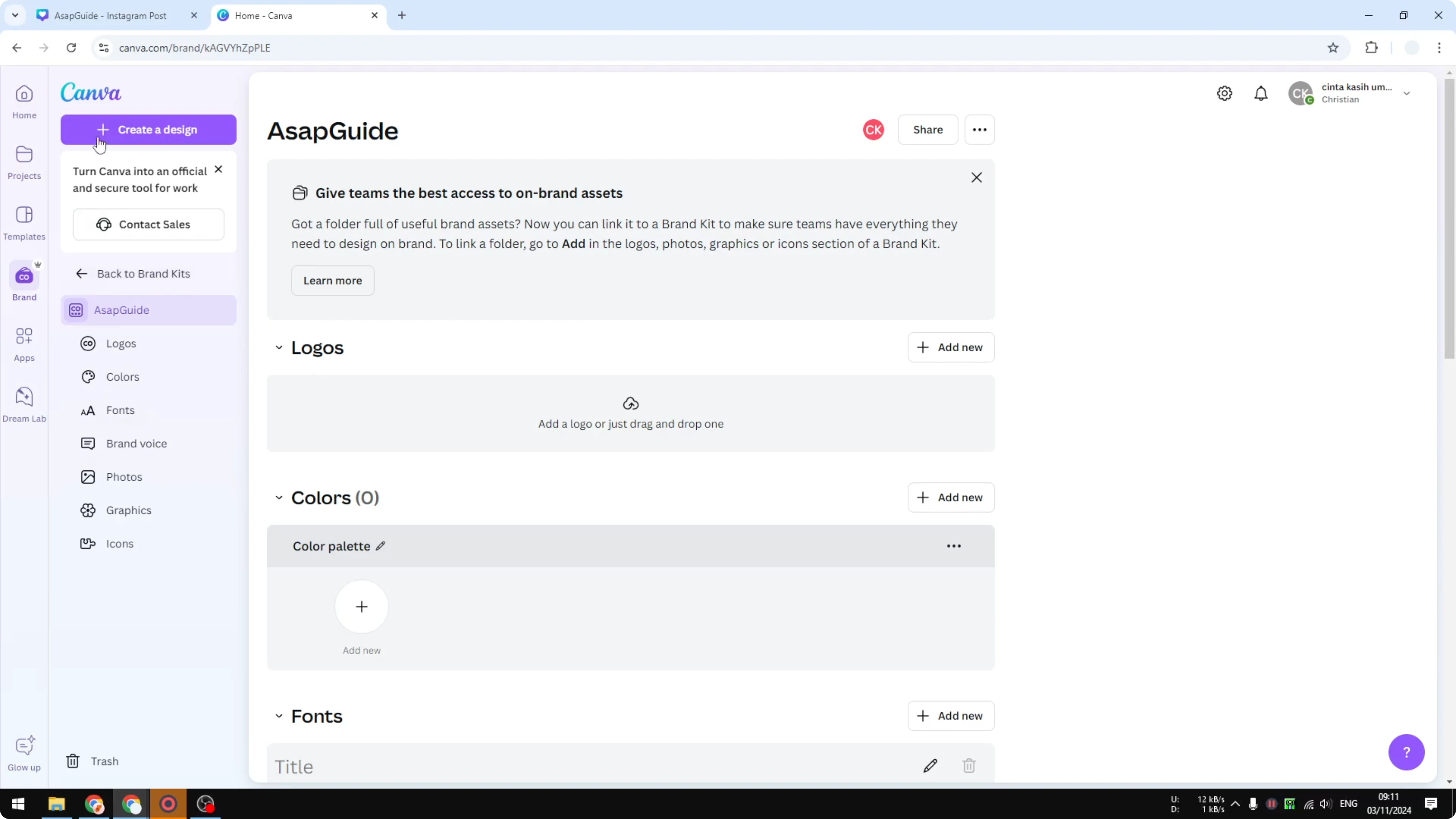
Click Add new brand.
Add your logo.
Set colors and fonts
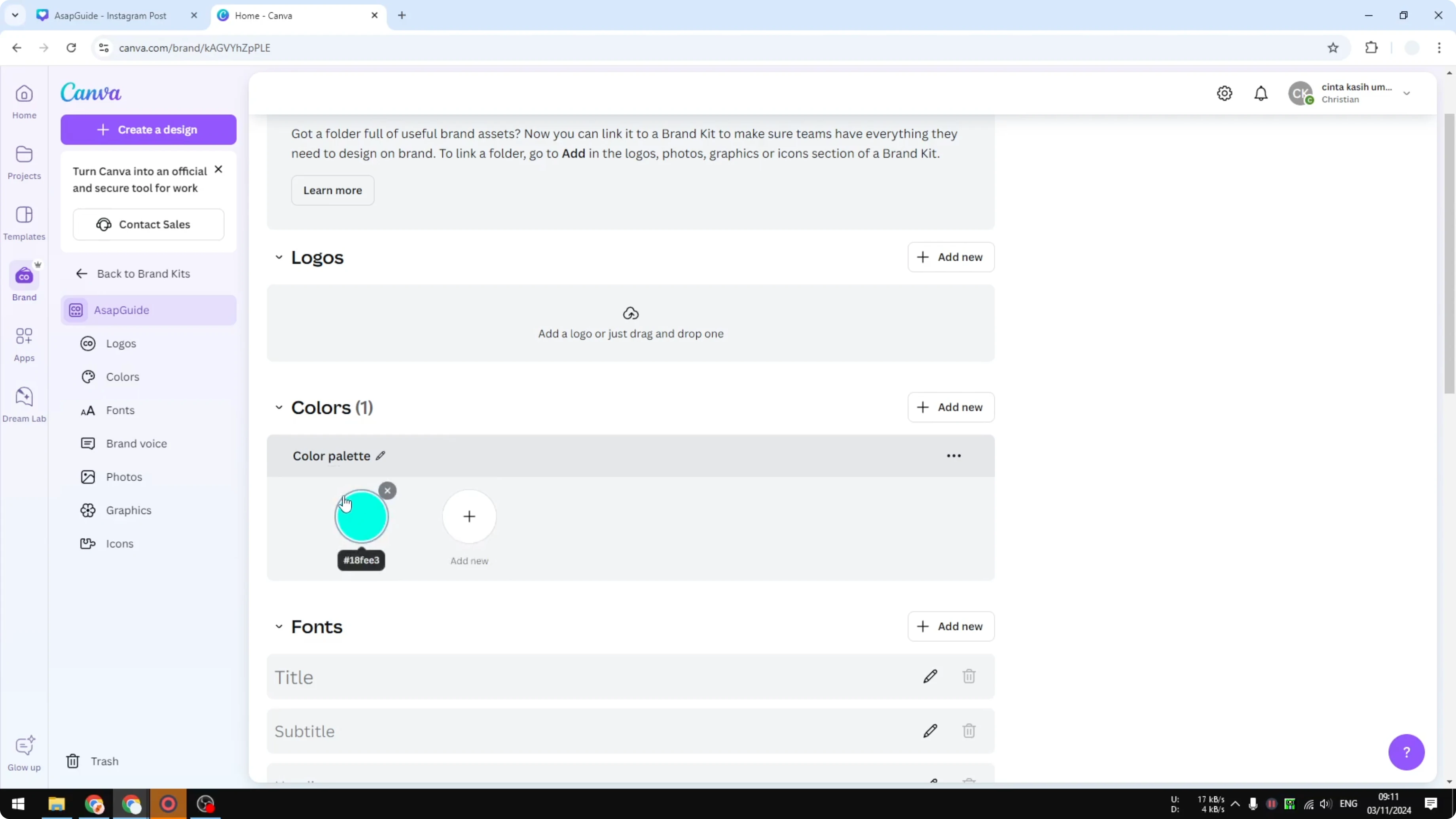
Add your brand colors.
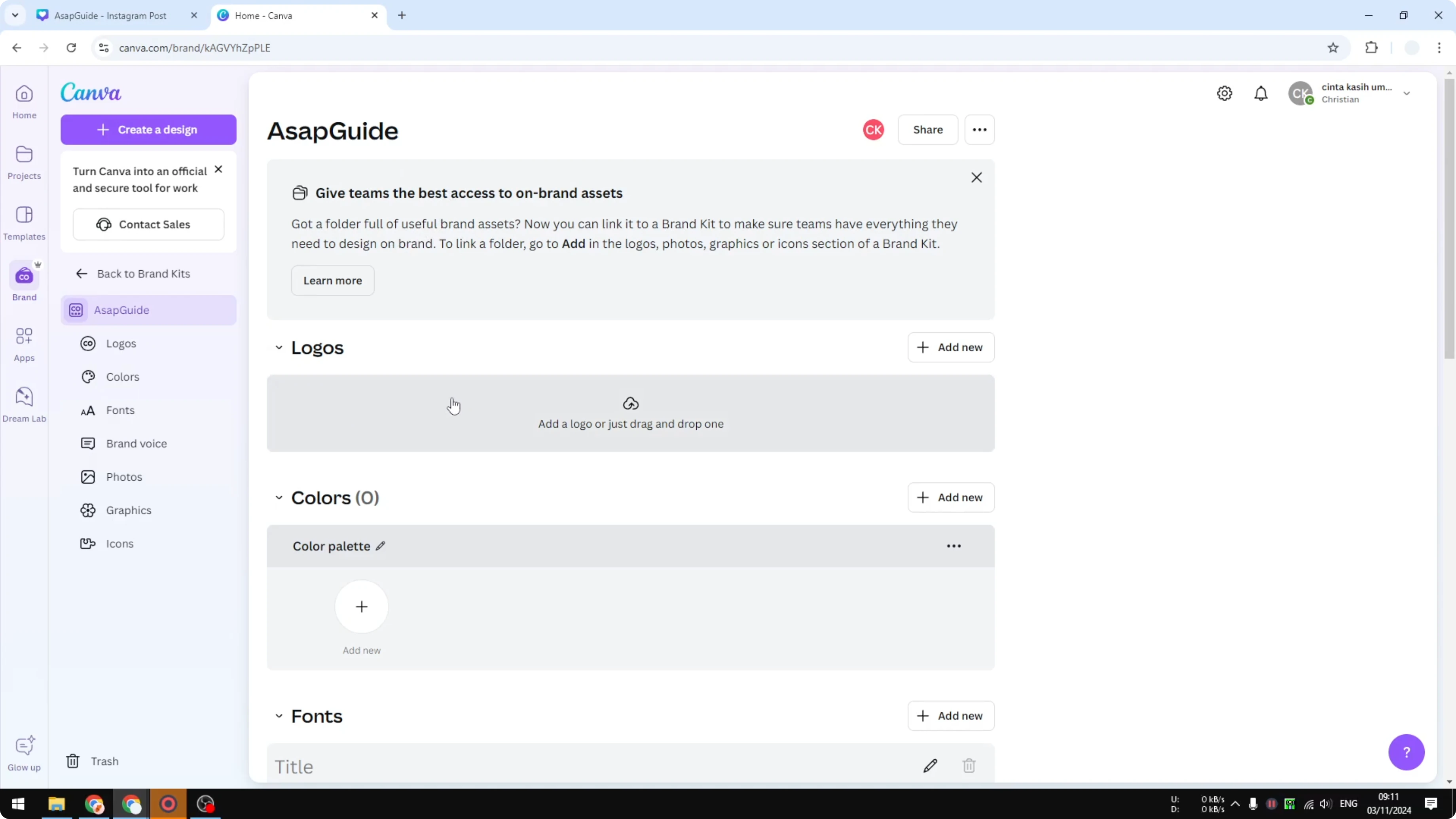
Decide which fonts will be used for this brand.
Add brand voice, photos, graphics, and icons if you need them. In my experience, colors are the most important.
If you need on brand visuals, you can find photos by brand colors inside Canva.
Read More: Apply Duotone Canva
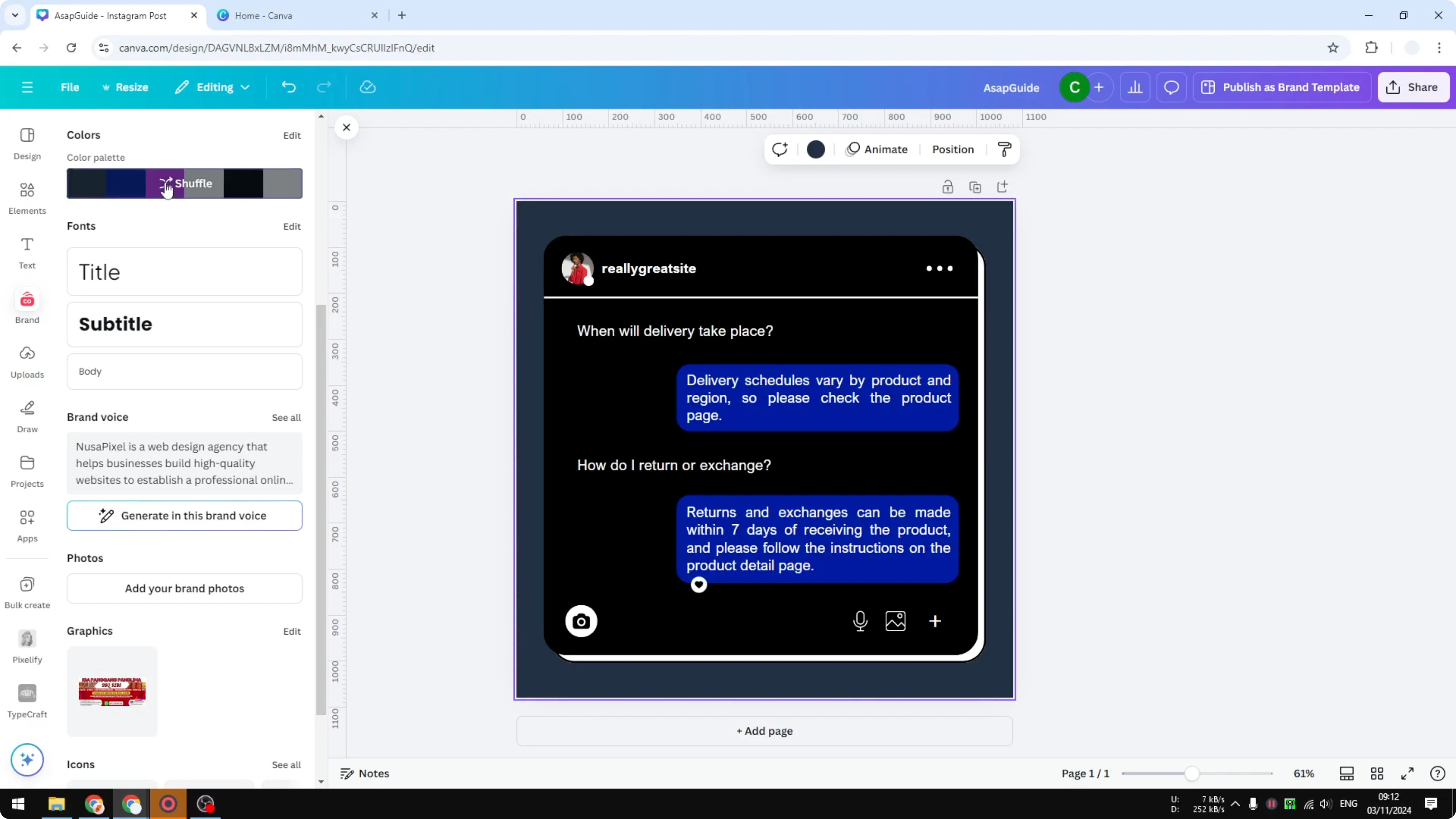
One click brand colors on Canva templates
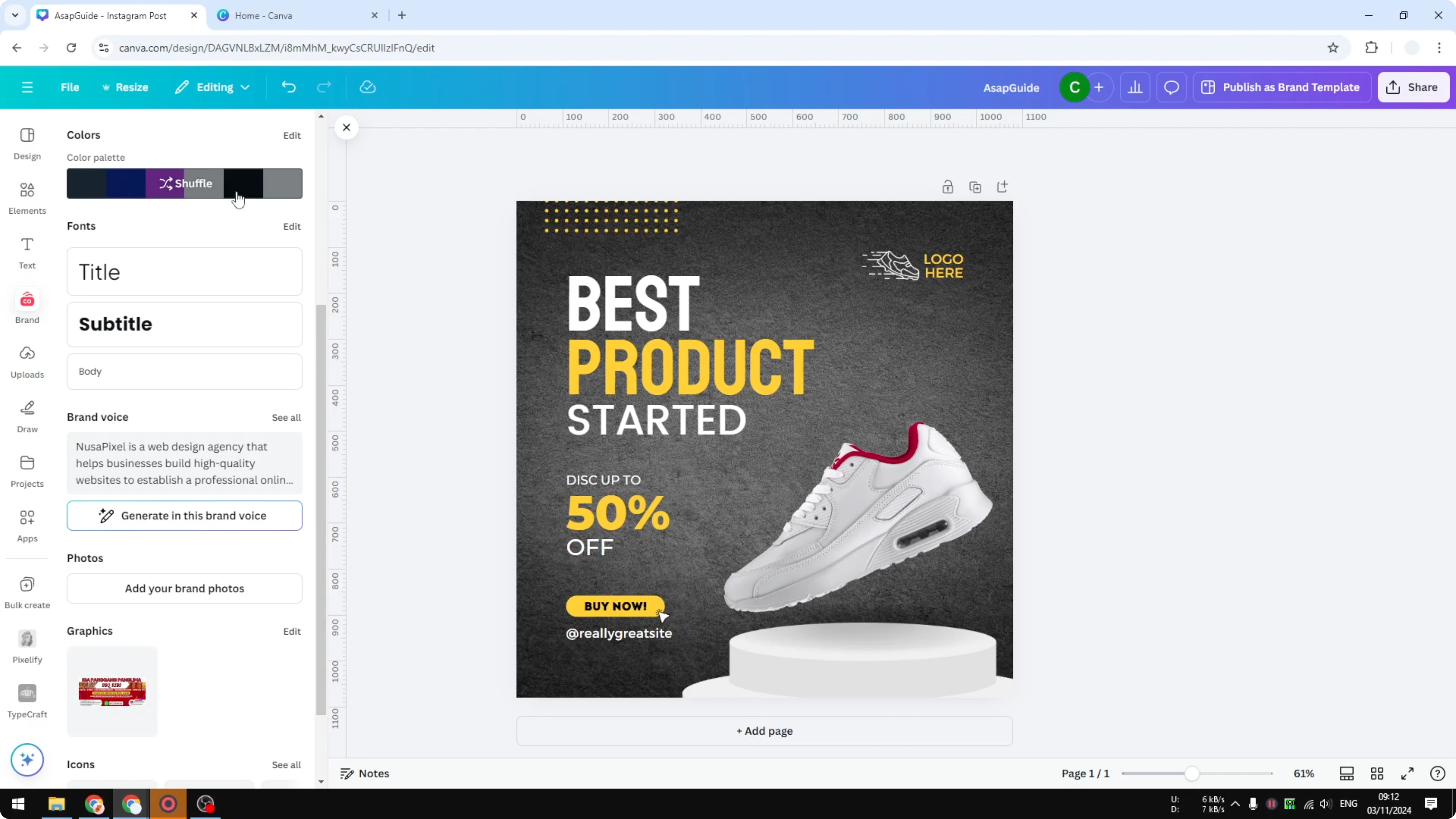
Open your Canva design and open Brand on the left side menu.
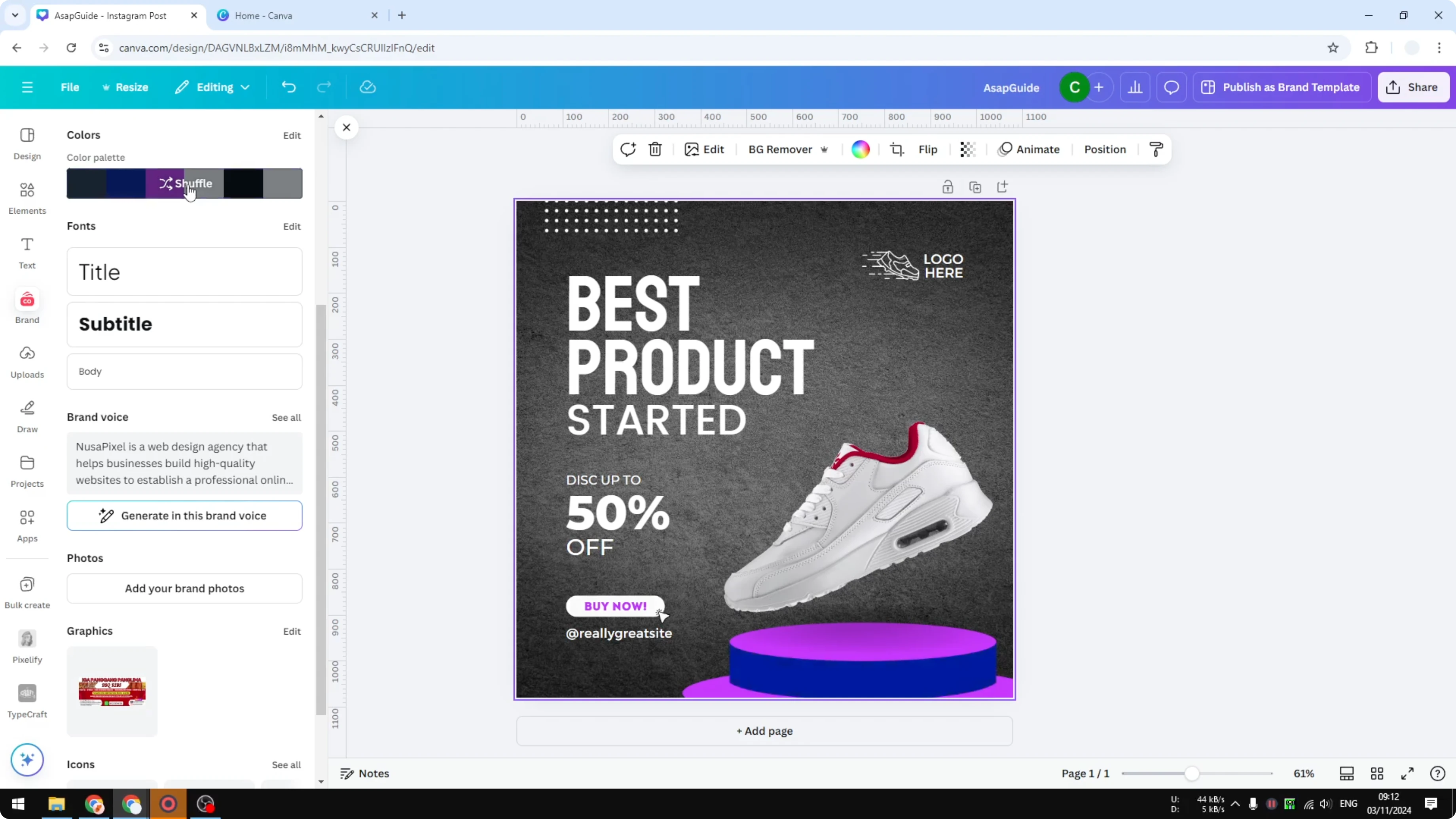
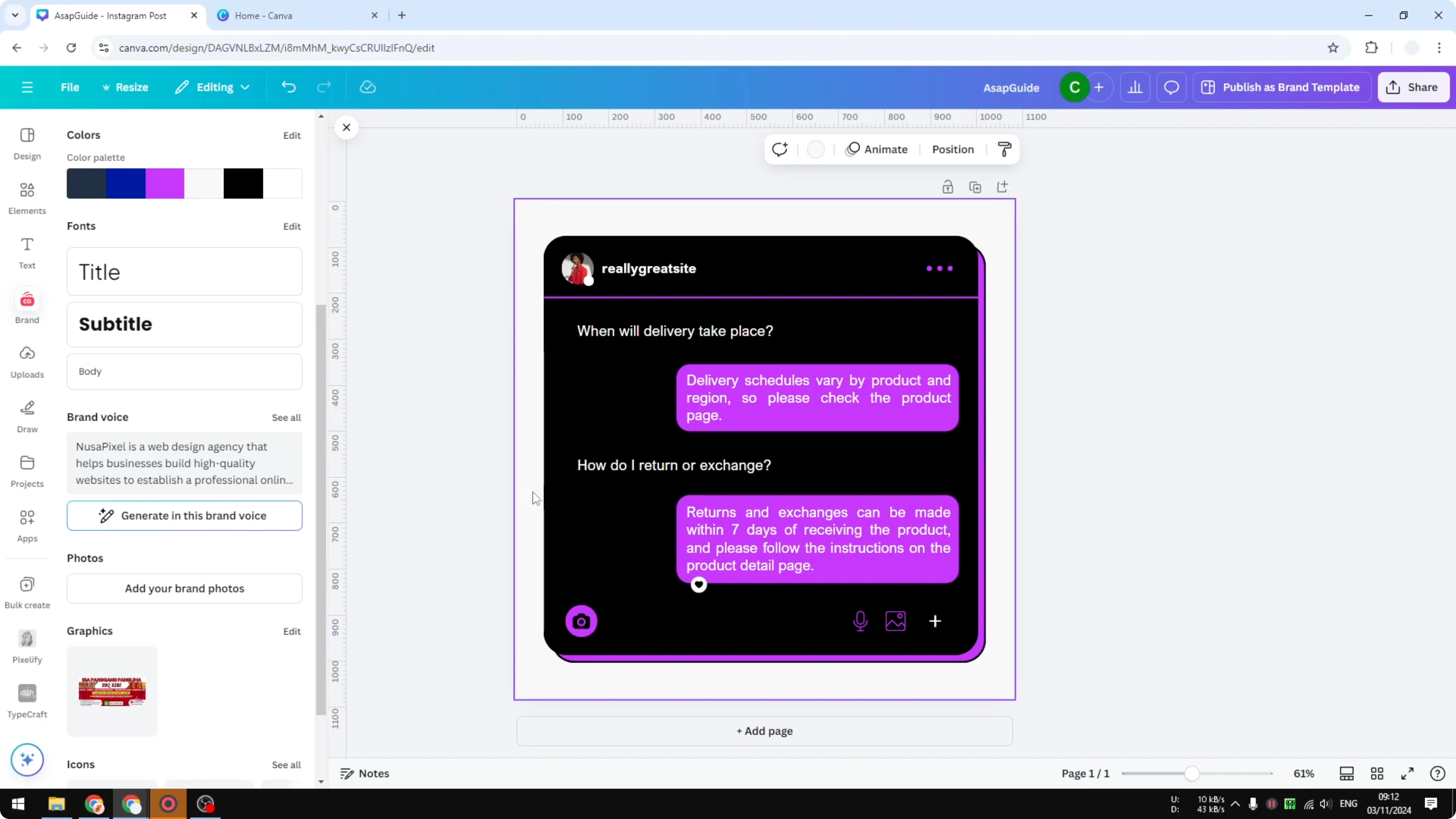
In the color palette section, click your brand palette and it will apply those colors to the document. Clicking the palette applies your brand colors across the template.
You can click again multiple times until you get a version you like. This cycles through different mappings of your colors onto the design.
If the first template does not change much, try one that has more editable elements. Some templates have limited color regions, so the impact can be small. Picking a richer layout gives the palette more to work with.
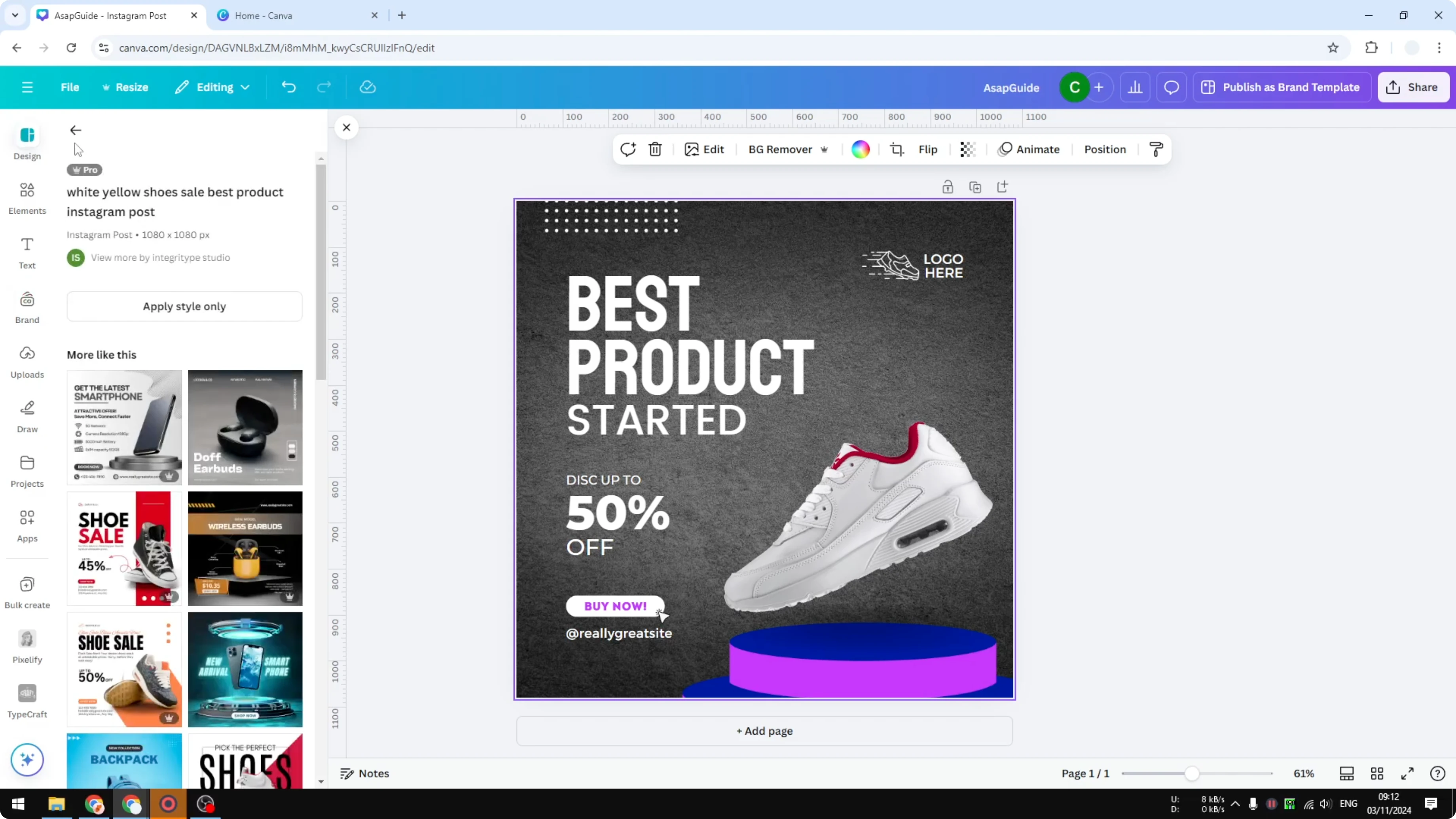
Pick a better starting template
Start with a simple text template if you want more obvious changes.
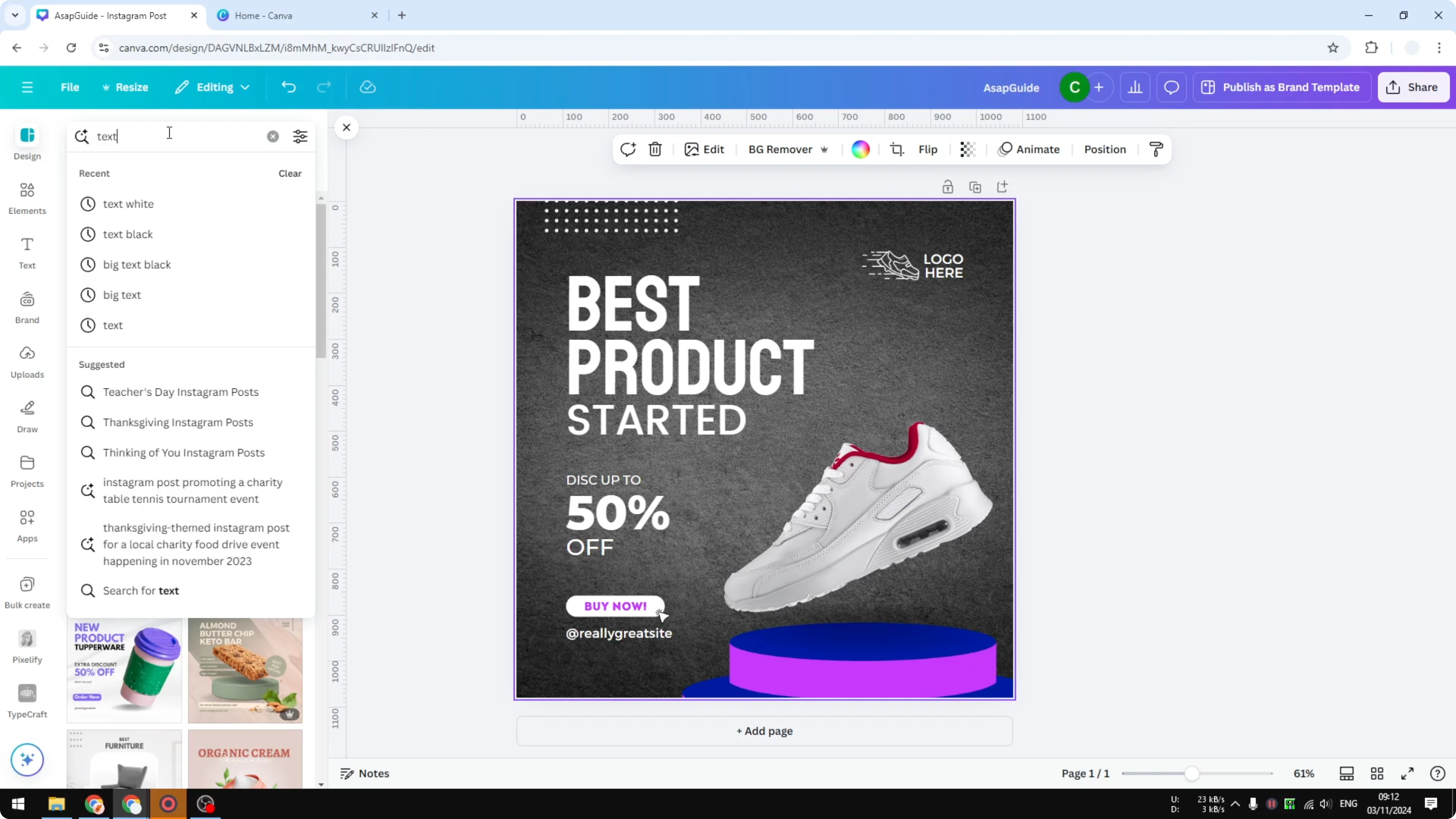
Choose one that looks good to you.
Go to Brand again and click your palette. It applies the colors from your brand template, and you can click again until it feels right.
Final thoughts
Setting up a brand template is the key step, because it lets you apply colors across any Canva template in one click. Use the Brand panel color palettes and click until the combination fits your style. If a template barely changes, switch to one with more editable elements and apply your palette again.
Recent Posts

How to Visualize Yourself as a Pixelized Character with AI?
How to Visualize Yourself as a Pixelized Character with AI?

How to Revive Faded Memories and Enhance Image Clarity with AI?
How to Revive Faded Memories and Enhance Image Clarity with AI?

How to Visualize Yourself as an Animal Crossing Character with AI?
How to Visualize Yourself as an Animal Crossing Character with AI?