How to Apply Duotone in Canva
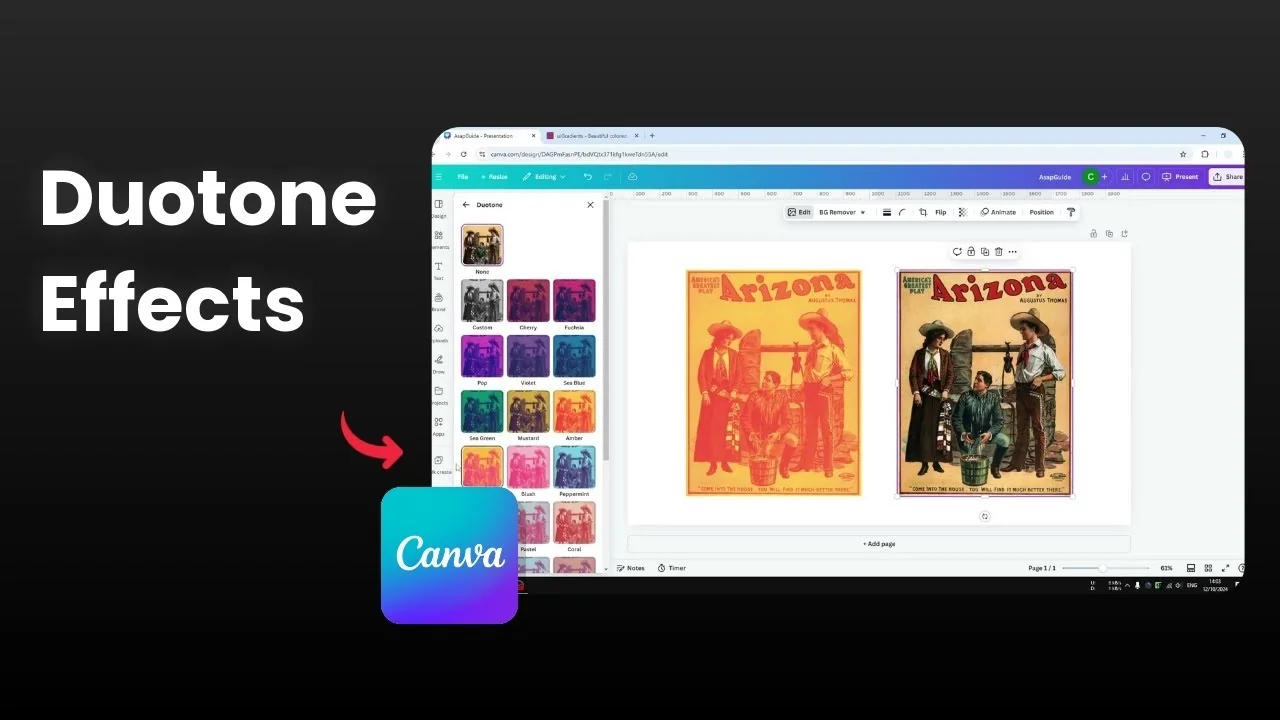
I will show you how to add a duotone effect to a photo in Canva. Duotone is an effect that uses two contrasting colors, usually a lighter color and a darker color. It gives your photo a bold two color look that feels focused and stylized.
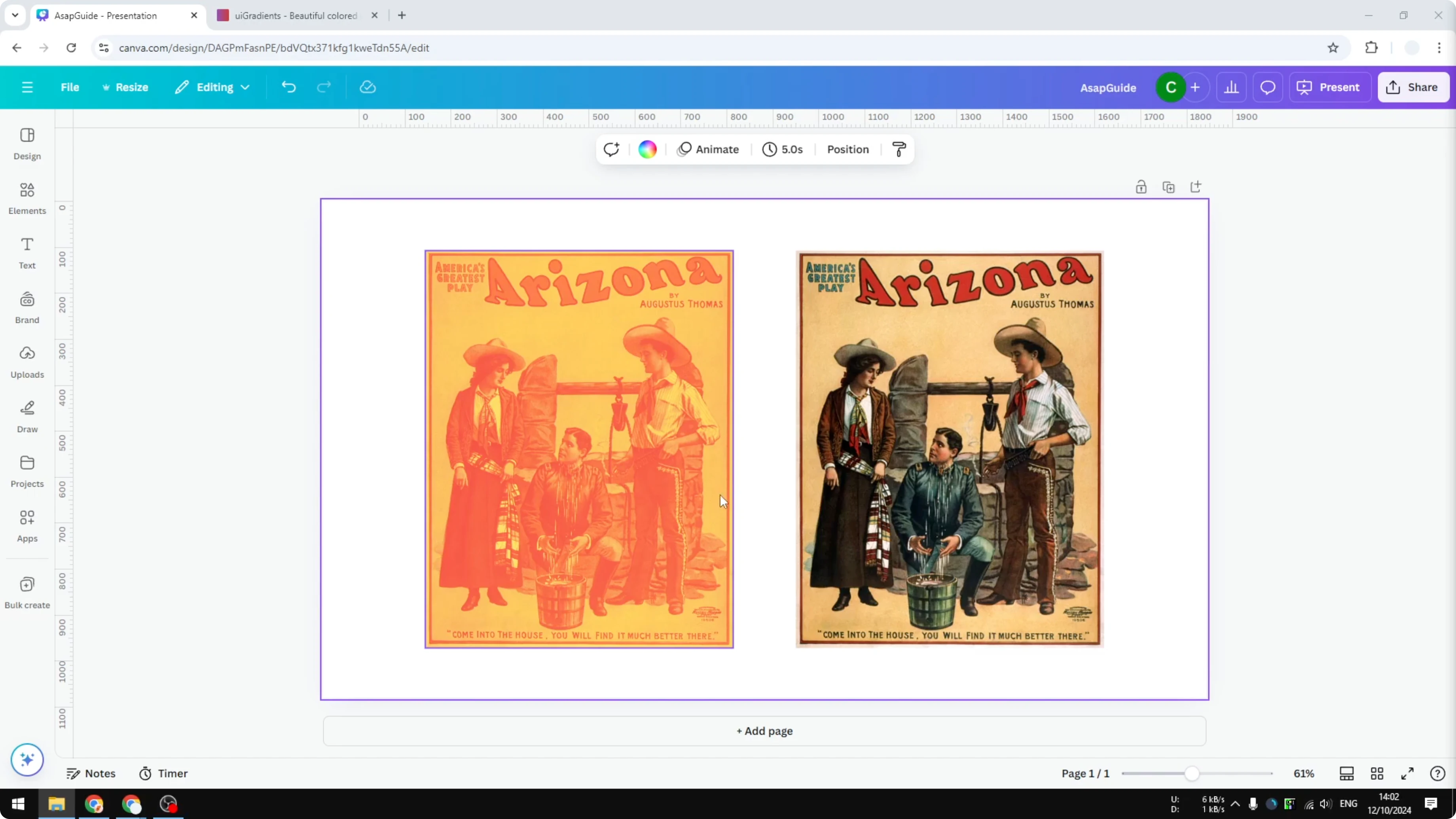
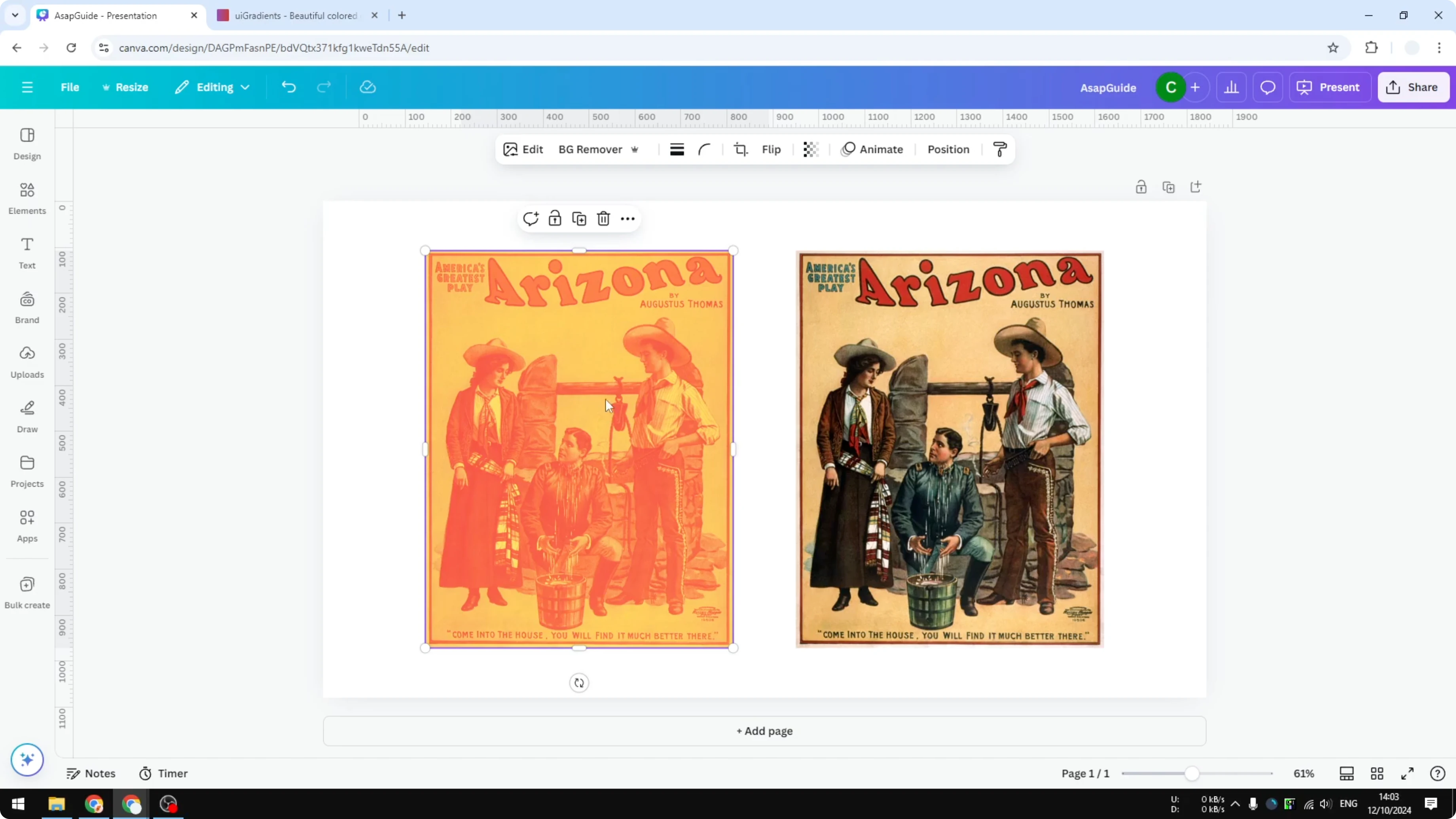
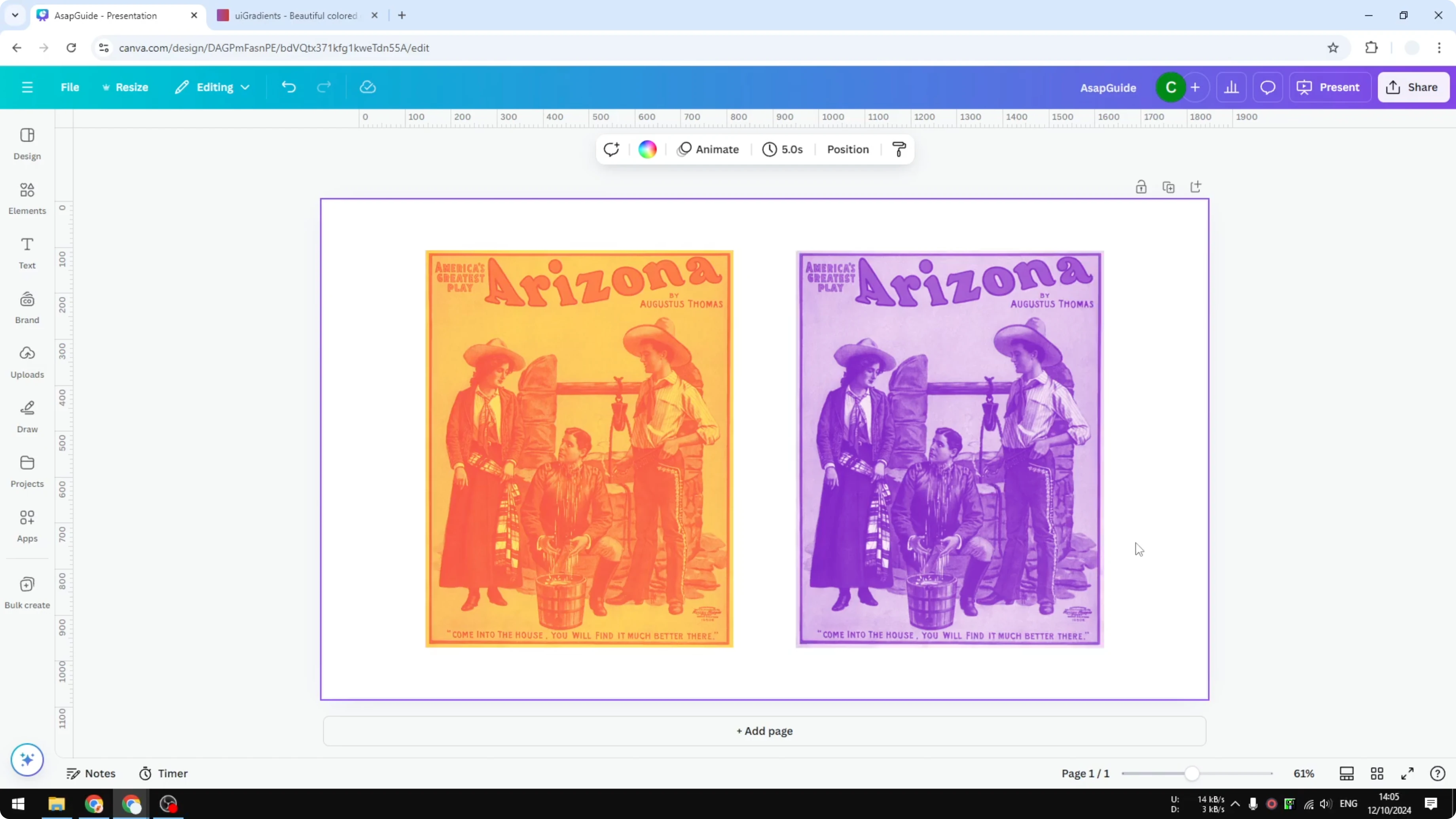
For example, I applied yellow and orange to a photo so it only shows two shades. The picture has two tones, yellow for the light areas and orange for the dark areas. That is the setting I used for that photo.
What Apply Duotone in Canva means
Duotone keeps your image but maps all its lights and shadows to just two colors. The lighter color fills the highlights, and the darker color fills the shadows. You control both colors and the intensity.
Read More: Apply Brand Colors Canva Templates
Steps to Apply Duotone in Canva
Upload your image to Canva.
Select the image you want to edit.
Click Edit in the top toolbar.
Open Effects and choose Duotone.
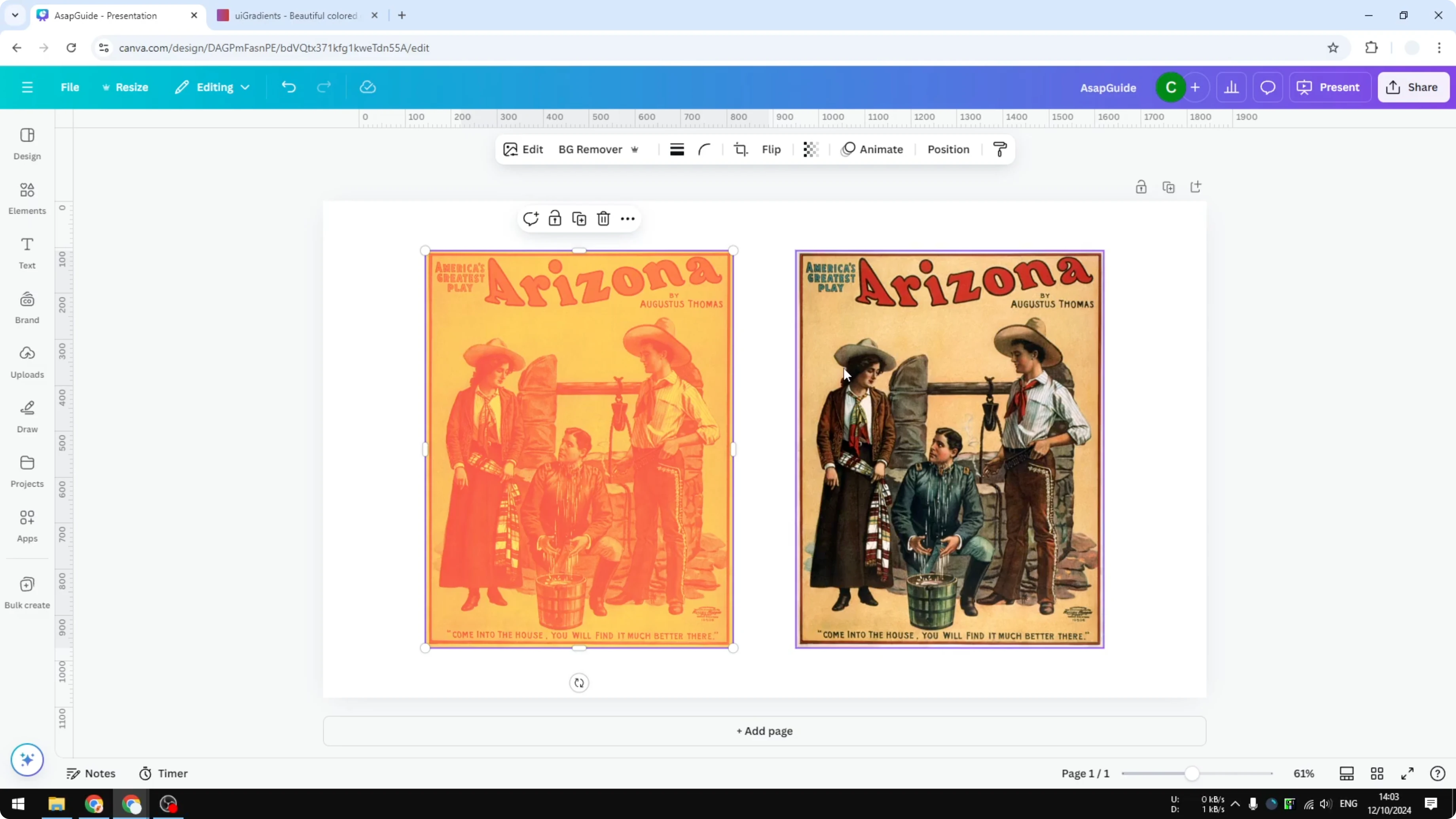
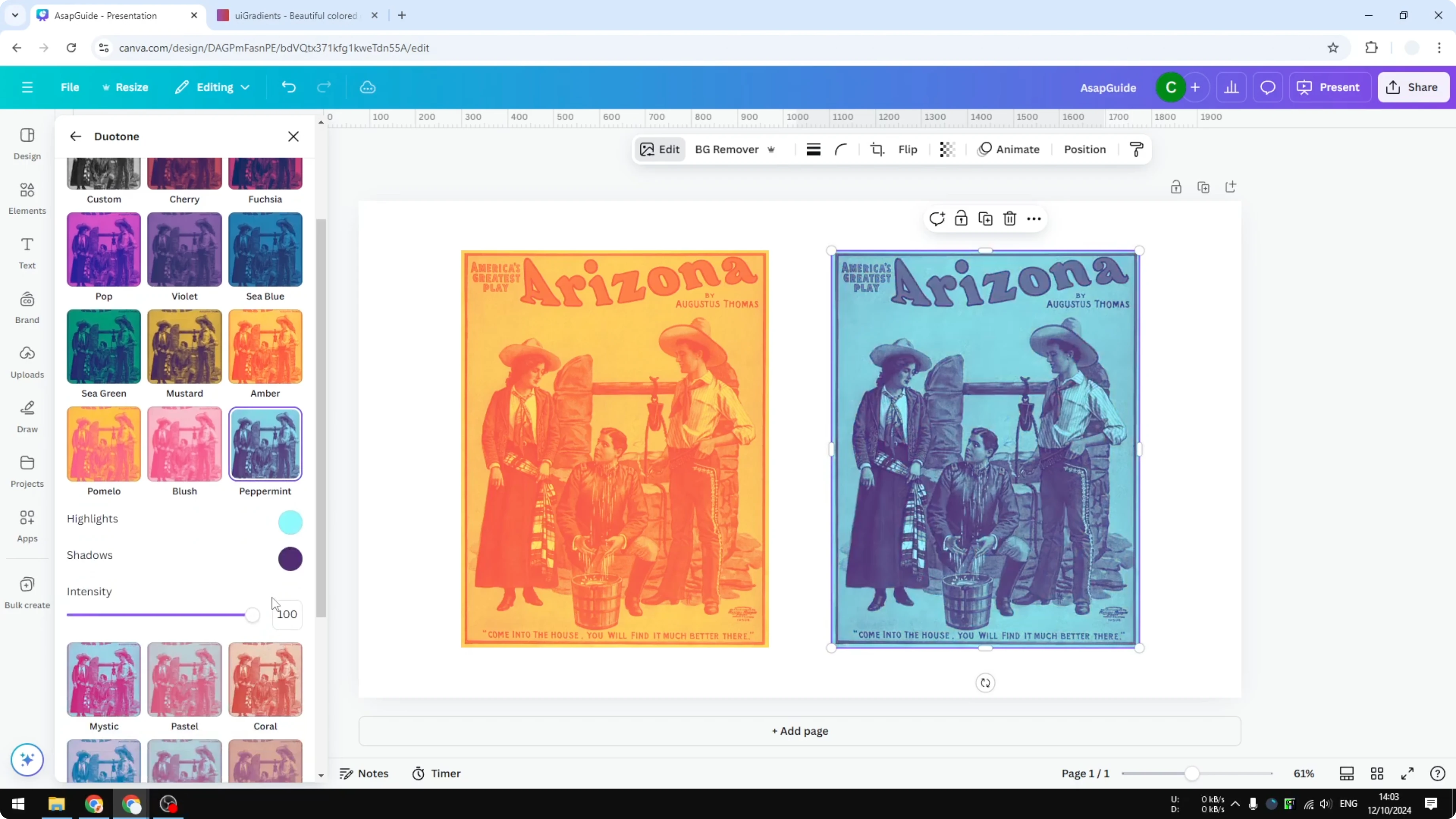
Apply a preset to see instant results.
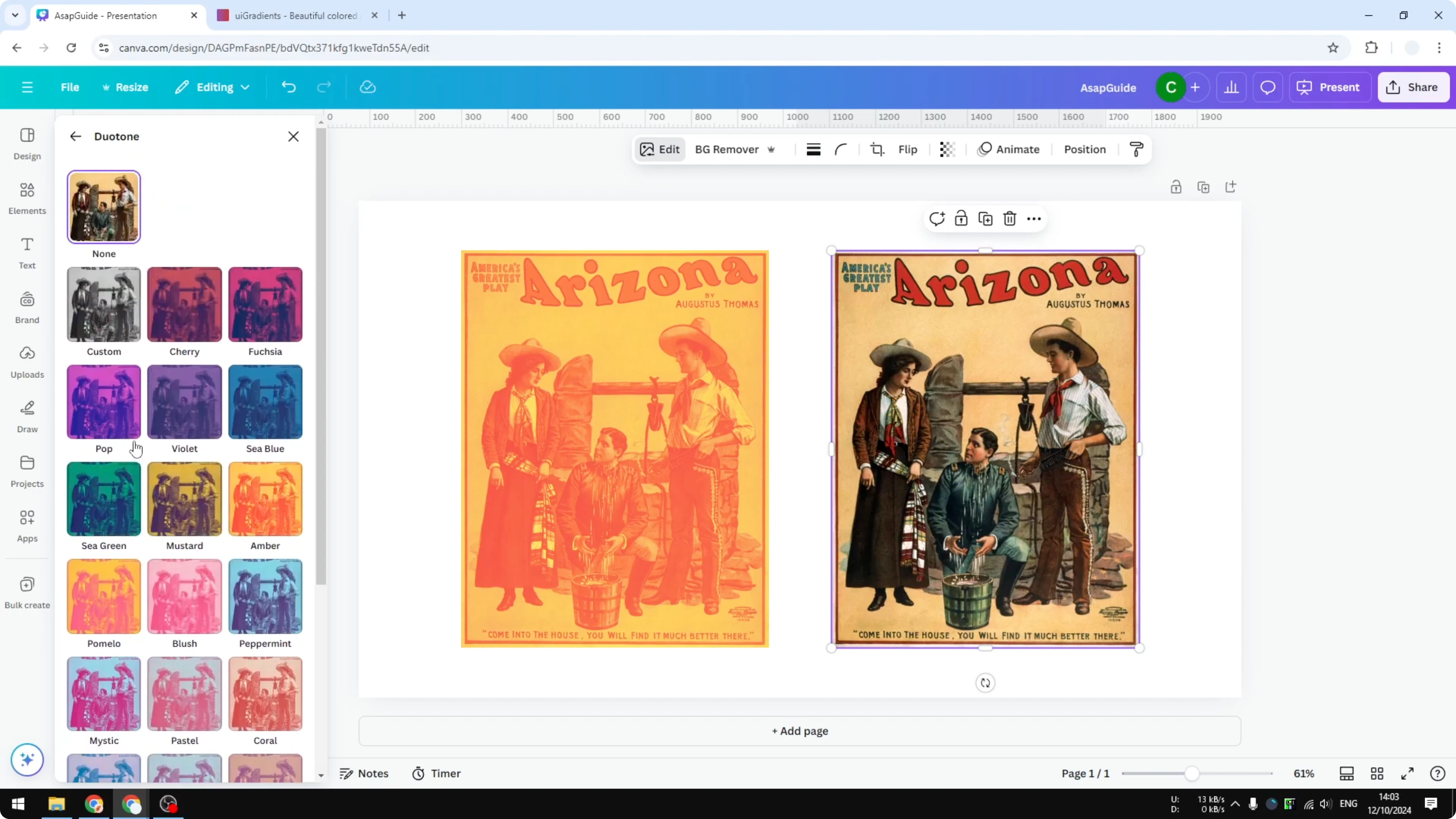
Adjust Highlight, Shadow, and Intensity to refine the look.
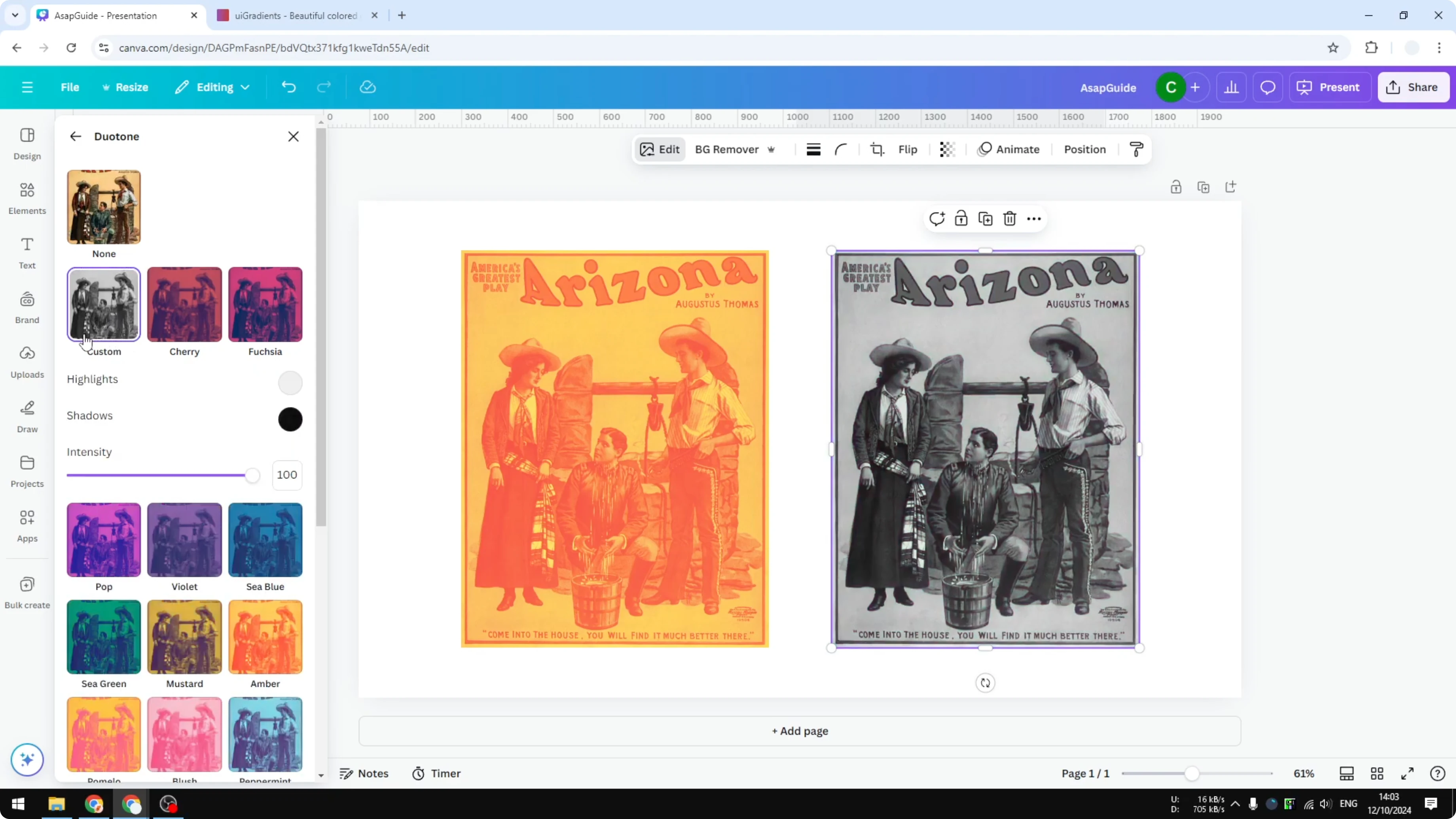
Custom colors for Apply Duotone in Canva
I like to set my own colors, so I choose Custom inside Duotone. Highlight should be a very light color, and Shadow should be a dark color. If you are unsure which colors to pick, try the presets and experiment.
You can also scan gradient palettes to find a light and dark pair. A gradient usually combines a light and a dark in one set, which works nicely for duotone. I pick a darker color for the shadow and a lighter color for the highlight, then paste their hex codes into Canva.
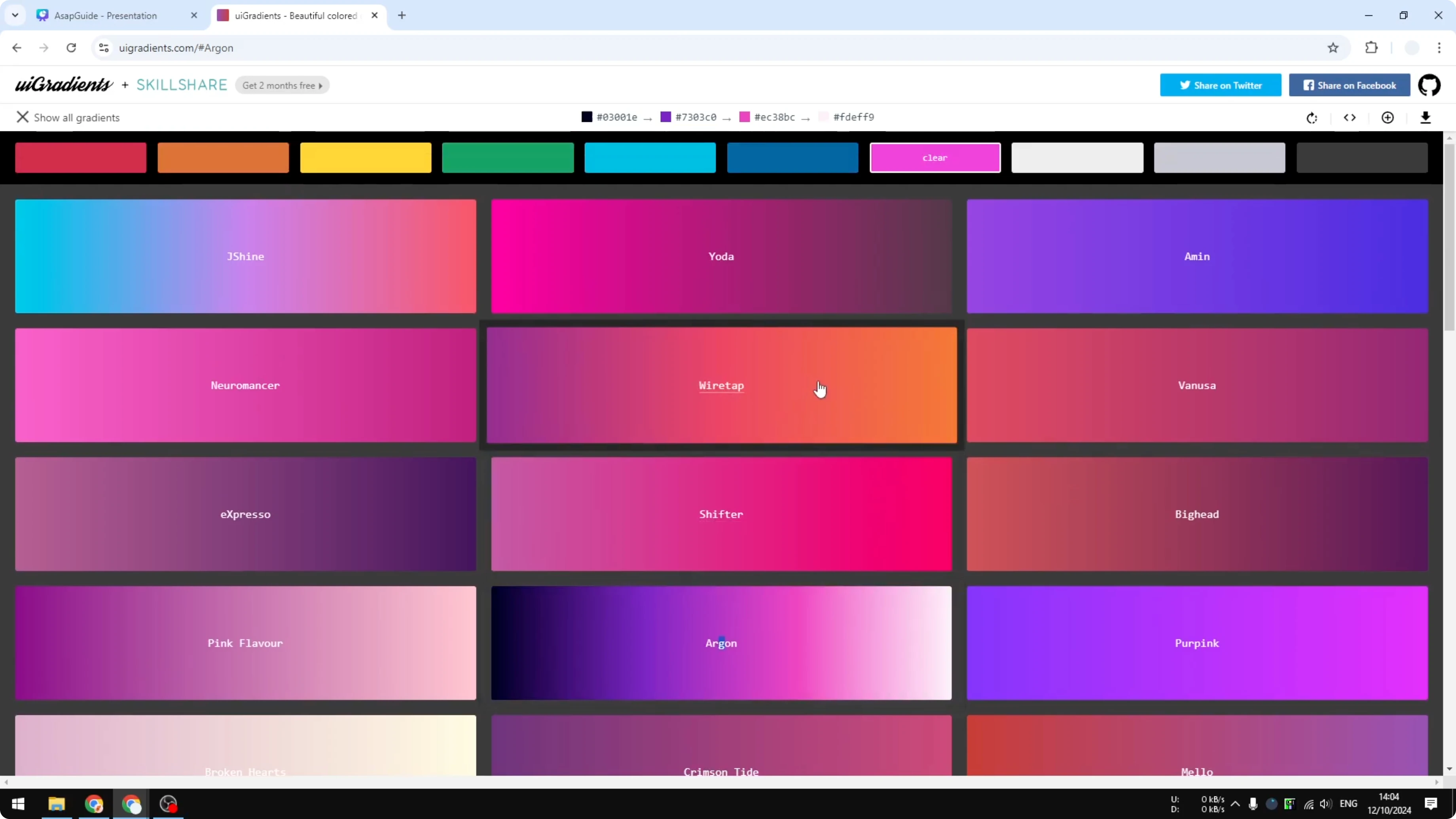
Picking highlight and shadow
Set Highlight to the light color you chose. Set Shadow to the dark color you chose. Tweak Intensity until the balance feels right.
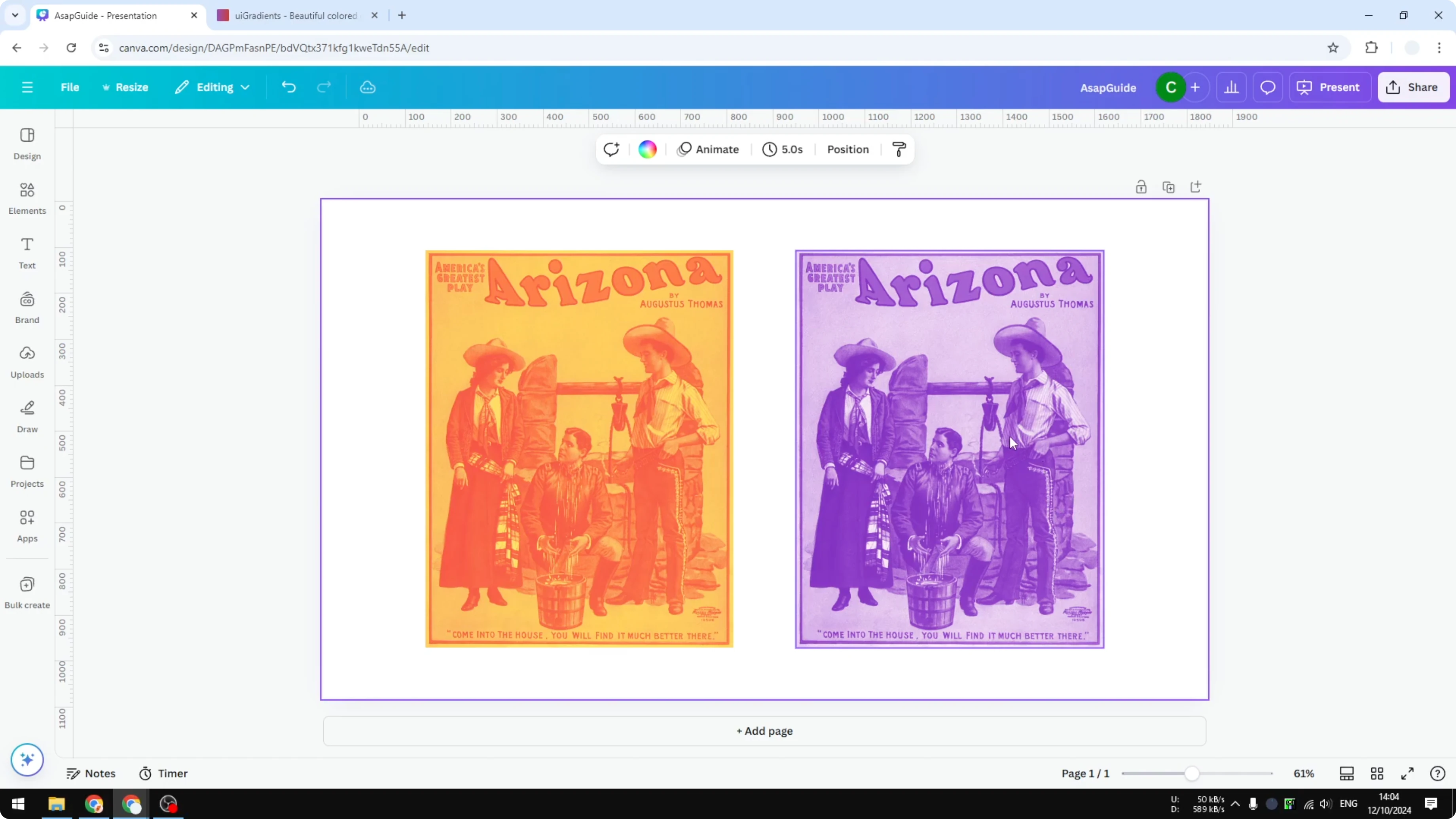
Example color codes
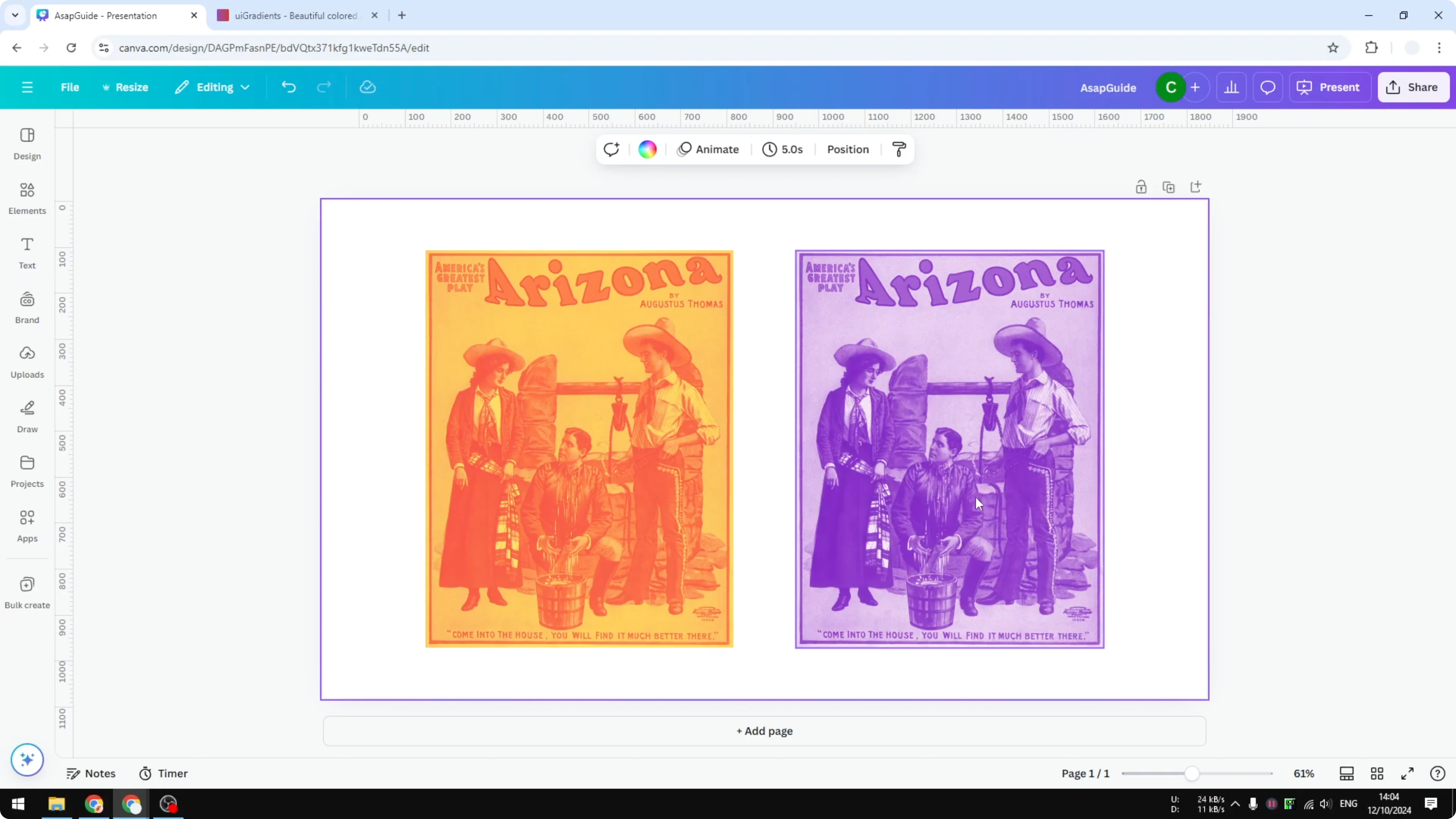
Here is a simple example using warm tones. Copy these into the Duotone Custom fields.
Highlight: #FDE68A
Shadow: #F59E0B
Read More: 3D Book Cover Canva
Result with Apply Duotone in Canva
After applying the duotone effect, the photo has a different look and feel than the original. The two tone style is clean and striking. I think this looks really great for bold graphics and headers.
Read More: Add Accent Marks Canva
Final thoughts
Duotone in Canva is simple to apply and highly flexible. Use presets to get started, then switch to Custom to set your own Highlight, Shadow, and Intensity. Copy hex codes from a palette you like and you will get a consistent two color style fast.
Recent Posts

How to Visualize Yourself as a Pixelized Character with AI?
How to Visualize Yourself as a Pixelized Character with AI?

How to Revive Faded Memories and Enhance Image Clarity with AI?
How to Revive Faded Memories and Enhance Image Clarity with AI?

How to Visualize Yourself as an Animal Crossing Character with AI?
How to Visualize Yourself as an Animal Crossing Character with AI?