How to Exponent Superscript in Canva
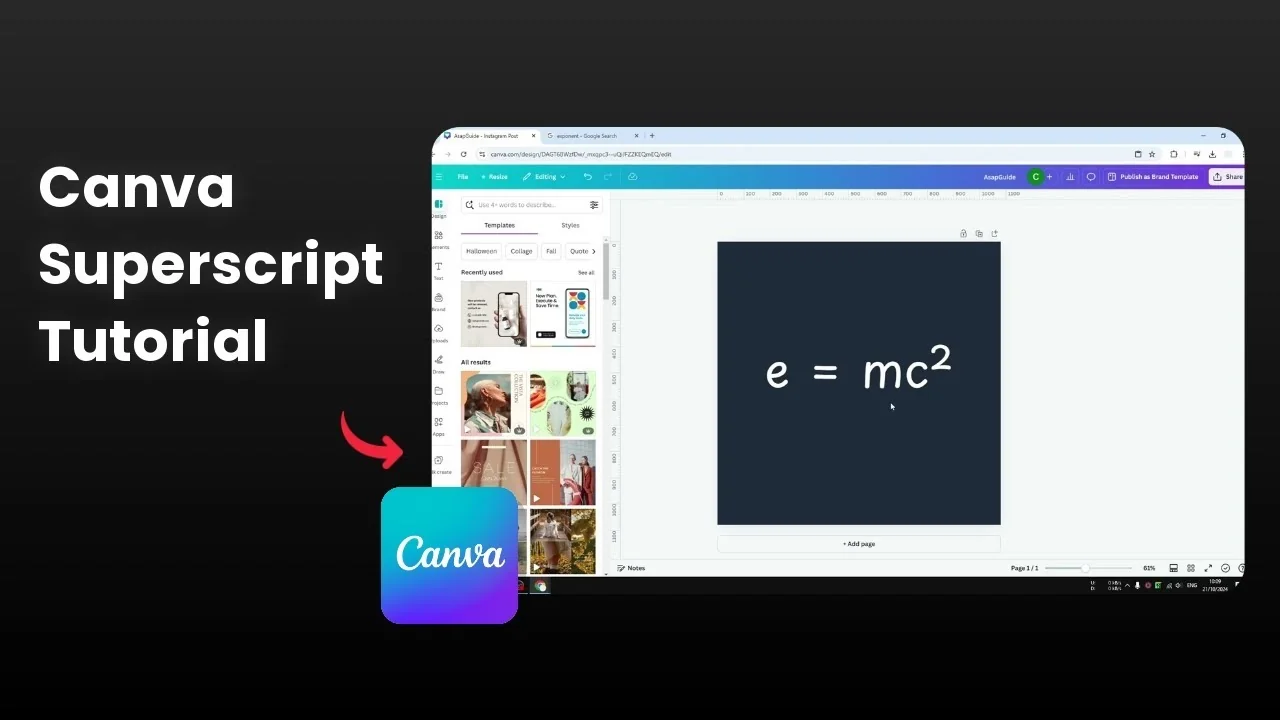
I will show you how to create an exponent also known as superscript in Canva. There are three different methods to try, and you can decide which one is the best for your use case. If you are refining typography in Canva, see how to add accent marks to characters for clean text output.
Three methods for Exponent Superscript in Canva
Magic Write for Exponent Superscript in Canva
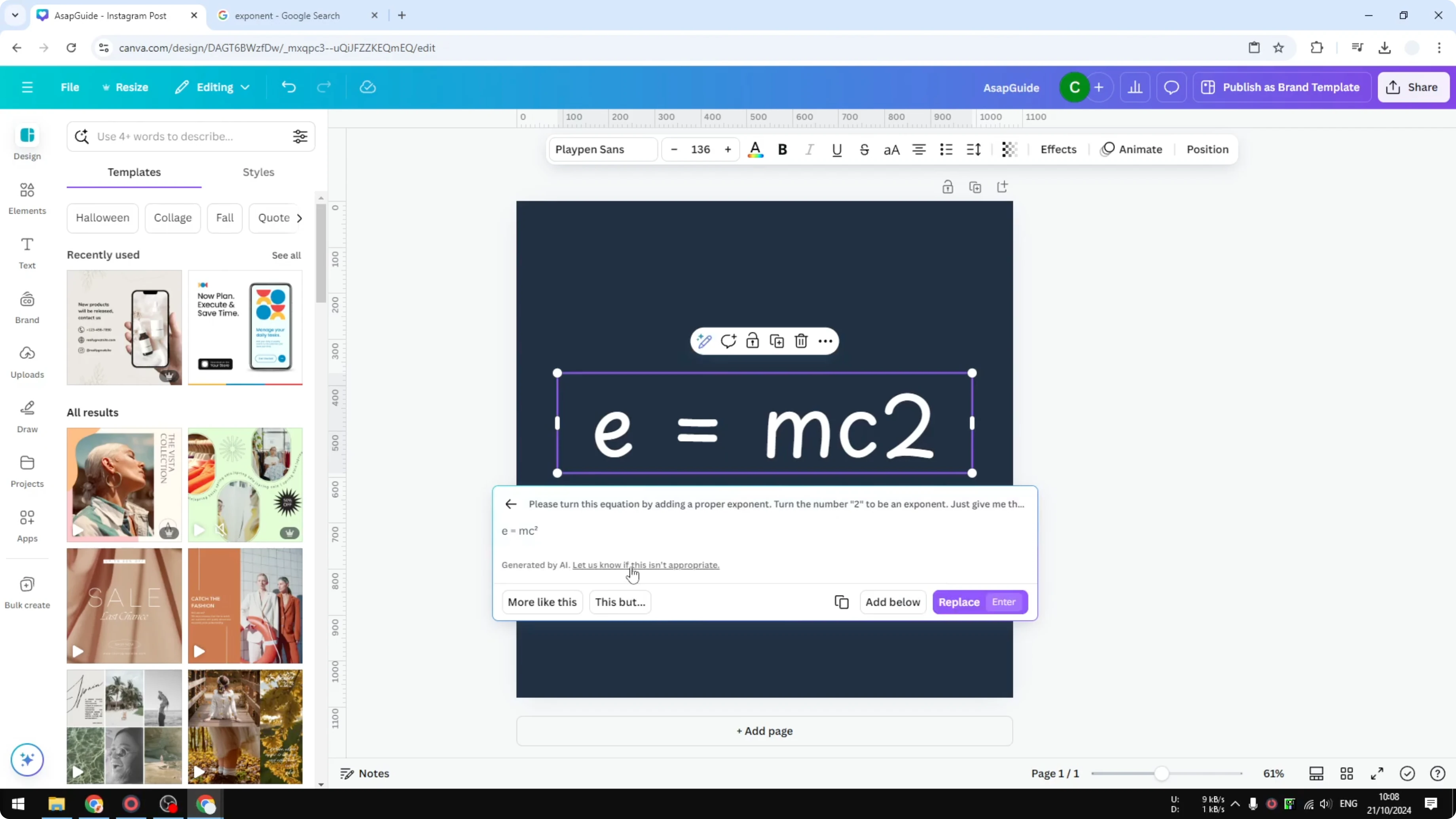
Select any text or any number in Canva that needs to become an exponent. Click Magic Write and choose Custom Prompt. Ask the AI to create a proper exponent for the number, generate the response, and click Replace to apply it.
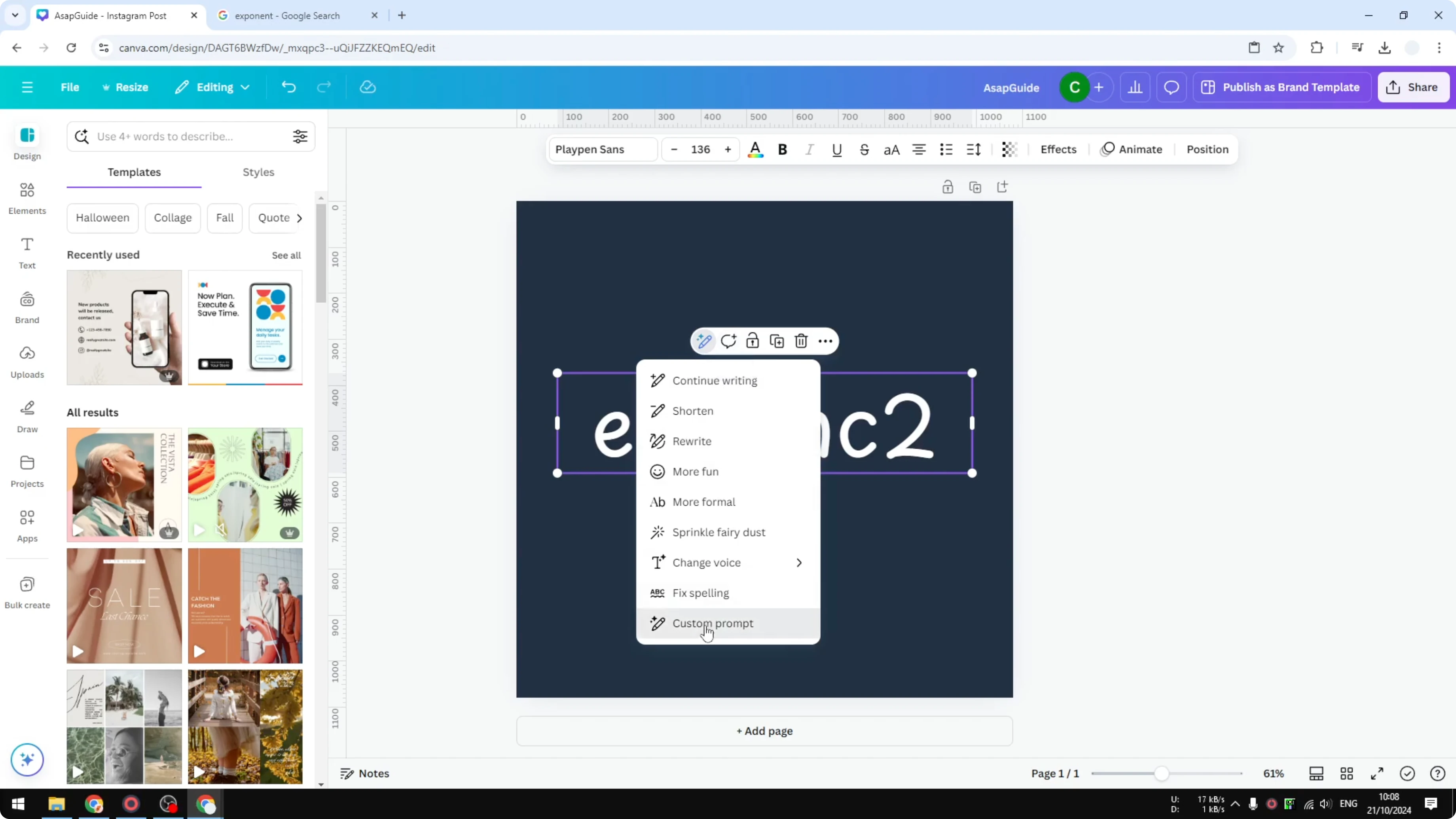
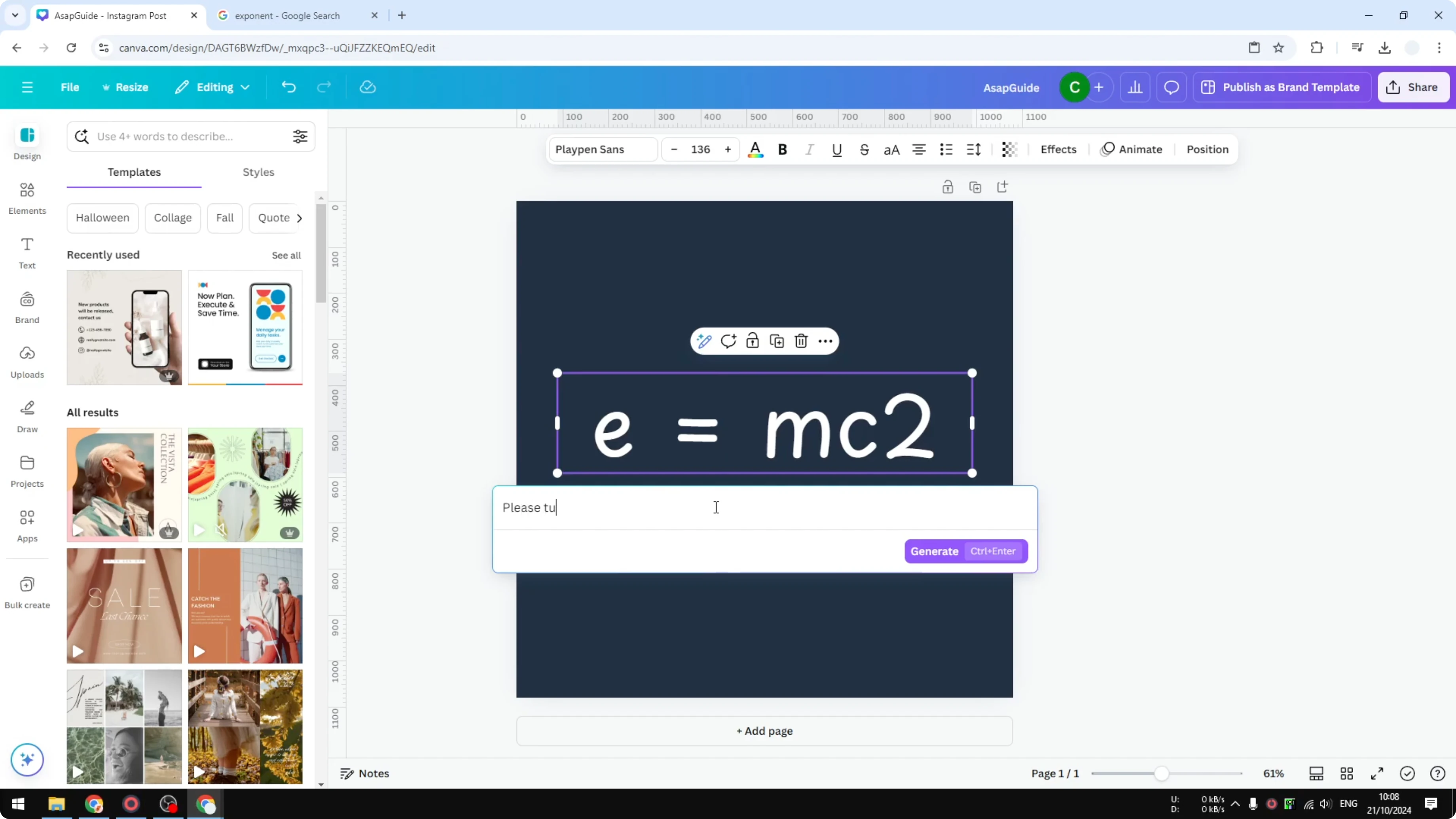
Use a clear prompt like this:
Please turn this equation by adding a proper exponent.
Turn the number two to be an exponent.
Just give me the simple response.
Manual placement
Insert a regular text element for the base, for example X. Add another text element for the exponent, such as 2 or 3. Position it at the top right of the base and make it smaller to look like an exponent.
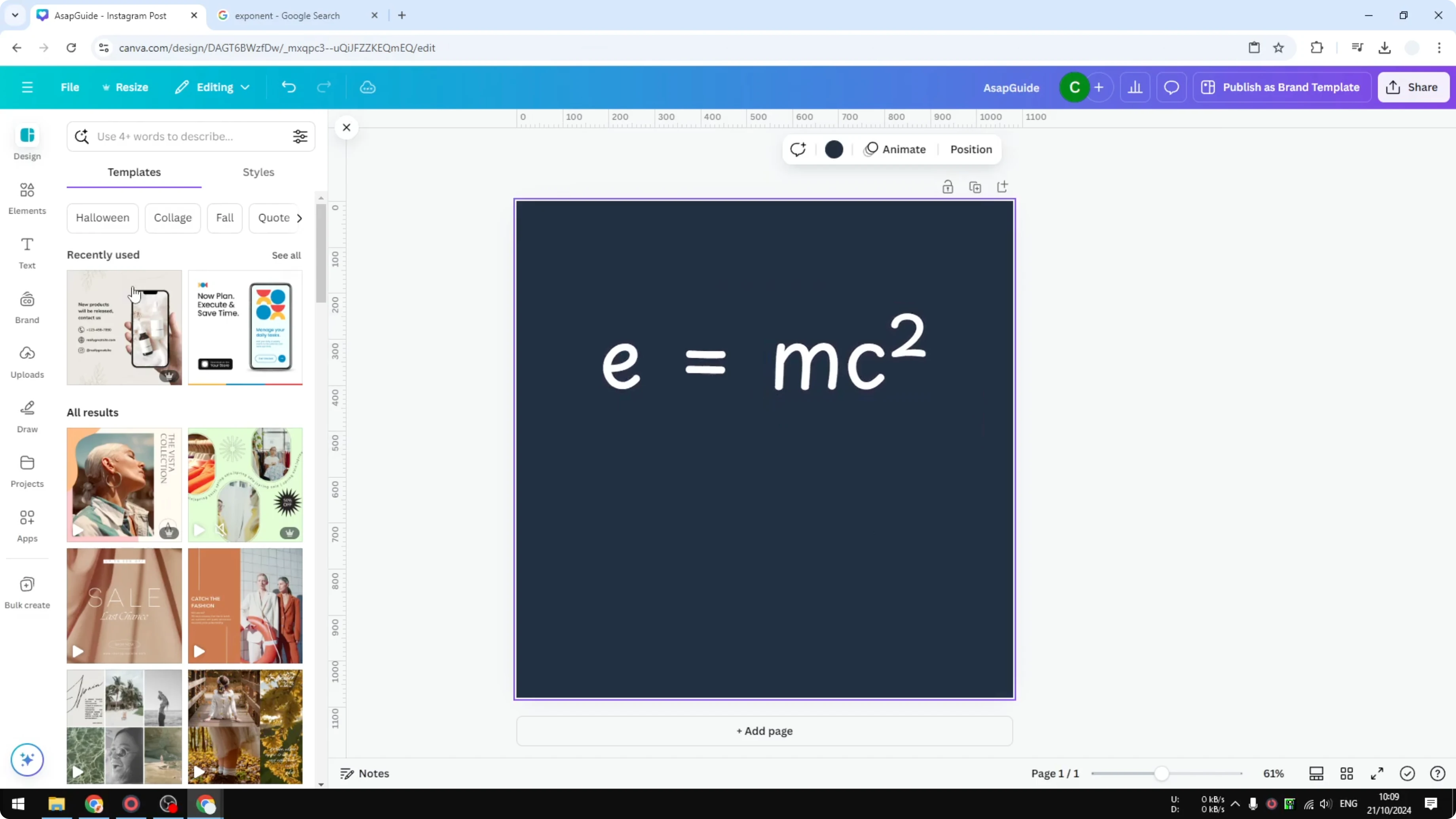
This is straightforward but probably not perfect if you are creating a lot of exponents. If you just need it occasionally, this technique works well.
If you want a creative follow up, try building a polished 3D book cover once your text is set.
Equations app
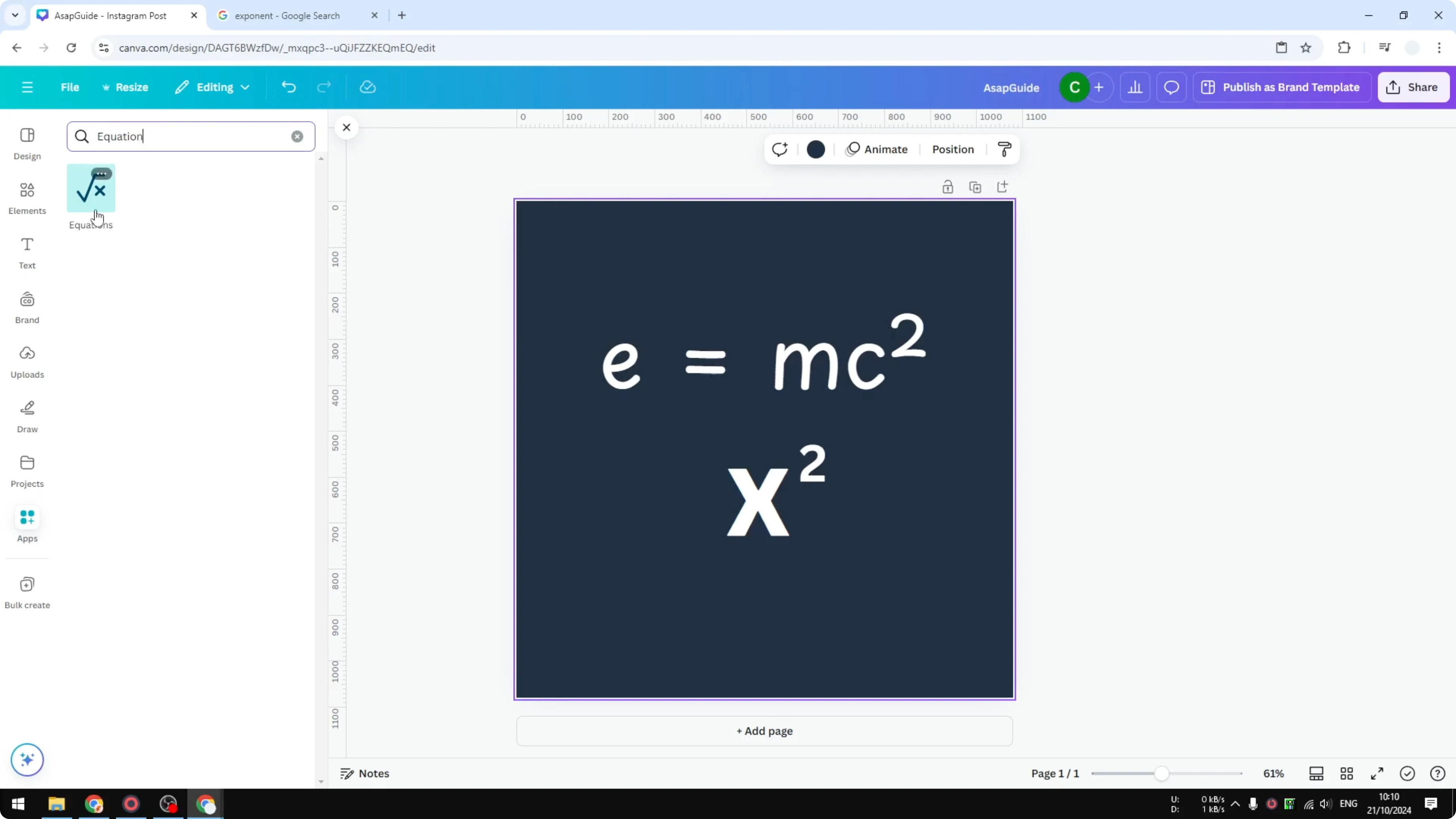
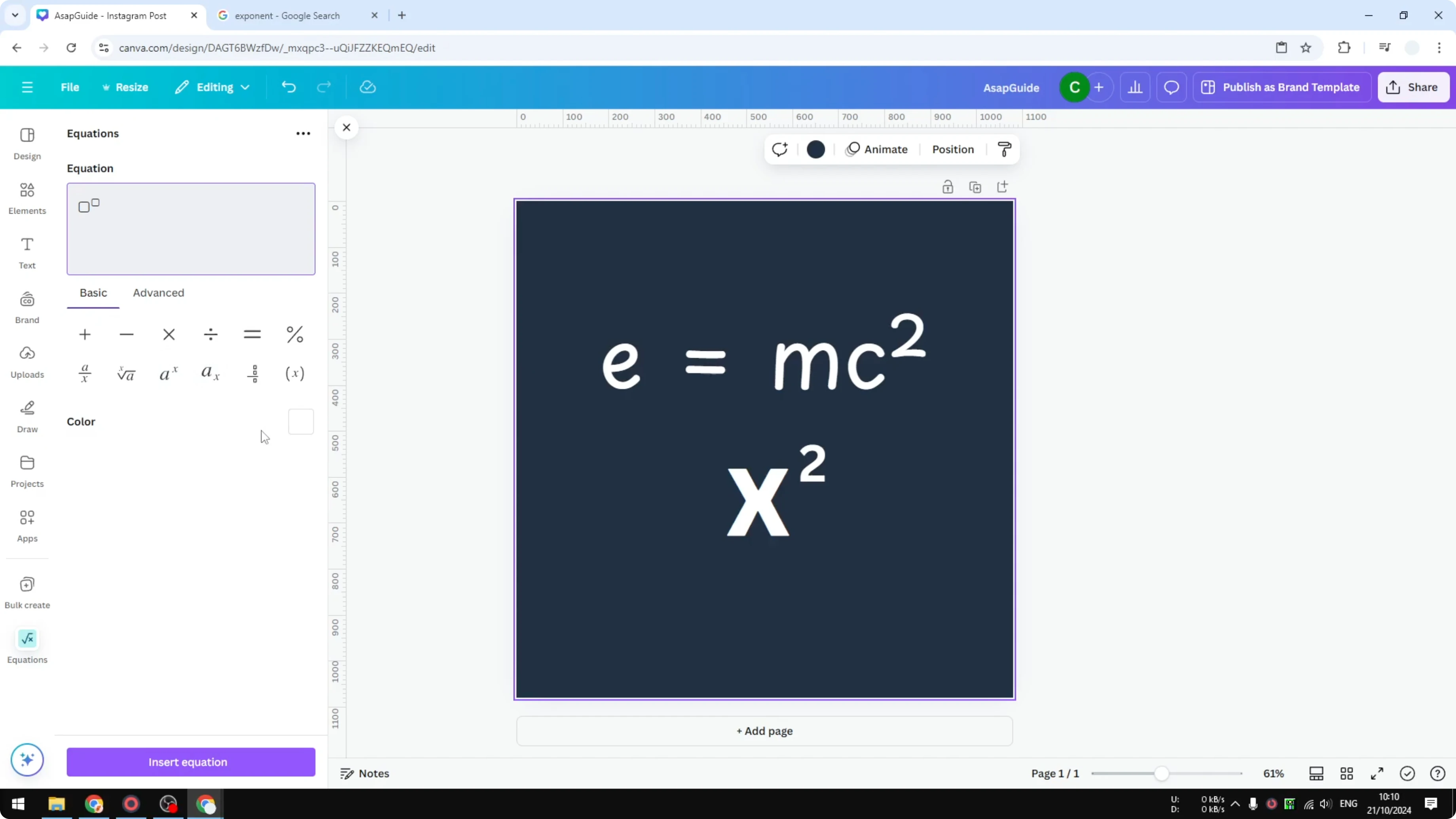
Go to Apps in Canva and search for Equation. Click the Equations app, then in the Basic section choose the exponent option. Change the color to match your background before inserting, because you cannot change the color later.
Enter the base like X and the exponent number such as 3. Click Insert to place the exponent generated by the app.
Final thoughts on Exponent Superscript in Canva
These three techniques cover quick AI formatting, manual control, and a template driven approach. Pick the one that best fits how often you create exponents and how precise you want the layout to be.
If your design includes images, remember to add alt text to pictures in Canva for accessibility and clarity.
Recent Posts

How to Visualize Yourself as a Pixelized Character with AI?
How to Visualize Yourself as a Pixelized Character with AI?

How to Revive Faded Memories and Enhance Image Clarity with AI?
How to Revive Faded Memories and Enhance Image Clarity with AI?

How to Visualize Yourself as an Animal Crossing Character with AI?
How to Visualize Yourself as an Animal Crossing Character with AI?