How to Evenly Space Objects in Canva
I’m going to show you how to make multiple objects evenly spaced in Canva. There are two methods you can try to make a design with multiple elements look tidy and pretty.
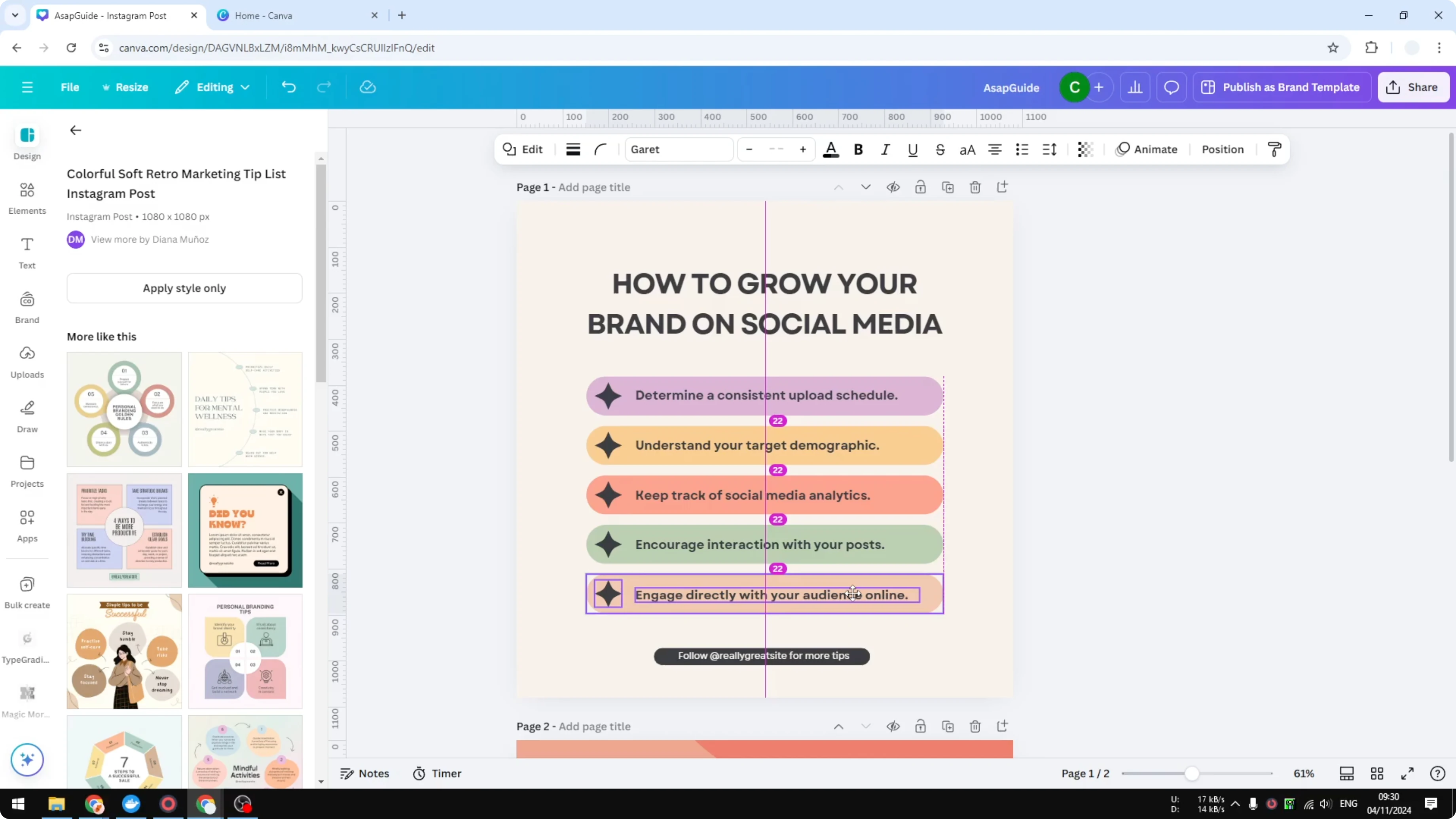
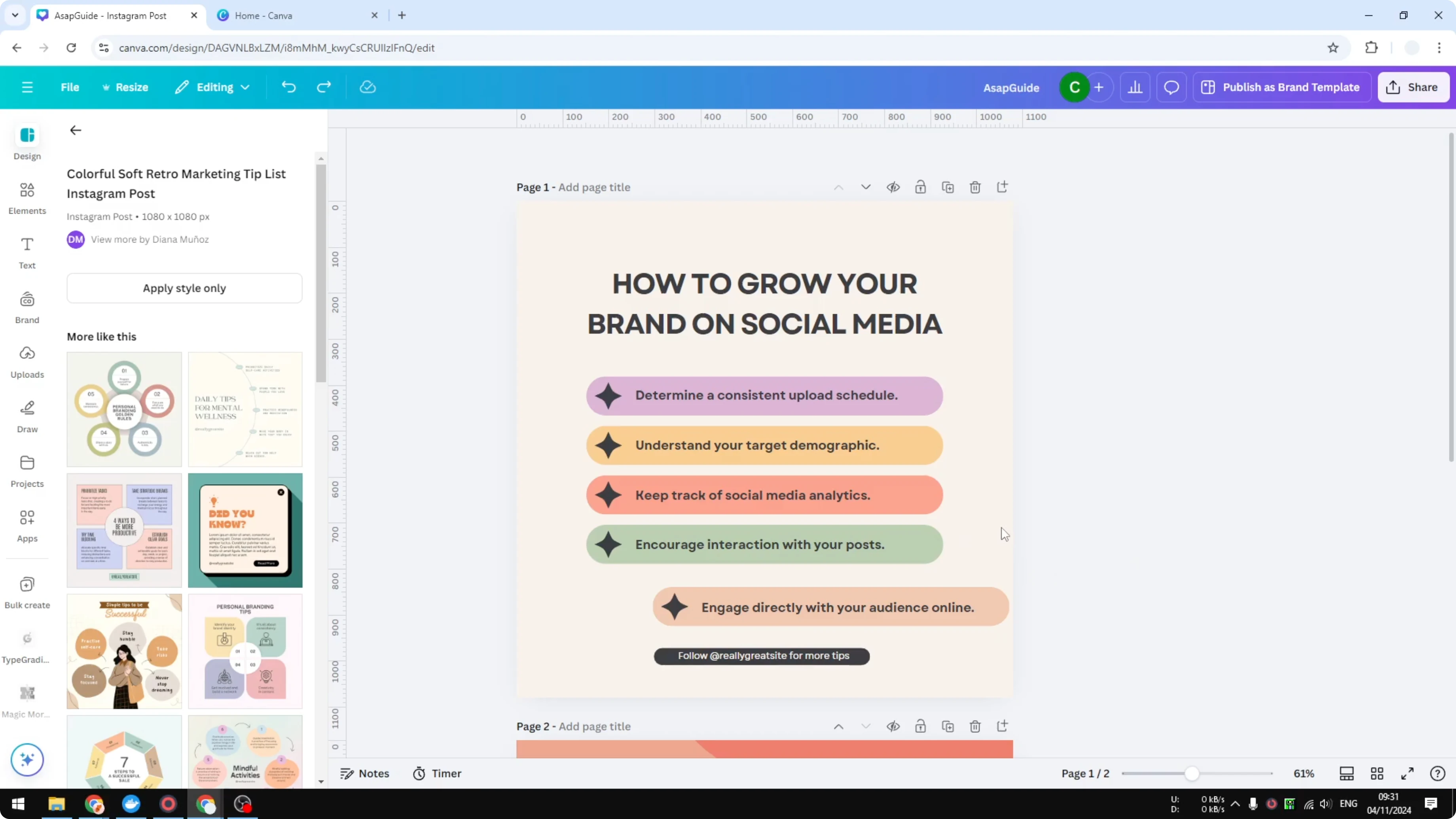
I have a simple list template, but the last item is not where it should be. I want to put it in the correct position.
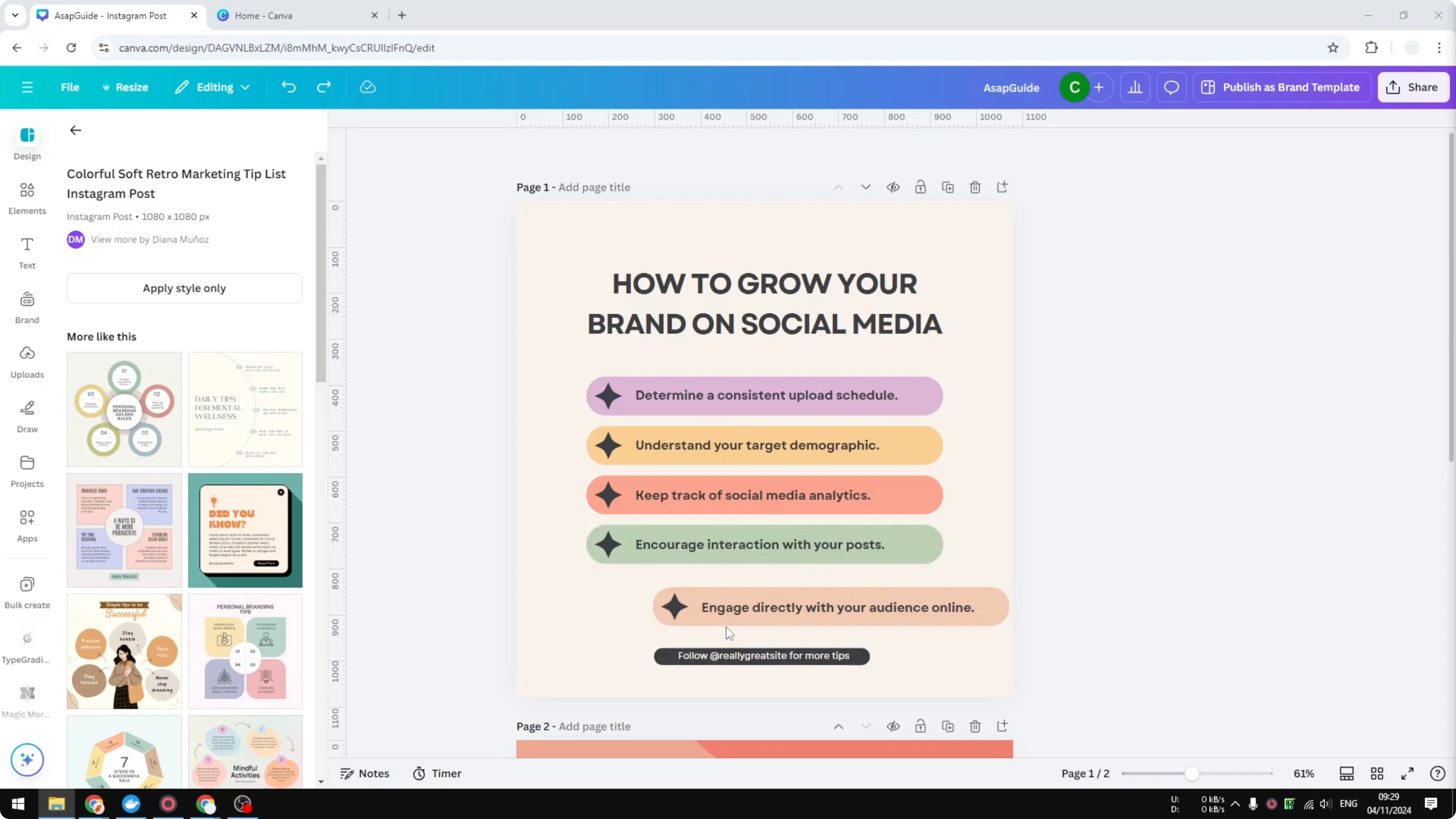
Evenly Space Objects in Canva: manual guides
Select the items you want to fix. They are a group that contains multiple elements. Move them to the spot you want.
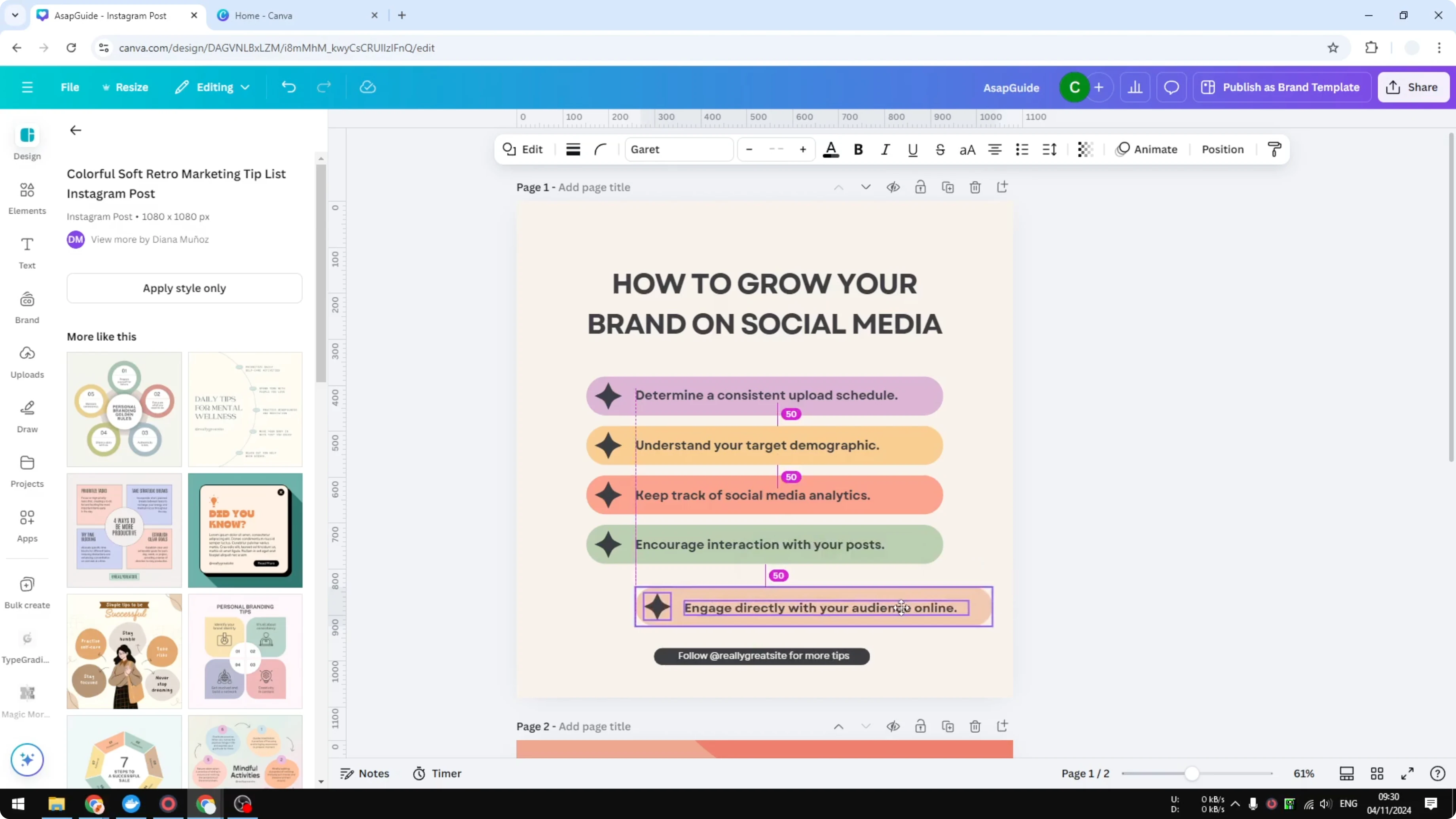
Follow the guidance that Canva shows as you drag. You will see a number like 22 that represents the gap between one element and another that matches similar elements. This helps make sure the item you are repositioning has the same distance as the previous elements.
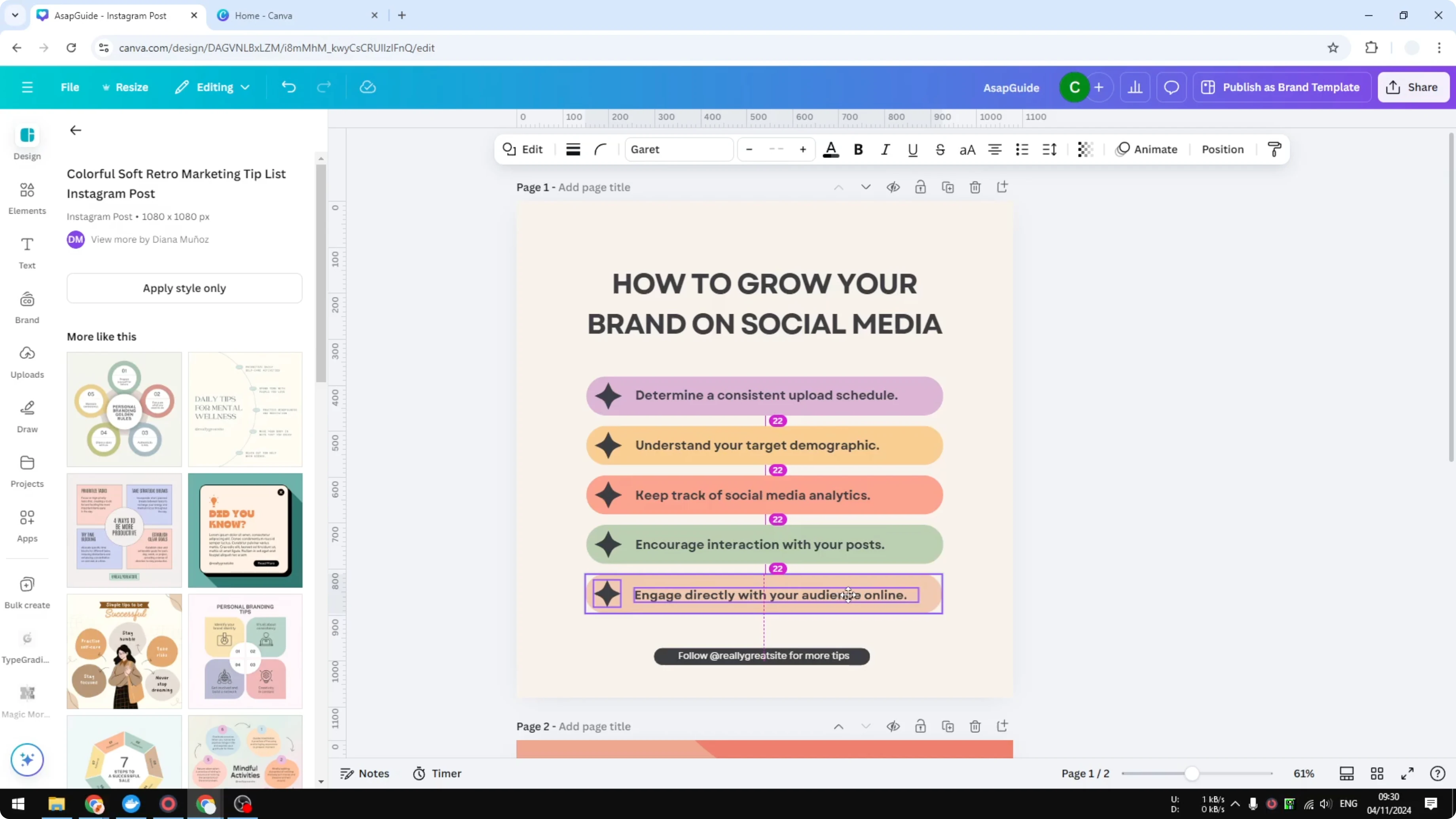
You will also see a guide that helps you put the item exactly in the center. When you are done, release the click. It looks nice, it looks pretty, and this is exactly how it should look.
If you are arranging covers or mockups, you might also want to quickly present them in 3D. Learn how to create a 3D book cover to showcase your design.
Evenly Space Objects in Canva: one-click tidy up
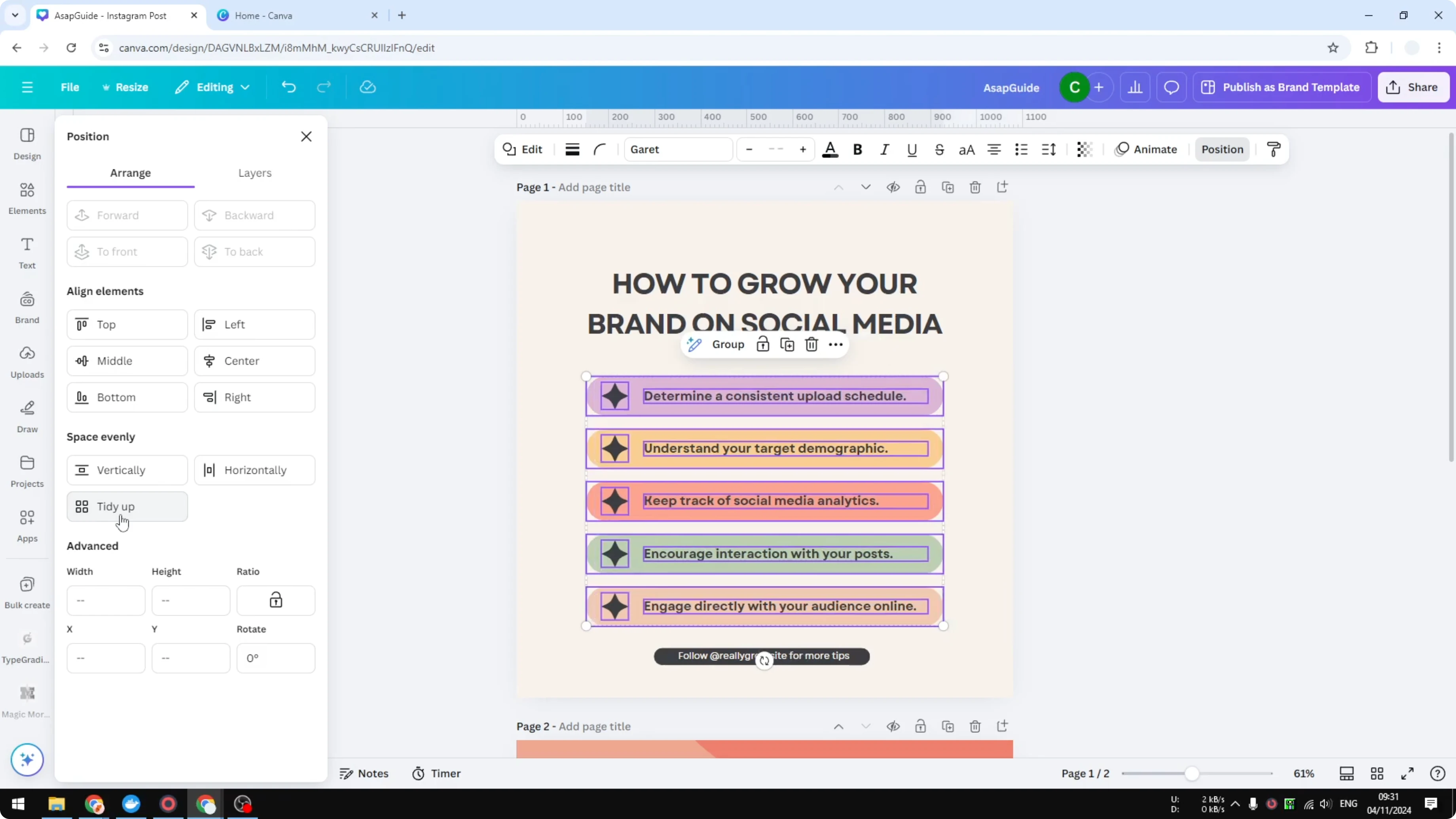
There is another method if you want to handle multiple elements that are not evenly spaced and fix them in one click. Select all the elements that are going to be involved.
Go to Position. Click Tidy up.
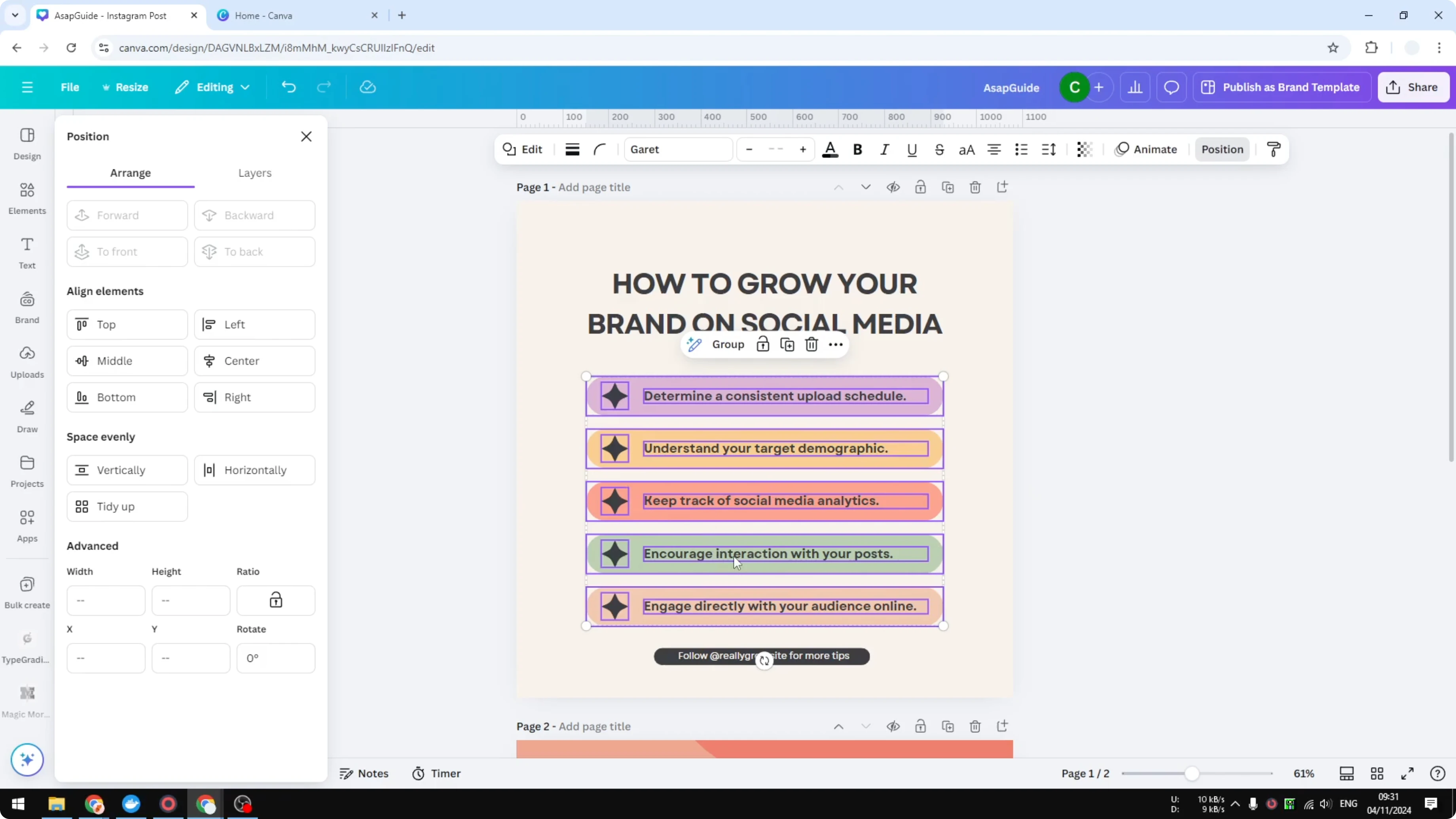
Canva will automatically adjust the position of all selected elements. It will make sure everything looks consistent and nice.
If your layout needs bold type in the background after spacing your elements, see how to add background text in Canva.
Final thoughts
Those are the two methods you can try to evenly space objects in Canva. Use the manual guides when you want precise control, and use Tidy up when you want a quick, consistent result.
For polished captions and labels around your spaced elements, you can add a border to a text box to make important text stand out.
Recent Posts

How to Visualize Yourself as a Pixelized Character with AI?
How to Visualize Yourself as a Pixelized Character with AI?

How to Revive Faded Memories and Enhance Image Clarity with AI?
How to Revive Faded Memories and Enhance Image Clarity with AI?

How to Visualize Yourself as an Animal Crossing Character with AI?
How to Visualize Yourself as an Animal Crossing Character with AI?