How to Erase Part of an Image in Canva
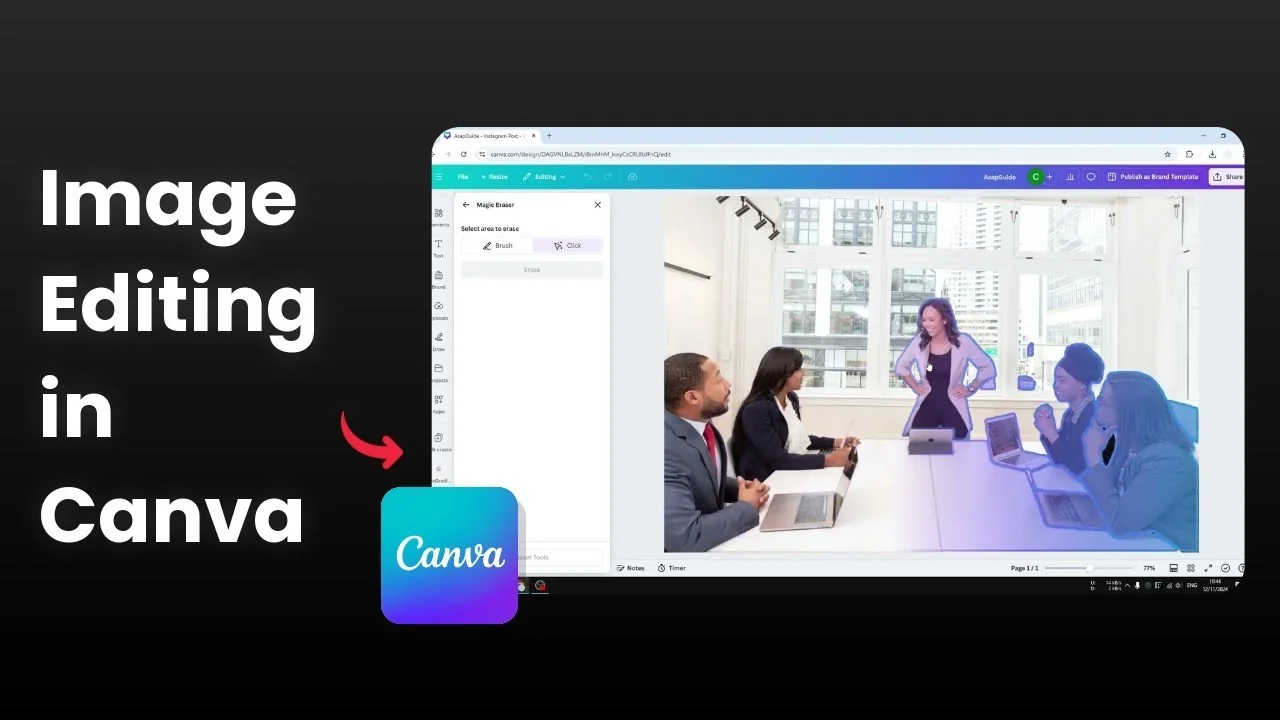
I’m going to show you how you can erase part of an image or erase an object in Canva. If you have an object in your photo that you don’t want to show, like maybe there are multiple people and one person is blocking the view, you can remove that. In this example, I have a picture from the Canva library and I’m going to remove this woman.
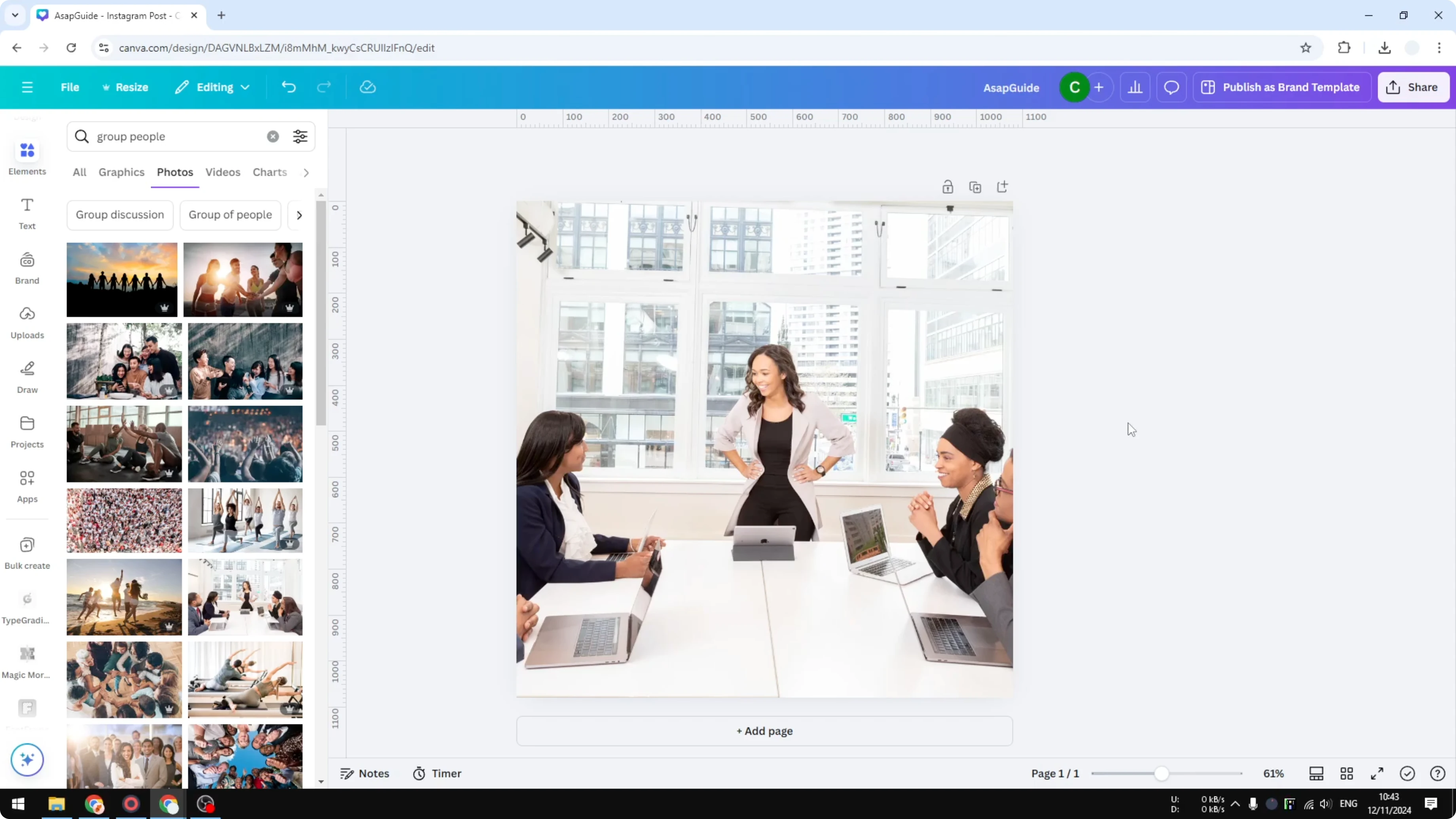
Erase Part of an Image in Canva with Magic Eraser
I select the image and go to Edit in Magic Studio. I click Magic Eraser. There are two methods: a brush method and a click method.
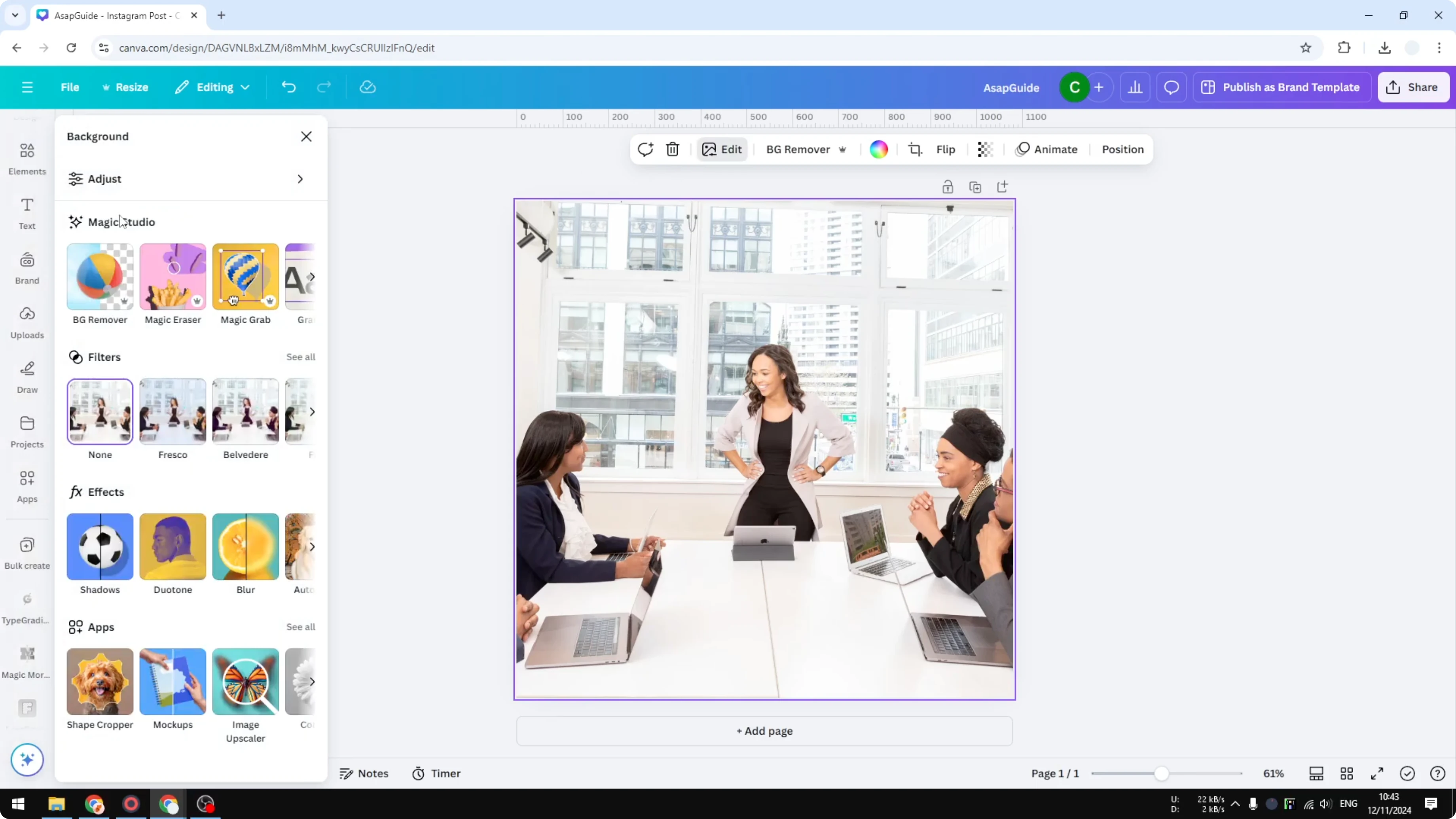
Erase Part of an Image in Canva using the click method
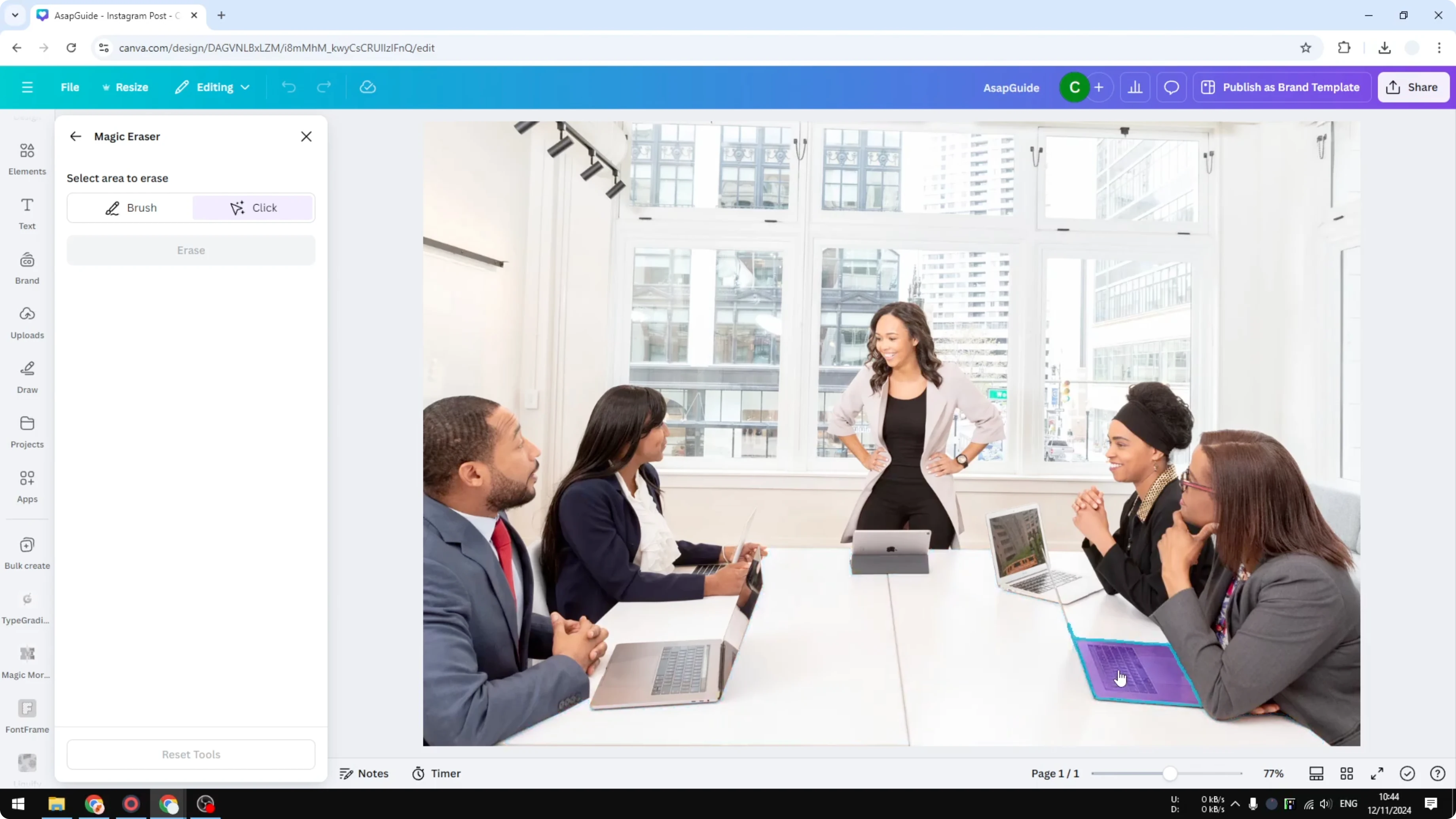
I recommend using the click method because it tries to figure out the elements in the picture. You can click on any of them to play around with it, move it, or remove the object entirely. If the click method doesn’t work, then use the brush technique.
Select the image in your design.
Open Edit in Magic Studio.
Click Magic Eraser.
Choose the Click method.
Click on the person you want to remove.
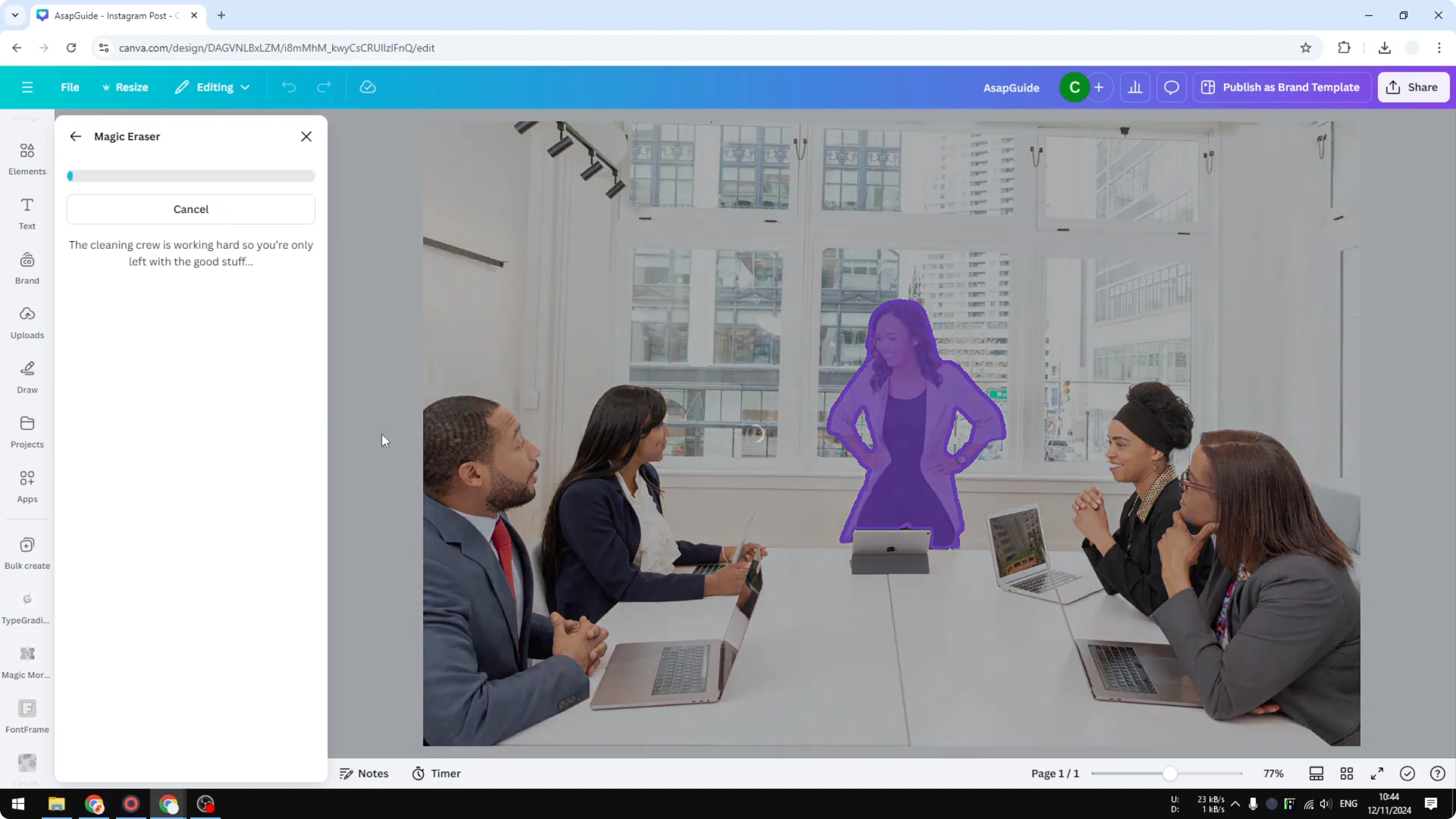
Click Erase.
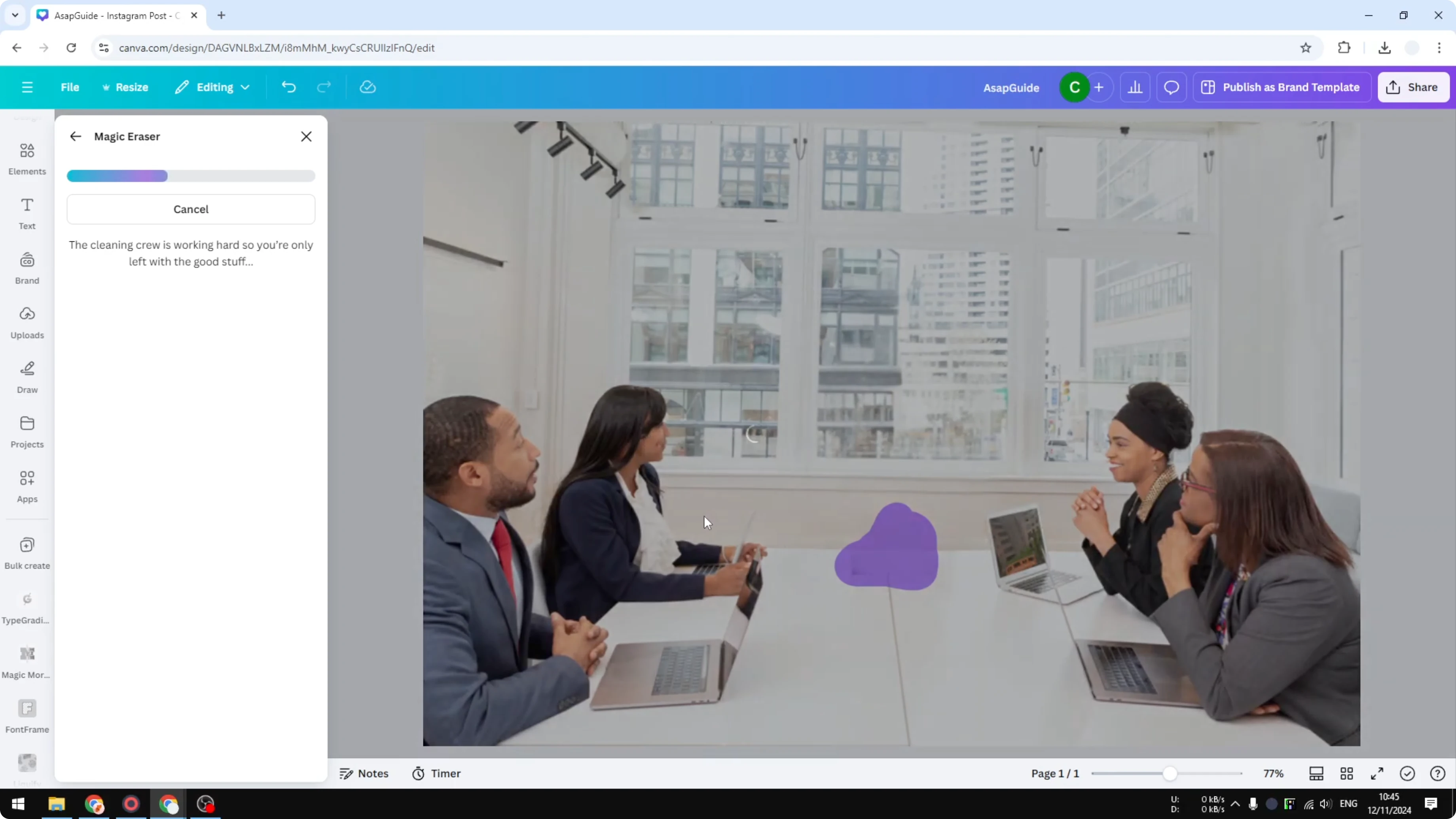
AI in Canva will try to remove the person and fill the background based on the surrounding context. I think the result is pretty good. We get a preview that shows the background where the person used to be.
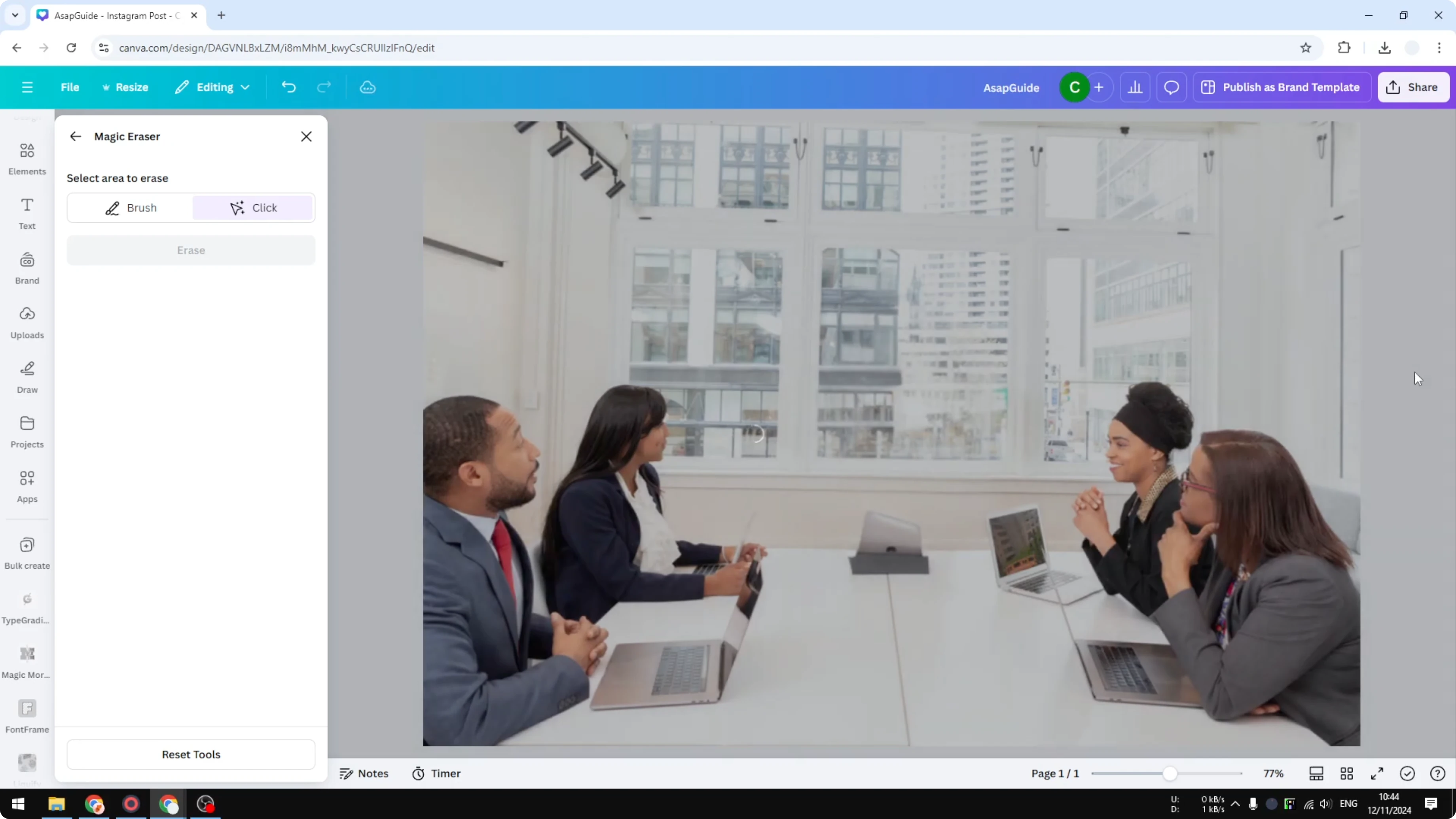
It’s not exactly perfect, but it’s good enough. If the background looks a bit dull after removal, you can brighten the background. There is a leftover here: a laptop is still visible, and we have to remove it manually.
Erase Part of an Image in Canva with the brush method
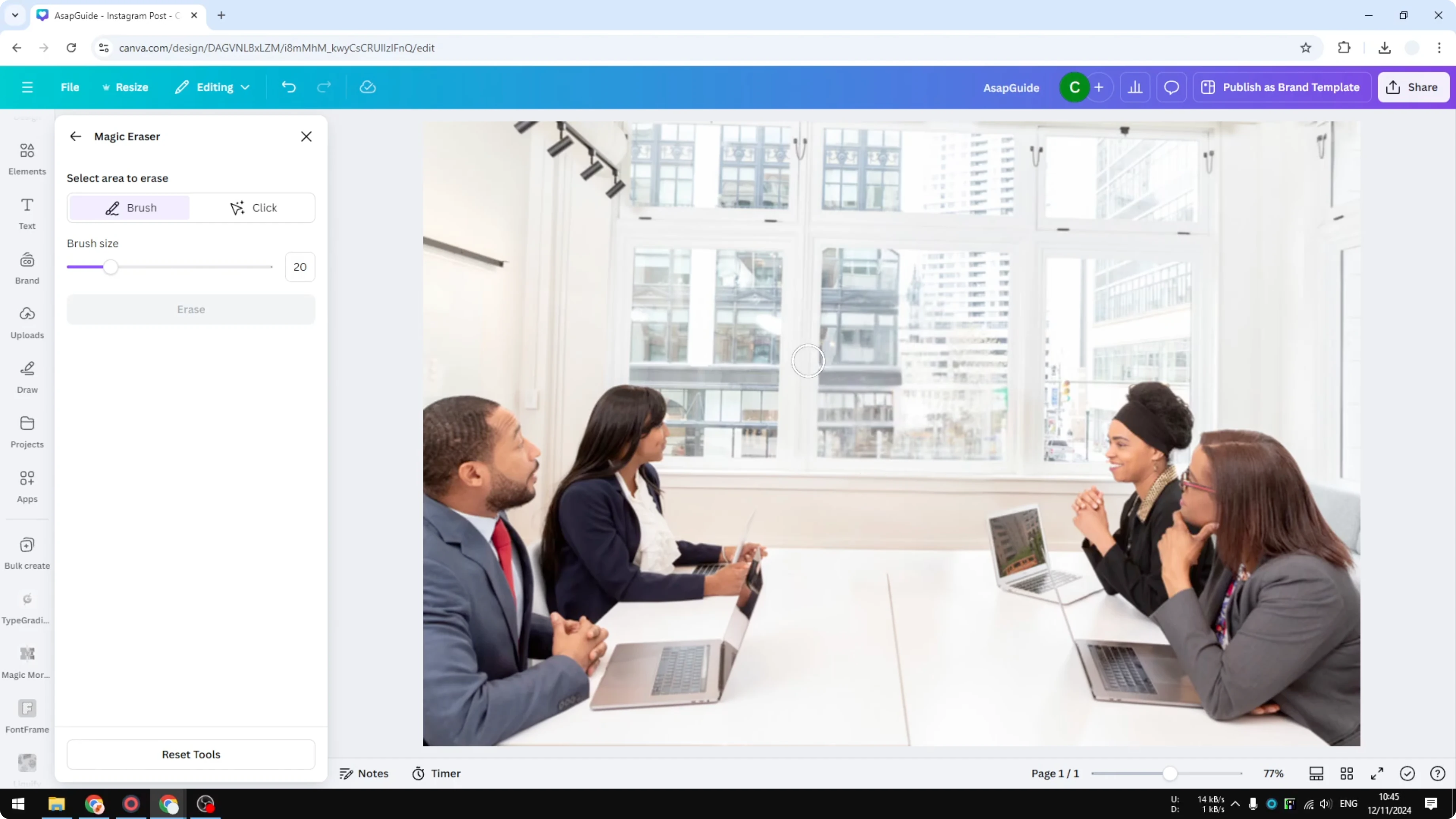
Go to Brush.
Set a brush size that fits the object detail. I used 20.
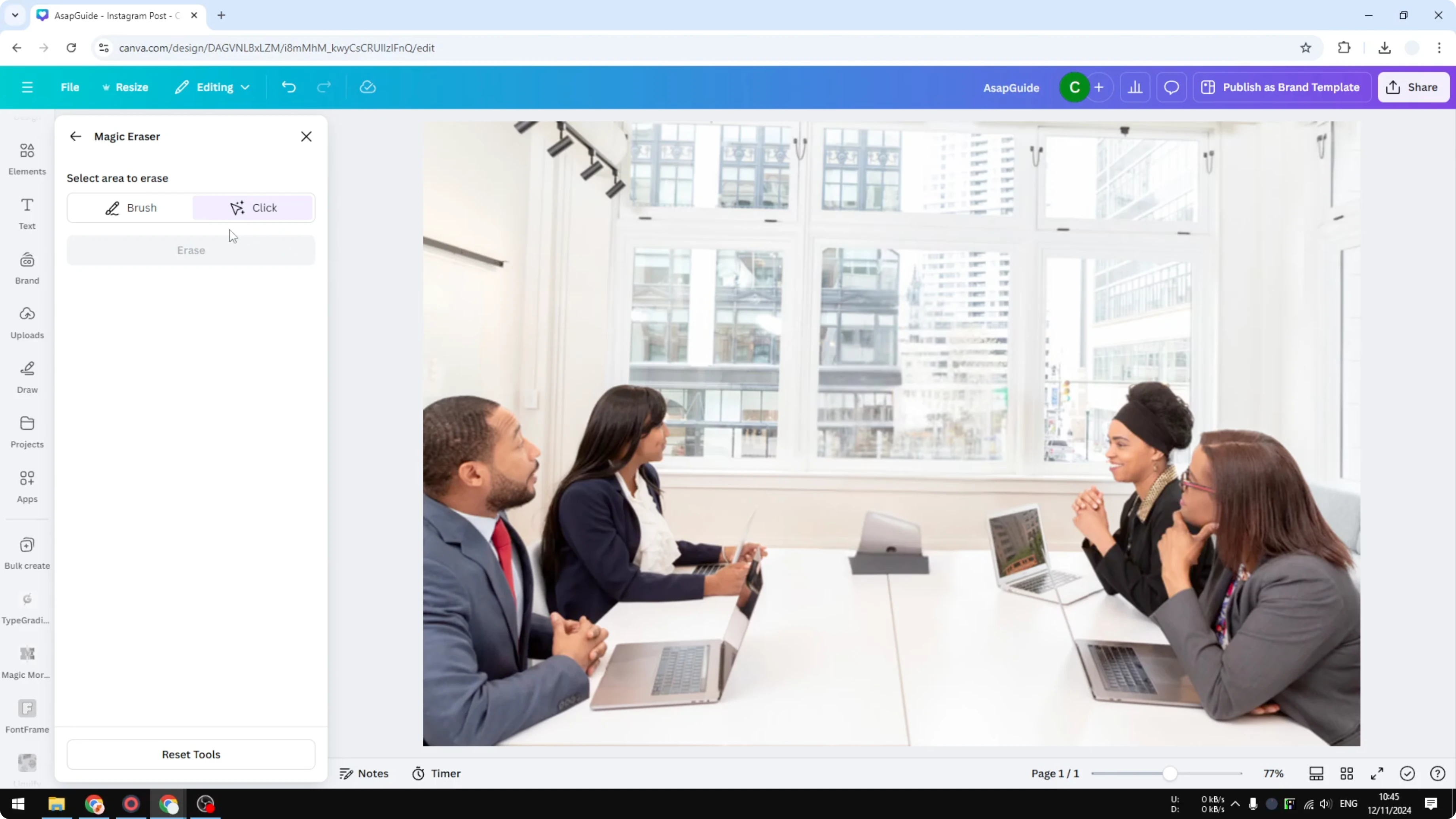
Paint over the leftover object you want to remove.
Click Erase.
Only after that are we able to remove this laptop. Sometimes the AI is not going to do its job properly, and we have to resort to the manual method. If you still see artifacts, repeat the process until you get something very clean and indistinguishable from the real picture.
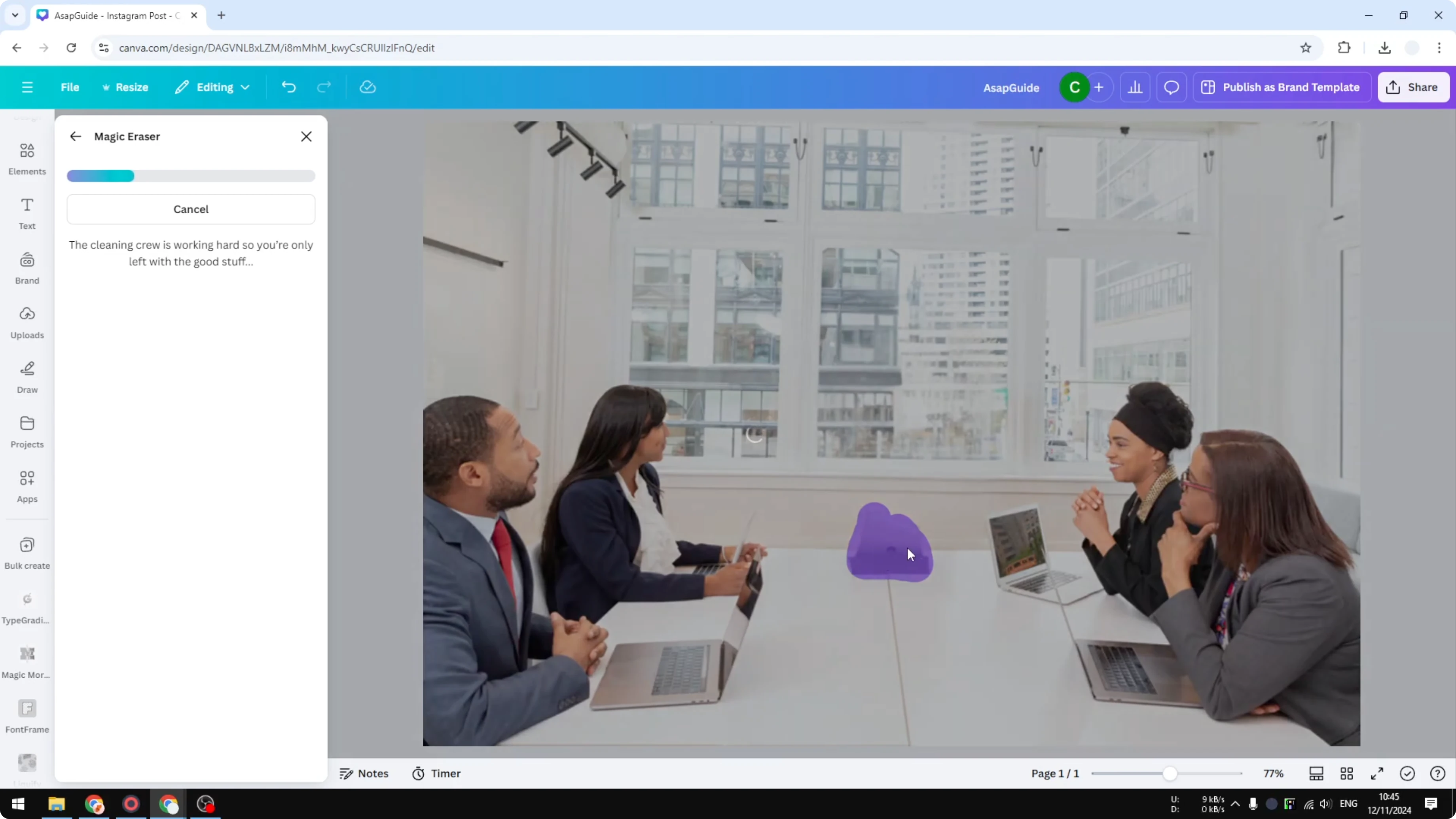
If the edit leaves color issues or mismatched tones, you can change colors on the image elements. To help blend minor fills in the background, you can also darken the image a little to mask tiny edges. I think this result is okay.
Final Thoughts
That’s how you can remove part of an image or remove an object in Canva. Try the click method first for a quick result, then clean up leftovers with the brush. Repeat small brush passes until the background looks natural.
Recent Posts

How to Visualize Yourself as a Pixelized Character with AI?
How to Visualize Yourself as a Pixelized Character with AI?

How to Revive Faded Memories and Enhance Image Clarity with AI?
How to Revive Faded Memories and Enhance Image Clarity with AI?

How to Visualize Yourself as an Animal Crossing Character with AI?
How to Visualize Yourself as an Animal Crossing Character with AI?