How to Empty Trash in Canva
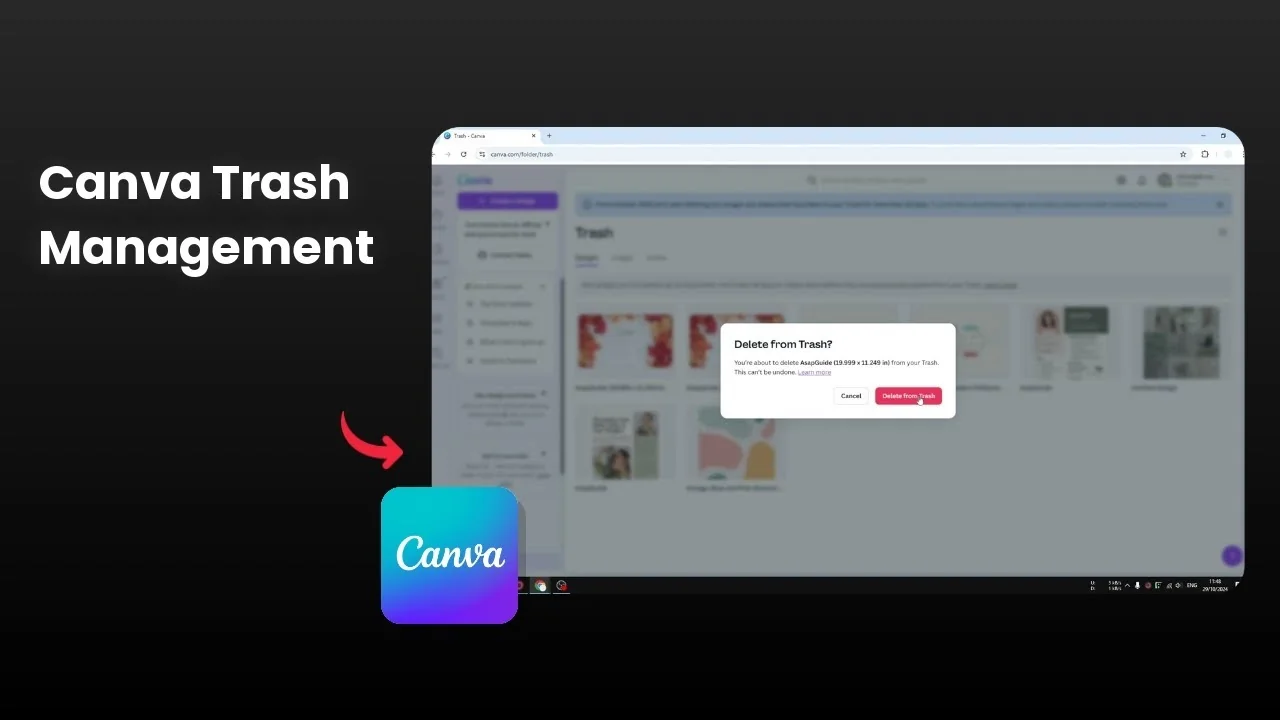
I will show you how to empty trash in your Canva account. This is a good action to keep your workspace clean and organized. It also helps reduce disk usage in your account.
If you are clearing space to start a new design, you might want to create a 3D book cover in Canva. Fresh projects benefit from a tidy dashboard. Keeping Trash under control makes it easier to focus on new work.
Why Empty Trash in Canva
Keeping Trash clean helps you stay organized and frees up storage. It also avoids confusion between archived work and what you still need. I like to remove clutter so I can find active designs faster.
Access Trash in Canva
Visit canva.com and log in to your dashboard.
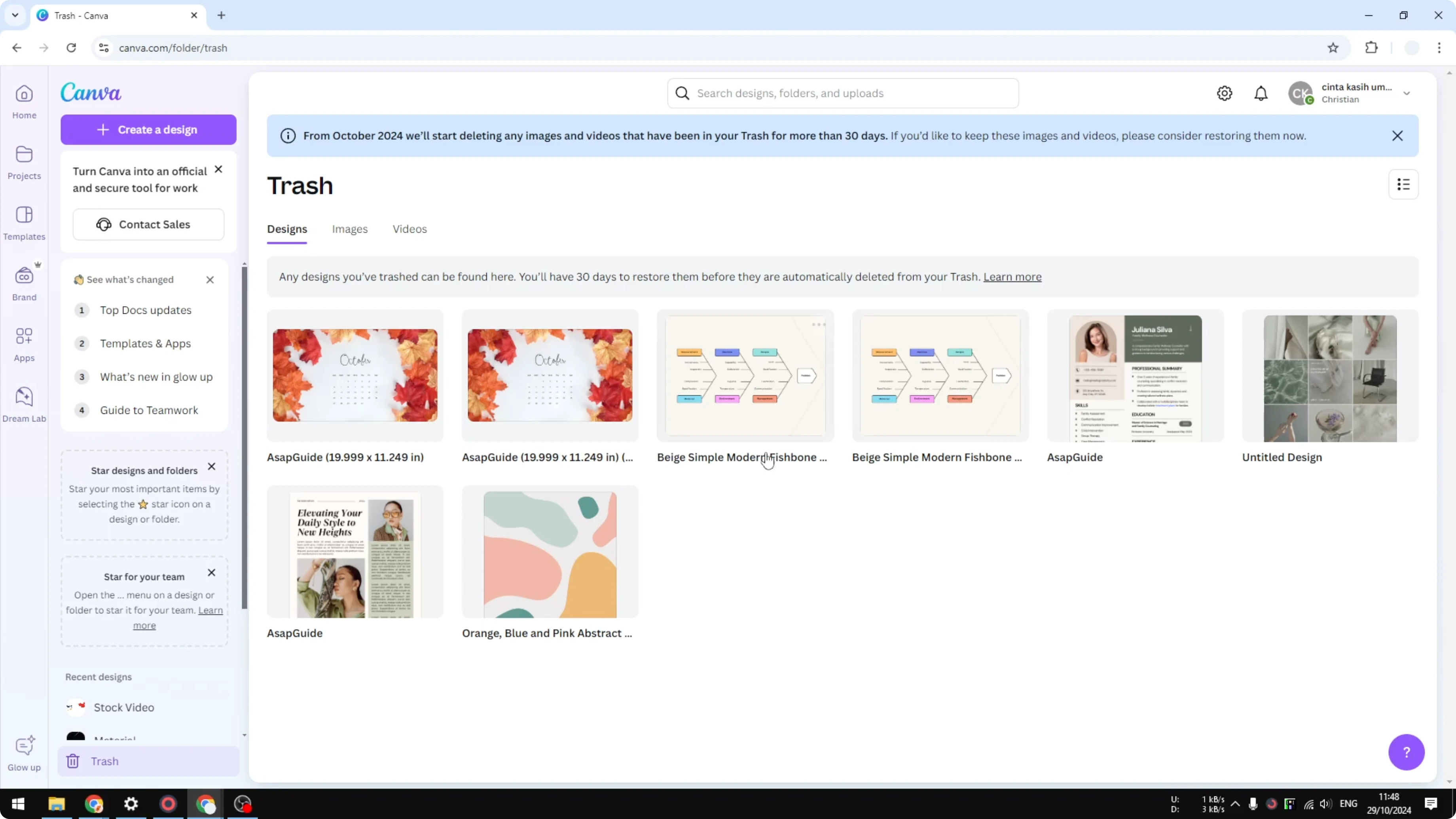
Open Trash from the bottom-left menu.
Review the designs, images, and videos listed in Trash.
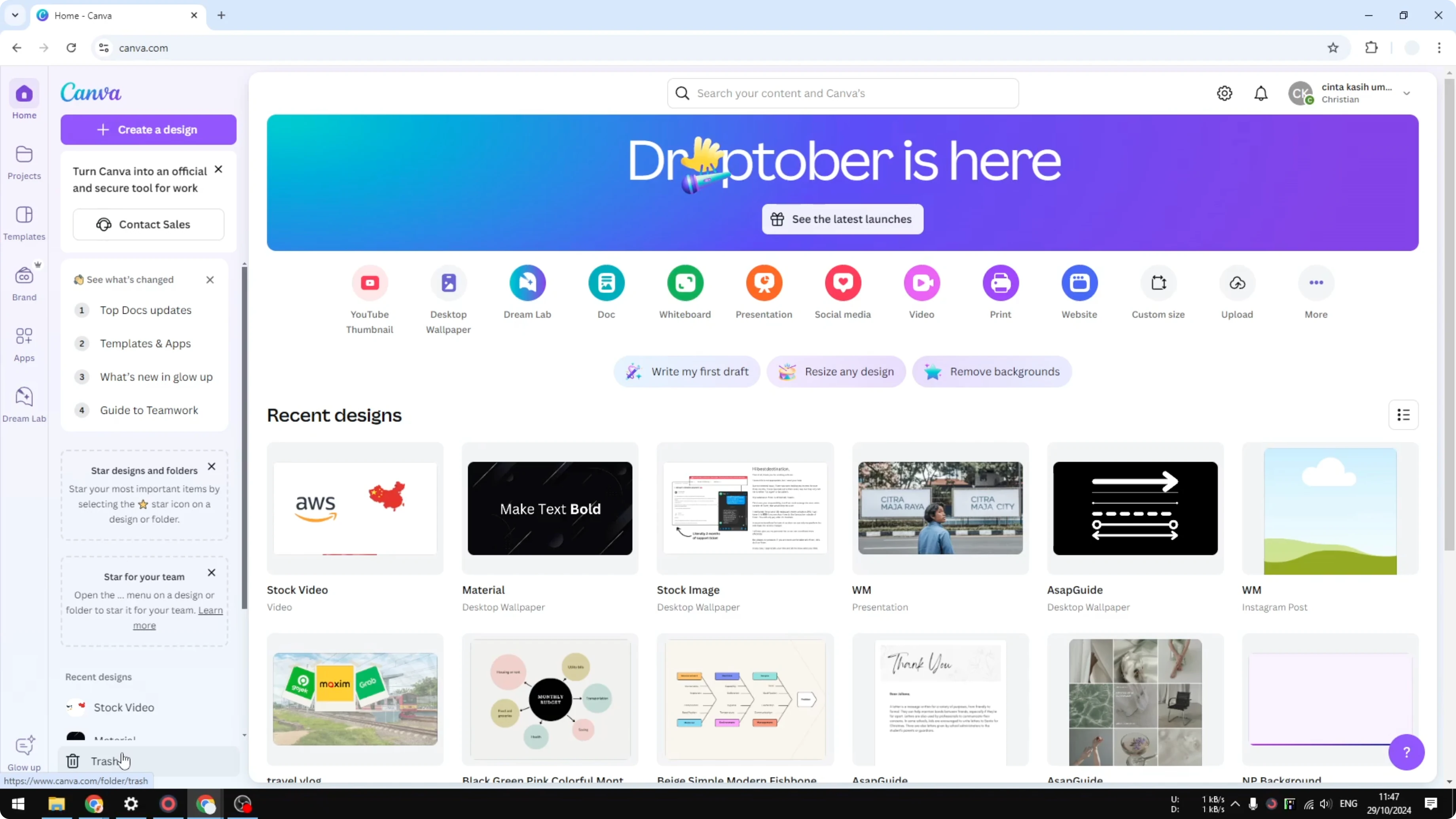
If you see items you no longer need, you can remove them immediately. If you want to keep them for a while, leave them there until they age out. I like to scan the list before deciding.
Manual deletion in Empty Trash in Canva
Open the menu on an item in Trash.
Click Delete from trash.
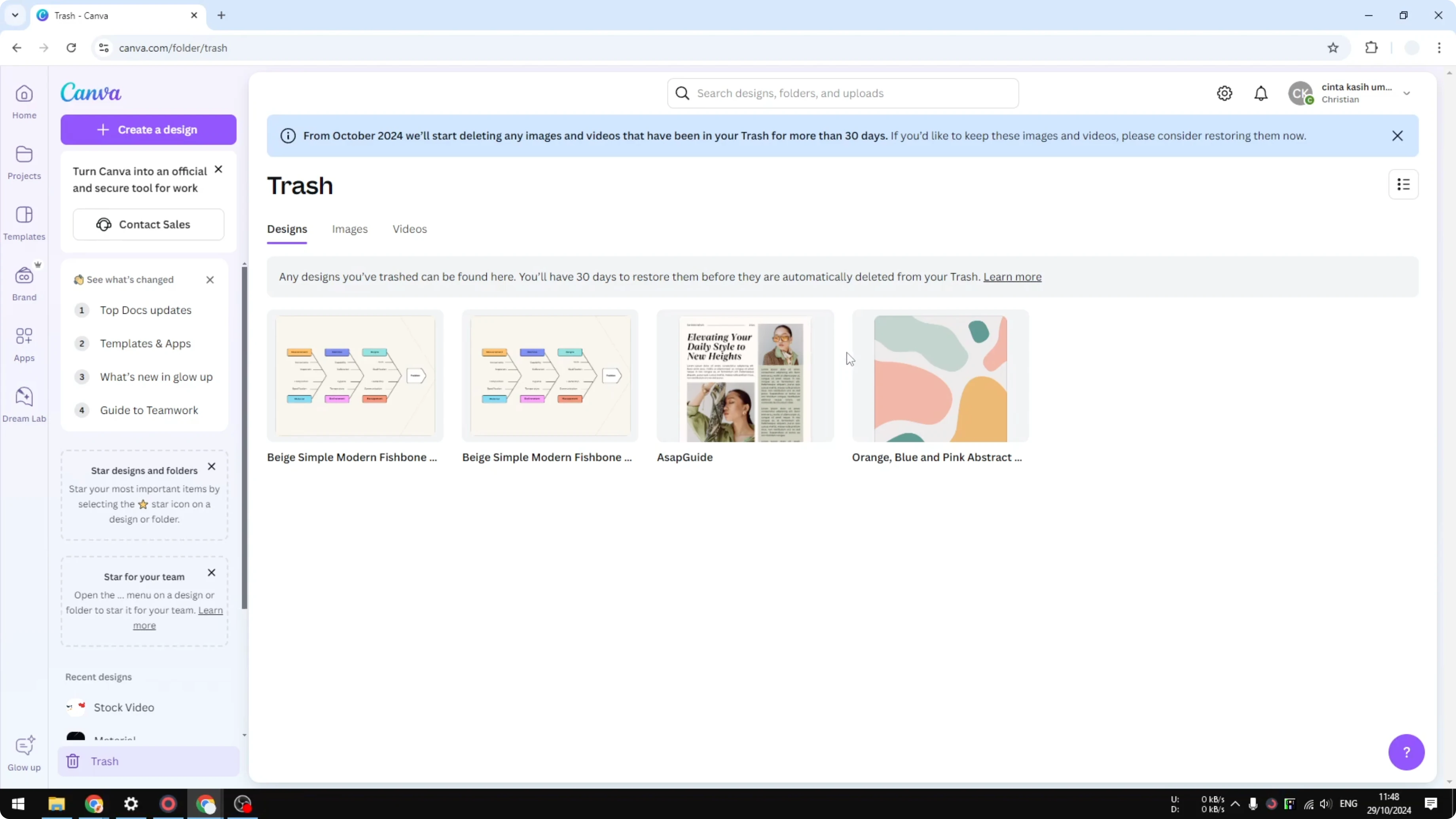
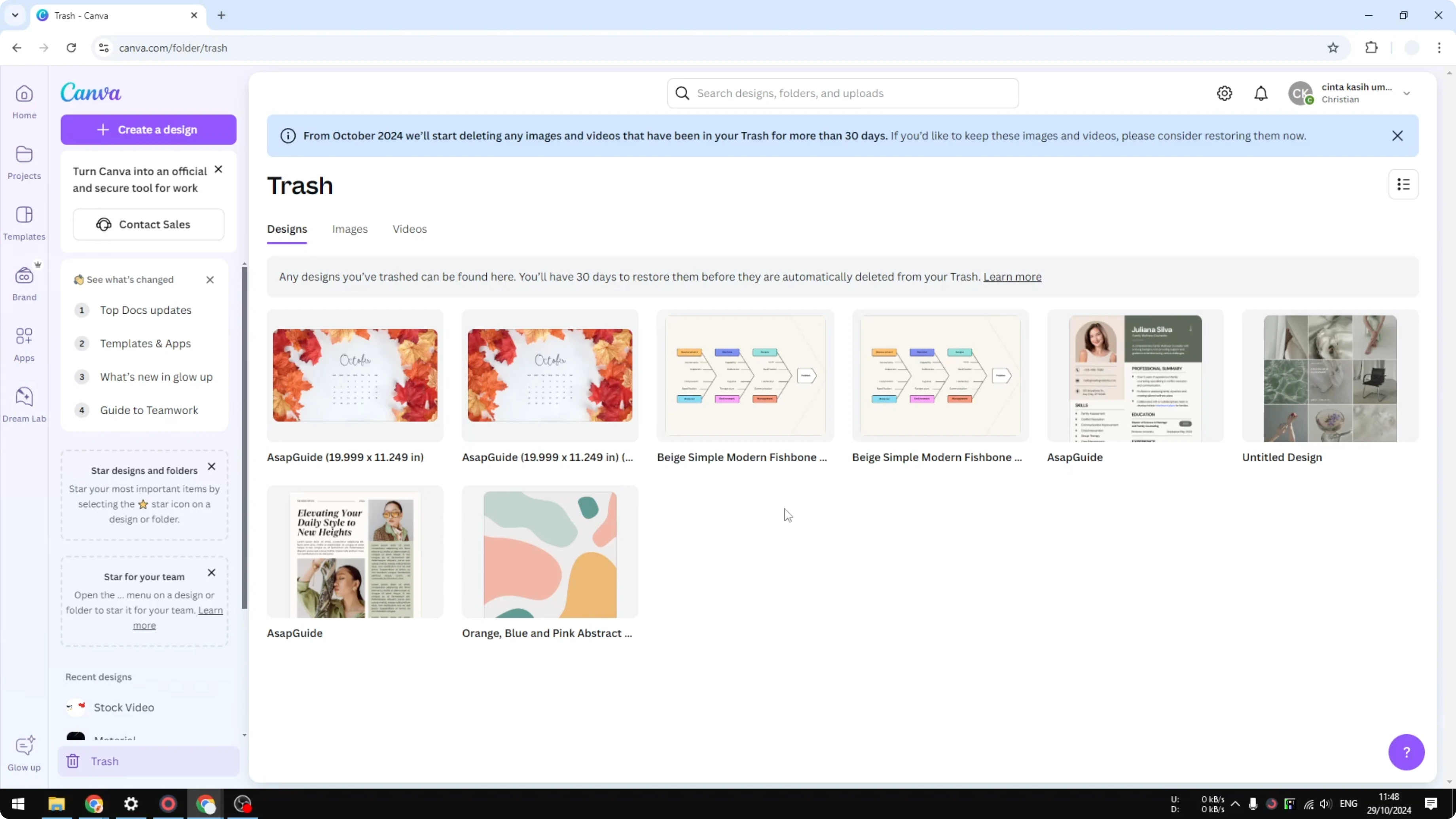
Repeat the process for other items you want gone right away.
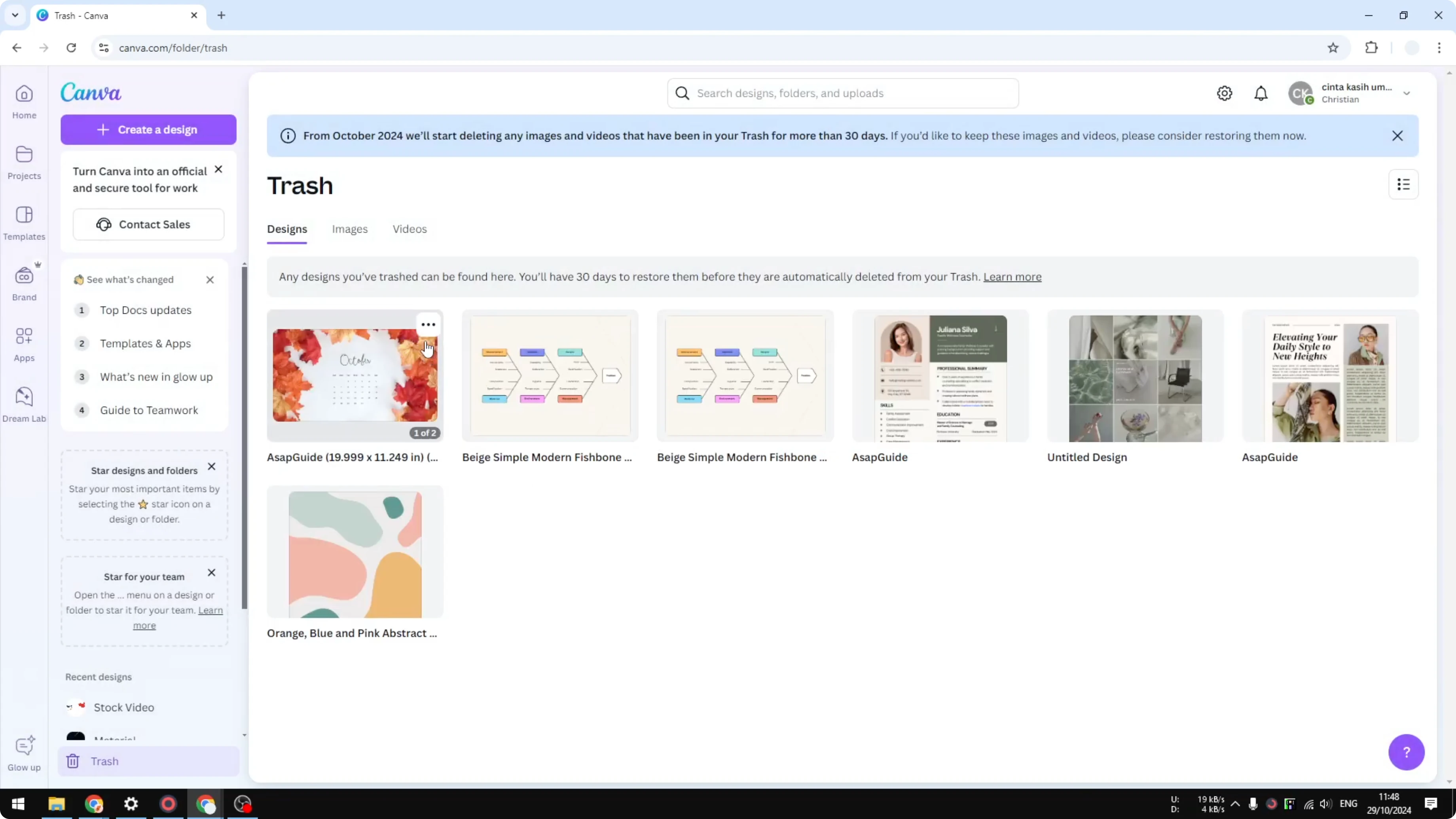
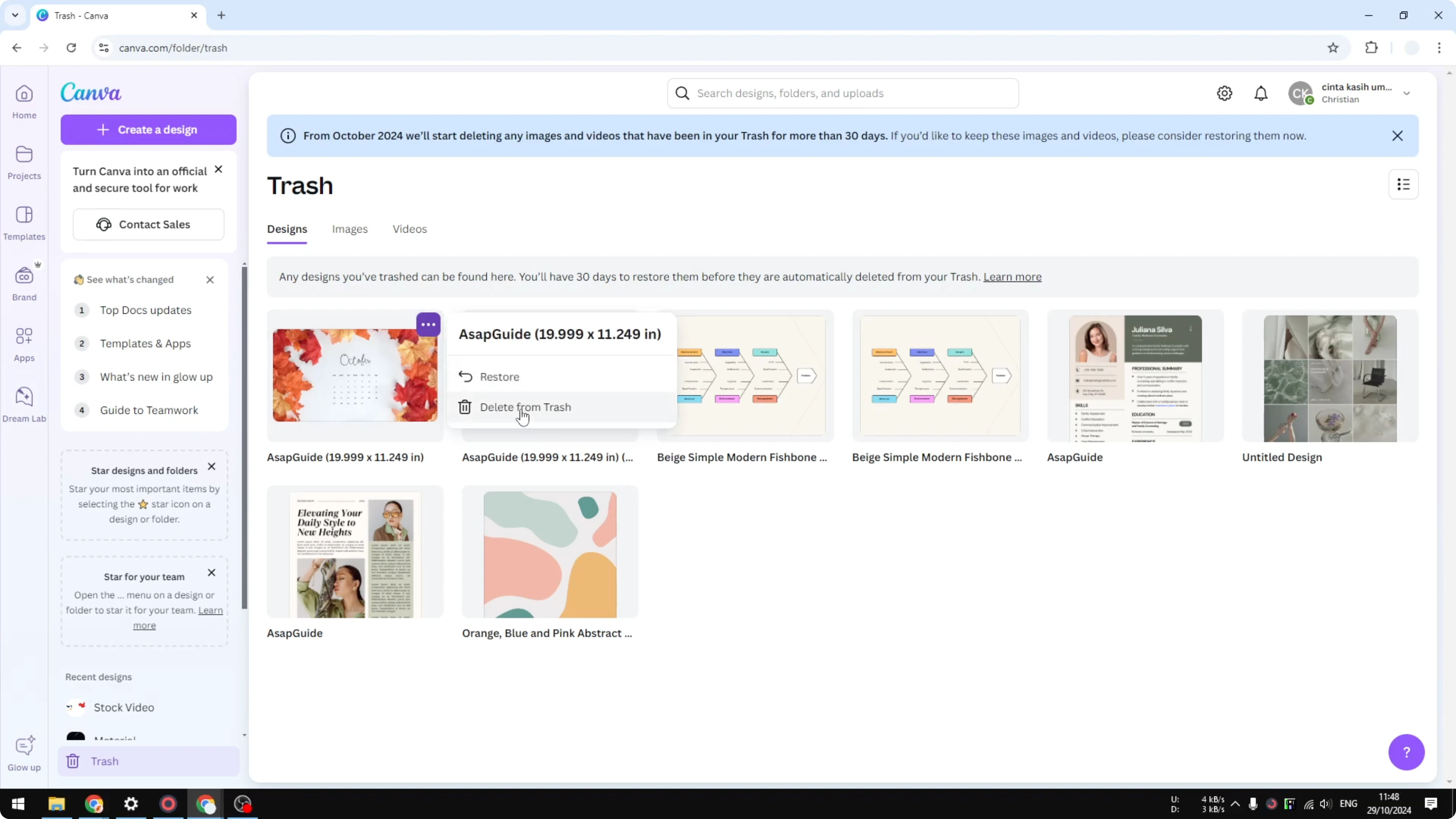
This can be a little exhausting if you have many files because there is no select-all and there is no single Empty Trash button. Unfortunately, at the moment there is no way you can select all the files and empty everything at once. If you are okay with that, this method works.
If you are tidying up to focus on typography in new designs, see how to add background text in Canva. Cleaning old drafts helps you concentrate on layout choices. A lighter library can also speed up your flow.
Auto removal timeline for Empty Trash in Canva
If you do not want to click through everything, I recommend waiting. Within 30 days, all files in Trash are removed automatically. Designs, images, and videos will be deleted eventually without any action.
After cleanup, you may want to polish photos for your next project. You can learn to blend the edges of a photo in Canva for a clean, cohesive look. It pairs well with a decluttered library.
Final thoughts on Empty Trash in Canva
Access Trash from your dashboard, then either delete items one by one or let Canva remove them after 30 days. There is no select-all or instant Empty Trash button right now, so manual deletion is the only immediate option. Keeping Trash clear helps your workspace stay organized and keeps storage under control.
Recent Posts

How to Visualize Yourself as a Pixelized Character with AI?
How to Visualize Yourself as a Pixelized Character with AI?

How to Revive Faded Memories and Enhance Image Clarity with AI?
How to Revive Faded Memories and Enhance Image Clarity with AI?

How to Visualize Yourself as an Animal Crossing Character with AI?
How to Visualize Yourself as an Animal Crossing Character with AI?