How to Embed a YouTube Video in Canva
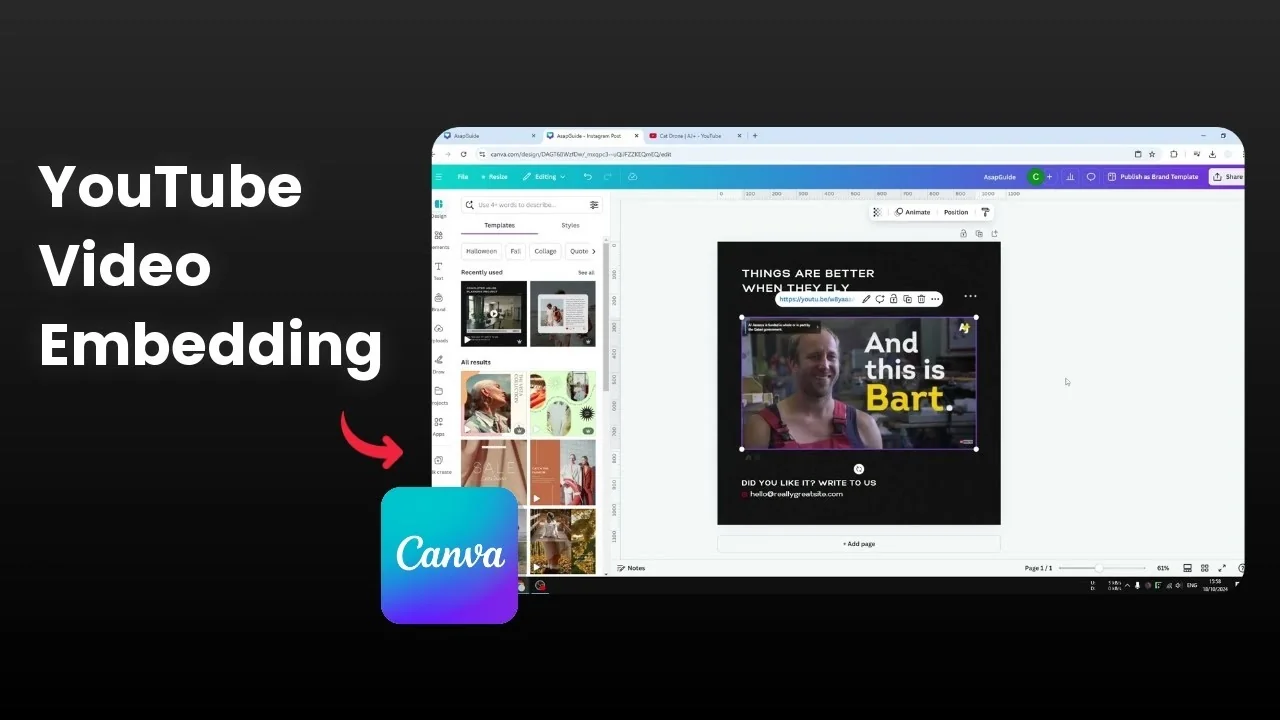
I have a design in Canva and I want to put a YouTube video into my document. Can you insert a YouTube video into Canva. The short answer is kind of.
You can technically download the video file and upload it to Canva. That puts the video under your control, including how long it plays and what section to show. The legality of downloading a YouTube video is murky, and I am not really aware of the rules, so I skip that technique.
If you are working with your own uploaded footage, you can style it directly in the editor. For quick polish, you can add a filter to your video with the built in effects. If that helps your workflow, see how to add a filter to a Canva video.
Embed a YouTube Video in Canva
If you prefer the easiest and fastest route, Canva lets you embed a video from YouTube into your design. This keeps the video hosted on YouTube while displaying it on your page or slide. Here is how I do it.
Copy the URL
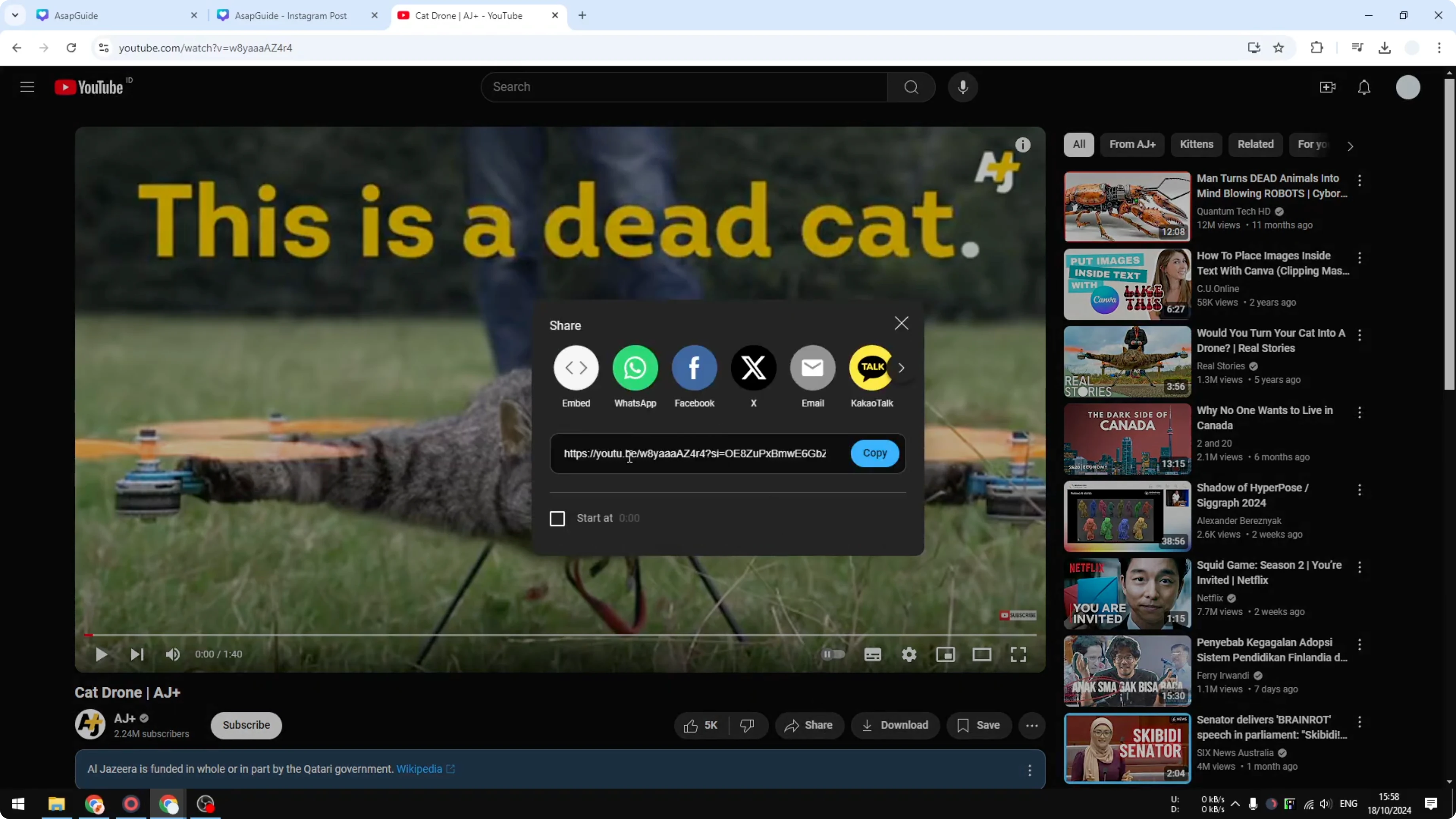
Open the video on YouTube and copy the URL from the address bar. You can also click Share and copy the link from there. Either method gives you the same URL to paste.
Embed in Canva
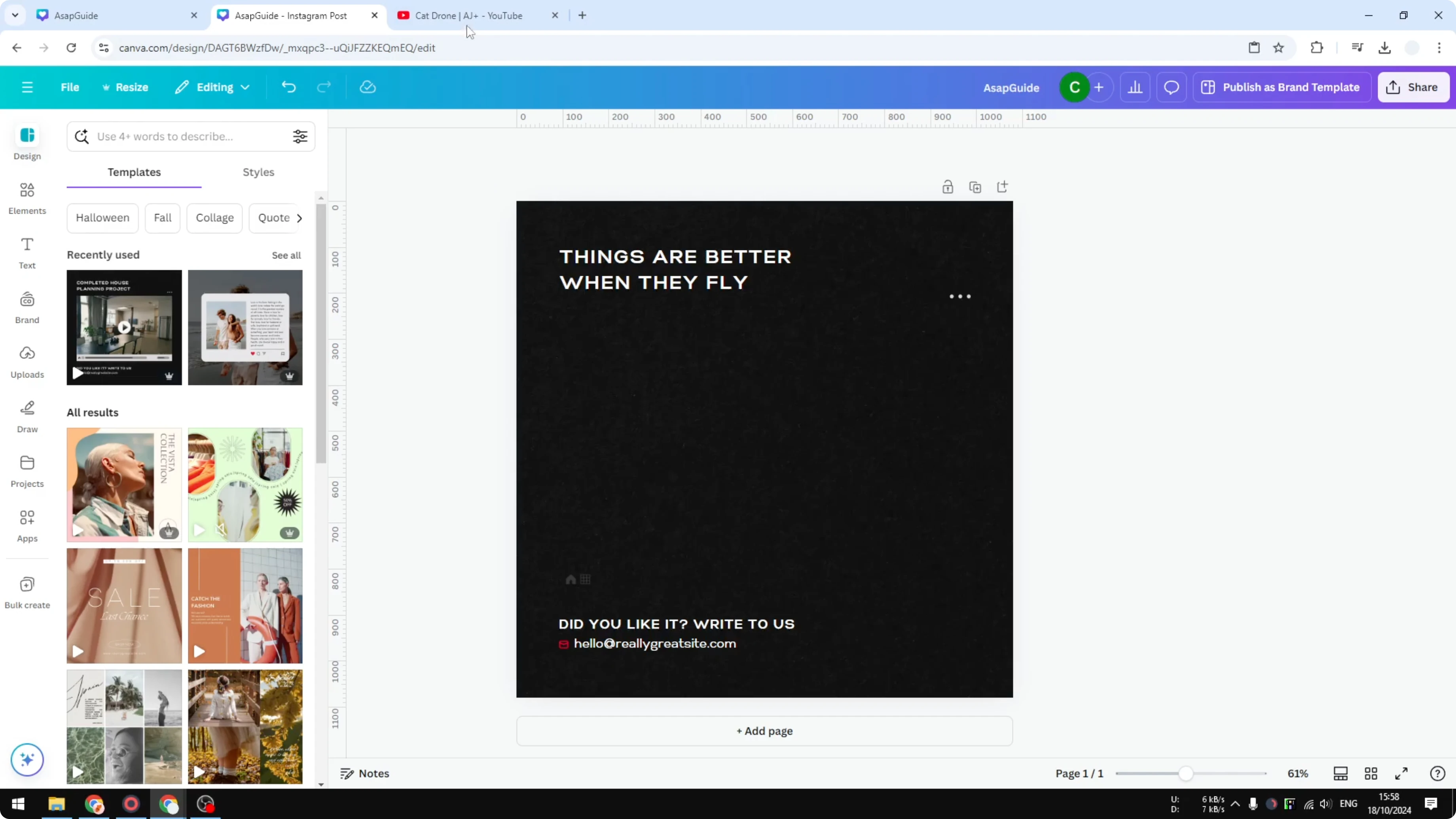
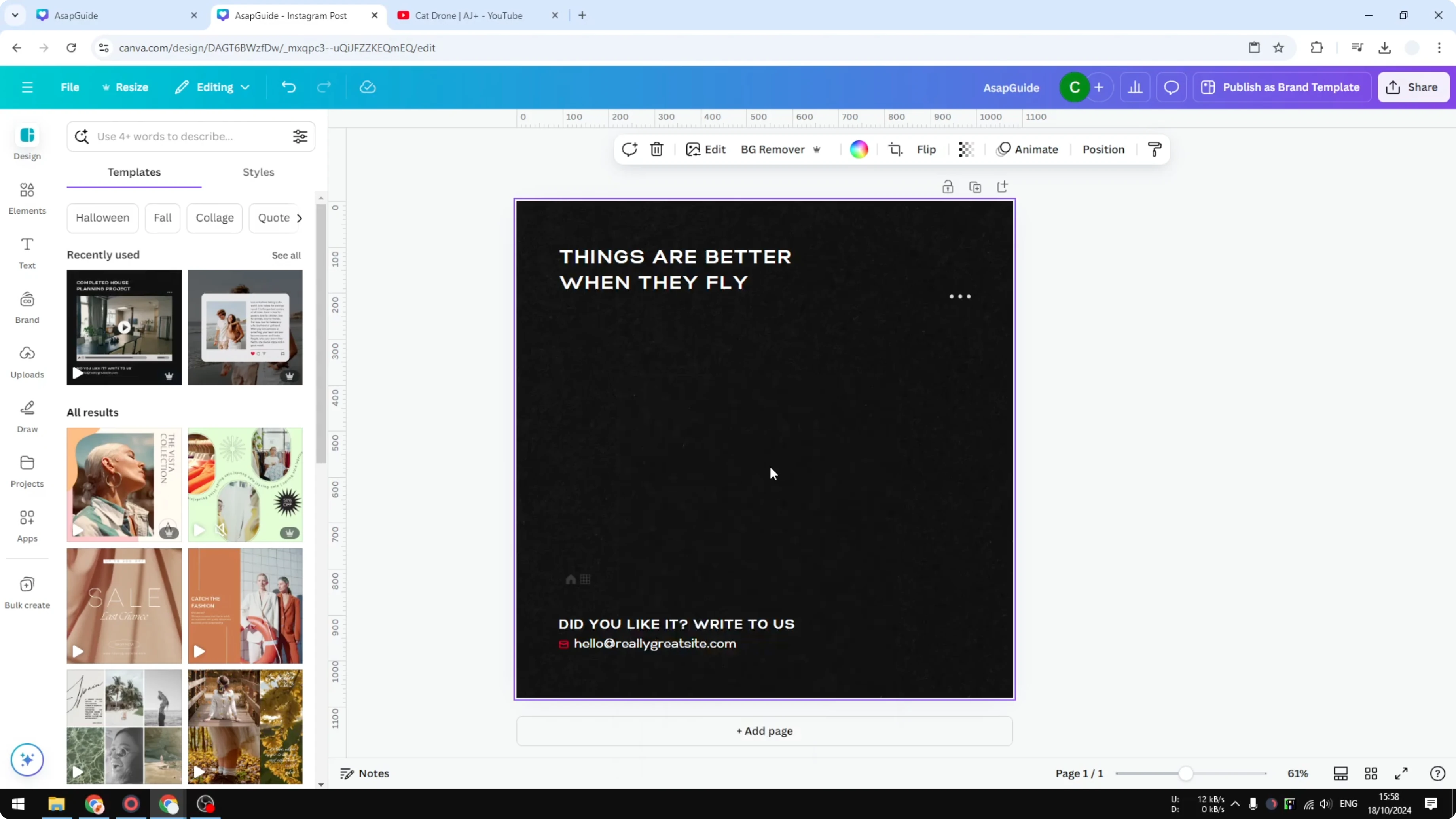
Go to your Canva design. Right click anywhere on the canvas and click Paste. Canva recognizes the URL and embeds the video player for you.
Playback and controls
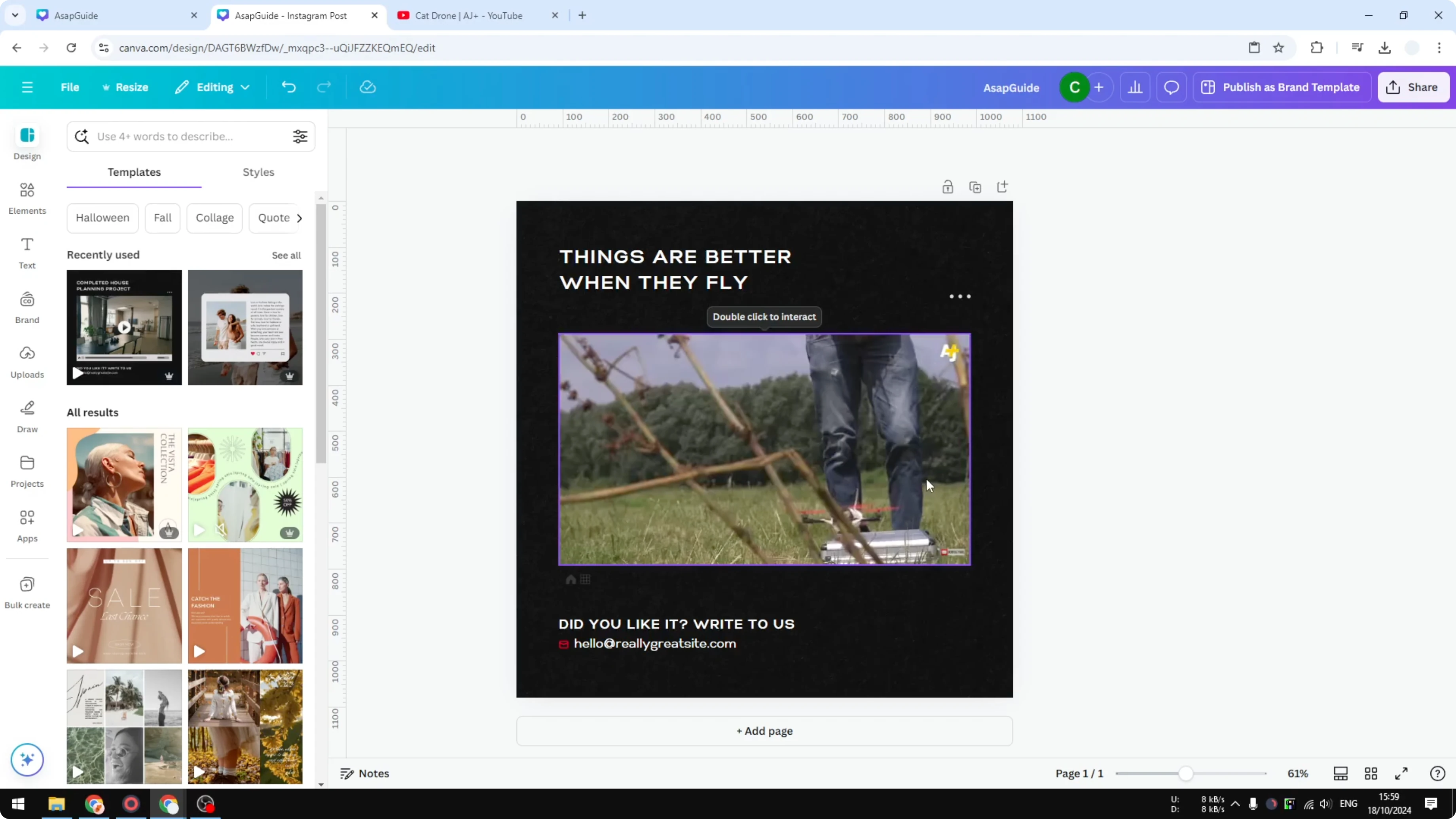
You can resize the player and change its position like any other element. Double click the embedded video to interact with it. It will play inside the design.
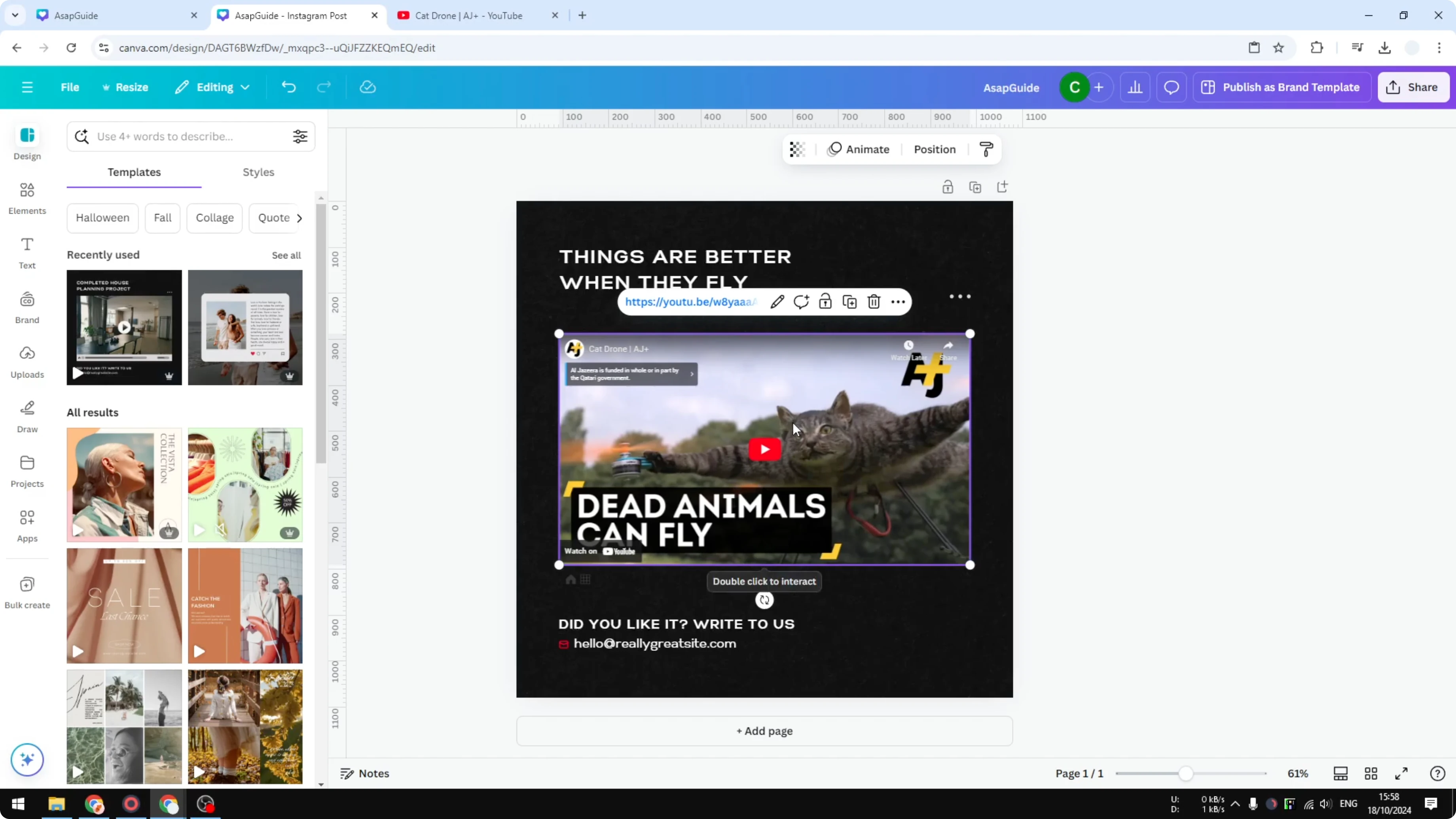
If you need motion between multiple clips in a real export, upload your own footage instead of using an embed. That way you can add transitions between scenes before you export. Learn how to add video transitions in Canva.
Download limits
If you download the document as a video file in MP4, the embedded YouTube video will not be included. It becomes a static image with the thumbnail and does not play. The content is hosted by a third party site and is not directly available inside the exported file.
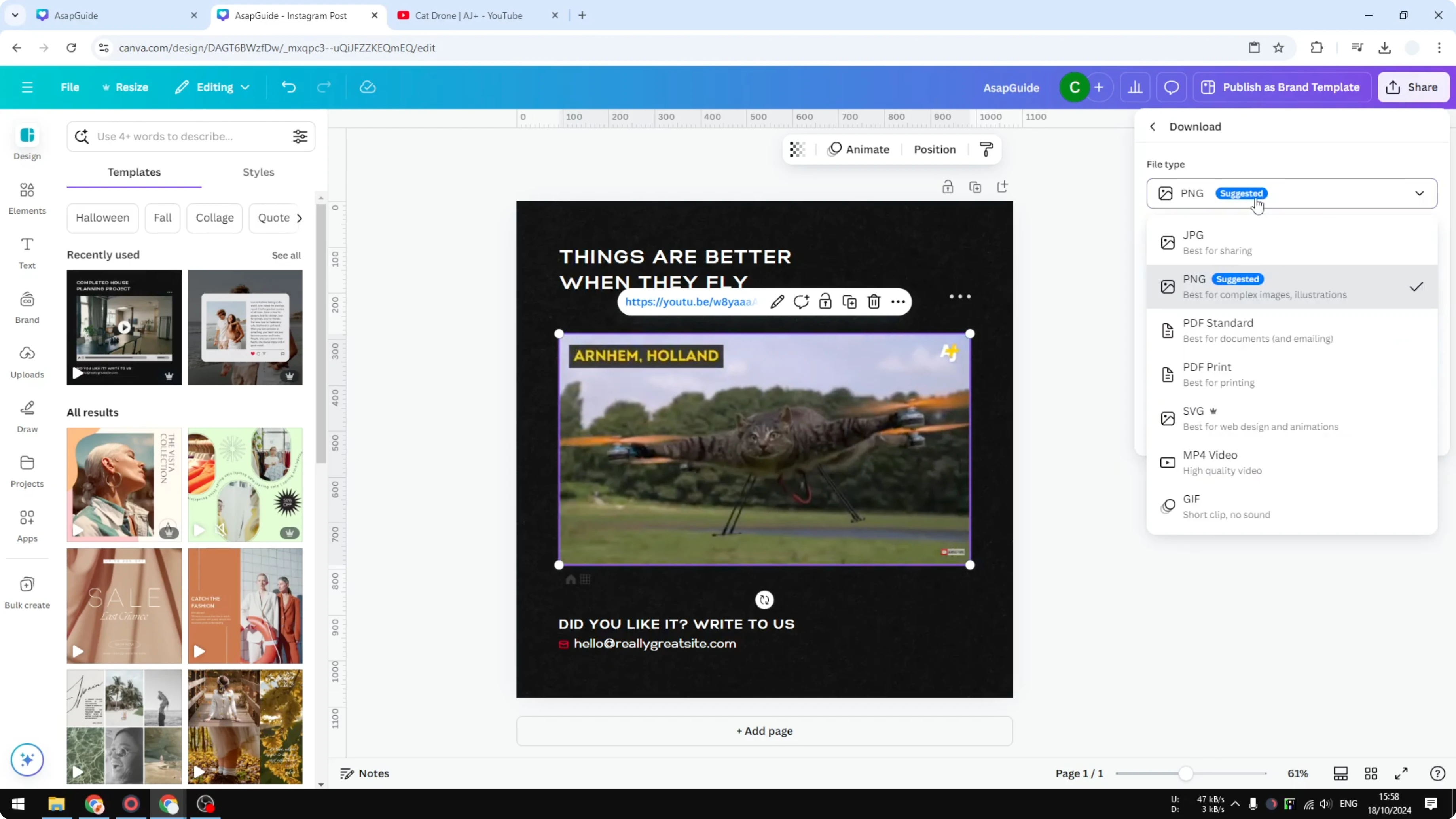
Sharing access
When you share the document with coworkers or with the public, they should be able to see the embedded video. They can click and watch it inside the shared design. They still cannot download the document with the video included as an actual video.
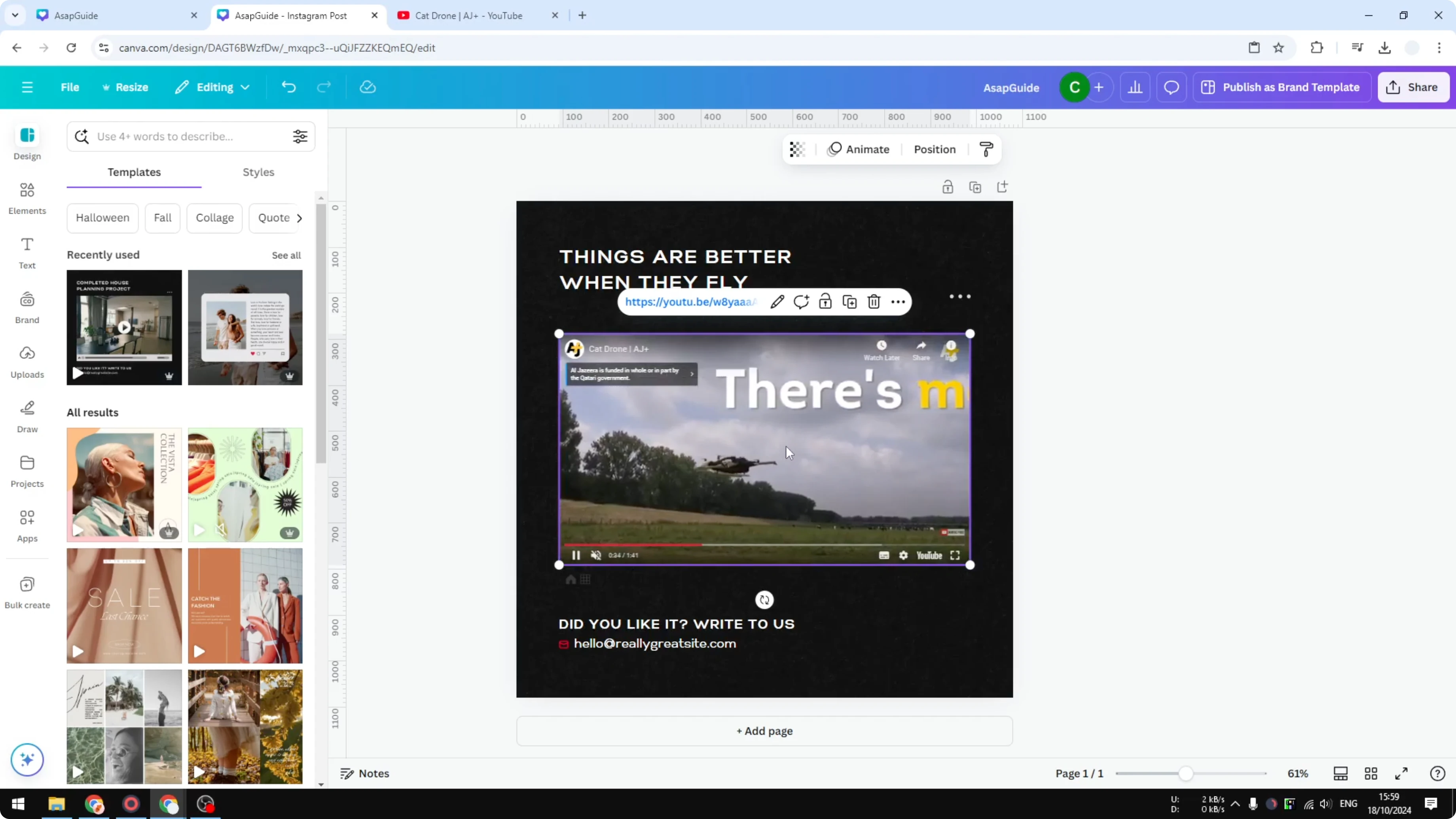
These are the two big things to keep in mind when you use the YouTube embedding feature in Canva. I still find it useful when I want to show a specific scene from YouTube in a design. For branding on your own exported videos, you can easily add a watermark to a Canva video.
Final thoughts
Embedding works well for quick mockups, presentations, and references that live online. If you need a real video export with playback, upload the source clip to Canva and edit it there. Keep the legal side in mind for any downloads from YouTube and use embeds when you want a fast and simple display inside your design.
Recent Posts

How to Visualize Yourself as a Pixelized Character with AI?
How to Visualize Yourself as a Pixelized Character with AI?

How to Revive Faded Memories and Enhance Image Clarity with AI?
How to Revive Faded Memories and Enhance Image Clarity with AI?

How to Visualize Yourself as an Animal Crossing Character with AI?
How to Visualize Yourself as an Animal Crossing Character with AI?