How to Edit Audio in Canva
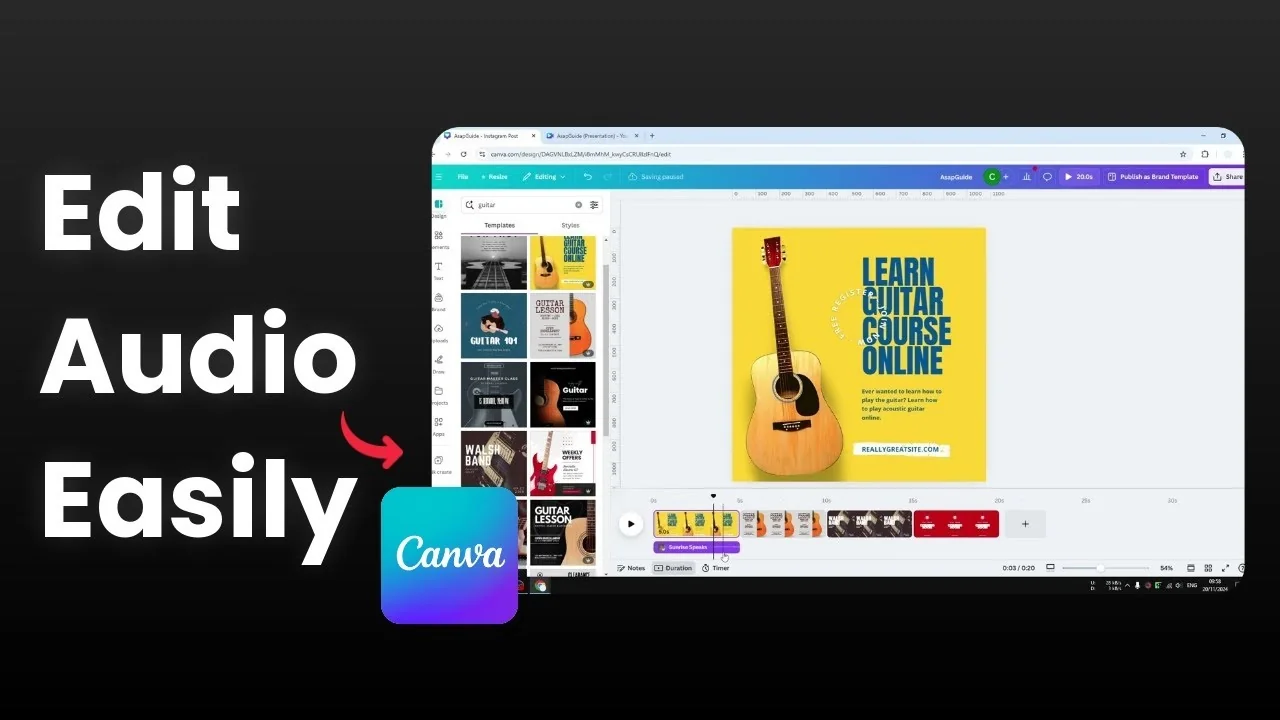
I’m going to show you how to edit audio in Canva. There aren't many things you can do when it comes to audio editing in Canva. Canva offers great features, but audio editing is not one of them, yet there are some things you can do to make audio in your Canva better.
First, open the track. Click Thumbnail View and enable Duration so you can see the audio on your page. You can use audio from Elements or upload your own video and put it into the track.

Get started with Edit Audio in Canva
Click your project timeline to reveal the audio track. Make sure Duration is visible so you can see timing clearly. Add your audio from Elements or from your uploads.

Split audio in Edit Audio in Canva
Put the playhead where you want to make the cut. Right click and click Split audio, or press the S key. Delete any section you no longer need.
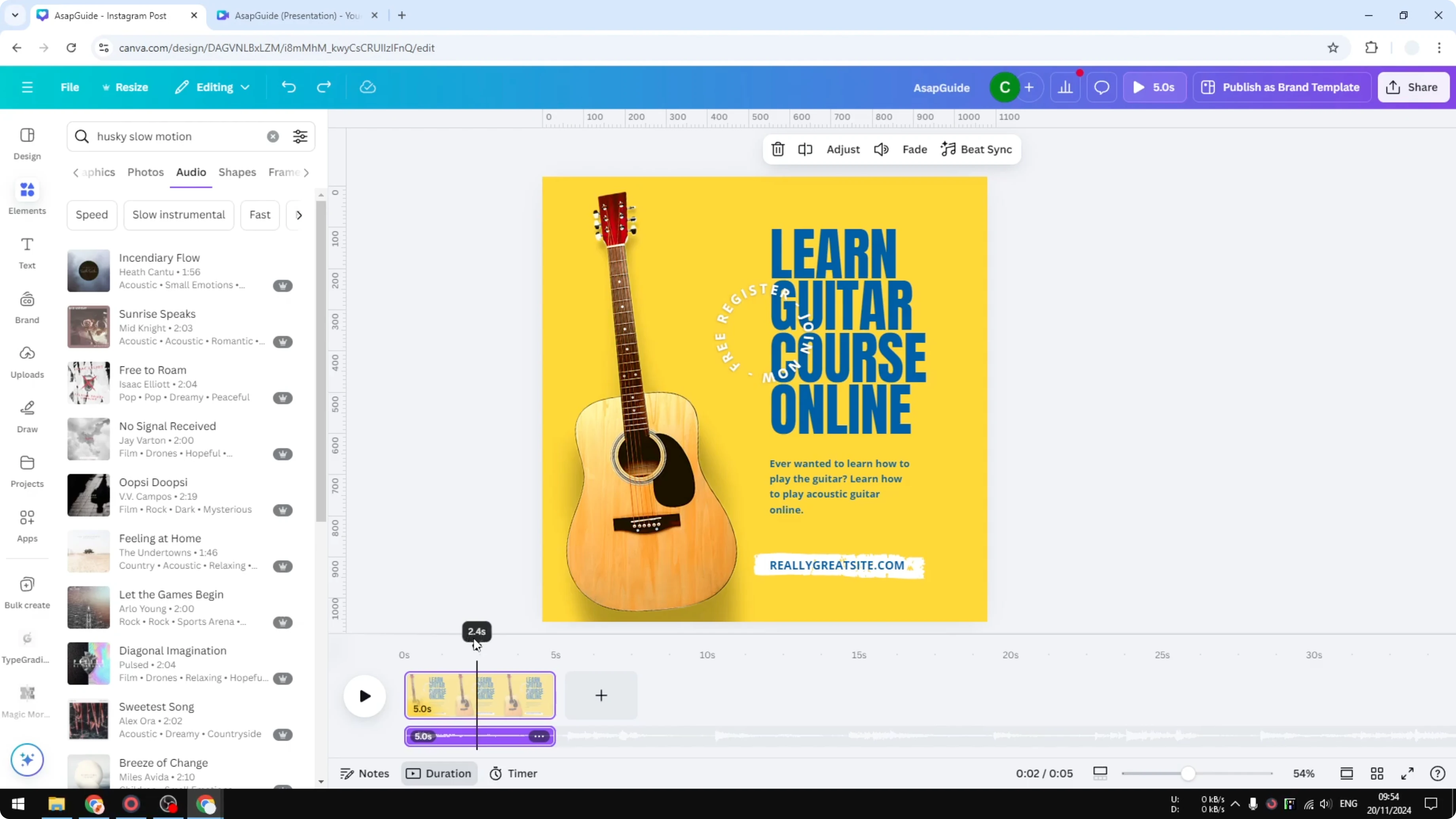
Choose a section in Edit Audio in Canva
Select the audio on the timeline. Click Adjust and set the handles to the part you want to play on the current page. Play it back to confirm you have the section you want.

Read More: Remove background audio noise in Canva
Fade in and out in Edit Audio in Canva
Create a fading effect to control how the audio starts and ends. Fade In makes the audio start silent and then go up to normal volume, and Fade Out is the opposite. If it is not very clear, increase it to 1 or 2 seconds so you can hear it, or set it to 5 seconds for a longer transition.

For more detail on endings, see how to fade out audio.
Control volume in Edit Audio in Canva

Change the volume of the entire audio. Make it louder, make it lower, or mute it completely. Reducing it to around 30 percent makes the track more subtle compared to 100 percent.
Use Beat Sync in Edit Audio in Canva
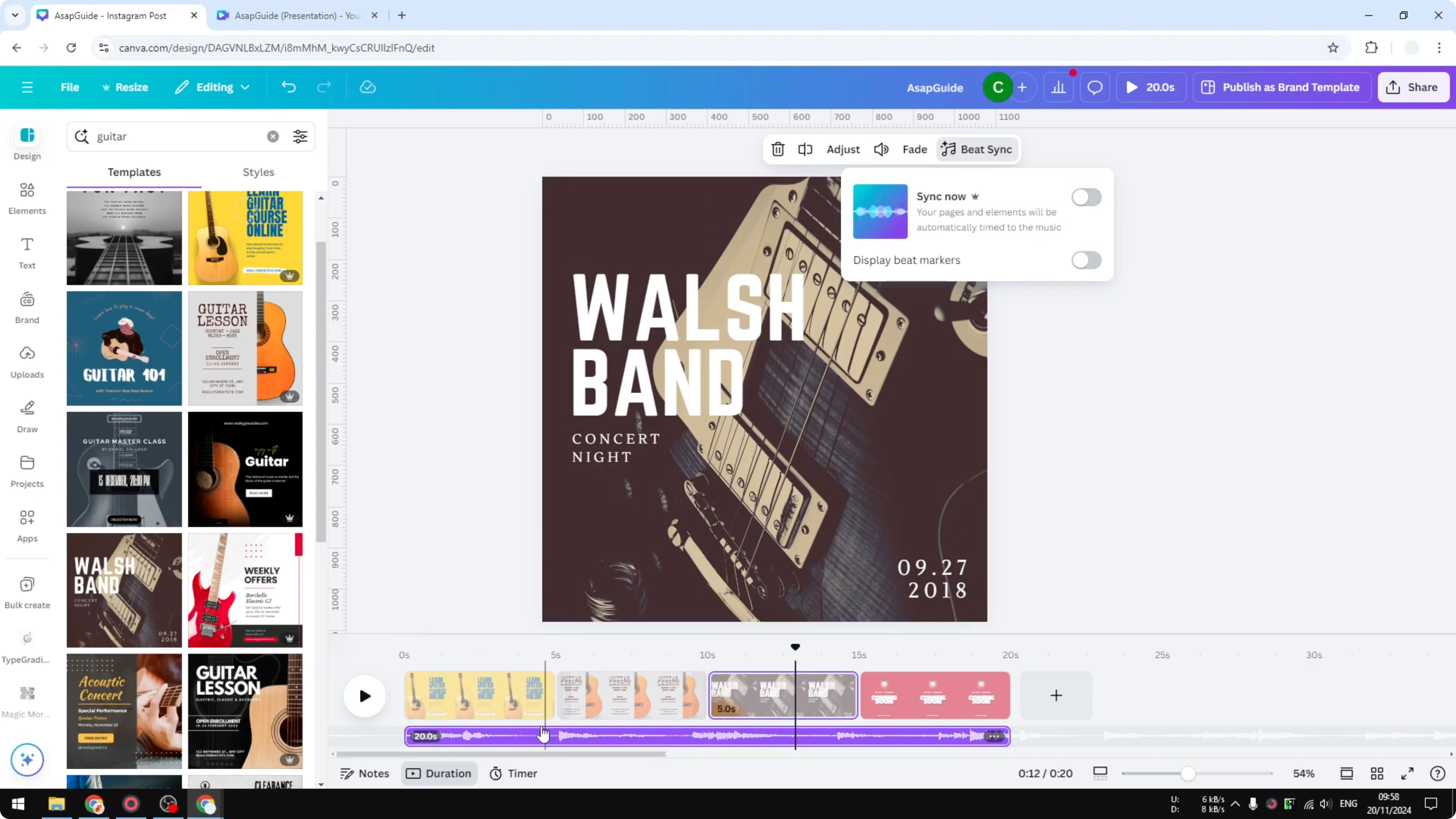
Add multiple pages so you can see how timing changes across a sequence. Each page is 5 seconds by default, and the audio will span across those pages. Enable Beat Sync to sync the audio with the pages or clips on the video.

When Beat Sync is on, some pages become longer and others shorter to match transitions between clips. When there is a new clip, the audio aligns with the cut. I barely use this feature because it is not always accurate, but you may still find a use for it.
Read More: Create a 3D book cover in Canva
Final thoughts on Edit Audio in Canva
That is how you can edit audio in Canva with the tools available. You can split, choose sections, fade, control volume, and try Beat Sync across multiple pages. These basics help you make the most of audio in Canva even with limited editing features.
Recent Posts

How to Visualize Yourself as a Pixelized Character with AI?
How to Visualize Yourself as a Pixelized Character with AI?

How to Revive Faded Memories and Enhance Image Clarity with AI?
How to Revive Faded Memories and Enhance Image Clarity with AI?

How to Visualize Yourself as an Animal Crossing Character with AI?
How to Visualize Yourself as an Animal Crossing Character with AI?