How to Fade Out Audio in Canva

I will show you how to fade out audio in Canva. Fade out is a popular audio effect where the audio gradually gets lower and finally disappears. The opposite is fade in, where the audio starts very low, gets louder, and then becomes normal.
Understanding Fade Out Audio in Canva
Fade out can be applied toward the end of the video or toward the end of the audio. Fade in works at the beginning, bringing the volume up to a normal level.
Apply Fade Out Audio in Canva
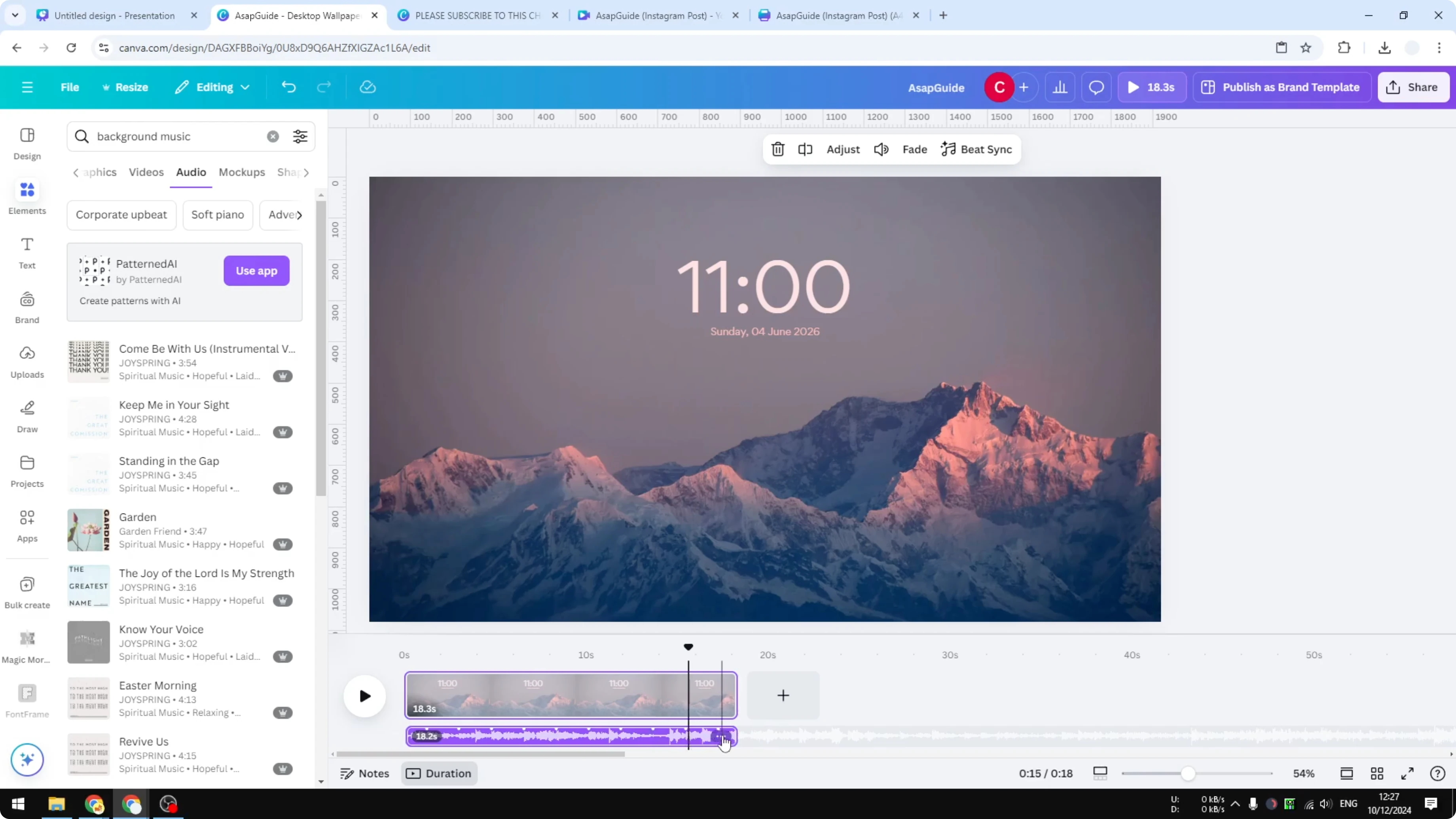
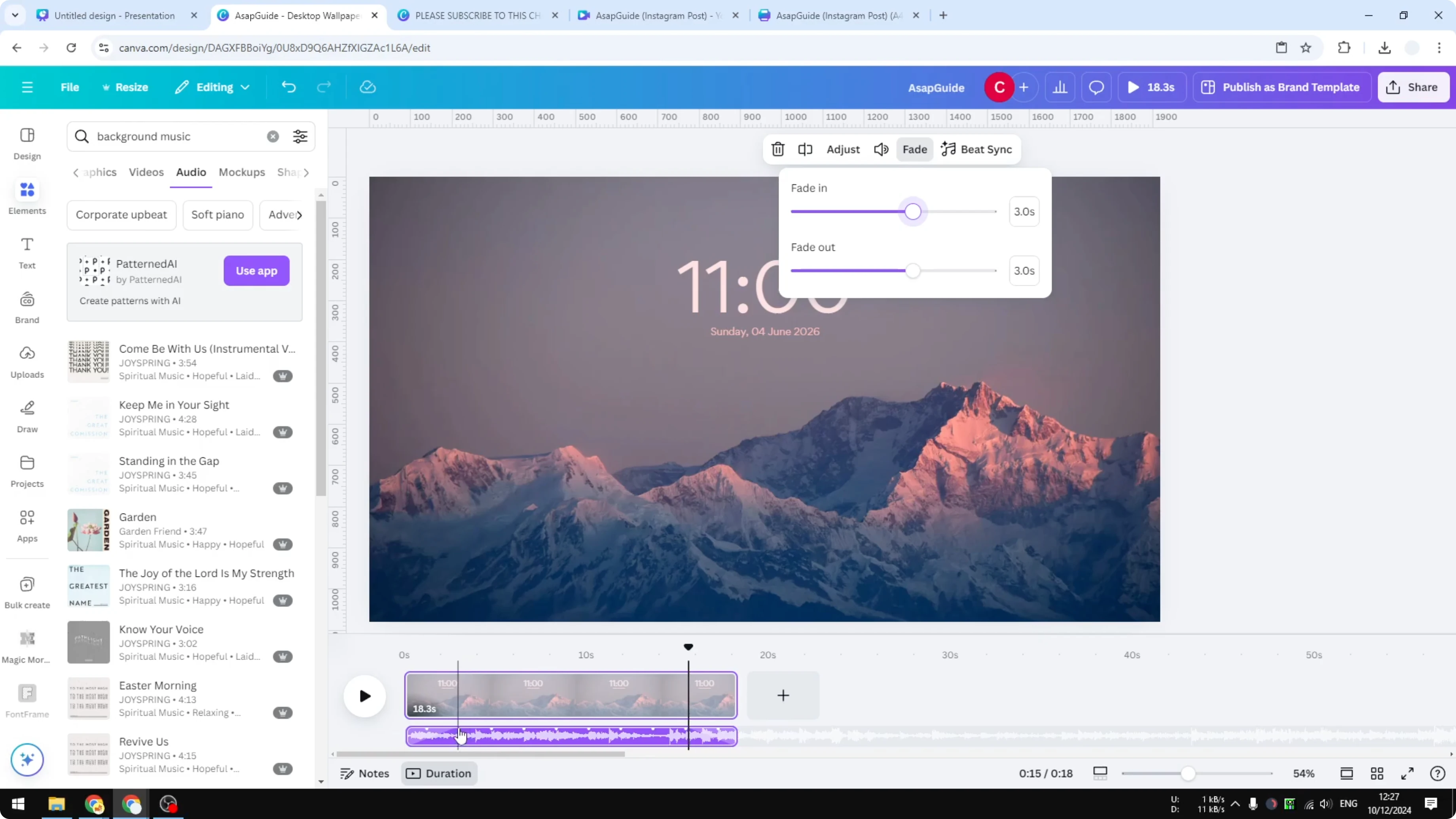
Open the thumbnail view. I recommend opening the duration so you can see the track of the video.
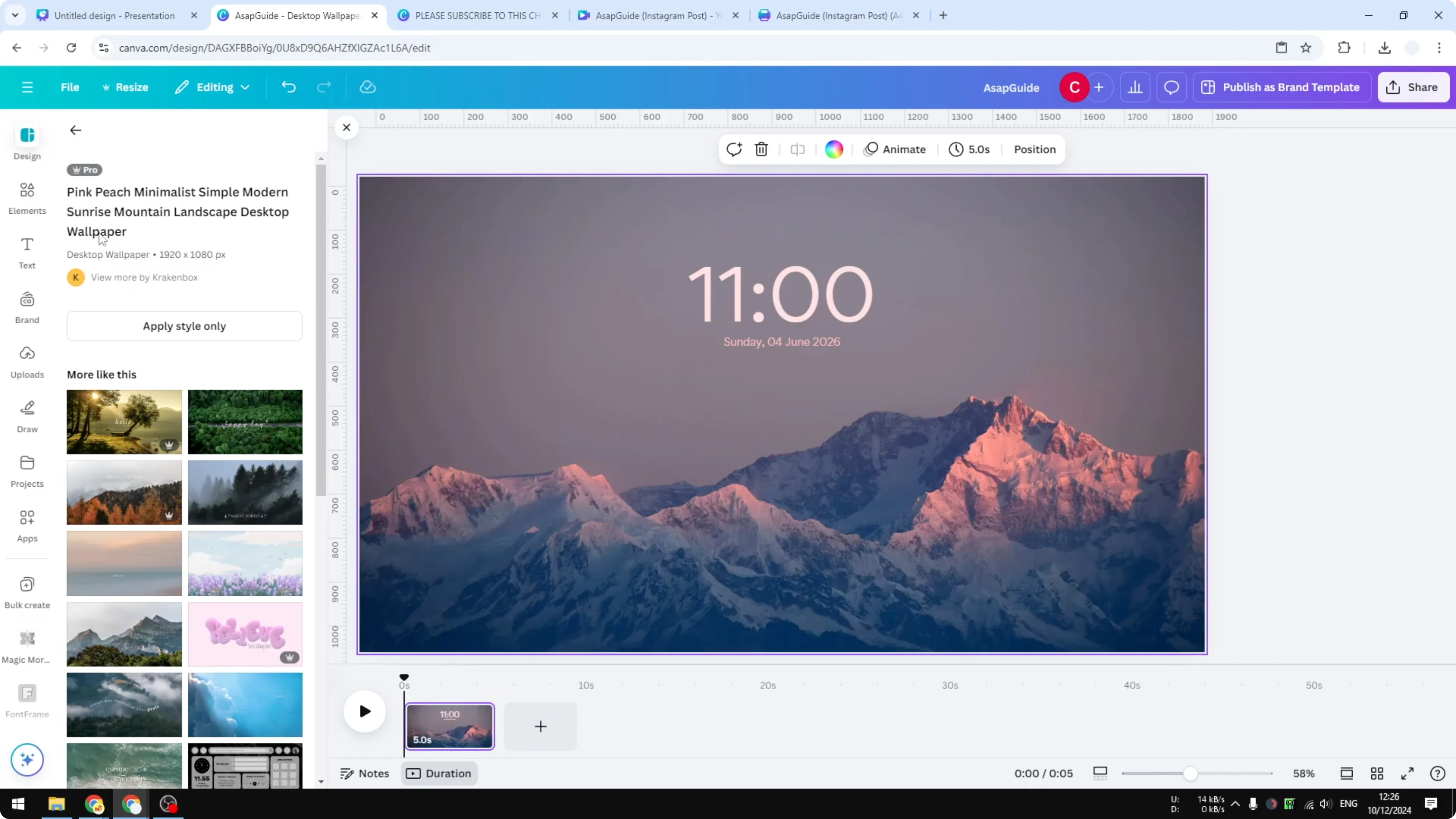
Go to Elements, then Audio. Choose background music and drag it onto the timeline.
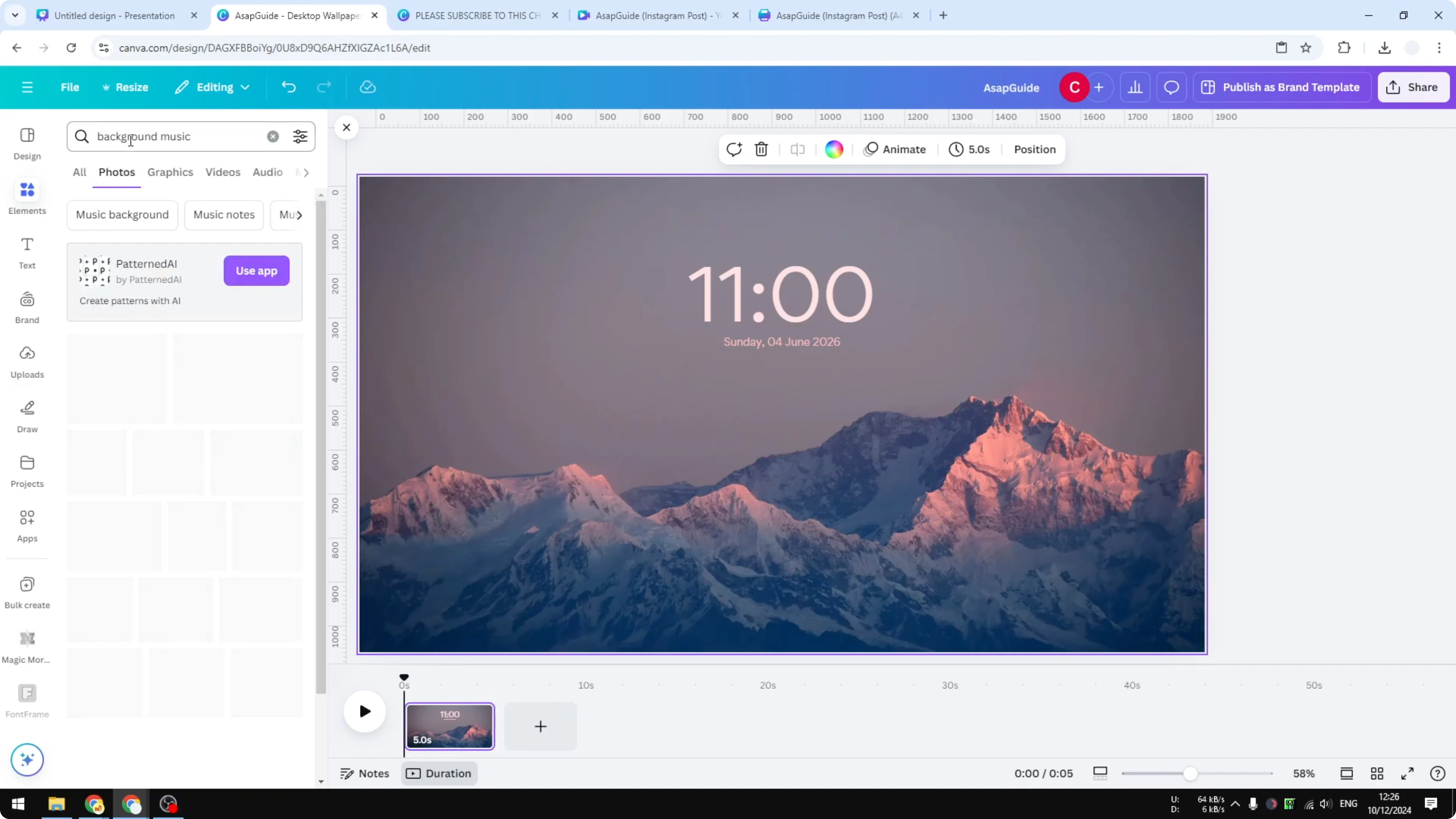
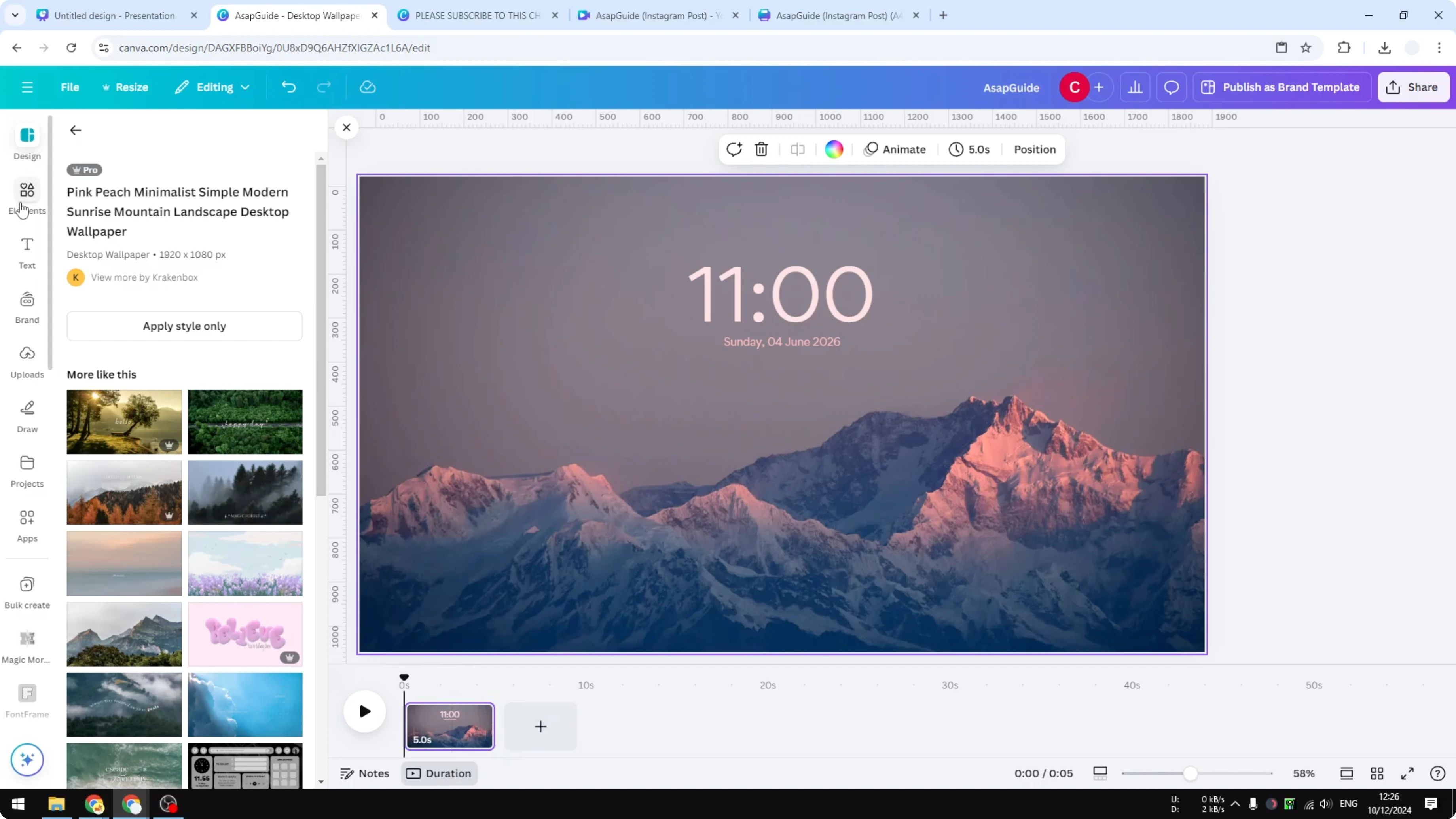
Make everything a bit longer so you can see the audio clearly and apply the fade out properly.
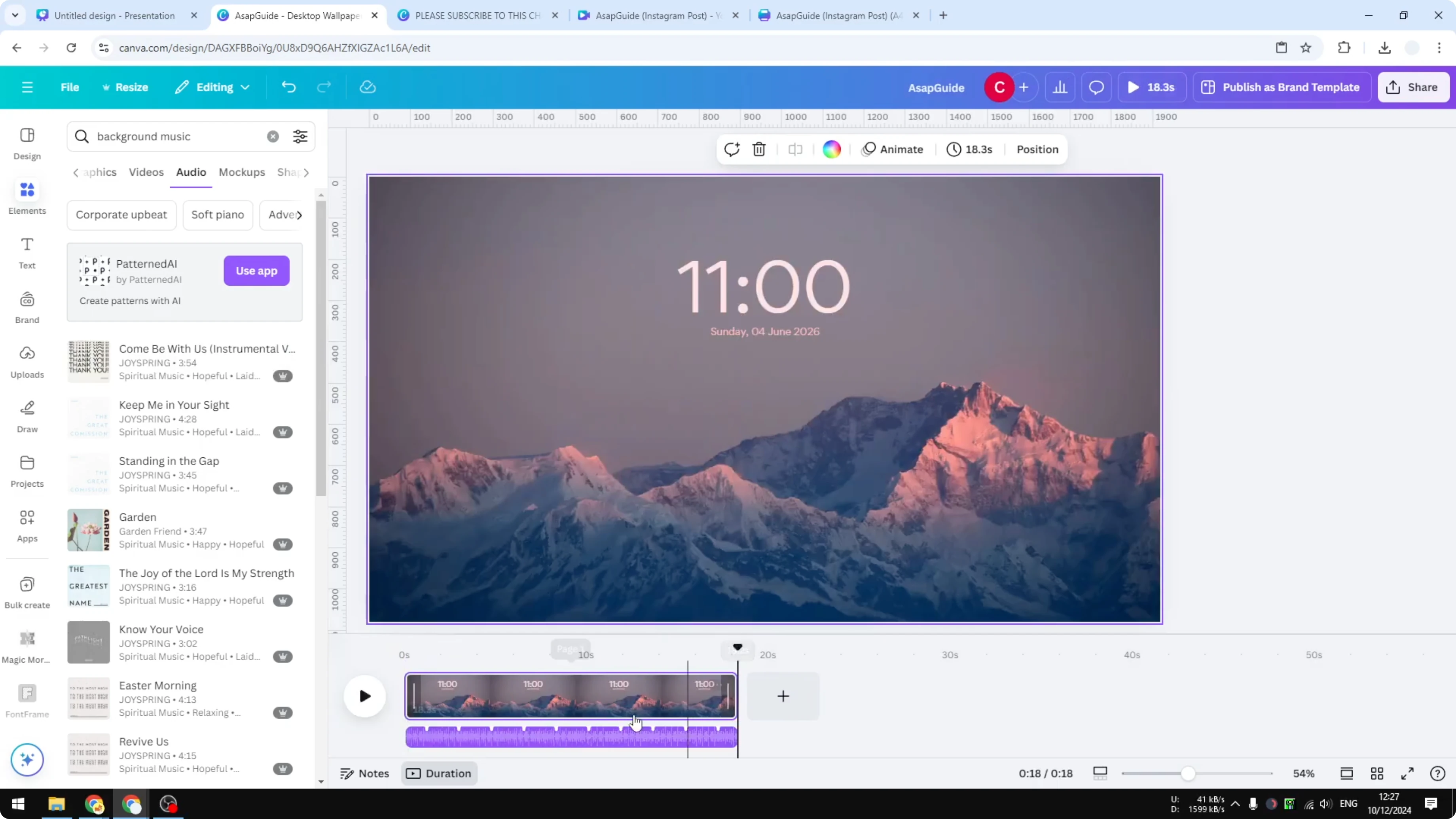
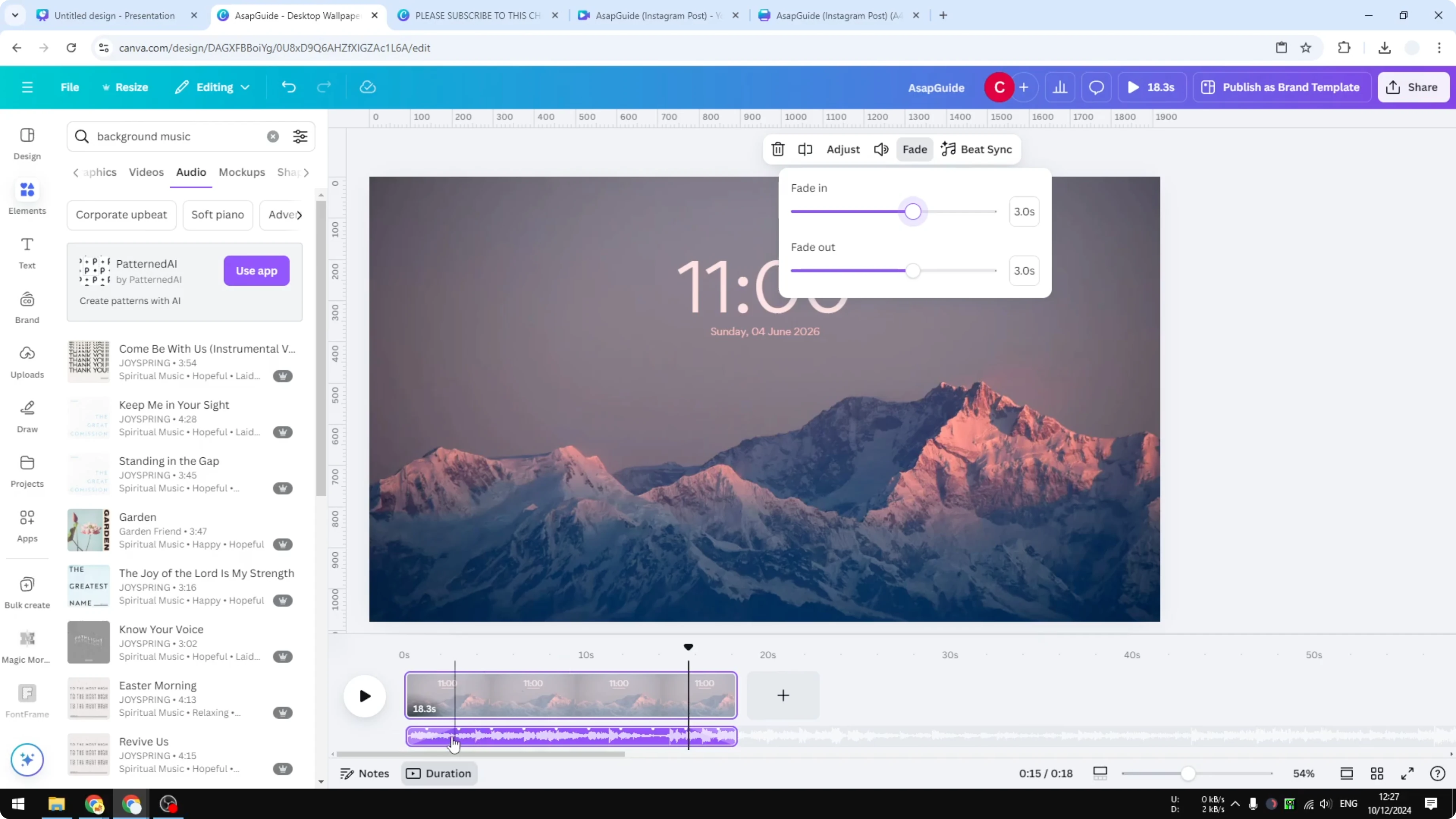
Click the audio track. Click Fade. You will see two options: Fade In and Fade Out.
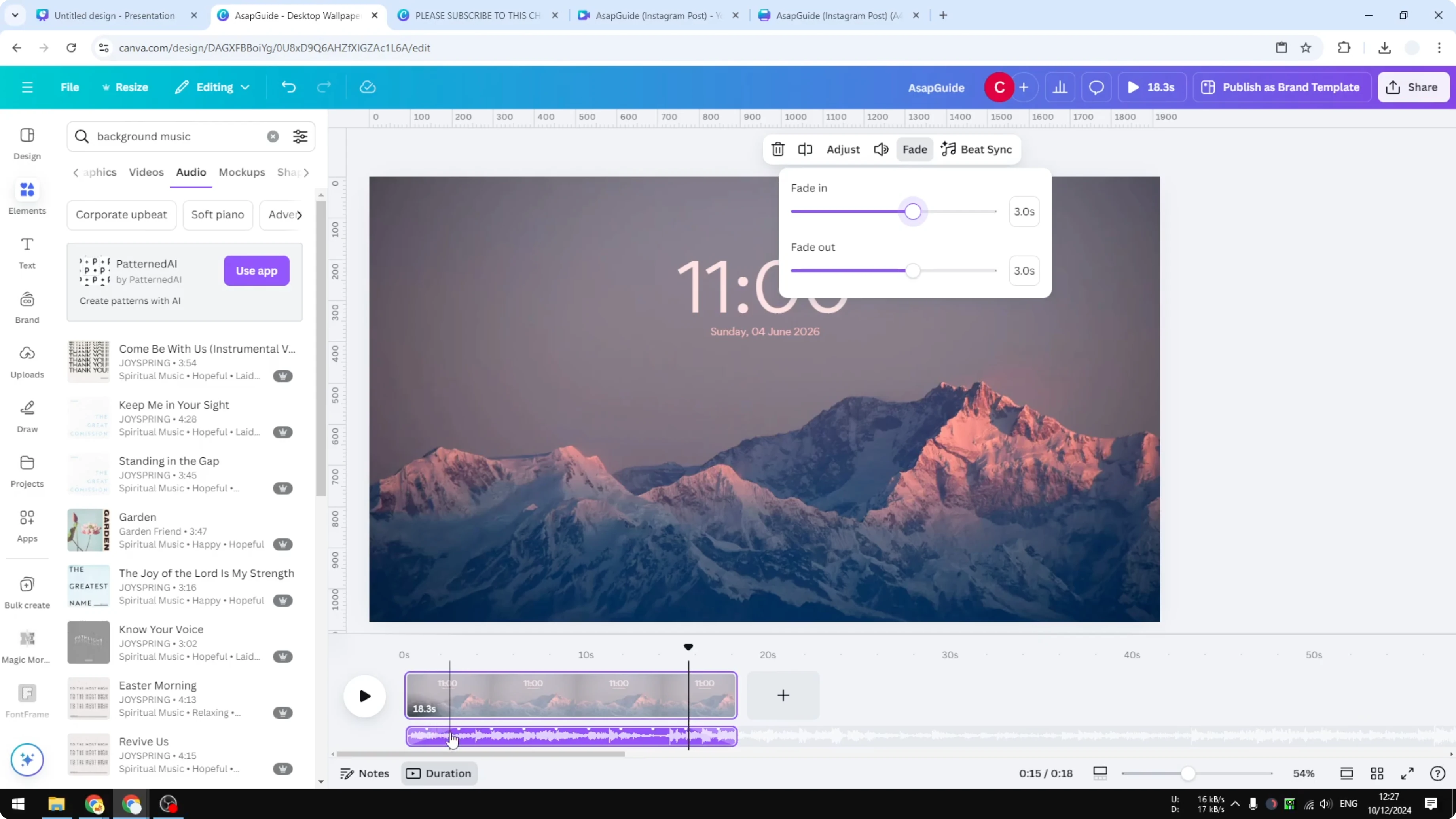
Set the Fade Out duration to 3 seconds. Set the Fade In duration to 3 seconds as well.
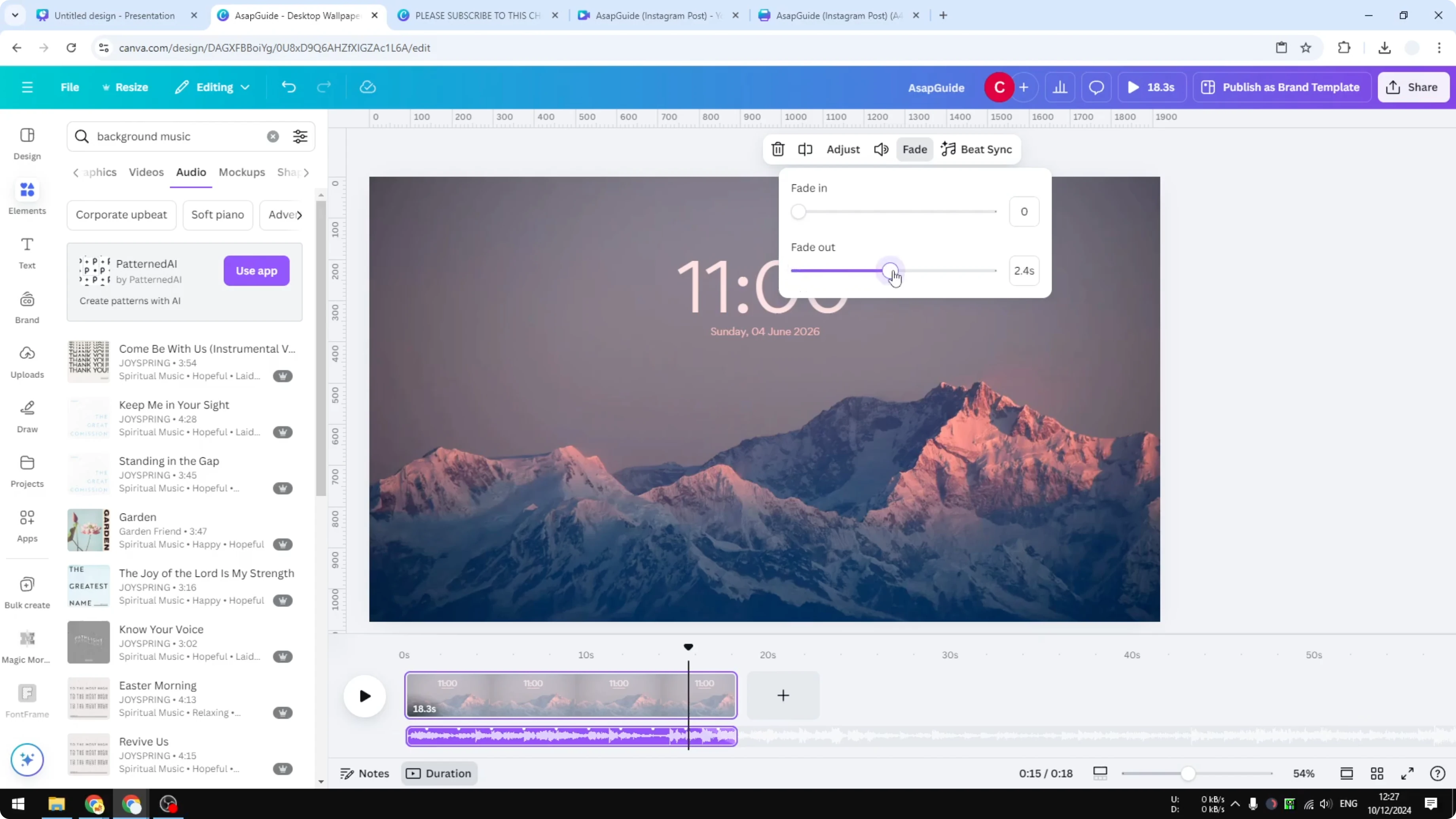
You will see a color indicator on the audio track showing that fade in and fade out have been applied. Play the music to hear the result.
Final Thoughts on Fade Out Audio in Canva
That is how you can apply fade in and fade out for an audio track in Canva. Use short fade times for subtle transitions, or extend them for a smoother exit. Adjust to fit the timing of your video.
Recent Posts

How to Visualize Yourself as a Pixelized Character with AI?
How to Visualize Yourself as a Pixelized Character with AI?

How to Revive Faded Memories and Enhance Image Clarity with AI?
How to Revive Faded Memories and Enhance Image Clarity with AI?

How to Visualize Yourself as an Animal Crossing Character with AI?
How to Visualize Yourself as an Animal Crossing Character with AI?