How to Duplicate a Slide in Canva
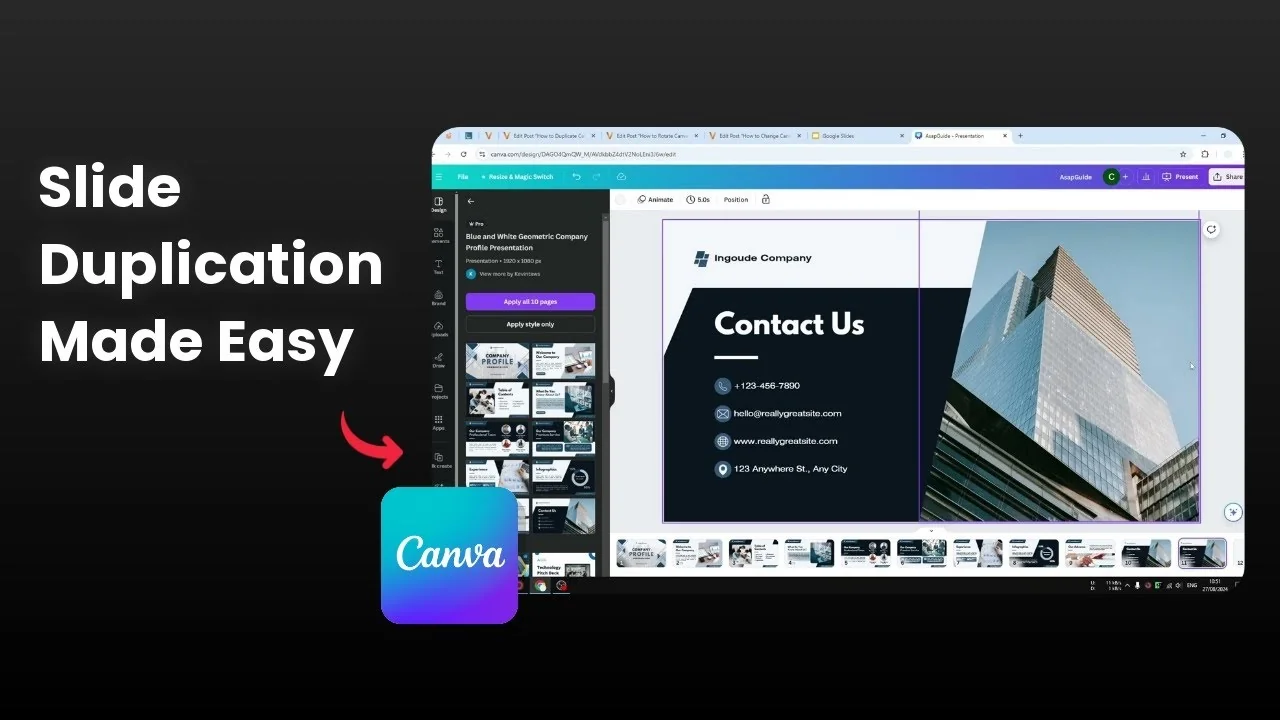
I am going to show you how to create a copy or duplicate a slide in a Canva presentation. I use three methods that cover the built in option, a quick keyboard shortcut, and a manual copy and paste. Pick the one that matches your workflow.
Duplicate a Slide in Canva with the built in option
Open your presentation in Canva.

Click the slide thumbnail you want to copy.

Right click the thumbnail and choose Duplicate.

Canva adds a new slide that looks exactly the same.

Read More: Duplicate Slide Canva
Duplicate a Slide in Canva using shortcuts
Select the slide thumbnail you want to duplicate.

Press Ctrl+D on Windows or Cmd+D on Mac.
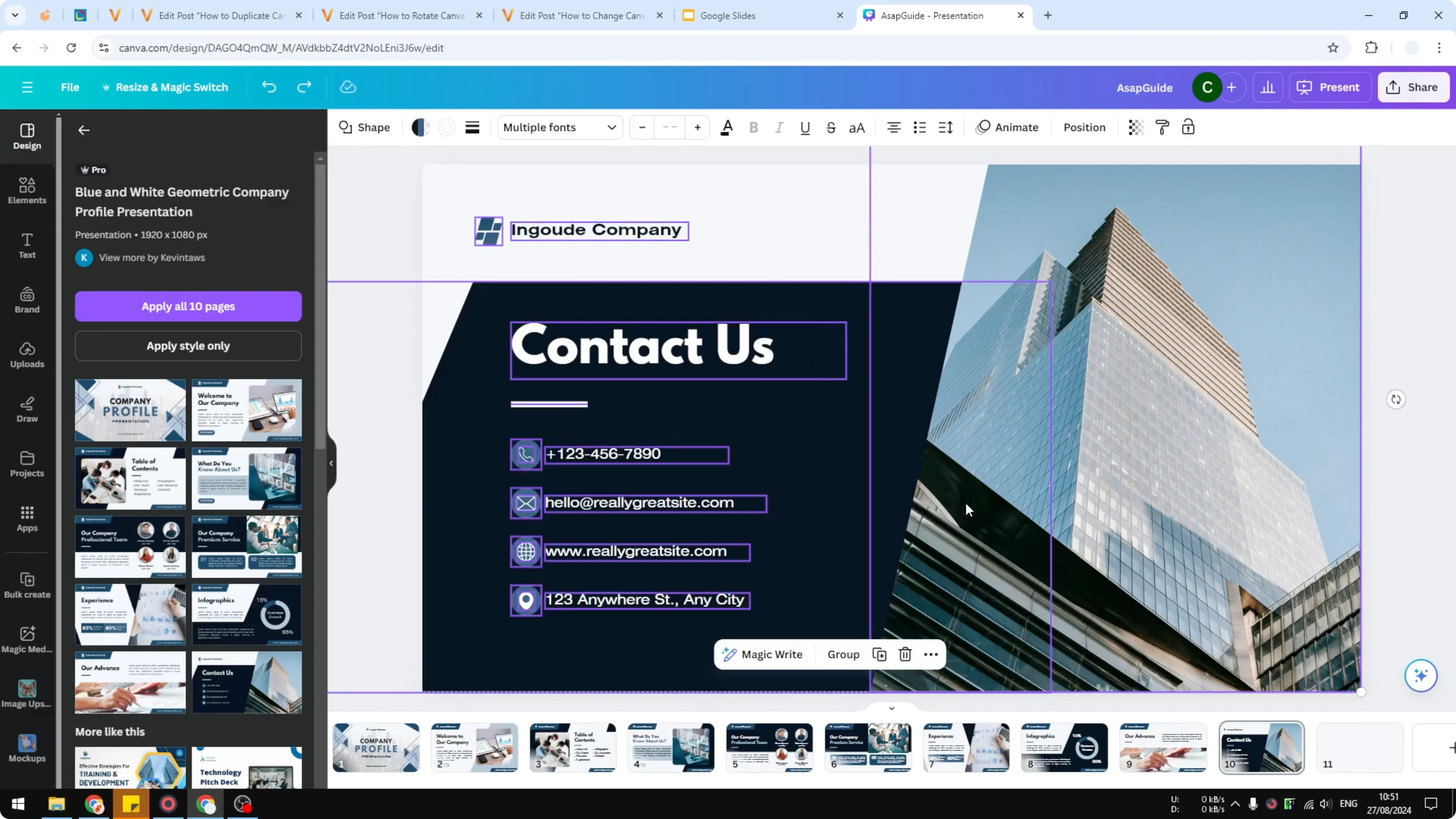
A duplicate of the selected slide appears immediately.
Read More: Change Canva Slide Aspect Ratio
Duplicate a Slide in Canva by copy and paste
This method is less conventional, but it can be useful in some cases.
Select everything
Open the slide you want to copy and click anywhere on the canvas.
Press Ctrl+A or Cmd+A to select all elements on the slide.

Press Ctrl+C or Cmd+C to copy the selection.
Paste into a new slide
Insert a new blank slide in the same document.
Press Ctrl+V or Cmd+V to paste the content.
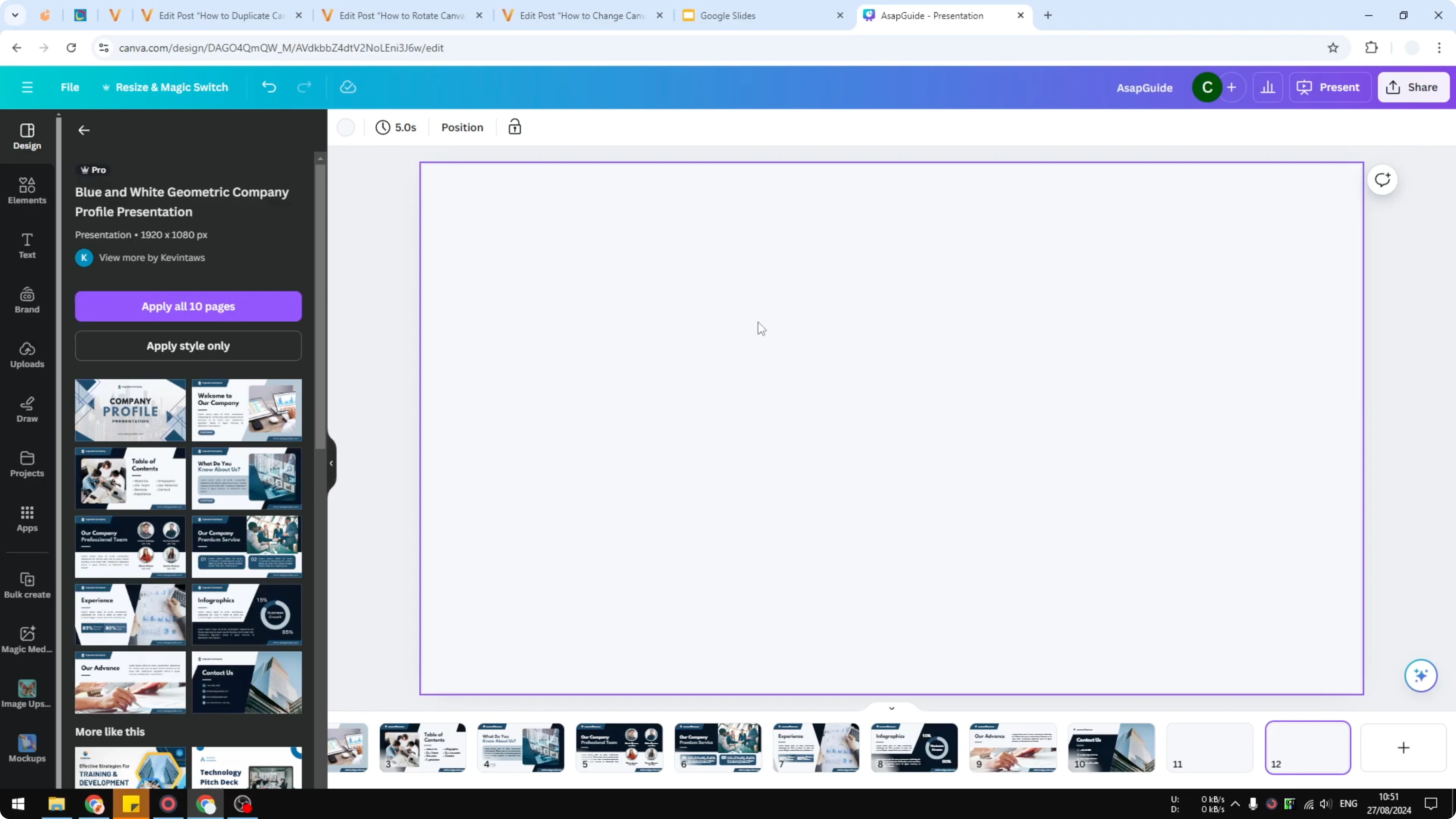
You now have two slides that are basically identical.

Read More: Change Canva Slide Size
Final thoughts on Duplicate a Slide in Canva
The built in duplicate is the quickest menu based method. The Ctrl+D or Cmd+D shortcut is even faster if you prefer the keyboard. The copy and paste route gives you control when you want to duplicate just the elements on a new blank slide.
Recent Posts

How to Visualize Yourself as a Pixelized Character with AI?
How to Visualize Yourself as a Pixelized Character with AI?

How to Revive Faded Memories and Enhance Image Clarity with AI?
How to Revive Faded Memories and Enhance Image Clarity with AI?

How to Visualize Yourself as an Animal Crossing Character with AI?
How to Visualize Yourself as an Animal Crossing Character with AI?