How to Change Canva Slide Size

Canva presentations start in 16 by 9 using 1920 by 1080 pixels, which is standard and modern. If you need a different aspect ratio like 4 by 3, 1 by 1, or 9 by 16 vertical, you can switch sizes easily. Canva handles this well and keeps your work intact.
I like that the result looks close to the original version. Animations are intact, which is a big plus. The process is quick and easy to repeat.
If you want a deeper look at aspect ratios, see how to change the aspect ratio in Canva.
How to Change Canva Slide Size
Open your document in Canva.
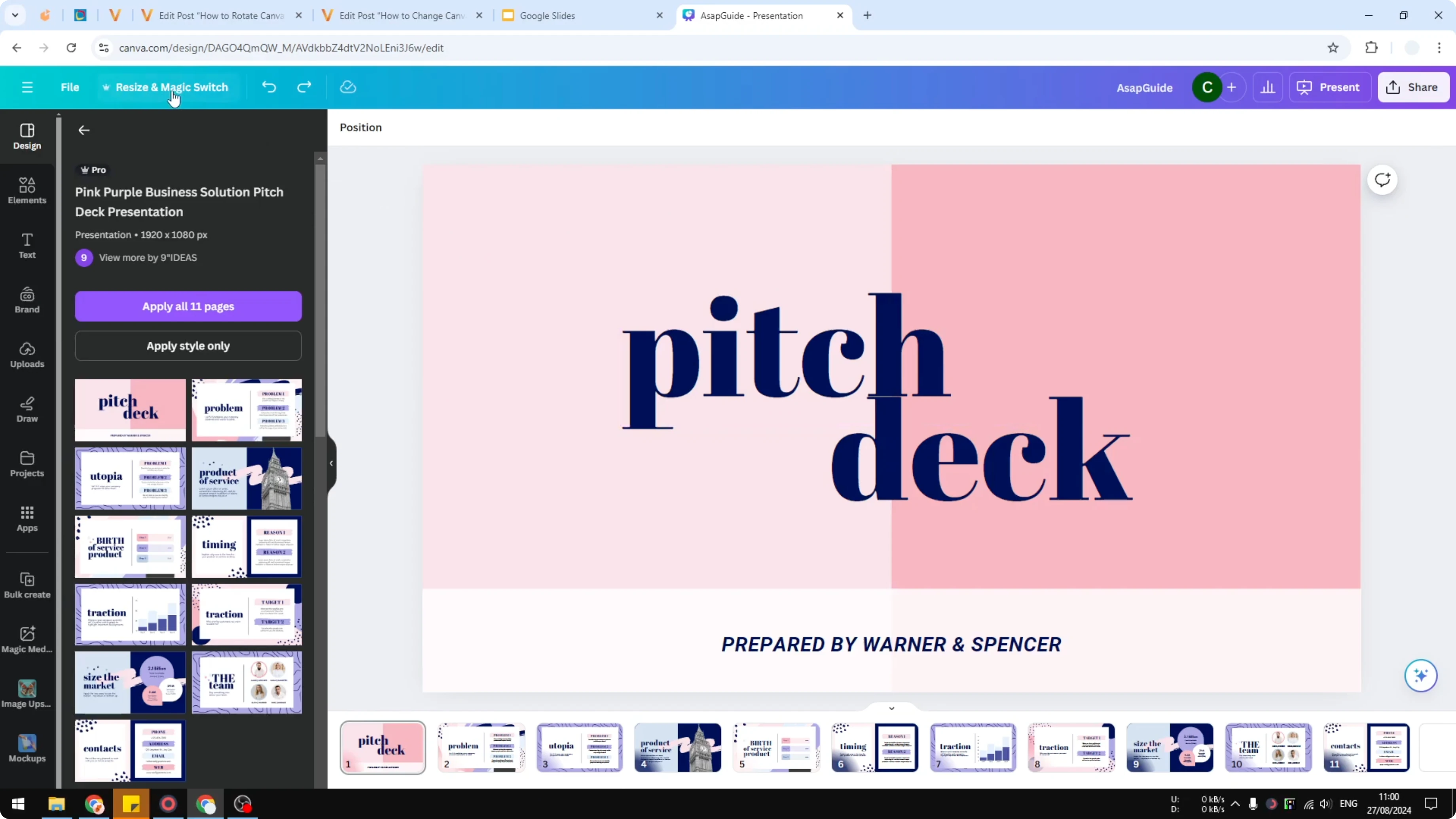
Click Resize, then choose Magic Switch.
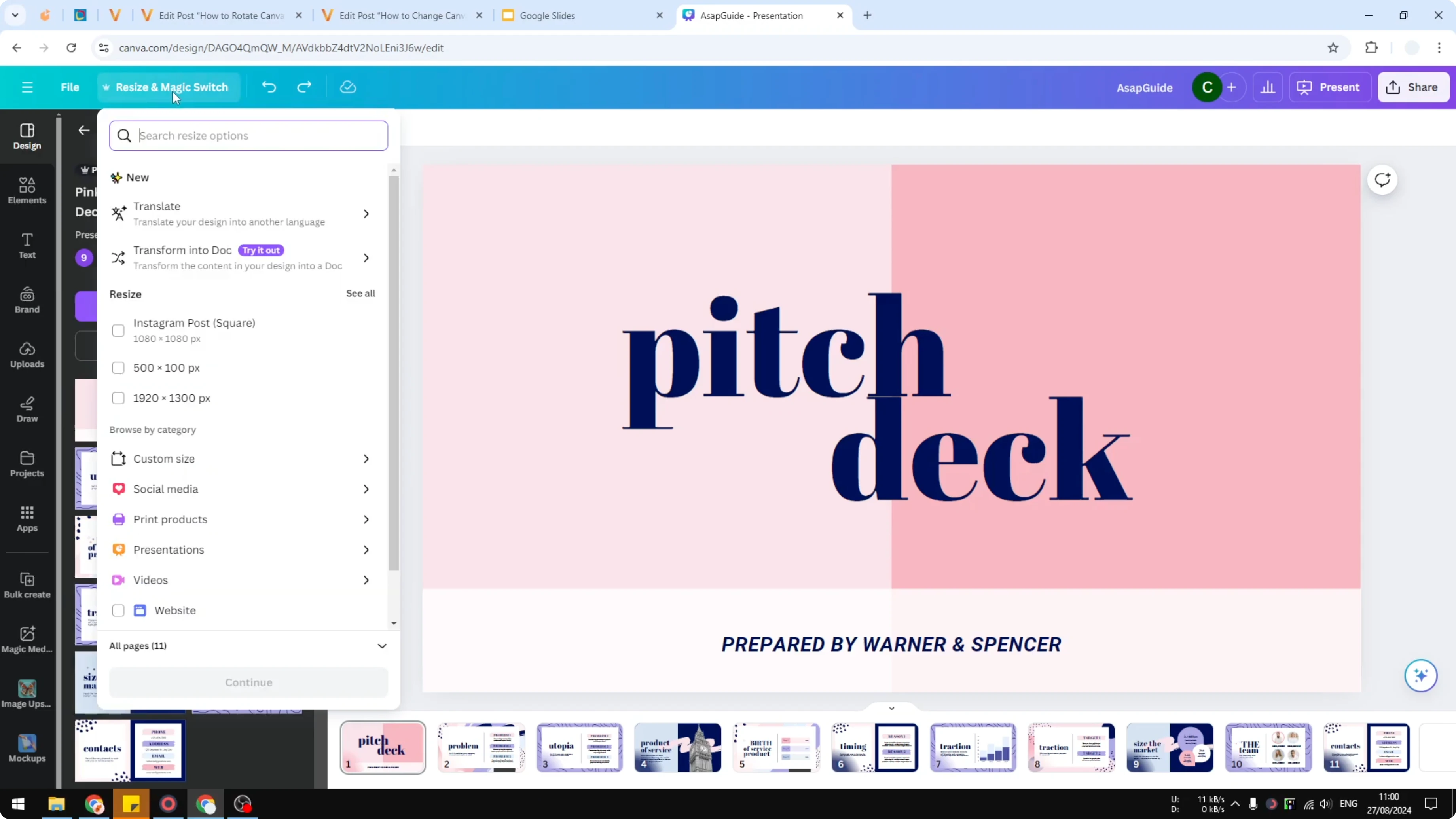
Click Select all under the Resize section.
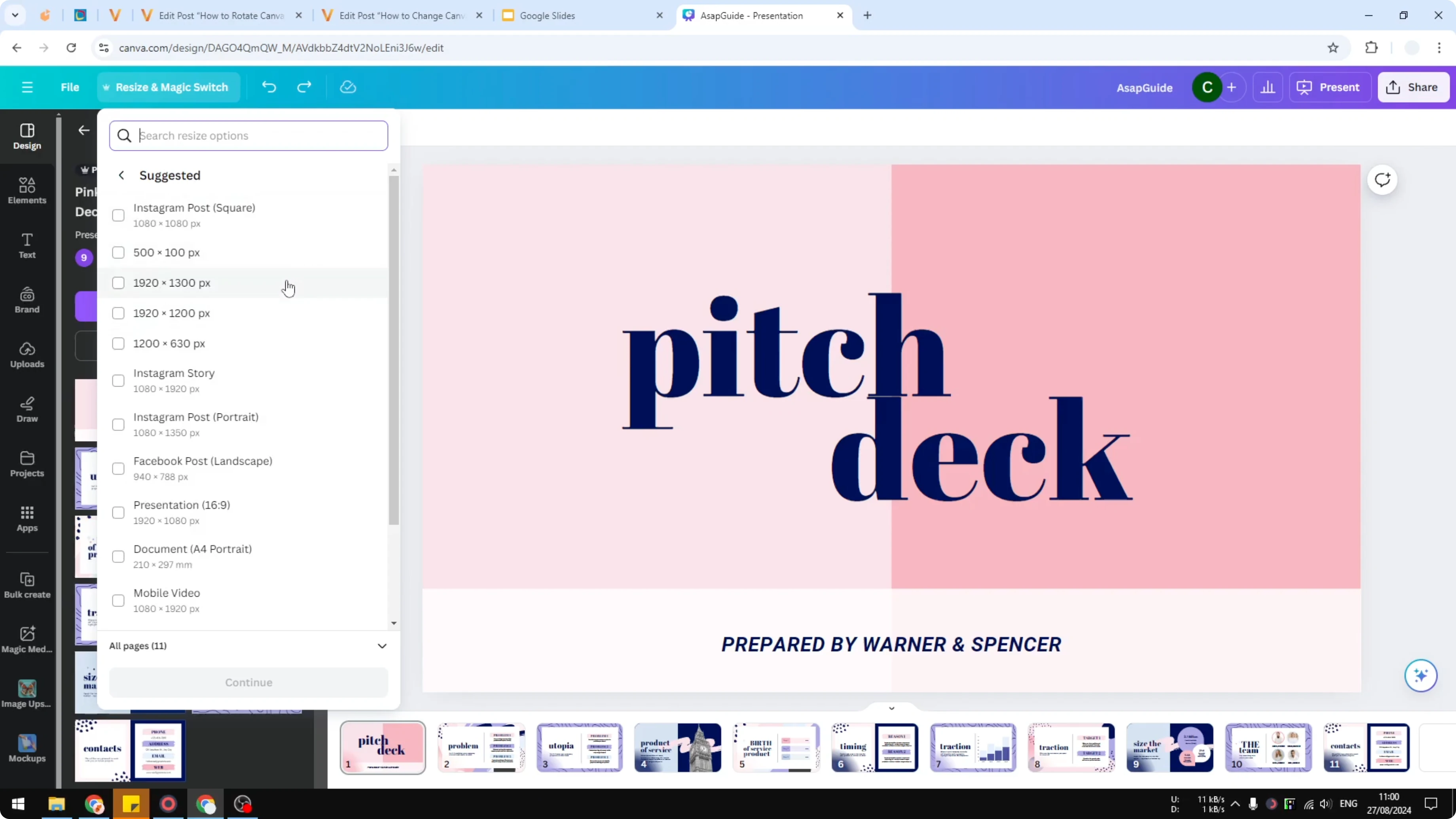
Choose a preset size or type a custom size in pixels.
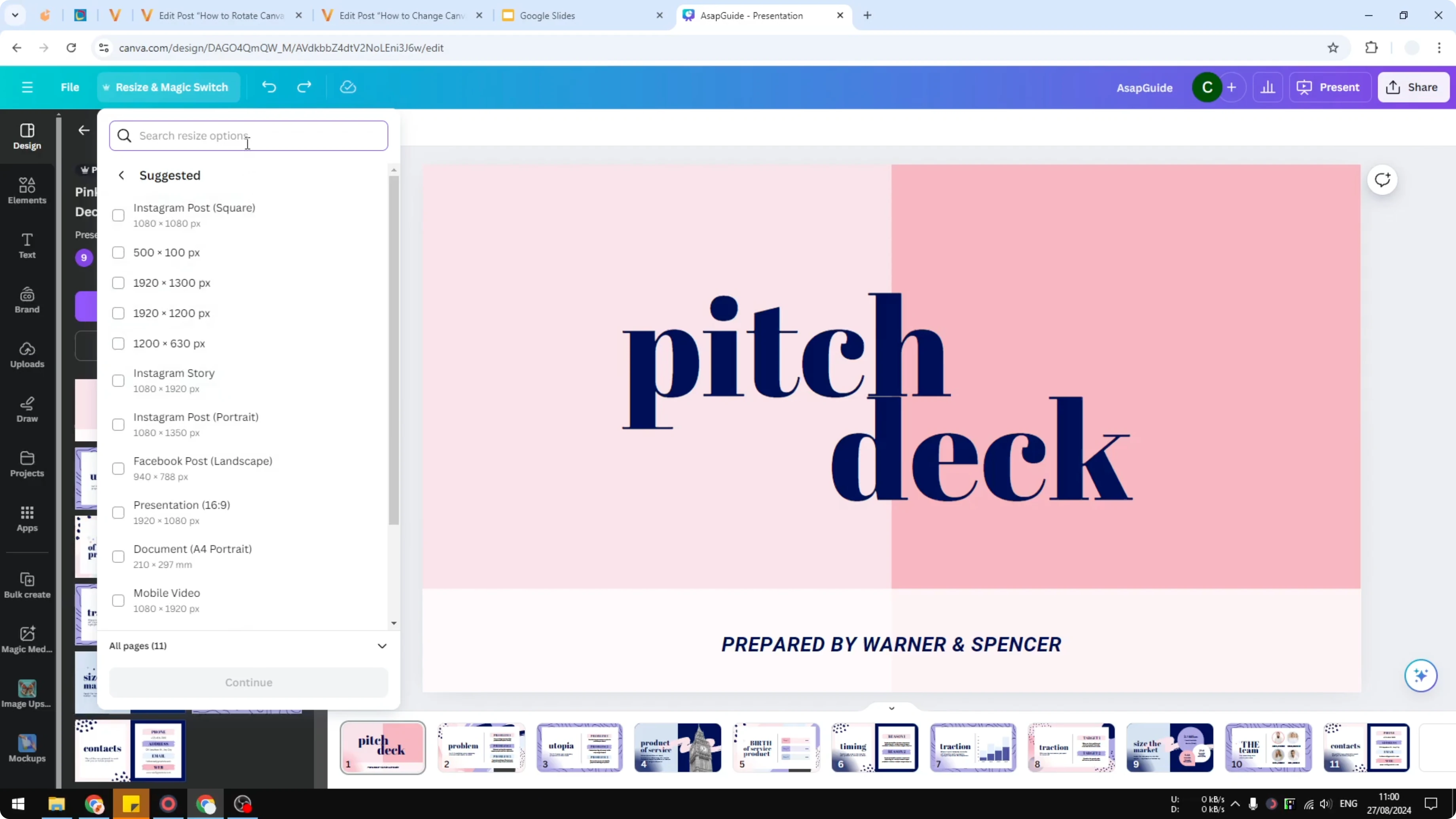
For this example I picked Instagram Post at 1080 by 1080 for a square 1 by 1.
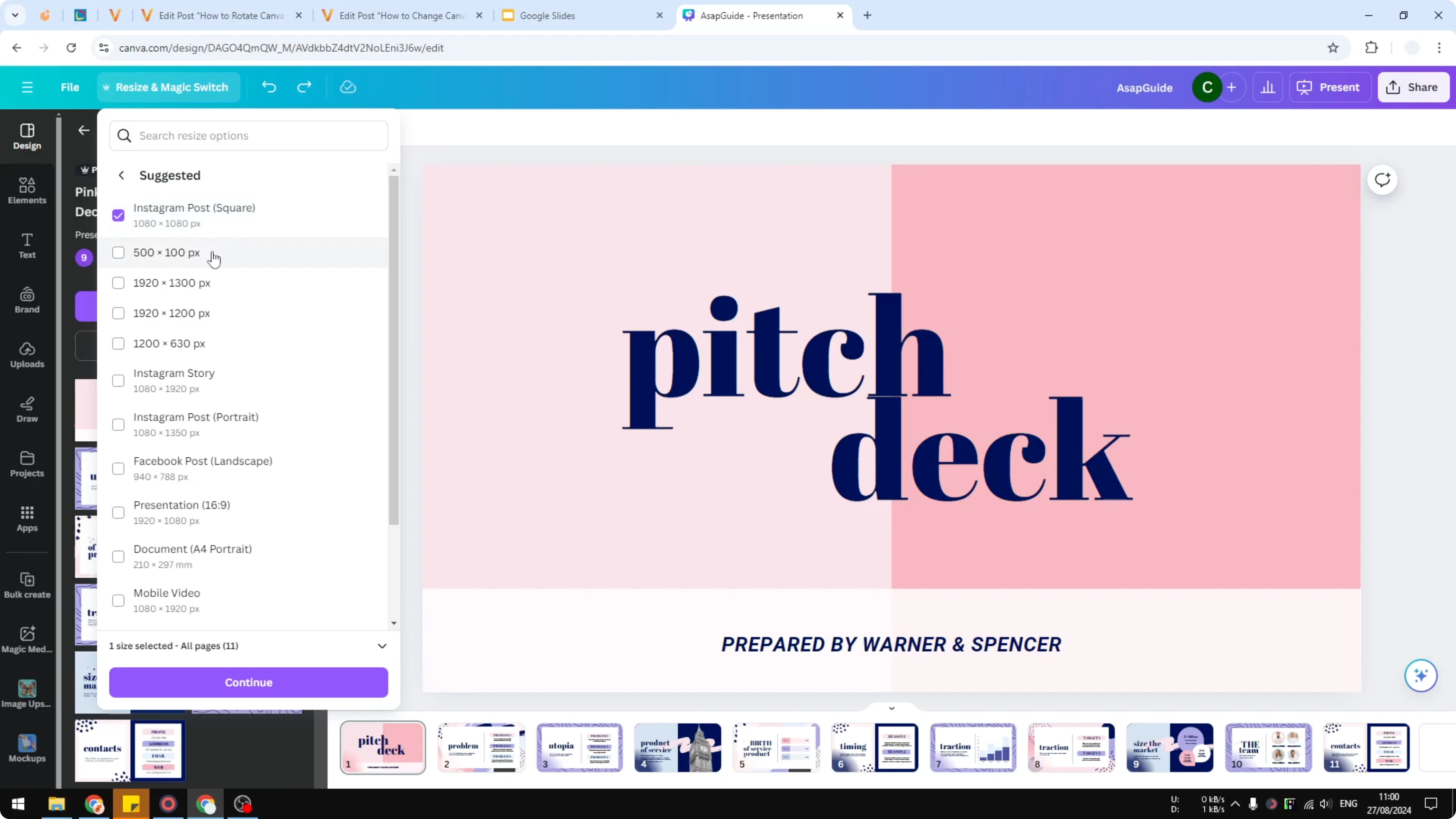
Click Continue to generate the preview.
If you are preparing a print document, see how to adjust A4 size in Canva for a quick preset option.
Preview before you Change Canva Slide Size
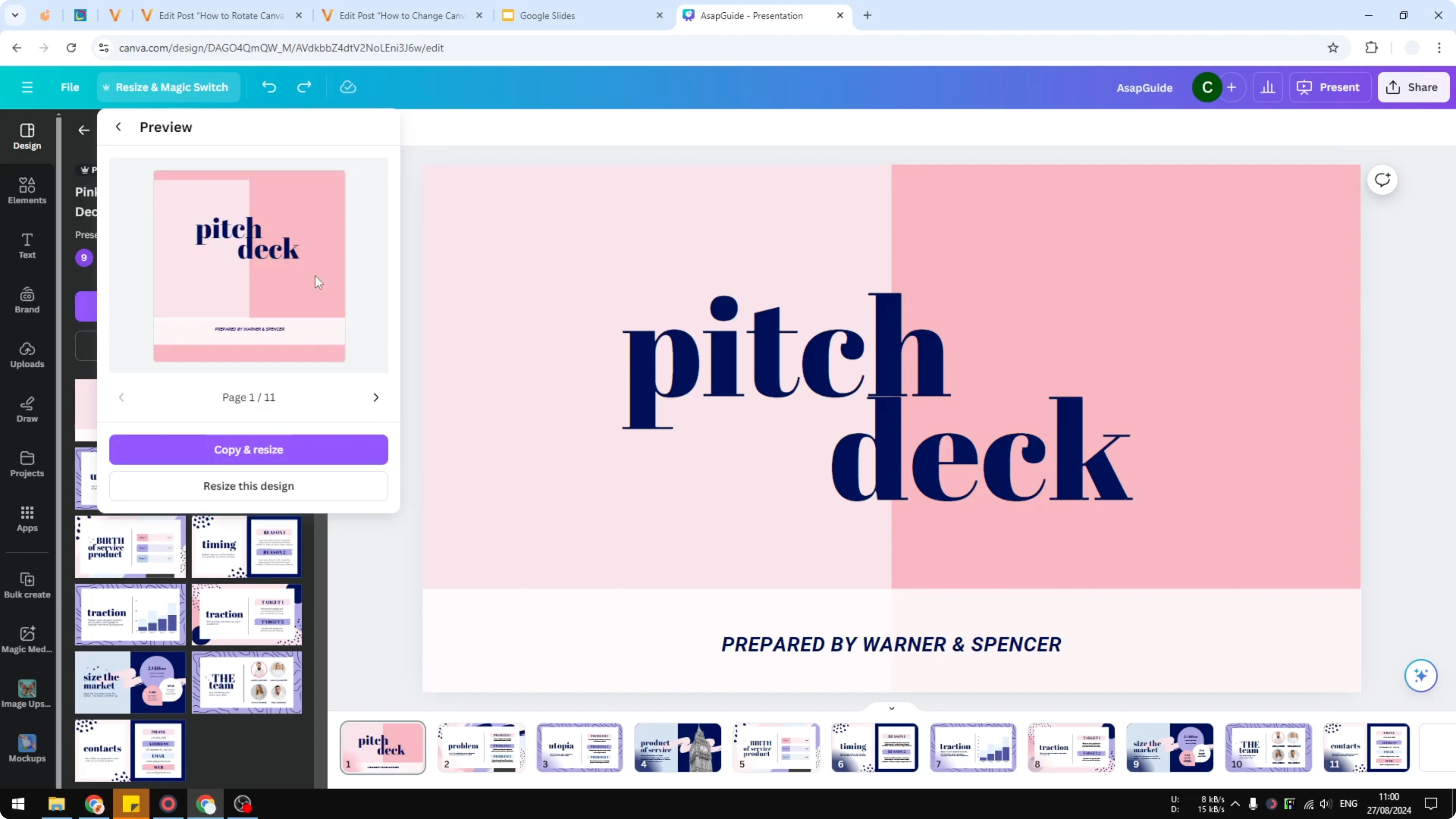
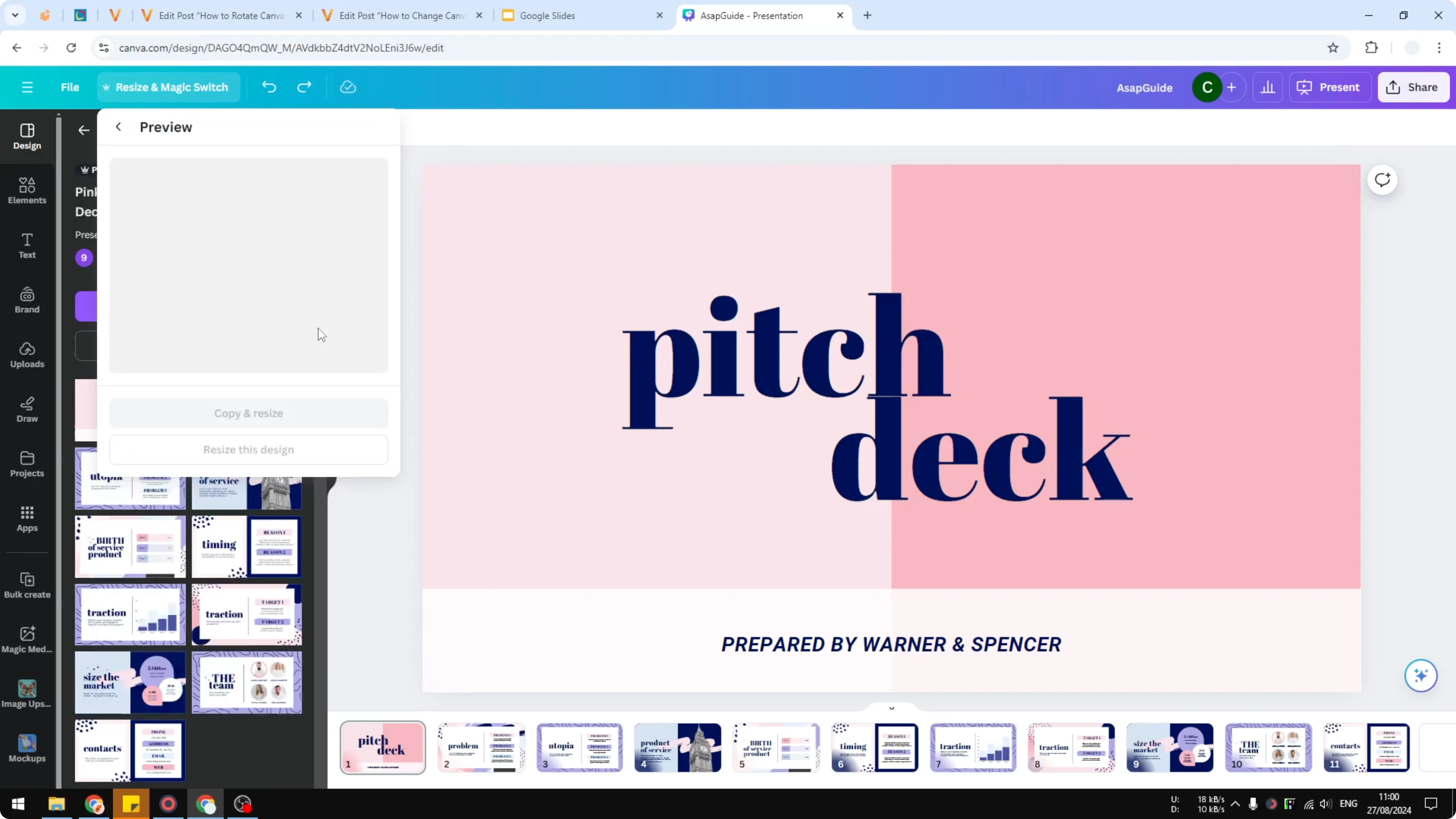
Canva will create a preview that shows how the design will look after the change. The layout stays familiar and close to the original. Check that key elements and animations still look right.
Copy instead of overwriting when you Change Canva Slide Size
When you are happy with the preview, click Copy and resize. I do not recommend using the single Resize option because it overwrites the original. Always keep a backup so you can return to the original design if needed.
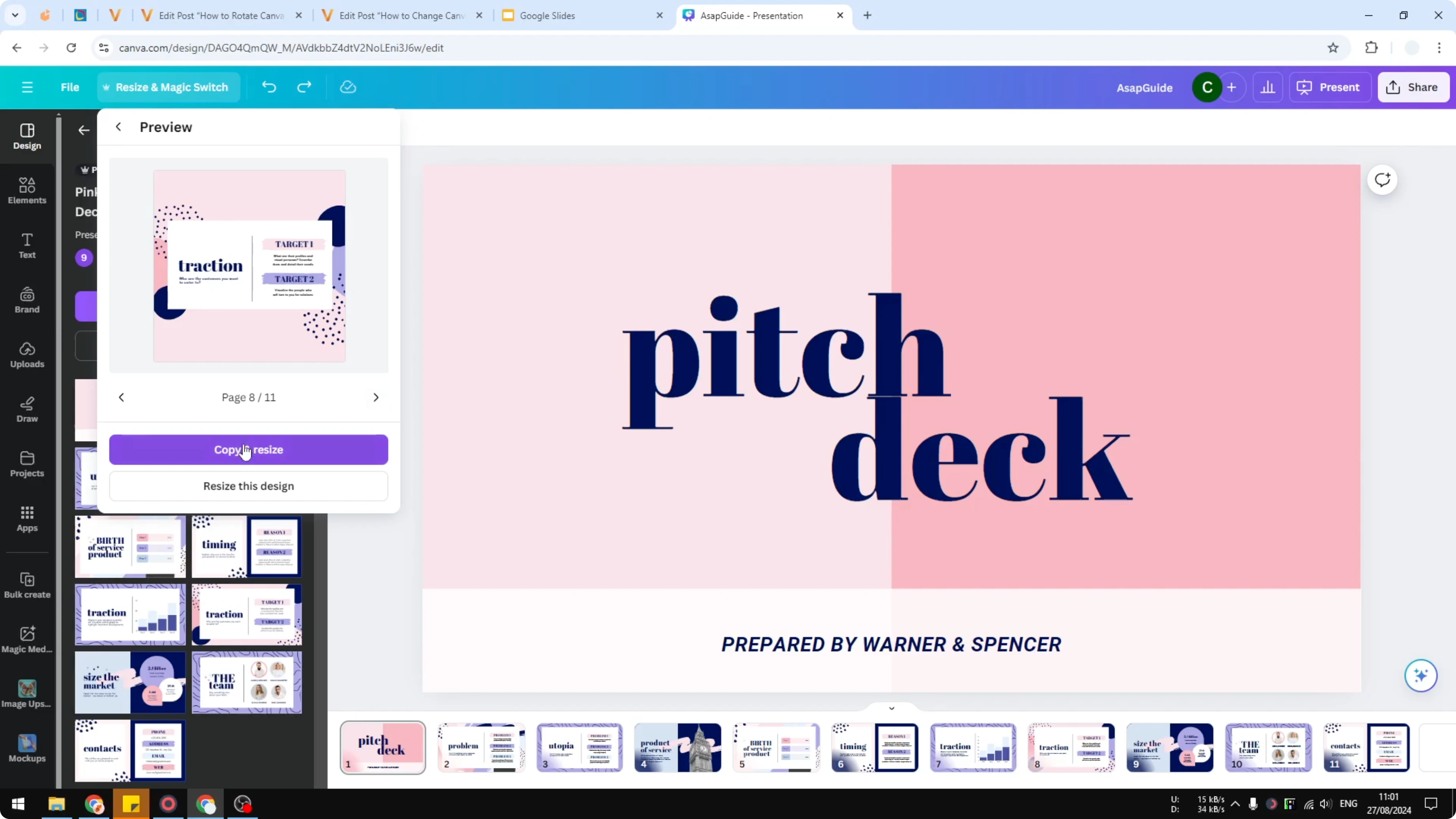
Wait for the process to finish, then click Open Instagram Post. This opens the new copy at the new aspect ratio. It is fast and reliable.
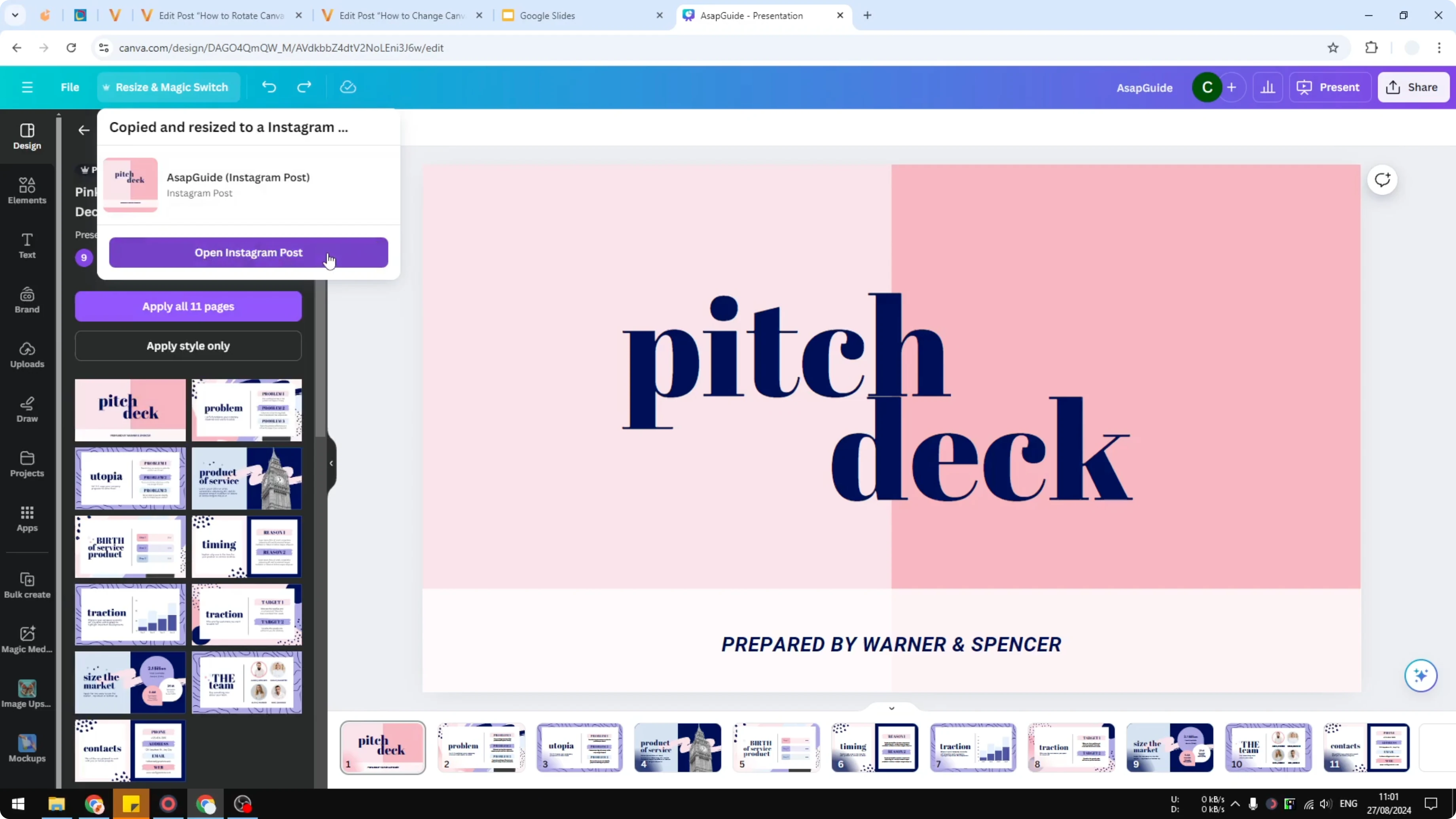
After you Change Canva Slide Size
The new document opens in the new aspect ratio, for example from rectangular to square. I usually find it is 80 to 90 percent similar to the original. A few small adjustments may be needed to perfect spacing and alignment.

If colors need a tweak, learn how to change the background color in Canva. Small color and spacing edits are often all it takes. Your design is ready once the final touches are done.
Final thoughts on Change Canva Slide Size
Changing size in Canva is simple and keeps your work intact. Use Magic Switch, review the preview, and choose Copy and resize to protect your original. With a few quick adjustments, your design fits the new format and stays consistent.
Recent Posts

How to Visualize Yourself as a Pixelized Character with AI?
How to Visualize Yourself as a Pixelized Character with AI?

How to Revive Faded Memories and Enhance Image Clarity with AI?
How to Revive Faded Memories and Enhance Image Clarity with AI?

How to Visualize Yourself as an Animal Crossing Character with AI?
How to Visualize Yourself as an Animal Crossing Character with AI?