How to Change to A4 Size in Canva
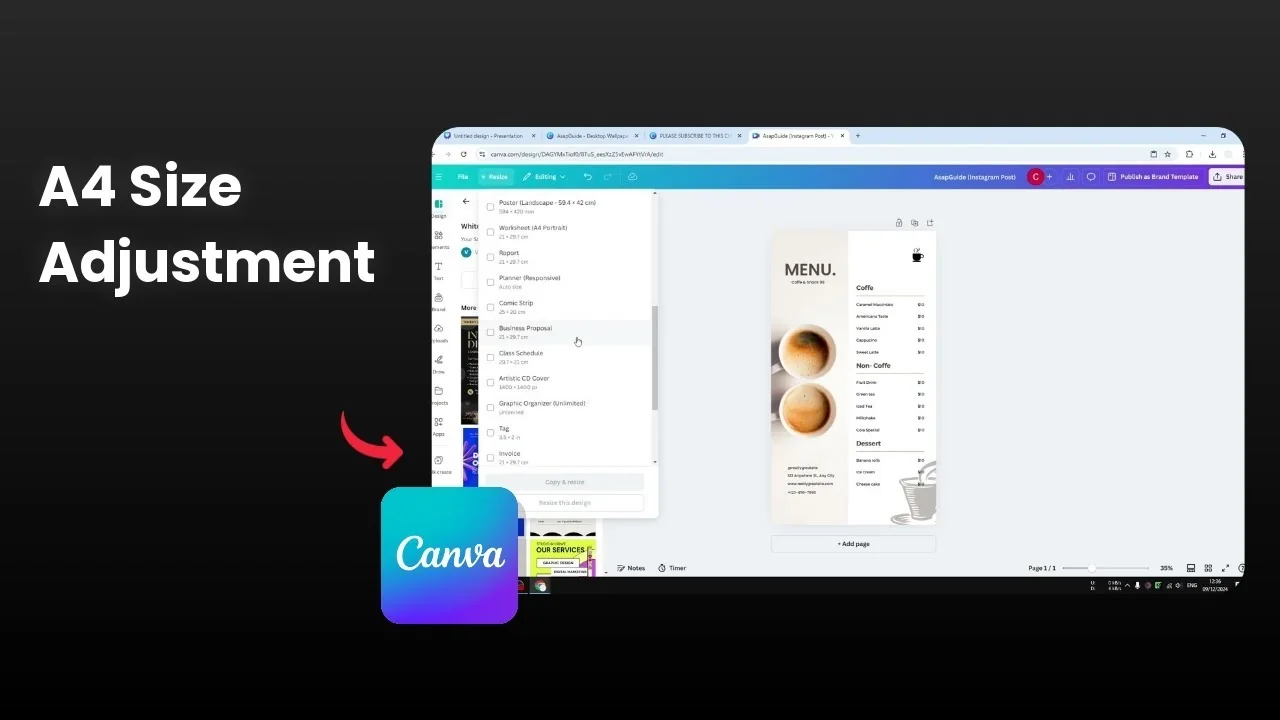
Here is how you can change your Canva document size from whatever size you have right now to A4.
A4 is a very popular format for printing a document. If you want to print your Canva design into something tangible then A4 is probably the best size.
I have this 9x16 aspect ratio Instagram Story template and I am going to change that into A4.
Steps for A4 Size in Canva
Open the menu for A4 Size in Canva
Go to the Design menu.
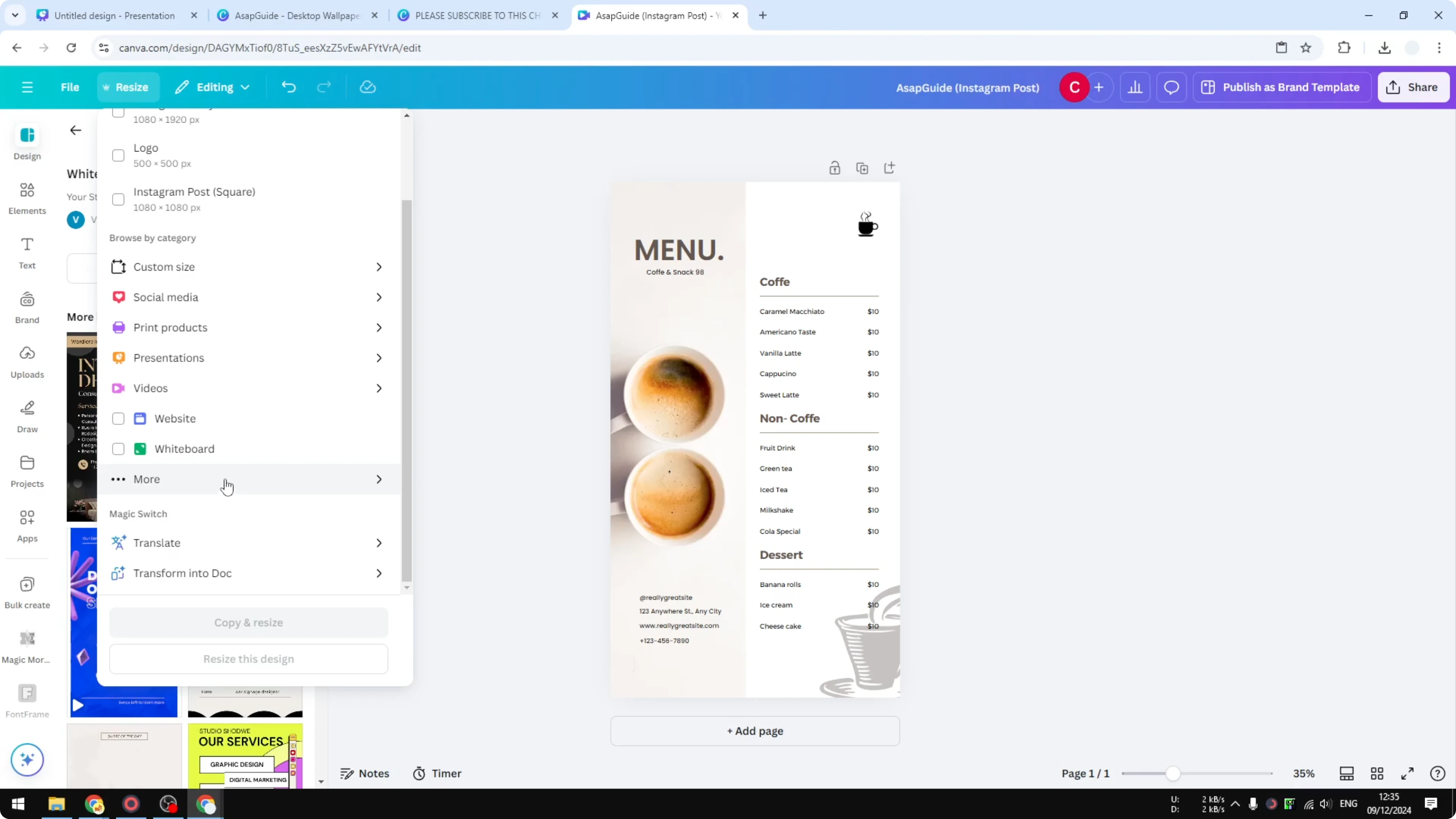
Click the More option.
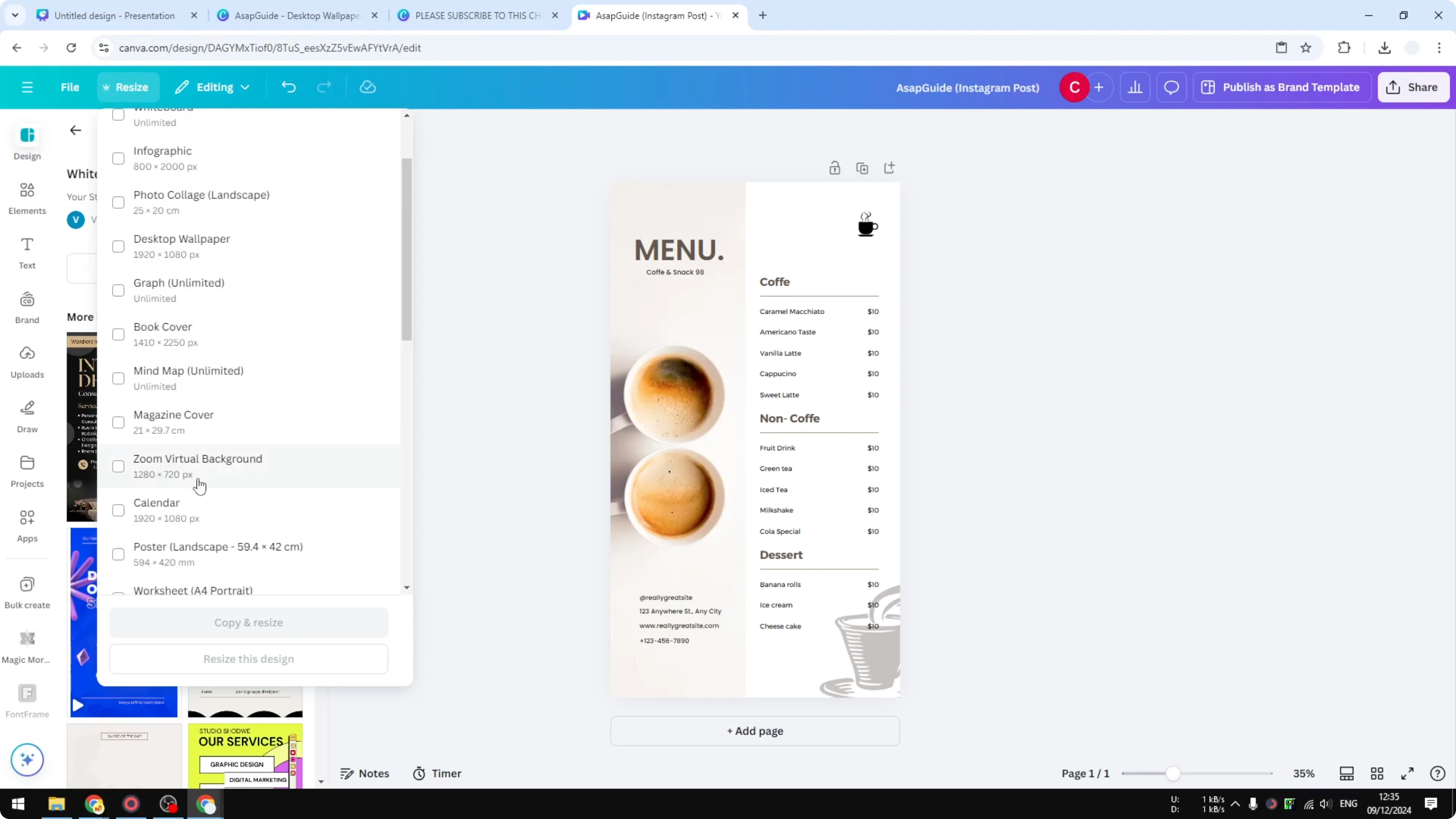
Select A4 Size in Canva
You will see that there are plenty of options, but the one that you want to use is A4.
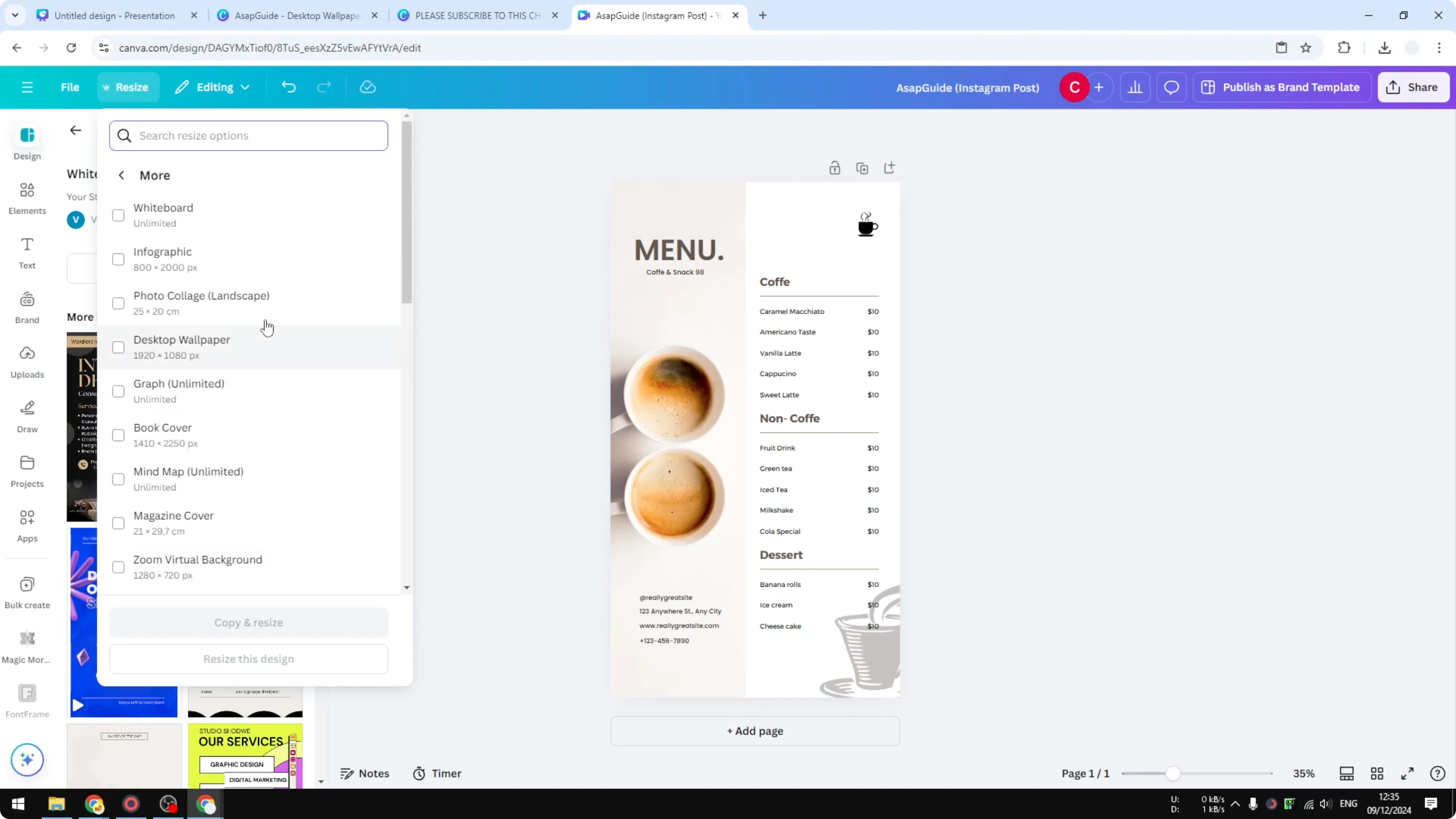
Scroll down and find the one that says A4. It is located as Worksheet A4 Portrait. Select it.
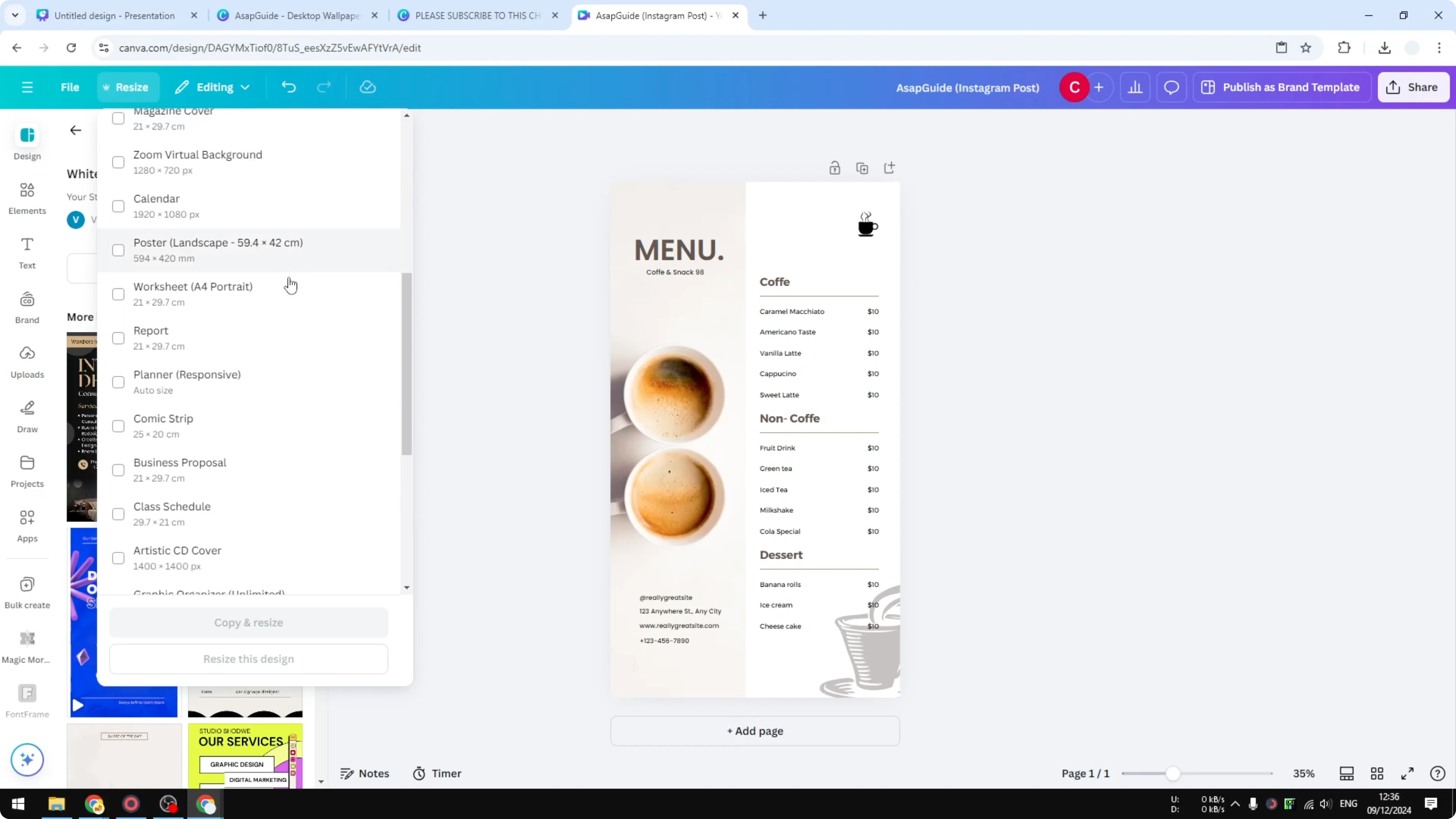
After switching size, you might want to adjust the background to suit print. You can quickly change the background color in Canva to match your design.
Copy and resize for A4 Size in Canva
You have two options. You can either use Copy and resize, which creates a duplicate of this document for the A4 format, or you can resize the current document.
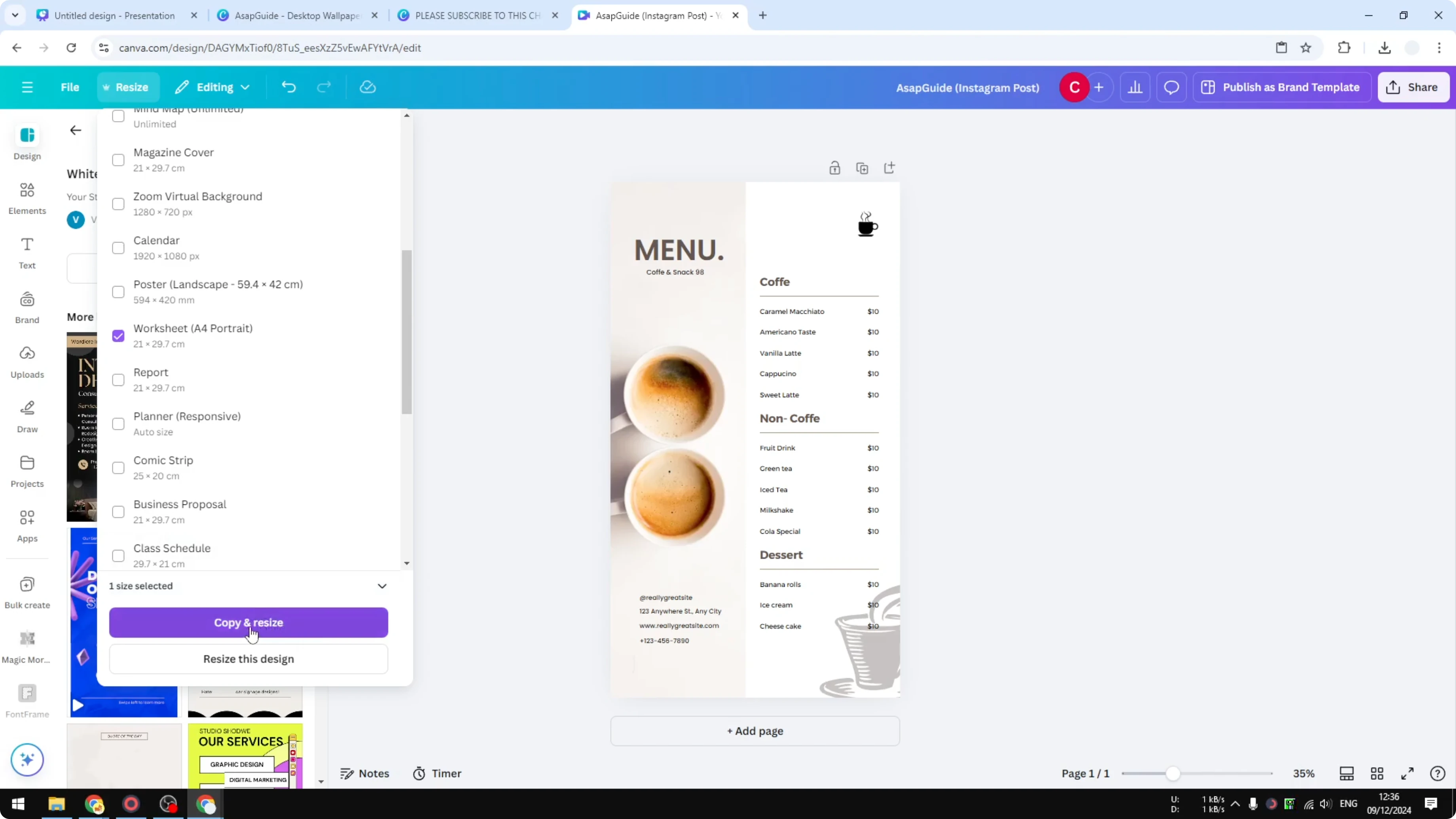
I recommend using Copy and resize because changing the size is usually going to change the whole design and sometimes there is an unintended consequence after changing the aspect ratio. That is why I recommend using the Copy and resize option.
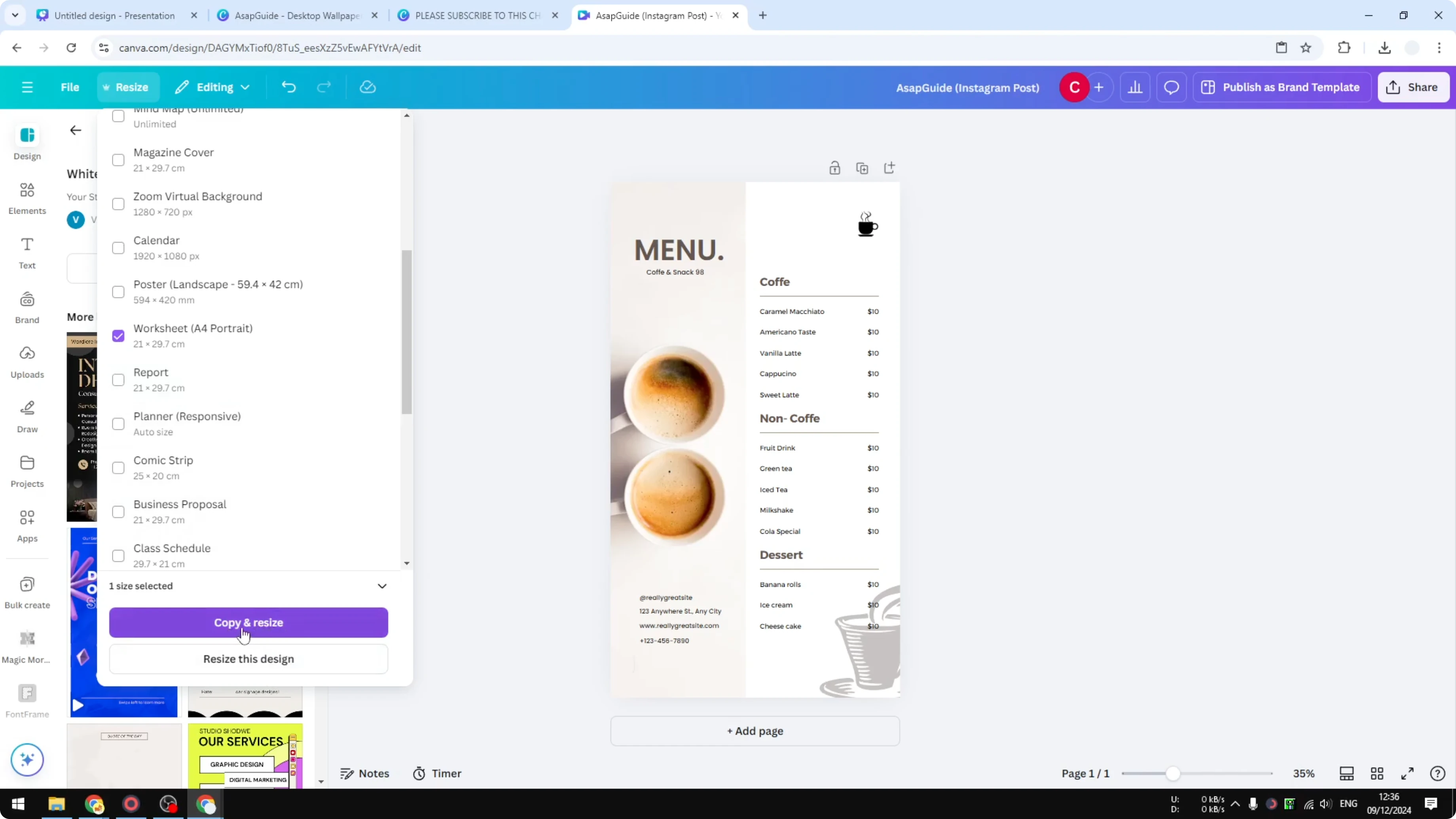
If layout shifts bother you, see this quick guide on changing the Canva slide aspect ratio before finalizing.
Preview and open the A4 Size in Canva
Click Copy and resize and Canva will prepare a document.
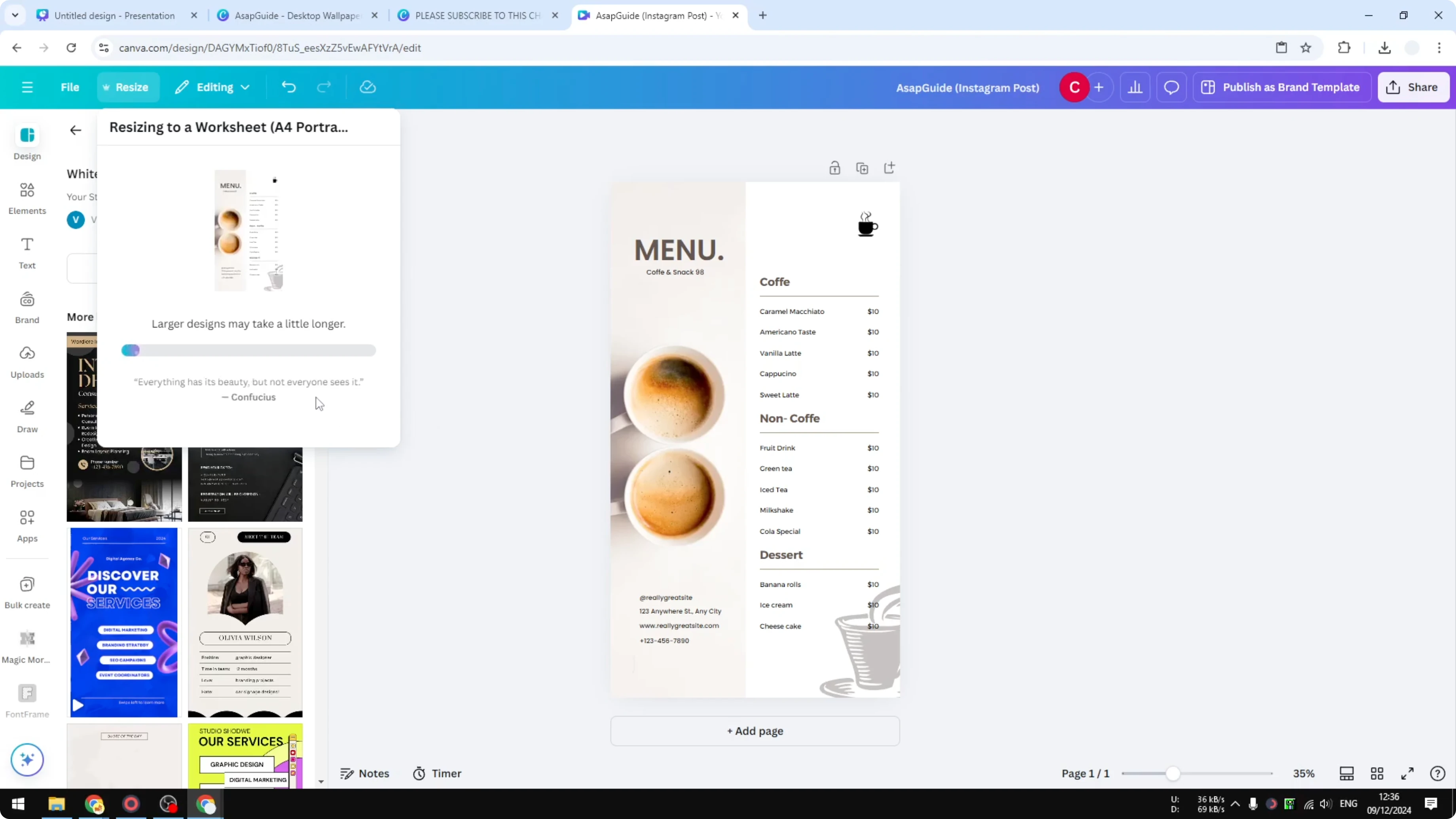
You will get a preview about what is going to happen after you change the dimension. Click Open the A4 to jump into the new document size.
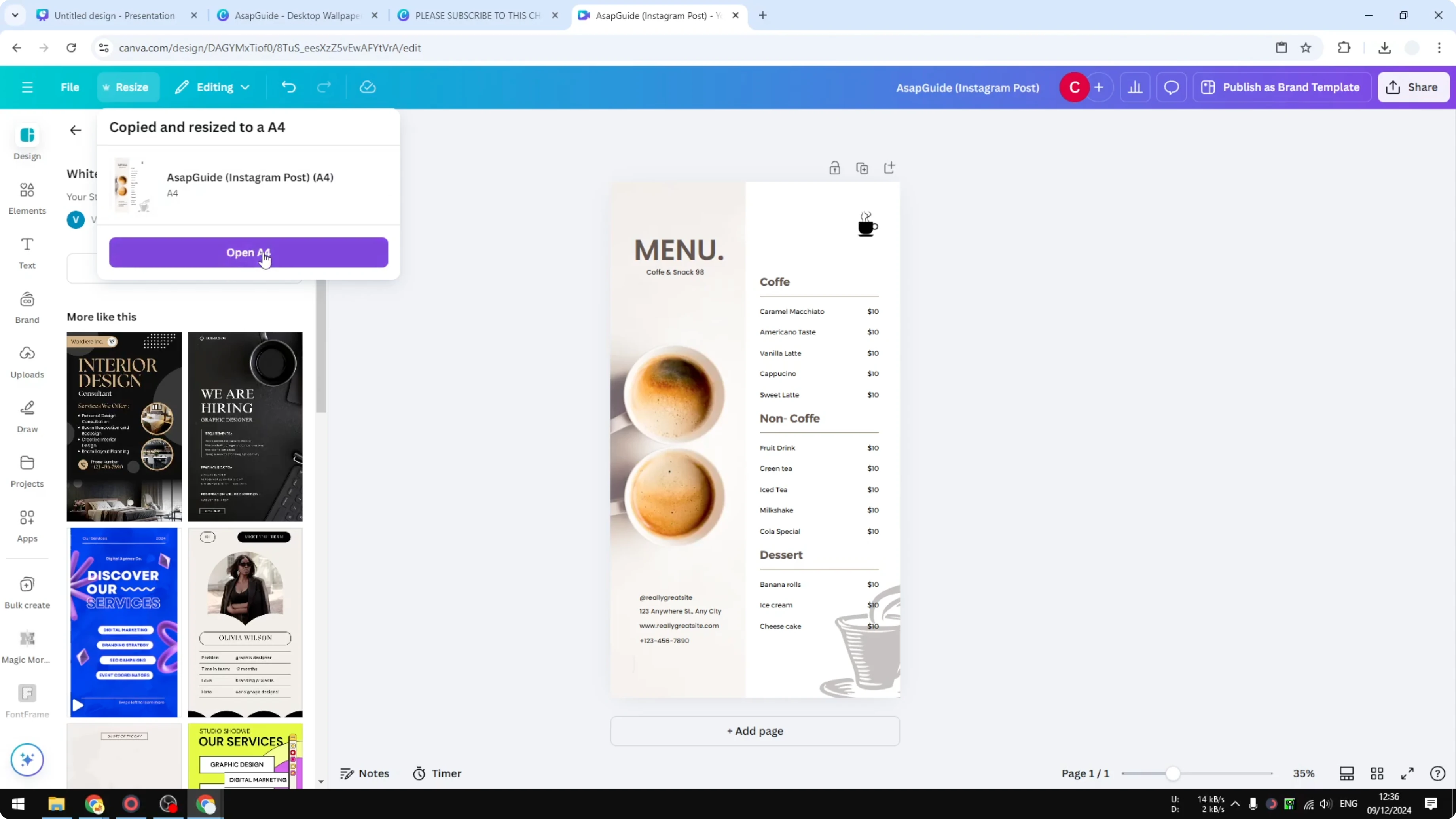
It used to be 9x16 and now it looks like A4. It is still pretty good and presentable.
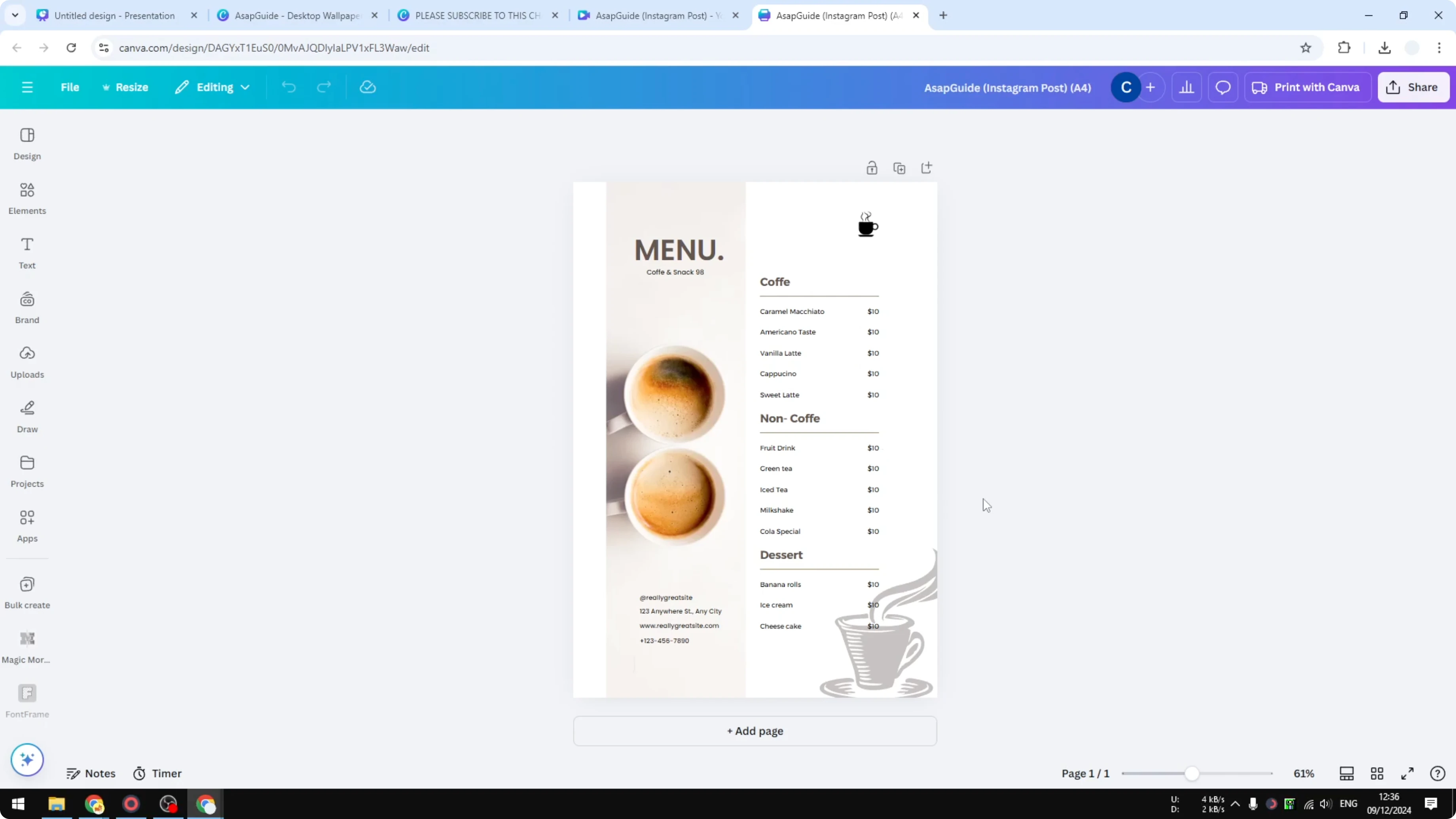
Download the A4 file
When you are done, click Download and you will get the new document in the new format.
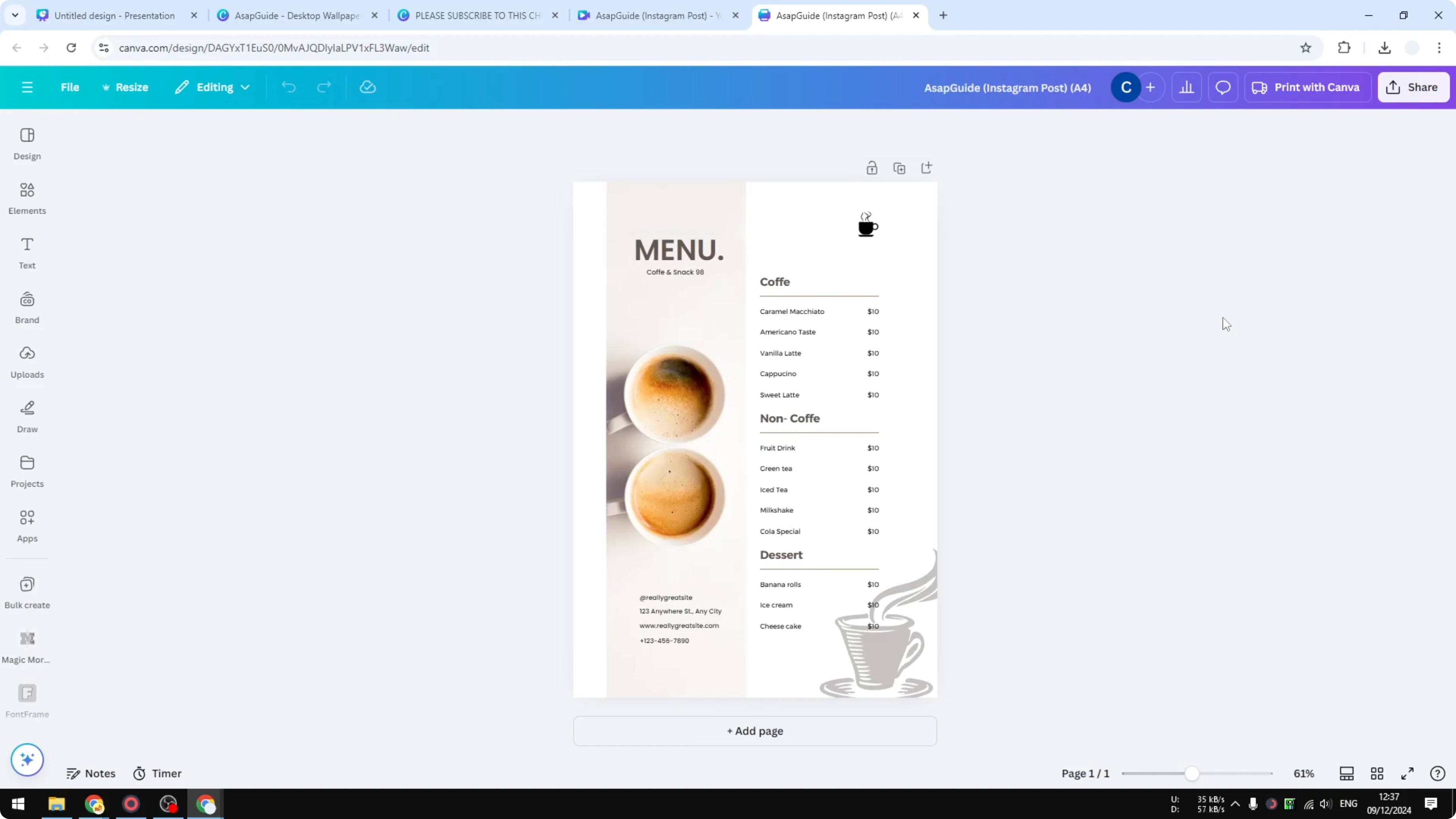
For print accuracy, it can help to switch the Canva ruler to inches or cm while checking margins.
Final thoughts on A4 Size in Canva
A4 is a solid choice for printable designs.
Use Copy and resize to protect your original layout, preview the result, and download the A4 version.
These quick steps let you change any document to A4 in Canva with confidence.
Recent Posts
How to Visualize Yourself as a Pixelized Character with AI?
How to Visualize Yourself as a Pixelized Character with AI?
How to Revive Faded Memories and Enhance Image Clarity with AI?
How to Revive Faded Memories and Enhance Image Clarity with AI?
How to Visualize Yourself as an Animal Crossing Character with AI?
How to Visualize Yourself as an Animal Crossing Character with AI?