How to Change Canva Ruler from Inches to CM
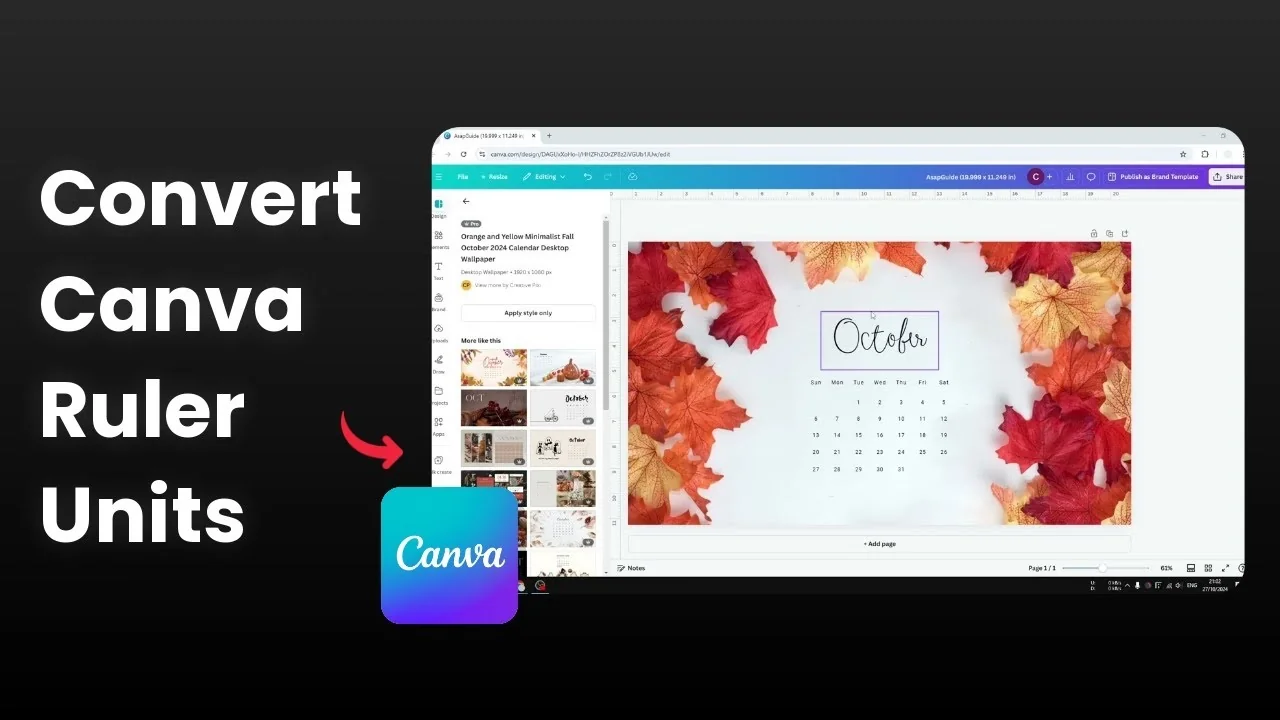
I’m going to show you how to switch the ruler unit from inches to centimeters in Canva. By default, the unit used by the horizontal and vertical rulers is based on your location or where your account was registered. If you are in the USA you might see inches, but in the UK or many Asian countries you will see centimeters.
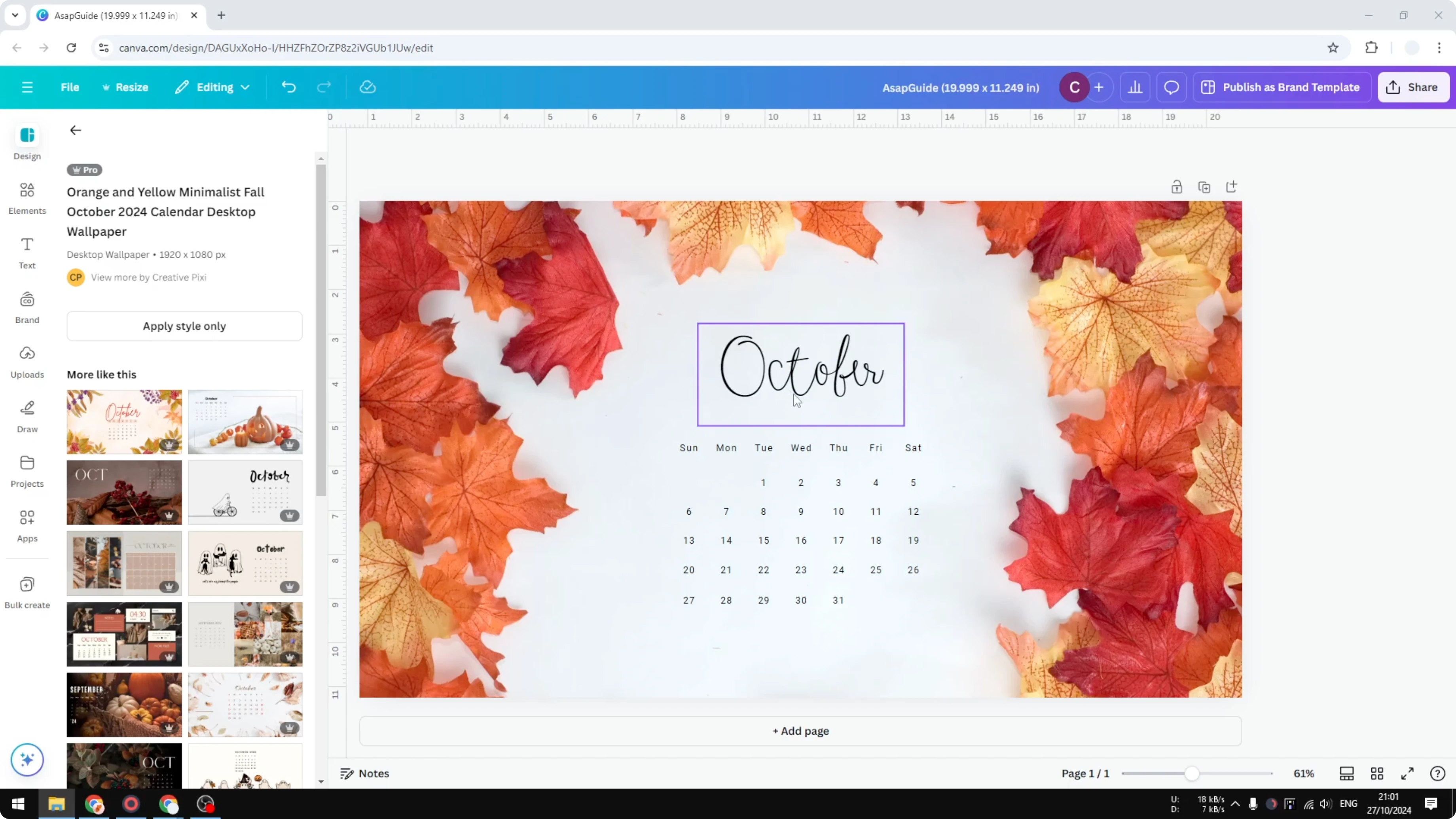
You can always switch to whatever unit you find best for your design. In my example, I had horizontal and vertical rulers using inches, but I switched them to centimeters. If you are also adjusting the look of your canvas, you might want to change the background color in Canva.
Change Canva Ruler from Inches to CM
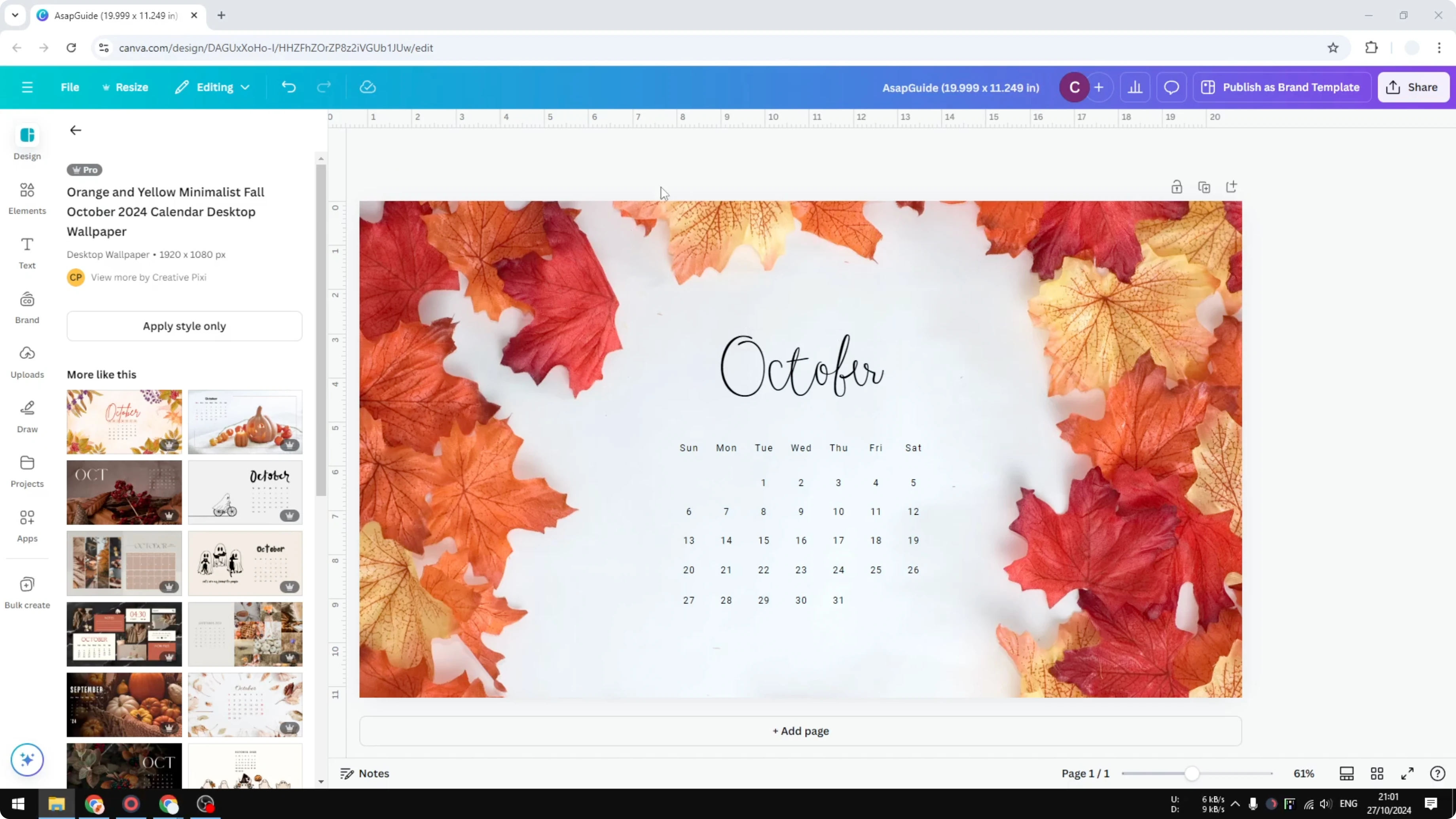
I had a design open with rulers showing inches, and I wanted to convert them to centimeters while keeping the same layout. The quickest way is to create a duplicate with the new unit so you don’t touch the original. Here are the exact steps I used.
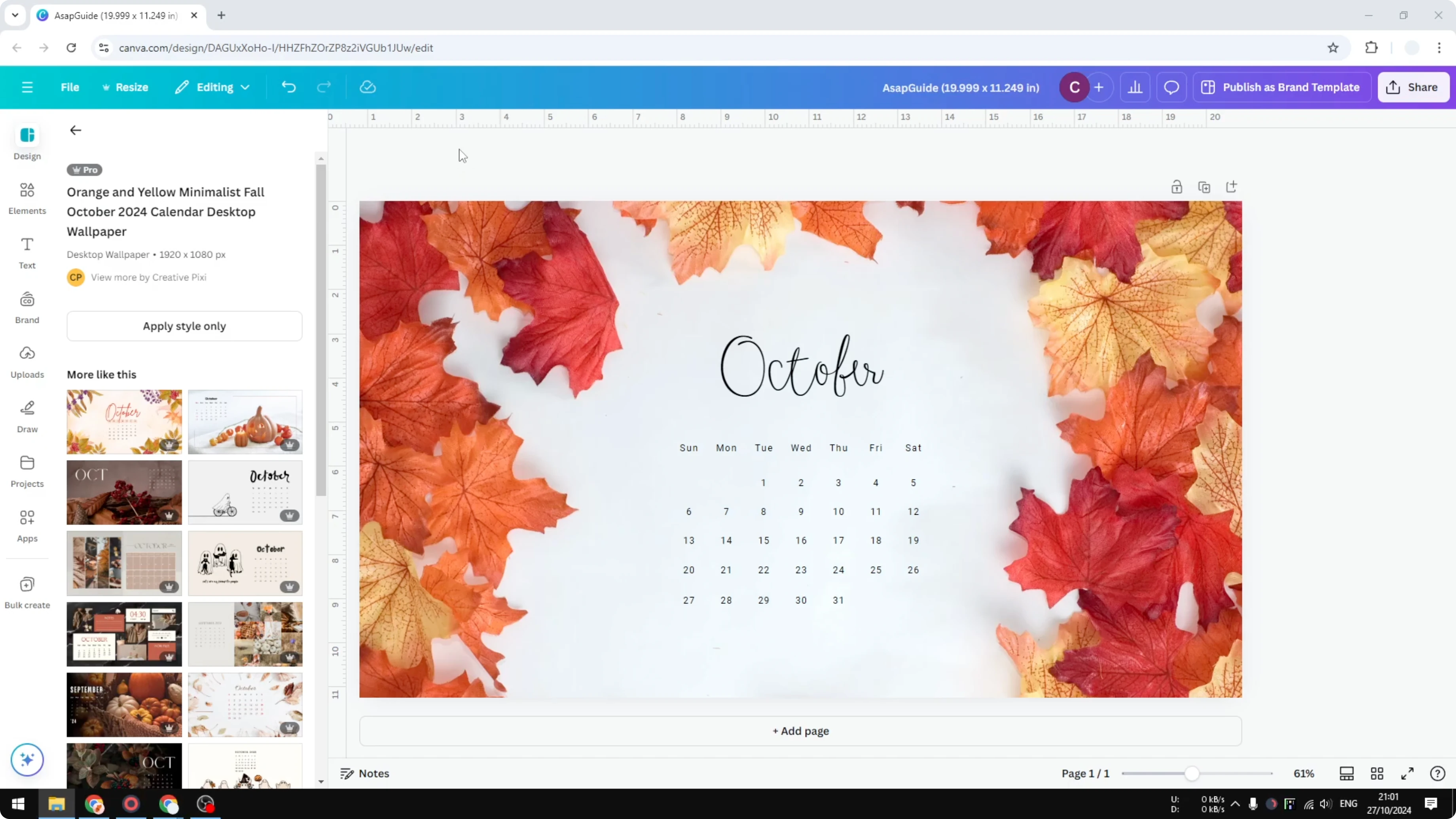
Steps
Click Resize.
Click Custom size.
Change the unit from inches to cm.
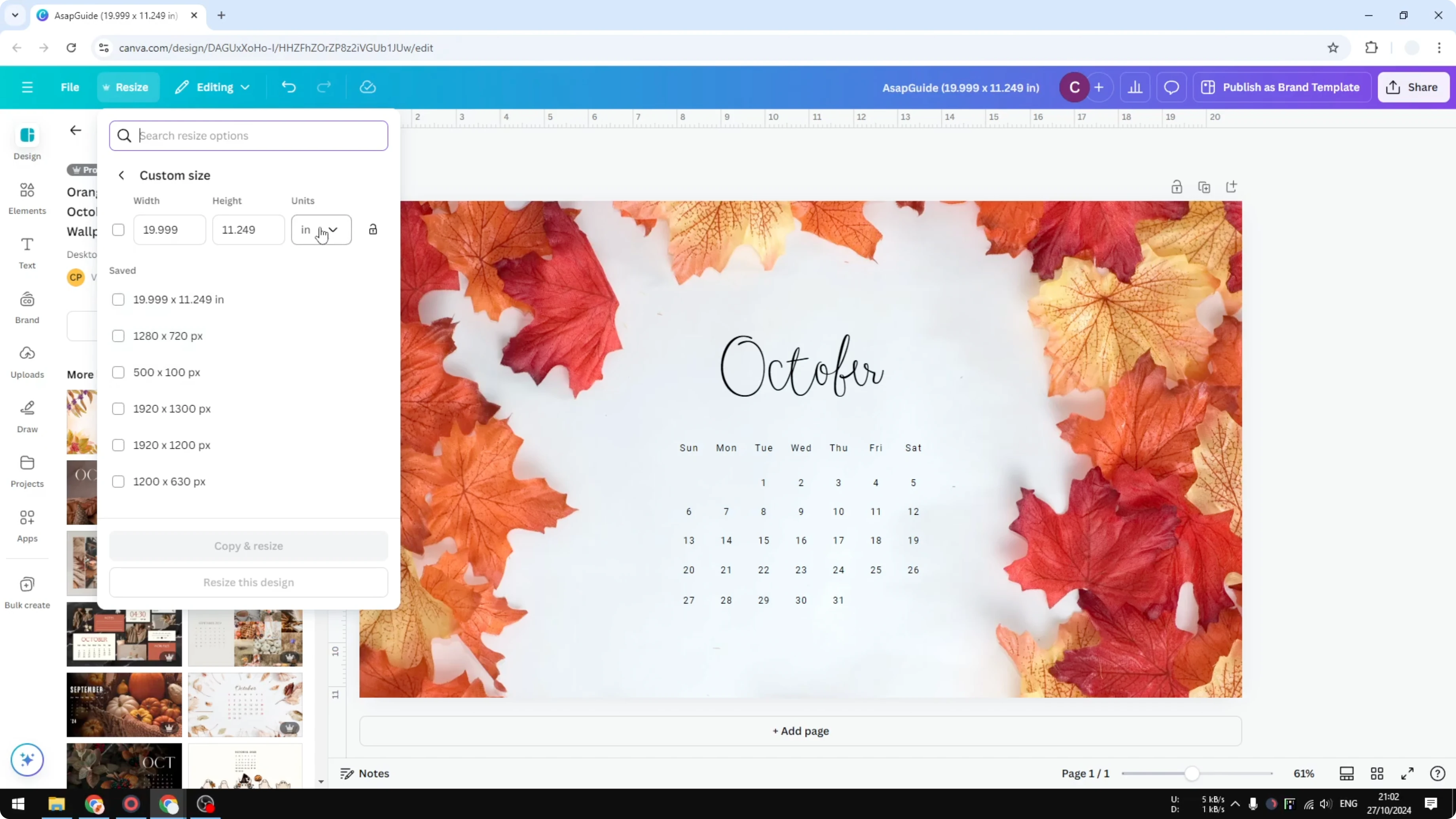
You can also switch to pixels if you prefer that, but I switched to centimeters.
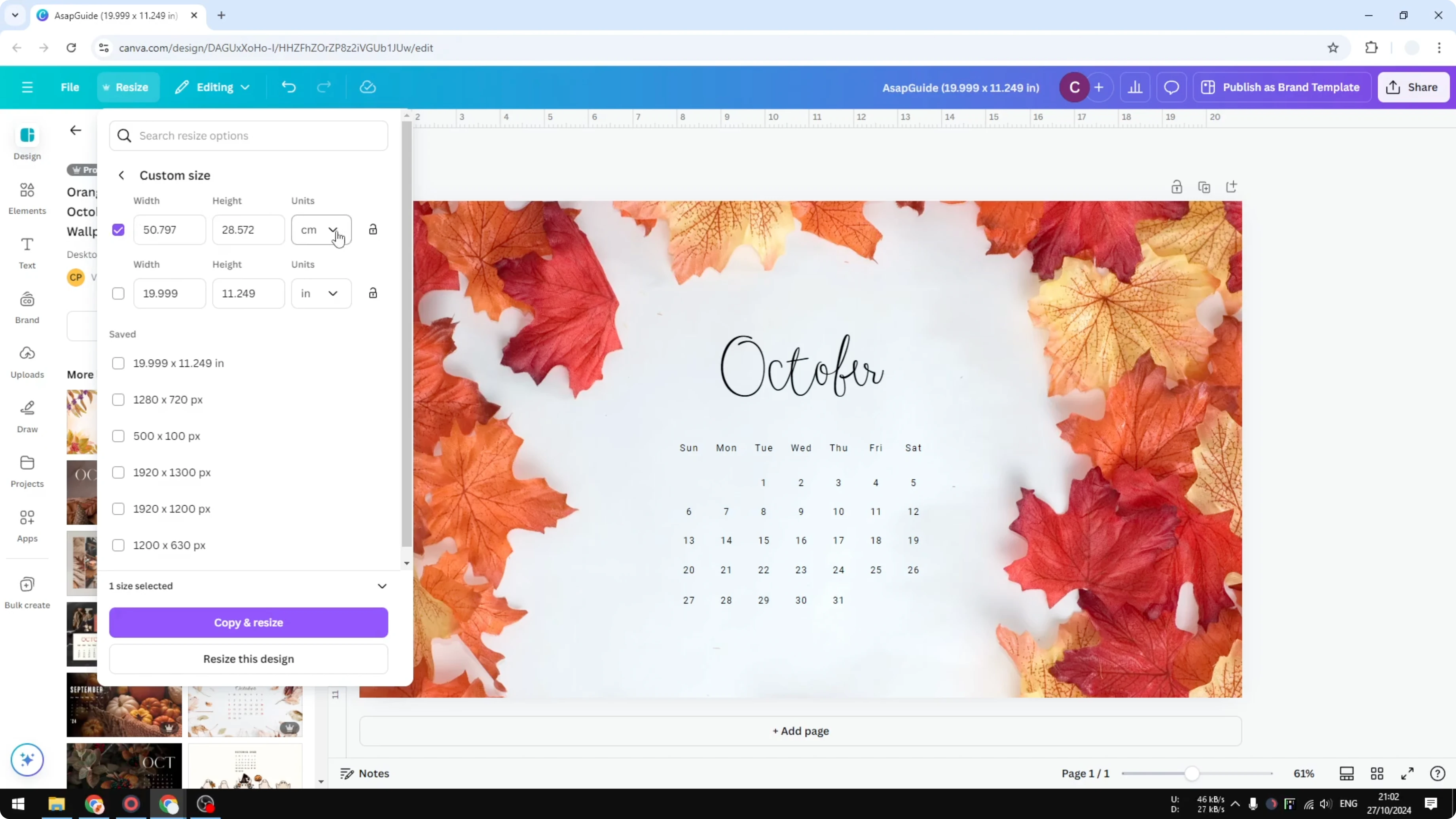
Click Copy and resize.
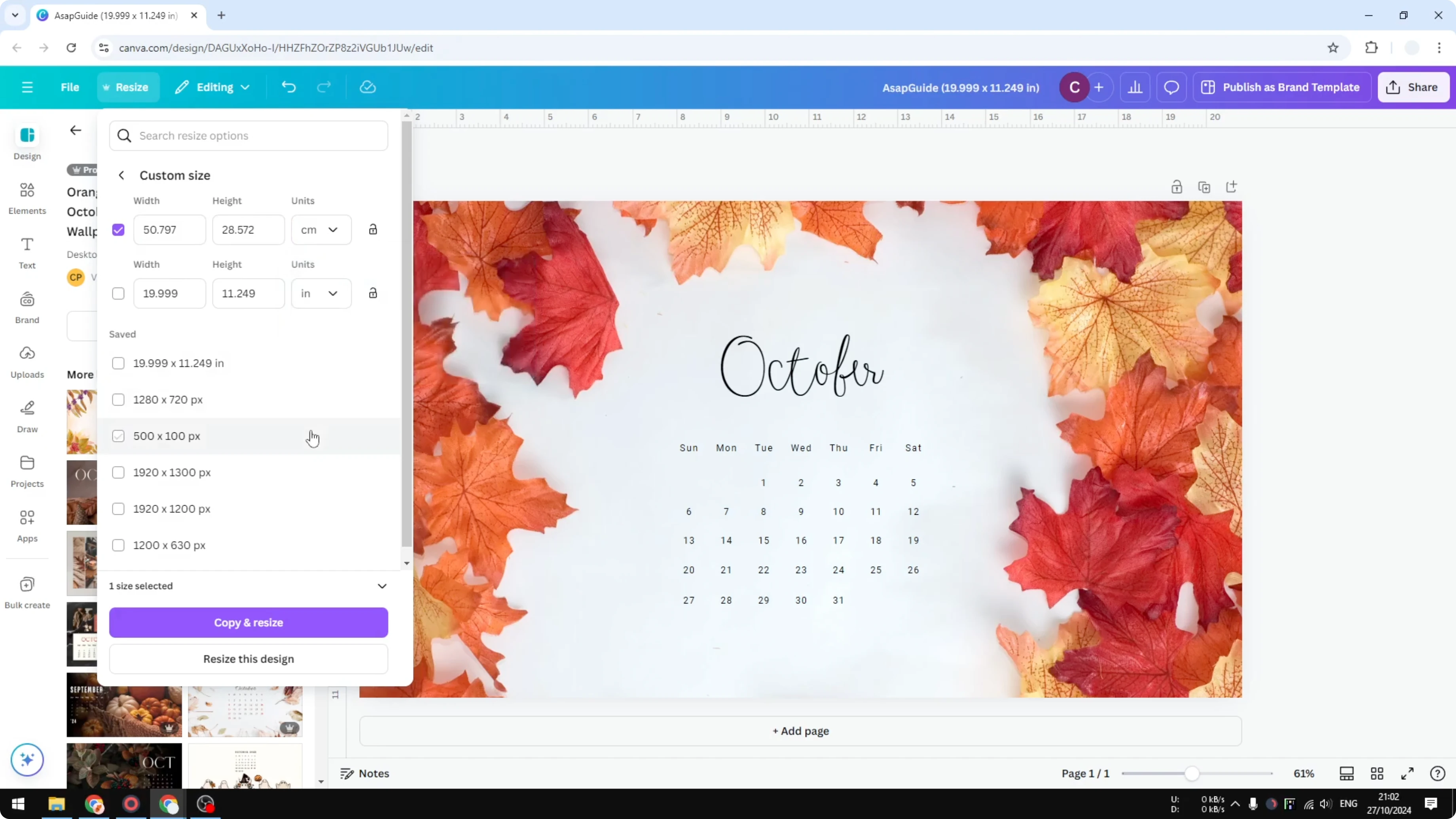
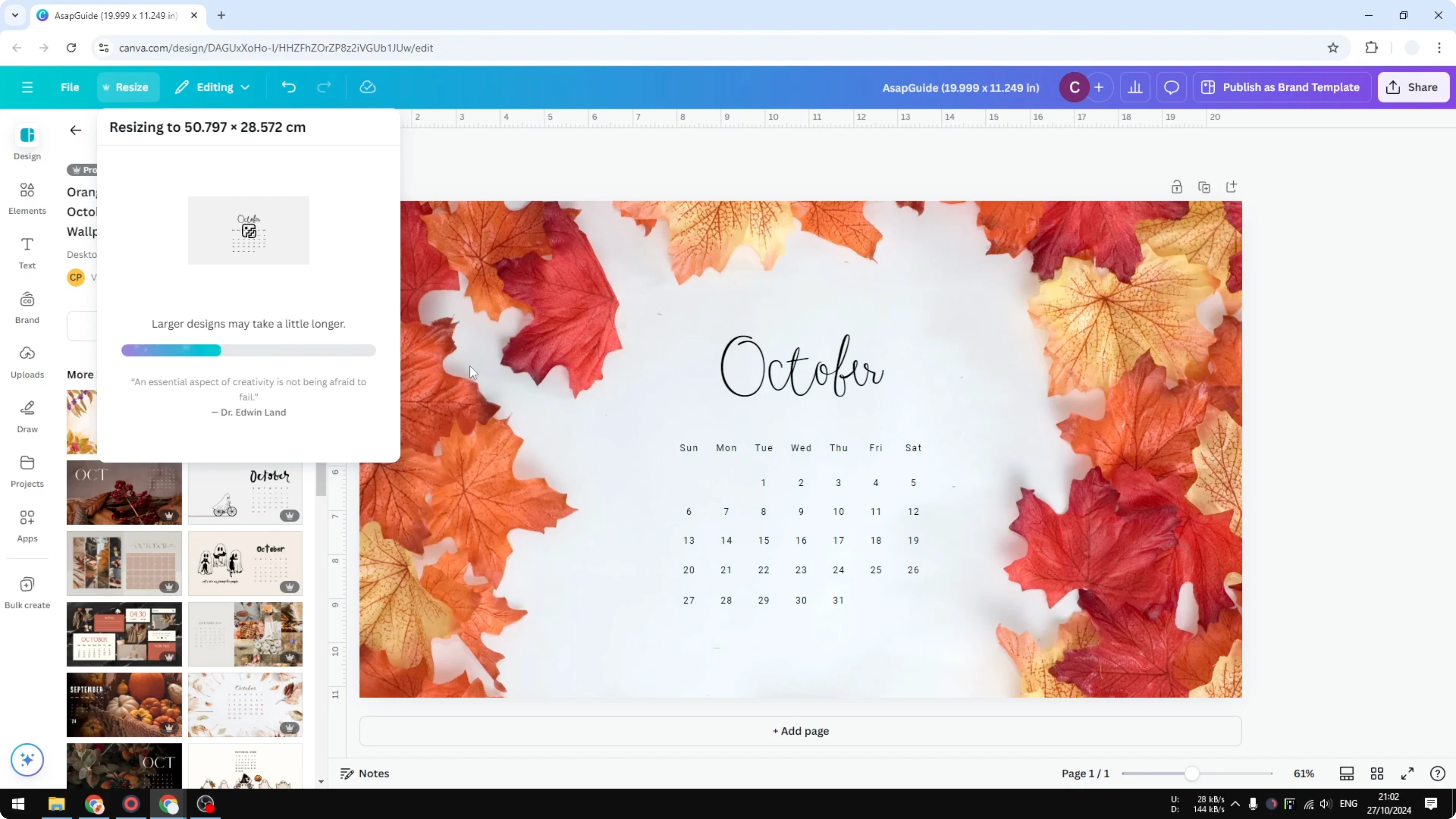
Canva will create a preview of what the document will look like when it’s converted to centimeters.
When it’s ready, click Open.

If you also need to change dimensions for different formats, see how to change your slide aspect ratio.
What you’ll see
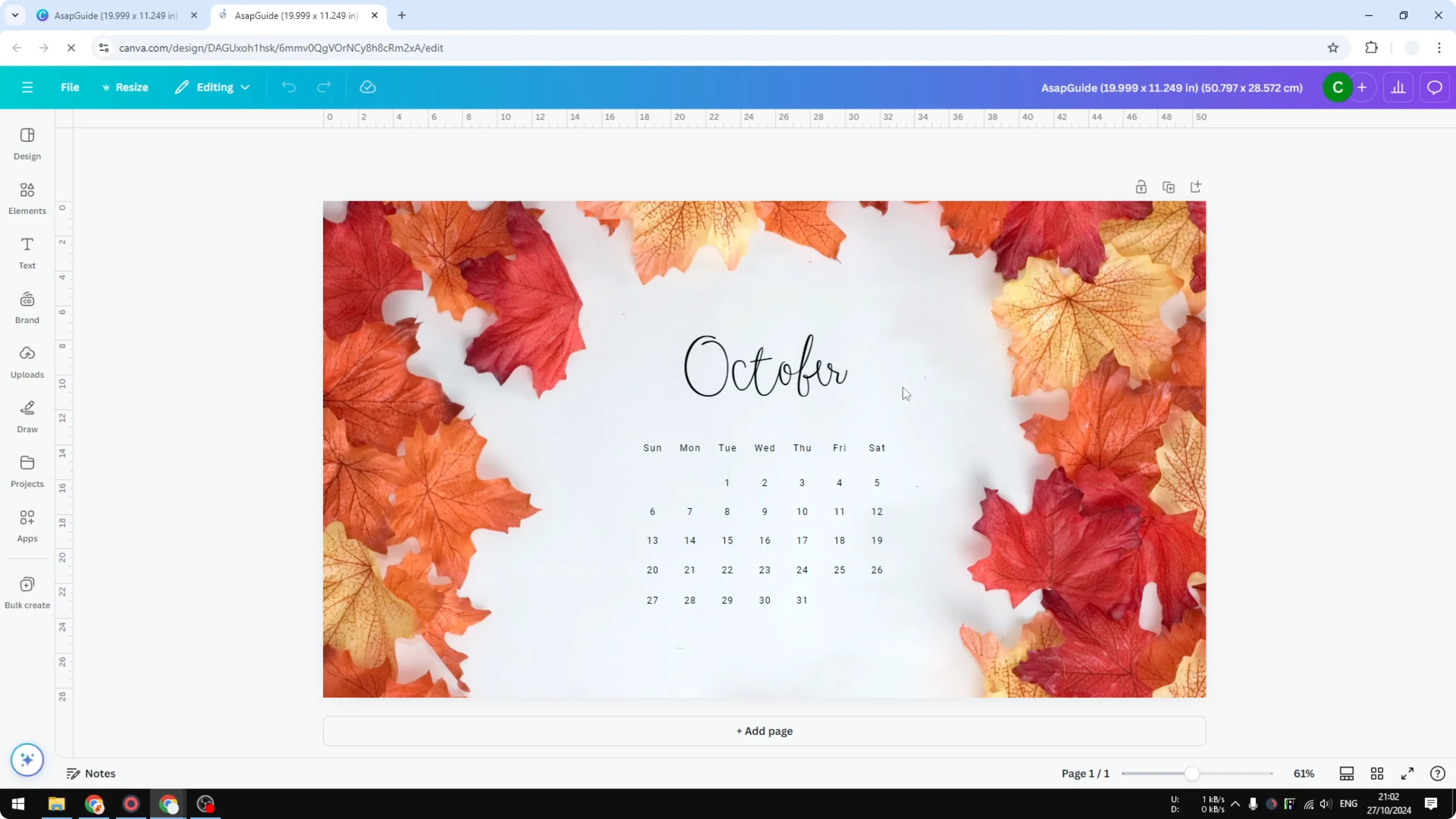
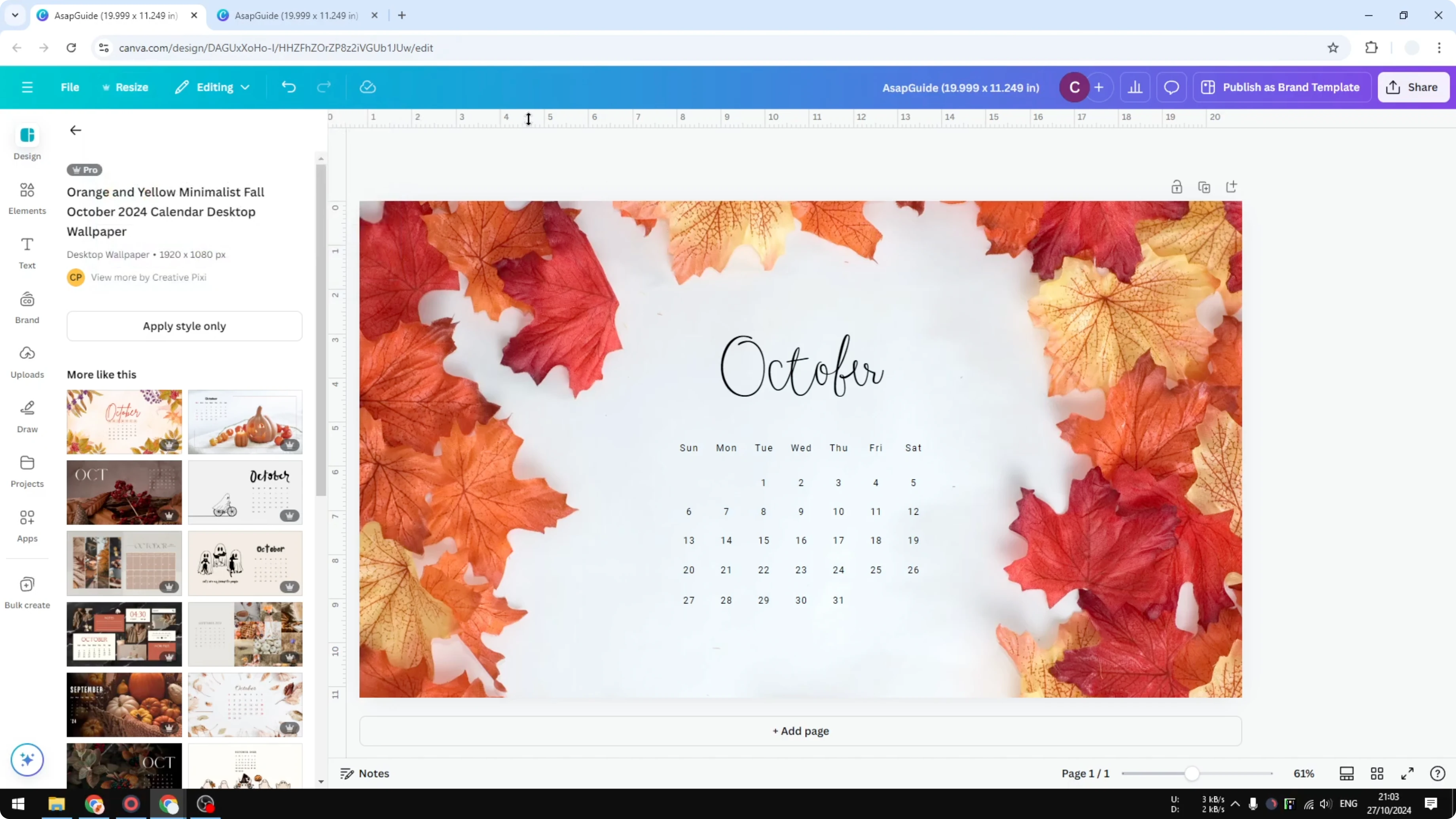
The new document is the same design, but the rulers are different. If you look closely, the distance between the numbers is a lot closer, which indicates centimeters. The original document showed inches, and the duplicate now shows centimeters for both horizontal and vertical rulers.
Final thoughts
That’s exactly how you can switch between units for the horizontal and vertical rulers in Canva. Create a duplicate via Resize, select Custom size, change the unit to cm, then Copy and resize to generate a new version with centimeter rulers. If you are editing video content in Canva too, you might find it useful to remove text from a video in Canva.
Recent Posts

How to Visualize Yourself as a Pixelized Character with AI?
How to Visualize Yourself as a Pixelized Character with AI?

How to Revive Faded Memories and Enhance Image Clarity with AI?
How to Revive Faded Memories and Enhance Image Clarity with AI?

How to Visualize Yourself as an Animal Crossing Character with AI?
How to Visualize Yourself as an Animal Crossing Character with AI?