How to Draw on Canva Presentation
I am going to show you how you can draw something on your Canva presentation. I have to clarify a few things here. This can have two meanings.
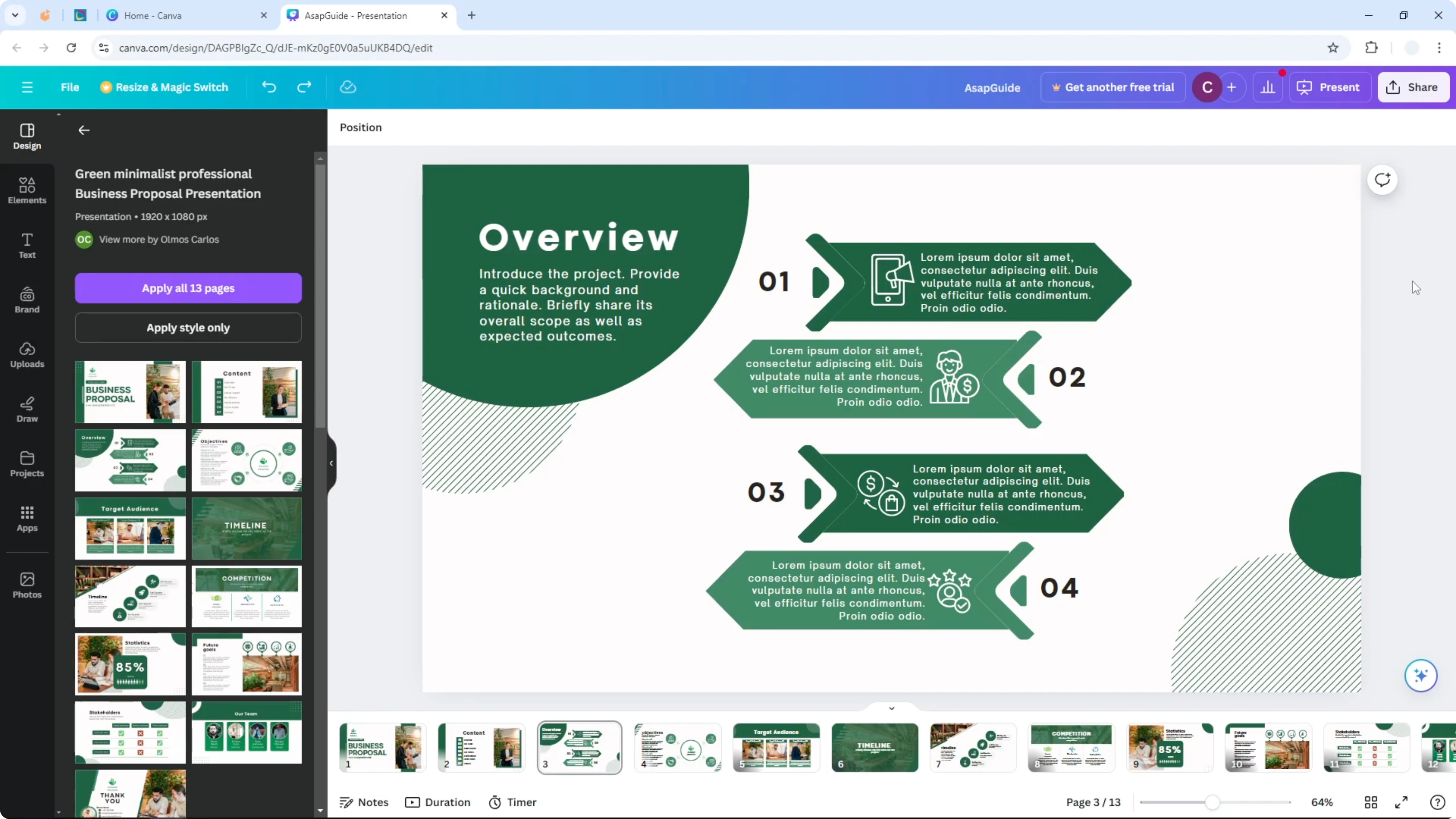
It could mean drawing when you are editing the presentation, and it could also mean that you want to draw or annotate during the presentation. If you want to draw while presenting, you cannot do it.
Draw on Canva Presentation limits
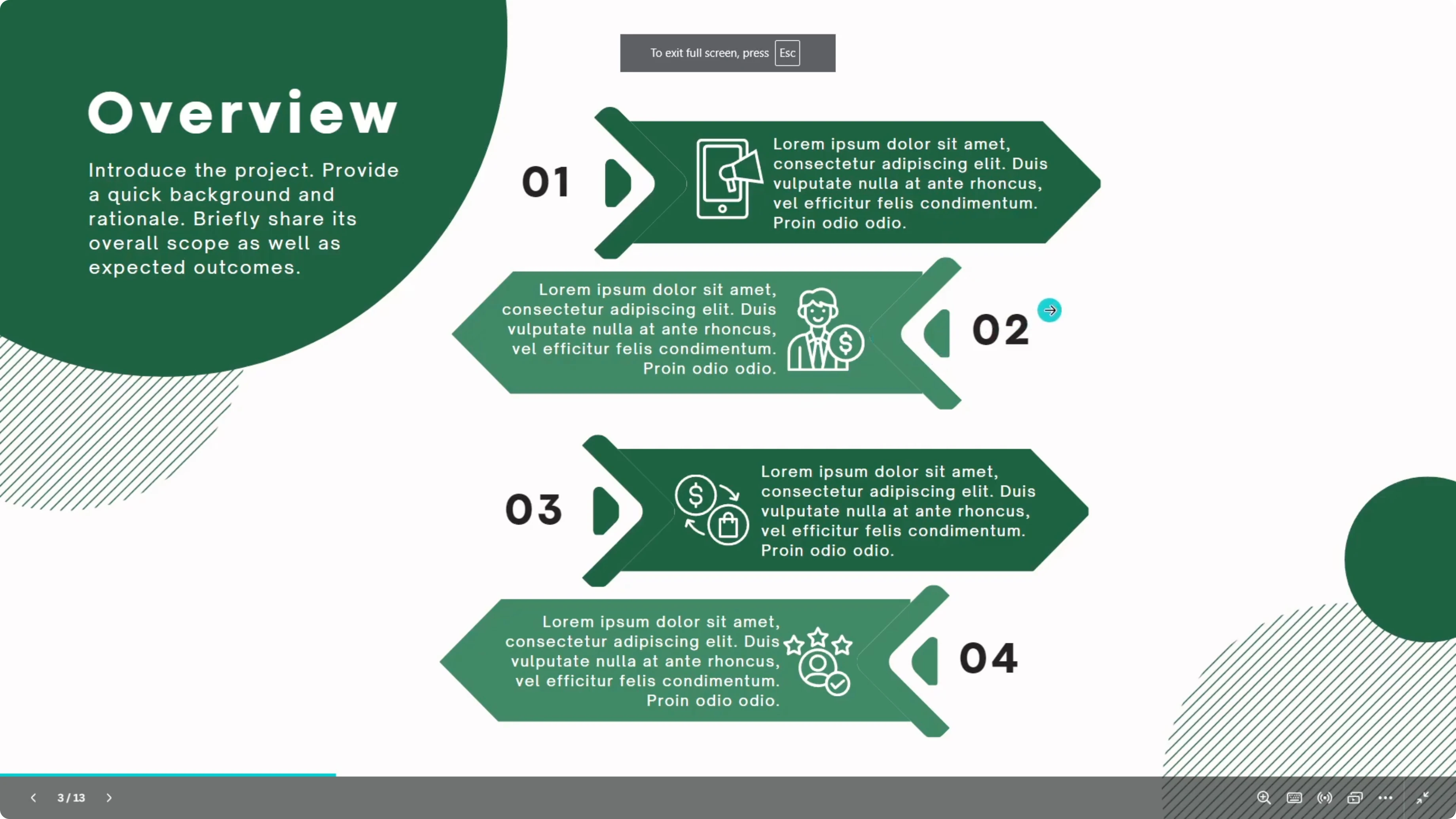
You cannot open any menu in presentation mode that lets you draw or annotate objects. This is different from what we have in Slides and Microsoft PowerPoint. You just cannot do that at the moment.
If you are looking for that answer, there you go. The only alternative is to draw everything ahead. You have to plan every kind of draw and every kind of emphasis during the editing process.
Read More: Add Timer Canva Presentation
Draw on Canva Presentation in edit mode
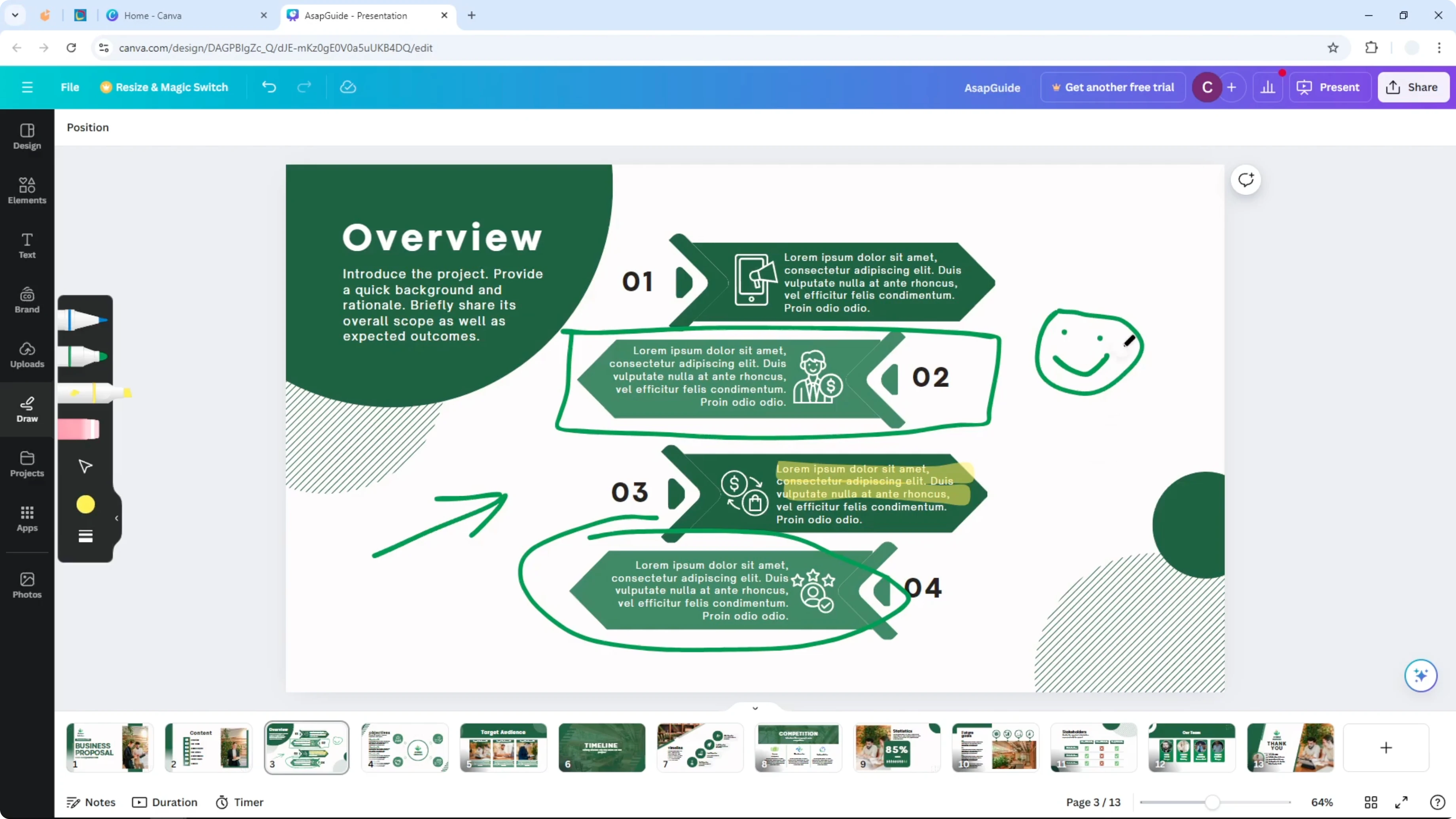
If that is still compelling to you, here is how you can draw anything on Canva. Open your presentation in Canva. Navigate to the Draw menu.
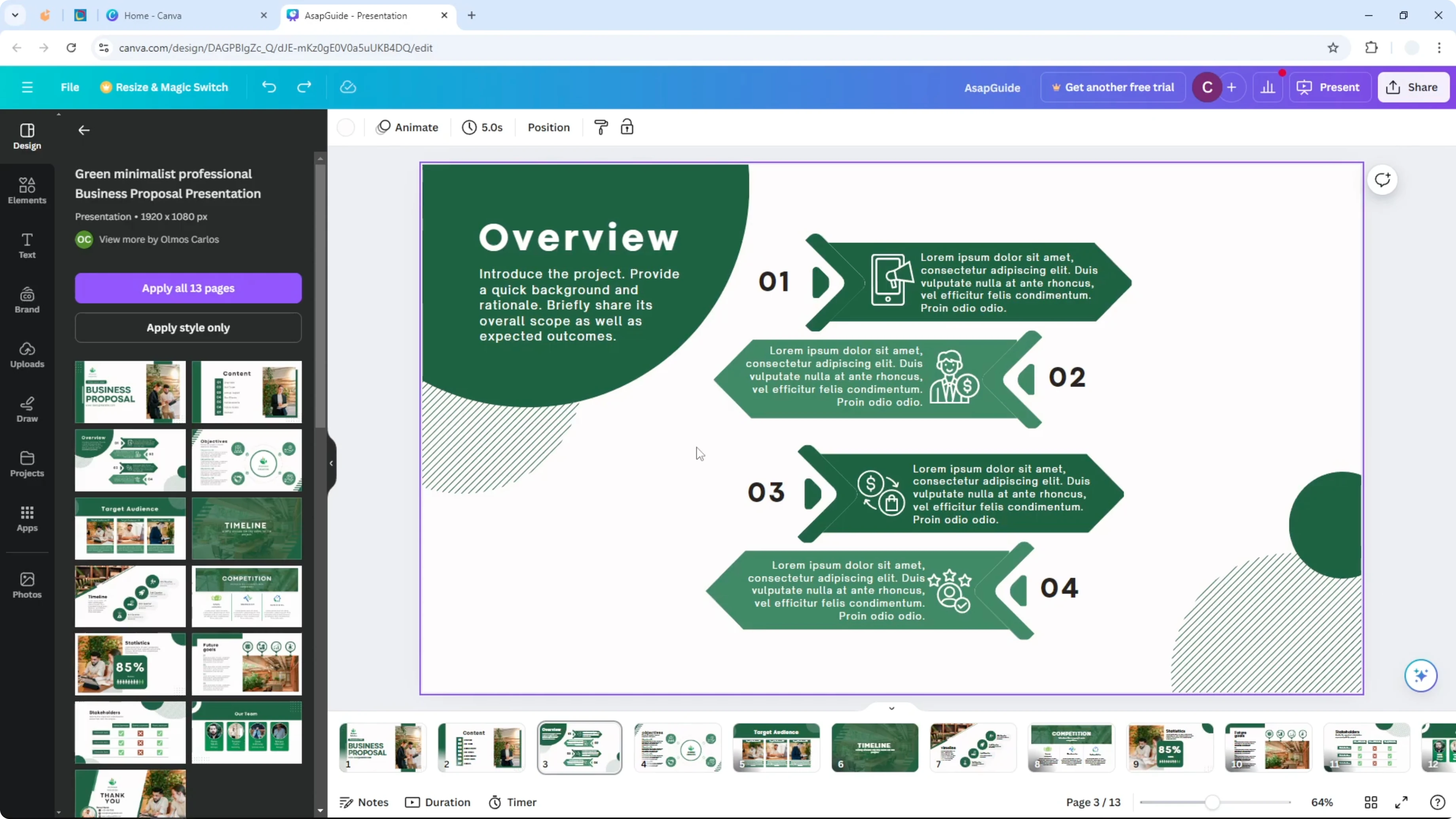
If you have a stylus or pen, this will be very helpful. You can draw more accurately with it. I select the tool and then I select the color to be green to make it more relevant with the whole design.
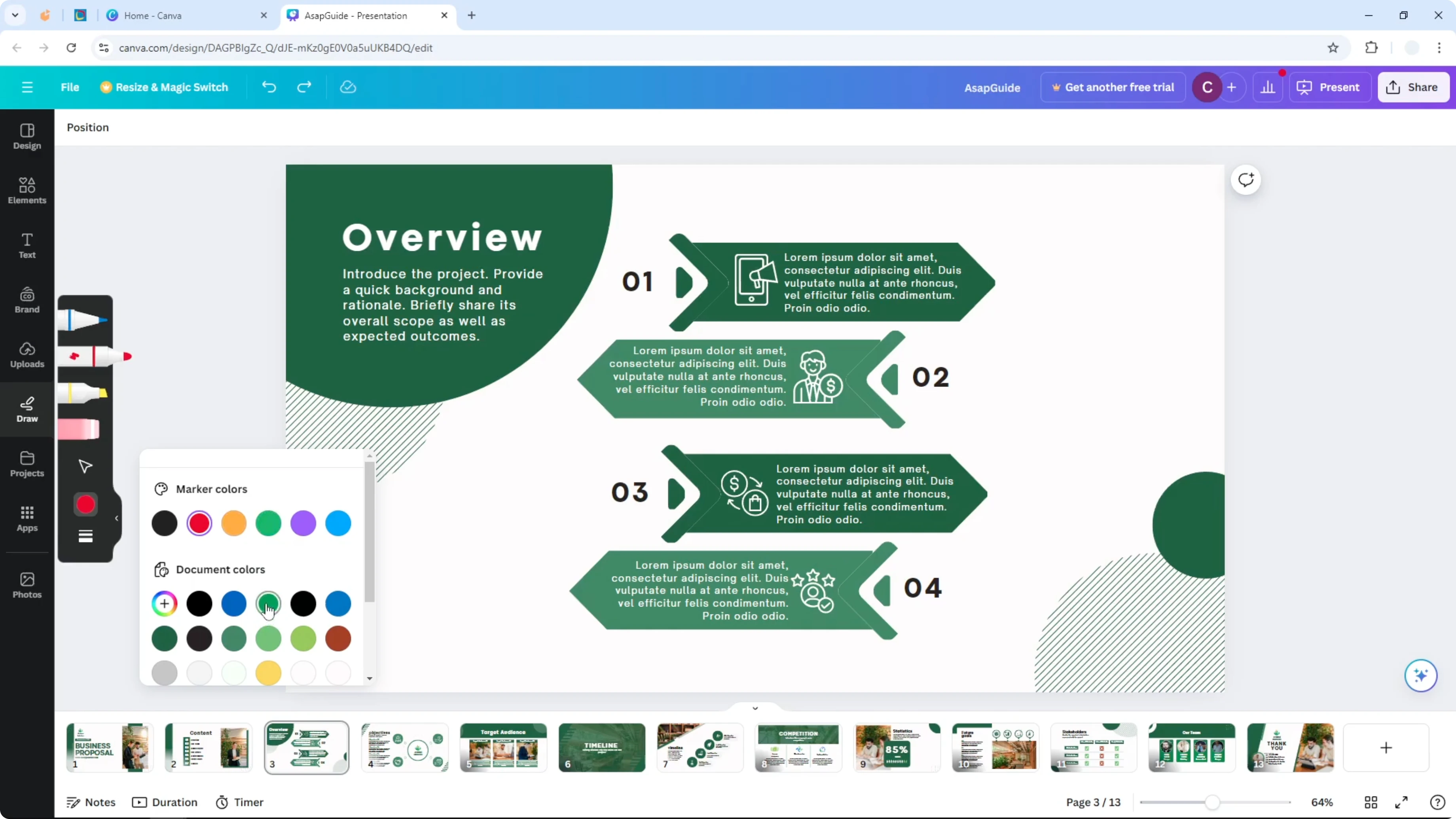
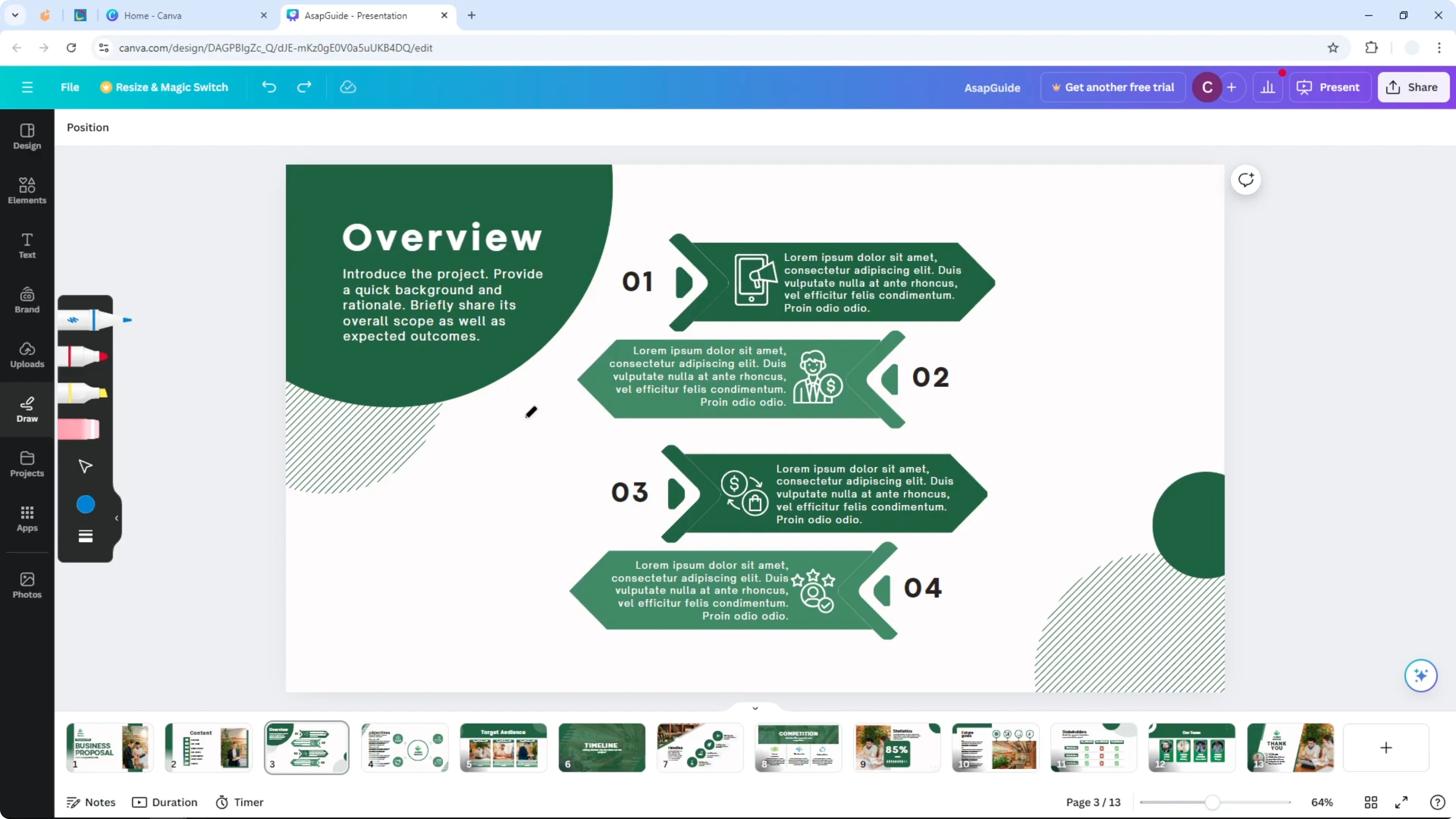
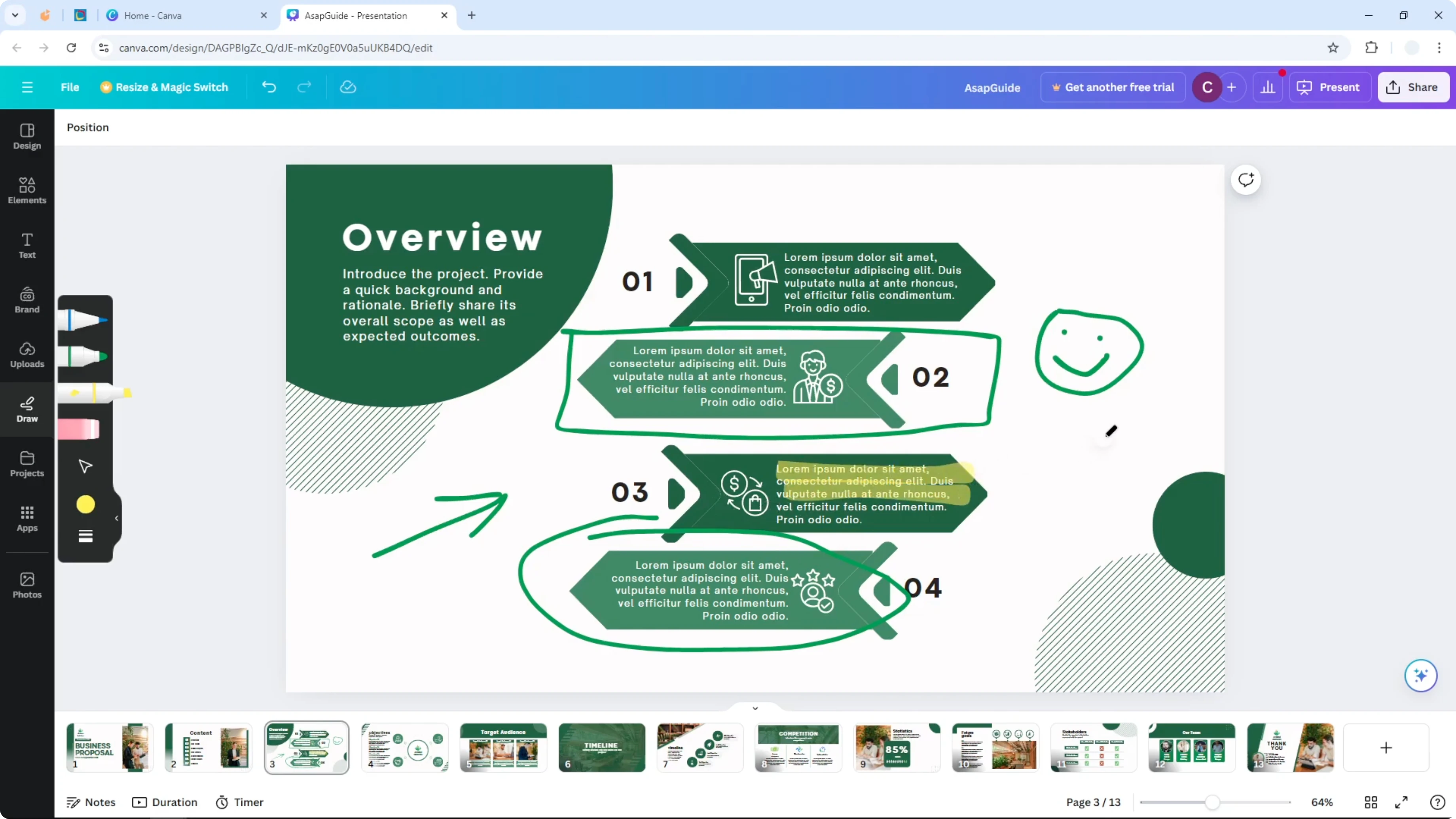
You can draw an arrow. You can also draw a face. You can circle an object and create emphasis.
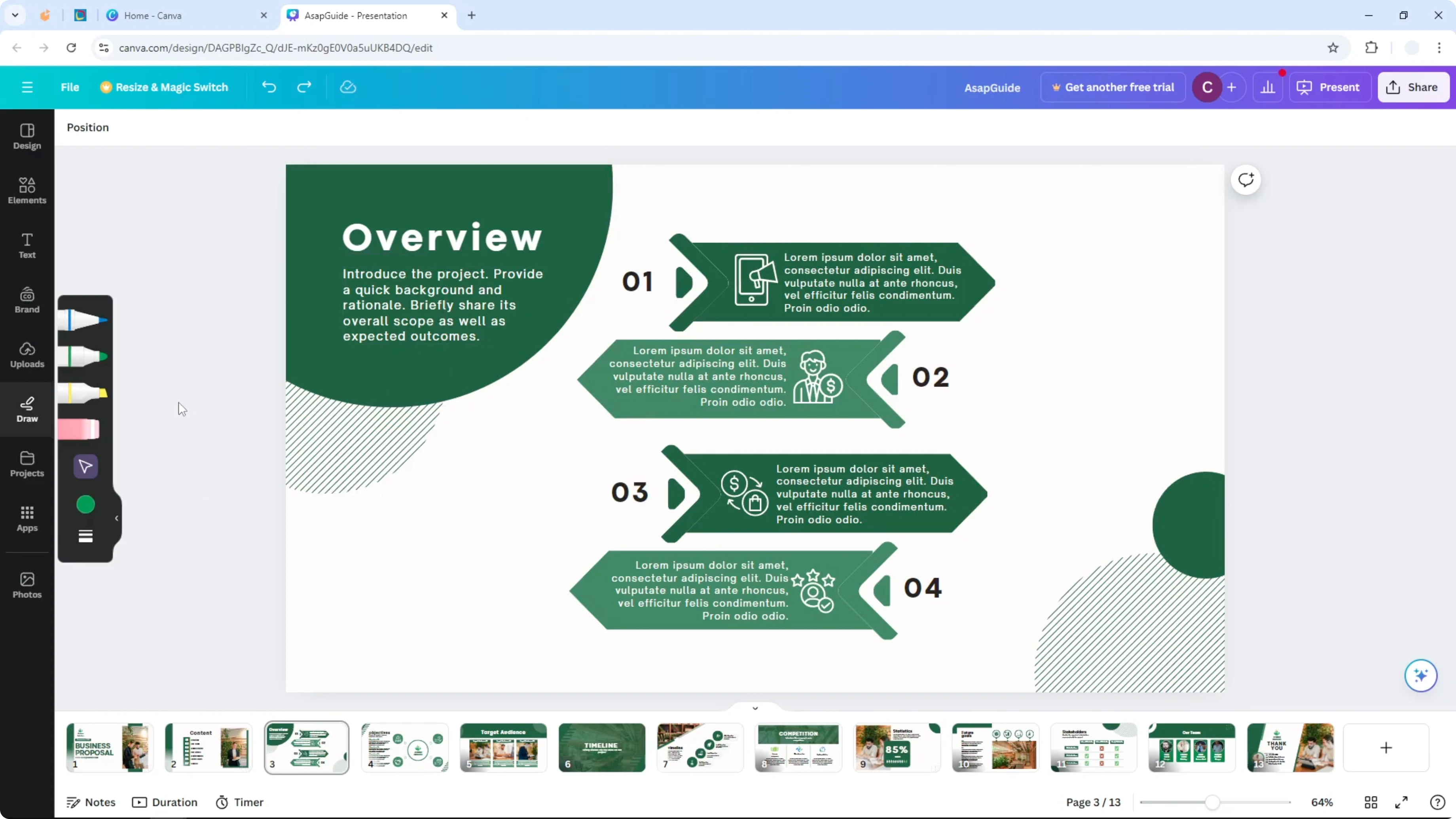
That is basically how you can draw something on Canva. You cannot do it during the presentation, so you have to do it during the editing process.
Read More: Add Background Music Canva Presentation
Tools for Draw on Canva Presentation
Use a stylus or pen for better accuracy. The Draw menu lets you pick your brush and color. Choose a color that fits the whole design.
Ideas for Draw on Canva Presentation
Draw arrows to point to key elements. Circle objects to direct attention. Sketch simple shapes or faces to keep it clear and readable.
Read More: Add Gif Canva Presentation
Final Thoughts
You can add drawings to your slides, but only during editing. There is no drawing or annotation in presentation mode. Plan your emphasis ahead and use the Draw menu to add what you need.
Recent Posts

How to Visualize Yourself as a Pixelized Character with AI?
How to Visualize Yourself as a Pixelized Character with AI?

How to Revive Faded Memories and Enhance Image Clarity with AI?
How to Revive Faded Memories and Enhance Image Clarity with AI?

How to Visualize Yourself as an Animal Crossing Character with AI?
How to Visualize Yourself as an Animal Crossing Character with AI?