How to Add Timer to Canva Presentation
I want a timer visible to me and, if needed, visible to the audience while presenting in Canva. The built-in timer button on the editor is not the one I want for this. I prefer the timer inside presenter view because it gives countdown controls, optional music, volume, and a visible timer toggle.
Add Timer to Canva Presentation
I start by preparing the presentation as usual in Canva. The goal is to have a countdown that helps me finish in 5 minutes, 10 minutes, or any duration I choose.
Read More: Add Transition Canva Presentation
Presenter view setup
Click Present.
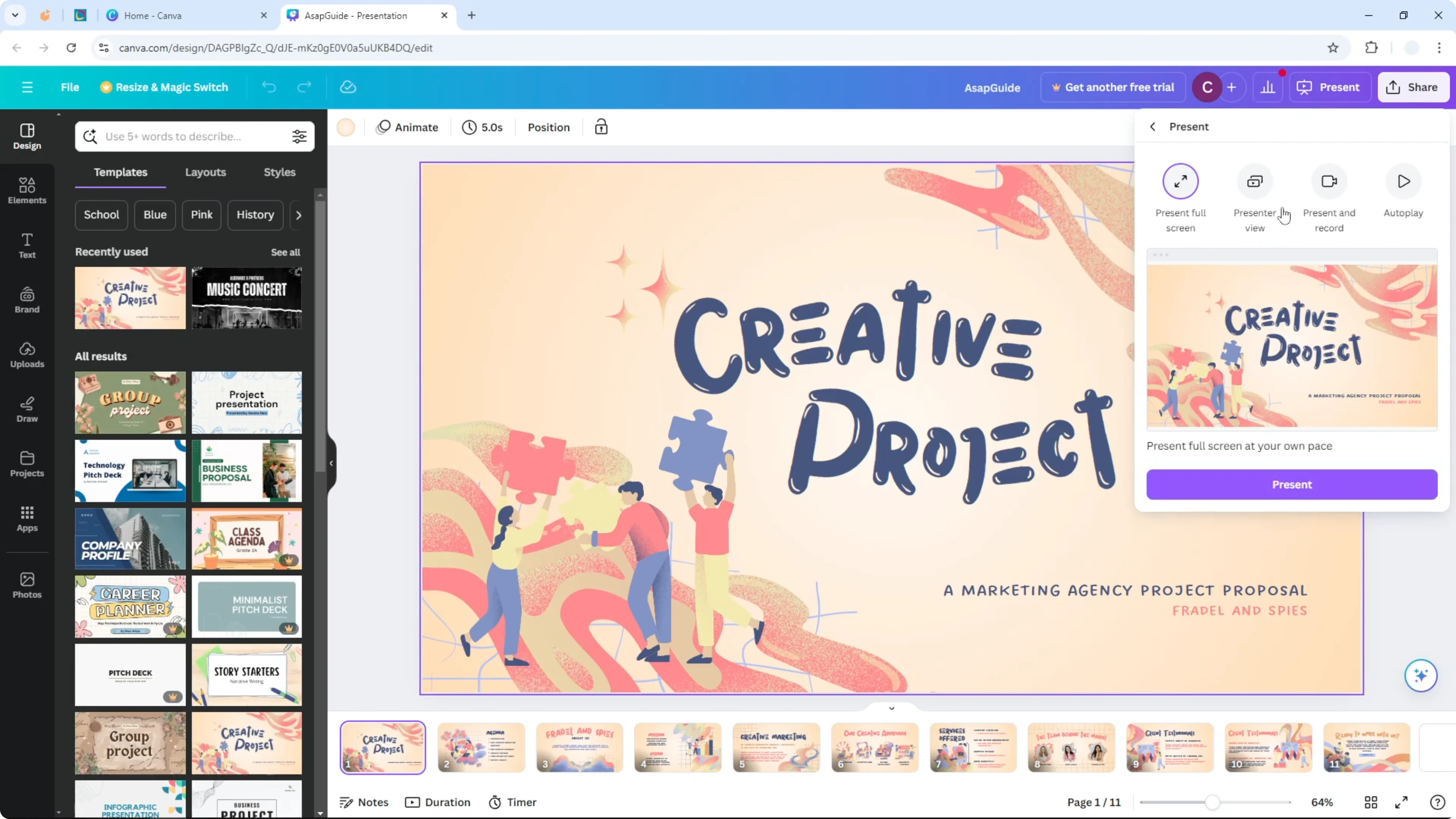
Enable presenter view.
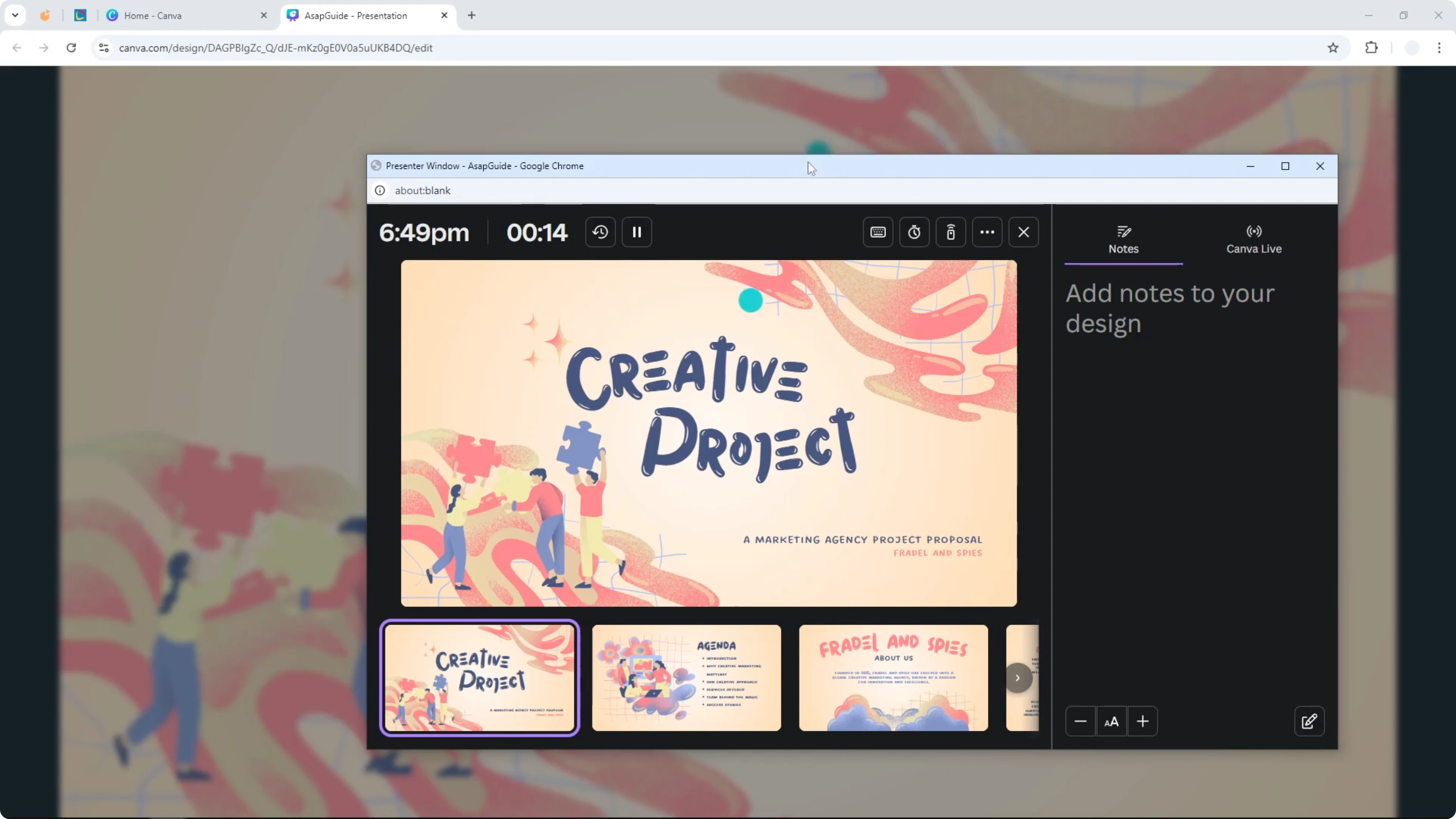
Click Present again.
Position your windows
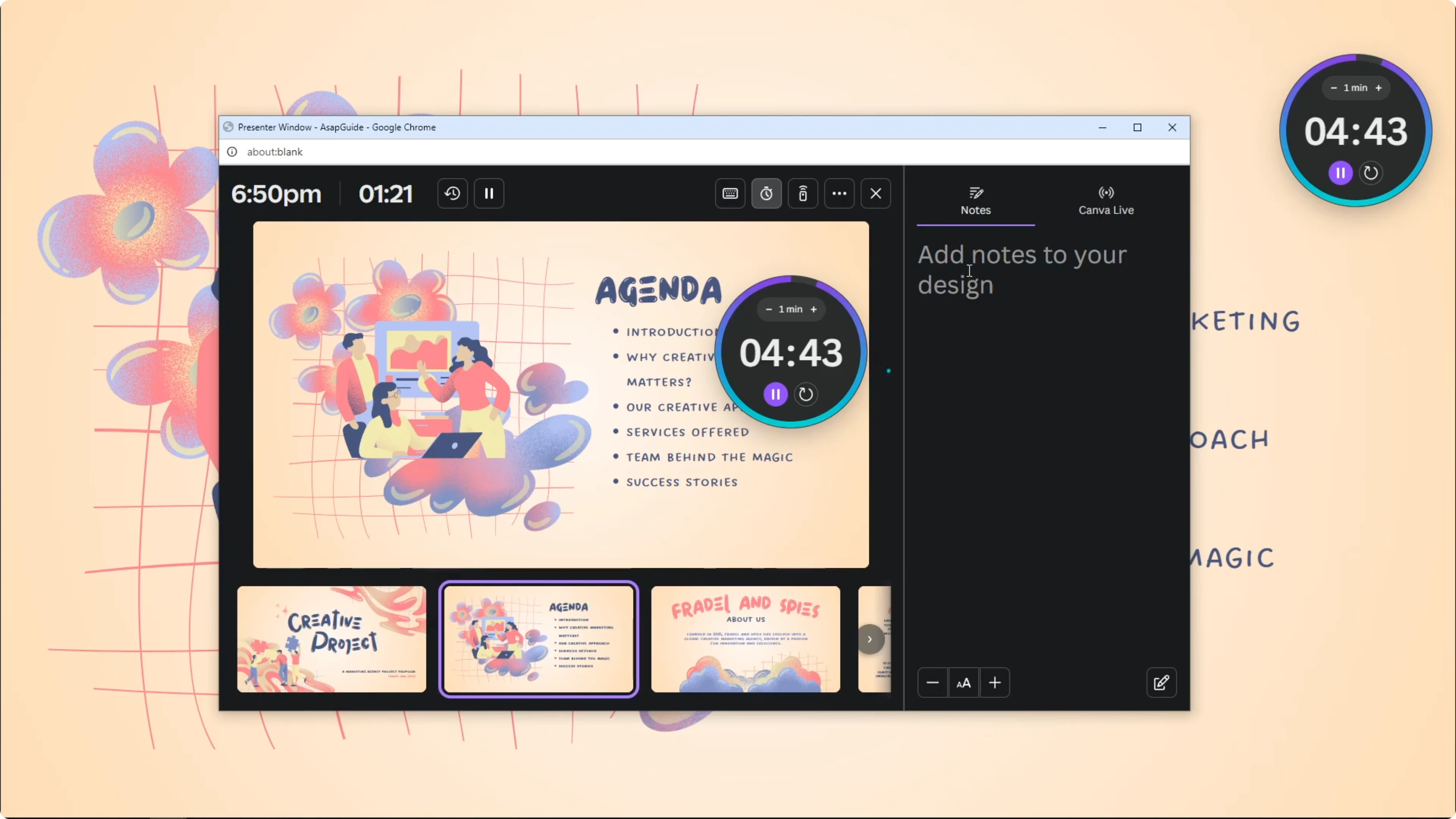
A presenter window opens with controls. If I am using a projector or a second display, I move this presenter window to the other monitor, so the audience does not see it. I keep the slide window in full screen, since that is what the audience will see.
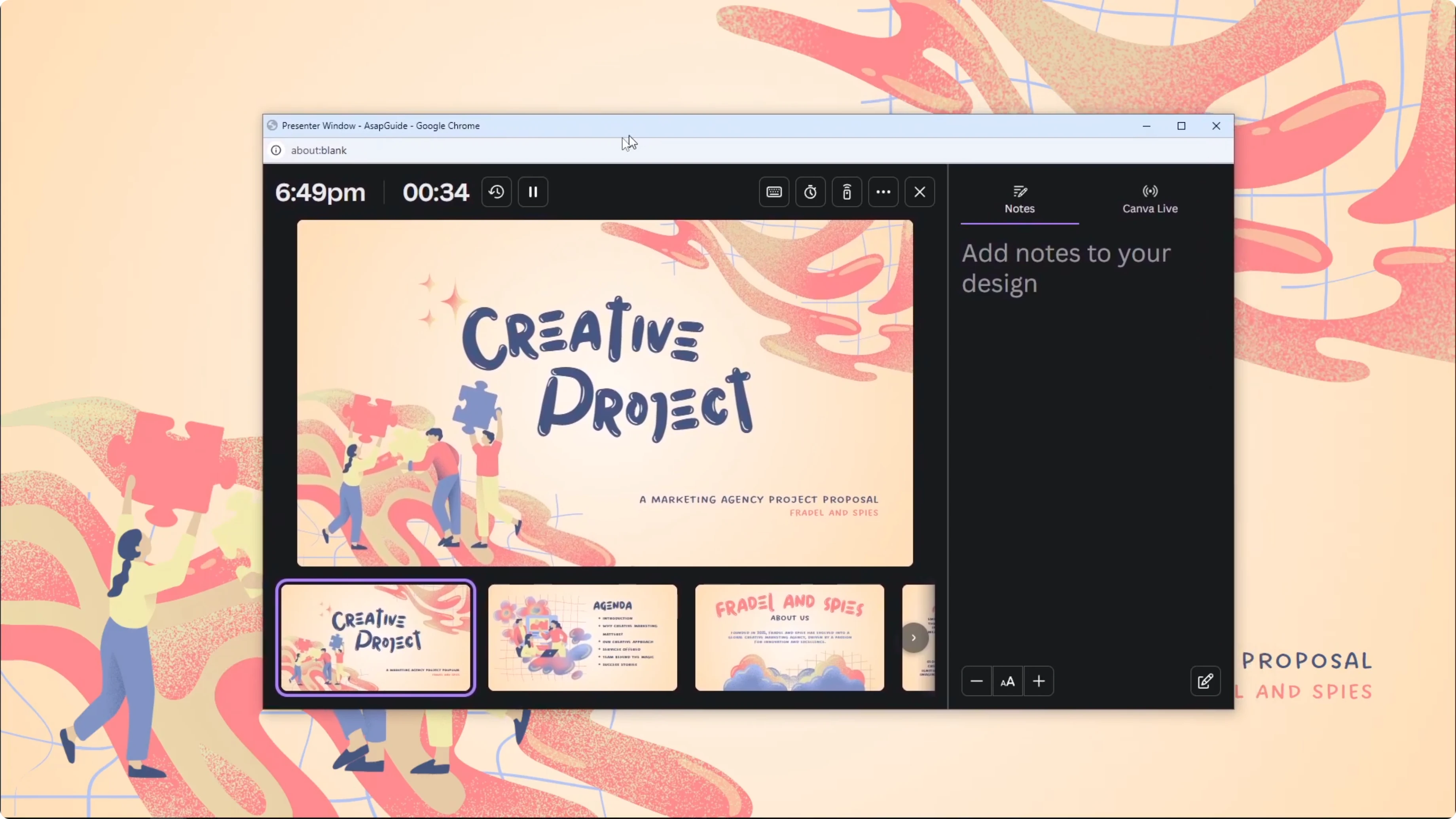
Enable the countdown
Click Show timer in the presenter window.
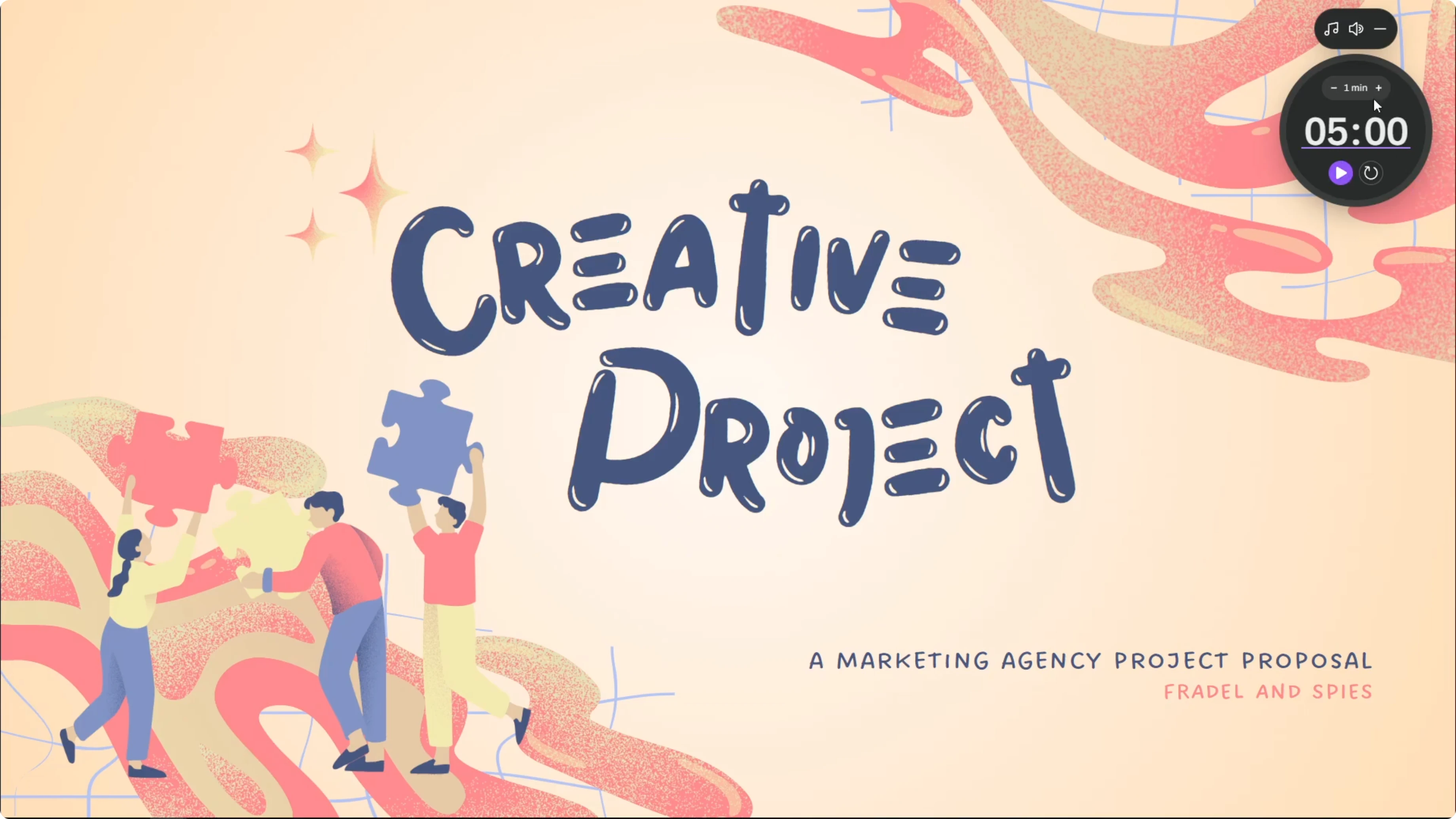
Set the duration with Add 1 minute or Reduce 1 minute.
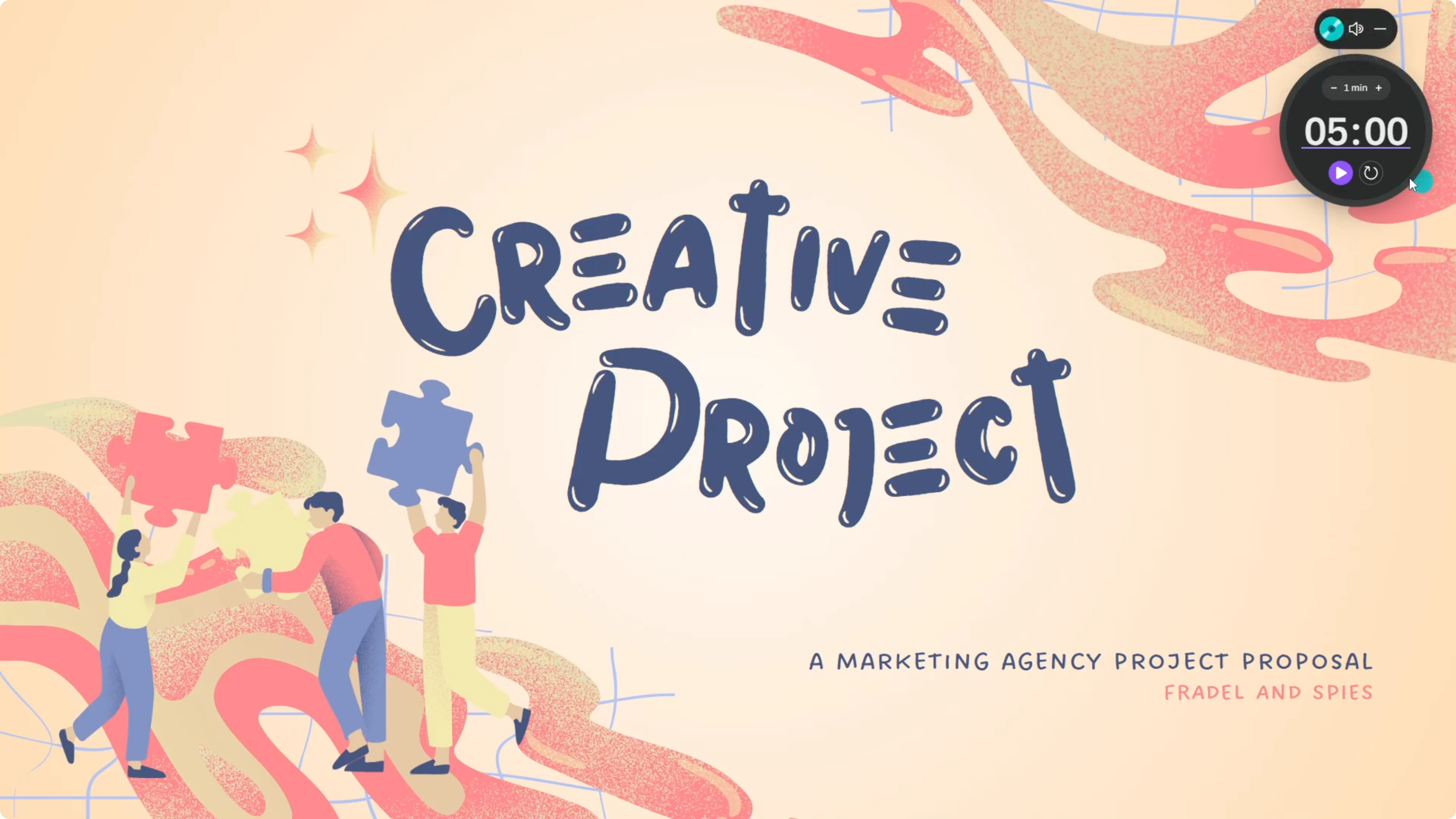
Toggle Visible timer if I want the countdown to appear on the audience screen.
Press Play to start the countdown.
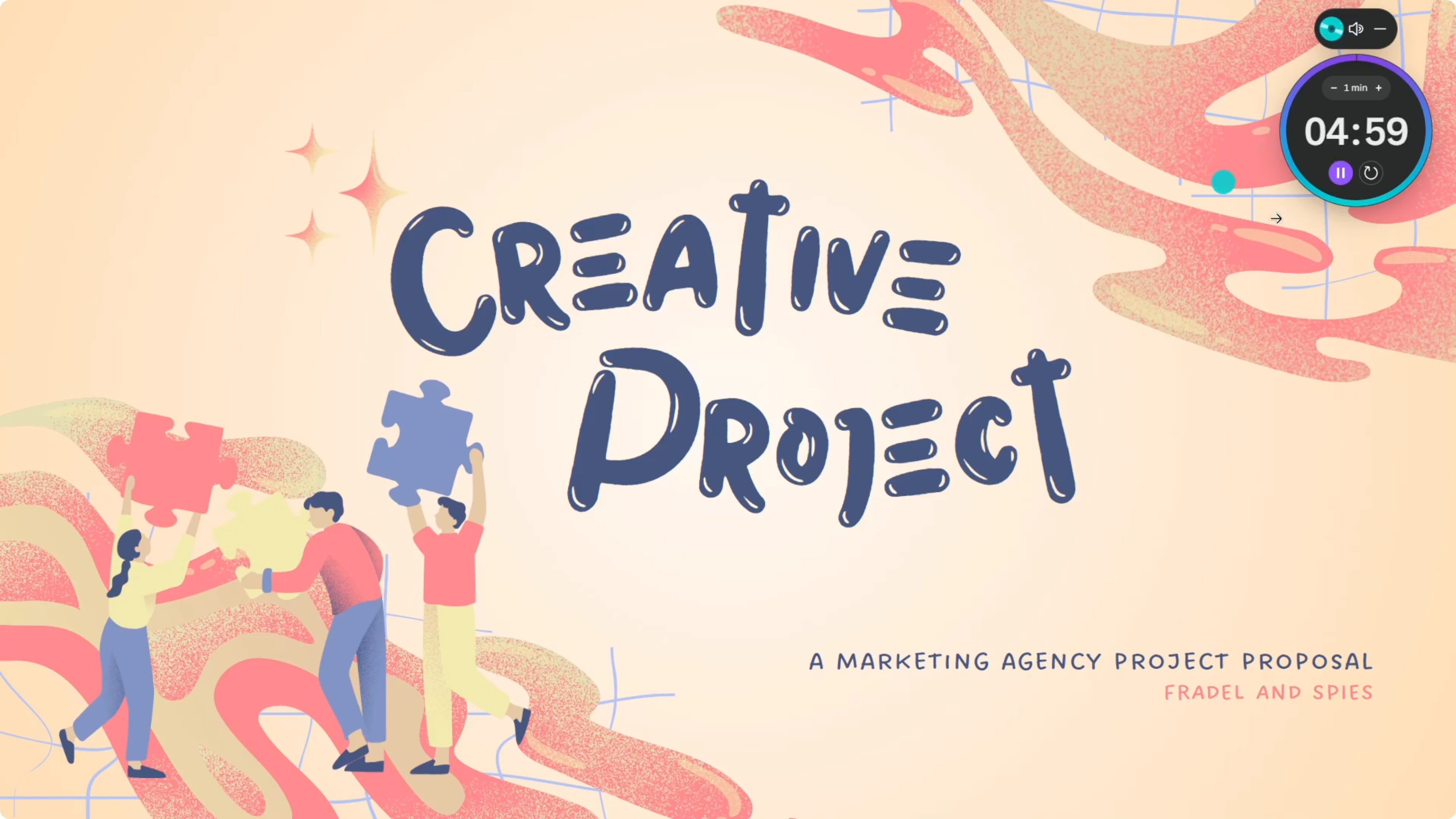
Music and volume
I can choose a music track for the timer and set the volume. When I press Play, the music starts immediately and the timer begins counting down. For a full walkthrough on sound, see adding background music to your presentation.
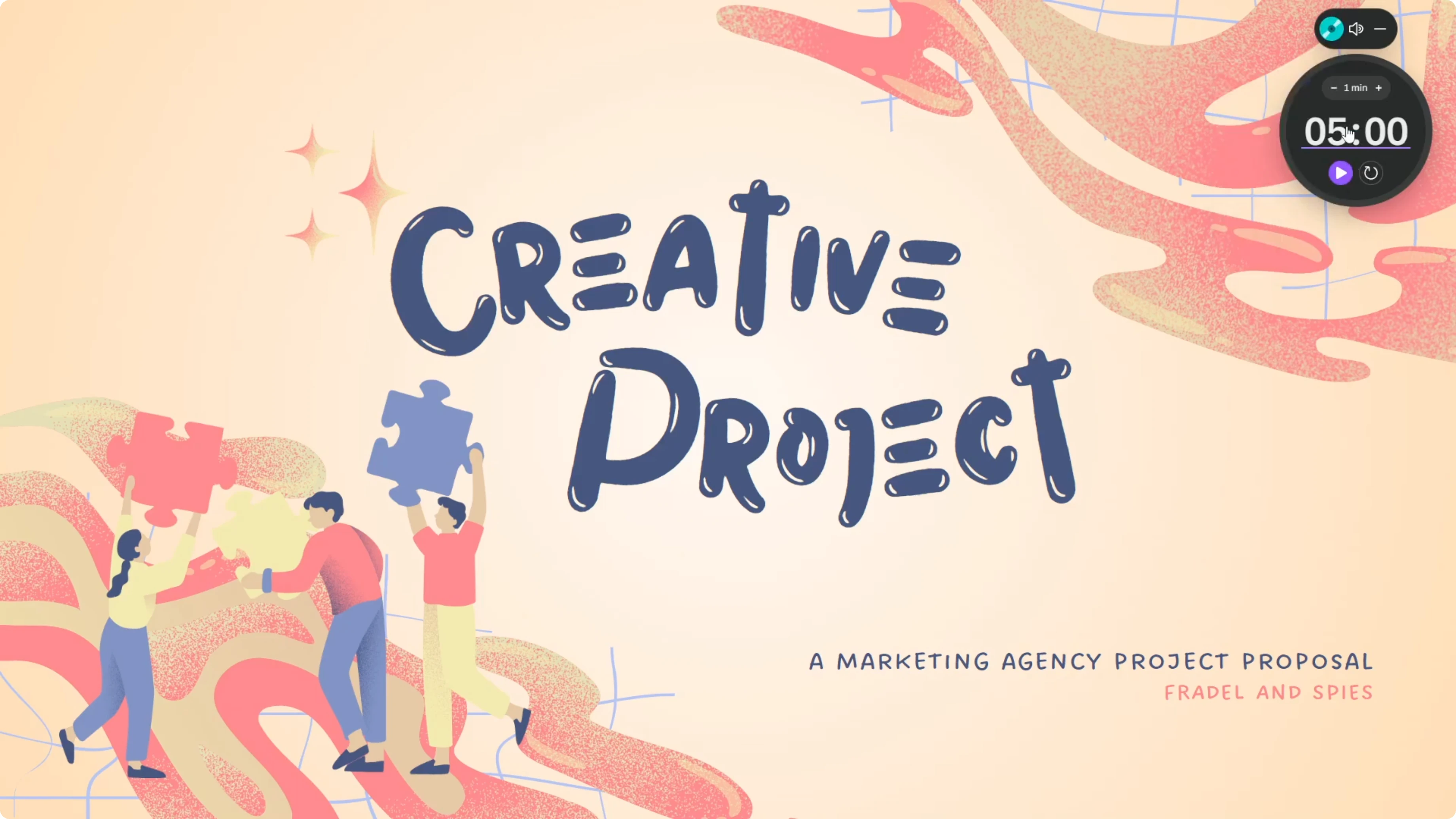
Present confidently
While the presenter window is hidden from the audience, I can monitor the countdown and keep timing under control. If I have access to the presenter window during the talk, this feature is extremely useful. It keeps the flow tight even in front of a lot of people.
Read More: Add Gif Canva Presentation
Final thoughts
That is how I add a timer to a Canva presentation using presenter view. The countdown, optional visible timer, and music controls give me everything I need to manage time on stage. It is simple, effective, and keeps both me and the audience aware of the pace.
Recent Posts

How to Visualize Yourself as a Pixelized Character with AI?
How to Visualize Yourself as a Pixelized Character with AI?

How to Revive Faded Memories and Enhance Image Clarity with AI?
How to Revive Faded Memories and Enhance Image Clarity with AI?

How to Visualize Yourself as an Animal Crossing Character with AI?
How to Visualize Yourself as an Animal Crossing Character with AI?