How to Download Stock Video from Canva
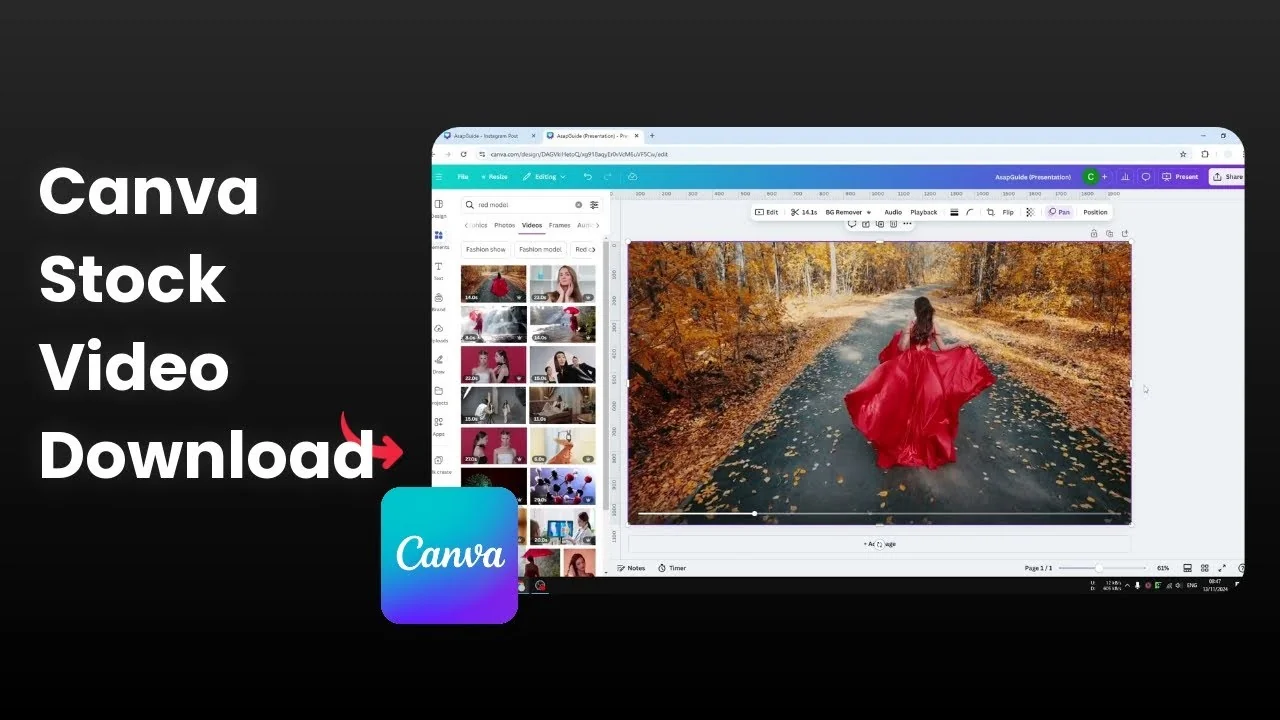
Canva has a lot of high quality videos in its stock library, and I’m going to show you how you can download that video to your computer. Canva is primarily an editing software, but you can treat it as a stock library and export the clip you want.
I recommend going for a 16x9 aspect ratio because that is the aspect ratio that a lot of videos are using or being recorded in. You can also use a 9 by 16 aspect ratio or a square aspect ratio like an Instagram post. I’m going to use the standard aspect ratio.
Download Stock Video from Canva
Choose an aspect ratio
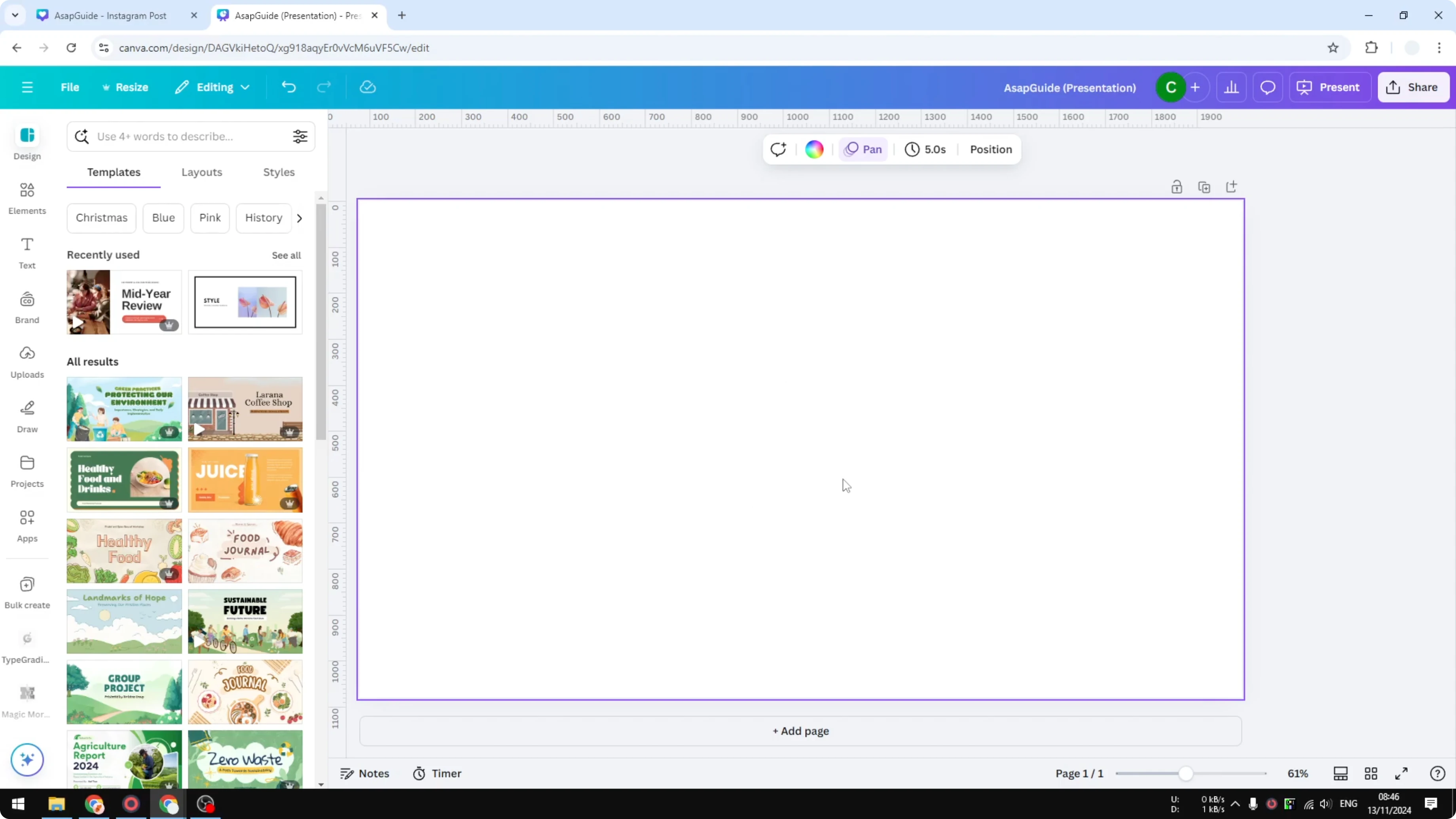
Open a new design and set the canvas to 16x9 for a standard video project. Use 9x16 for vertical content or a square format if that fits your purpose. Any of these will work for exporting a stock clip.
For a deeper walkthrough of picking and exporting stock clips, see this step-by-step guide to downloading from the Canva library.
Find a stock video
Visit Elements and search for a video that you want to download.
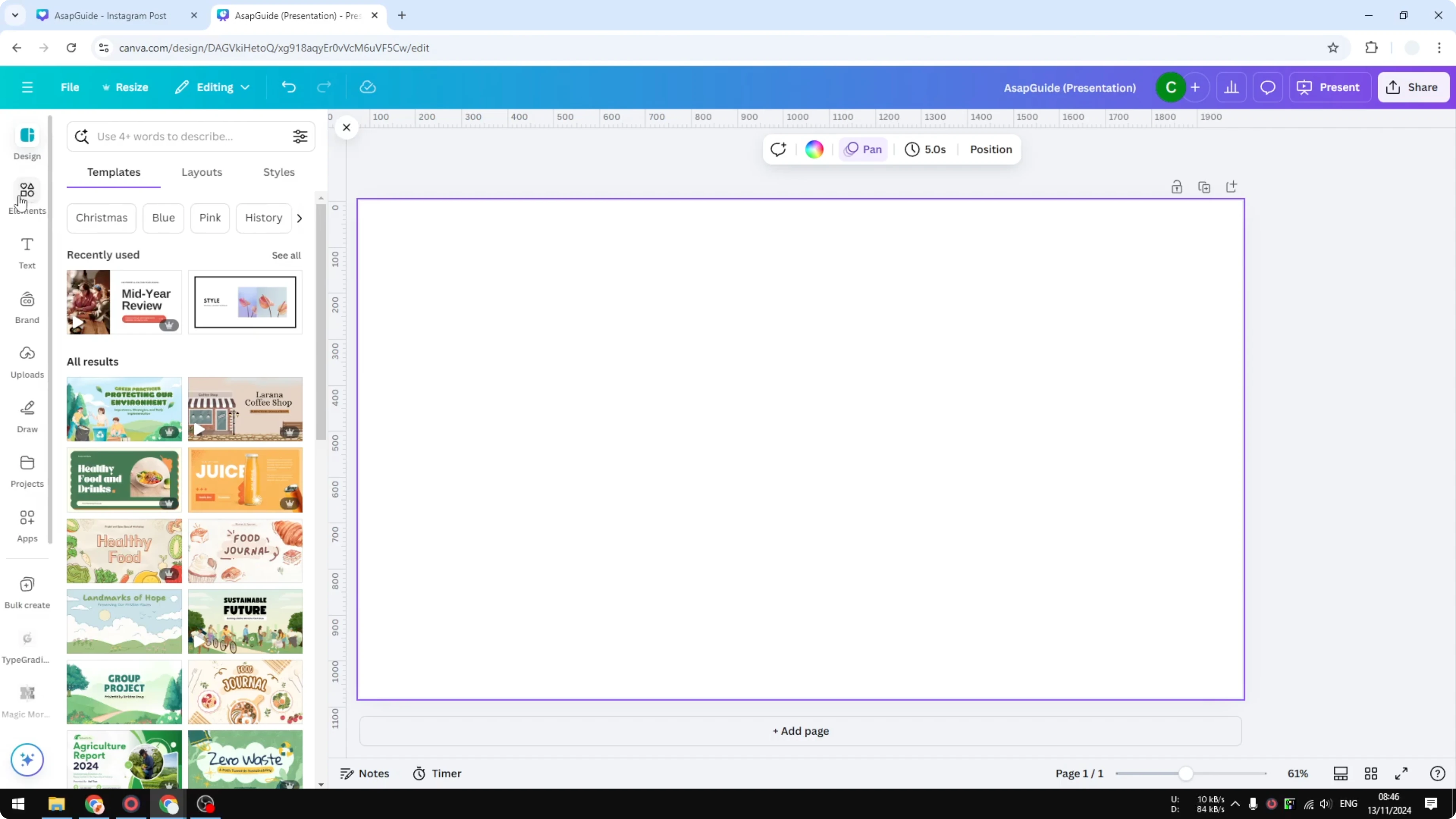
Use a keyword that fits your project - I used the keyword red model.
Go to the Videos tab to filter to video results.
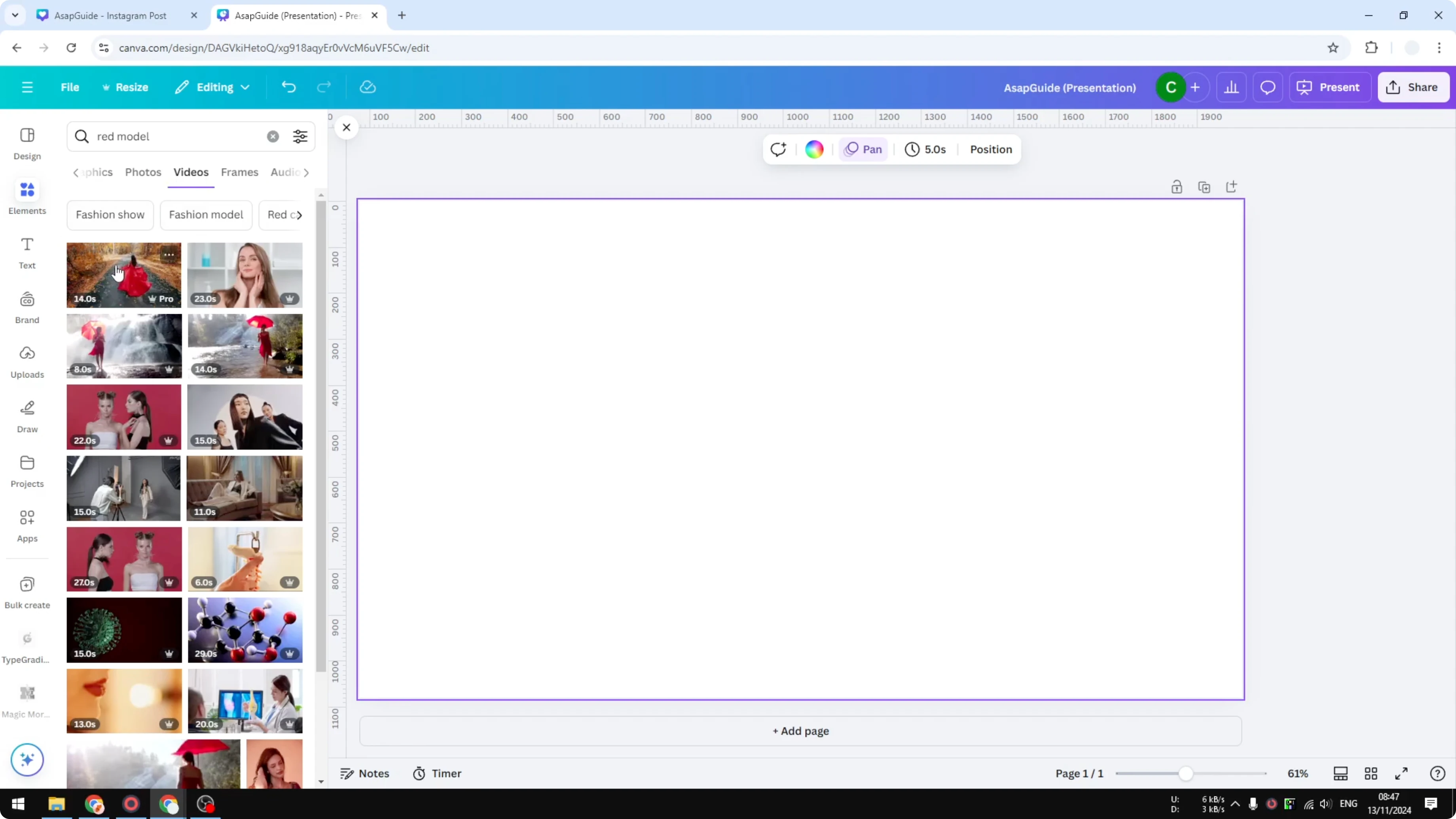
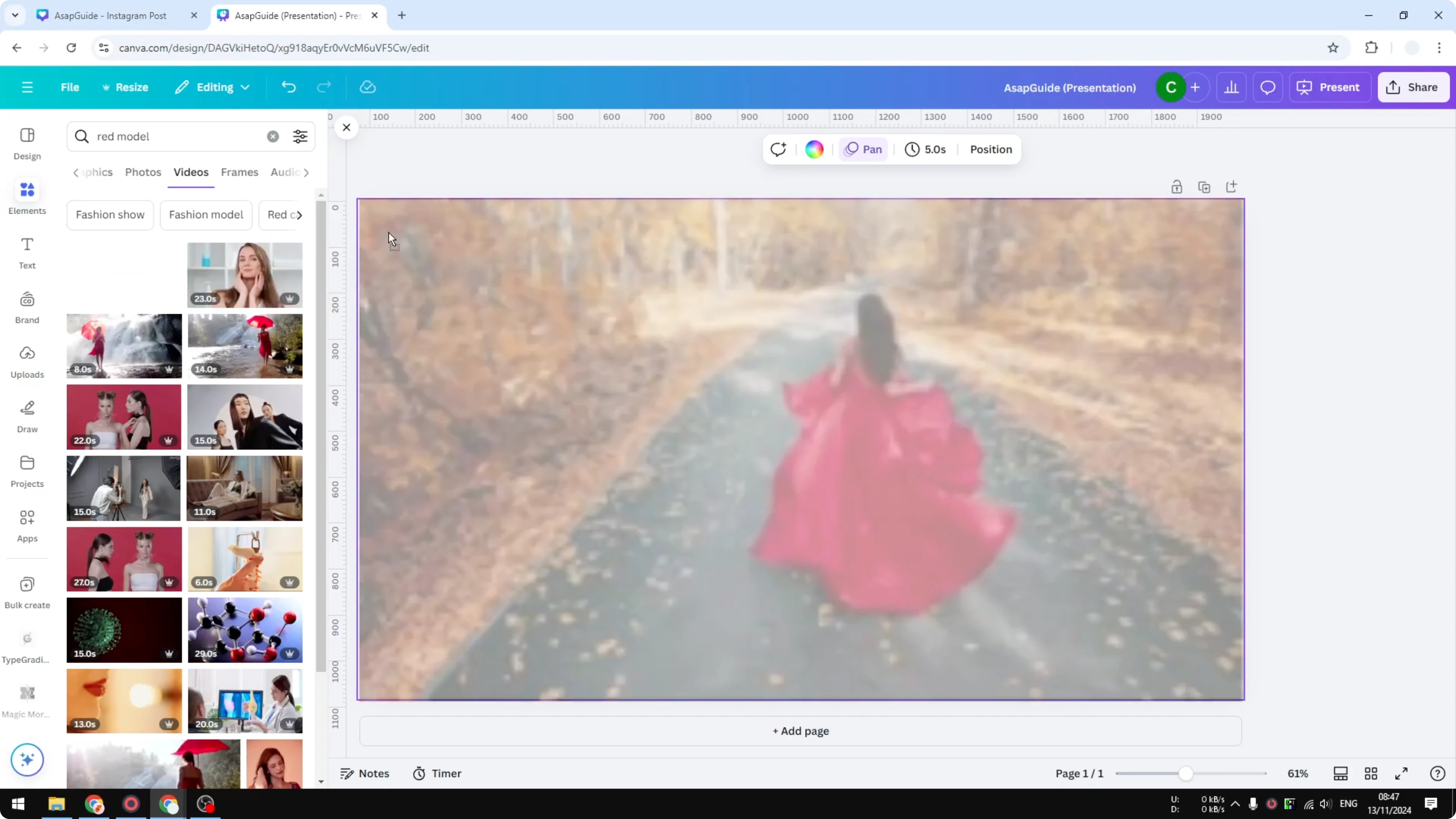
Click the clip you want, then drag it onto your canvas.
The video will be applied to the page automatically.
Export settings
Click Share, then choose Download.
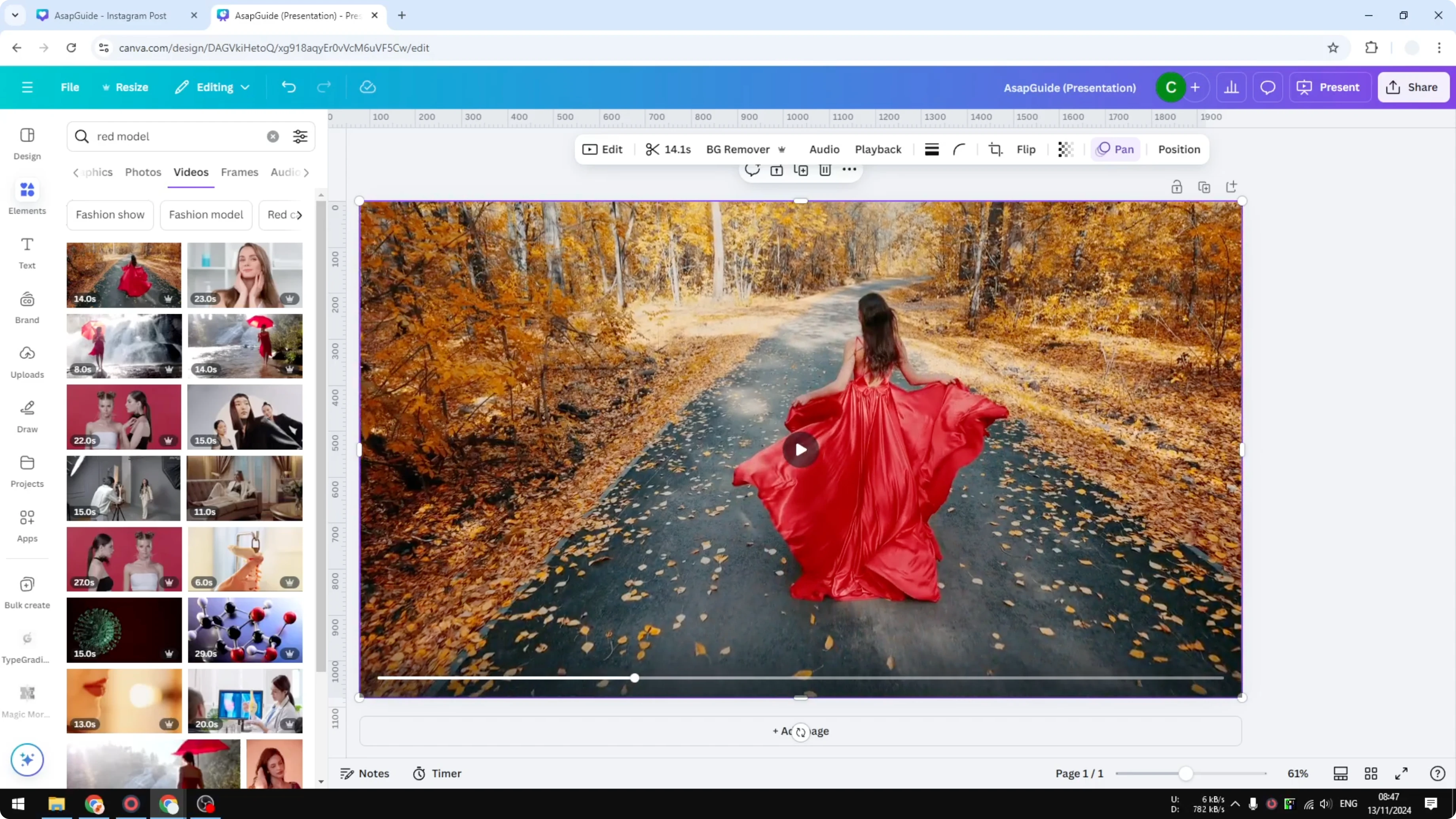
Set File type to MP4 Video.
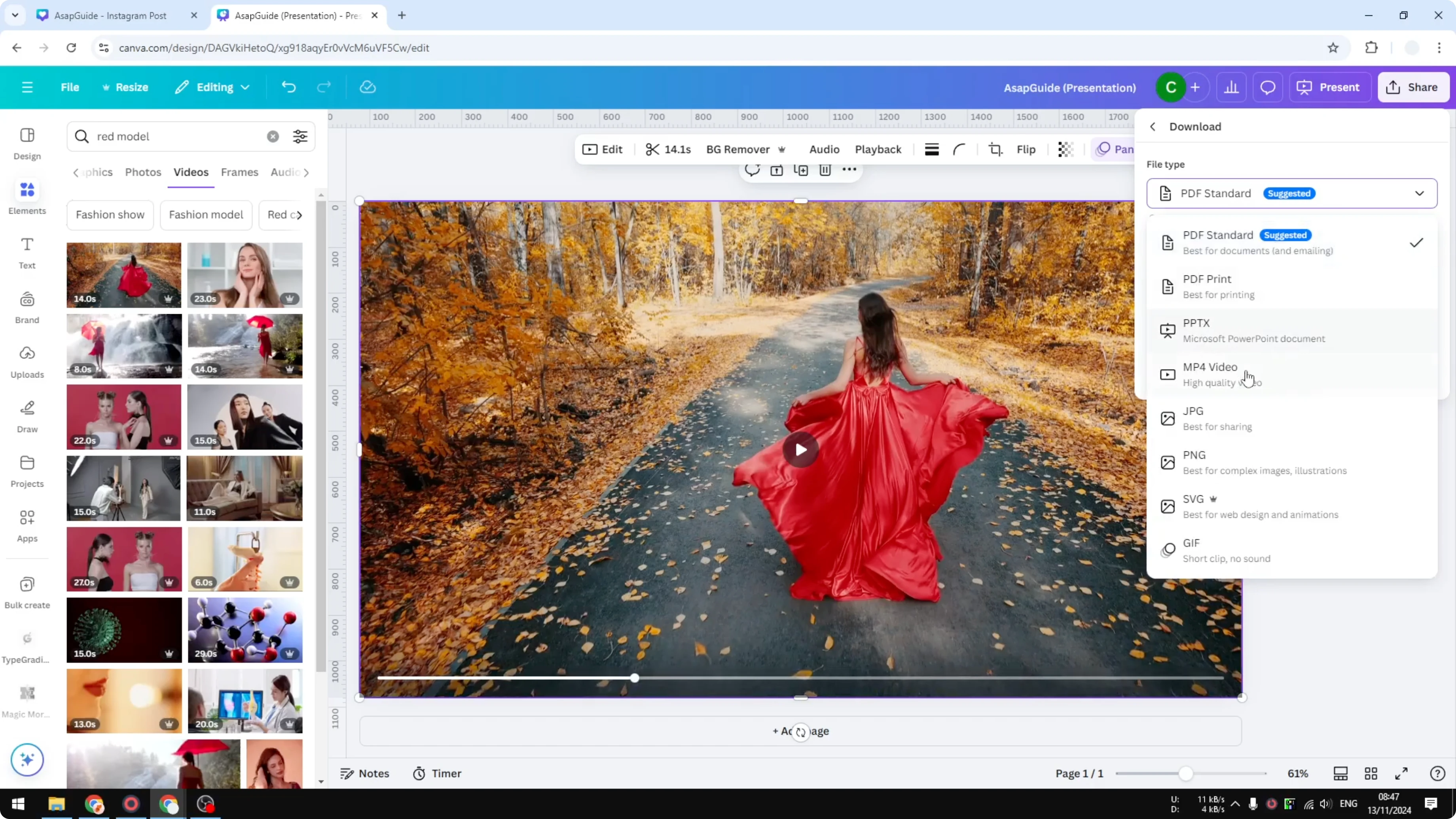
For Quality, select HD because that is a standard dimension for a lot of content on the internet, but you can go lower or higher depending on your purpose.
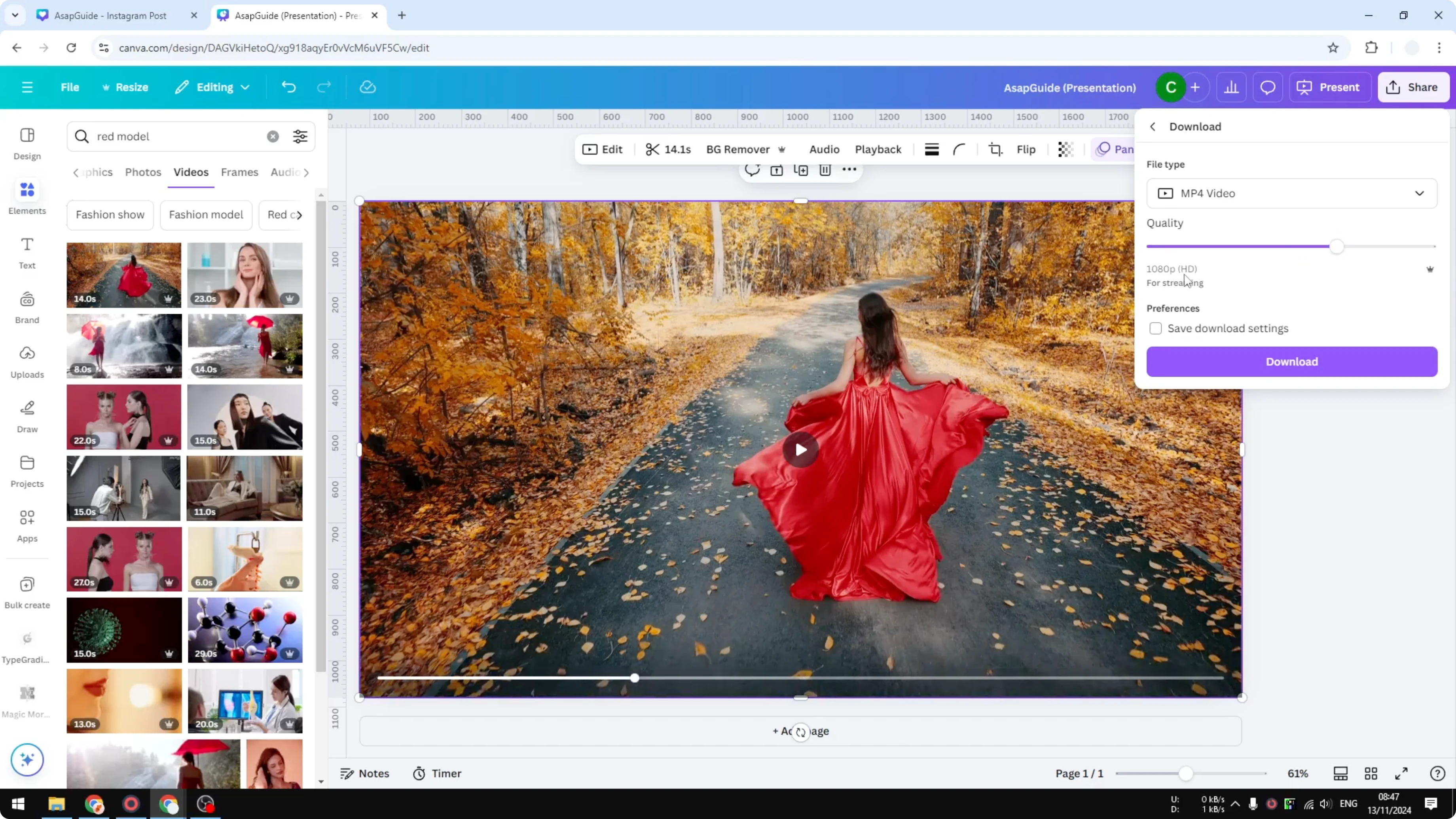
Click Download to start the export.
Rendering and download
Canva will render the video, and it can take quite some time depending on length and effects.
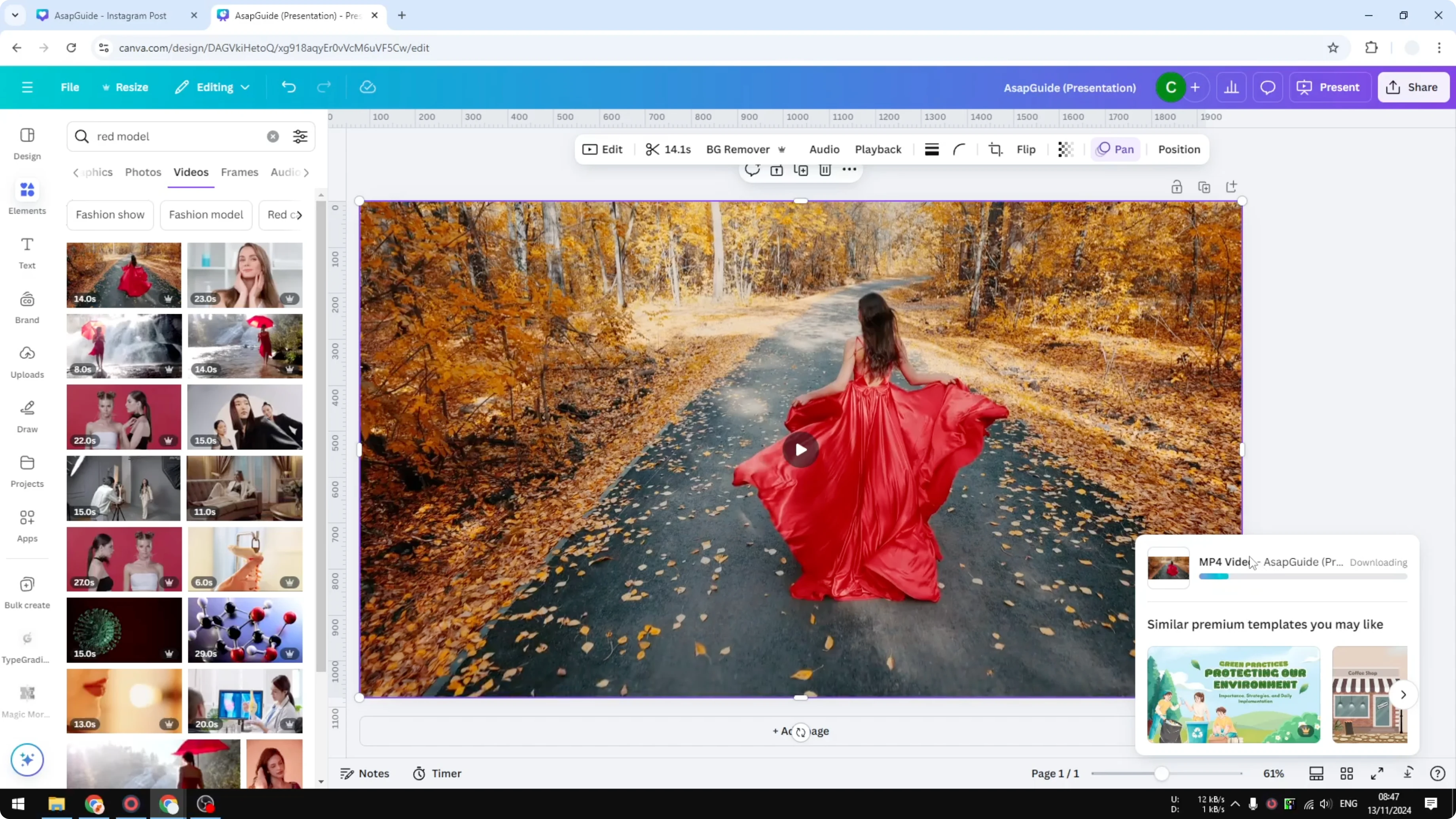
If the export feels slow, see tips to speed up Canva video downloads.
Once the file has been downloaded to your computer, you can use the video for other purposes.
About premium assets
Sometimes when you are trying to download the video, Canva may give you a notice that you cannot download a premium asset.
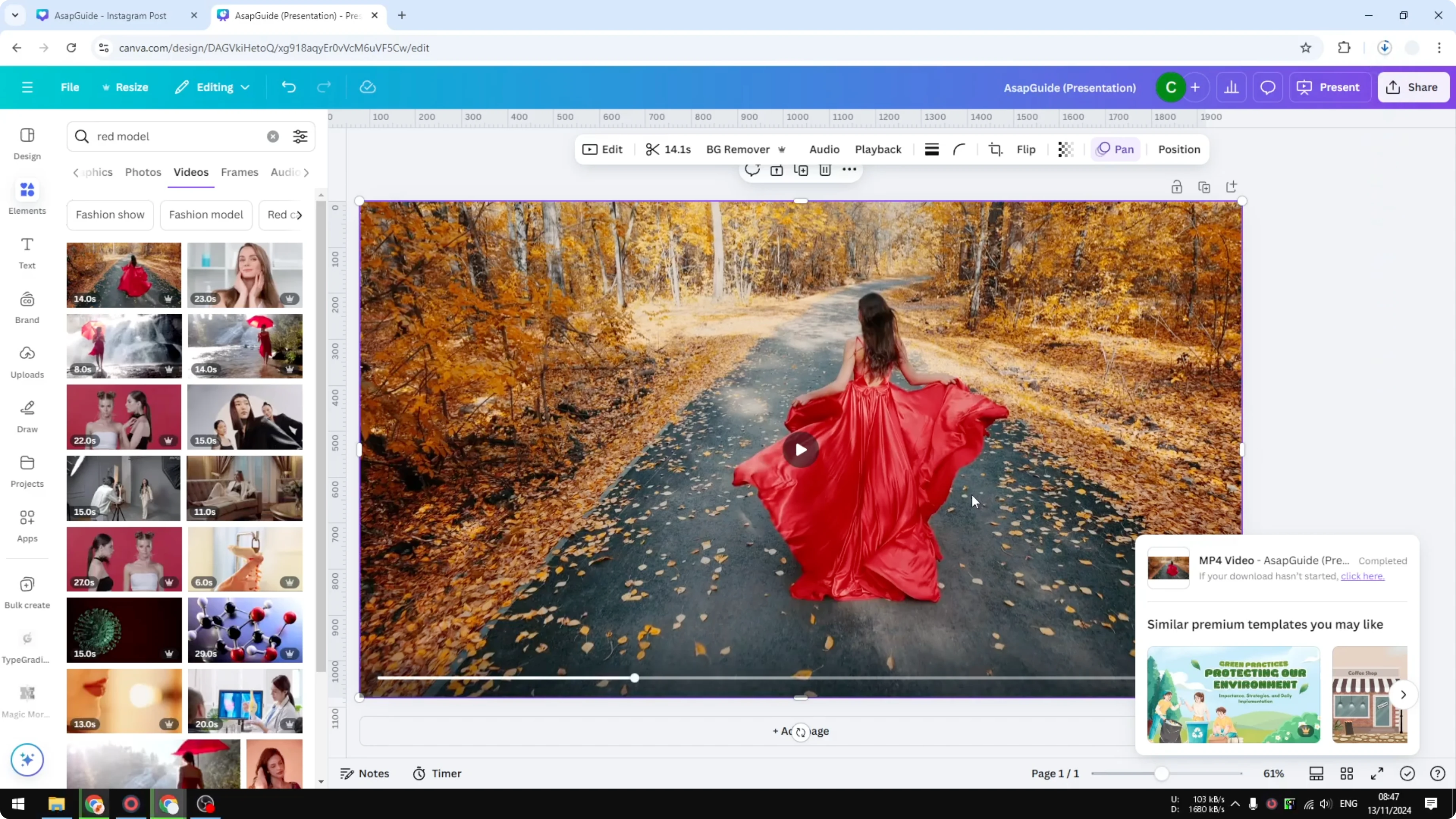
If you see that message, license the asset through Canva or replace it with a free clip from the library.
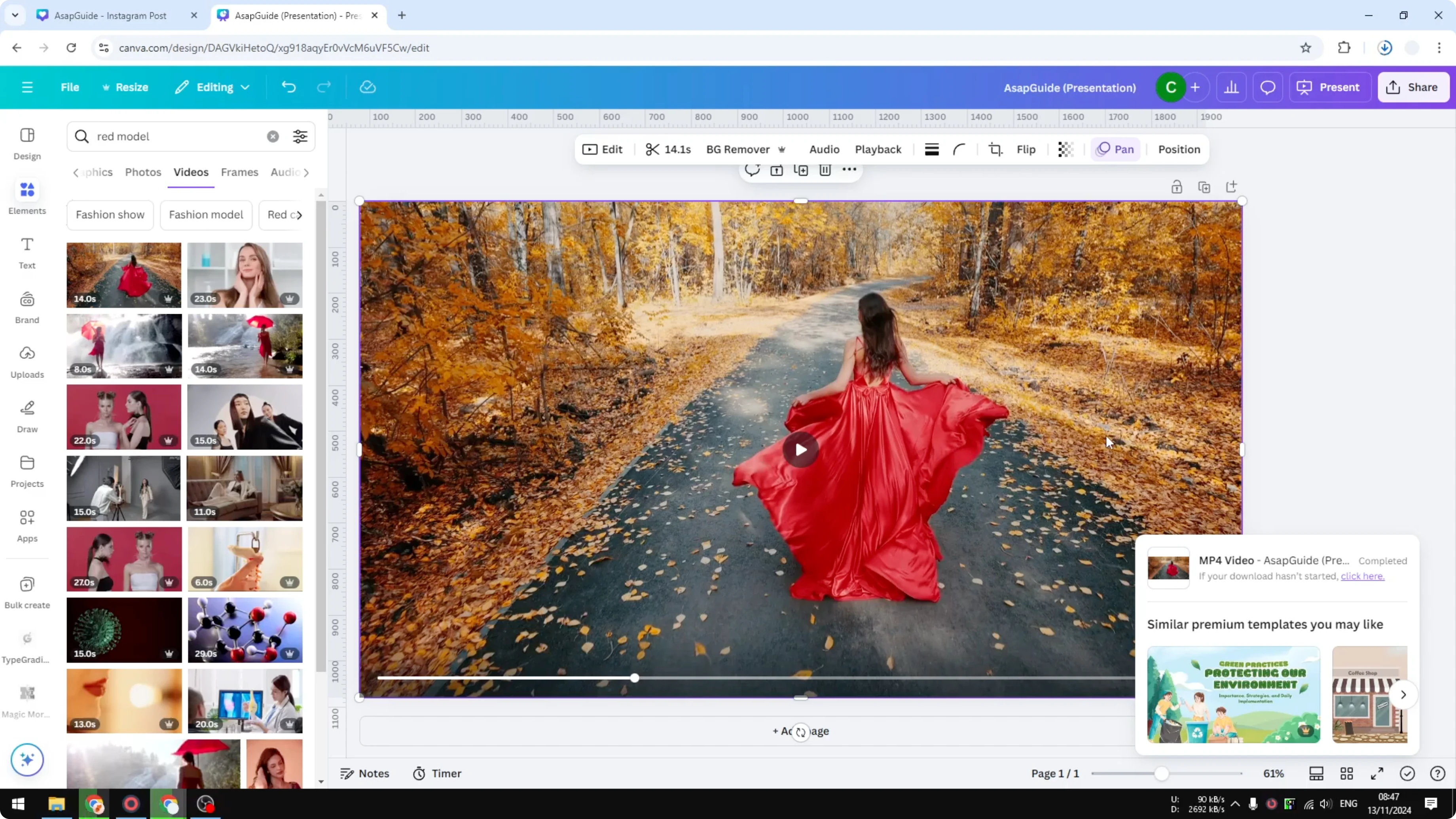
Avoid any attempt to bypass licensing - make sure the asset is properly licensed before you export.
If a stock clip includes text overlays you want to remove, learn practical options in this guide to removing text from a video in Canva.
Final thoughts
You can grab stock video from Canva by adding the clip to a design and exporting it as an MP4 in HD. Pick an aspect ratio that matches your project, place the video on the canvas, and use Share - Download. If you run into slow exports or premium restrictions, use the right export settings, license assets properly, and you’ll have a clean video file ready to use.
Recent Posts

How to Visualize Yourself as a Pixelized Character with AI?
How to Visualize Yourself as a Pixelized Character with AI?

How to Revive Faded Memories and Enhance Image Clarity with AI?
How to Revive Faded Memories and Enhance Image Clarity with AI?

How to Visualize Yourself as an Animal Crossing Character with AI?
How to Visualize Yourself as an Animal Crossing Character with AI?