How to Download Video from Canva Library
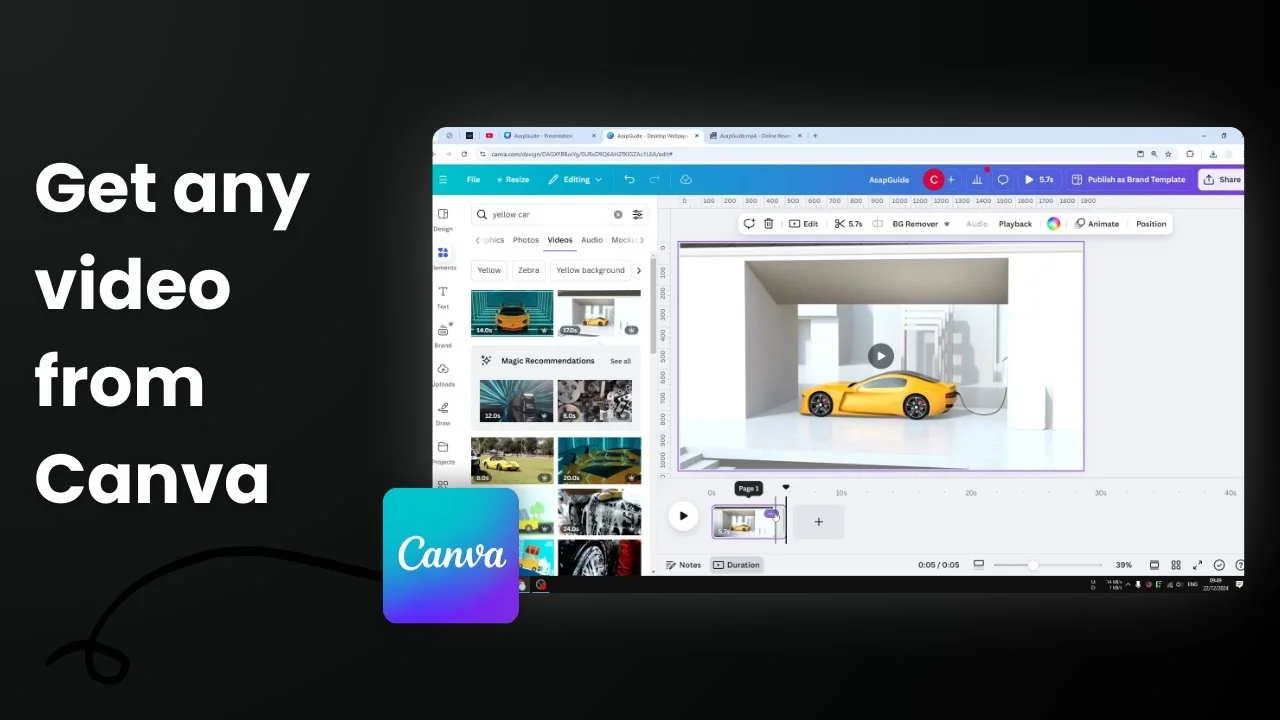
I show you how to download a video from your Canva Library. It could be your media library or the stock library in Canva. Here’s how you can get that video to your computer.
Download Video from Canva Library - Personal Media Library
You could insert the video into a design and use Share - Download, but that takes too many steps.
Step-by-step:
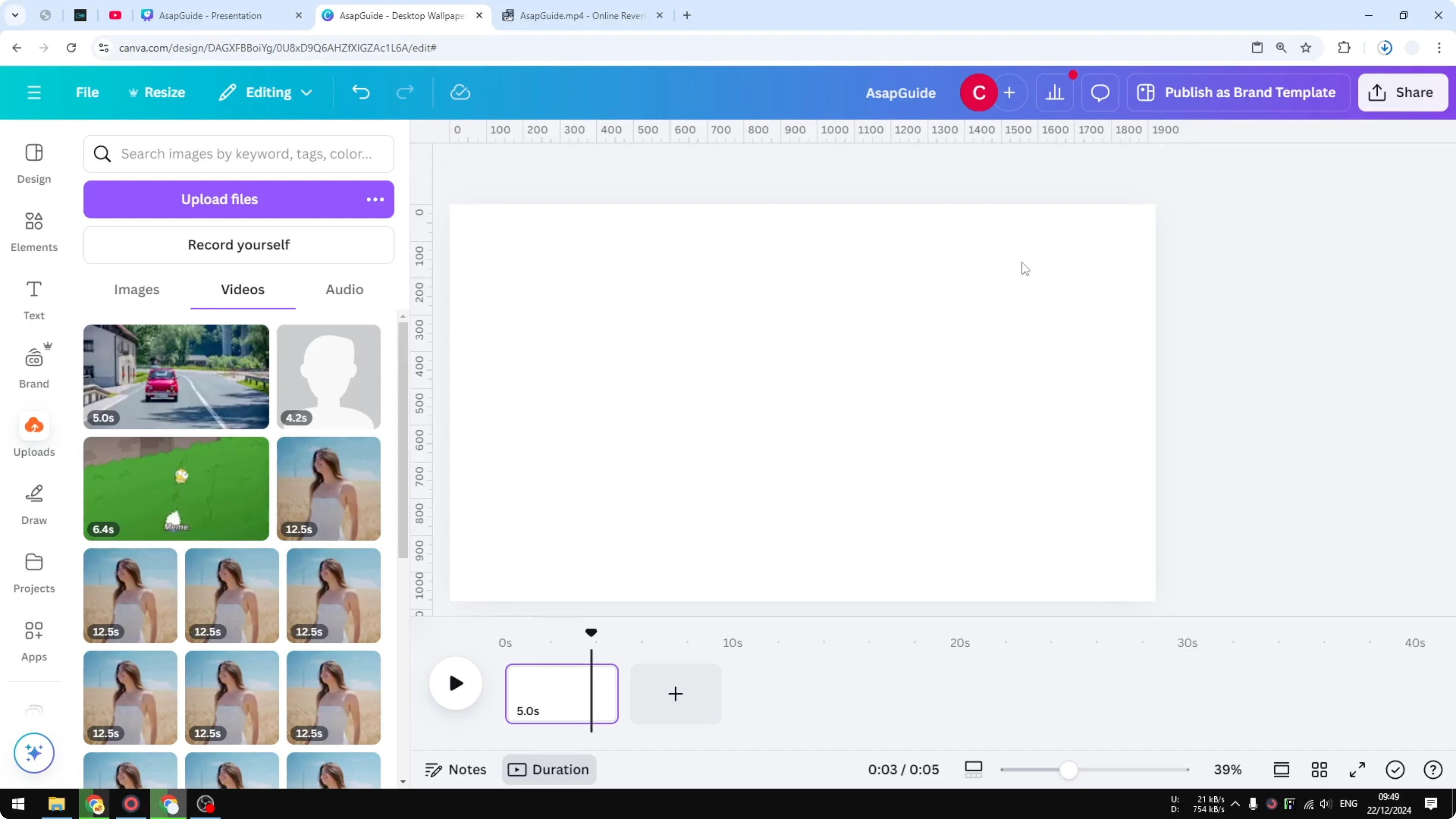
- Open the folder in your Canva Library where you store uploaded videos.
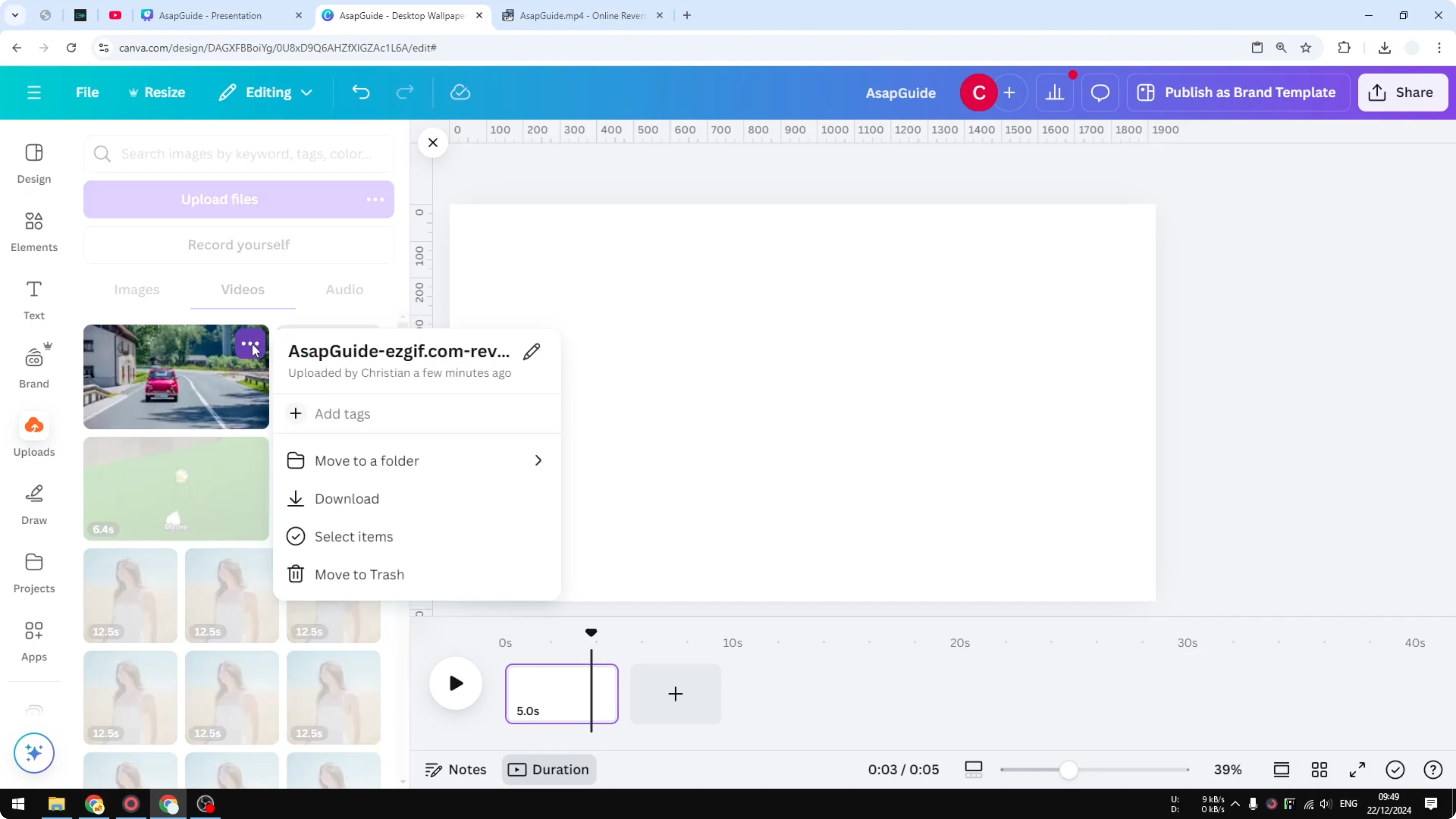
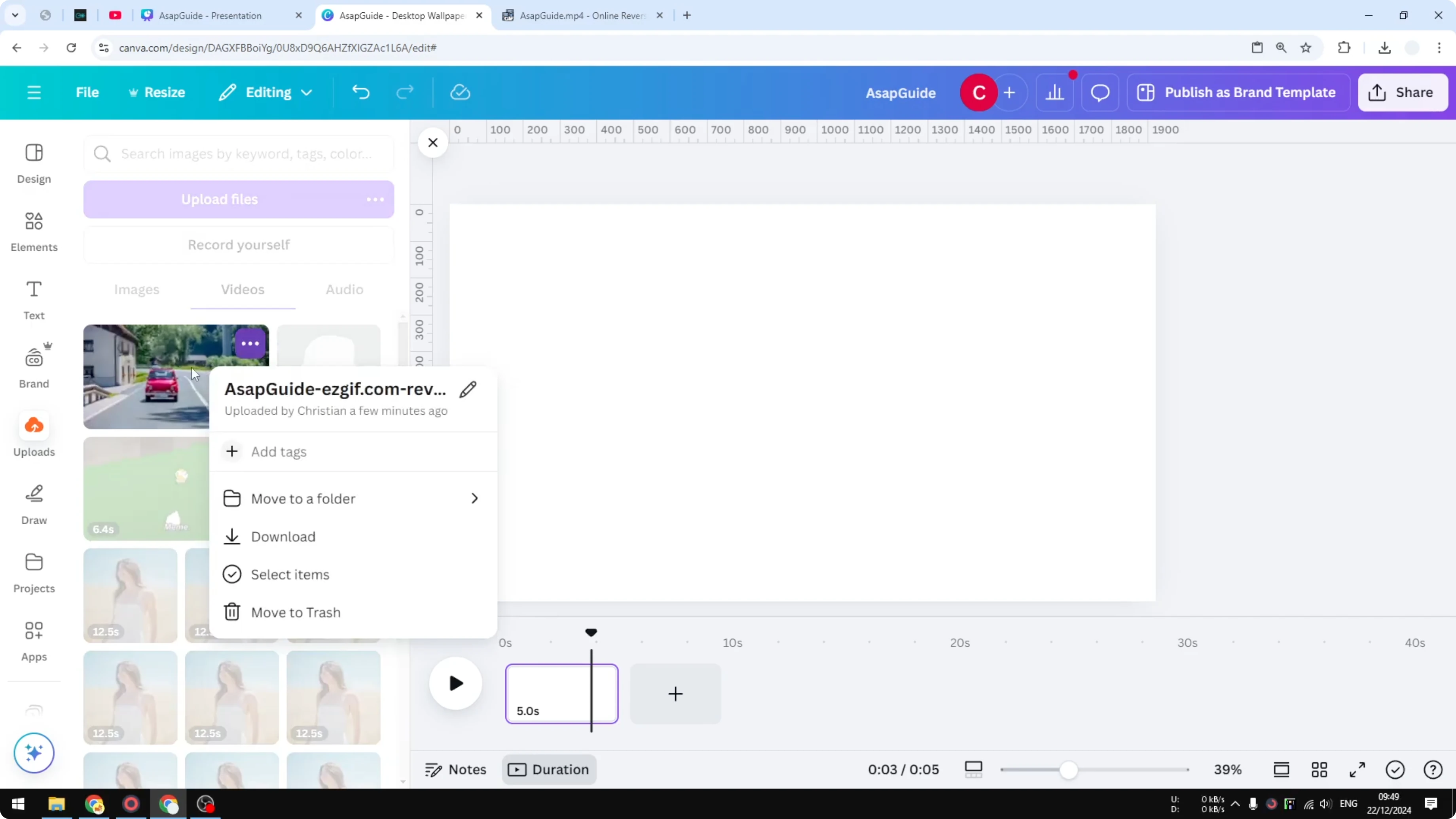
- Right click on the video thumbnail, or click the button on it, and click Download.
- Canva will immediately download the file to your computer so you can use it for other purposes.
Download Video from Canva Library - Canva Stock Library
You cannot right click and download a stock video directly. You have to render the video first in the traditional way.
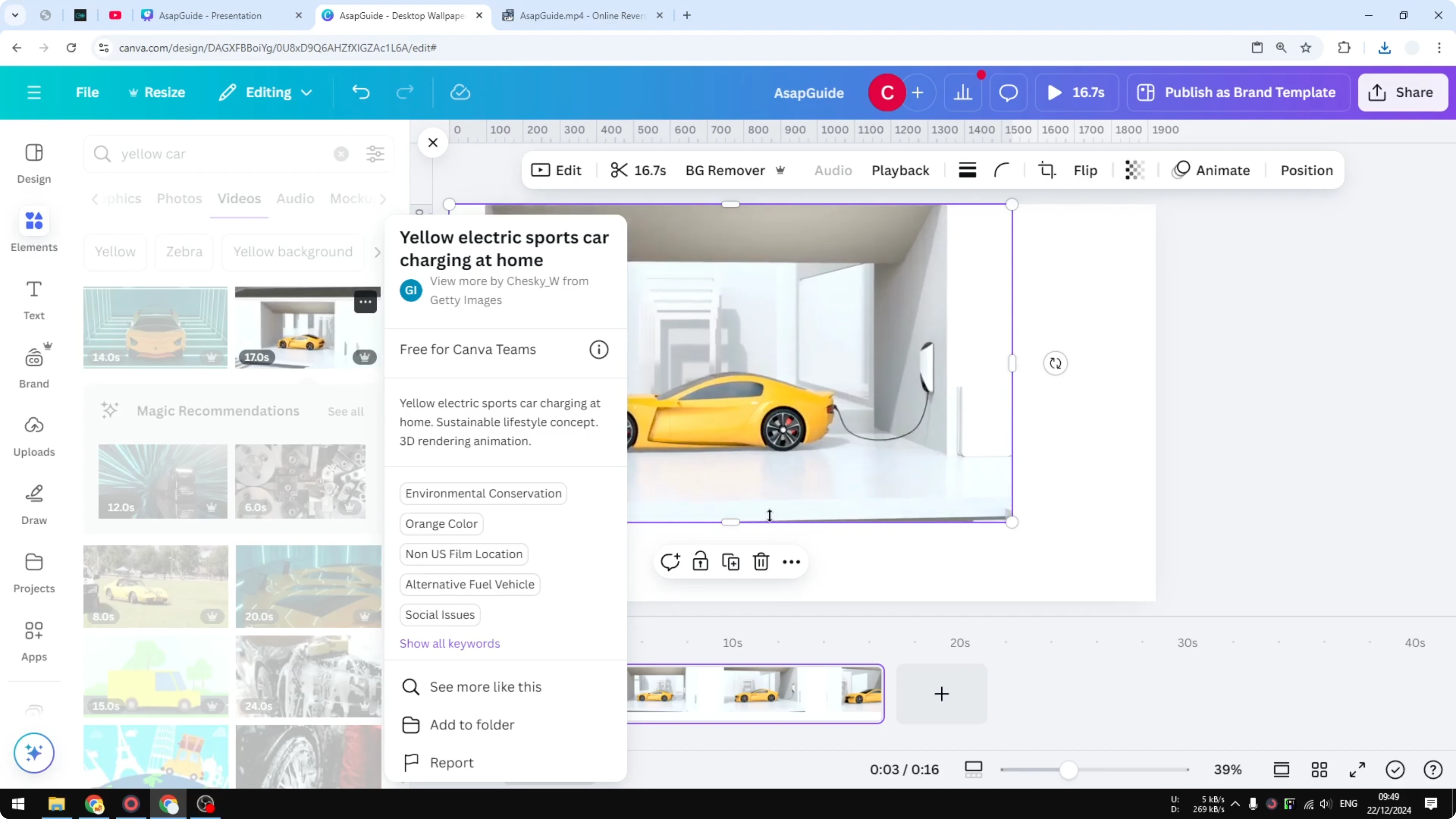
Prepare the stock video
- Search for the stock video you want.
- Set it as a background so you get a full screen of the video.
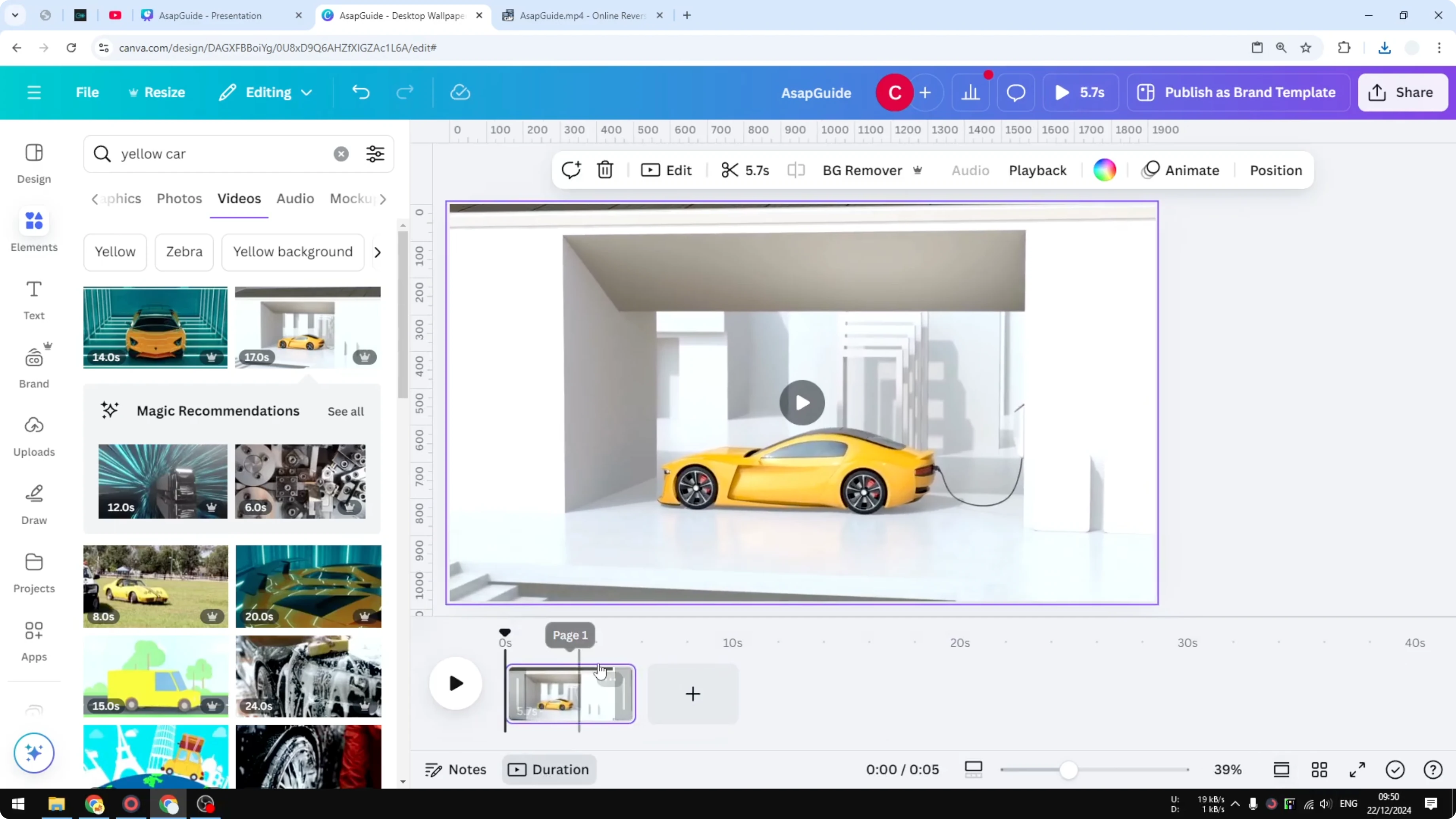
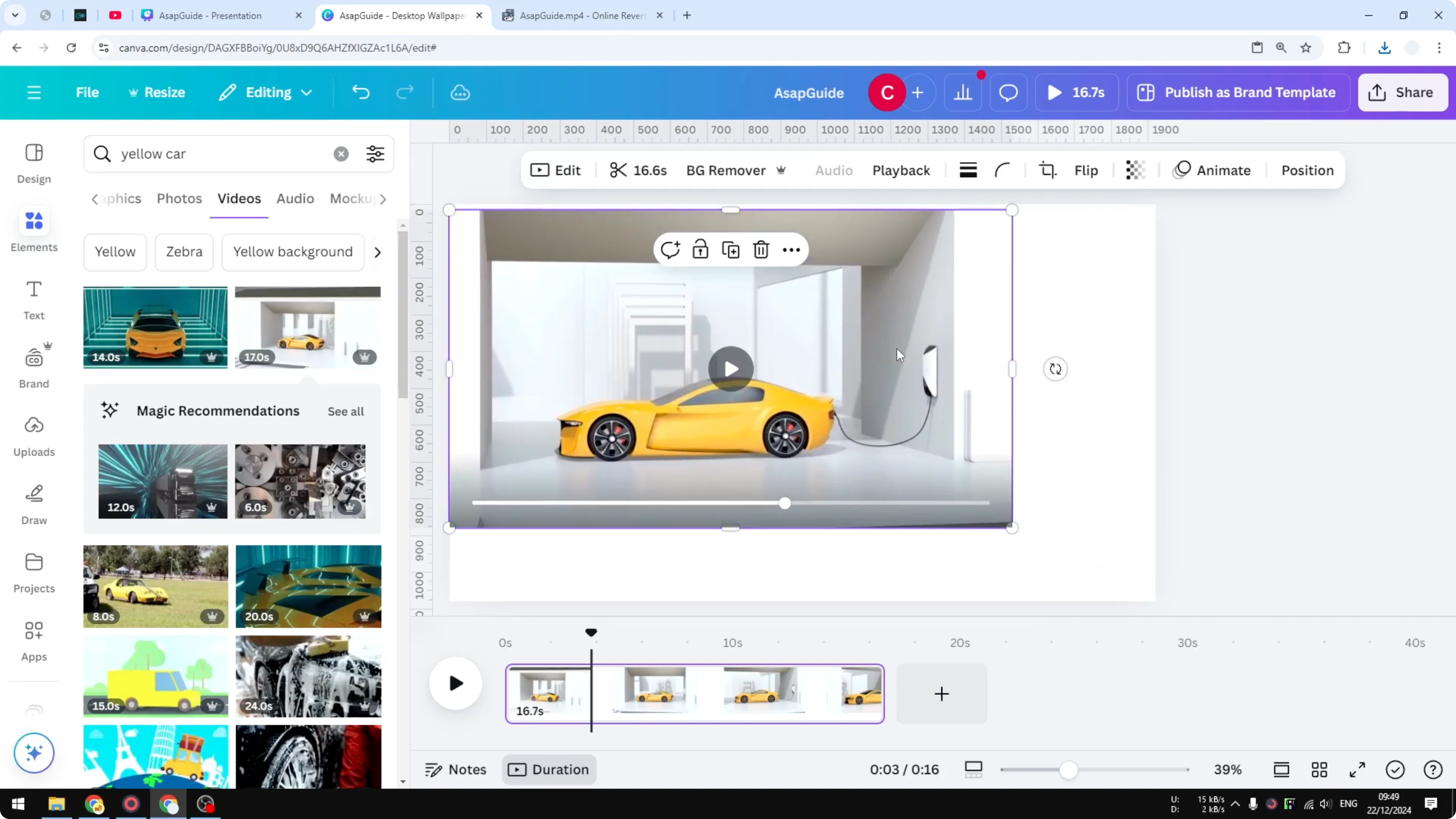
- Adjust the duration if you do not want it too long:
- Open the thumbnail view.
- Open Duration and make your changes.
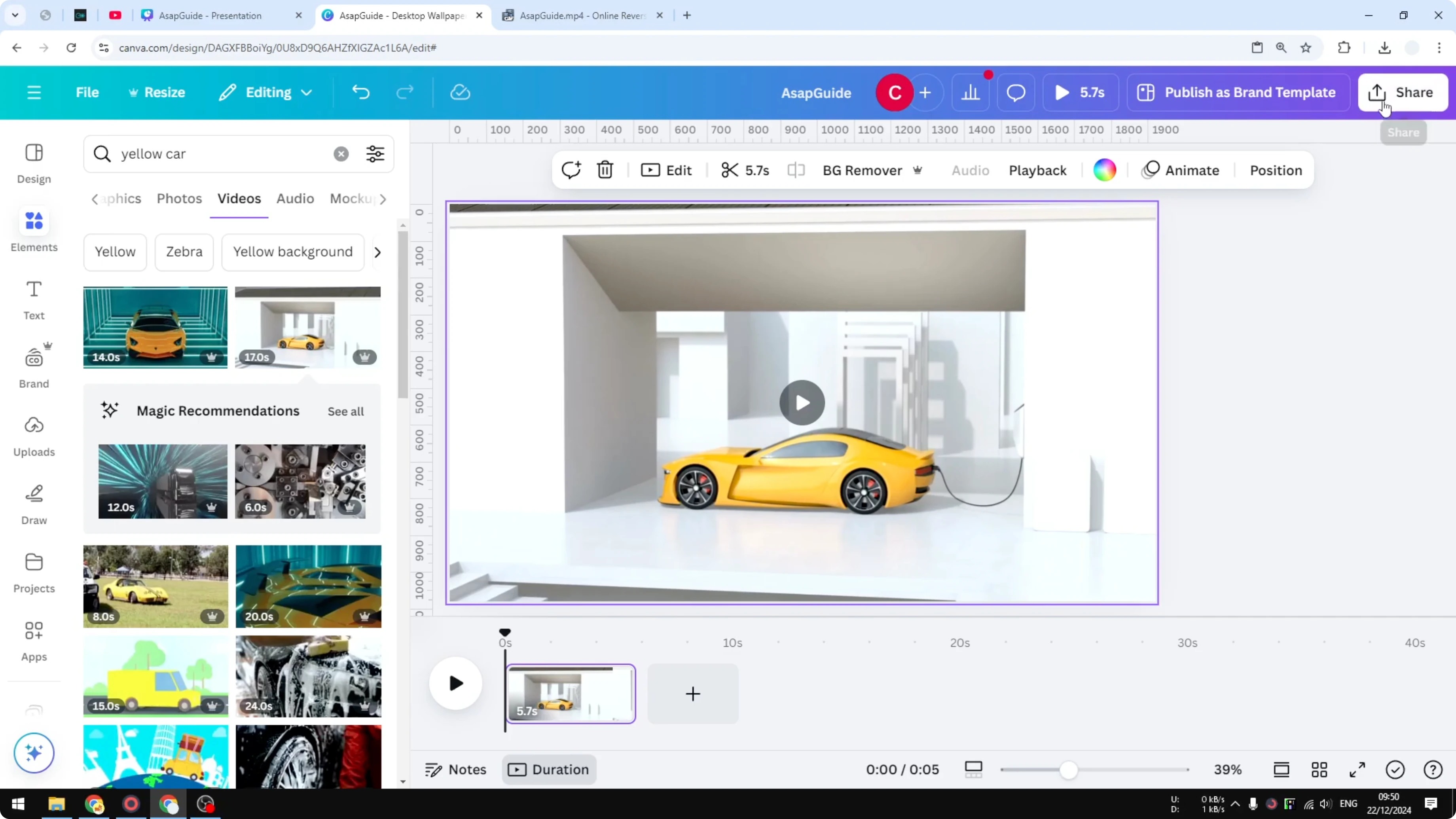
Download the video
- Go to Share.
- Click Download.
- Select the format.
- Select the quality.
- Click Download.
If the download is blocked for premium footage
Sometimes you might not be able to download the video because it is premium footage and Canva requires you to add another element. You can use a simple trick:
- Insert a basic shape, like a square.
- Set it to fully transparent so it is not visible.
- Start downloading the video again.
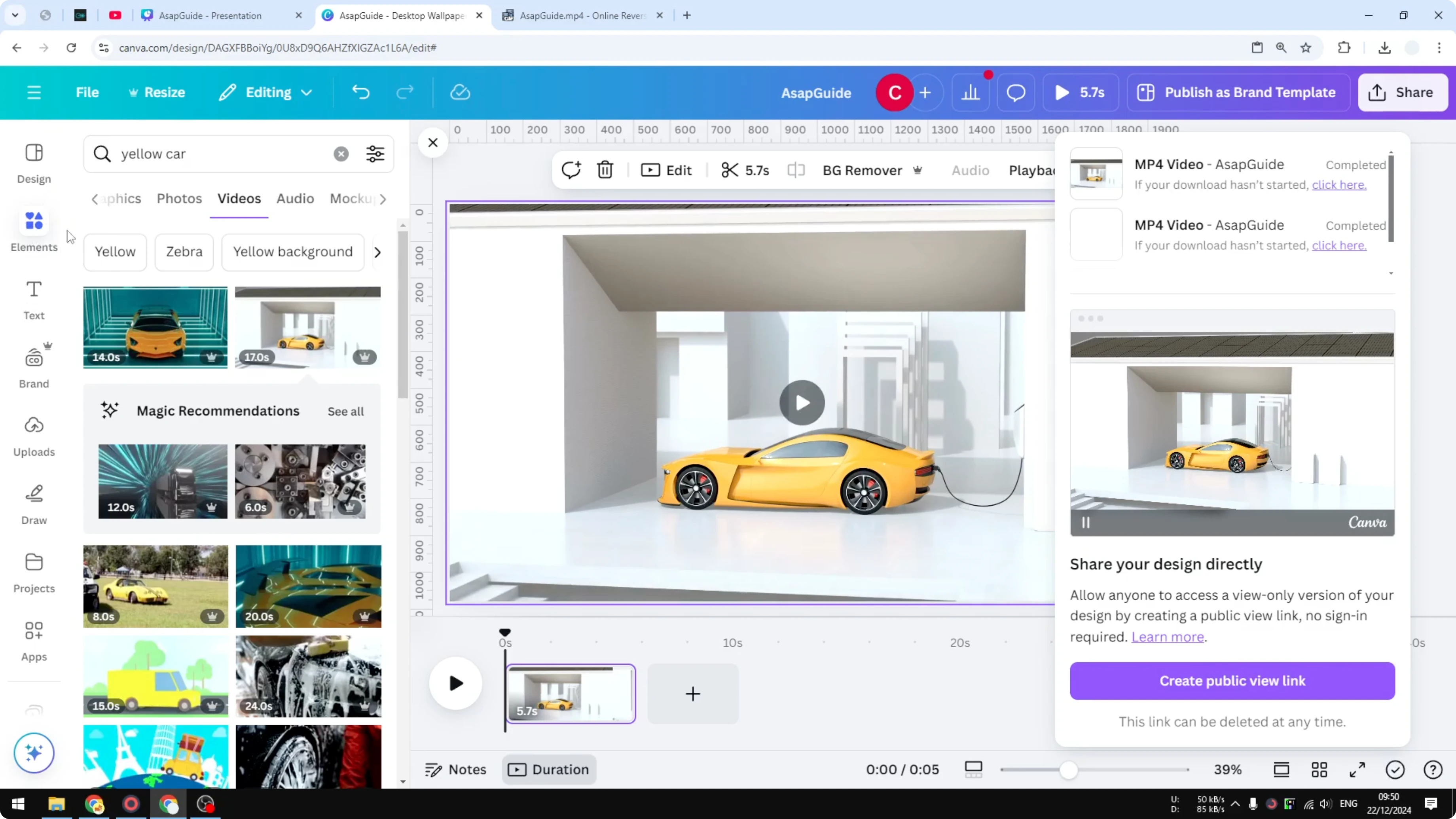
That is usually how I do it. It is simple and you still get the same video.
Final Thoughts
Downloading from your personal media library is immediate with a right click on the thumbnail. For stock videos, render the clip by placing it in a design, adjust duration if needed, then use Share - Download. If a premium video blocks the download, add a transparent shape and try again.
Recent Posts

How to Visualize Yourself as a Pixelized Character with AI?
How to Visualize Yourself as a Pixelized Character with AI?

How to Revive Faded Memories and Enhance Image Clarity with AI?
How to Revive Faded Memories and Enhance Image Clarity with AI?

How to Visualize Yourself as an Animal Crossing Character with AI?
How to Visualize Yourself as an Animal Crossing Character with AI?