How to Download Canva Video Faster
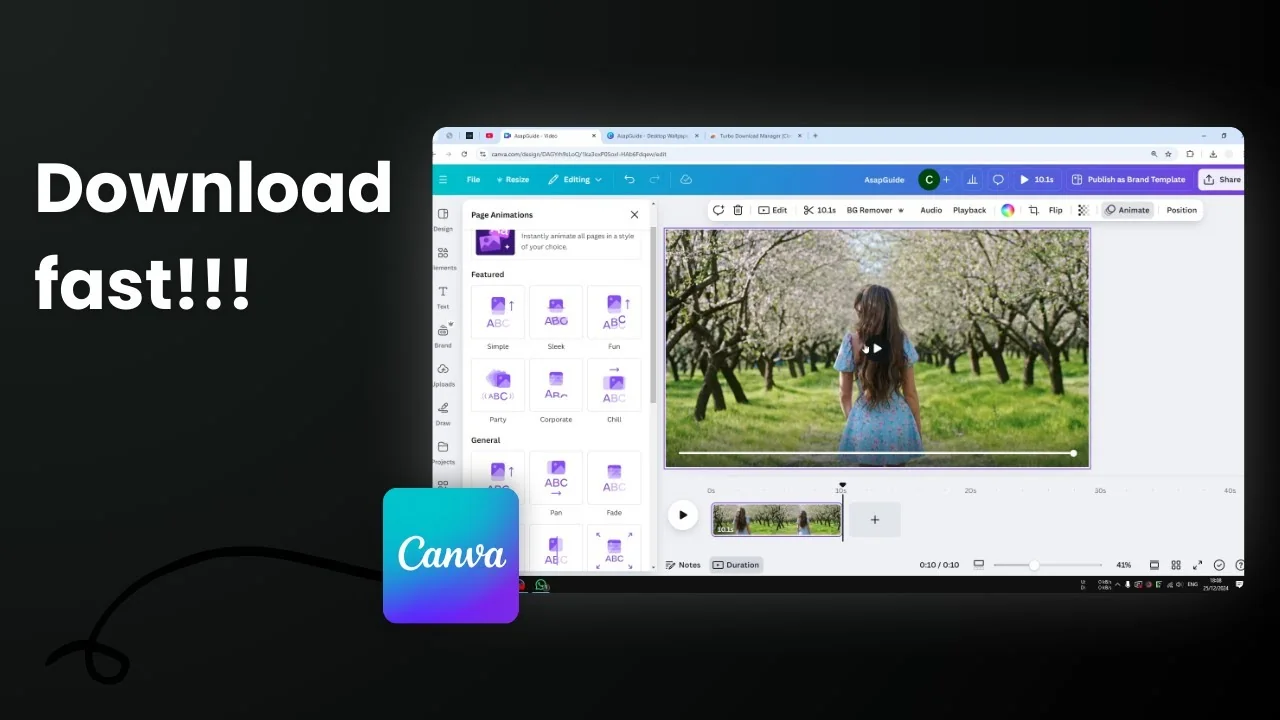
Making the video download process in Canva a lot faster is a bit tricky because multiple factors decide how long it takes for a video to go from Canva’s servers to your computer. Let’s tackle them one by one.
Download Canva Video Faster - Key Factors
Duration and rendering vs downloading
The duration of the video or the video project you’re working on in Canva will determine how long it takes to render and download the video. Rendering is basically like preparing or baking the video before it can be downloaded as a video file, while the downloading process is a different step. In my opinion, rendering takes a lot more time than downloading most of the time.

If you have a one minute video, it’s going to take a lot longer than a 10 second video. It’s simple math. Longer videos require more server resources to render.
Complexity - animations, elements, and effects
If you have a lot of elements like animations or other effects applied to the video, the rendering process will take longer. The more animations and elements you have, and the longer the video, the longer the rendering will be.

Resolution choices
The resolution of the video matters. In the download section you’ll see multiple resolutions, with 4K as the highest, and it’s going to take a lot of time to render and download. If you want something reasonable and good enough but not too big, 720p is not bad.

It’s not the same standard as 1080p, but 720p could be just as good as 1080p in my opinion. If you’re okay with a slightly lower resolution, go with 720p.

File size and download tools
File size matters too. If you want to get a very big video onto your computer quickly, I recommend using a video downloader software.

- Some Chrome extensions promise to speed up the download process. I didn’t use this personally. A 3.6 rating tells me it might work for some people but not for everybody.
- The tool I do recommend is Internet Download Manager. It’s premium software, but for big files it’s extremely fast and really helpful. It also has a Chrome extension you can install on your browser, so every time it detects a video to be downloaded, it will run the program to handle it. This is incredibly fast compared to the built-in browser downloader.

Internet speed
Finally, your internet speed itself will affect how fast downloads complete after rendering is done.
Download Canva Video Faster - Practical Tips and Settings
Pick a reasonable resolution in Canva
- Open the download panel in your Canva project.
- Choose MP4 video.
- Set the resolution to 720p.
- Download.
Keep projects lean for faster rendering
- Shorten the overall duration when possible.
- Minimize animations and complex effects.
- Reduce the number of elements on each scene.
Consider a download manager for big files
- Install Internet Download Manager on your computer.
- Add its browser extension so it can take over downloads.
- Let it handle large video files instead of the built-in browser downloader.

Example results with a 10 second video
I tested a 10 second video with no animations. Using 720p and the built-in browser downloader, it took around 20 to 30 seconds to render and another 5 seconds to download. It ended up at 4.5 MB for a 10 second video at 720p.

It took a bit more time than I expected, maybe because the video was generally complex with a lot of structures.

Final Thoughts
To download Canva video faster, focus on these factors: duration, complexity, resolution, and your internet speed. In my opinion, rendering is the biggest time sink, so shorter videos with fewer effects at 720p will finish quicker. For big files, a download manager like Internet Download Manager can make the transfer step much faster.
Recent Posts

How to Visualize Yourself as a Pixelized Character with AI?
How to Visualize Yourself as a Pixelized Character with AI?

How to Revive Faded Memories and Enhance Image Clarity with AI?
How to Revive Faded Memories and Enhance Image Clarity with AI?

How to Visualize Yourself as an Animal Crossing Character with AI?
How to Visualize Yourself as an Animal Crossing Character with AI?