How to Download Stock Images From Canva
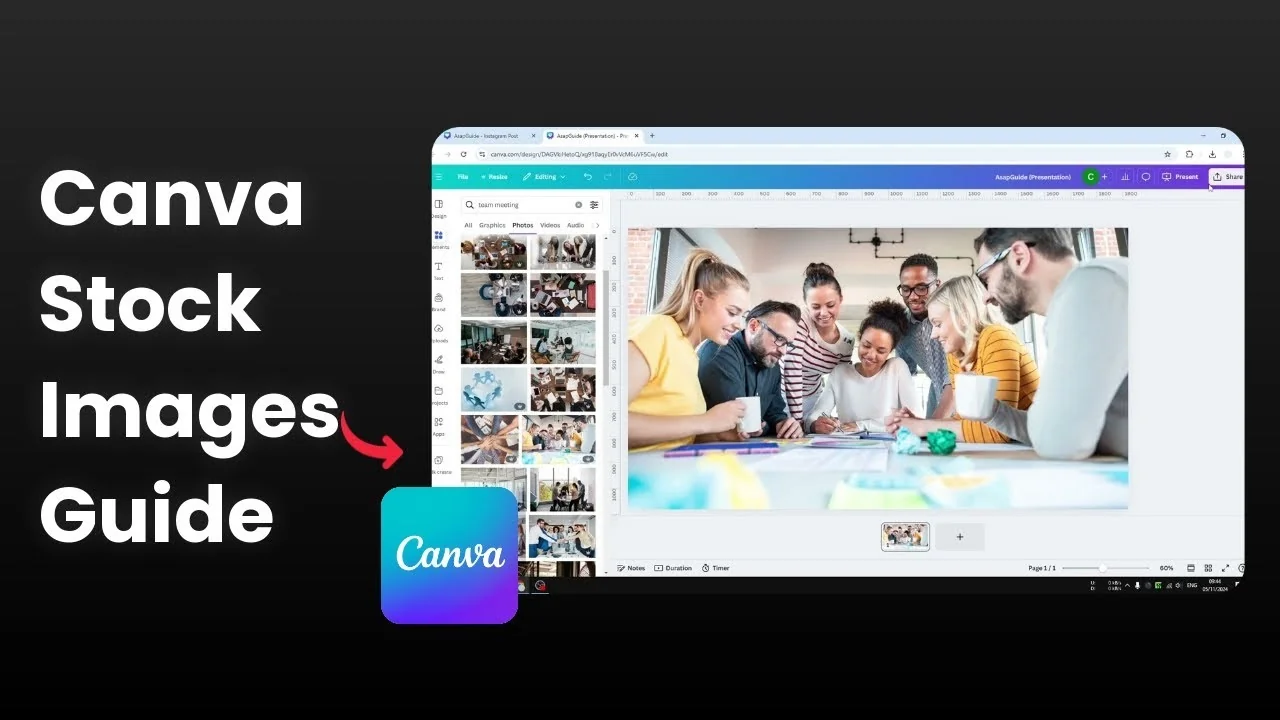
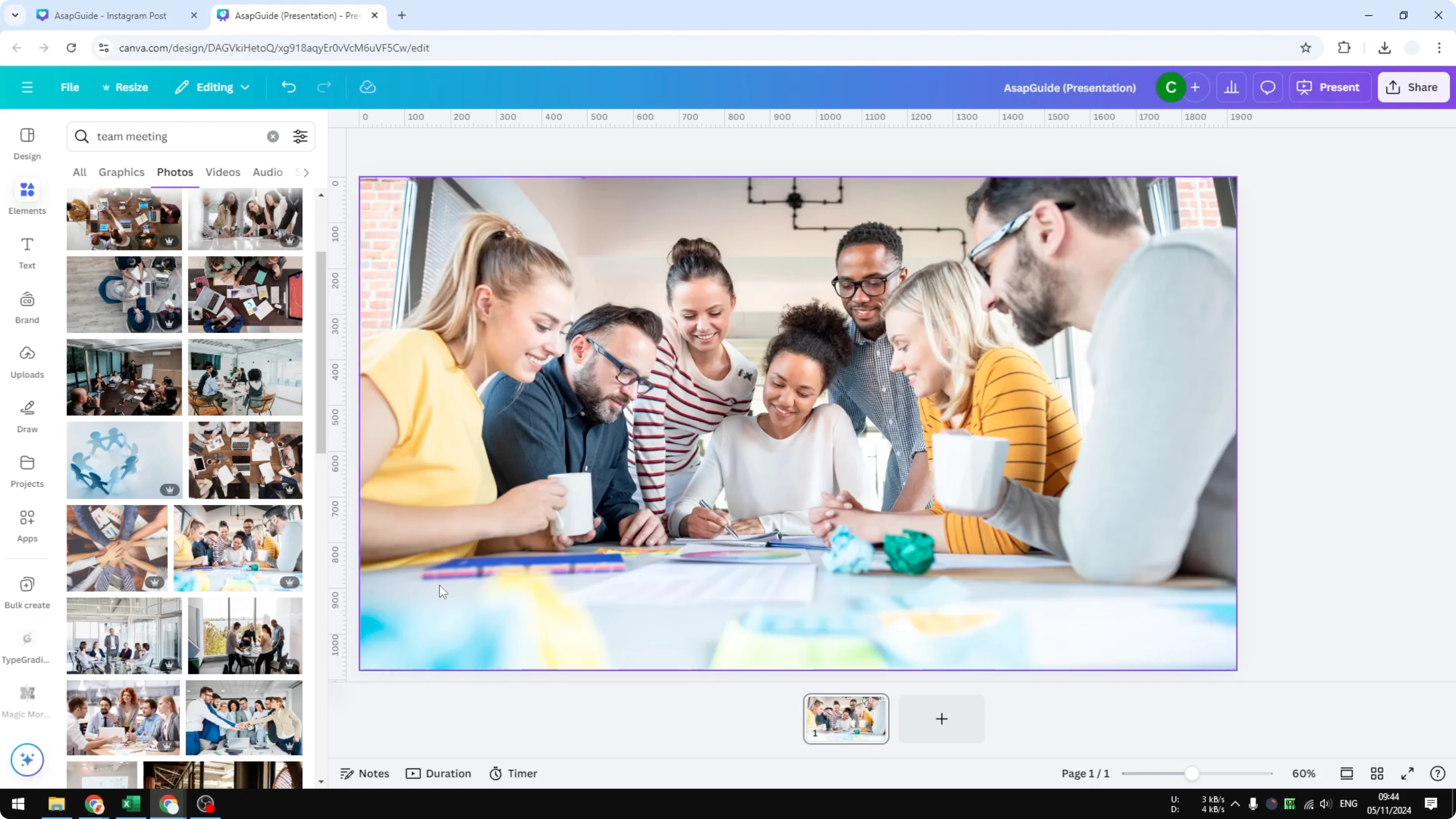
I want to show you how to download stock images from Canva. The Elements section gives you a lot of unique photos. Search for team meeting and in Photos you will see many useful stock images you can use for a presentation or a website.
If you need vector files for icons or simple artwork, see how to download SVGs from Canva.
Download Stock Images From Canva: Find photos in Elements
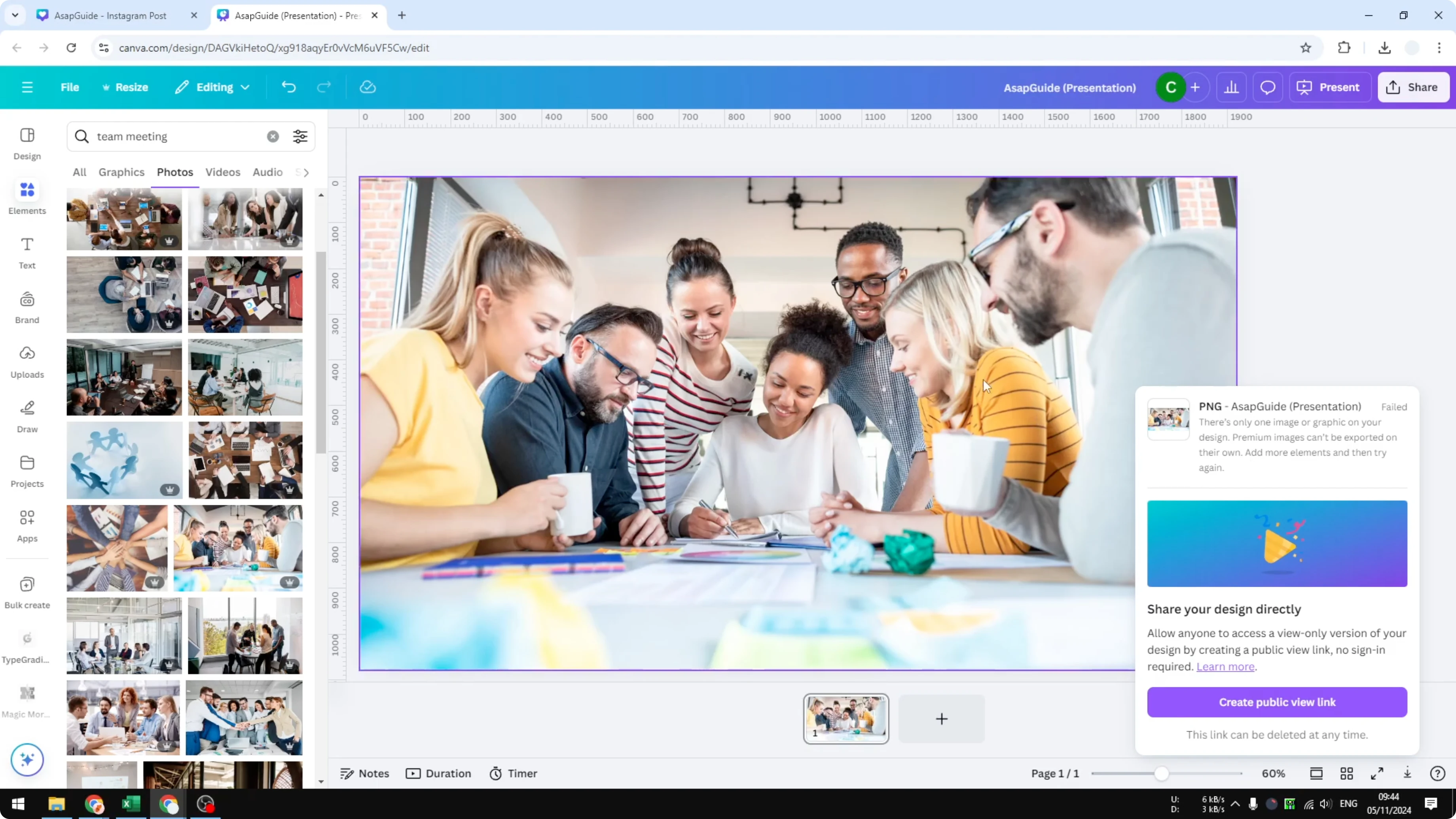
Open Canva and go to Elements, then switch to the Photos tab.
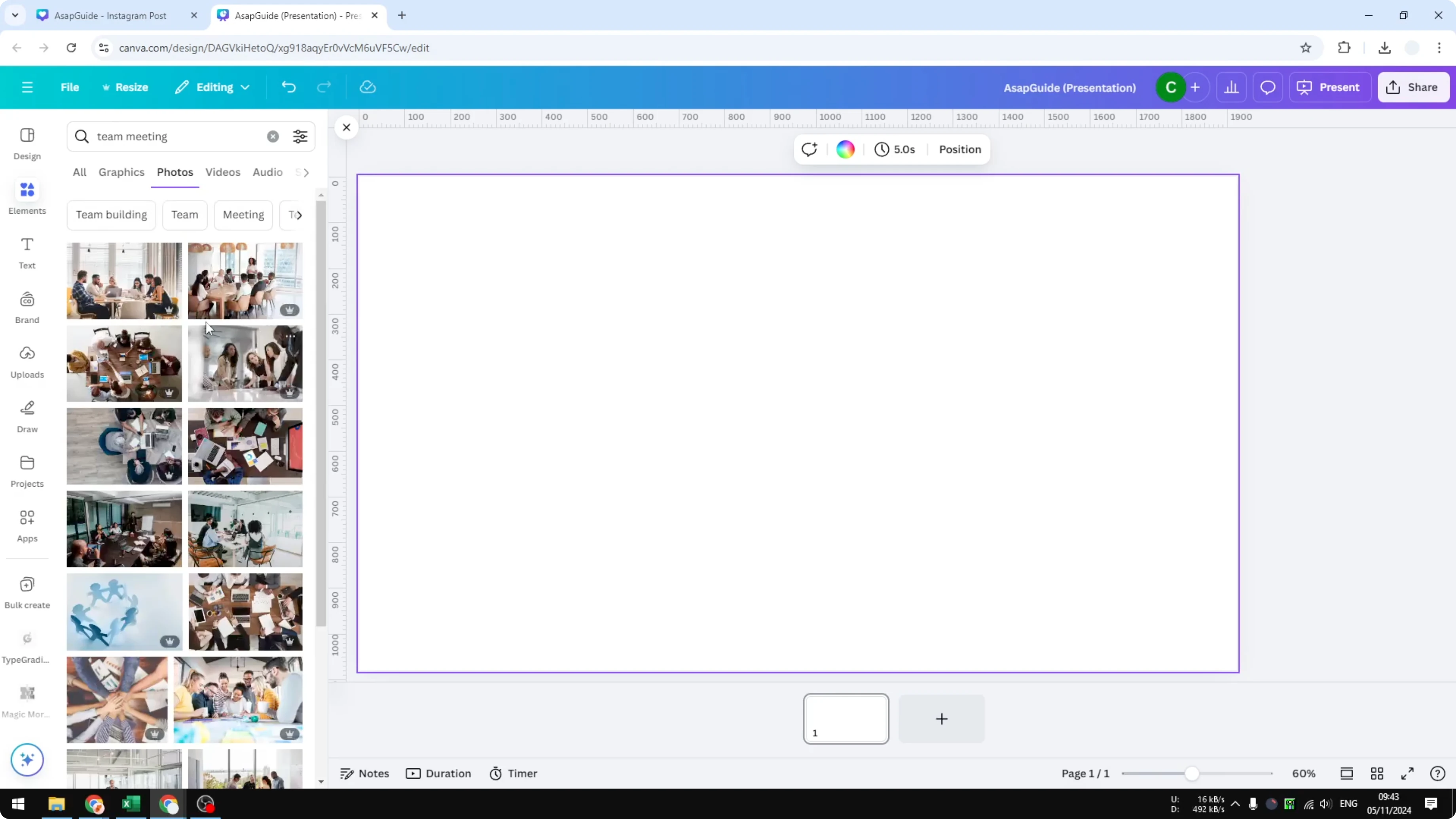
Type your search term, pick a photo you like, and place it on the canvas.
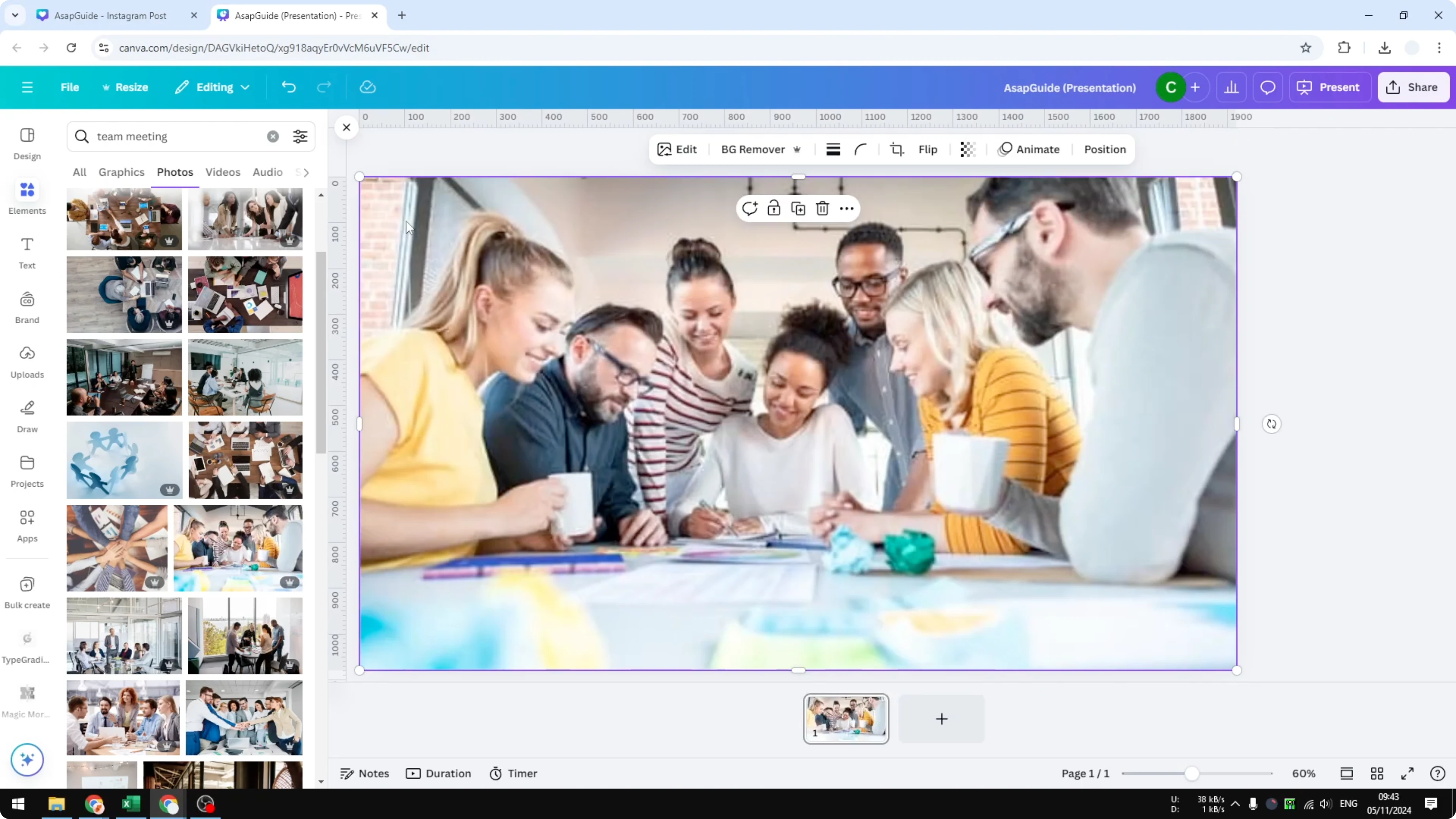
If you want a specific dimension like square or vertical, resize the design first so you get the image in that exact dimension.
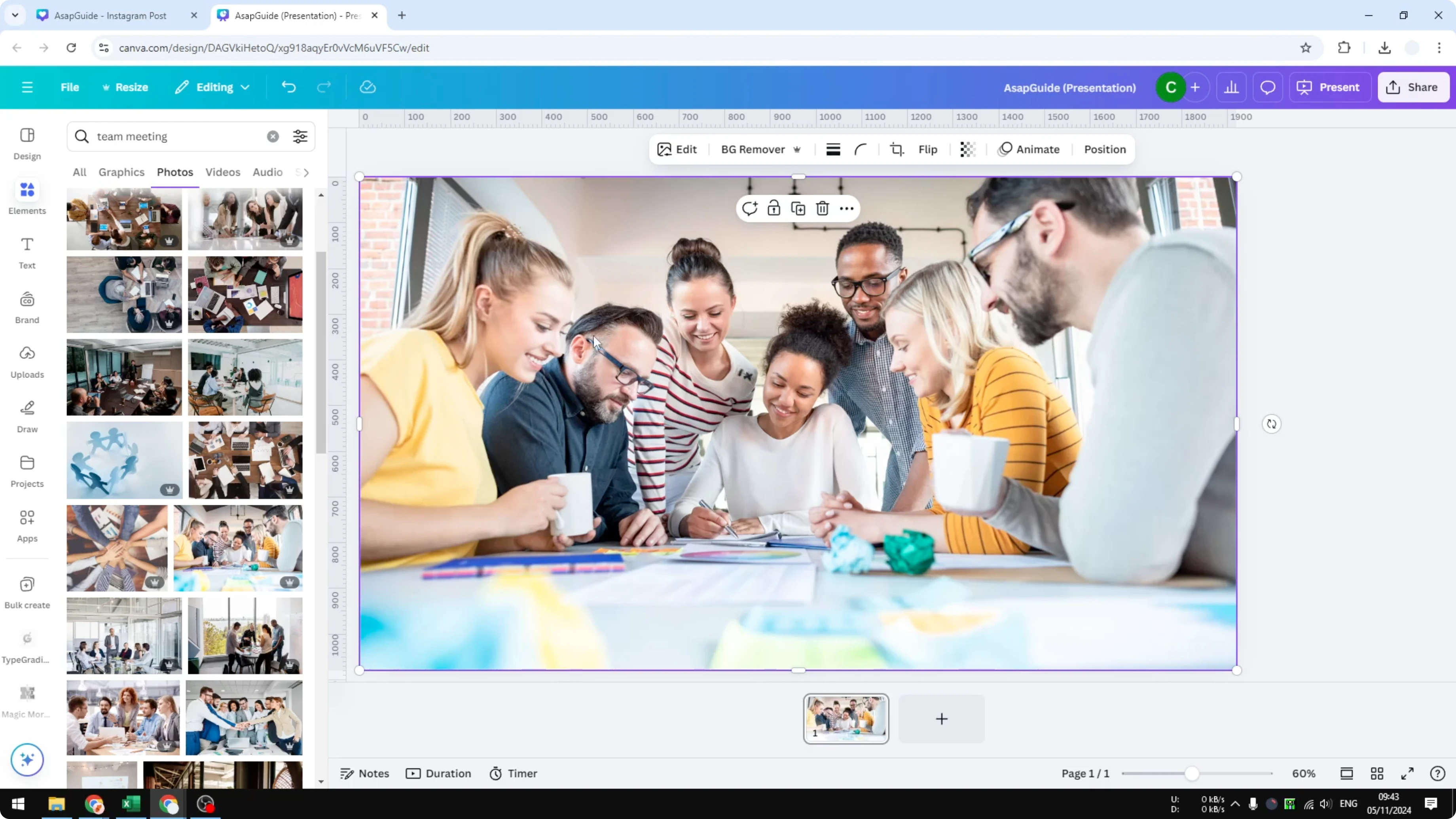
Download Stock Images From Canva: Export steps
After you put the image on the canvas, click Share.
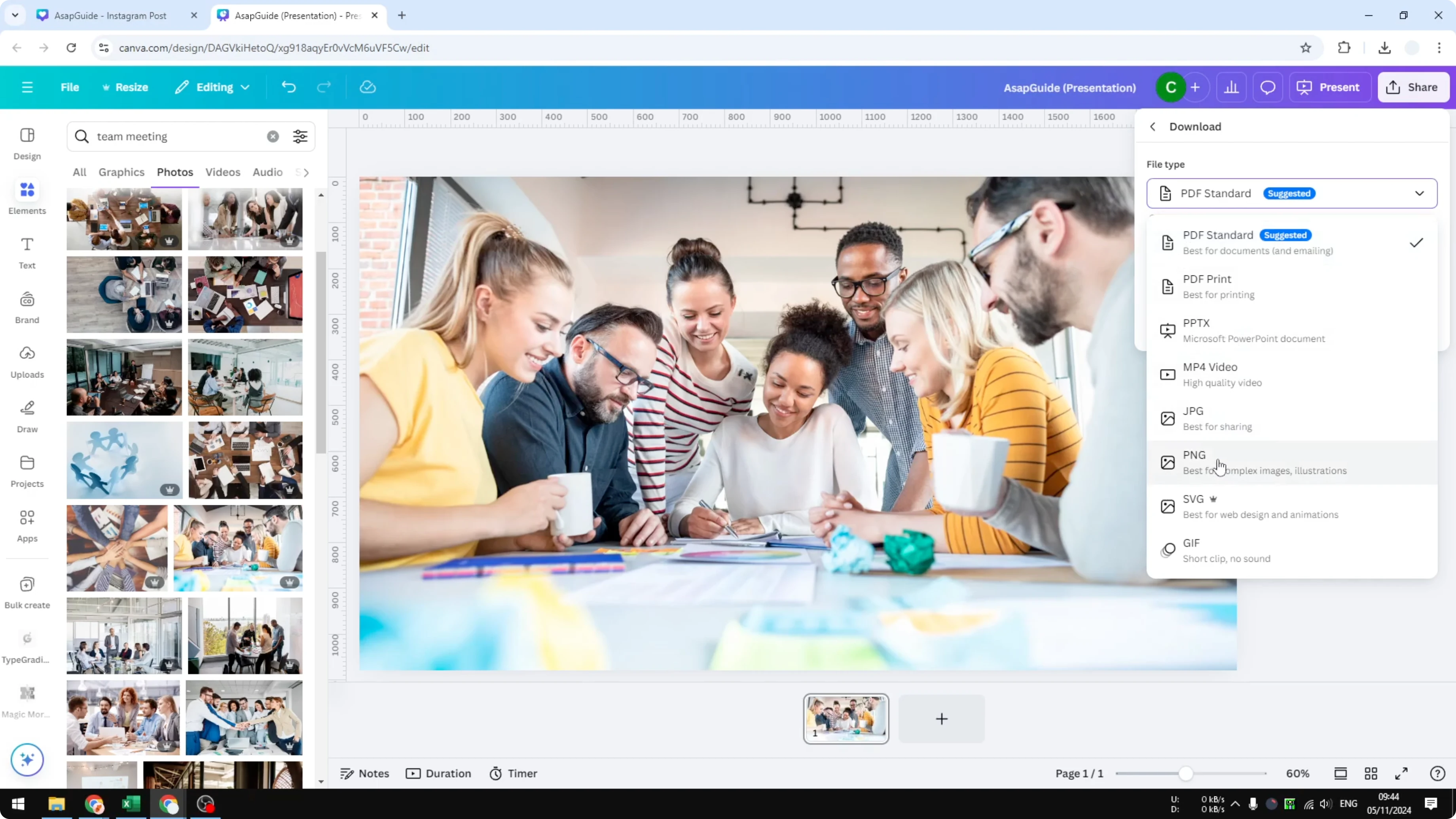
Click Download.
Select the file format. JPG and PNG are usually best.
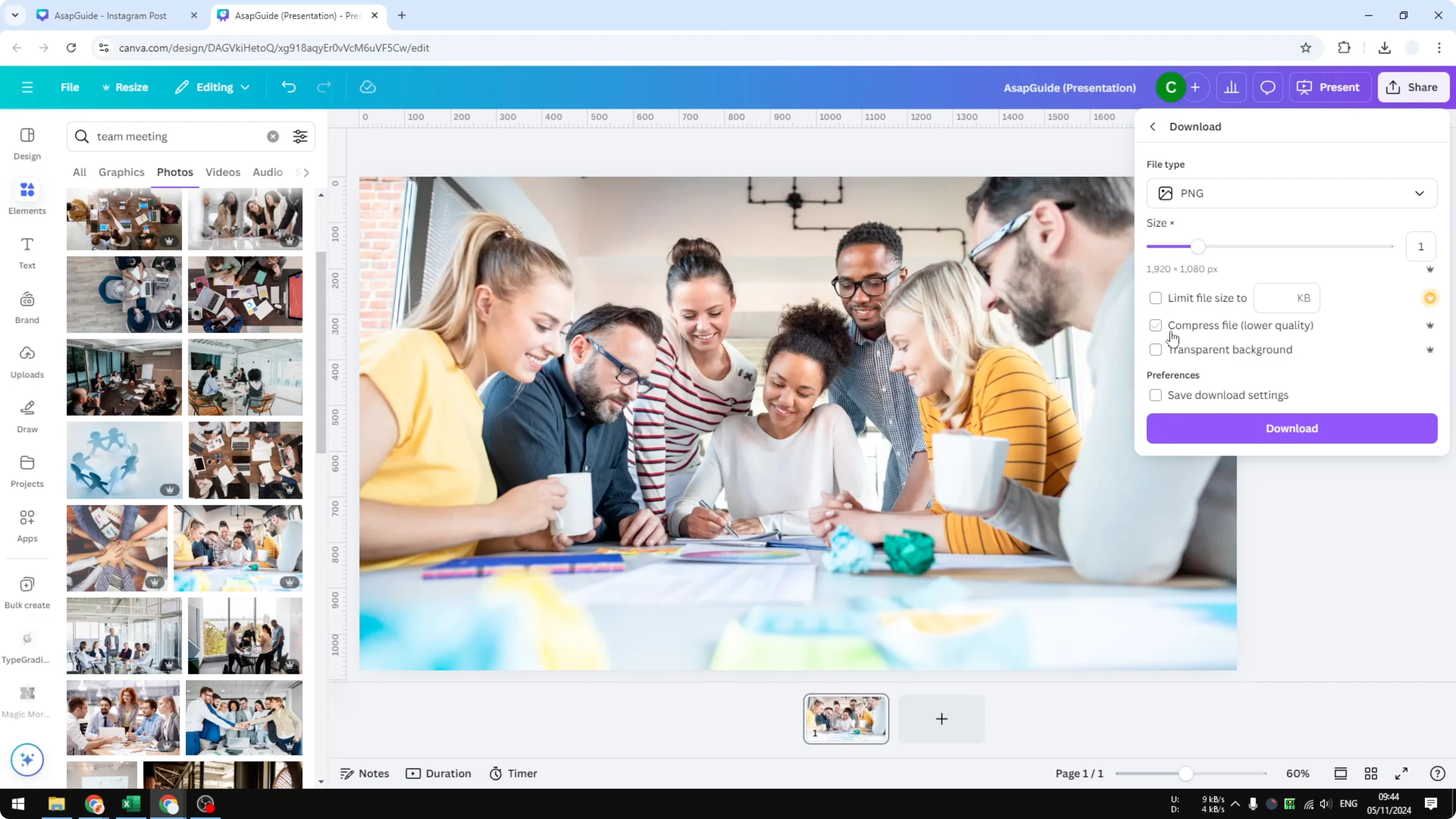
Choose the size.
Turn on compression if you need a smaller file size.
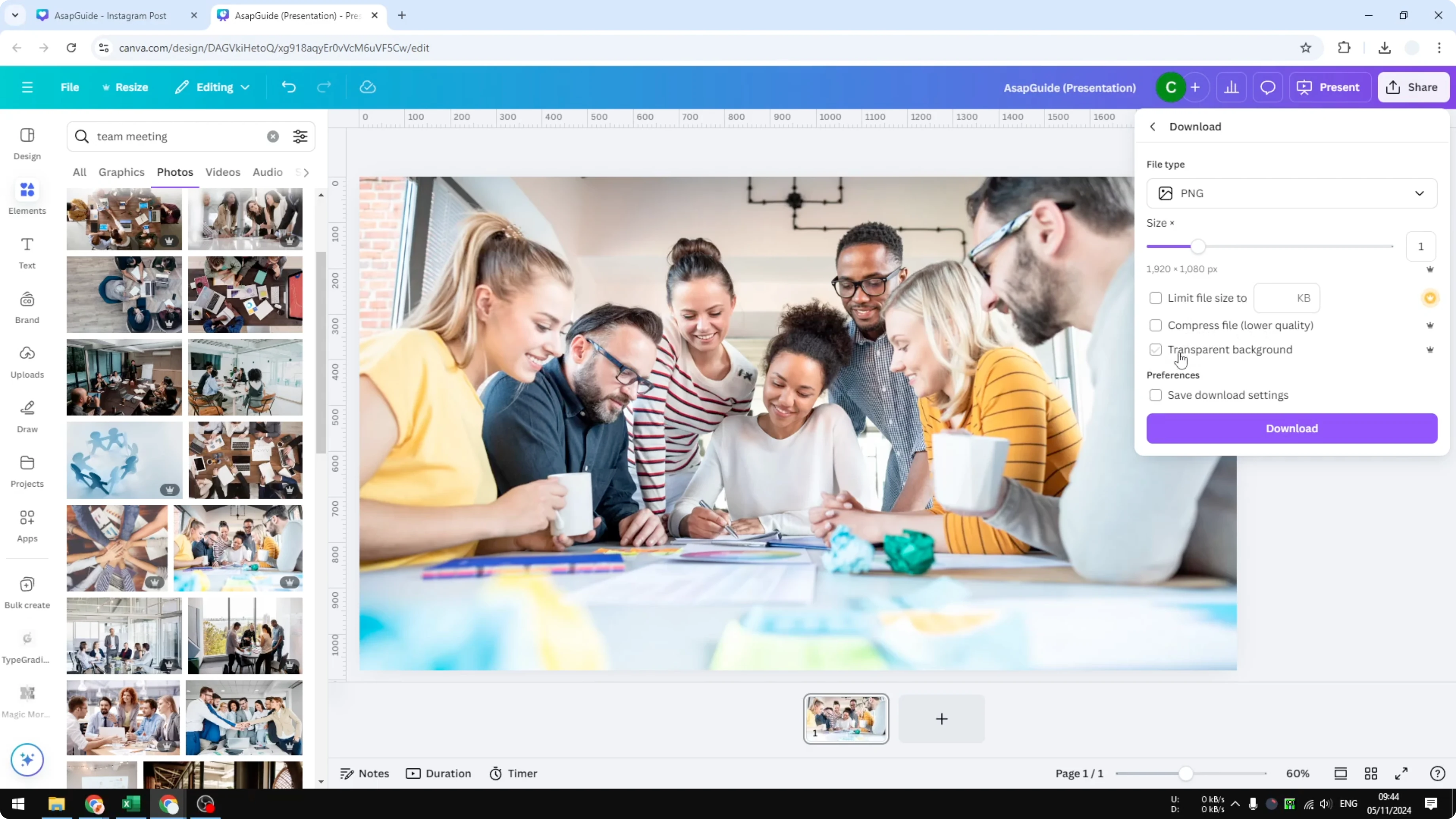
Turn on transparent background if that fits your design.
Click Download to save the image.
Working with motion assets too? You can also download stock video from Canva with similar export steps.
Download Stock Images From Canva: Premium images and licensing
If the photo shows the Pro icon, it is a premium image. You will see a message when you try to download it.
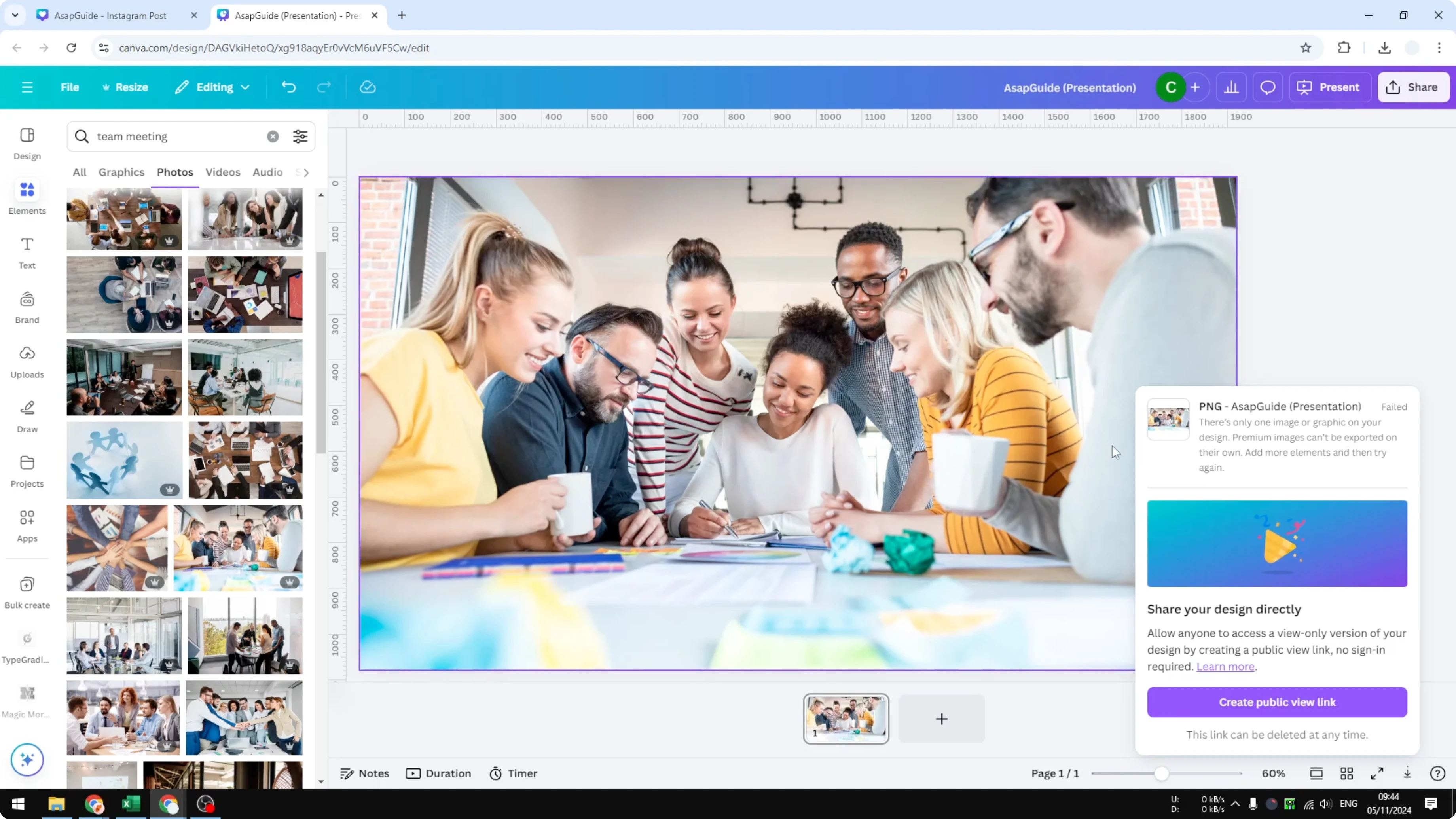
Premium images require a Pro plan or a one-time license to download without watermarks. Choose a free photo instead, or license the image properly inside Canva.
If you are collecting footage from the library, here is how to download video from the Canva library the right way.
Final thoughts
The fastest path is to search in Elements, place the photo on your canvas, and export as JPG or PNG with the size you need. Free images download right away, while premium photos require a license. Resize your design first if you want a specific output dimension.
Recent Posts

How to Visualize Yourself as a Pixelized Character with AI?
How to Visualize Yourself as a Pixelized Character with AI?

How to Revive Faded Memories and Enhance Image Clarity with AI?
How to Revive Faded Memories and Enhance Image Clarity with AI?

How to Visualize Yourself as an Animal Crossing Character with AI?
How to Visualize Yourself as an Animal Crossing Character with AI?