How to Download Images as SVG in Canva
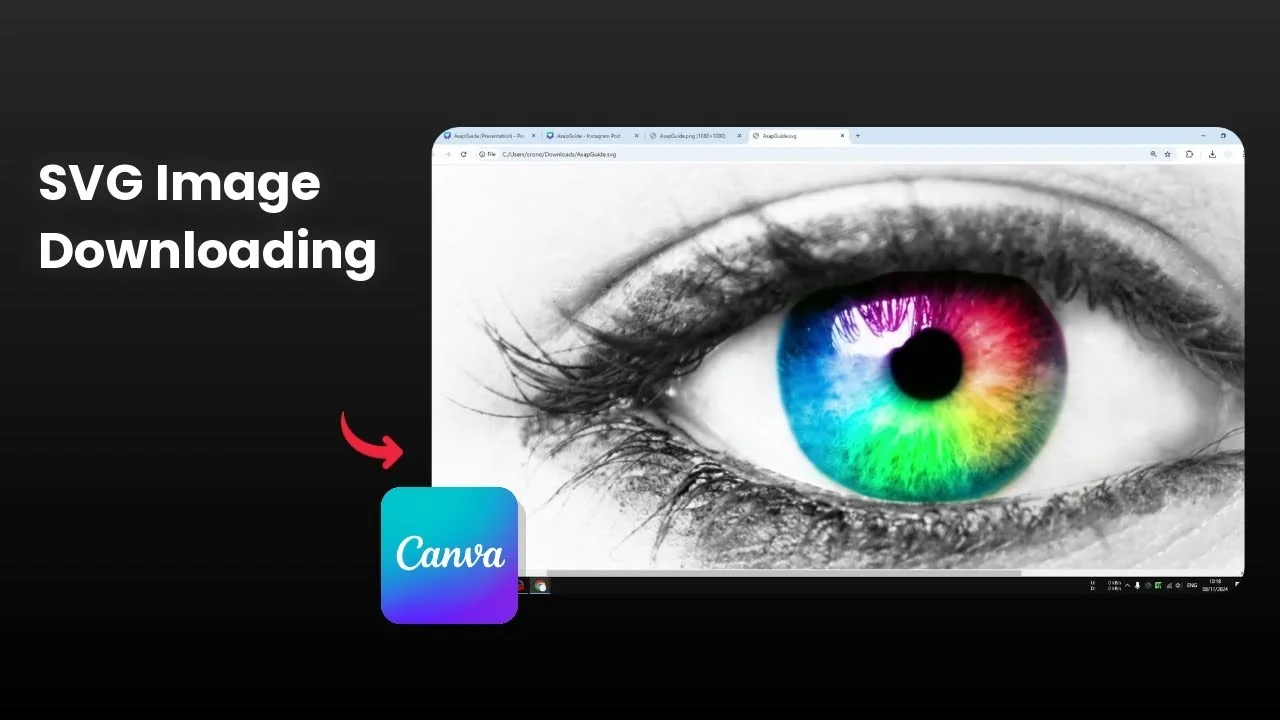
I am going to show you how you can download your image or your design from Canva in an SVG format. SVG is particularly useful for graphic design and sometimes it is used on websites. One characteristic of this format is that you can zoom to whatever level you like and it is not going to be pixelated.
It stays sharp and everything is clear. There is no blurry side effect. Everything looks as good as at a normal zoom level.
If you want to tweak colors before exporting, see this quick guide on color adjustments in Canva: adjust color in Canva images.
SVG in Canva basics
You can export an image, a shape, or a chart. A chart or shape will work even better because SVG is actually not for photos. That is not going to stop you from using it for an image file like this one.
For product shots, a subtle shadow can improve the final look before you export. Here is a simple walkthrough: add a shadow to product images in Canva.
Download Images as SVG in Canva - steps
Click the Share button.
Click Download.
Select SVG as the file type.
Click Download to save the file.
Compare SVG and PNG
PNG is very good and very sharp, but it is not going to be as good as SVG. Open both files and zoom to around 300 percent. Just look at the reflection in the eyes and you will see it is way better in SVG.
SVG stays a lot sharper at high zoom. PNG gets so blurry and it does not look good. SVG still looks as sharp as at 100 percent.
If you want to blend two images before exporting, this AI method in Canva can help you set up the composition: blend two images with Canva AI.
Final thoughts
SVG is great when you need designs that stay sharp at any zoom level. Exporting from Canva is straightforward and works with images, shapes, and charts. That is exactly how you can get an SVG file on Canva.
Recent Posts

How to Visualize Yourself as a Pixelized Character with AI?
How to Visualize Yourself as a Pixelized Character with AI?

How to Revive Faded Memories and Enhance Image Clarity with AI?
How to Revive Faded Memories and Enhance Image Clarity with AI?

How to Visualize Yourself as an Animal Crossing Character with AI?
How to Visualize Yourself as an Animal Crossing Character with AI?