How to Download Canva Presentation with Animation
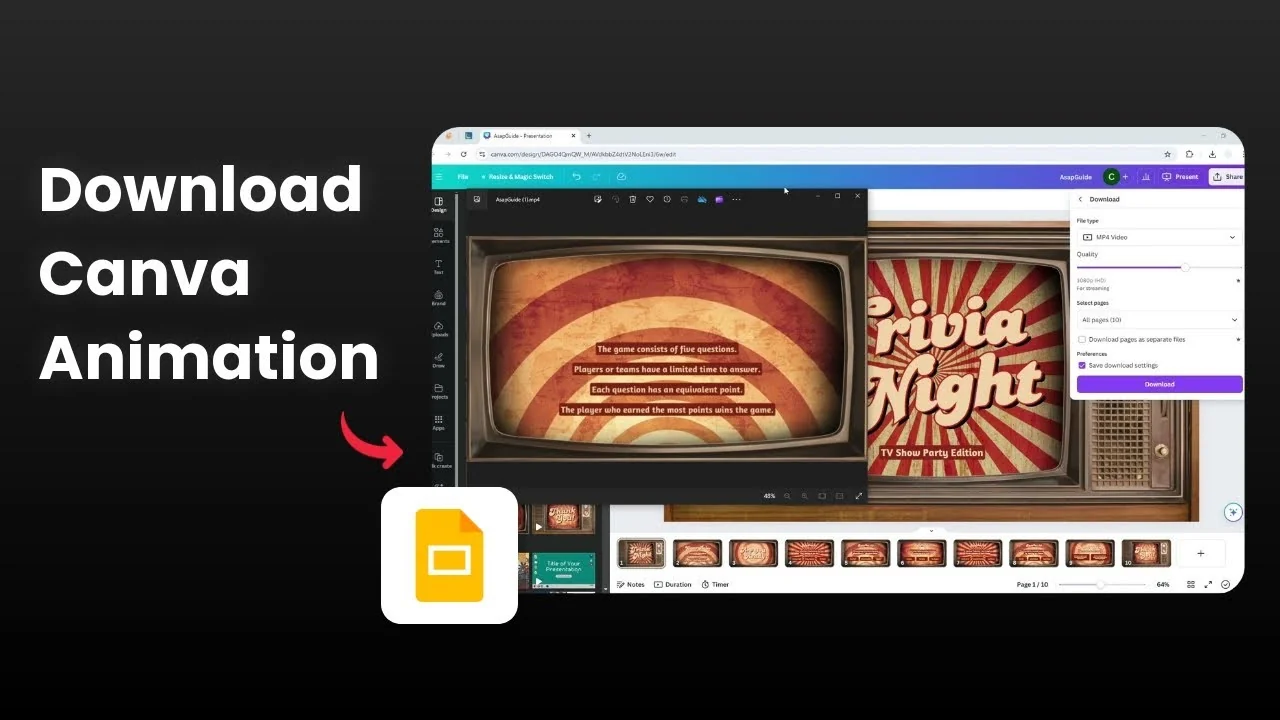
I show how to download your Canva presentation with the animations preserved for offline presenting. If you move it to PowerPoint, the animations will not carry over because the two programs work differently. PowerPoint will not preserve Canva animations.

That leaves two practical export formats that keep motion: MP4 video and GIF. MP4 is the better choice because it keeps audio and delivers higher quality. To keep animations intact, export as MP4.

If you want to prep your slides before exporting, see how to add a background in a Canva presentation for a more polished look.
Why MP4 for Download Canva Presentation with Animation
GIF has no sound and looks softer, which is a problem for presentations. MP4 supports audio and keeps visual quality closer to what you designed in Canva. Choose MP4 if you care about sound and clarity.
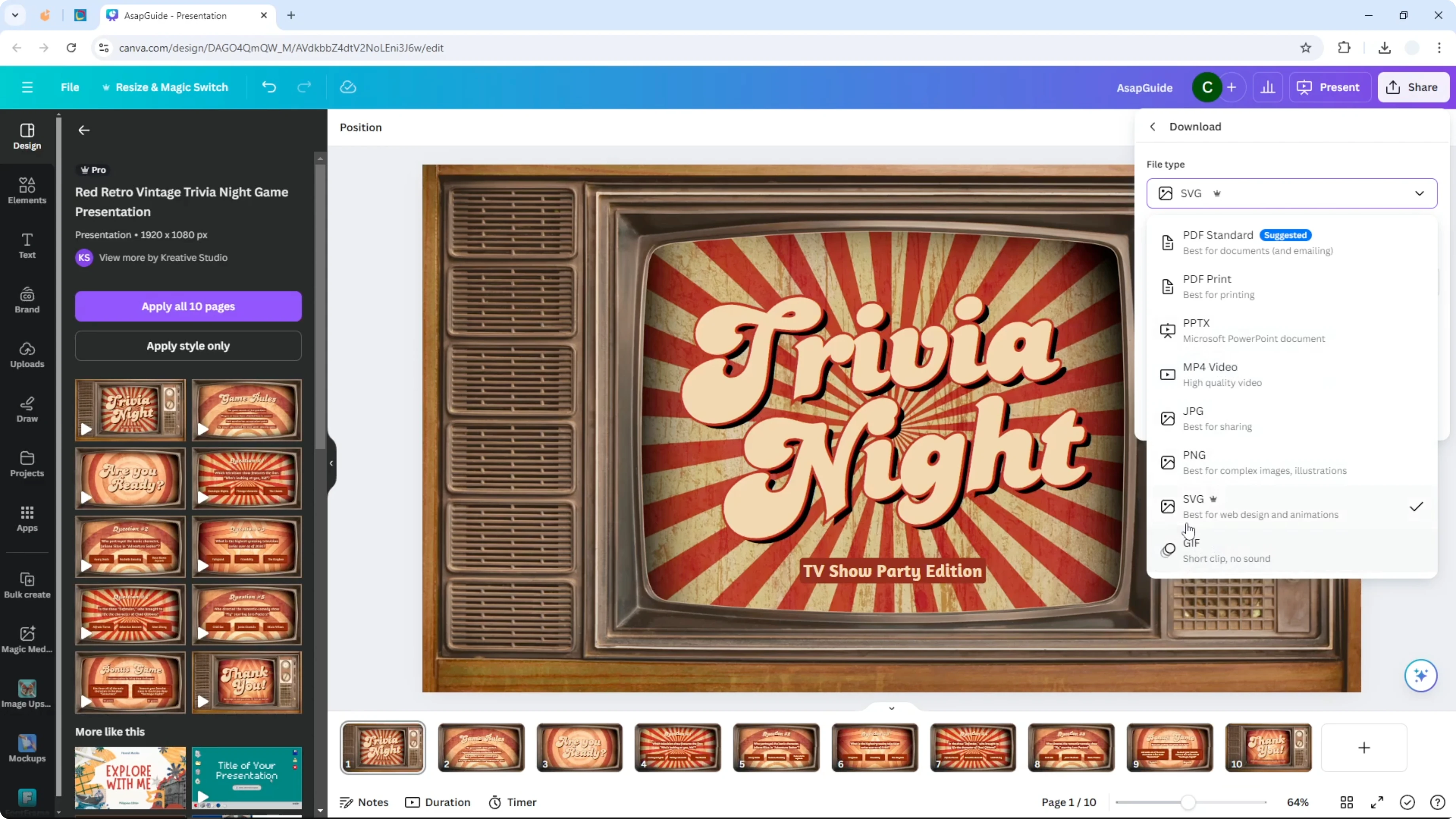
If you plan to include audio, learn how to add background music to a Canva presentation before exporting.
Steps to Download Canva Presentation with Animation
Open your design and click Share.
Click Download.

In the Format dropdown, choose MP4 Video.
Set your preferred quality.
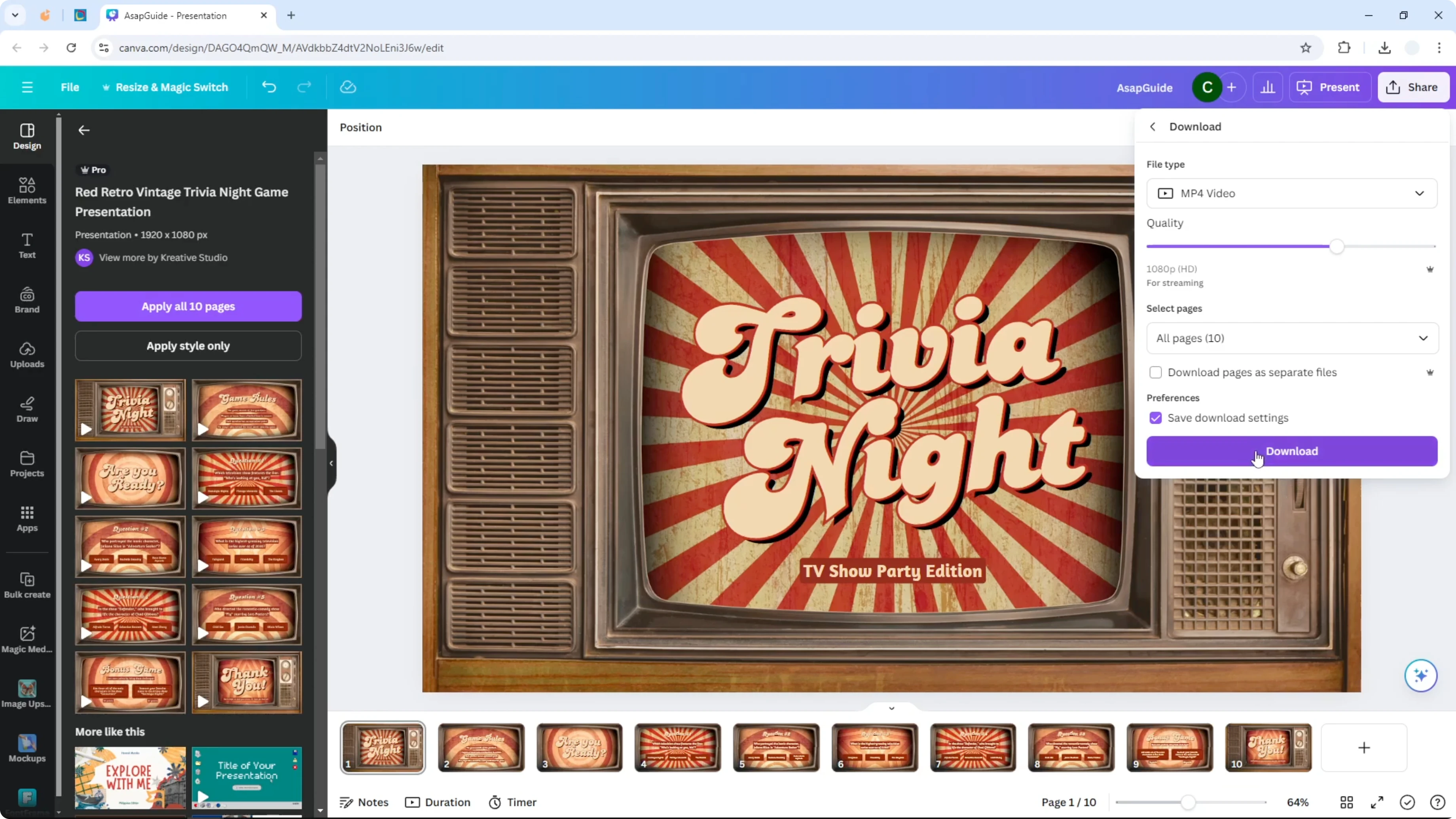
Choose the specific pages you want in the video.
Click Download.
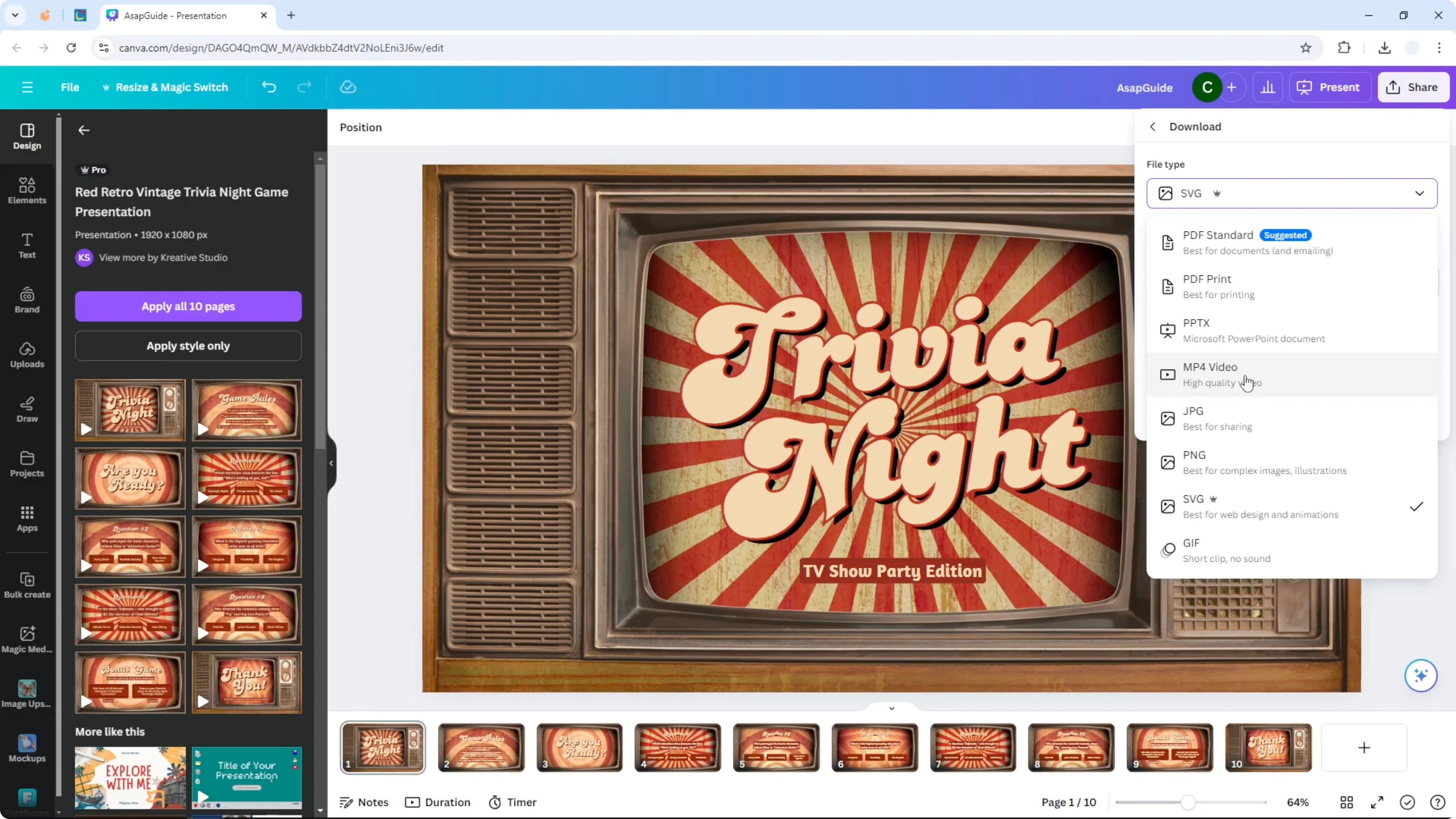
Wait while Canva renders the video.
Rendering can take time because it is creating a full video file.

What to Expect After Export
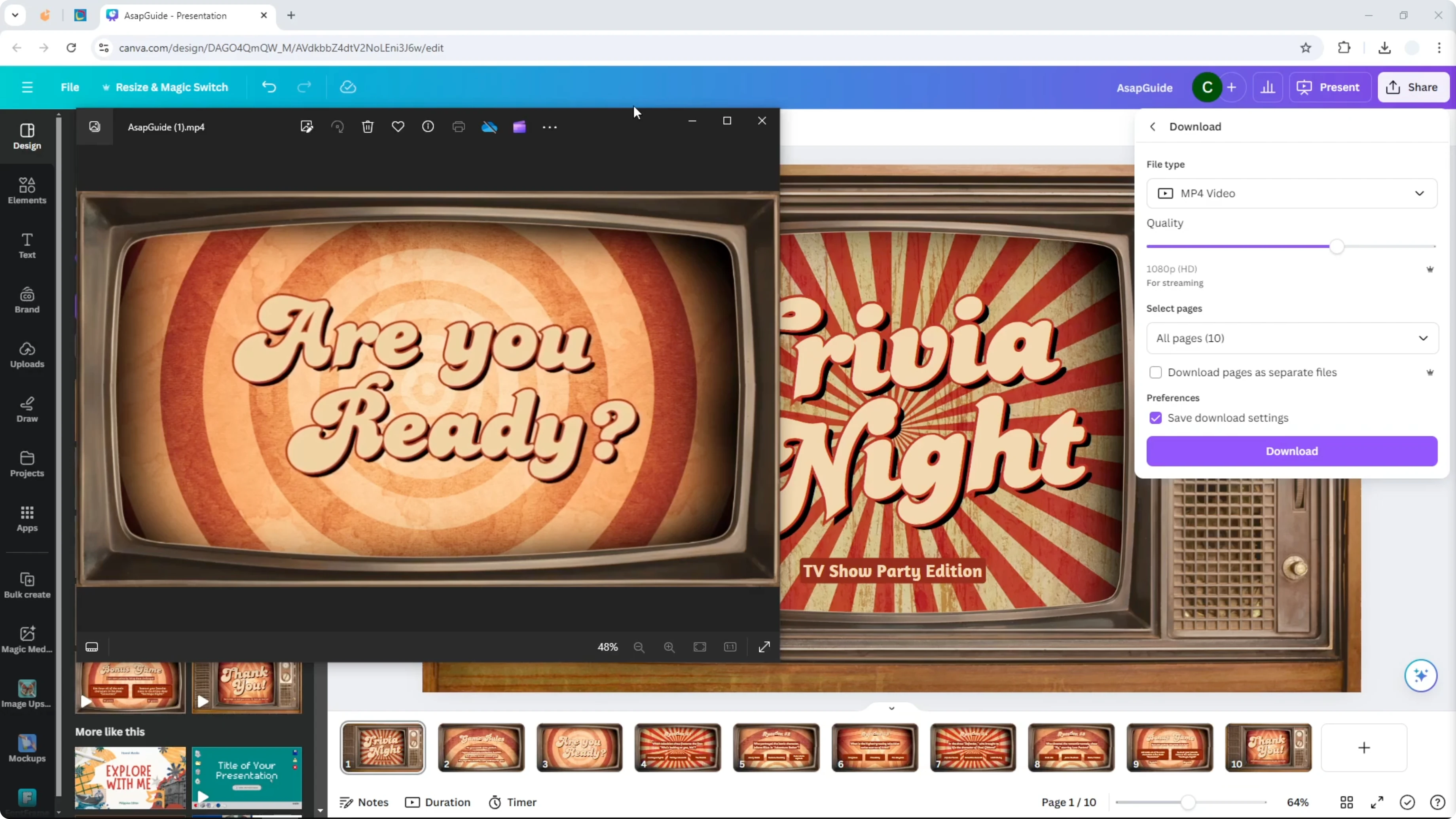
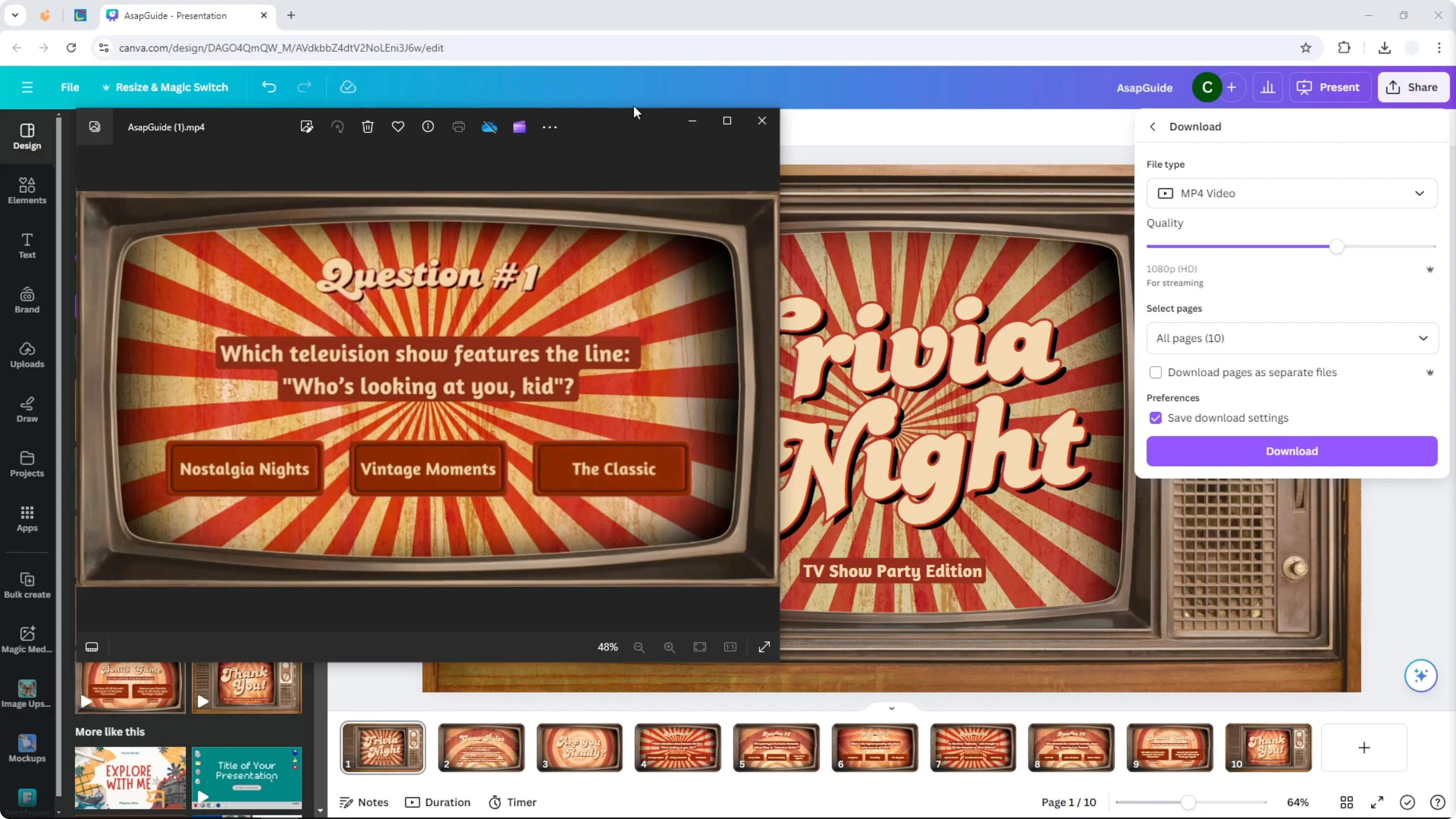
The MP4 will play automatically with a default duration per slide. Animations run the same way they do in Canva, and timing feels natural out of the box. Your animations are preserved and play as a video.
If you use motion elements, you can also add GIFs to your Canva slides to enhance visual movement before exporting.
Final Thoughts
Exporting to PowerPoint will not carry over Canva animations. MP4 is the practical path to keep animations and audio in place. Export as MP4 for a clean, animated presentation you can play anywhere.
Recent Posts

How to Visualize Yourself as a Pixelized Character with AI?
How to Visualize Yourself as a Pixelized Character with AI?

How to Revive Faded Memories and Enhance Image Clarity with AI?
How to Revive Faded Memories and Enhance Image Clarity with AI?

How to Visualize Yourself as an Animal Crossing Character with AI?
How to Visualize Yourself as an Animal Crossing Character with AI?