How to Delete Background in Canva
I’m going to show you how to delete the background of your Canva design. This works for a solid color, a gradient, or even an image. For AI-powered photo background changes, see this guide.
Delete Background in Canva: Direct Selection
If you can identify the background, you can select it and remove it quickly.
Direct selection steps
Click the background.
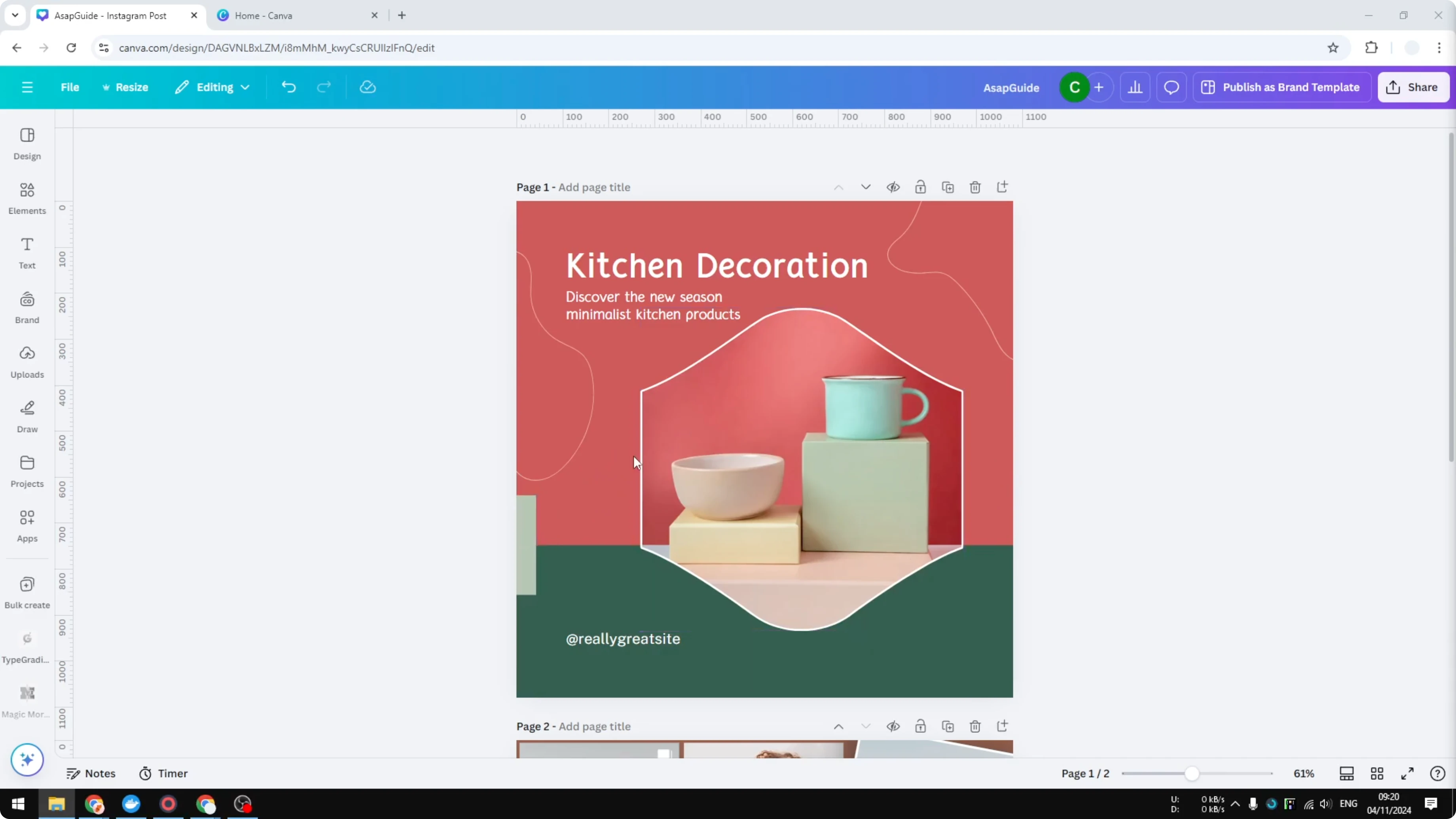
A thin purple border usually appears, which means the background is selected.
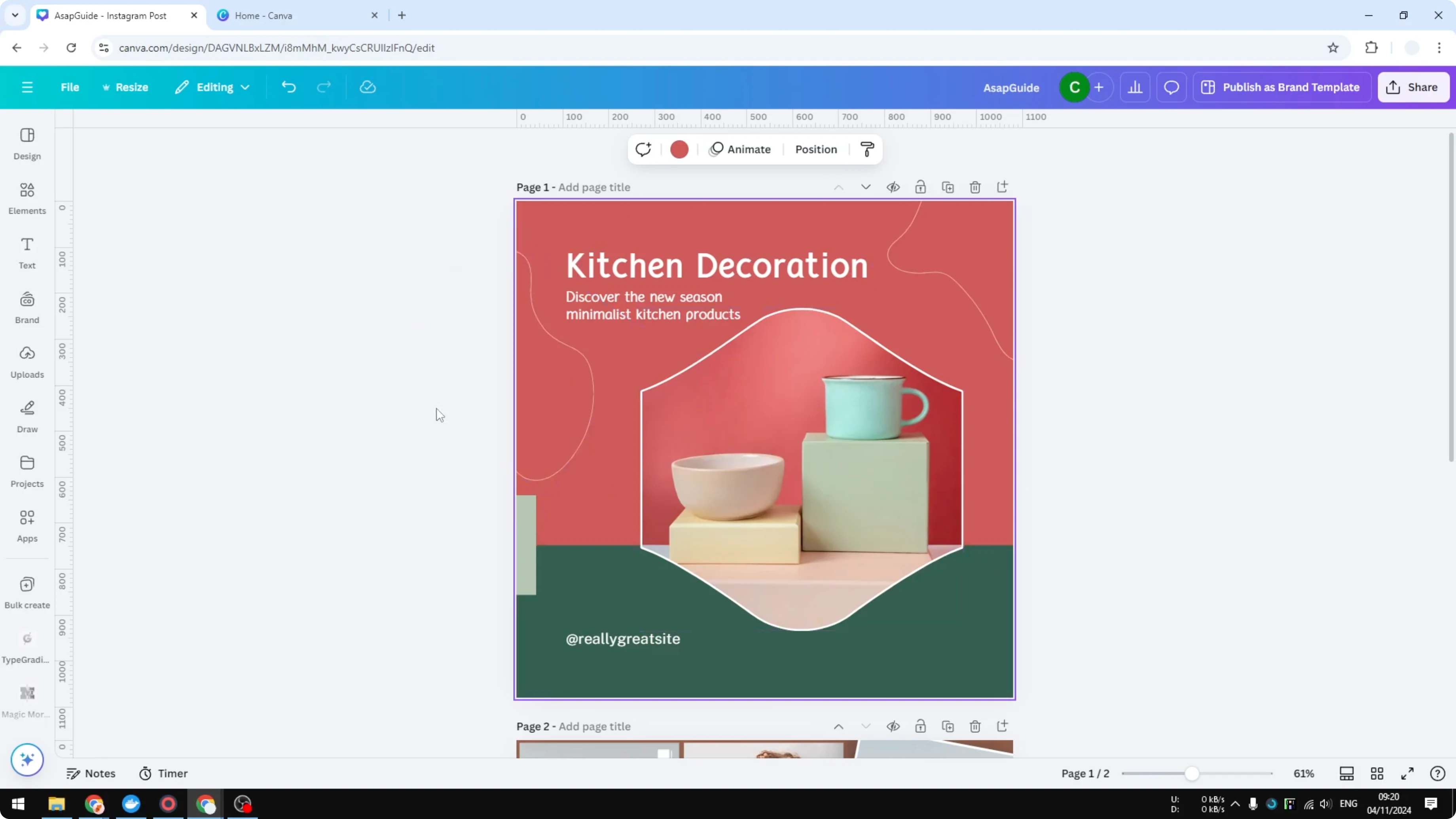
Right click and choose Delete background, or press Delete on your keyboard.
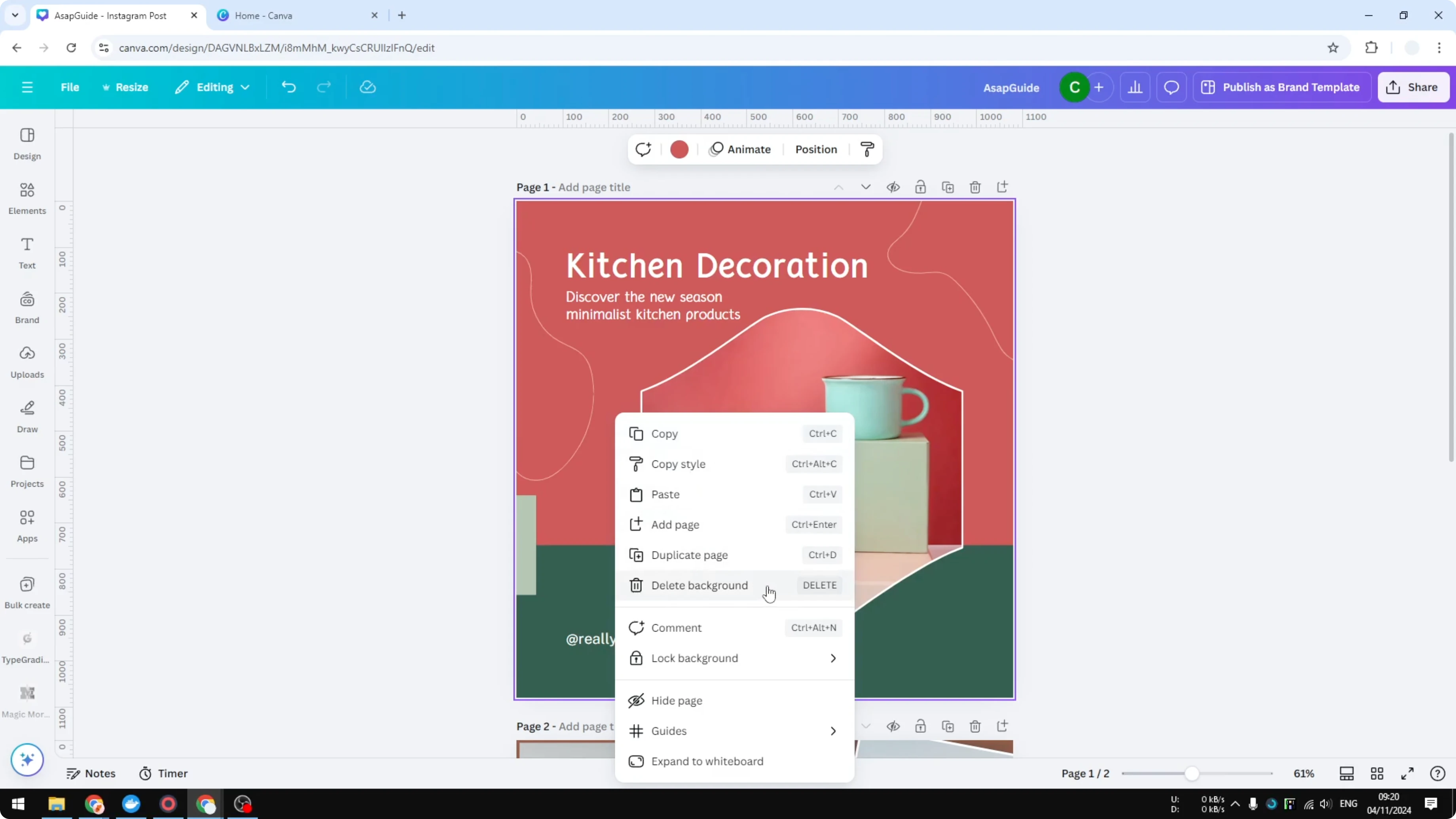
After deleting
The background is gone, and the other elements are still there.
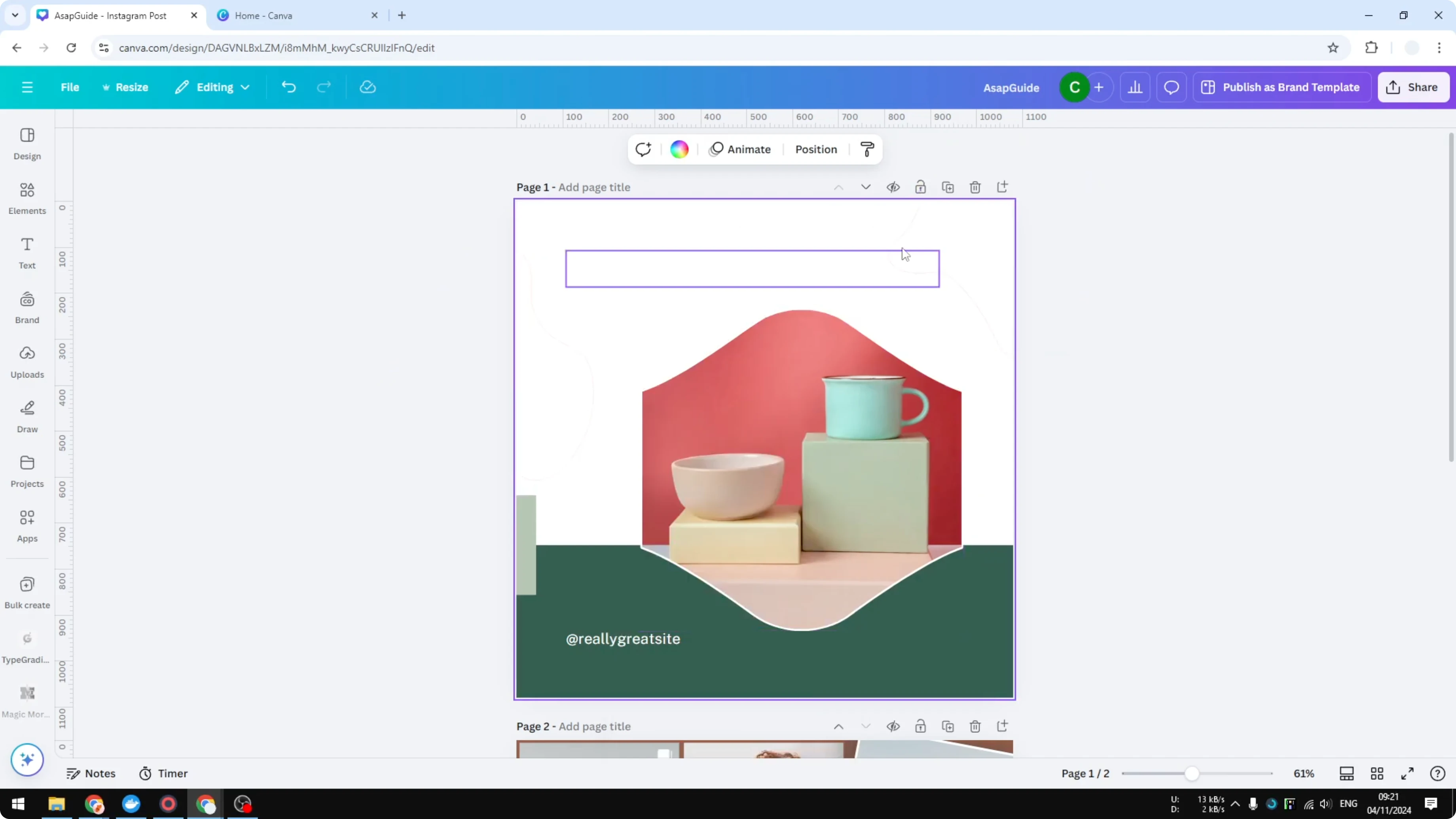
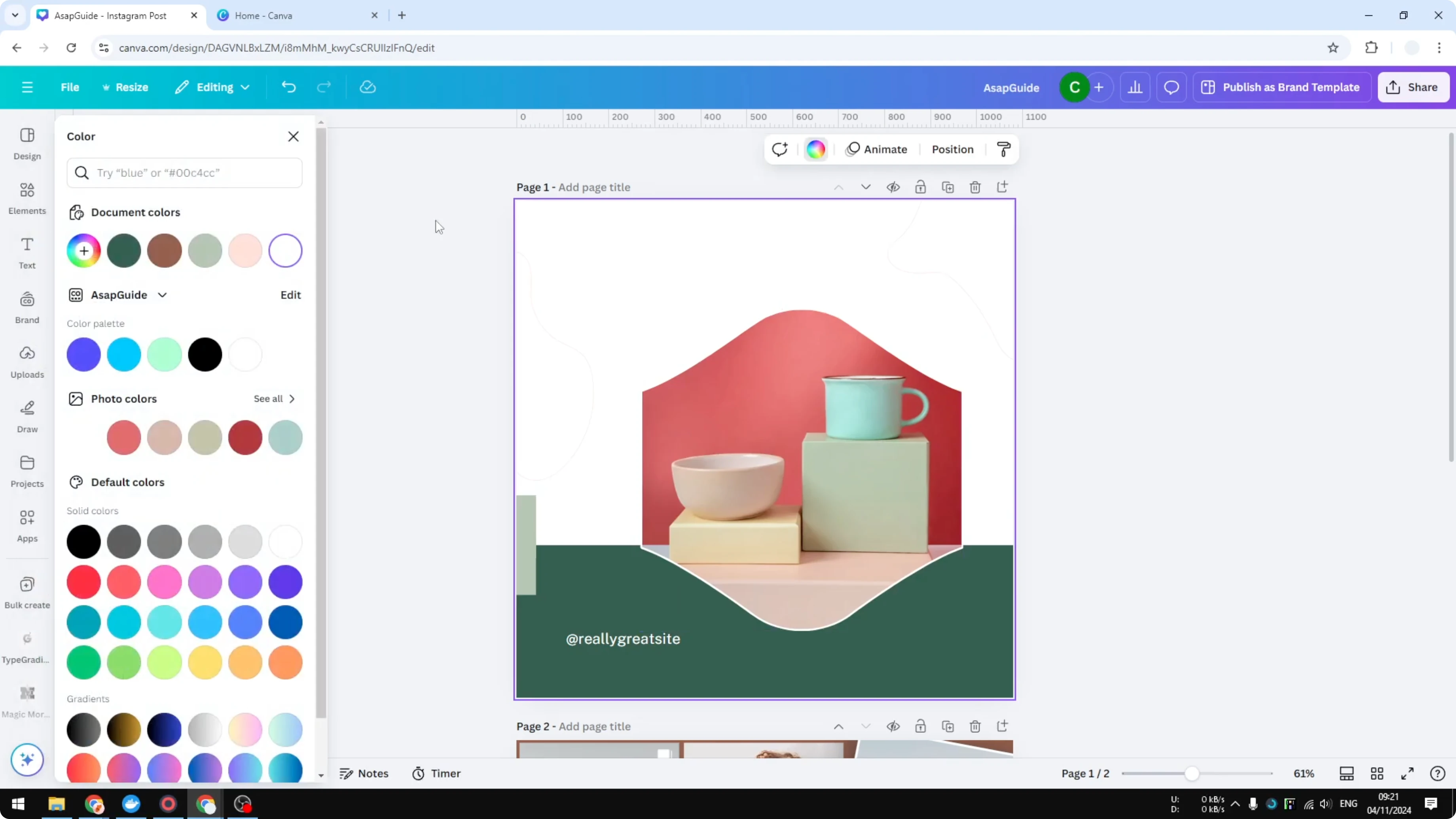
You can click the background color and change it to any color you think fits the design best.
If you want styled background text instead of a solid fill, check out this background text tutorial.
Delete Background in Canva: When You Can’t Select It
If you can’t access the background because many elements are on top, I recommend this method.
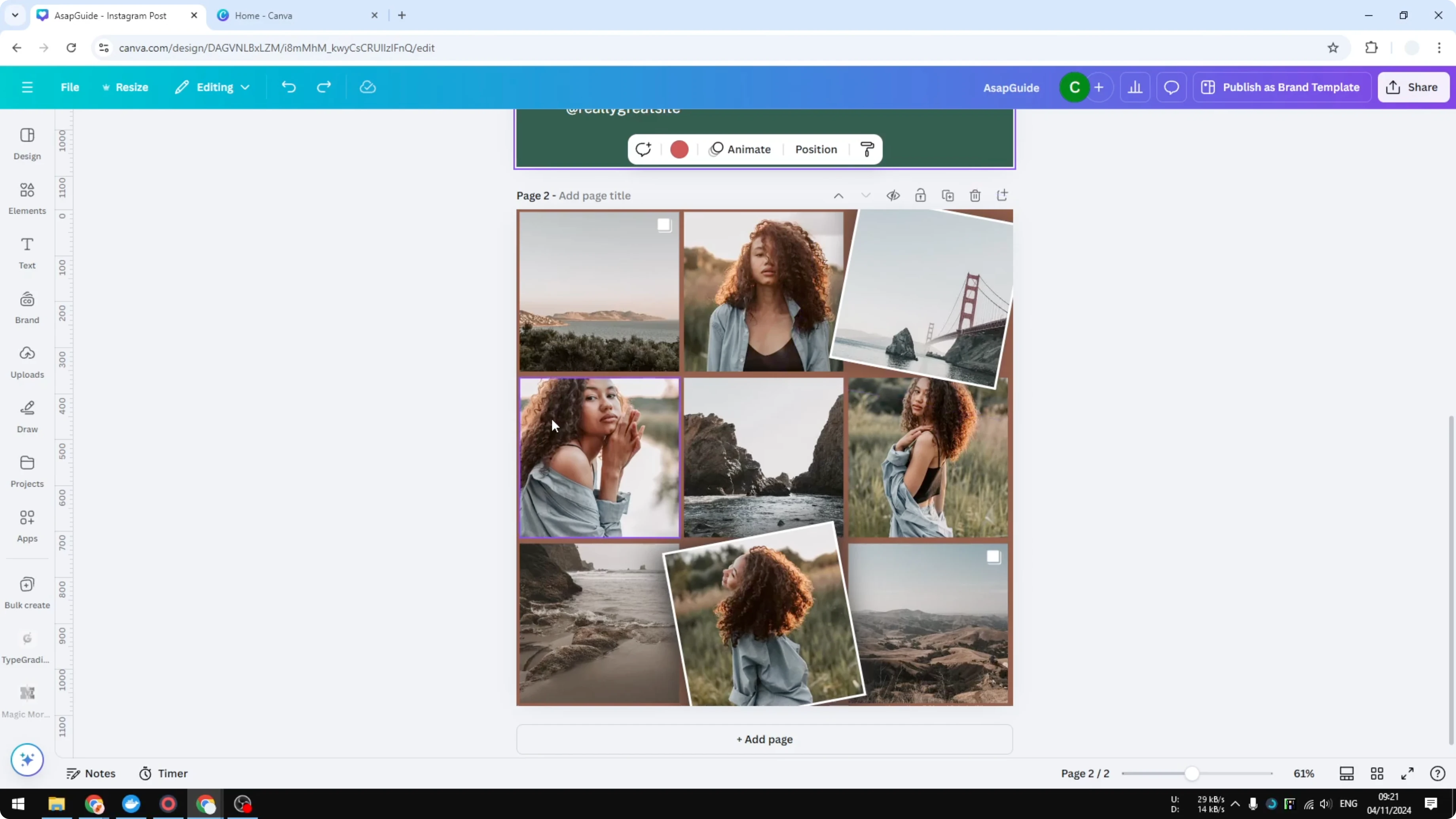
Open Layers
Click any element on the page.
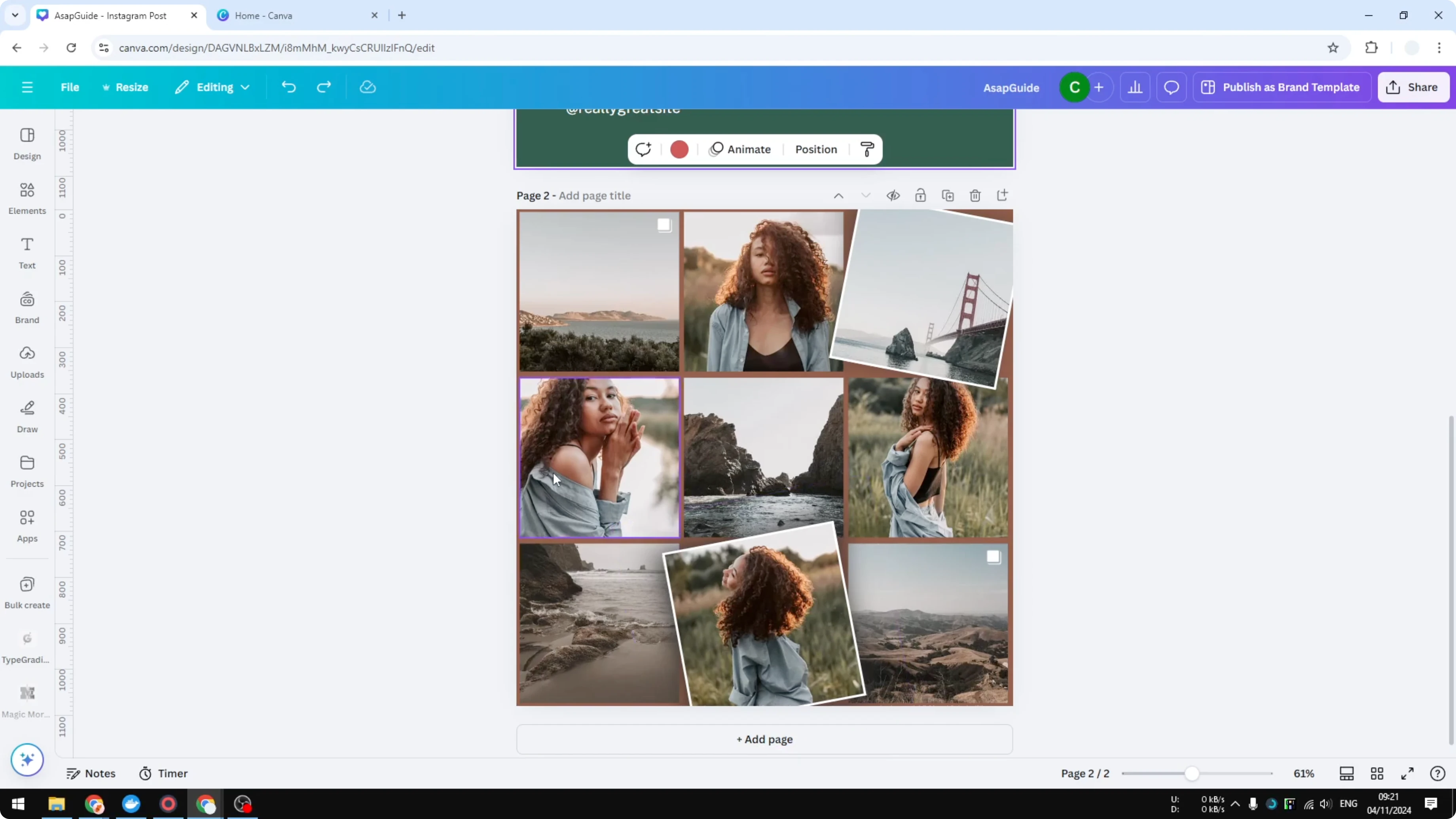
Click Position and go to Layers.
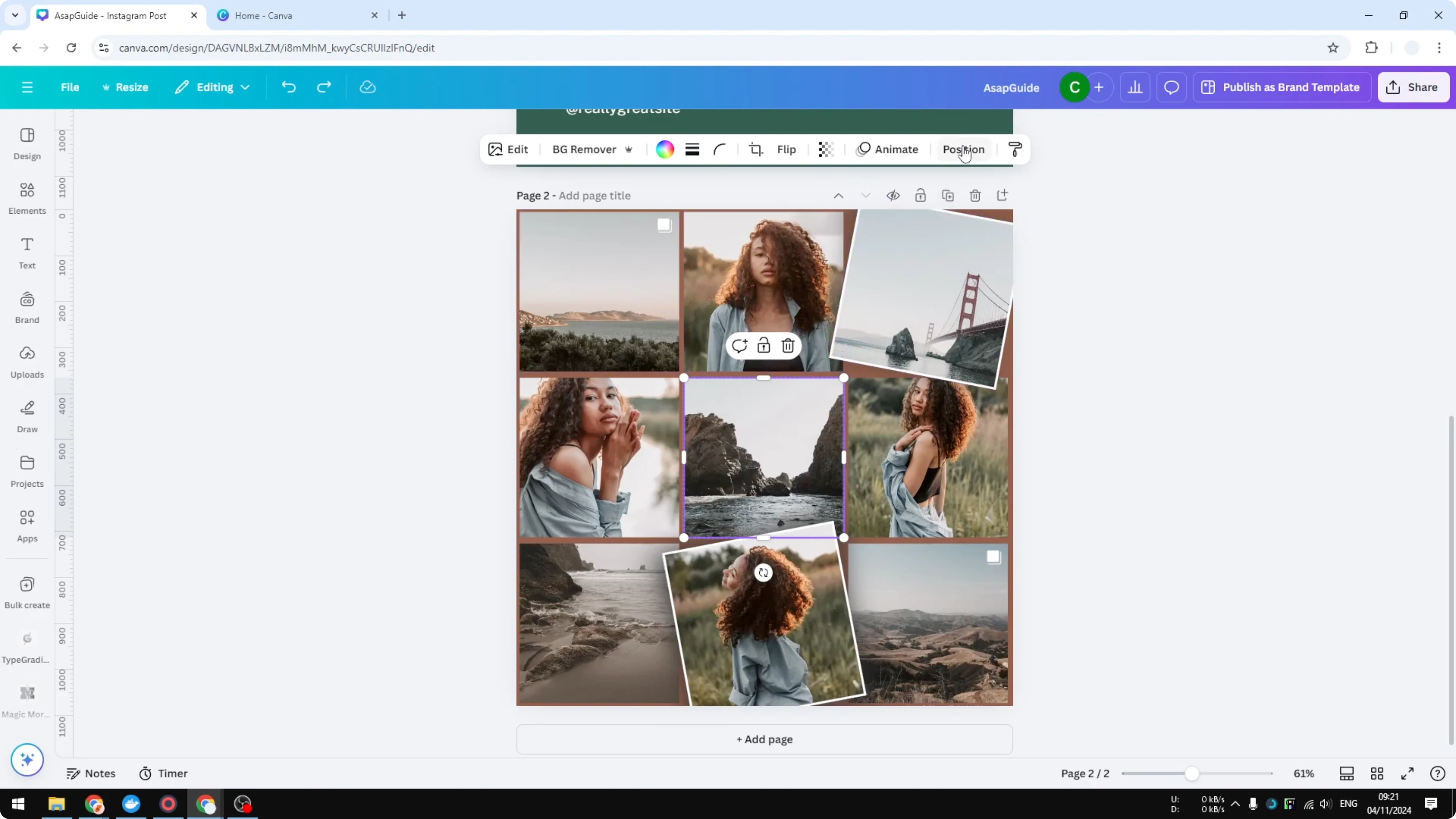
Select the background layer
Scroll to the very bottom until you find the layer with the background icon. This is usually the background. That icon means it’s the background layer.
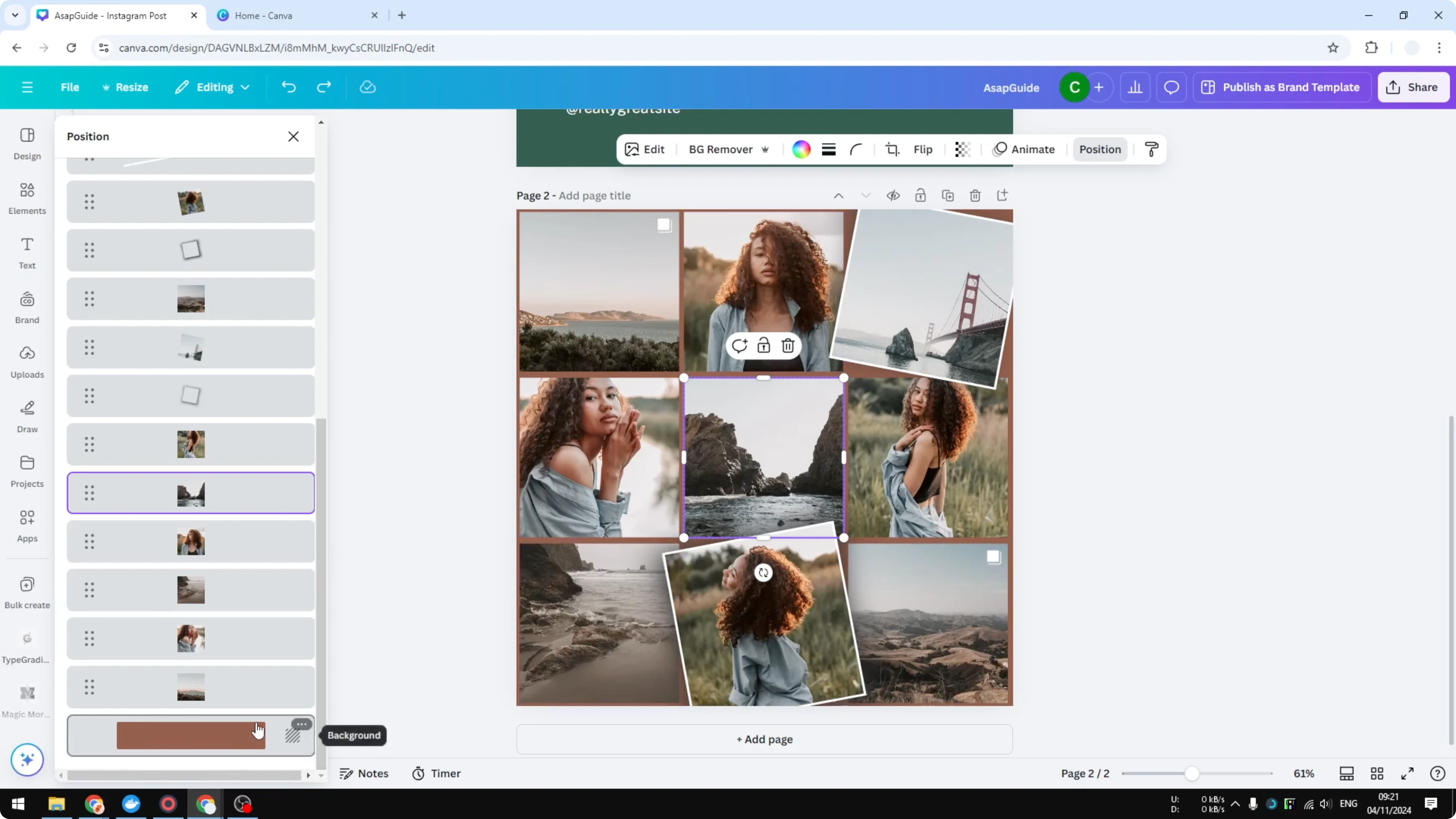
Delete from Layers
Click the background layer.
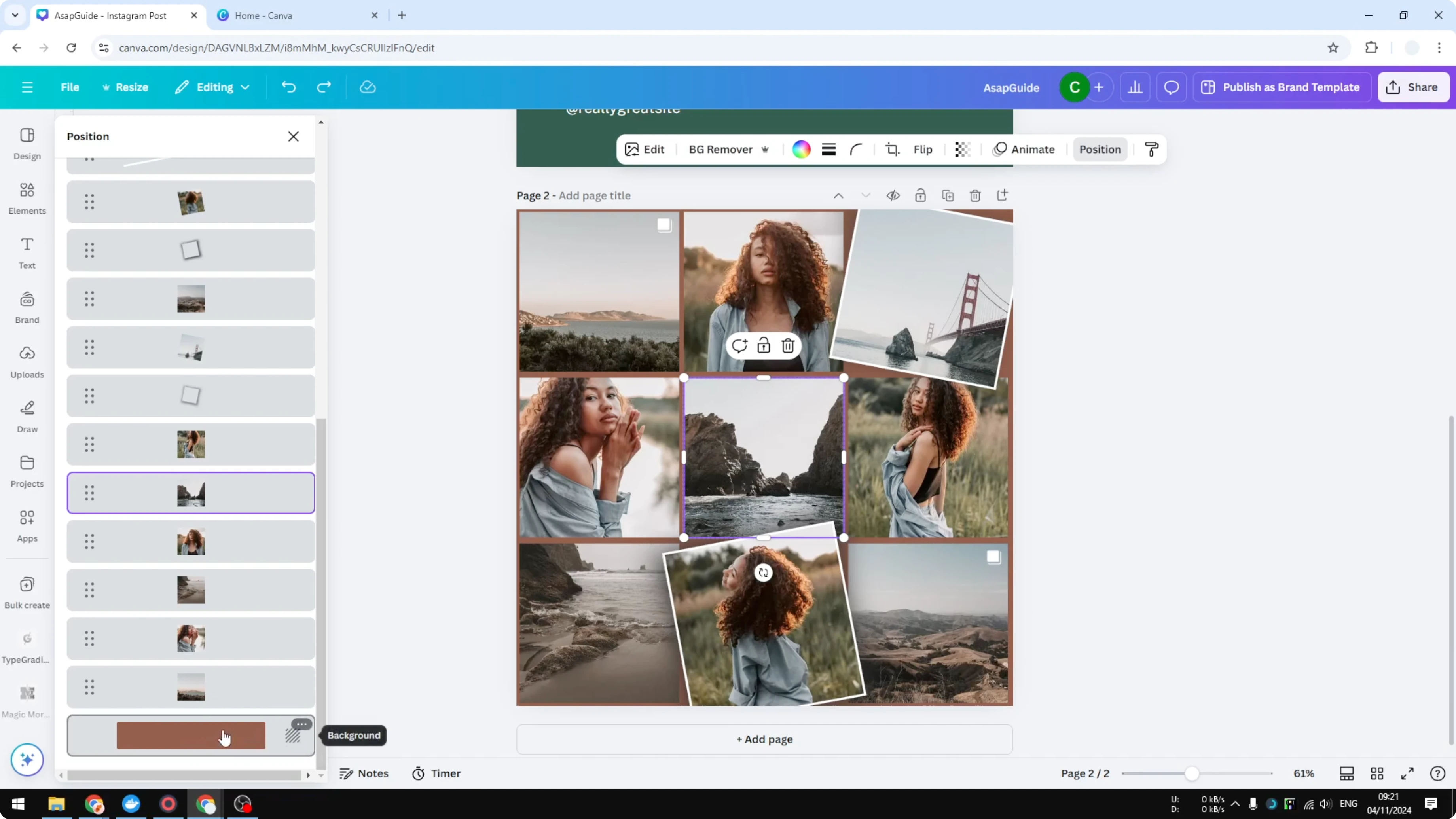
Right click and click Delete background, or press Delete on the keyboard.
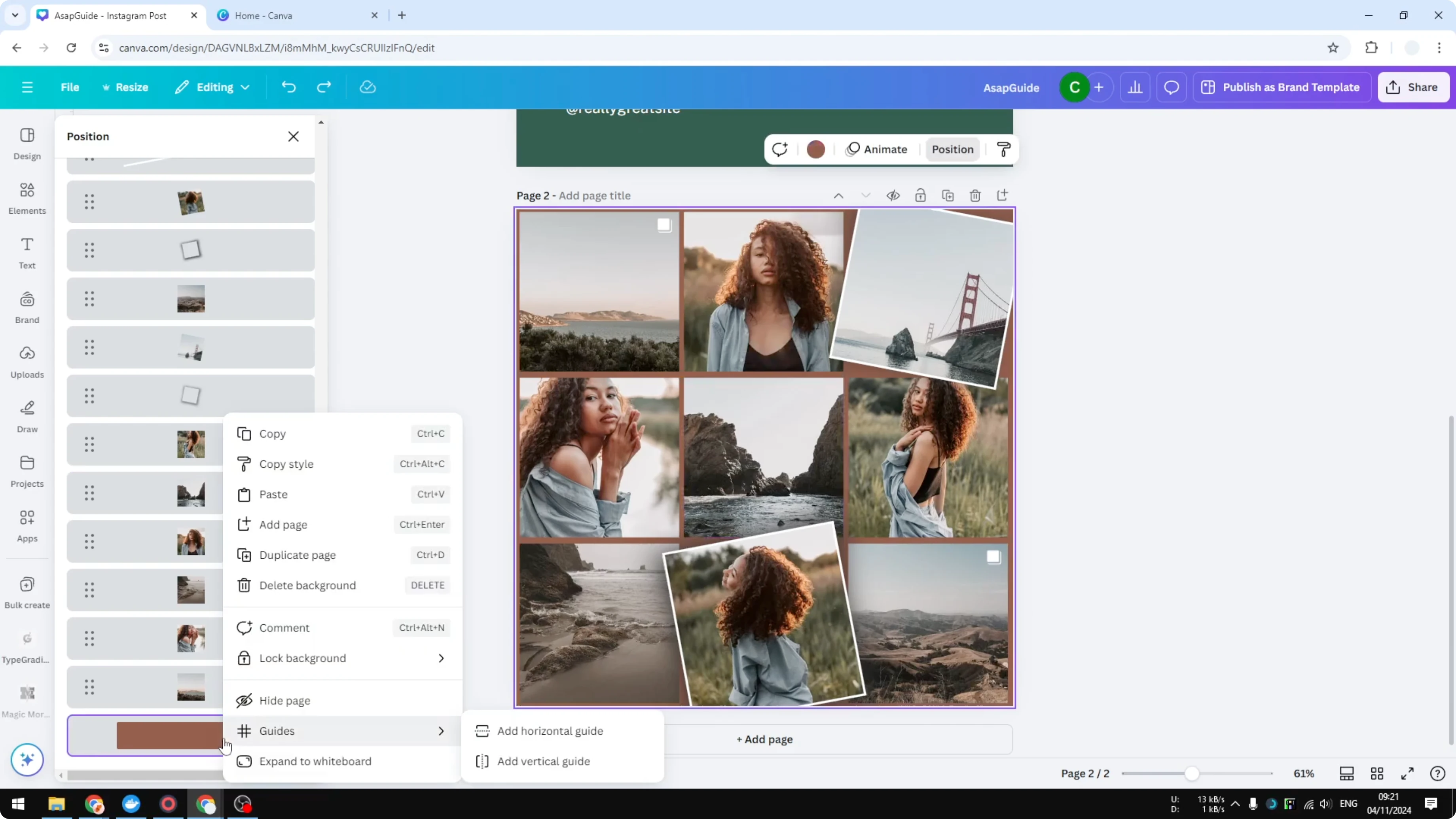
This works even if the background was an image.
Related edits for Delete Background in Canva
For changing video backgrounds with AI in Canva, see this tutorial.
Final thoughts on Delete Background in Canva
You can delete a background by selecting it directly or by targeting it from the Layers panel when it’s covered by other elements. Both approaches work for solid colors, gradients, and images.
Recent Posts

How to Visualize Yourself as a Pixelized Character with AI?
How to Visualize Yourself as a Pixelized Character with AI?

How to Revive Faded Memories and Enhance Image Clarity with AI?
How to Revive Faded Memories and Enhance Image Clarity with AI?

How to Visualize Yourself as an Animal Crossing Character with AI?
How to Visualize Yourself as an Animal Crossing Character with AI?