How Do I Crop a Shape in Canva

Here is how I crop a shape in Canva without running into the usual limitations.
How Do I Crop a Shape in Canva - images vs shapes
I placed two elements on the canvas, one normal image and one shape.
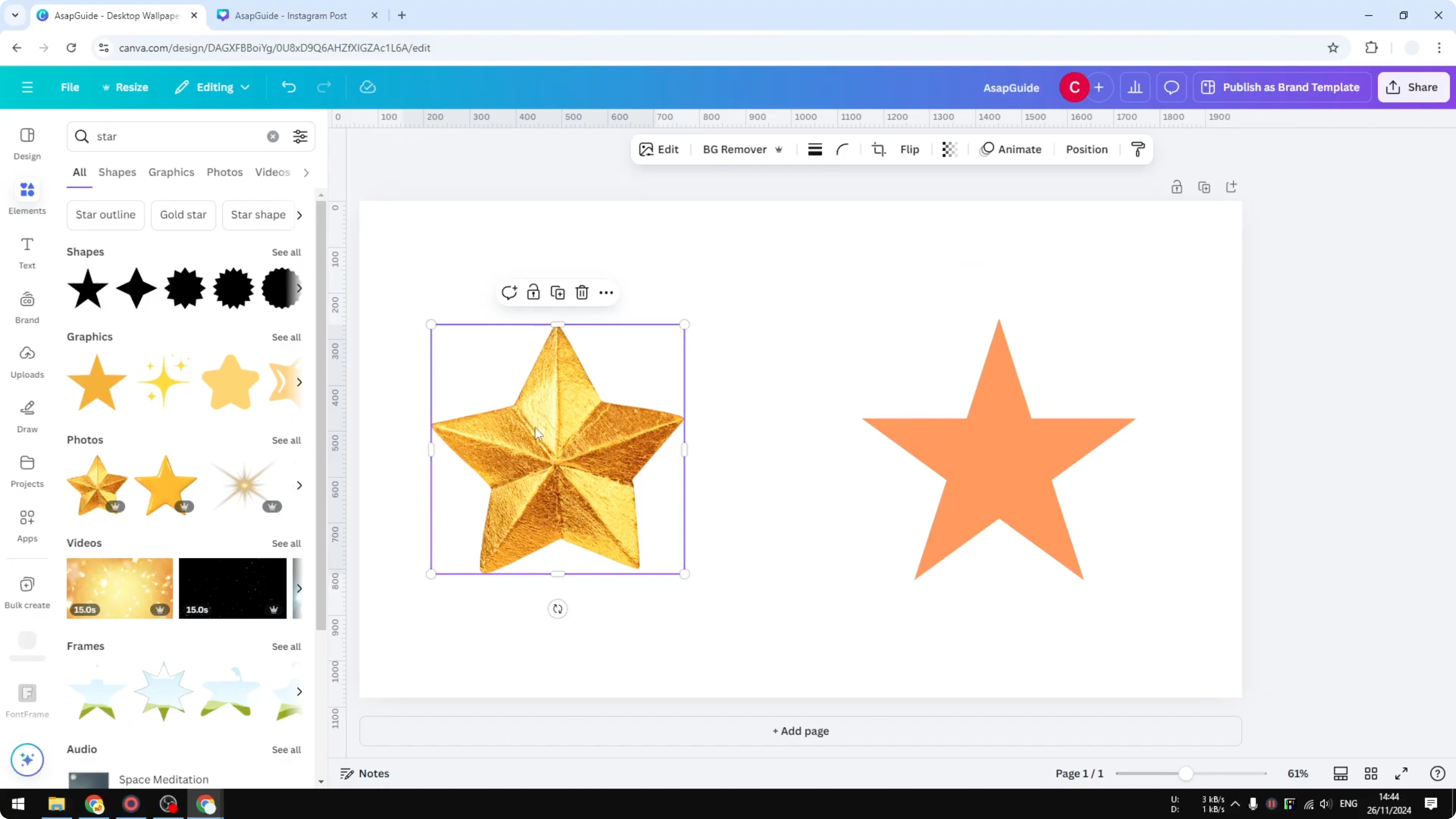
On a normal picture you can crop it to any area you like.
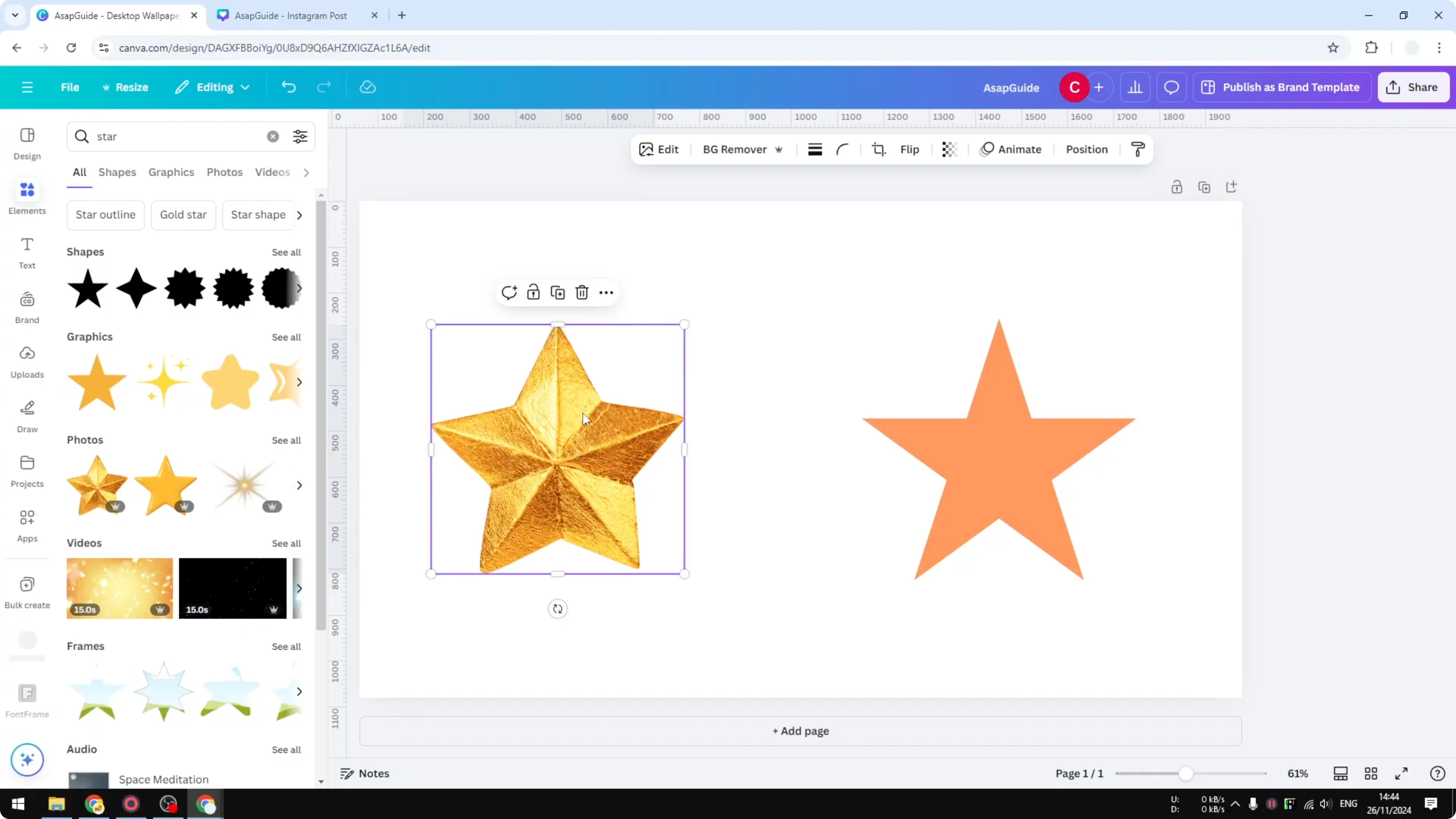
To show half of a star in a photo, click the image, drag the crop handle to the left, and you will get a half-star look.
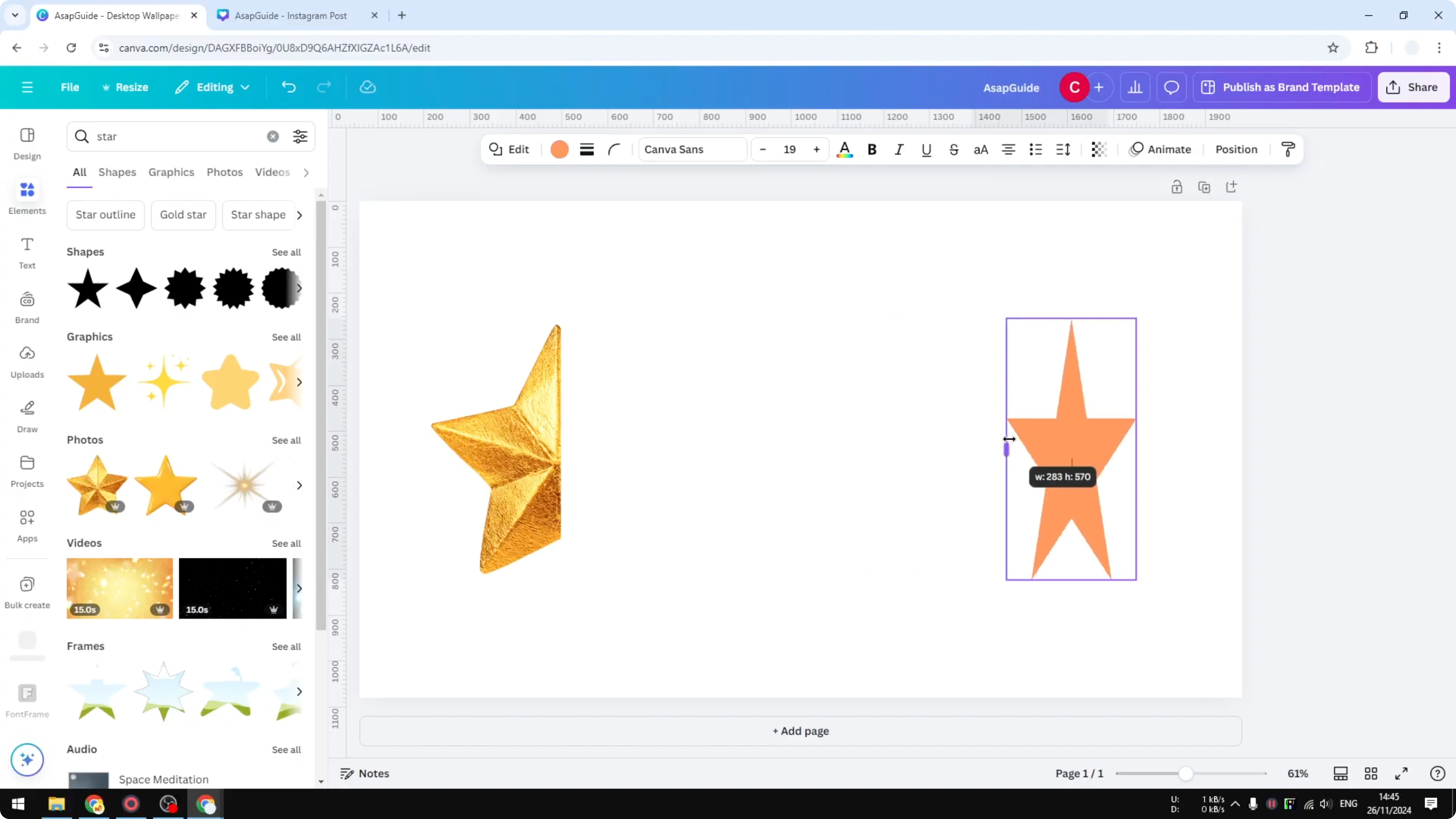
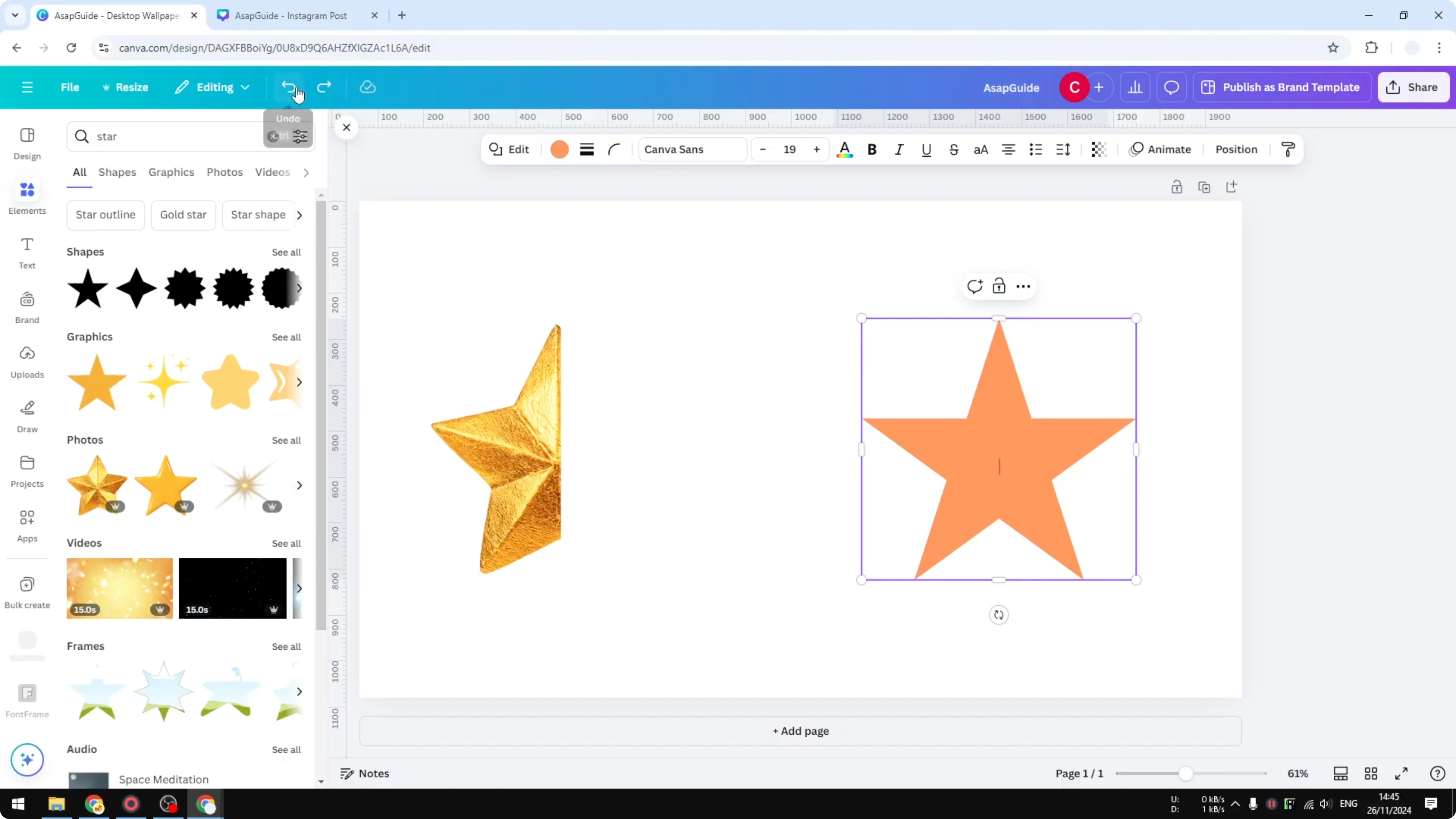
Doing the same on a shape just makes the shape thinner, and it does not actually crop the shape.
How Do I Crop a Shape in Canva - quick mask method
Add another shape on top that matches your background to hide the part you do not want.
Insert a square, set its color to match the document background, and position it to cover the unwanted side of the star shape.
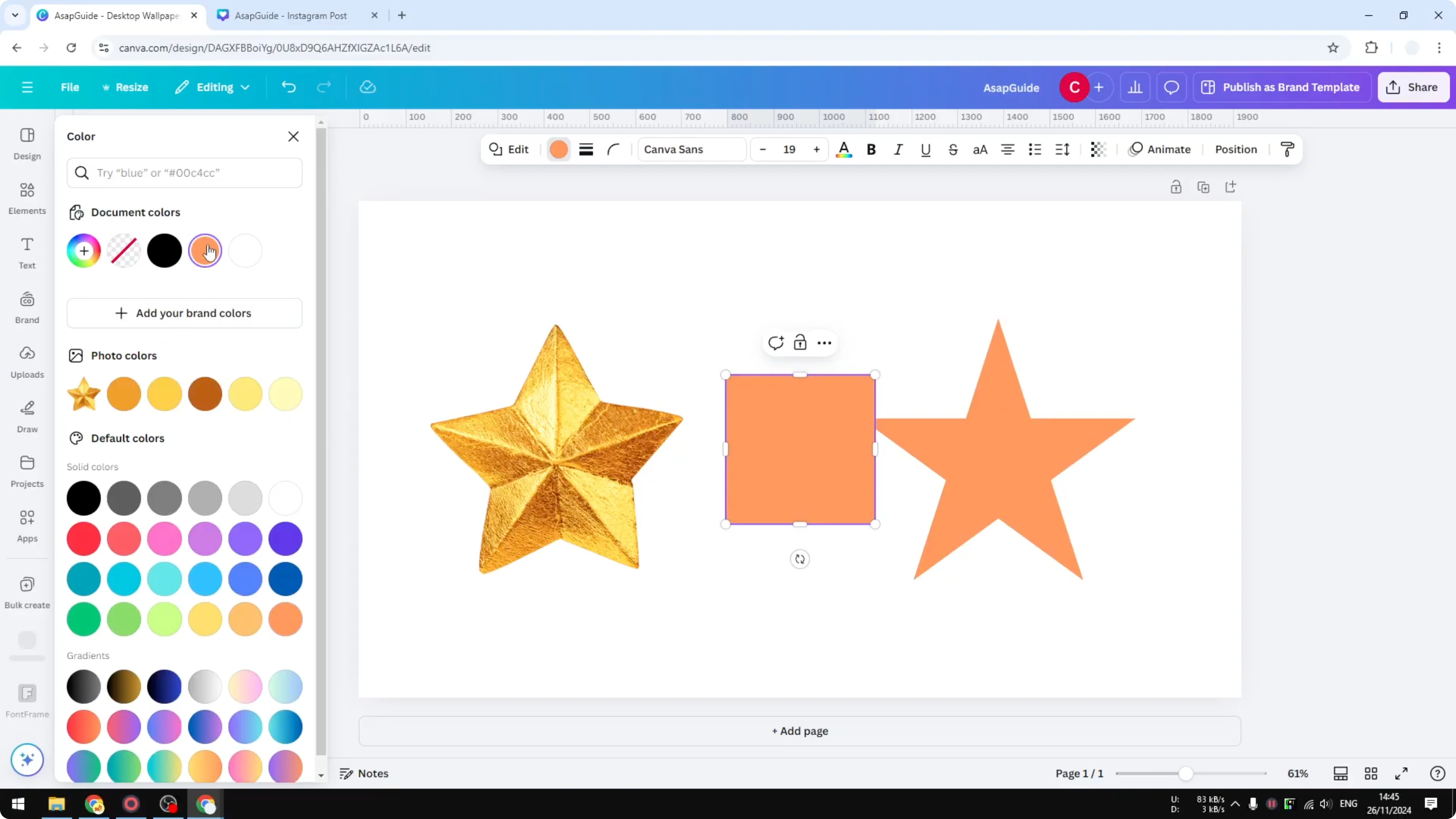
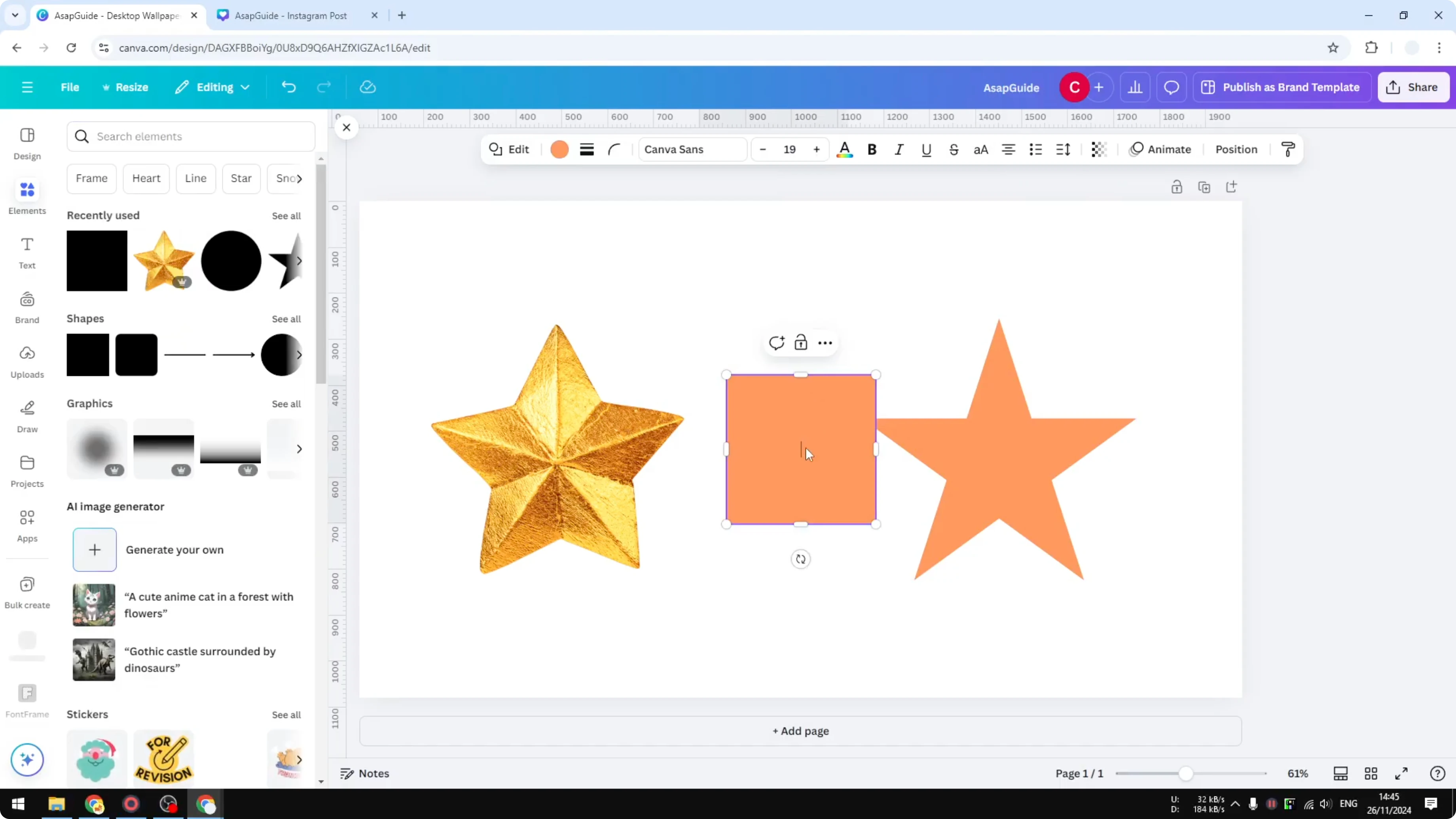
This mimics a crop by obscuring the shape, though it is not true cropping and may not fit every design.
If you need to edit moving footage, see crop a video.
How Do I Crop a Shape in Canva - convert to image
For full control, convert the shape into an image and then crop that image.
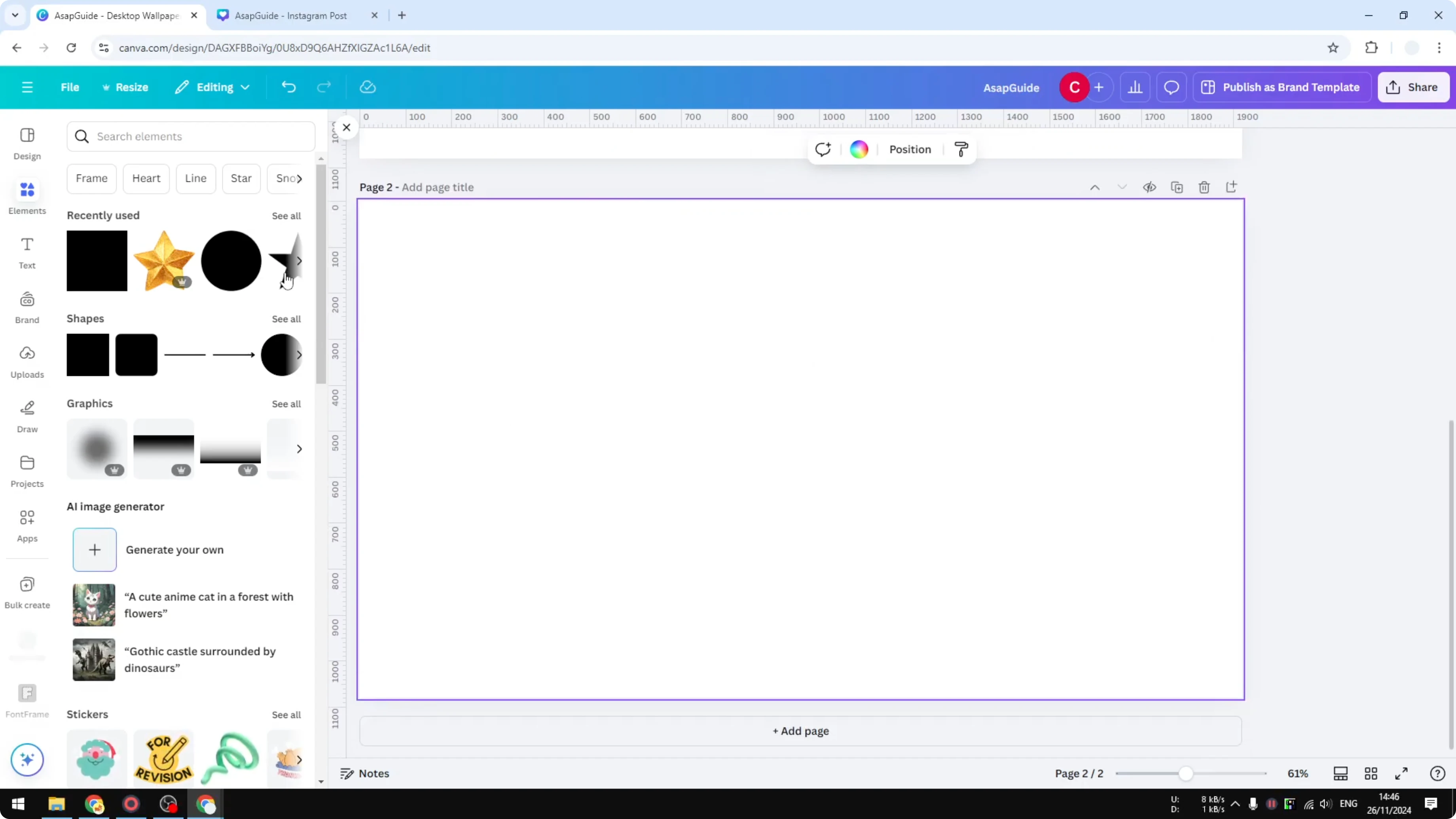
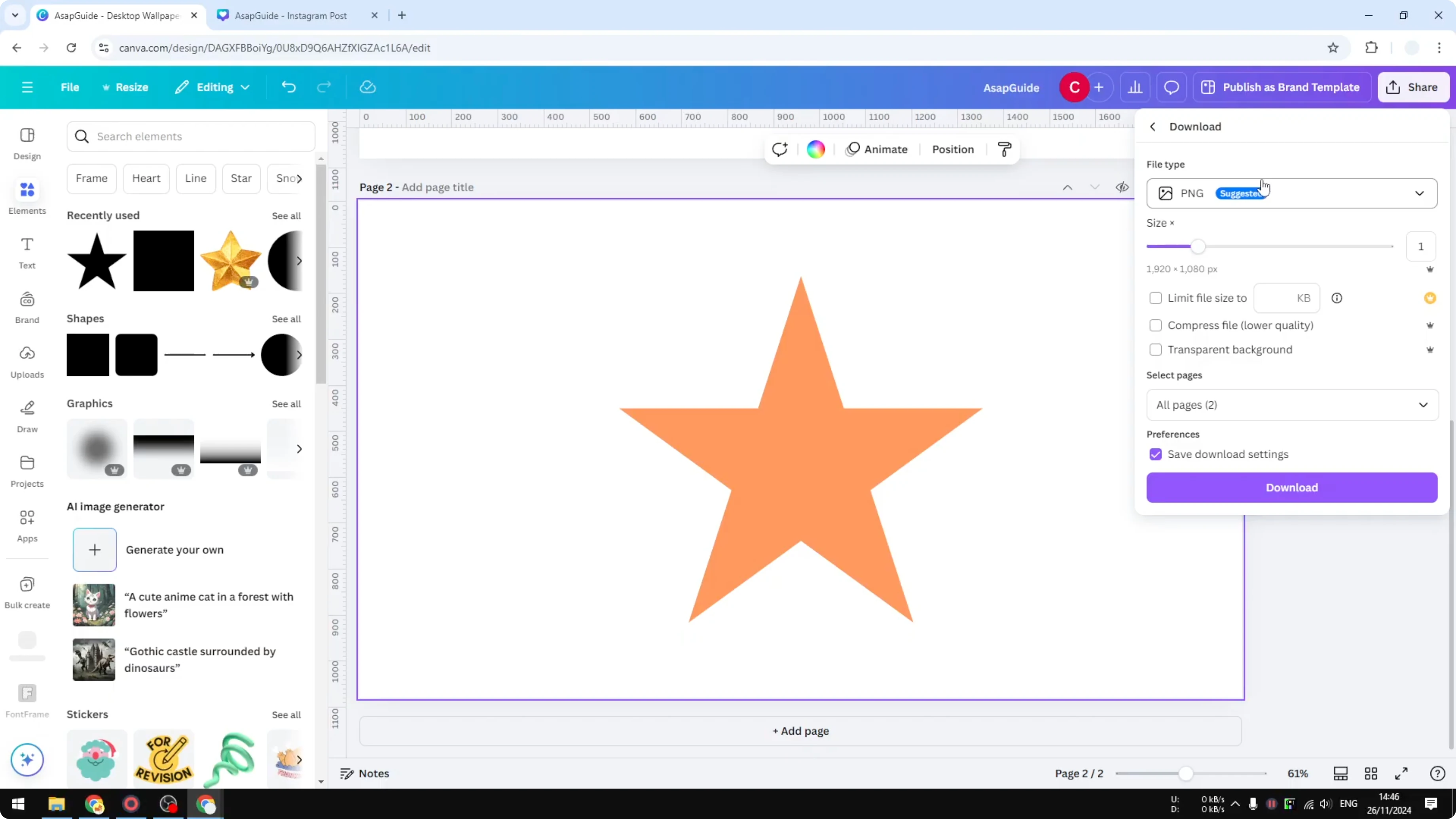
Add a new page and place the star shape on it.
Open Download, choose PNG, enable Transparent background, select the page you just added, and download.
Delete the original shape and upload the exported PNG as an image.
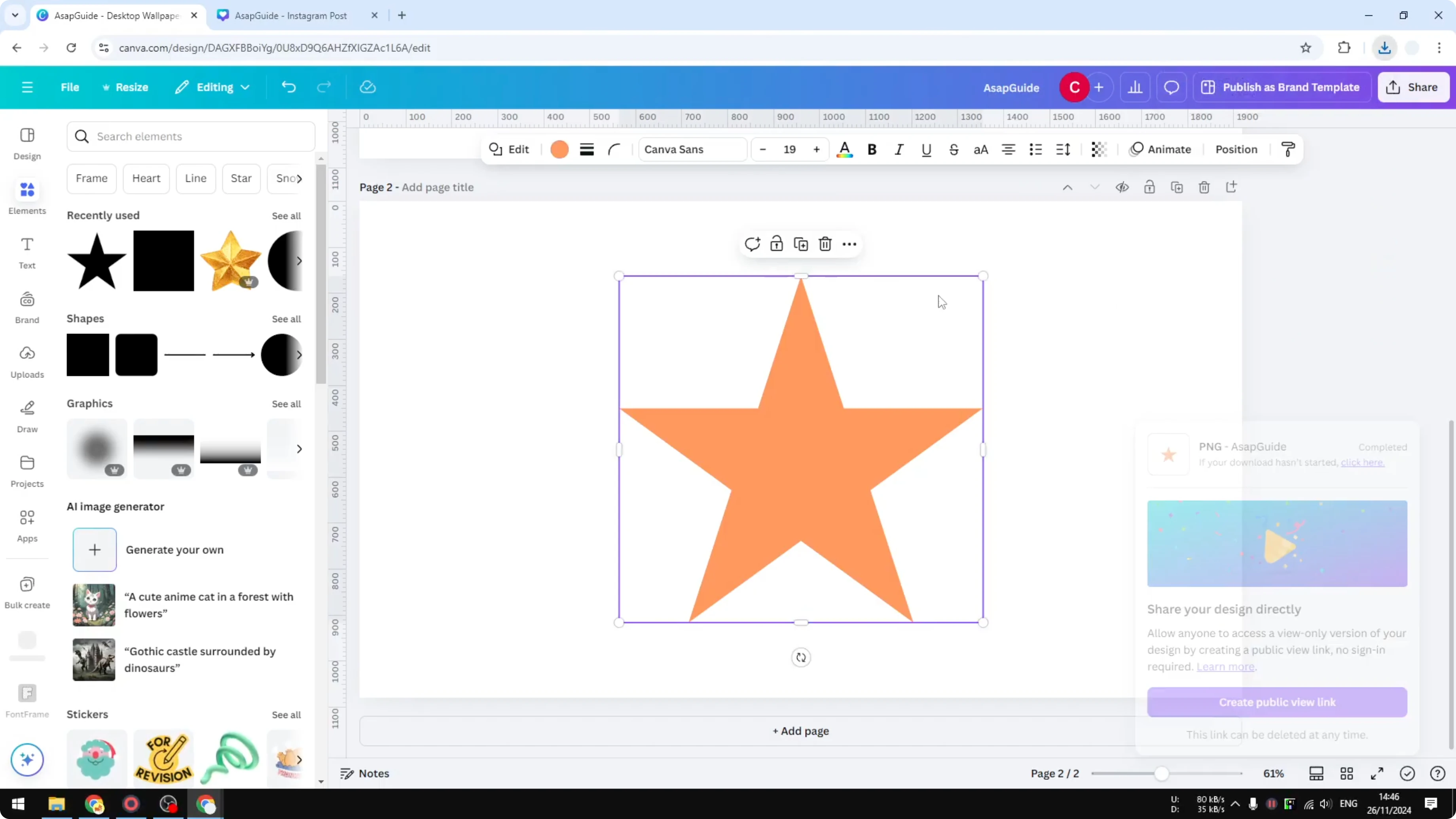
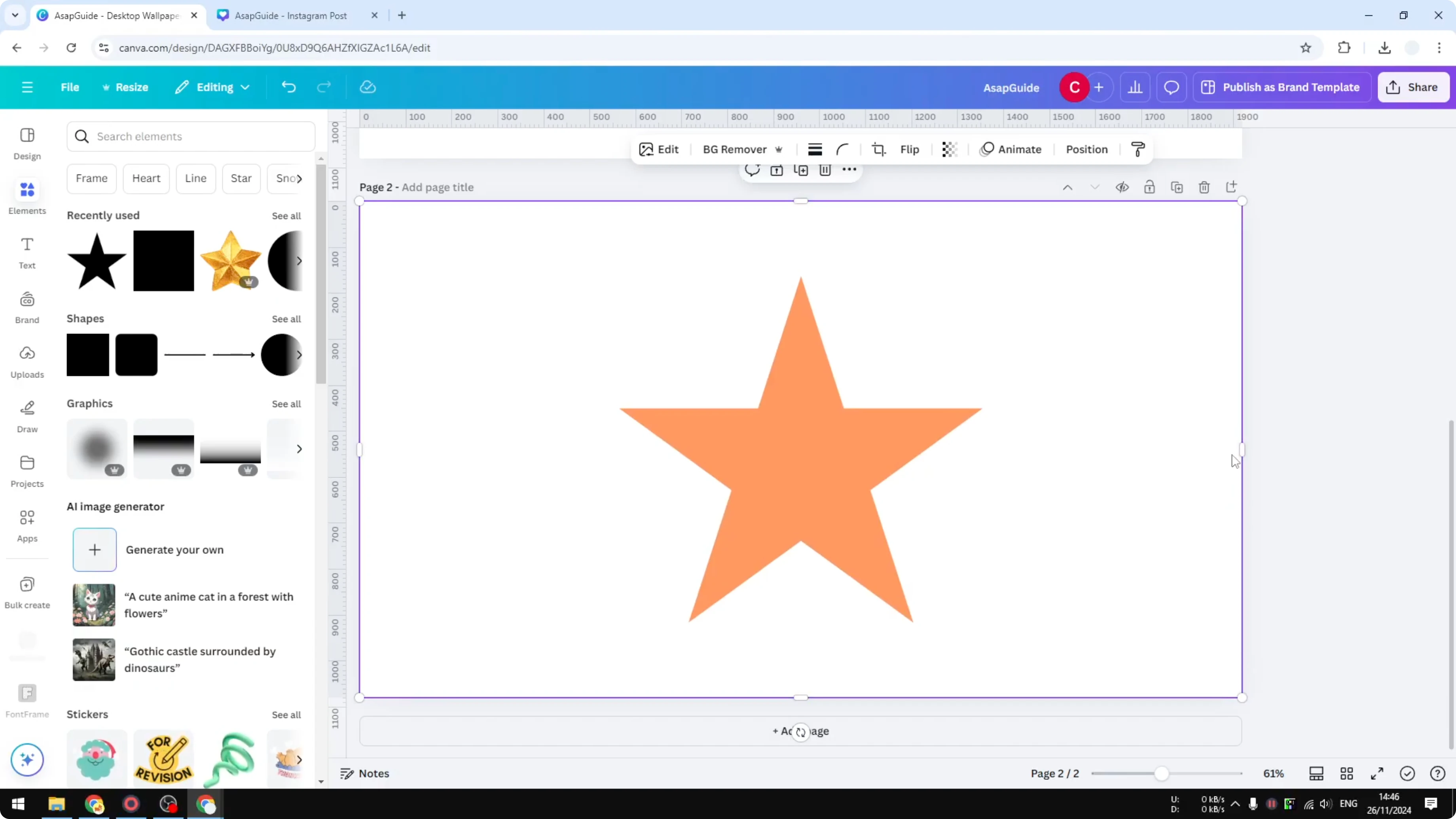
You are now working with an image, so you can crop it freely to different dimensions or aspect ratios.
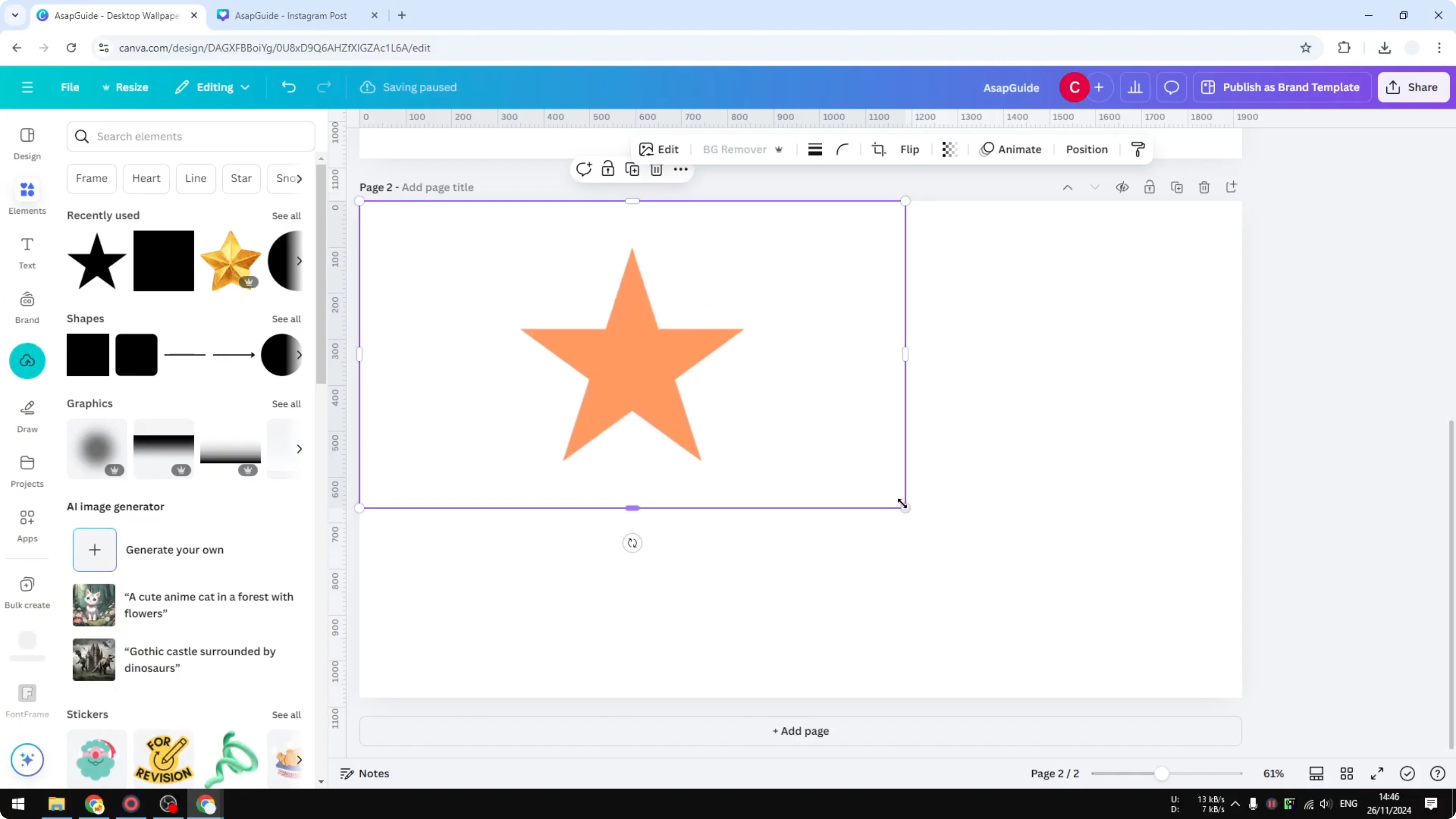
Crop the sides or the top area the same way you would crop any picture.
If you need to attach letters to shapes later, check text on shapes.
Final thoughts on How Do I Crop a Shape in Canva
Using a background-matched shape is fast for simple hides, but converting the shape to a PNG gives you real cropping and more customization.
I use the PNG method when I want precise control over edges and proportions.
For a related design task, see 3D cover.
Recent Posts

How to Visualize Yourself as a Pixelized Character with AI?
How to Visualize Yourself as a Pixelized Character with AI?

How to Revive Faded Memories and Enhance Image Clarity with AI?
How to Revive Faded Memories and Enhance Image Clarity with AI?

How to Visualize Yourself as an Animal Crossing Character with AI?
How to Visualize Yourself as an Animal Crossing Character with AI?