How to Crop Image Diagonally in Canva
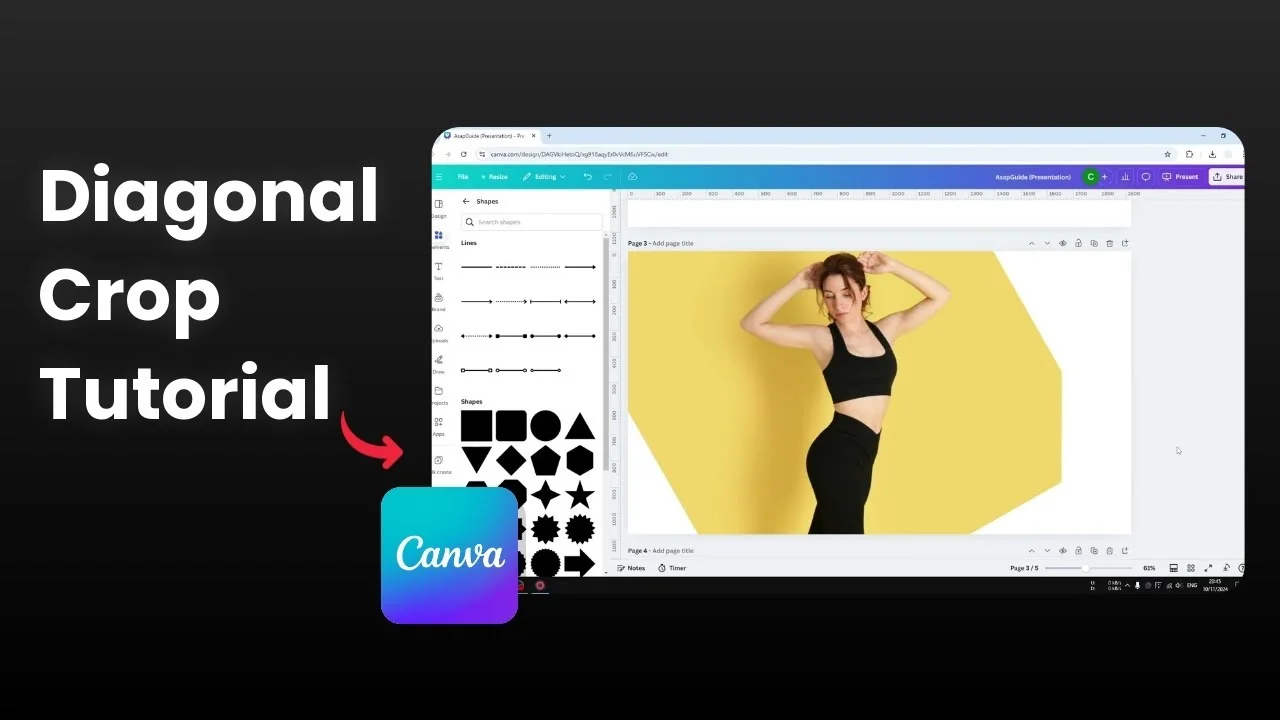
I’m going to show you how you can crop an image diagonally in Canva using three practical workarounds.
Cropping an image diagonally in Canva is not available natively on the platform. The only cropping you can do directly is vertical or horizontal. The corner handles are for resizing, not cropping.
Crop Image Diagonally in Canva - frames
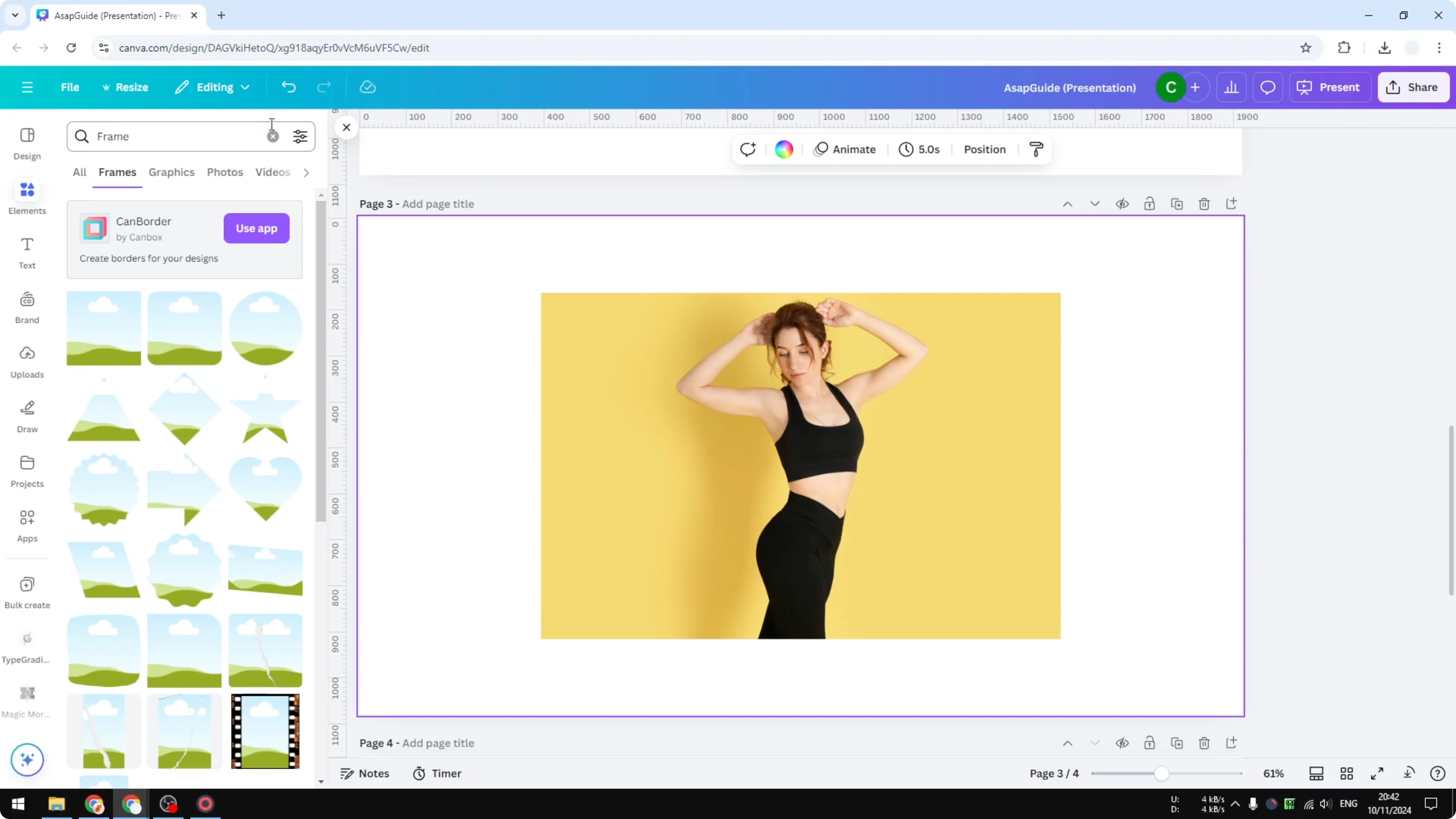
A frame works like an image placeholder that forces your photo to follow a shape. This lets you mimic a diagonal crop.
Go to Elements and search for Frame.
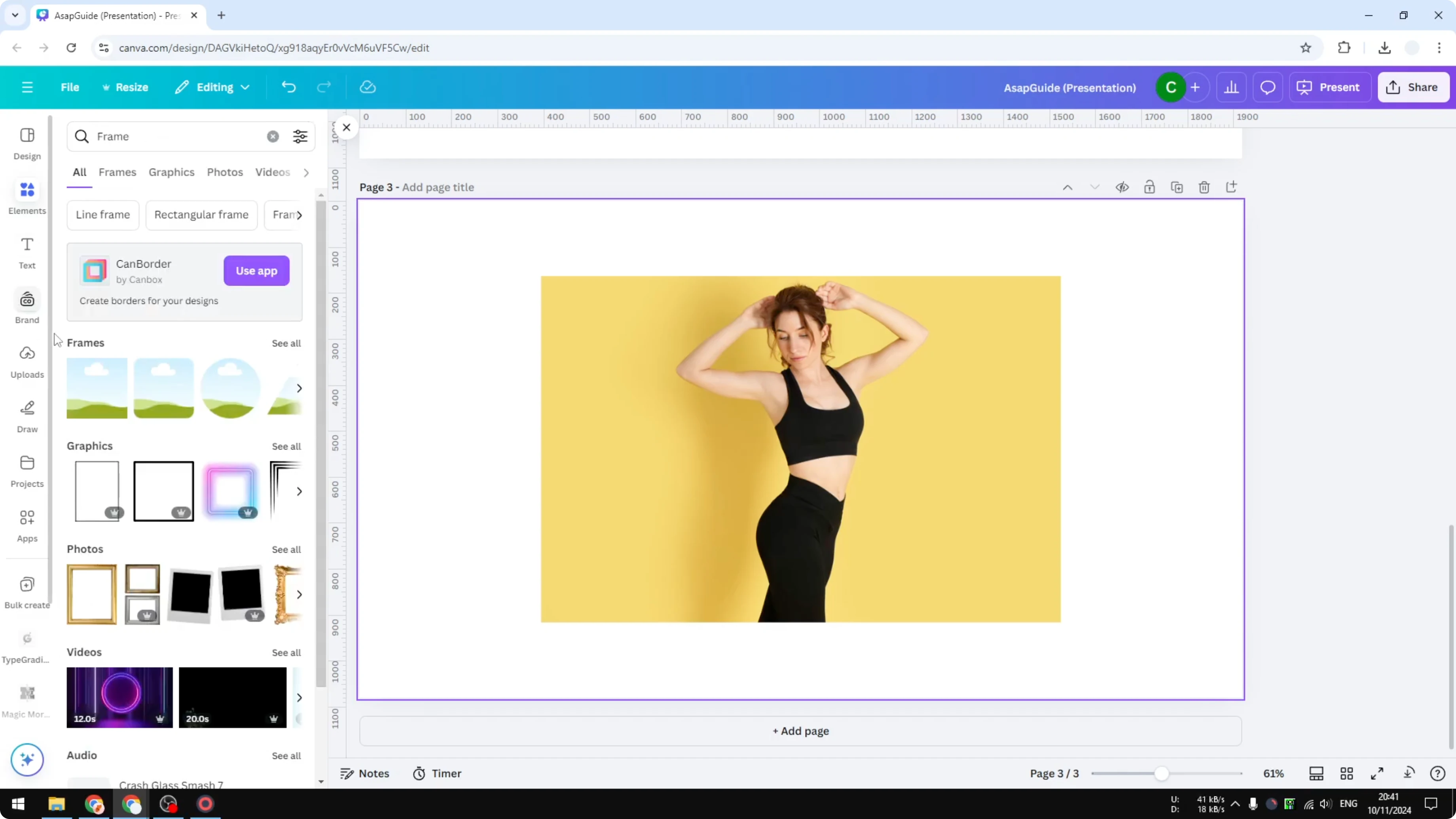
Click See all and insert a diamond frame.
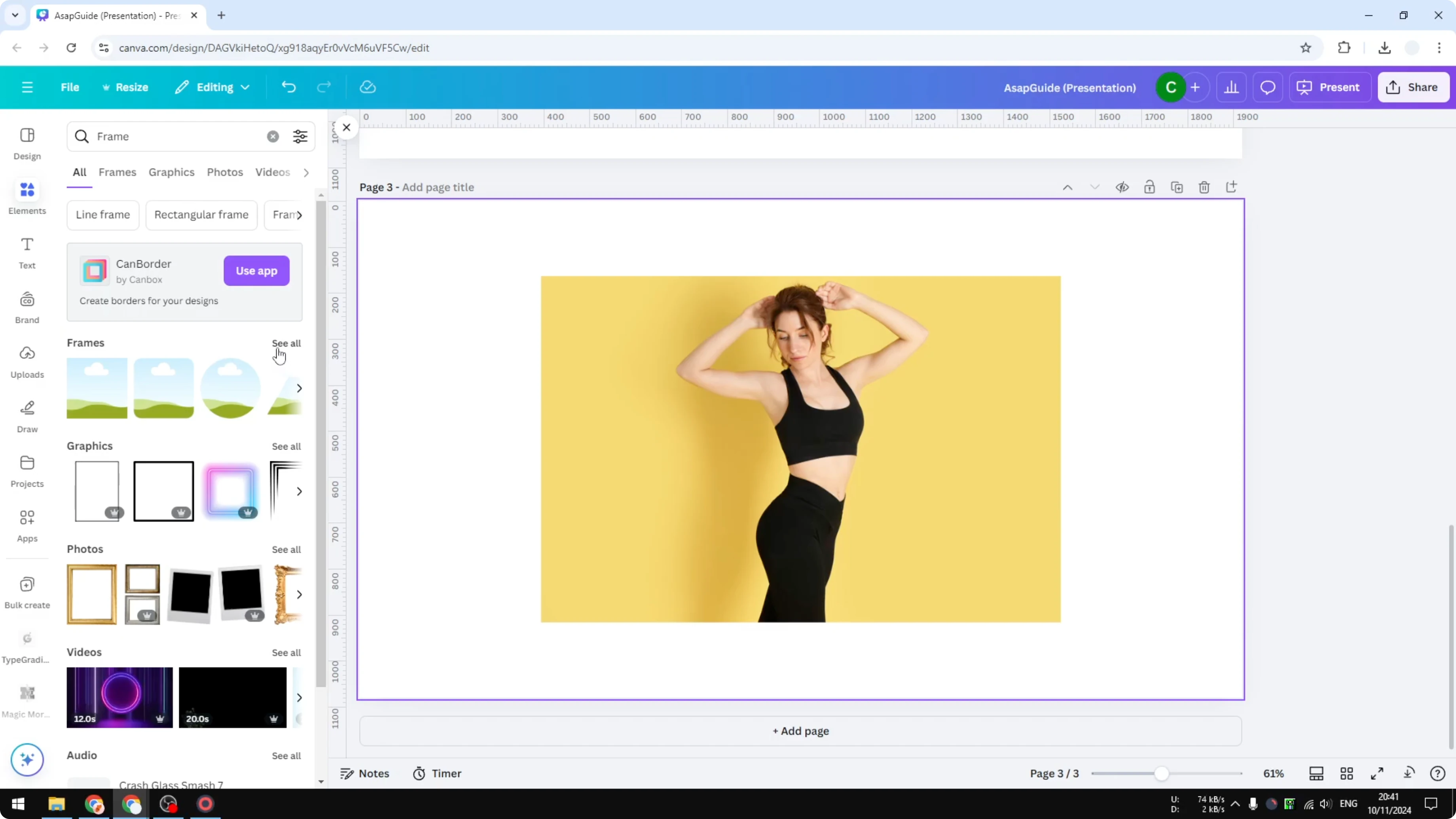
Drag your image into the diamond frame to get a diagonal-looking result.
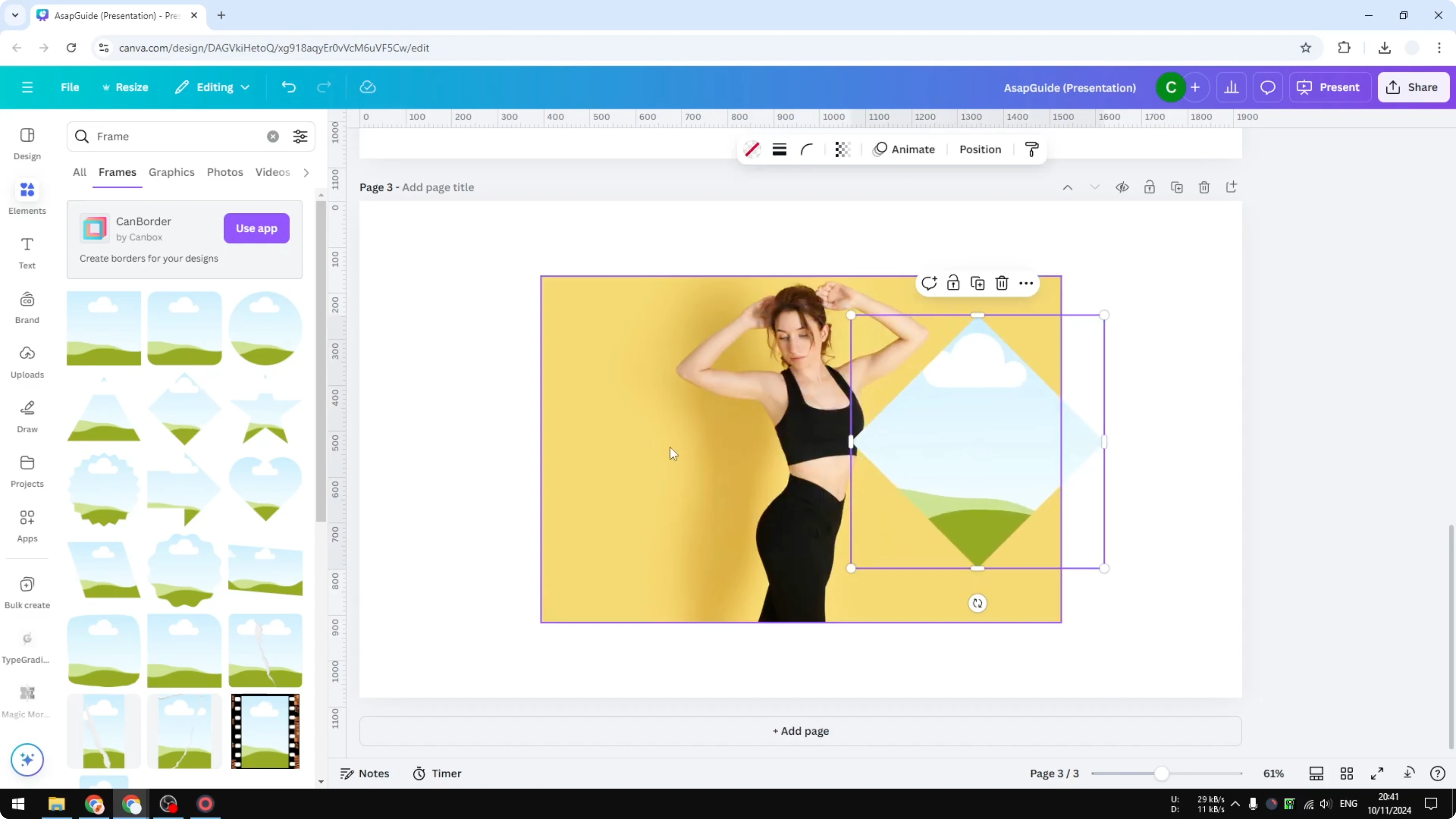
For more shape-based layouts, see how to crop an image into a shape.
Crop Image Diagonally in Canva - shape illusion
You can create the illusion of a diagonal crop by covering corners with shapes that match the background. This works best on a solid white background.
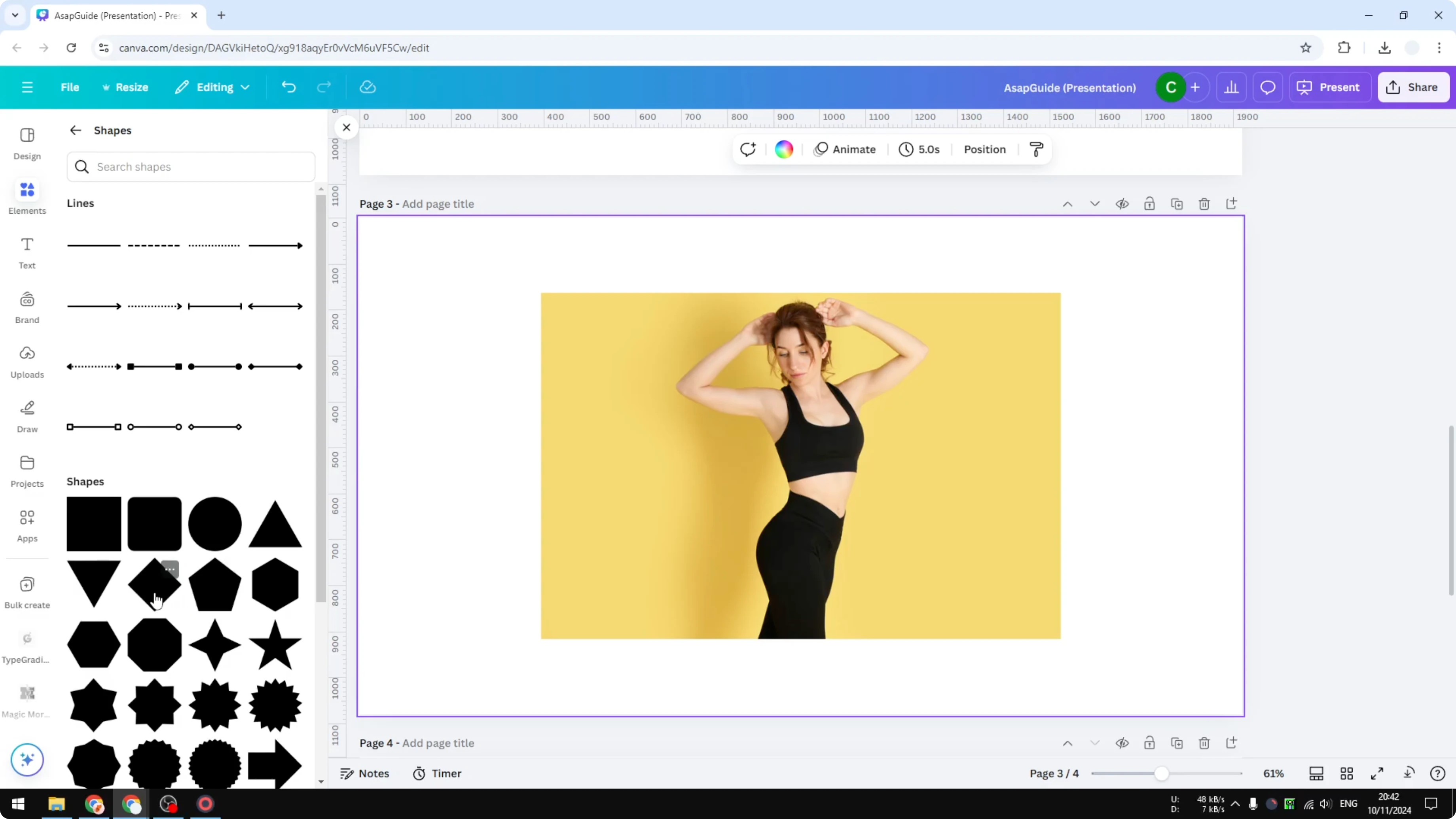
Go to Elements and open Shapes.
Insert the diamond shape and change its color to white.
Place one diamond on the bottom-left corner of the image and another on the top-right corner.
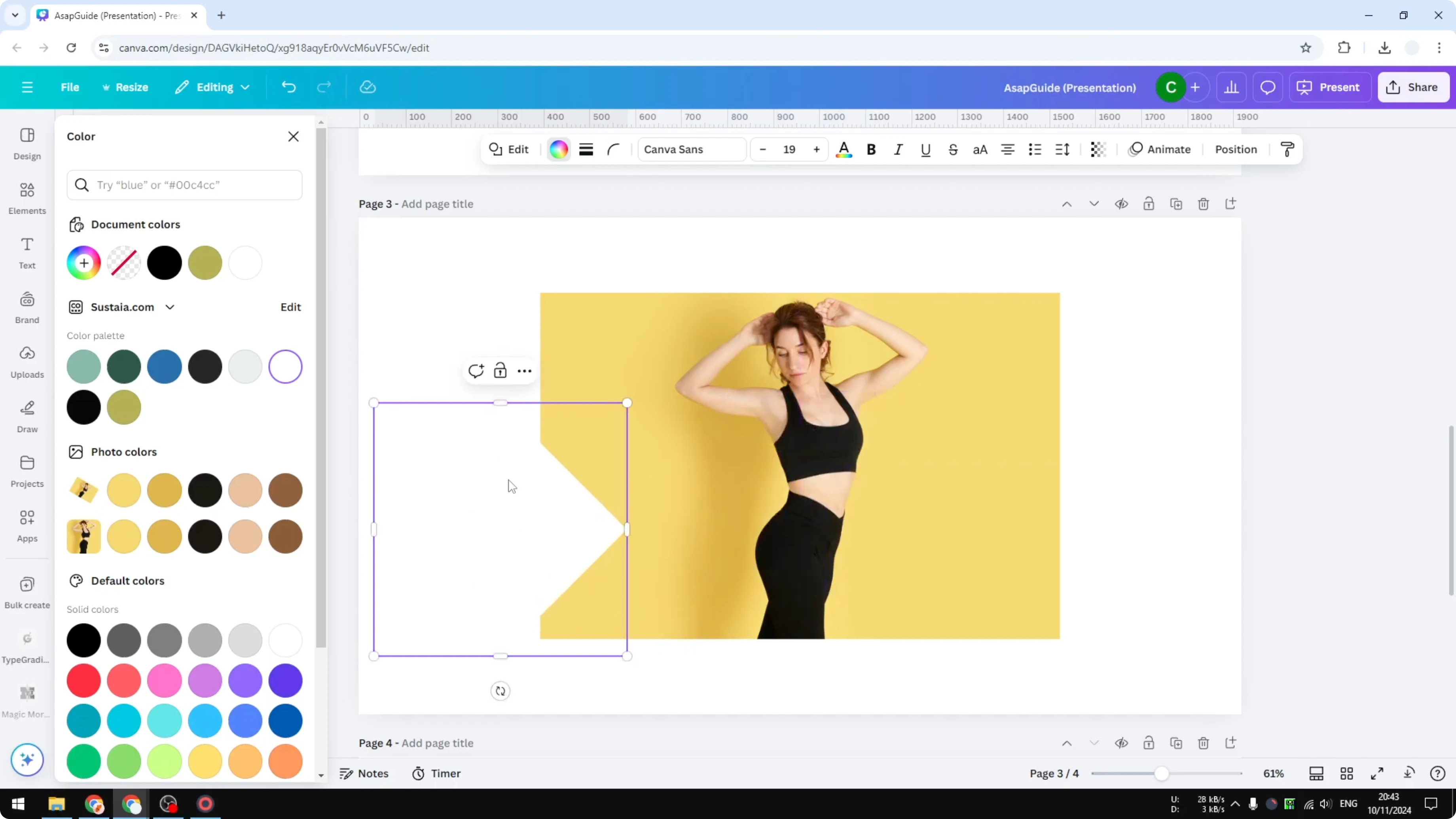
This gives you a diagonal look, but it depends on your background. If the background is a gradient, this method won’t align cleanly.
Read More: Brighten Image Canva
Crop Image Diagonally in Canva - rotate and export
This method gives you the most control while still using Canva’s built-in vertical and horizontal crop. You’ll rotate the image, export it with a transparent background, reimport it, crop, and rotate back.
Place your image on a new canvas.
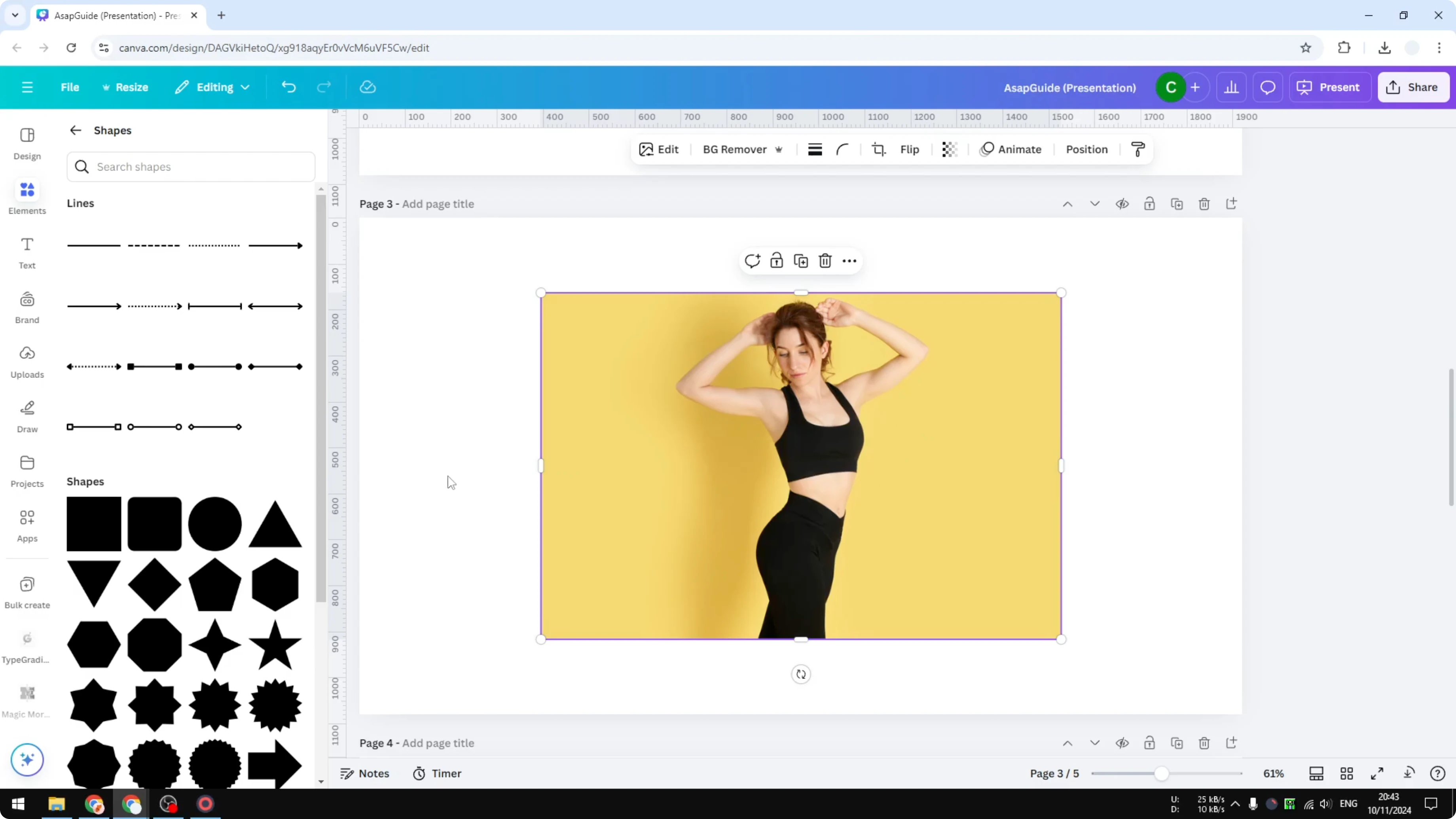
Rotate the image, for example 30 degrees, and make sure it sits fully within the canvas.
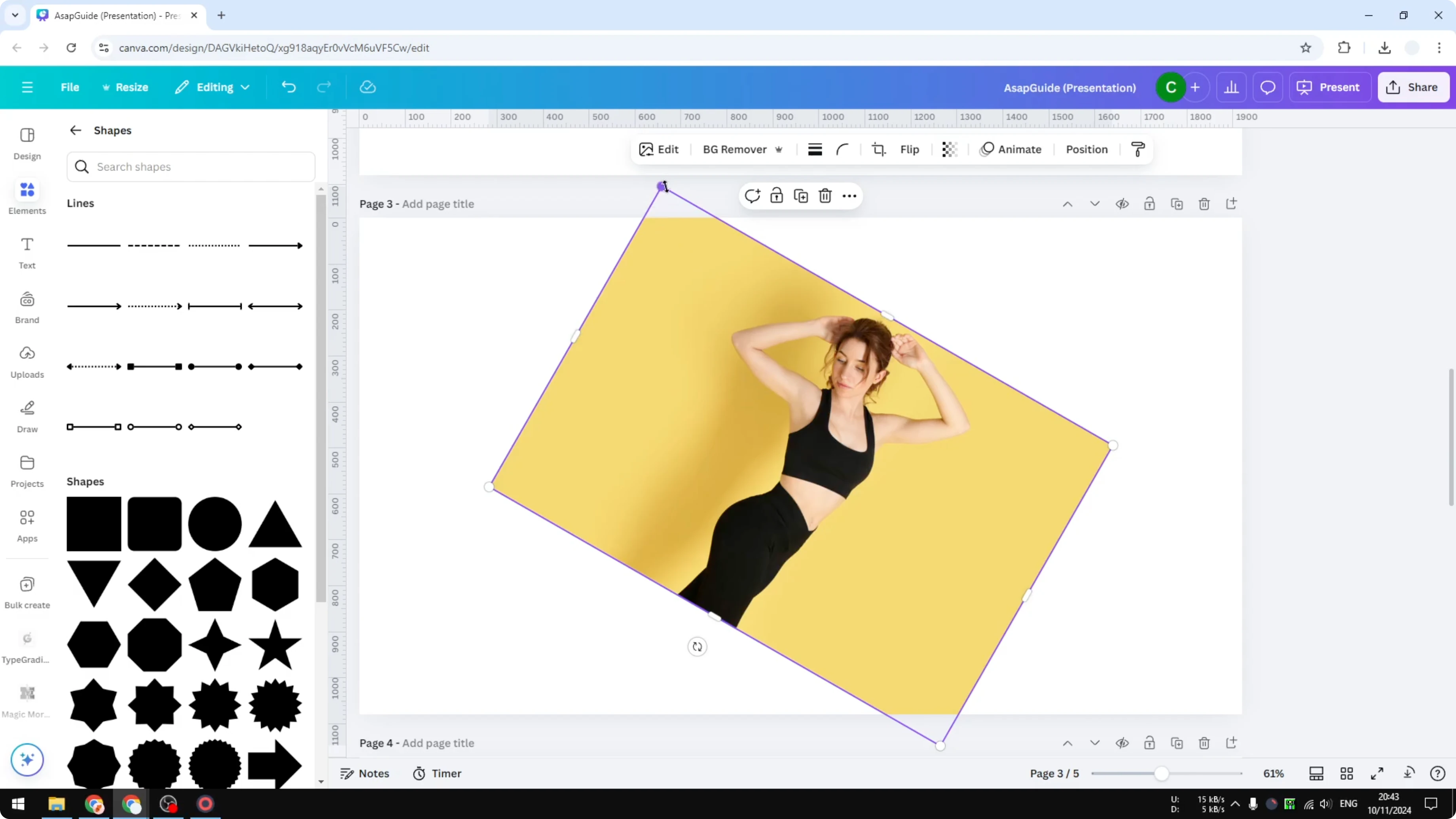
Click Share, then Download.
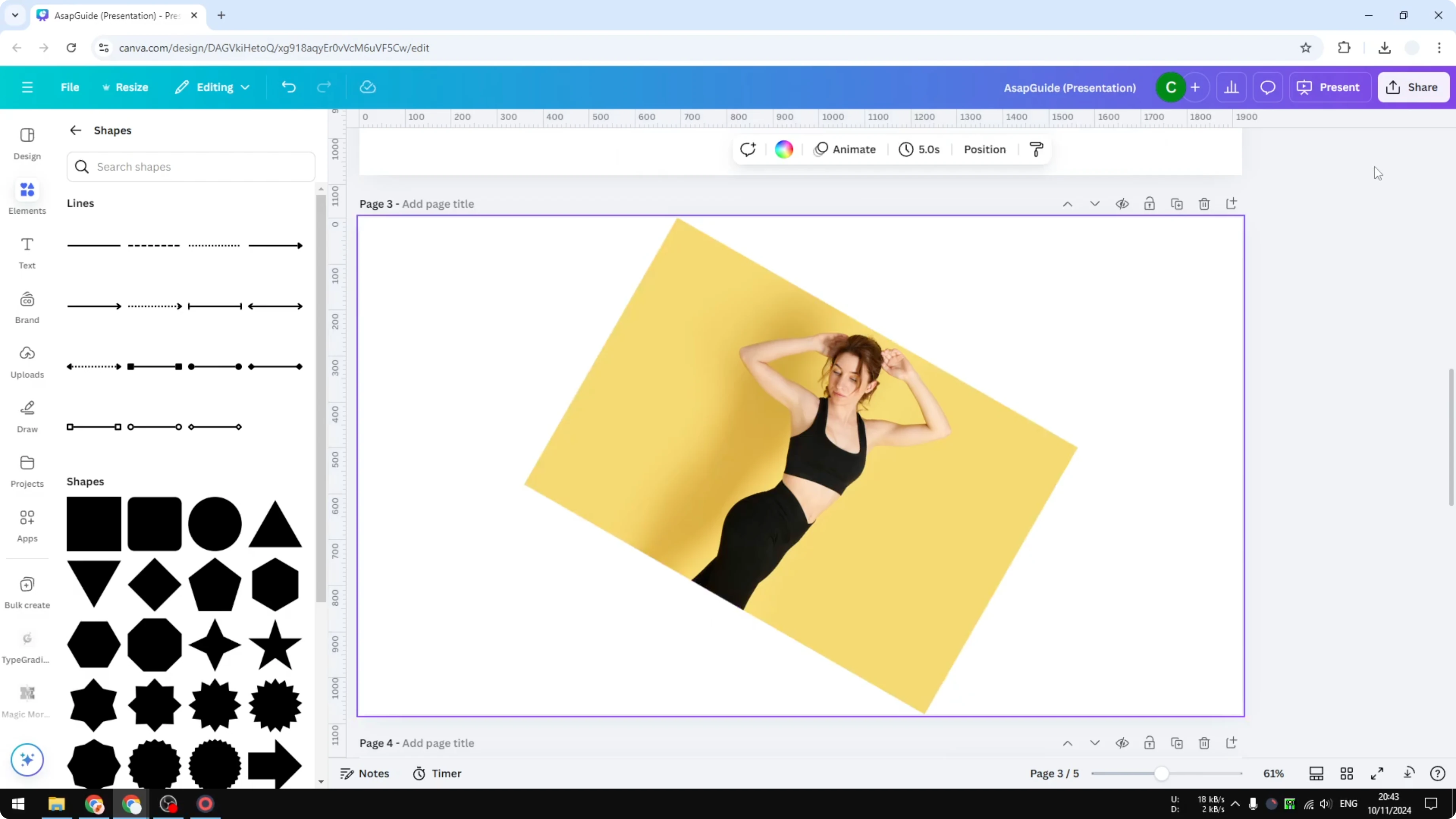
Choose PNG and enable Transparent background.
Export the current page and download it.
Upload the exported PNG back into Canva.
Place the uploaded image on your canvas.
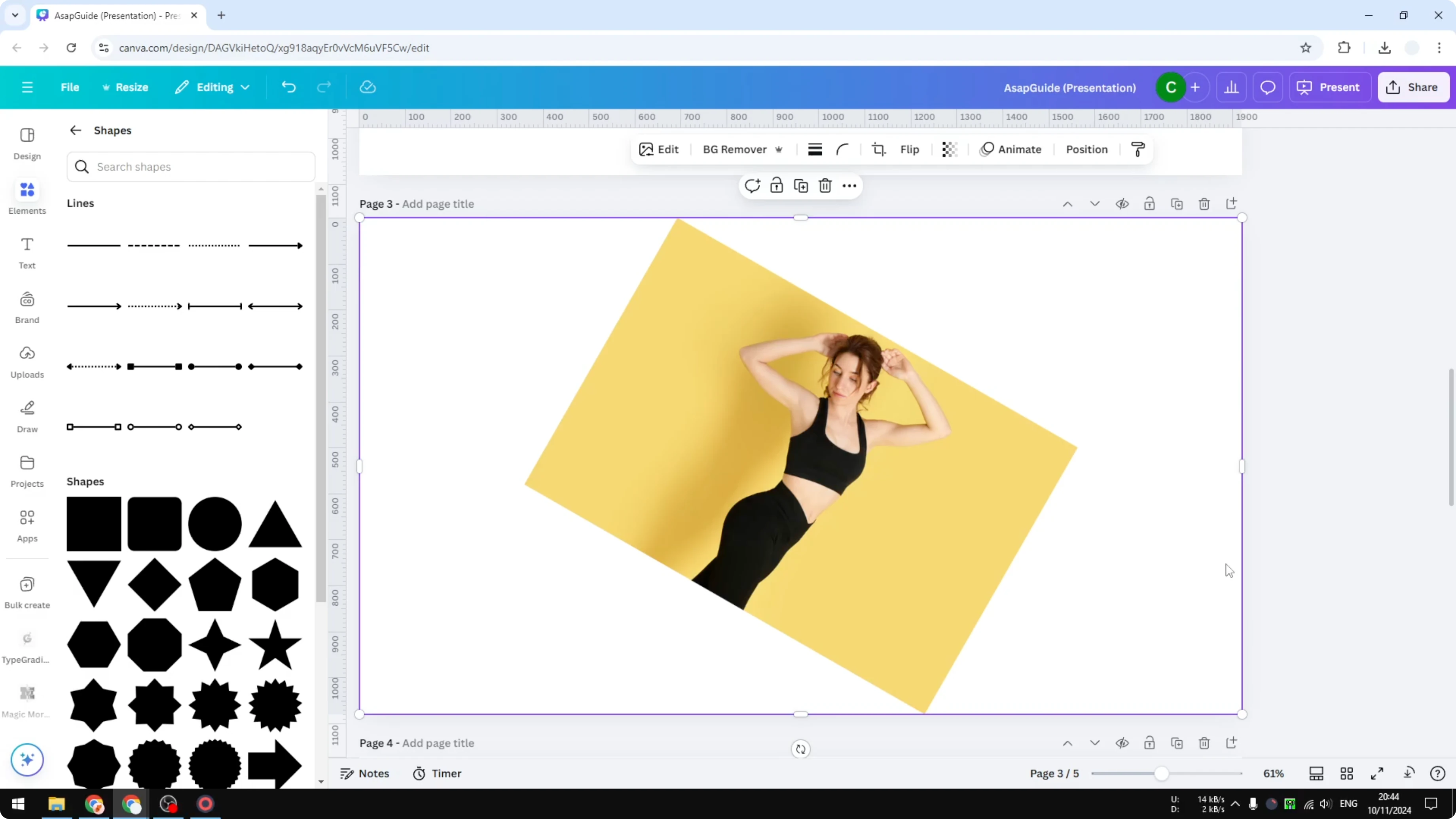
Use the side and top-botton crop handles to trim vertically and horizontally.
Rotate the image back to its original orientation, for example -30 degrees.
Resize if needed to refine the final look.
Read More: Change Color Image Canva
Final thoughts
Canva does not support a true diagonal crop, but you can get a clean result with frames, corner-shape masking, or the rotate-export-reimport method. Frames are the quickest, shape masking is context-specific, and the rotate-export workflow offers the most flexibility. Pick the approach that fits your background, shape, and control needs.
Recent Posts

How to Visualize Yourself as a Pixelized Character with AI?
How to Visualize Yourself as a Pixelized Character with AI?

How to Revive Faded Memories and Enhance Image Clarity with AI?
How to Revive Faded Memories and Enhance Image Clarity with AI?

How to Visualize Yourself as an Animal Crossing Character with AI?
How to Visualize Yourself as an Animal Crossing Character with AI?