How to Create a Yard Sign in Canva
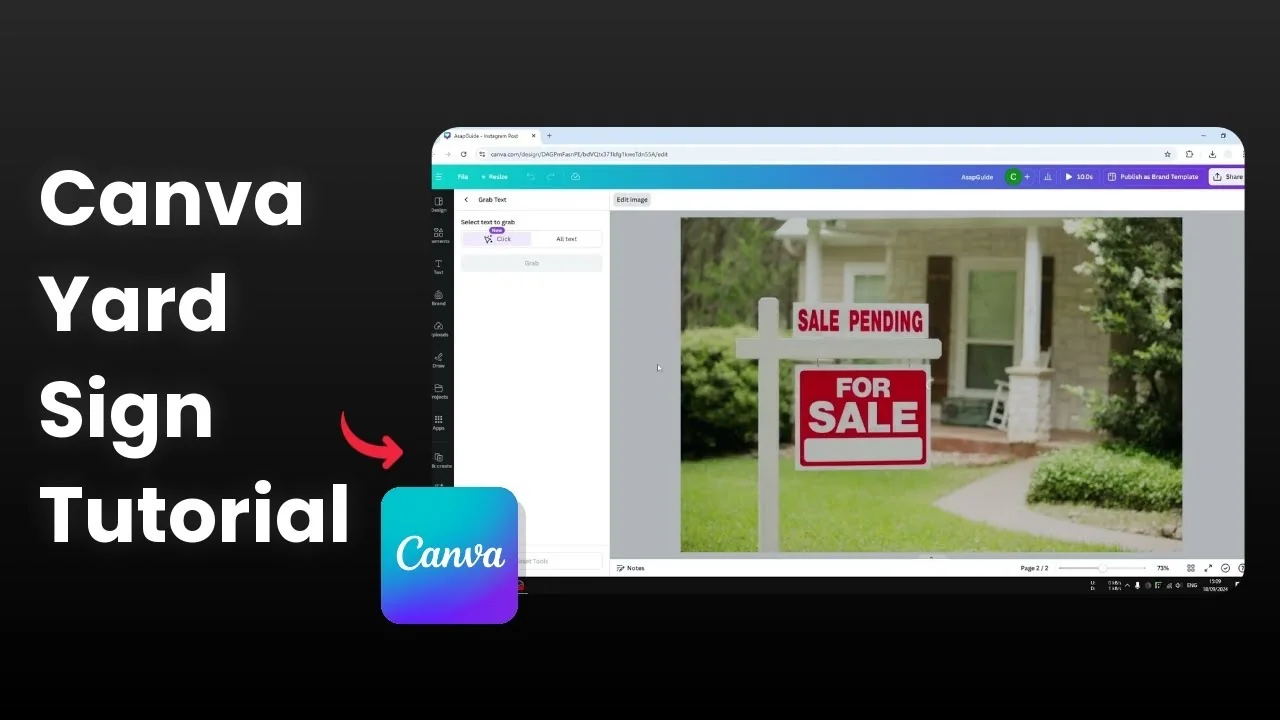
I will show you how you can create a simple yard sign using Canva. The best thing is that even if you have a photo of a yard sign and you want to change the text, Canva has a new feature that allows you to grab the text so you can modify it later. This is a picture of a yard sign that had different text, and I used an AI feature in Canva to change the text in the picture, and you can still edit that text afterwards.
If you want to add a subtle 3D accent to your mockup later, see this quick guide to a 3D cube effect in Canva.
Create a Yard Sign in Canva
Start with a photo
Add a new page.
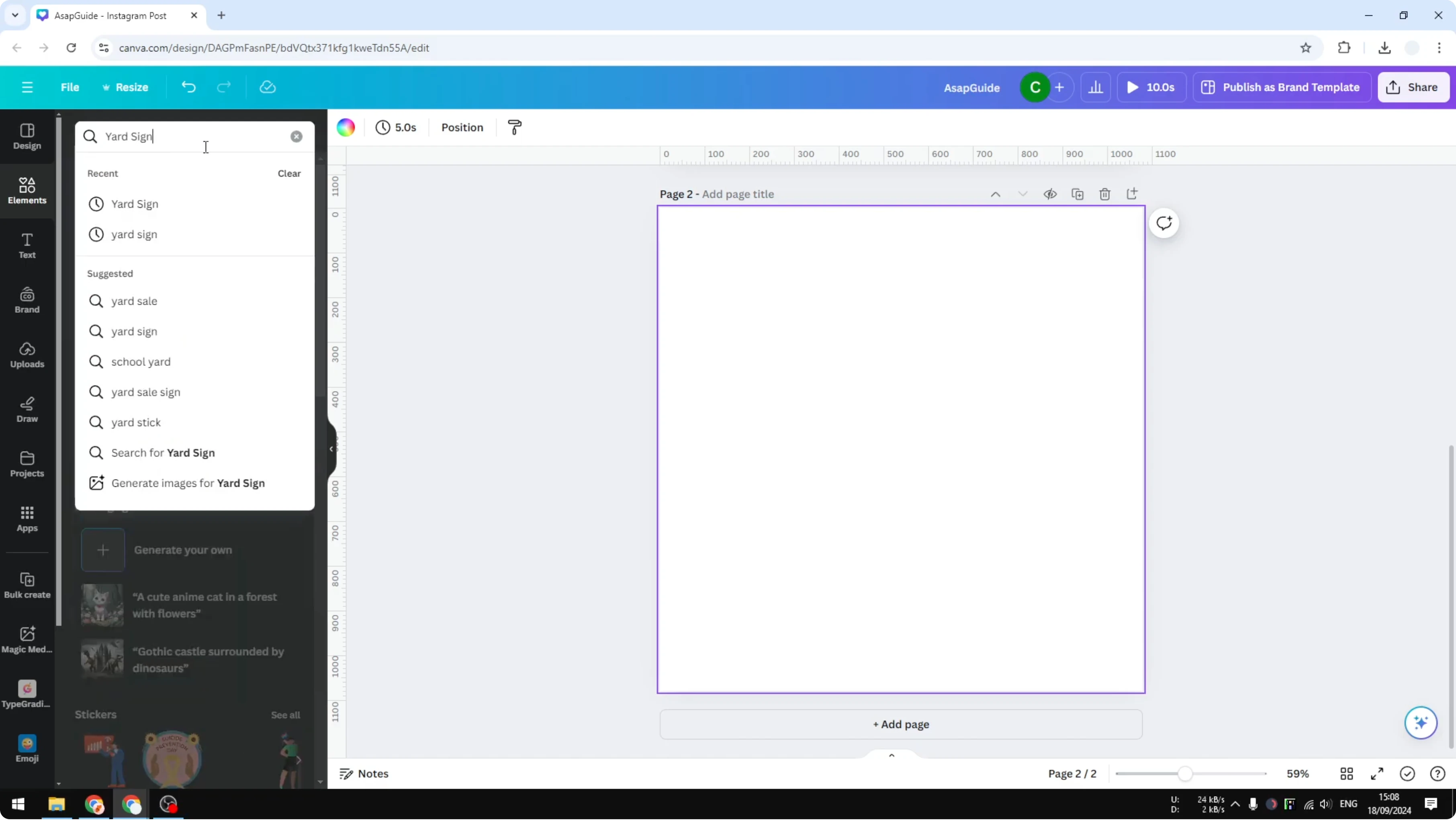
Go to Elements and search for "yard sign".
Go to the Photos section and pick from the many options, then increase the size of the photo.
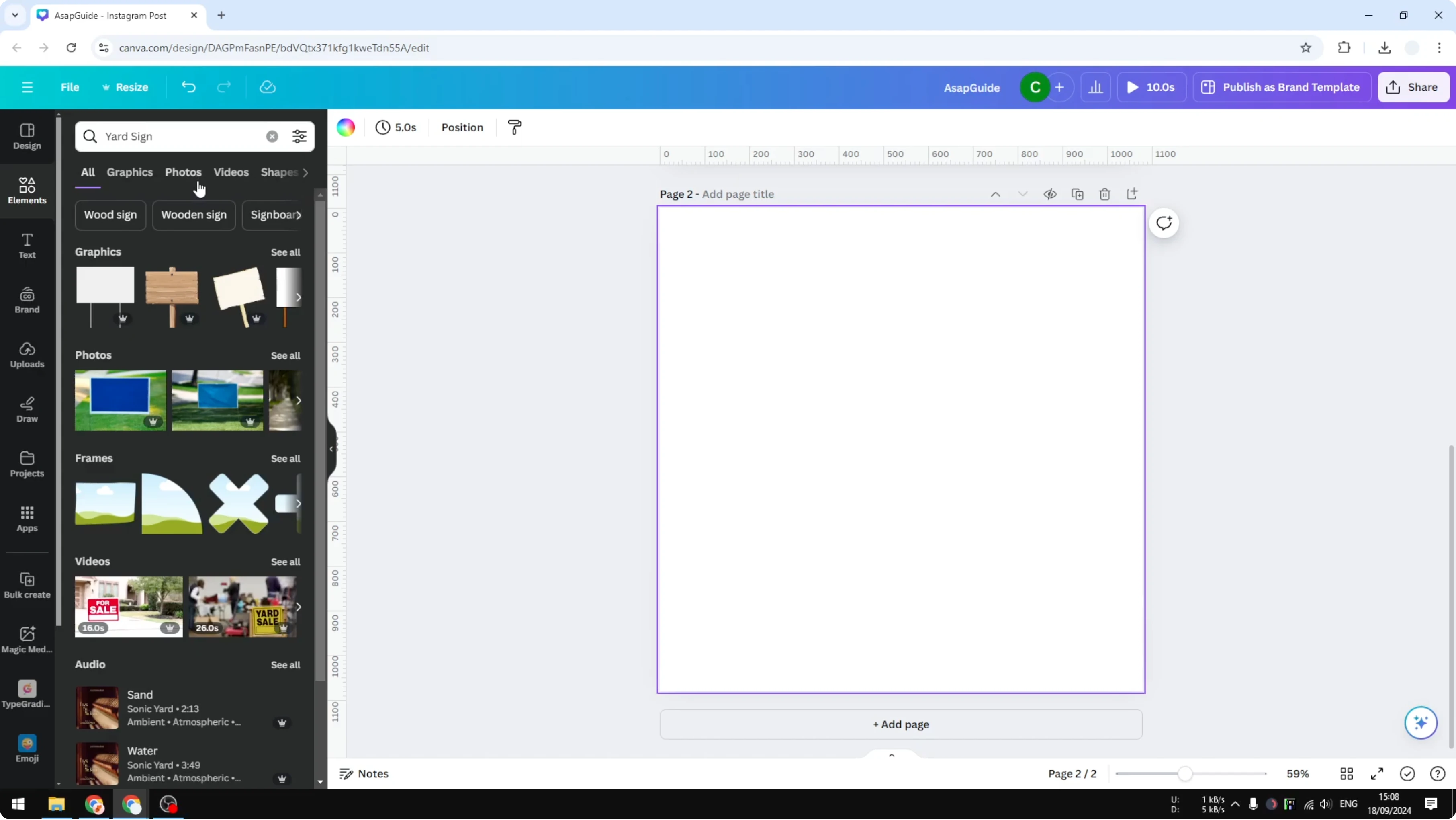
This is an image and there is no way to edit the text instantly, because it is not a regular text box.
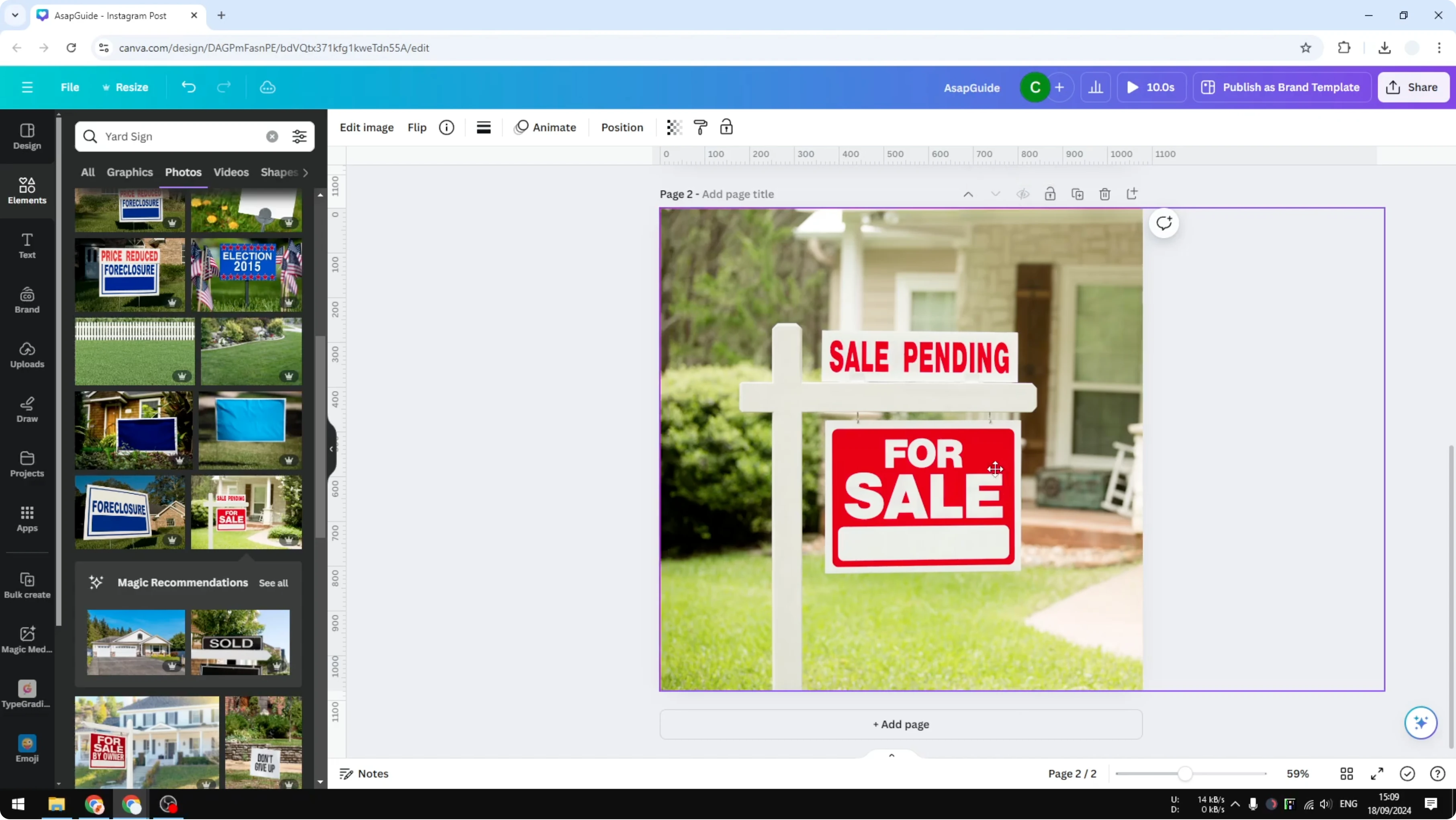
Grab text from the image
Click the image, click Edit image, then click Grab text.
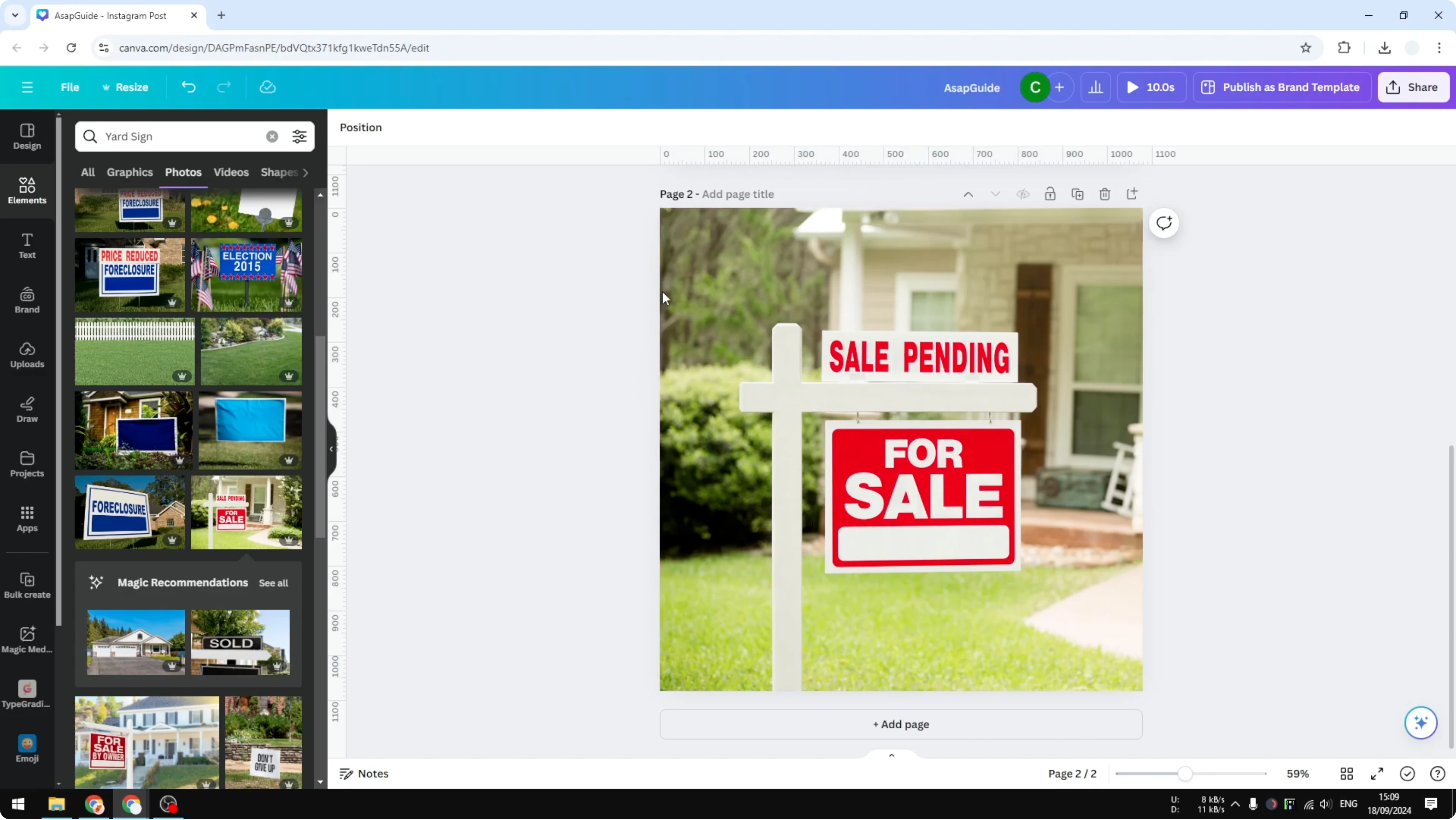
This feature grabs the text from the image so you can modify it later. Click Grab and let Canva recognize the text, which can take about 10 to 20 seconds.
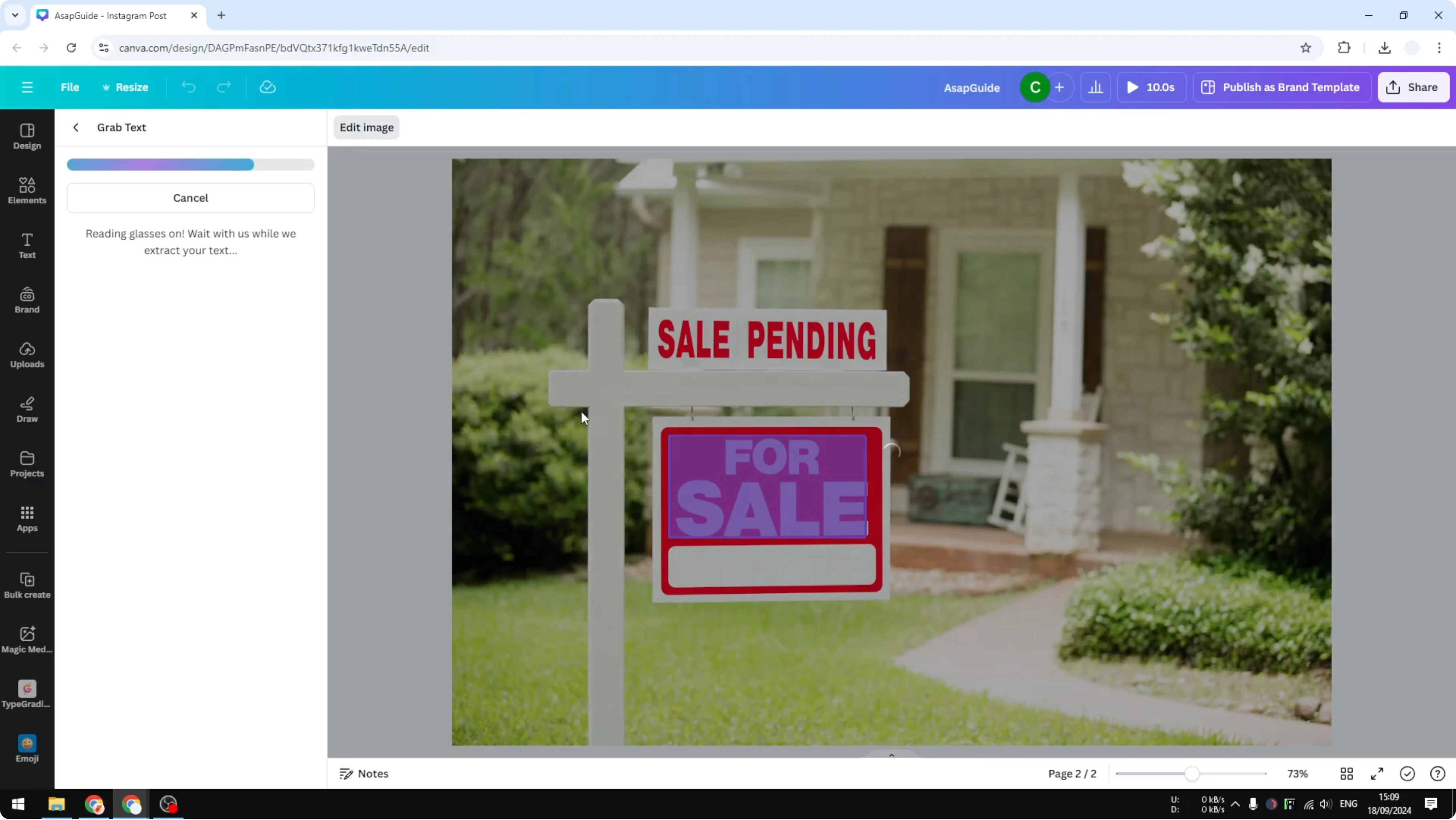
If the result is not perfect and you see some residual artifacts, repeat the process until you are happy with it.
Edit and compare
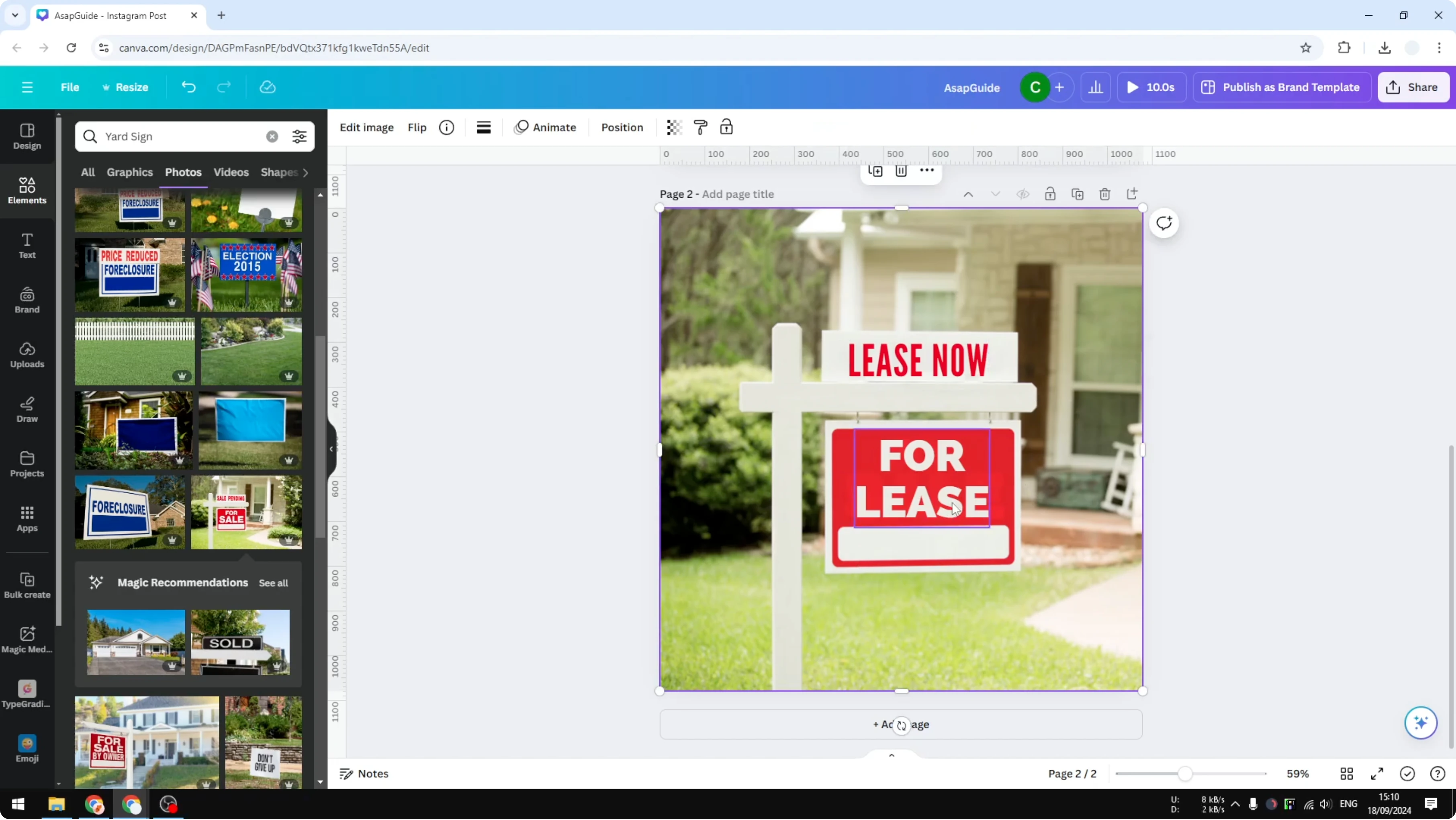
Change the text to For Lease, not For Sale, and increase the size.
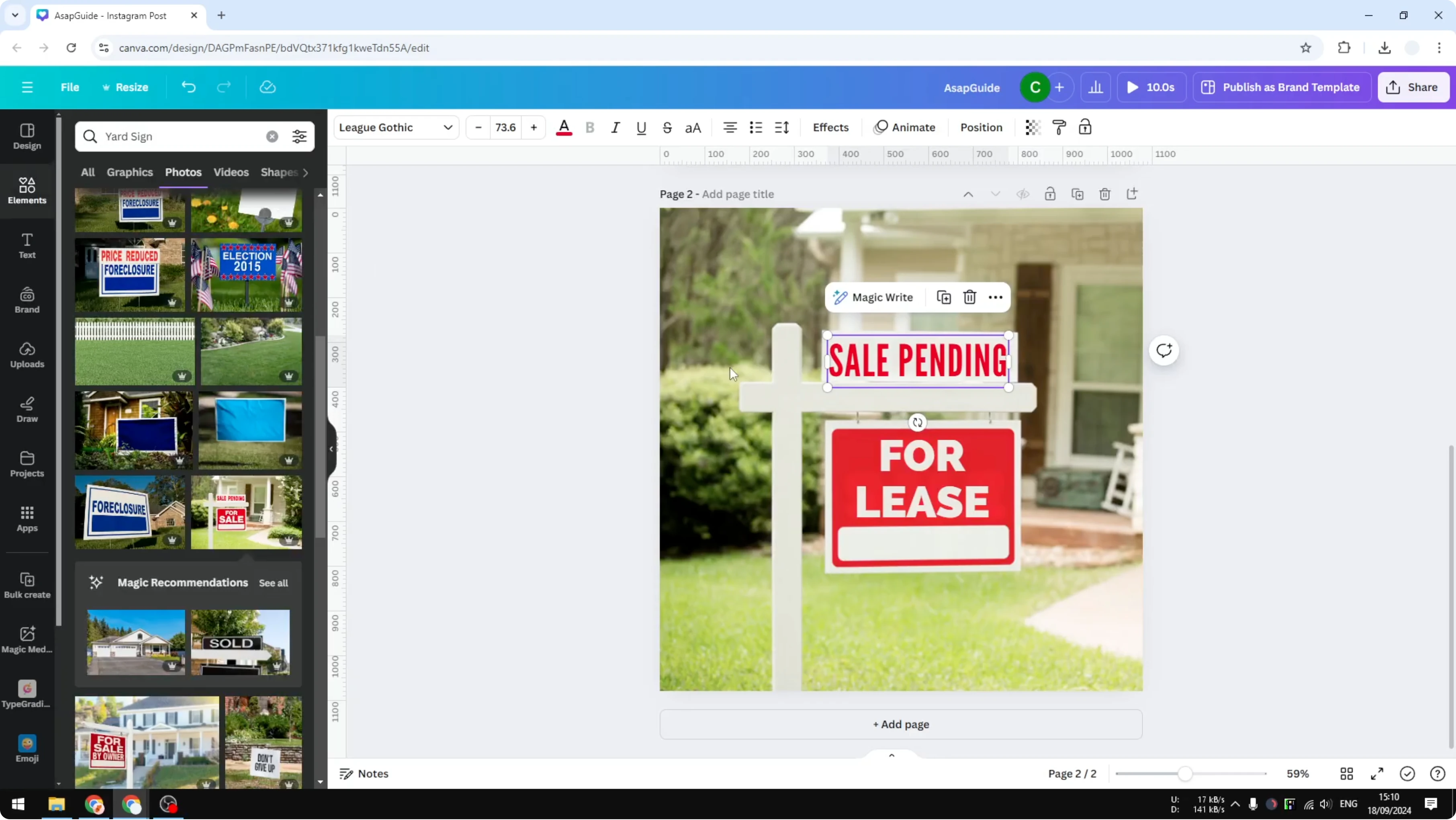
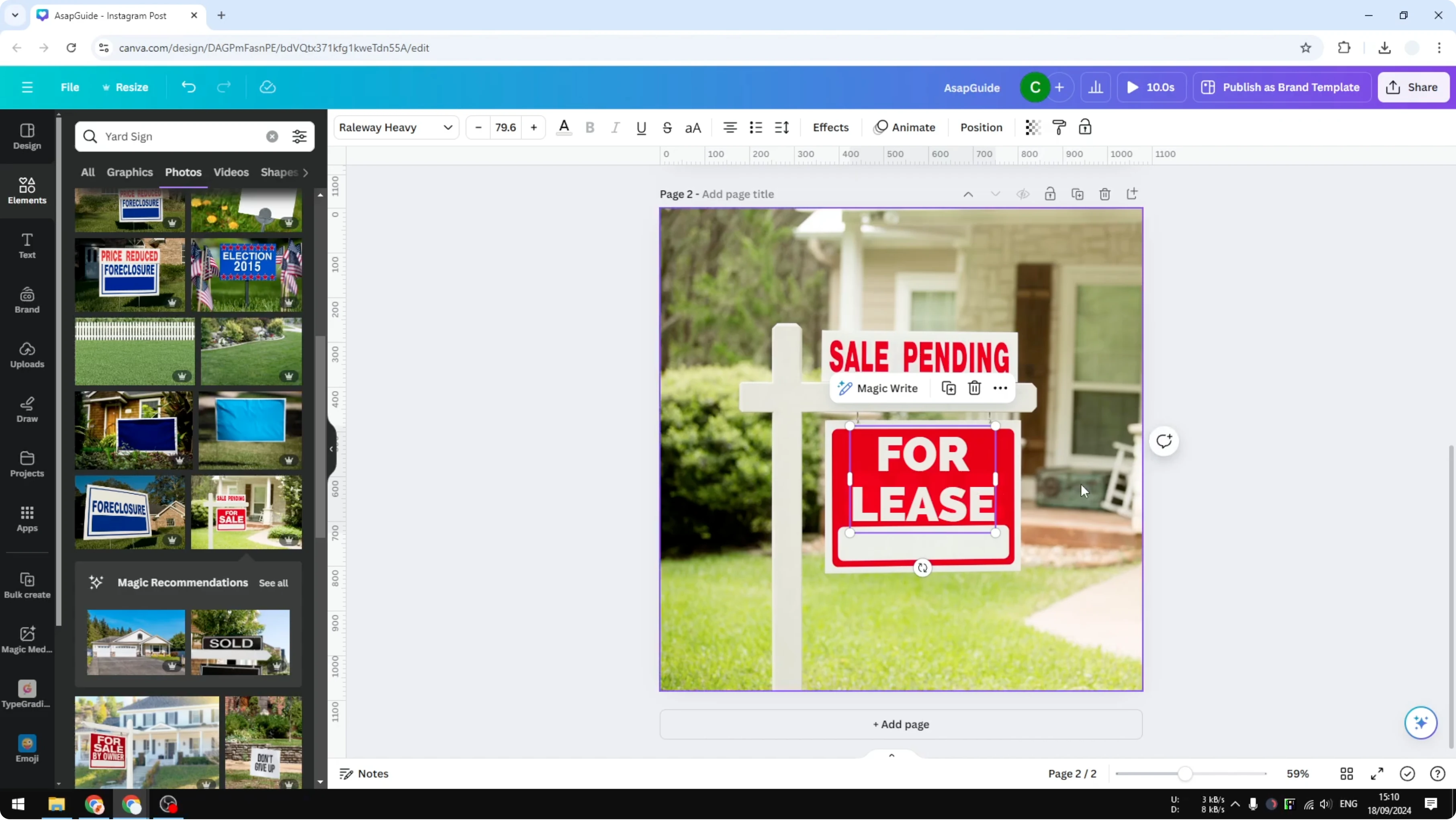
From afar you probably cannot tell the difference between before and after. It is very close to an actual picture.
To give your headline playful depth, you can try a balloon text effect once your text is editable.
Repeat for other parts
You can do the same for other text areas in the photo.
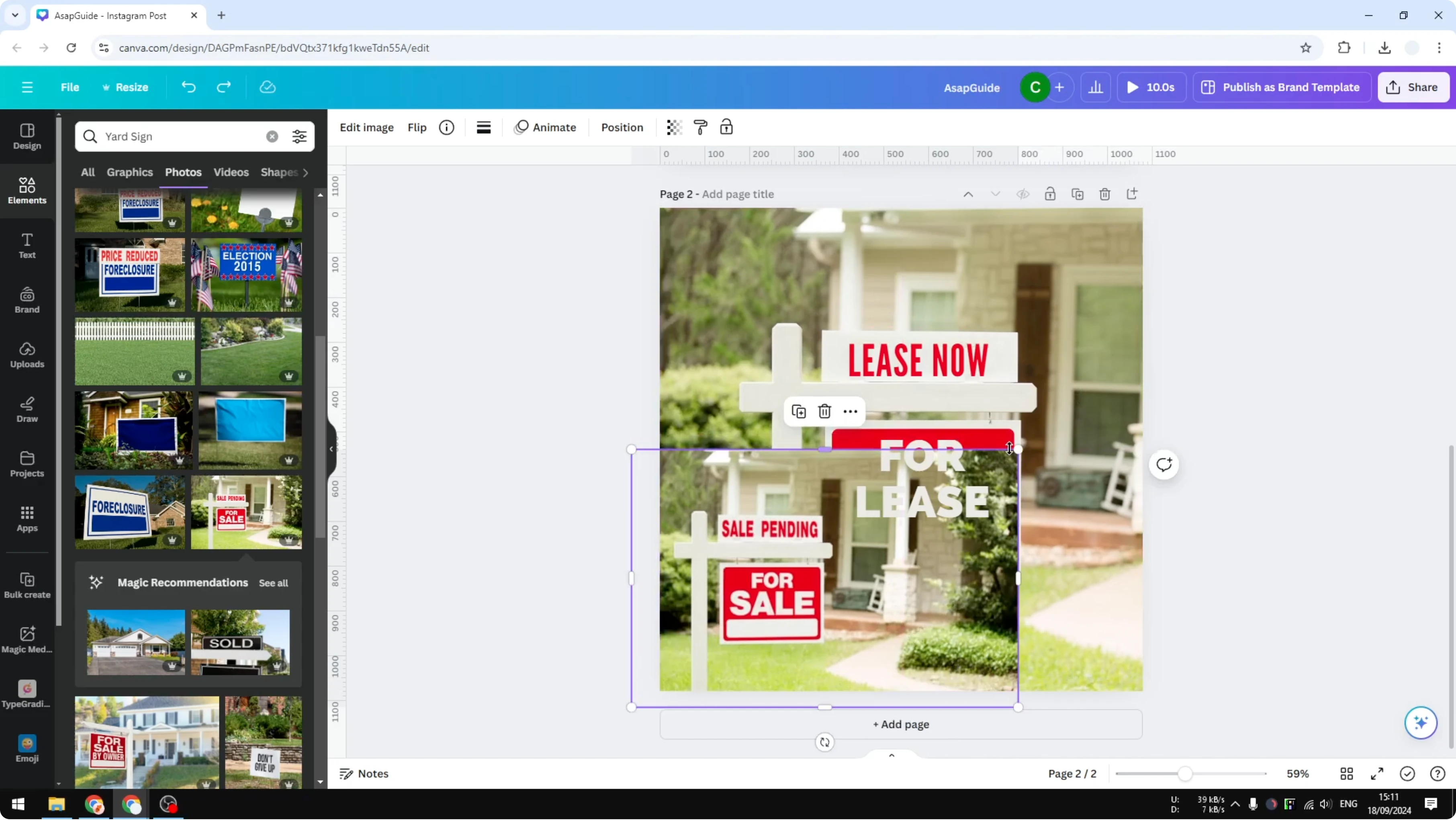
Click Edit image, click Grab text again, and select a different part of the image. Wait until it finishes, then change the text again.
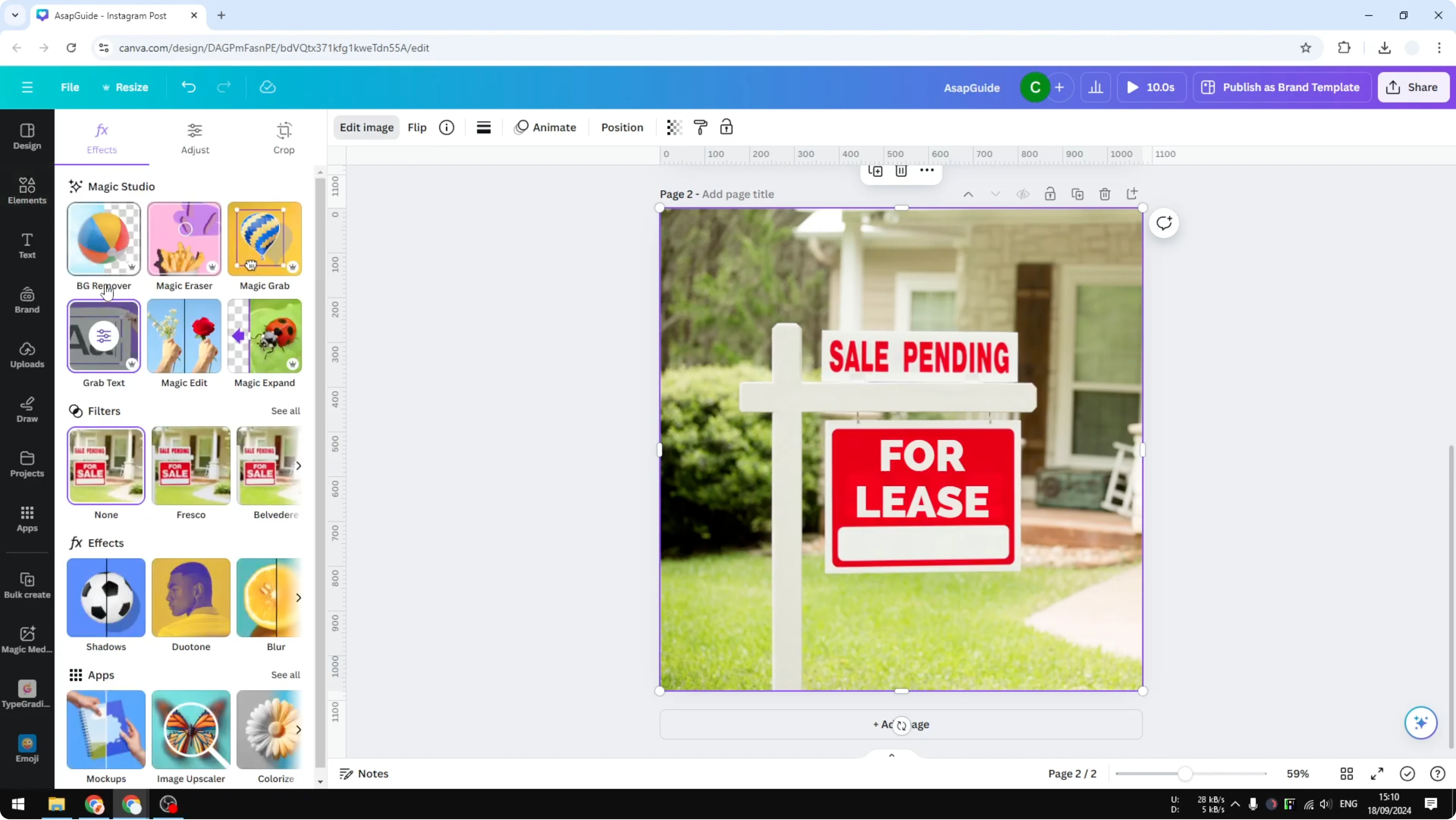
As simple as that. The new picture is different from the original, and the edit stays very close to the look of the photo.
For a soft background glow behind your sign, see this bokeh effect tutorial for Canva.
Final Thoughts
That is the benefit of using Canva, because it lets you modify text from an image and keep the photo look. Grab the text, make your changes, and repeat on other areas if needed. The result can look almost identical to the original while showing your updated message.
Recent Posts
How to Visualize Yourself as a Pixelized Character with AI?
How to Visualize Yourself as a Pixelized Character with AI?
How to Revive Faded Memories and Enhance Image Clarity with AI?
How to Revive Faded Memories and Enhance Image Clarity with AI?
How to Visualize Yourself as an Animal Crossing Character with AI?
How to Visualize Yourself as an Animal Crossing Character with AI?