How to Create Wavy Text in Canva
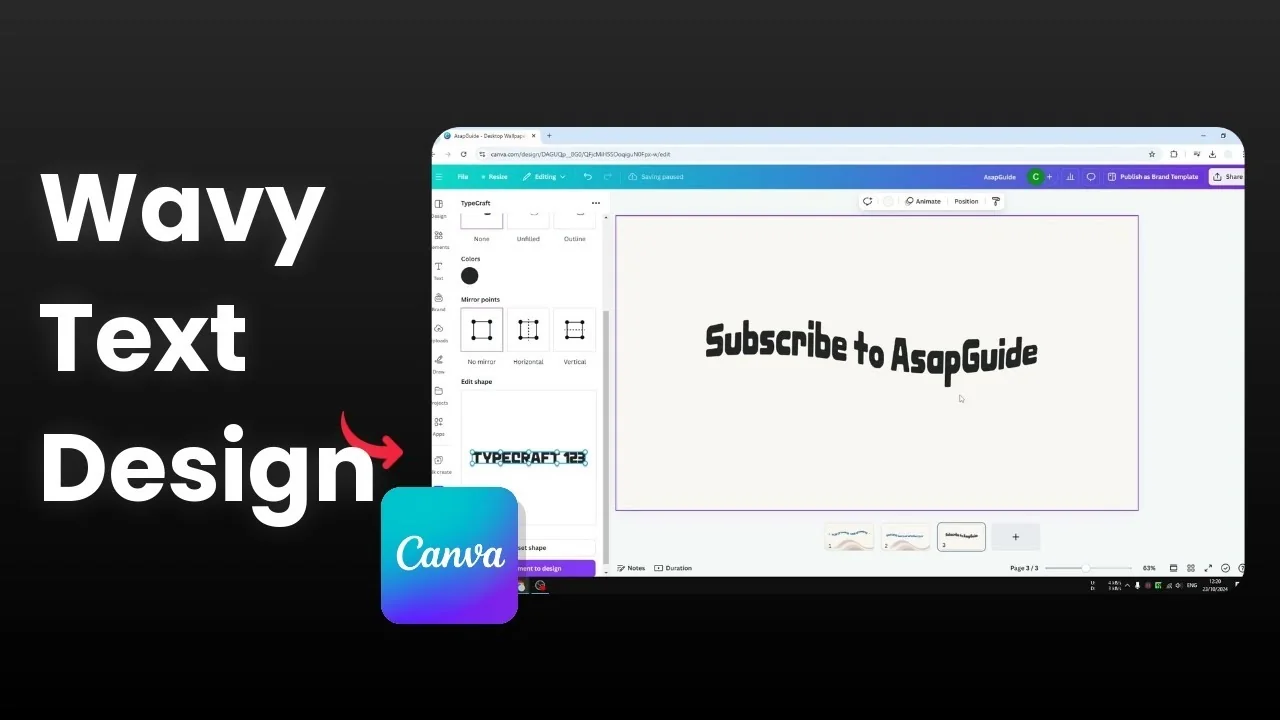
I will show you how you can create a wavy text effect in Canva. A wavy text is different than a curve text. A curve text only has one curve, while a wavy text is a series of curved text segments.
Depending on the design, it is more appropriate and looks prettier compared to a simple curve text. Can you create this design in Canva? Yes, there are two methods you can try.
Create Wavy Text in Canva: two methods
Method 1: curve effect
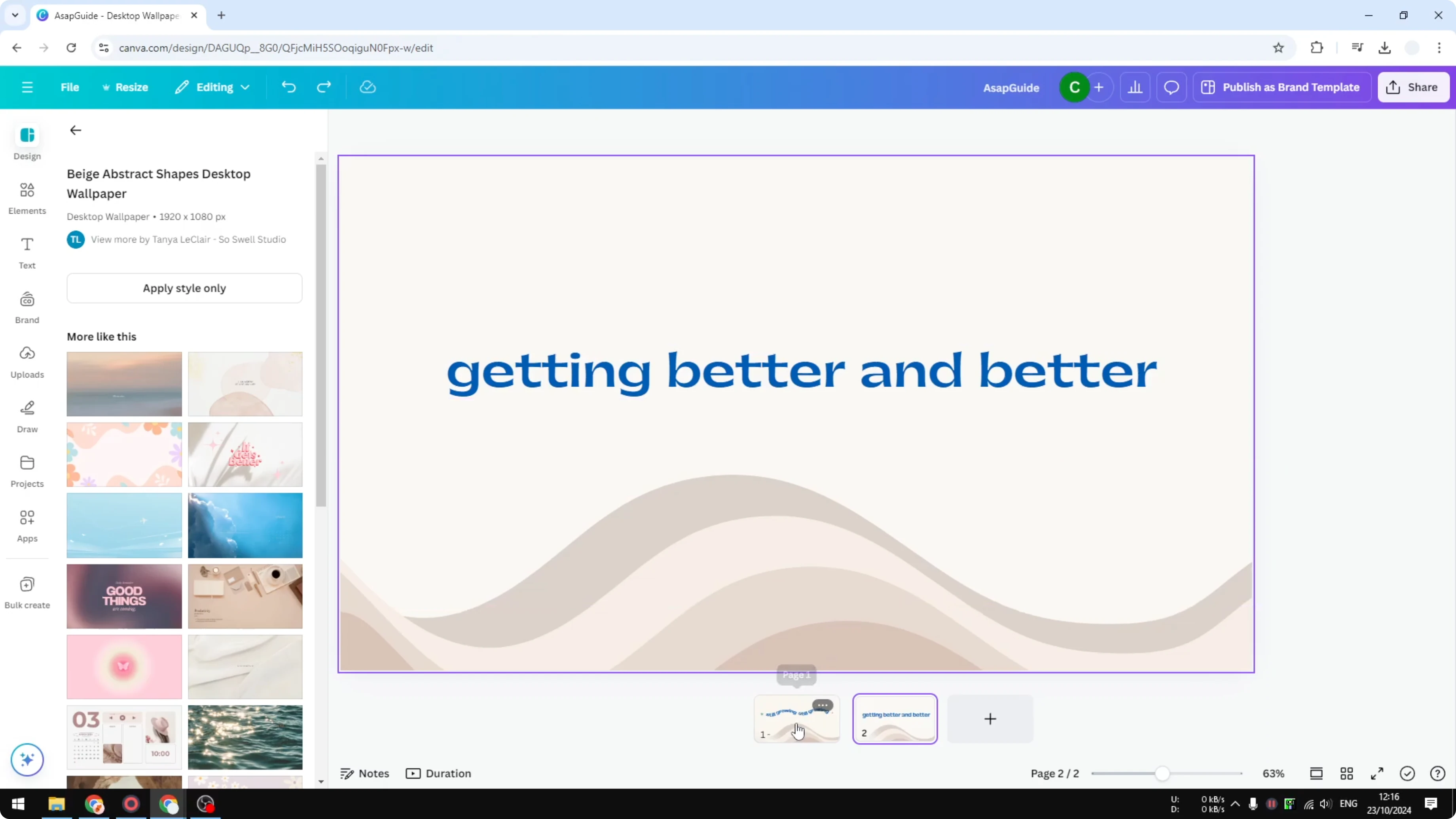
This effect is really just a series of curve text, and a curve text is something that we can accomplish in Canva without using a third party tool. I isolate each word so each of them has their own curve level. Here is how I set it up step by step.
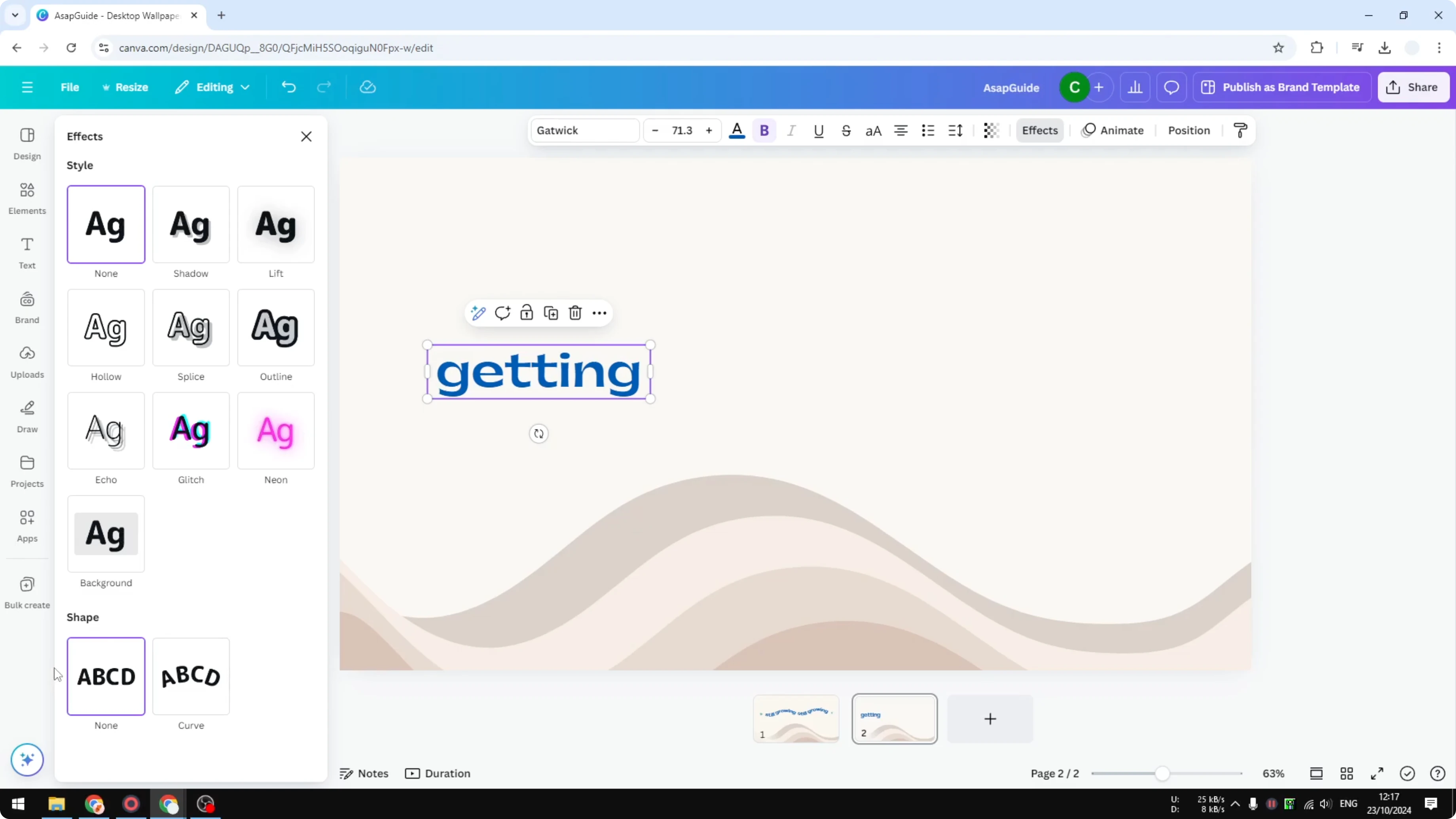
Select the first word and make the text box a little smaller. Go to Effects, and in the Shape section, select Curve. Adjust the curvedness level for this word.
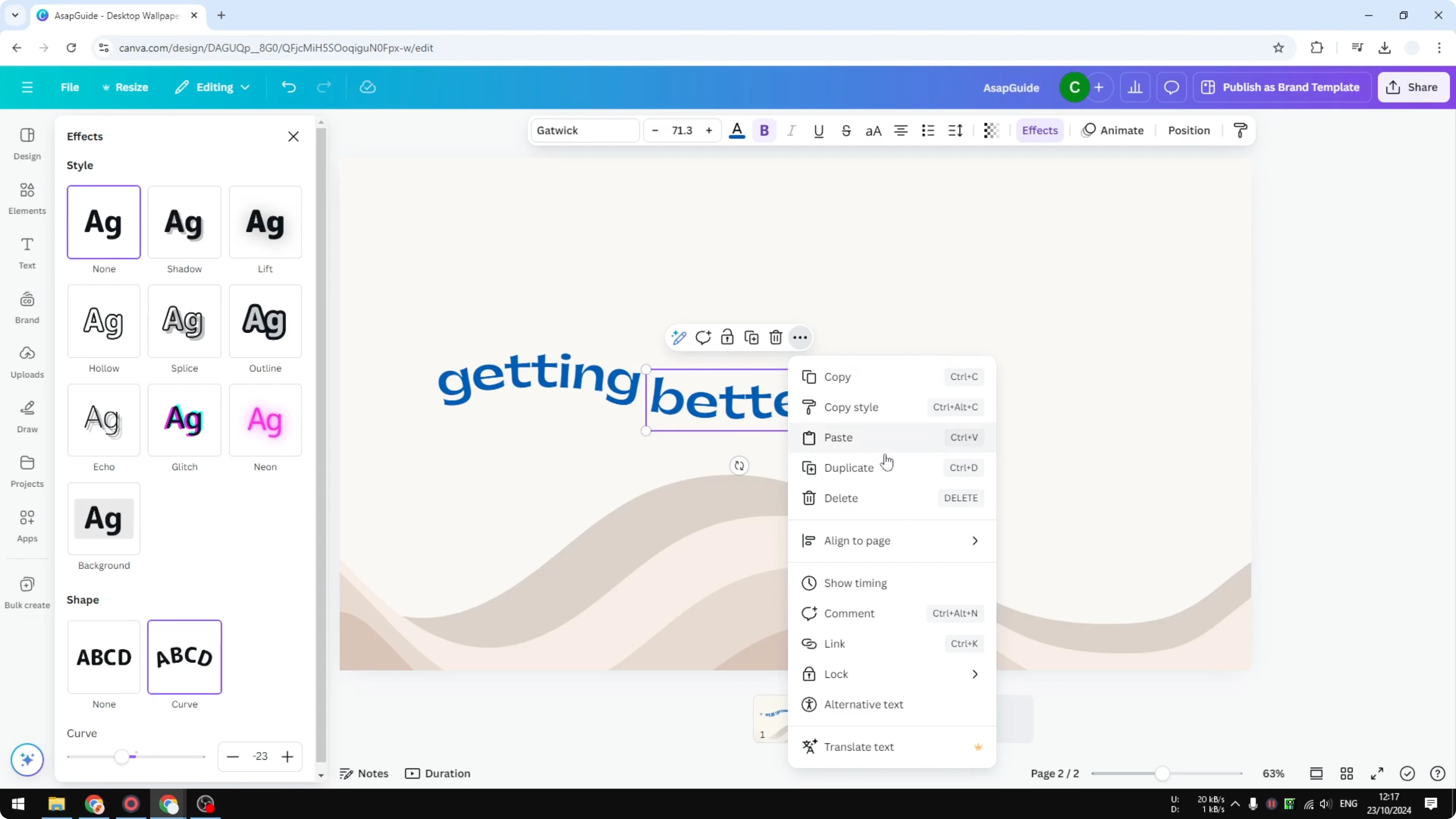
Duplicate the text box for the next word. Change the word and adjust the curve level to a different value. Repeat this for each word in your sentence.
Tweak spacing and size so the words flow in a wave. It does not have to be perfect, but each word should have its own curve level. This is pretty much how you can create multiple curves for text in Canva.
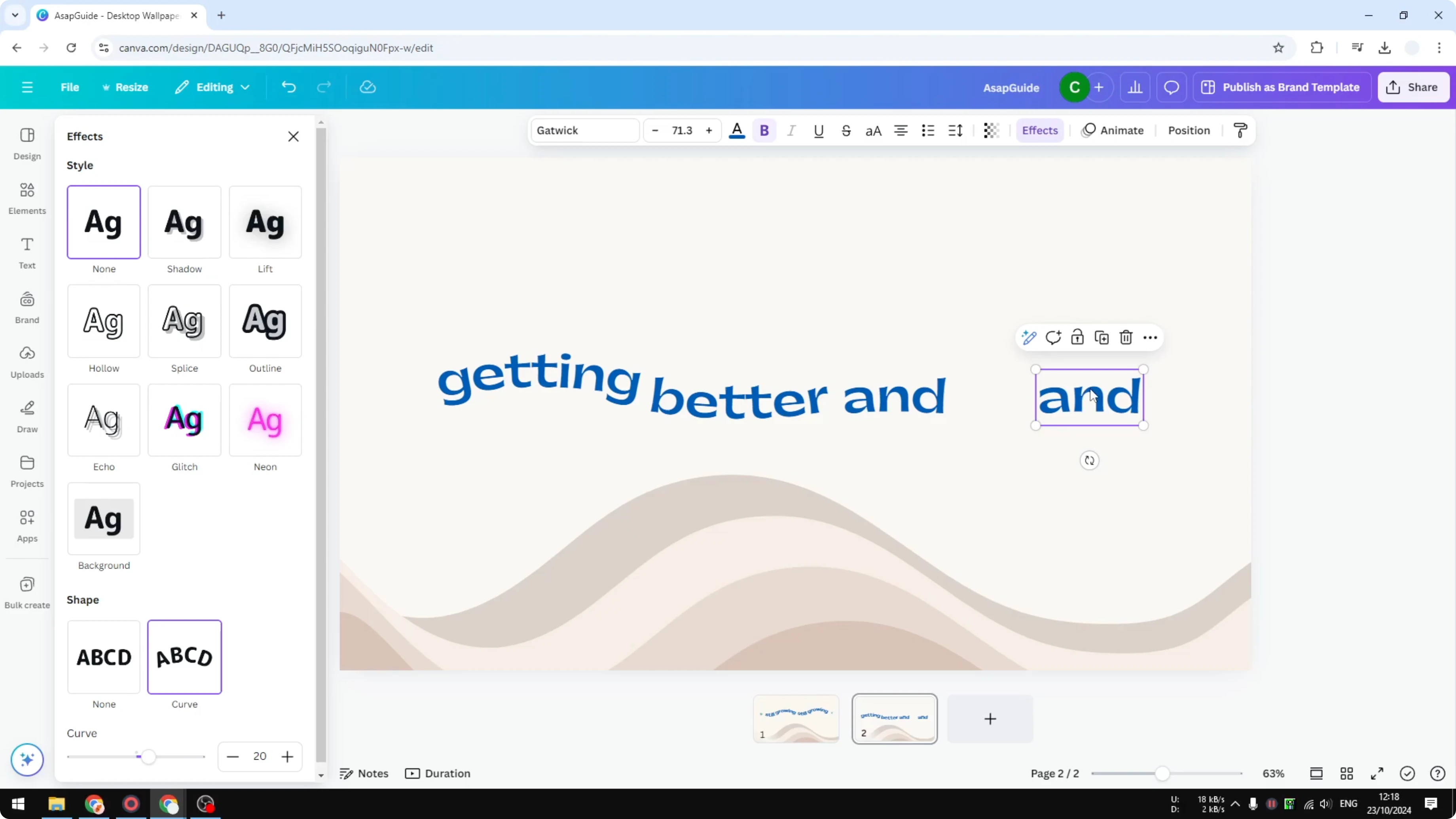
If you want to try other playful text styles, check out a simple balloon text effect that pairs well with wavy headlines.
Method 2: Typcraft app
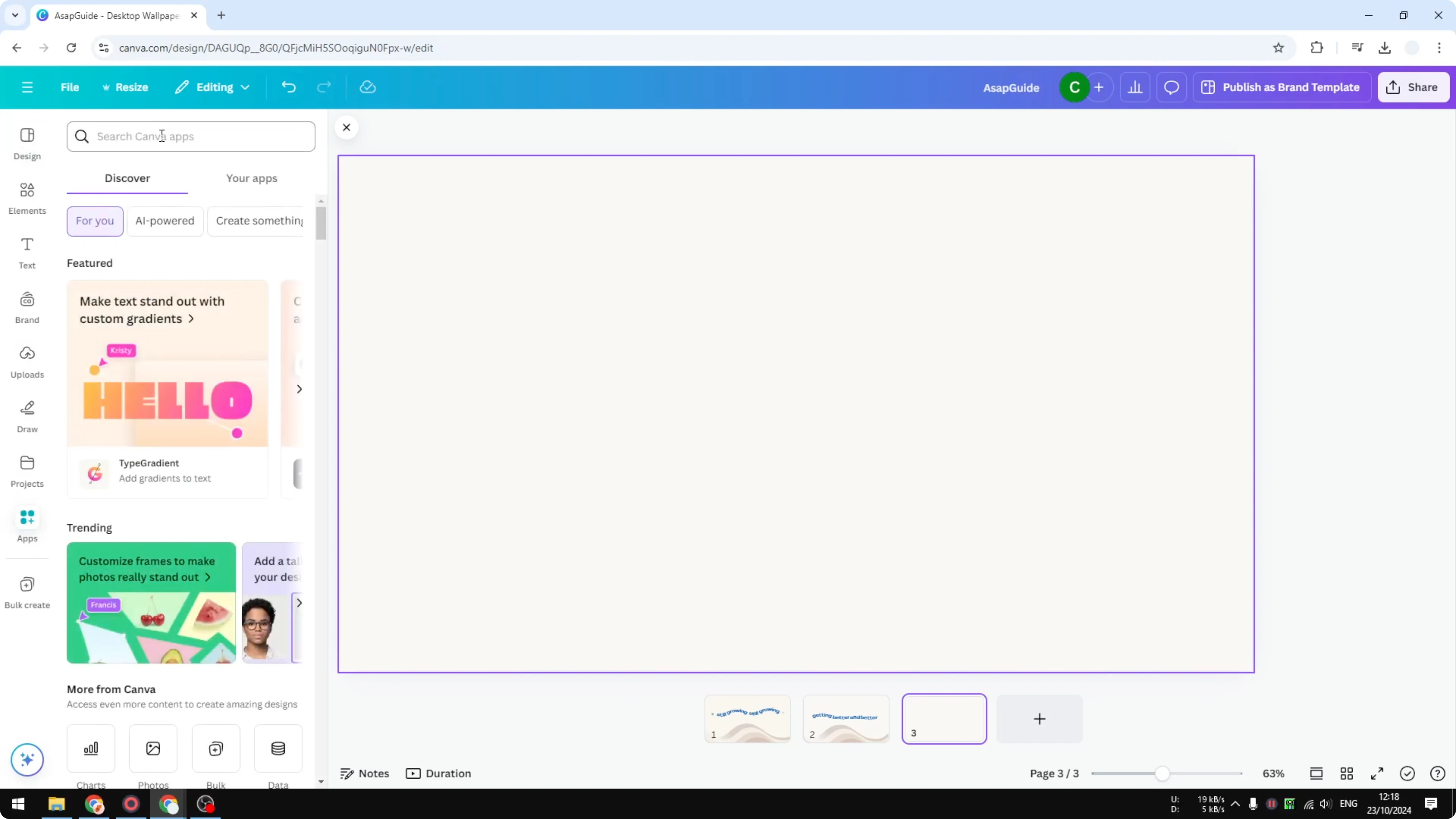
The second method is going to involve a third party tool inside Canva, and it is a little easier compared to the first method. Add a new page. Go to Apps and search for a tool called Typcraft, then open it.
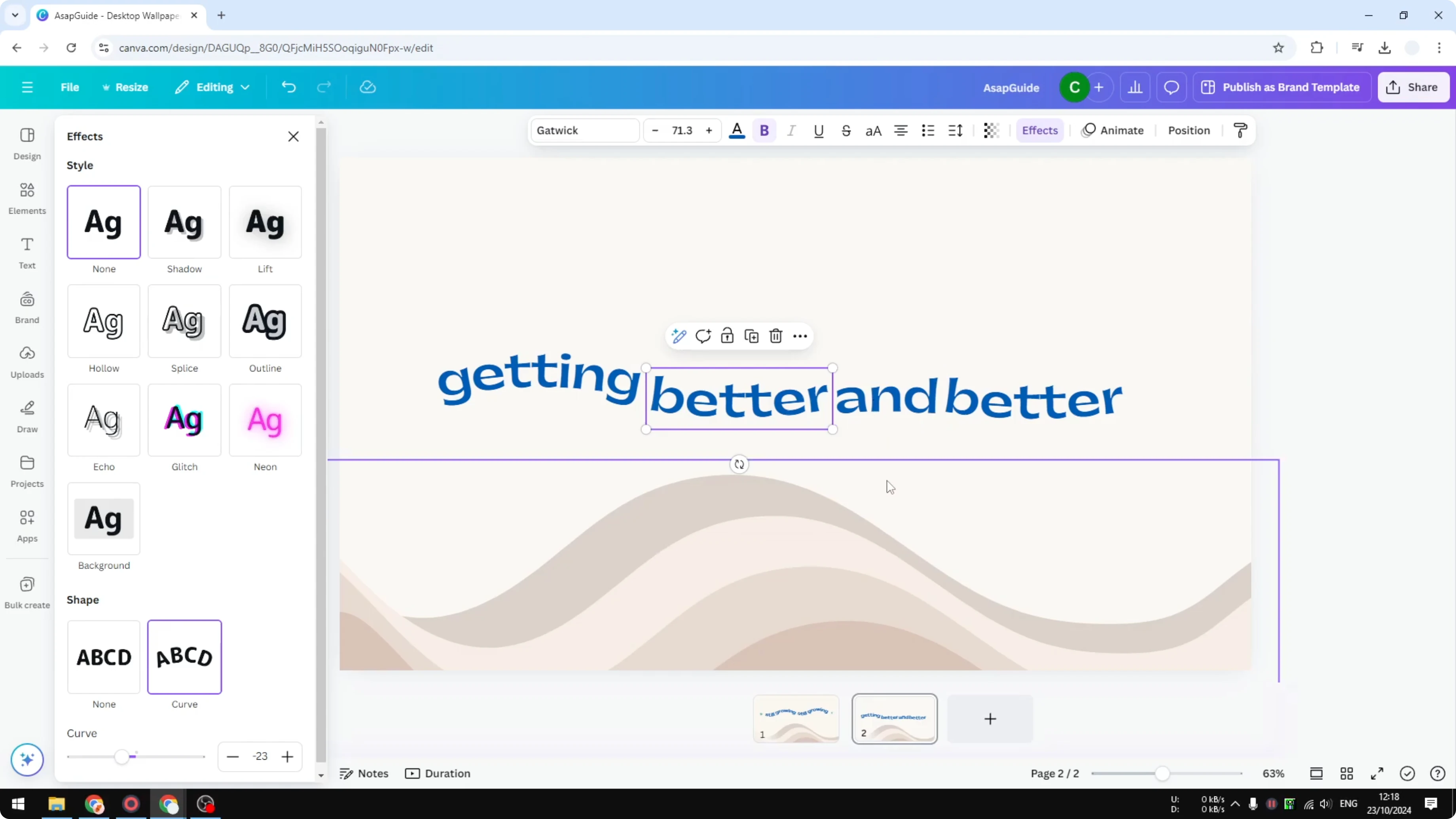
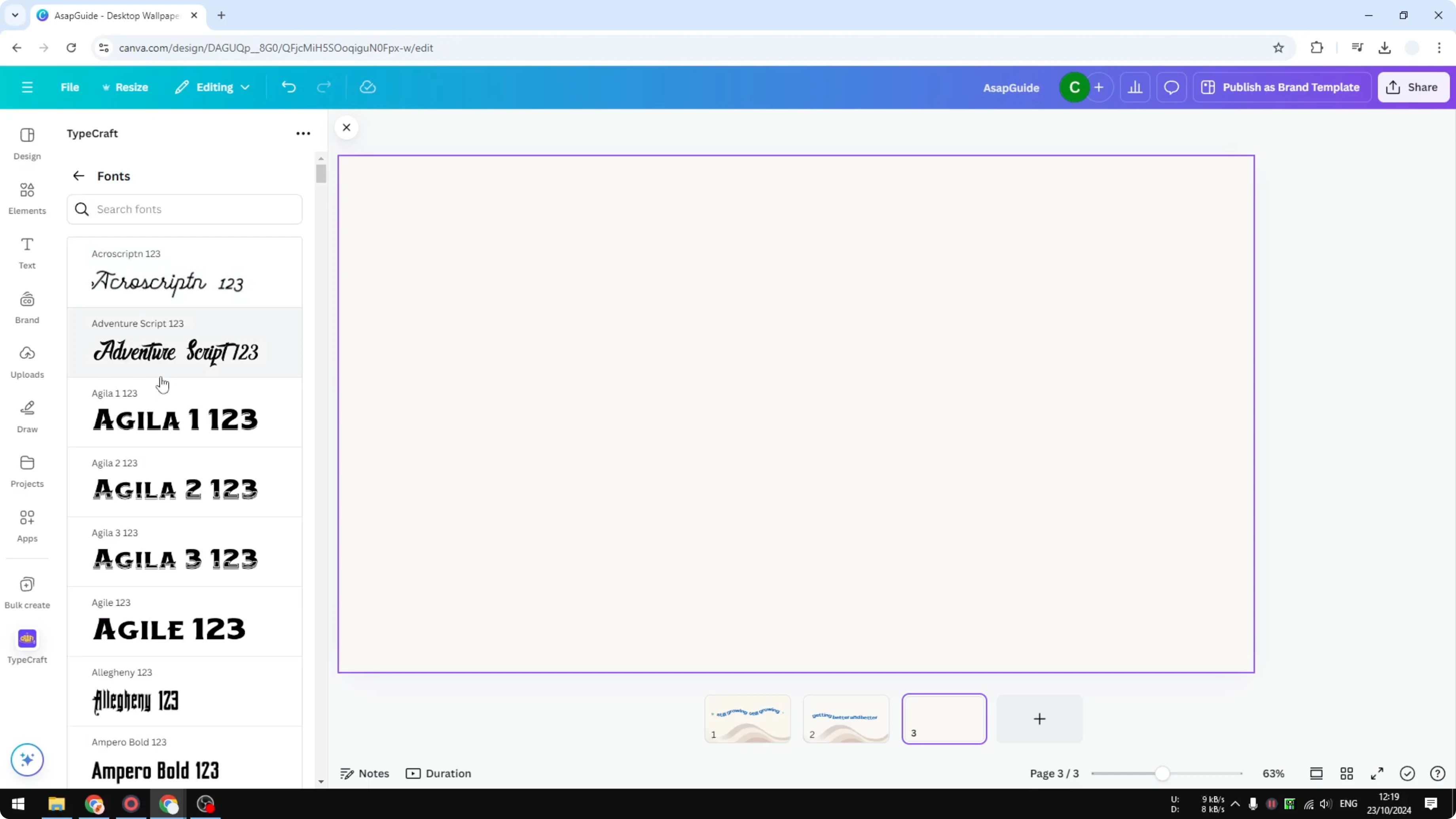
Type your text and choose a font and color if you want to. I recommend sticking with No mirror for the mirror points. Horizontal and Vertical mirror are used if you want the same curve level on the opposite side of the text, but usually it is not needed.
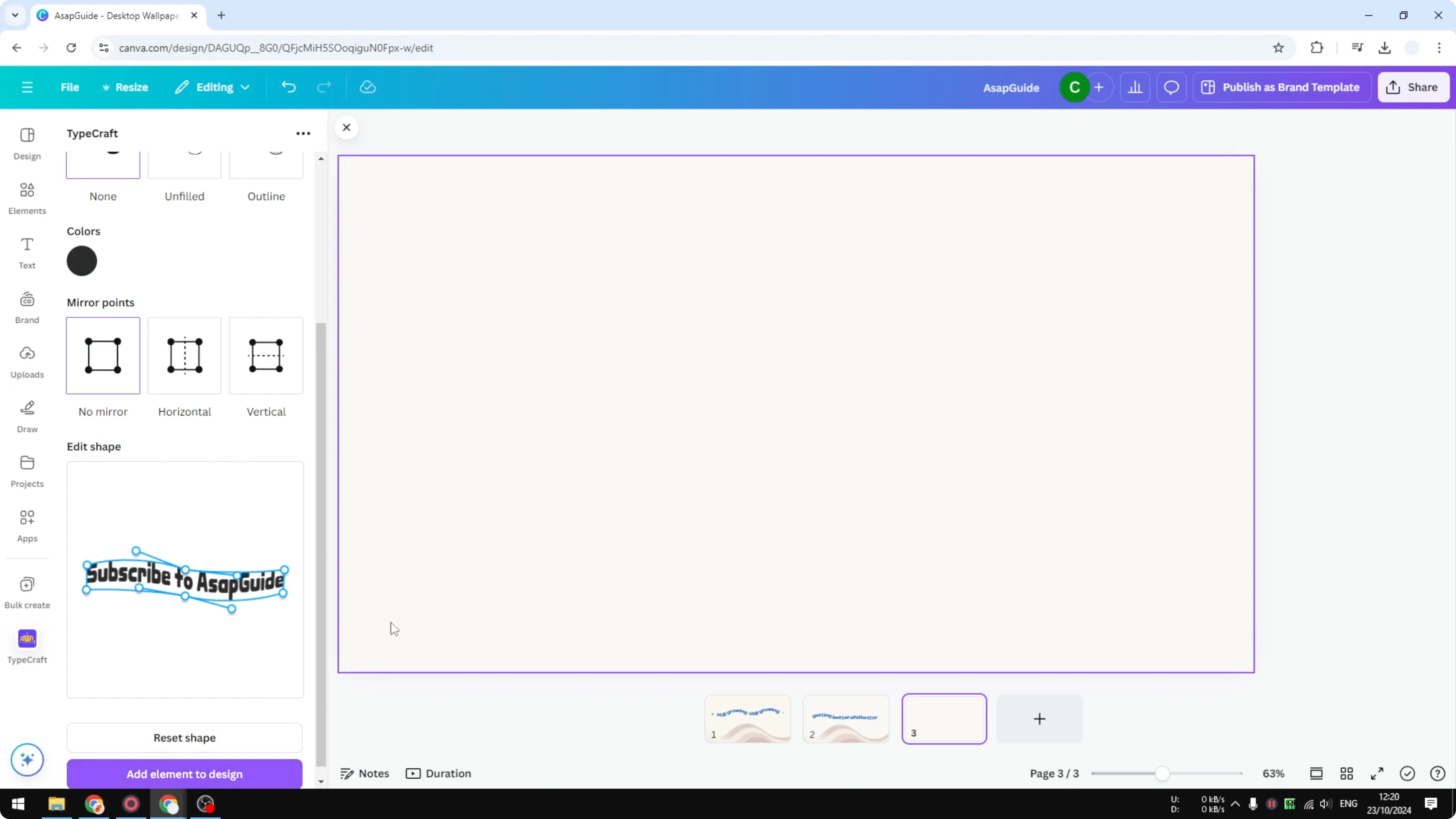
To make the text look more curved, click any control point and drag it up or down. Adjust each point to set the curvedness level for that section. Be careful not to push letters out of proportion.
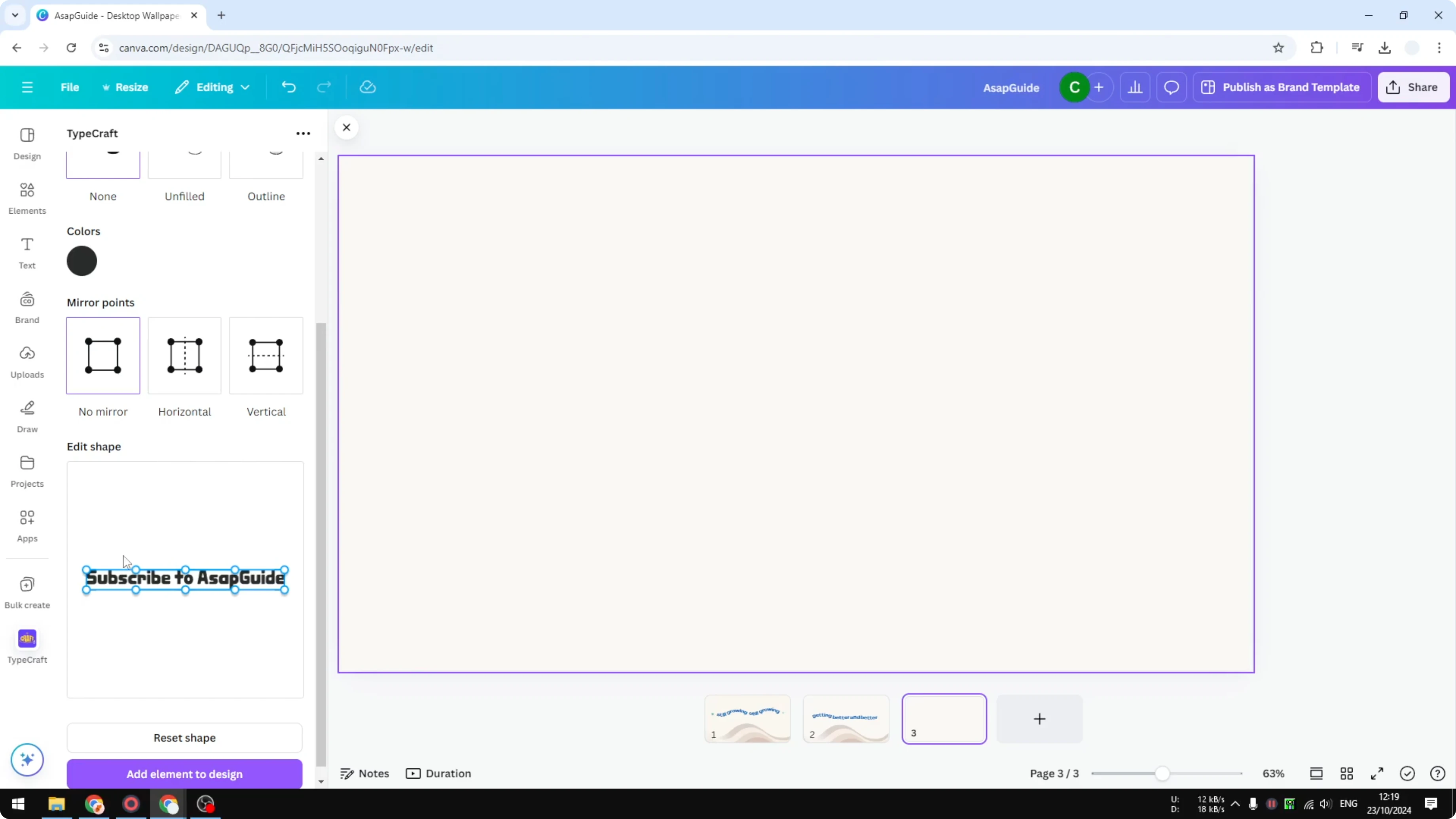
When you are done, click Add element to design. The text will be inserted into your canvas as a wavy element. That is exactly how you can create a simple wavy text in Canva with Typcraft.
For adding depth after shaping your wave, you can apply an echo text effect to the final type.
Final thoughts on Create Wavy Text in Canva
A wavy text is a series of curved segments, and you can build it by curving each word manually or by editing points with Typcraft. The first method gives you control per word, while the second lets you shape the entire line with draggable points. After styling your wave, you can soften the finish with a quick faded text effect for a smooth look.
Recent Posts

How to Visualize Yourself as a Pixelized Character with AI?
How to Visualize Yourself as a Pixelized Character with AI?

How to Revive Faded Memories and Enhance Image Clarity with AI?
How to Revive Faded Memories and Enhance Image Clarity with AI?

How to Visualize Yourself as an Animal Crossing Character with AI?
How to Visualize Yourself as an Animal Crossing Character with AI?