How to Create Vignette Effect for Photo in Canva
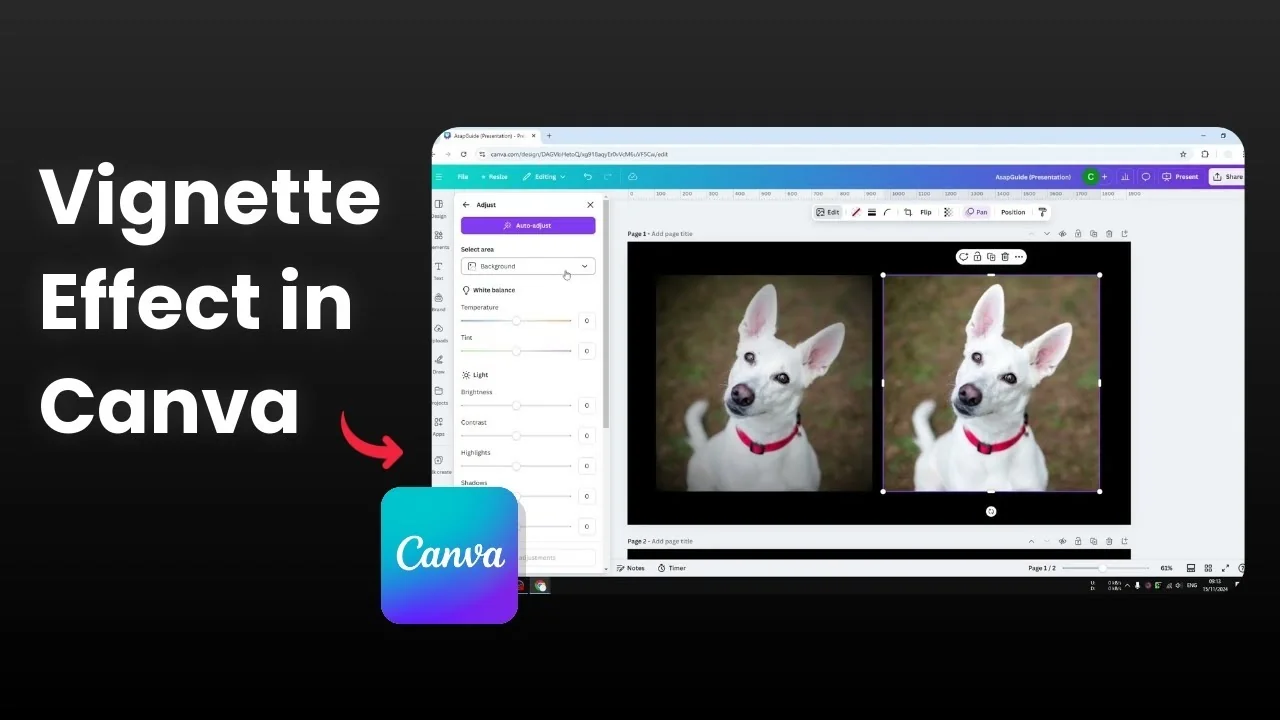
I’ll show you how to create a cool vignette effect in Canva, and the best part is you don’t need any external tool. This feature is built right into the platform. The vignette effect is popular because it’s simple and powerful, adding emotion to an image.
A vignette is essentially a dark gradient around the edges of a photo. It makes the center of the photo look brighter, so attention naturally goes there. It’s a simple but effective effect you can apply in Canva.
Why Create Vignette Effect for Photo in Canva
A subtle dark edge creates instant focus on the subject. It adds mood and keeps distractions at the edges from pulling the eye. You get a clean, professional look with minimal effort.
If you’re after more depth-of-field style blur, see this bokeh effect tutorial to complement your vignette.
Basics to Create Vignette Effect for Photo in Canva
Click the image.
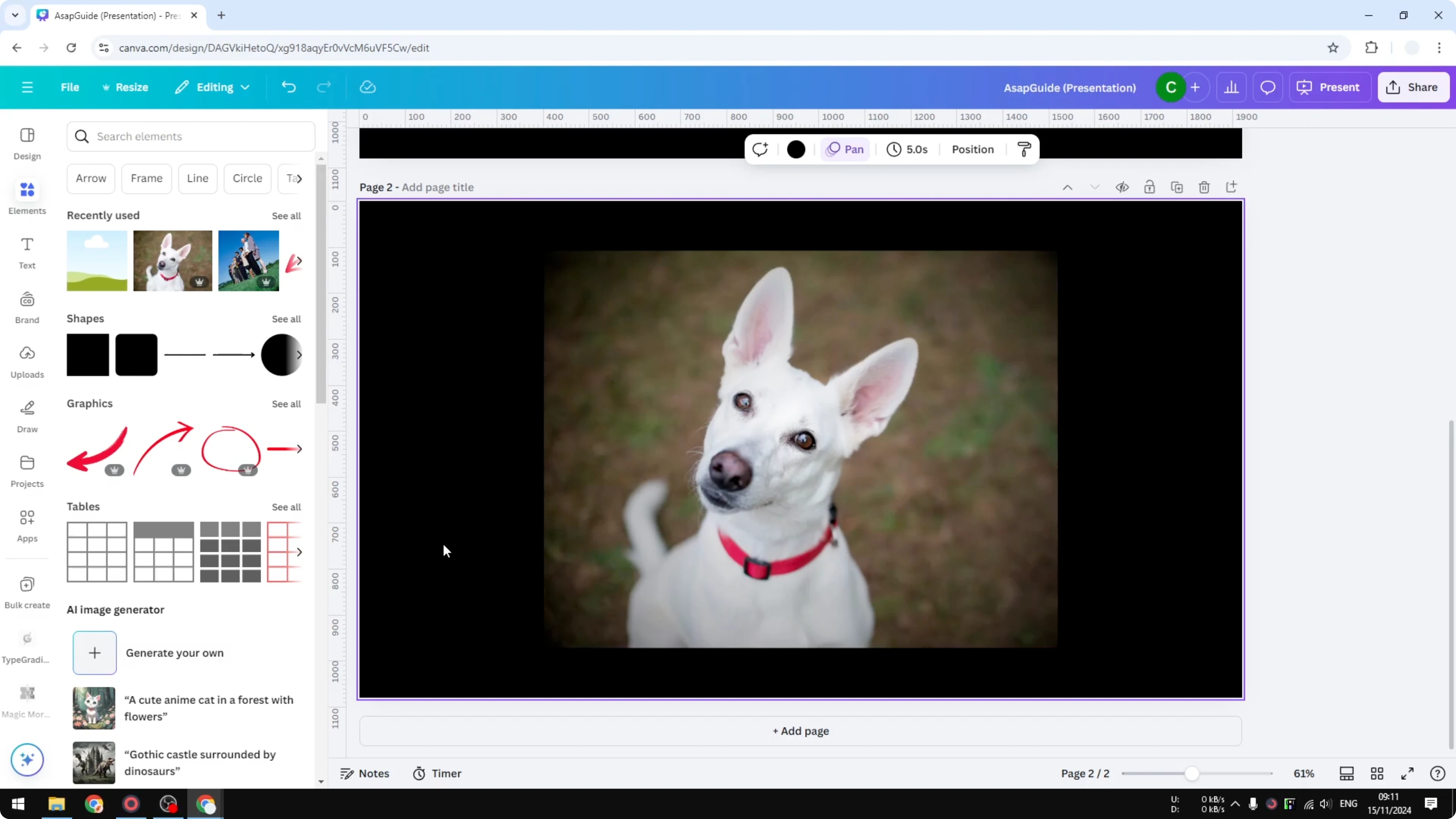
Click Edit.
Open Adjust.
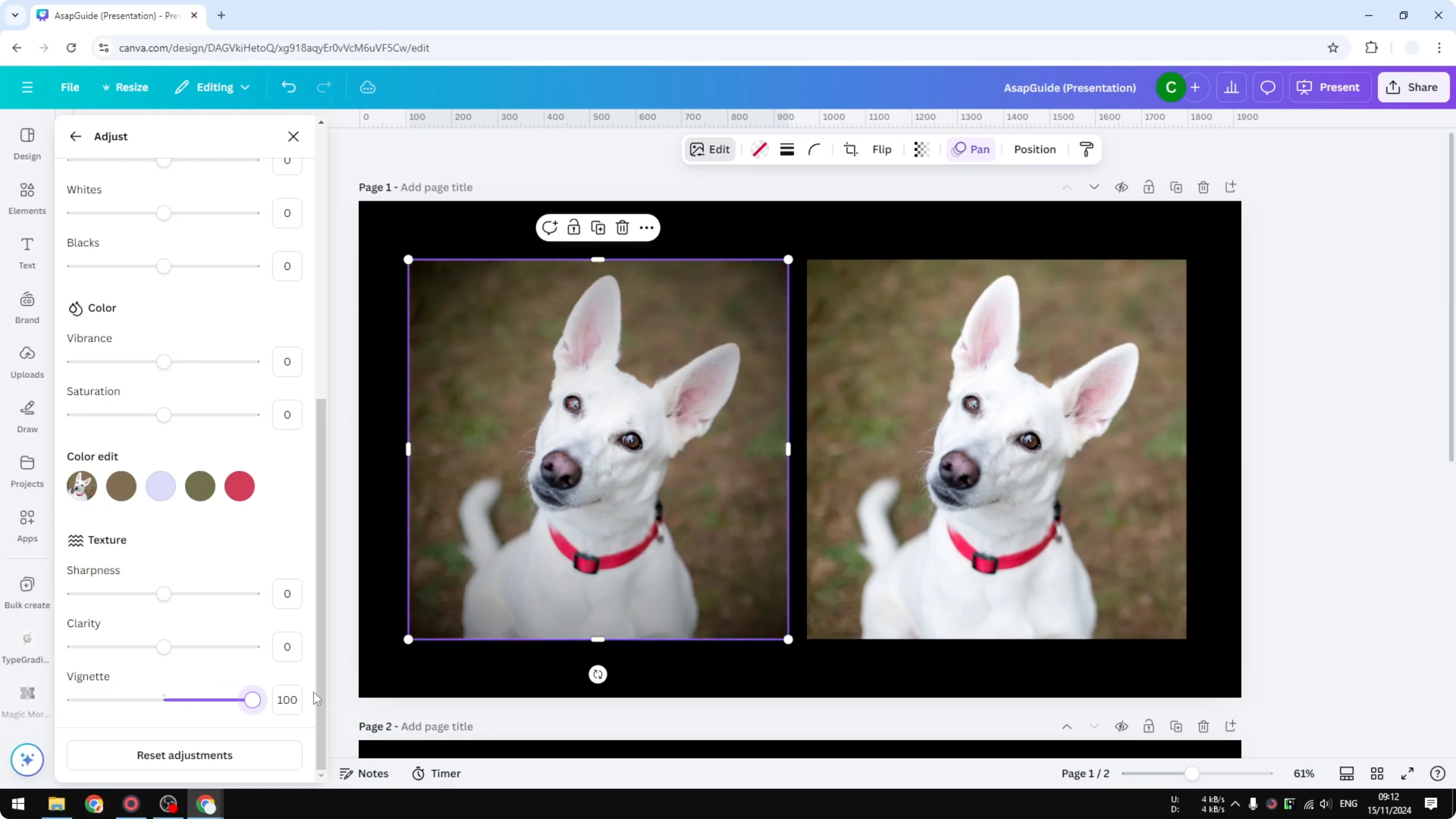
Scroll to the bottom and find the Texture section.
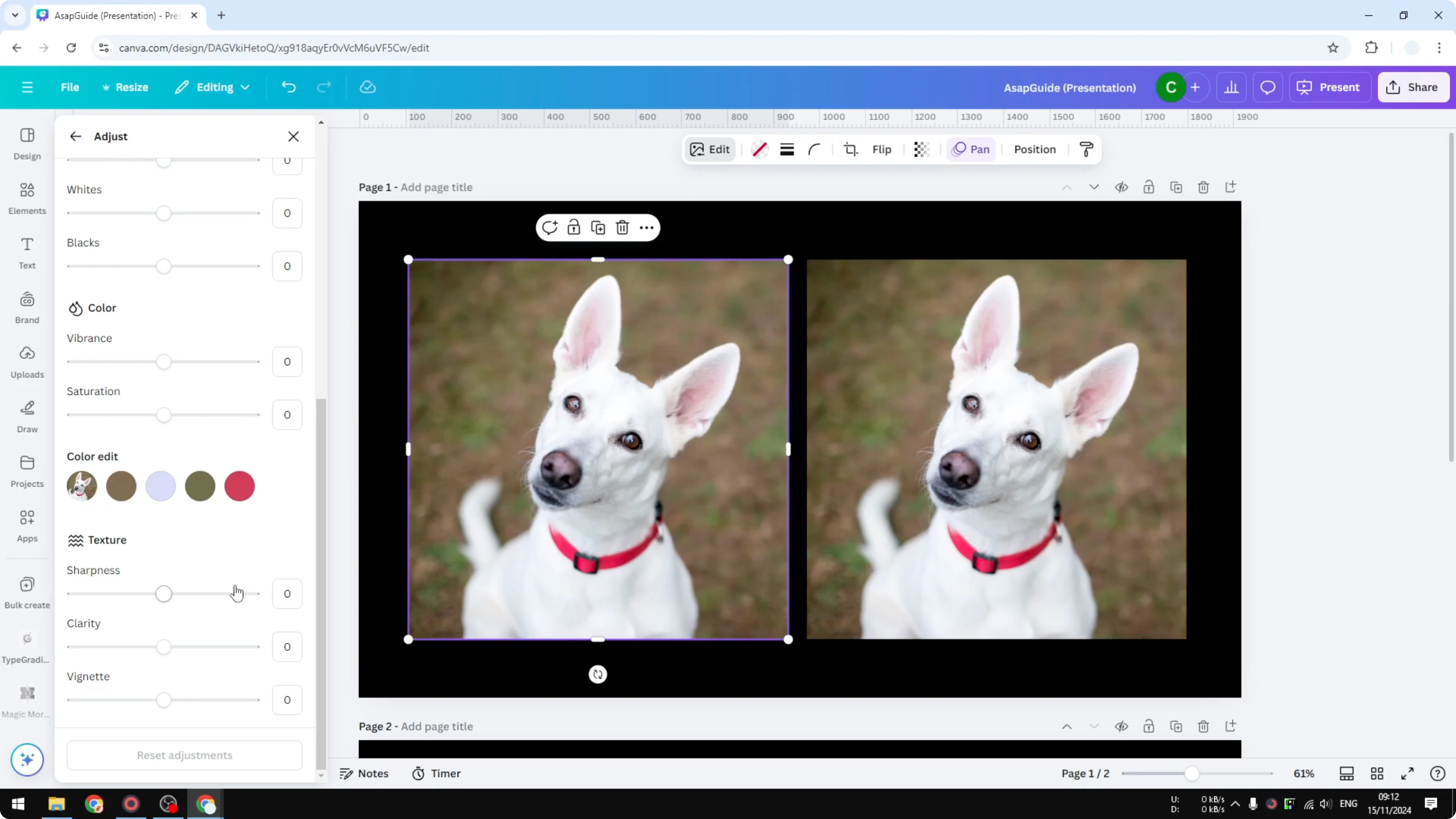
Move the Vignette slider to the right to add the effect.
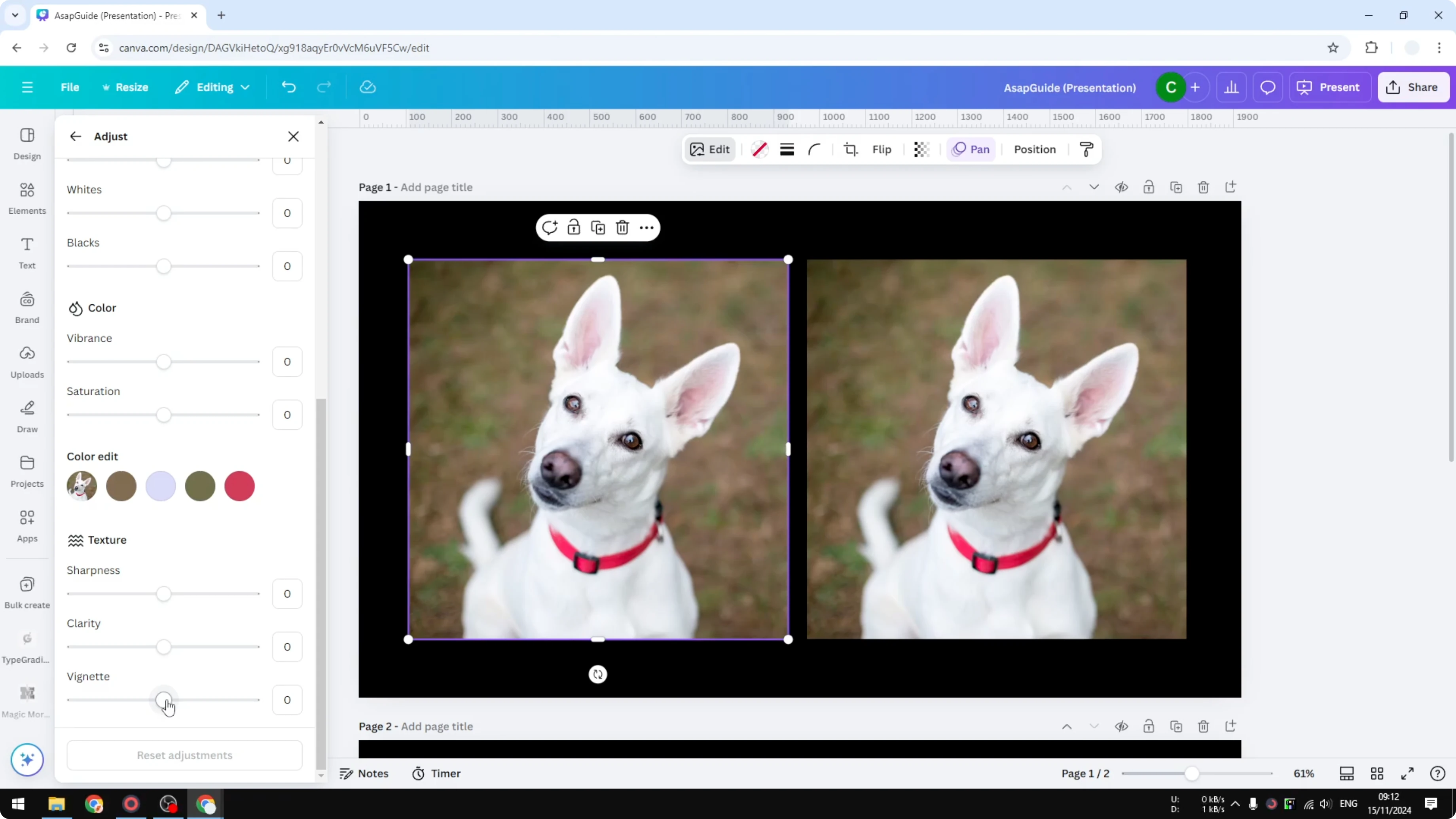
If you set Vignette to 100 percent, the area around the subject gets much darker while the center stays brighter. This creates a strong focus and looks pretty cool. It works well right away.
For a more stylized look, try turning your subject into an illustration with this cartoon effect in Canva AI.
Create Vignette Effect for Photo in Canva with Background Selected
Click the image.
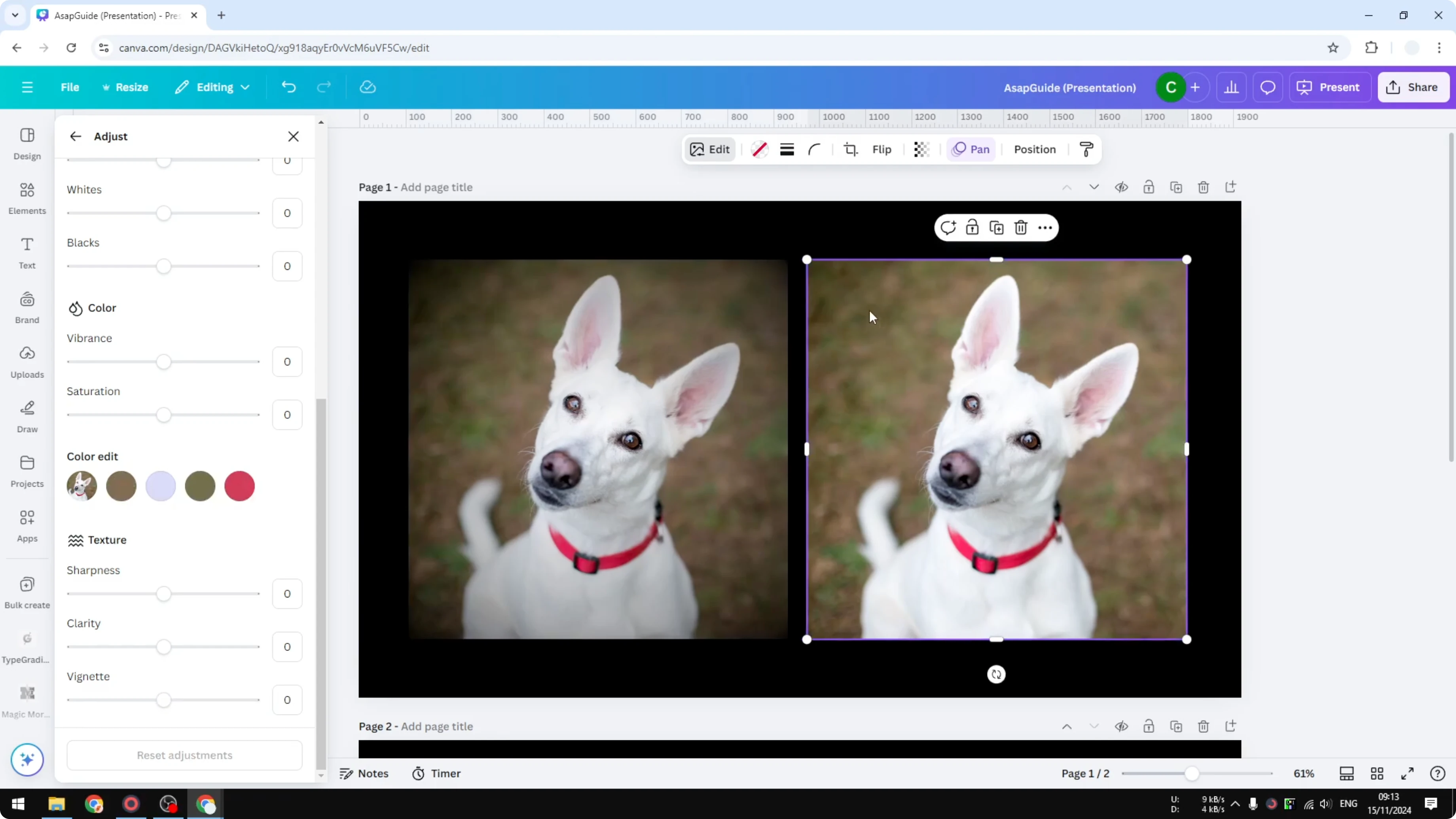
Click Edit.
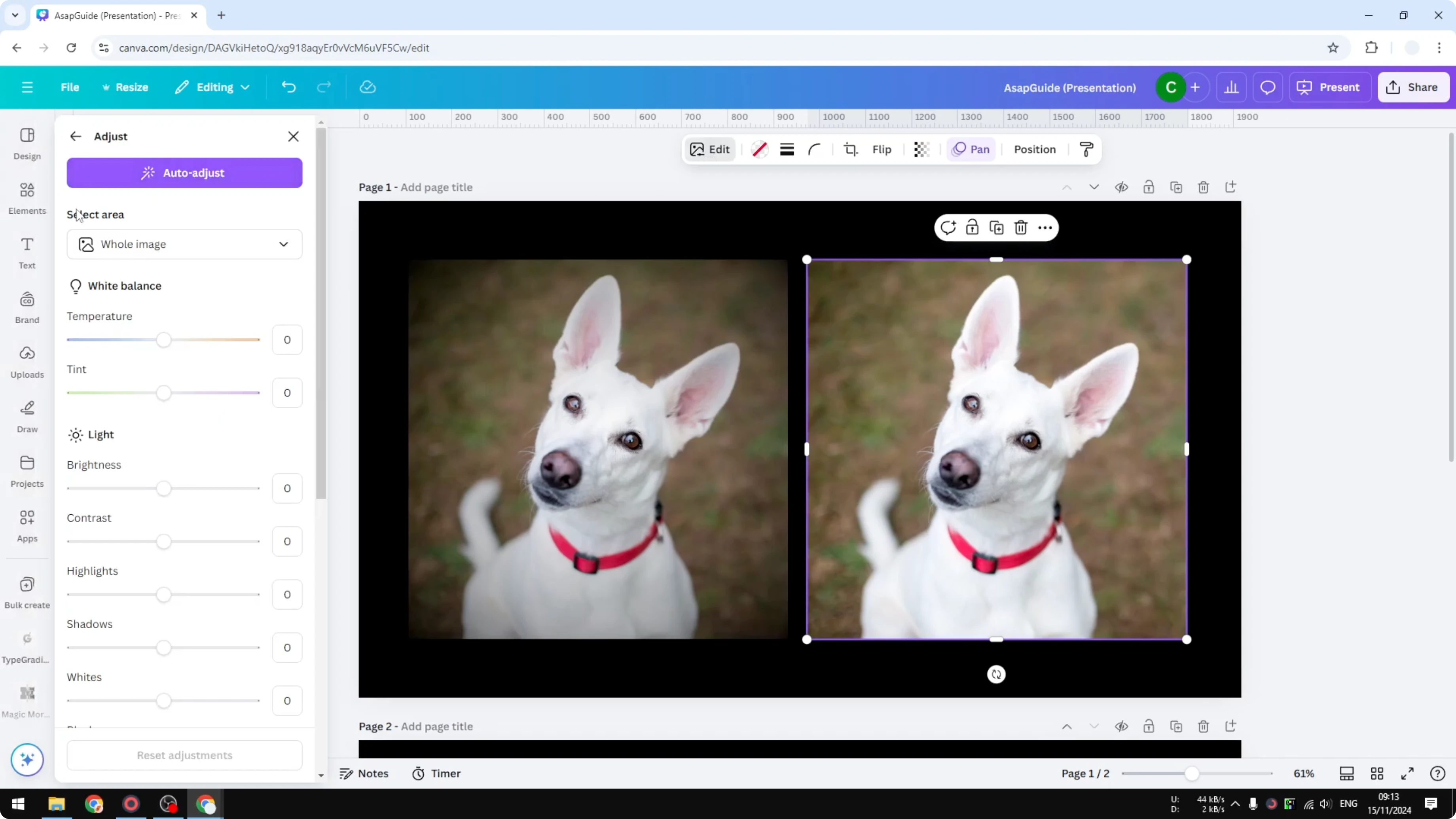
Open Adjust.
In Select area, choose Background so the vignette affects only the background while the subject stays untouched.
Open Vignette and increase it, even up to 100 percent if needed.
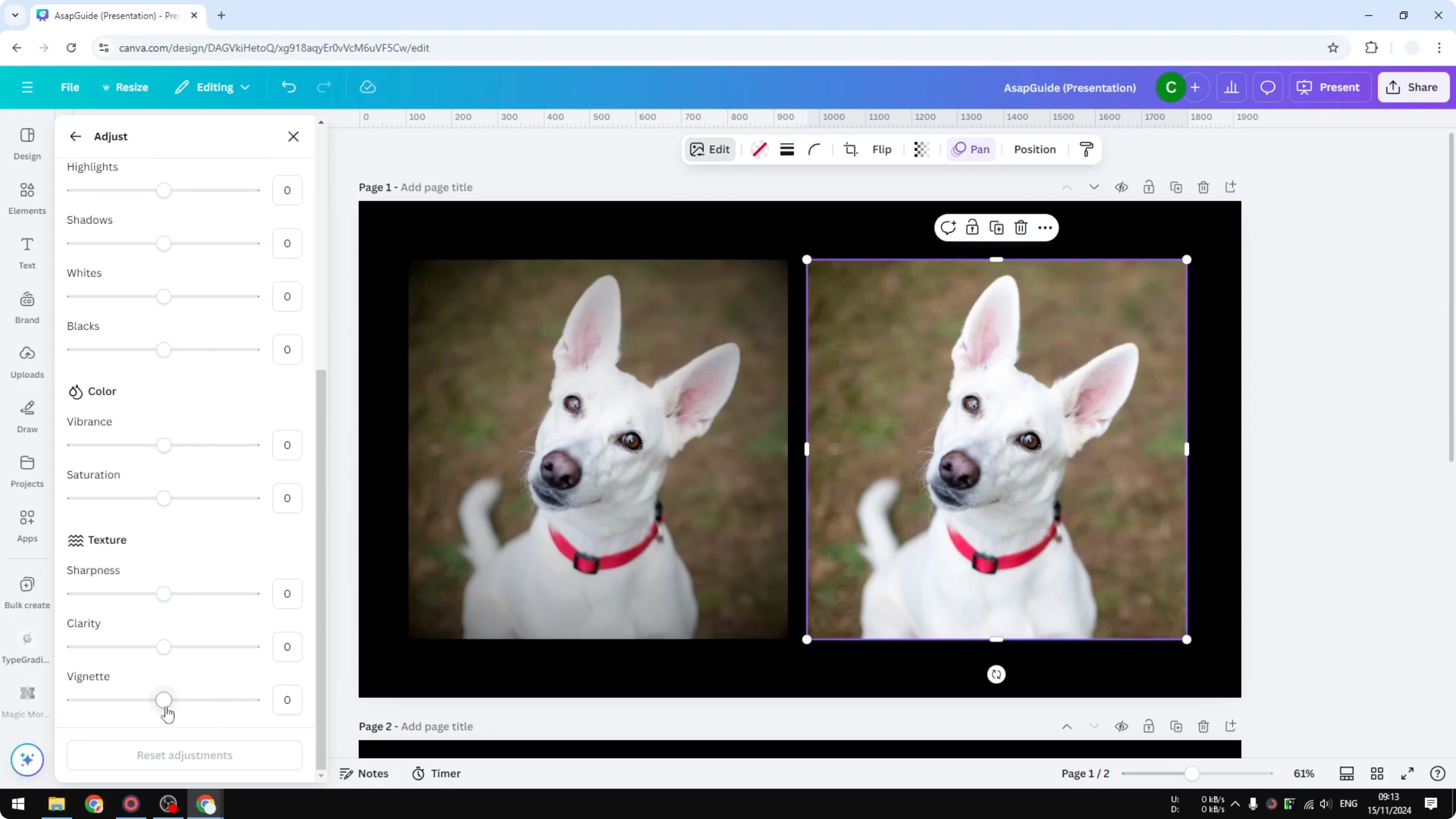
This background-only approach usually looks better than the traditional method. The vignette is still there, but it doesn’t obstruct the subject. The center stays very bright, and the overall result is stronger.
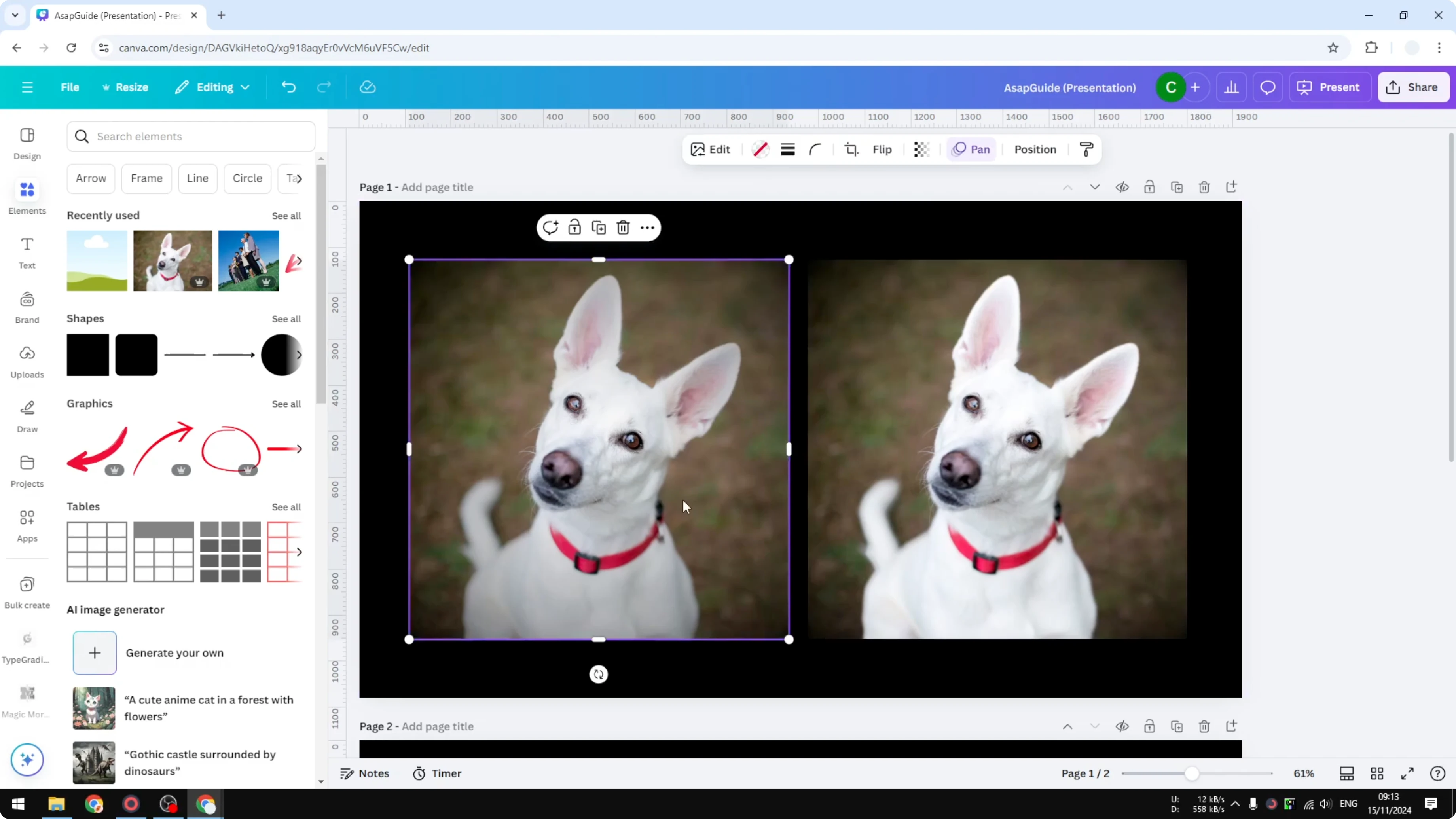
Want more creative looks after the vignette is set? Explore this distortion effect guide for dynamic visual twists.
Final thoughts
The built-in vignette in Canva is quick to apply and instantly boosts focus. Use the basic slider for a fast result, or target only the background to keep your subject crisp and bright. This small adjustment adds a lot of emotion and clarity to your photo.
Recent Posts

How to Visualize Yourself as a Pixelized Character with AI?
How to Visualize Yourself as a Pixelized Character with AI?

How to Revive Faded Memories and Enhance Image Clarity with AI?
How to Revive Faded Memories and Enhance Image Clarity with AI?

How to Visualize Yourself as an Animal Crossing Character with AI?
How to Visualize Yourself as an Animal Crossing Character with AI?